
Adding New Products
Overview
Your catalog holds every product you sell on your website, the BloomNation marketplace, and in your POS. Each product has a type, a name and description, categories, pricing for up to three sizes, and settings for how and where it's sold.
The Create Product page is split into five numbered sections. Use Jump to Section on the right to move between them.
Some options only show up if your shop uses that feature, like Instacart, Uber Eats, loyalty rewards, or alcohol sales. If you don't see something in this article, that's usually why.
How to add a product
- Go to Catalog >> in your POS.
- Click Add Product in the top-right corner.
- Fill in each section: About this product, Categories, Variants & pricing, Customer choices, and Product Customization.
- Check the Recommendations and Quick Toggles on the right.
- Click Publish Product.
If you leave before publishing, your product is saved in Draft Products. You'll find it under Catalog Products in the left-hand menu. Go to Draft Products >>
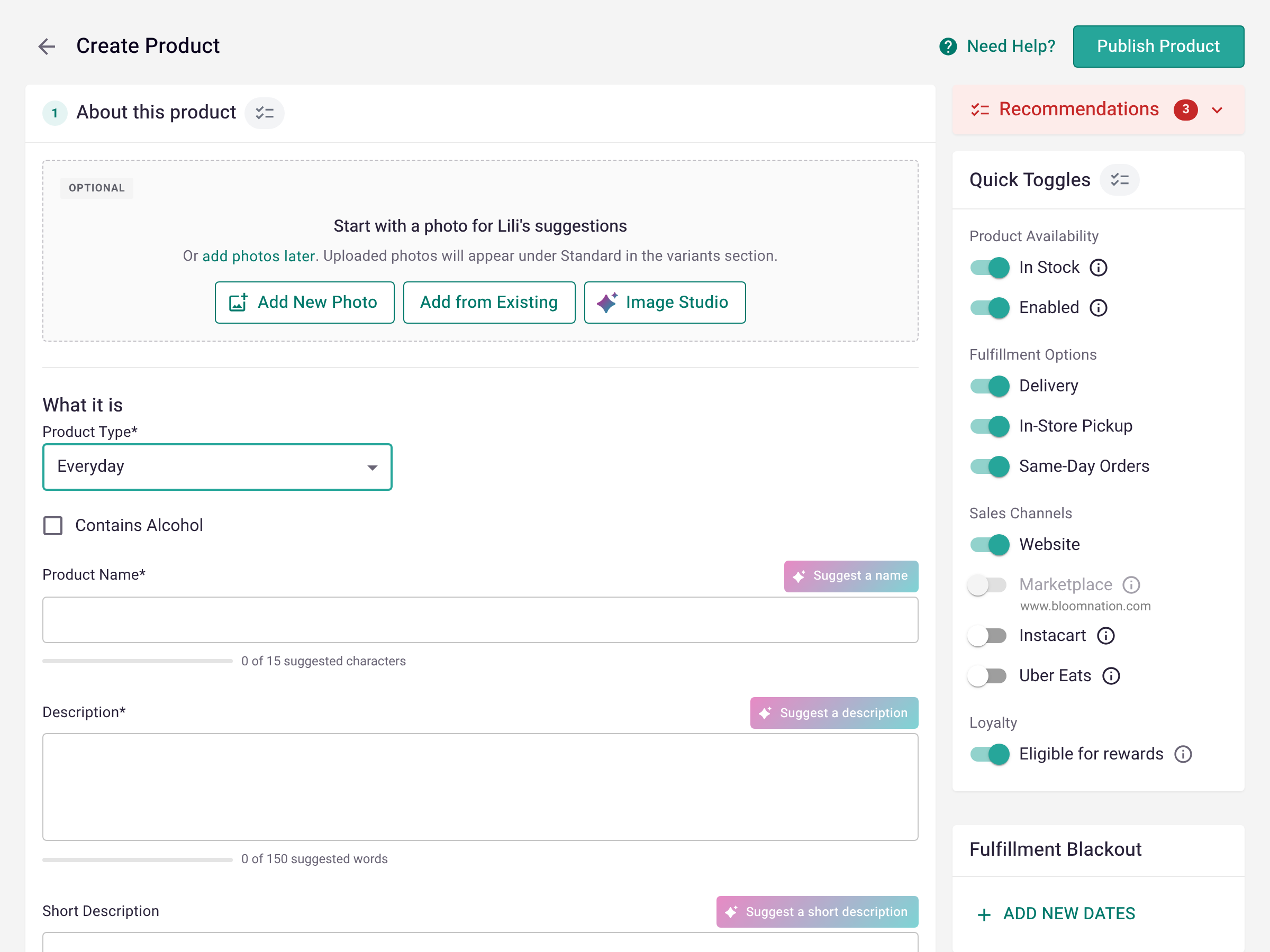
1. About this product
Start with a photo (optional)
Add a photo at the top of the page and Lili can suggest a name, descriptions, and categories for you. Photos you add here appear under Standard in the Variants & pricing section.
Choose Add New Photo, Add from Existing, or Image Studio. Learn how Lili works in Products >>
Product Type
Pick the type that fits what you're selling. The rest of the page changes based on your choice.
- Everyday: most arrangements
- Wedding: pick the kind of wedding product from the Wedding Product list
- Event: products for events
- Cross-Sell Only: add-ons that can't be bought on their own. Learn about add-ons >>
- Gift Card: gift cards for your shop
- Other: non-floral items. Pick an Other Type, like Candles, Baked Goods, Jewelry, or Gift Basket
If your shop sells alcohol, check Contains Alcohol for any product that includes it. Alcohol products can't be sold on the BloomNation marketplace. You'll only see this checkbox if alcohol sales are turned on for your shop. Learn about selling alcohol >>
Product details
- Product Name: a short, clear name. Click Suggest a name for ideas from Lili.
- Description: the flowers, colors, and container in the design. Click Suggest a description for help.
- Short Description: up to 250 characters. Used where there's limited space, like cross-sell sections.
- Show in Cross-Sells: check this to also offer the product as an add-on on the product page or at checkout.
- + Add care instructions: optional care tips for the customer.
- Item Number and Barcode: optional. If you use FTD Mercury POS, enter the Mercury product ID as the item number.
2. Categories
Categories help customers find your products on your website and the marketplace.
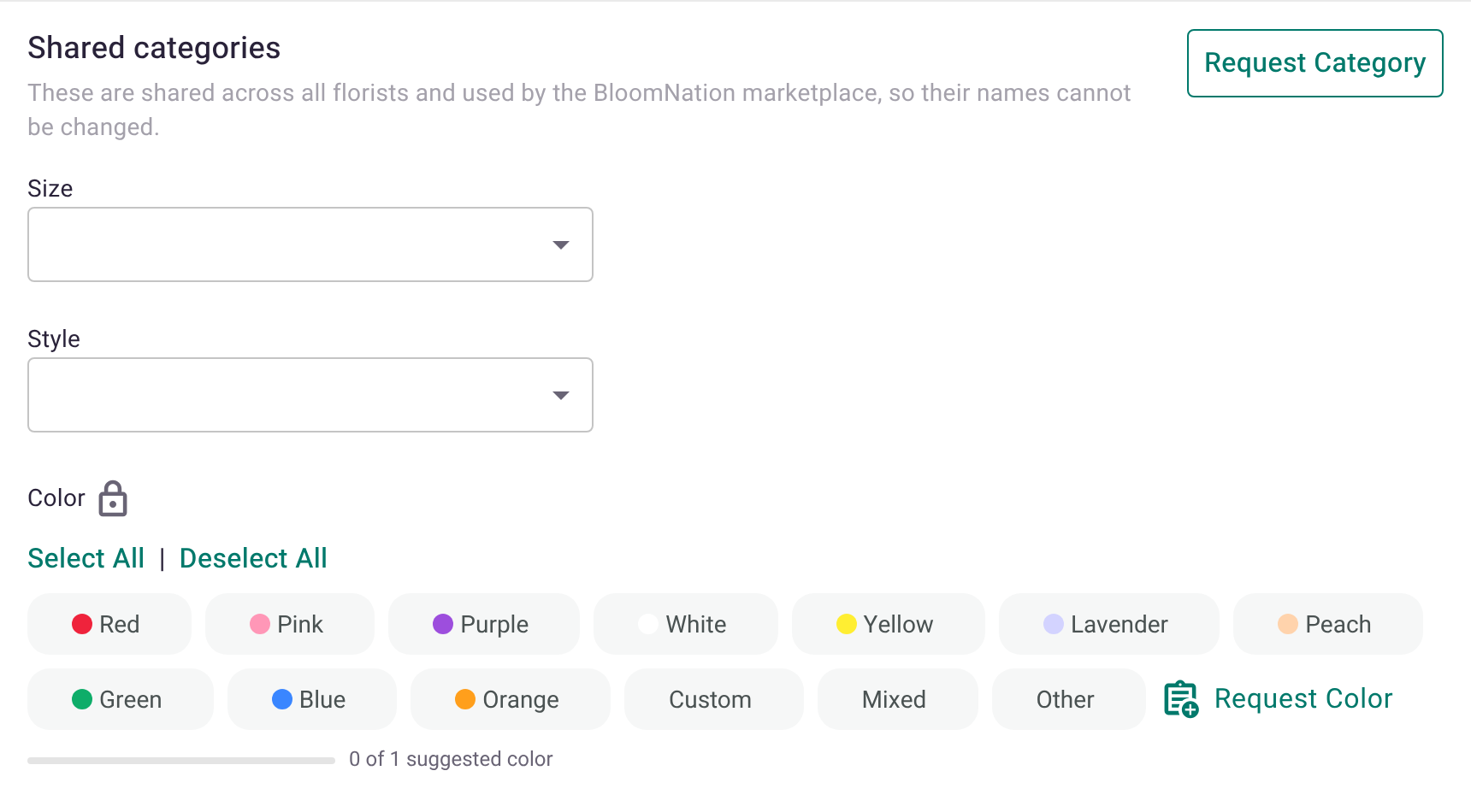
Shared categories are used by all florists and the BloomNation marketplace, so their names can't be changed:
- Size: Short, Medium, or Tall
- Style: Traditional, Modern, Grand, or Ramos Buchónes
- Color, Occasions, and Flower Type: select all that apply
If you added a photo, click Apply Suggestions to use Lili's picks. Don't see what you need? Click Request Category, Request Color, or the matching request link.
Your own categories are yours to name and reorder. Use them for reporting, cross-sell sets, or featuring groups of products on your website. Learn about custom categories >>
3. Variants & pricing
Each product can come in three sizes, called variants: Standard, Deluxe, and Premium. Each variant has its own card with its own price, photos and videos, description, and recipe. Click Open all to expand every card.
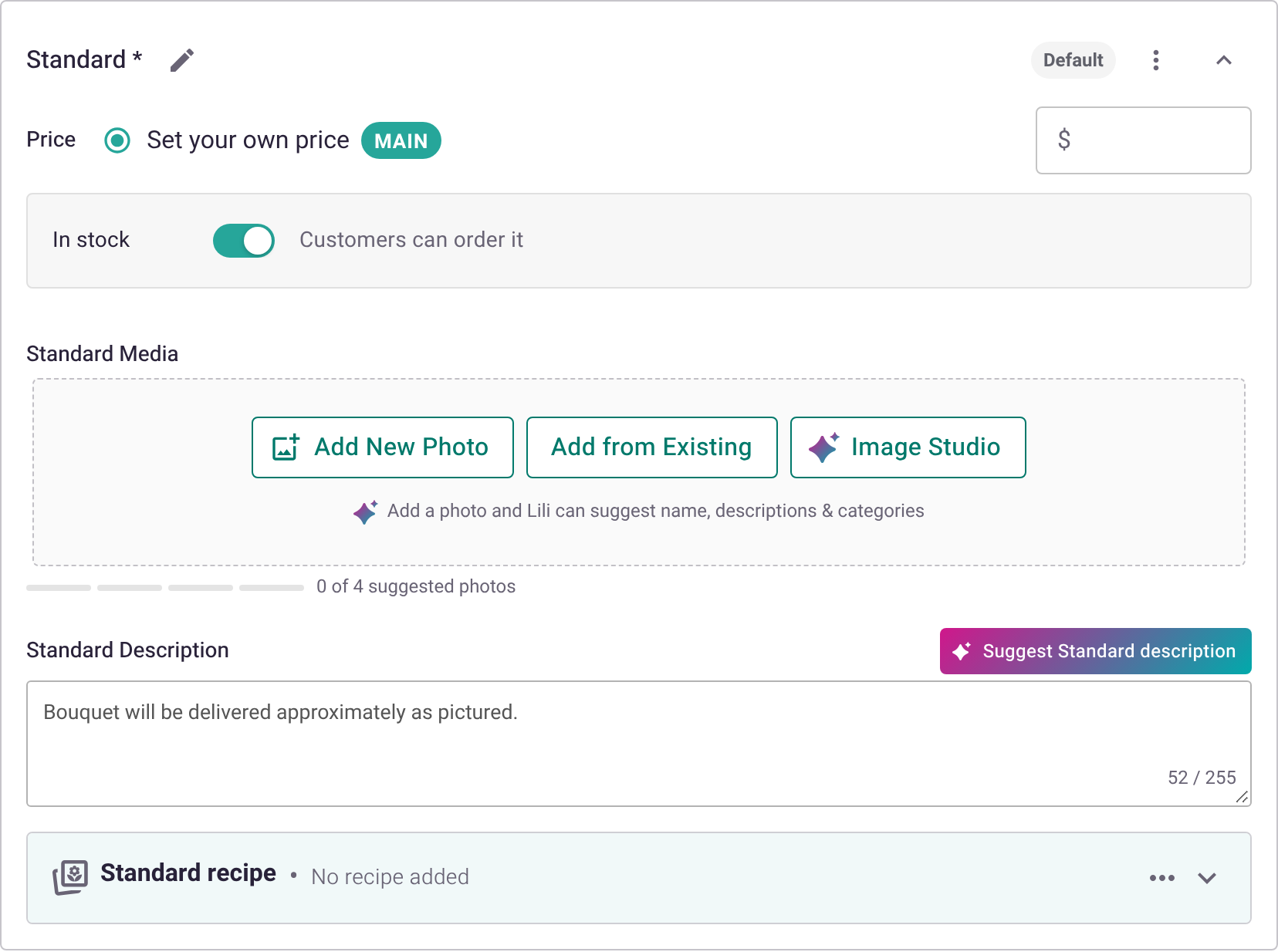
Standard
Standard is the main version of your product.
- Price: enter your price.
- In stock: turn this off to show the product as sold out online. It stays available in your POS.
- Standard Media: add photos and videos (see below). Lili can suggest details from your photos.
- Standard Description: what the customer gets at this size. Click Suggest Standard description for help.
- Standard recipe: add ingredients to track costs and get a suggested price. Learn about recipes >>
Deluxe and Premium
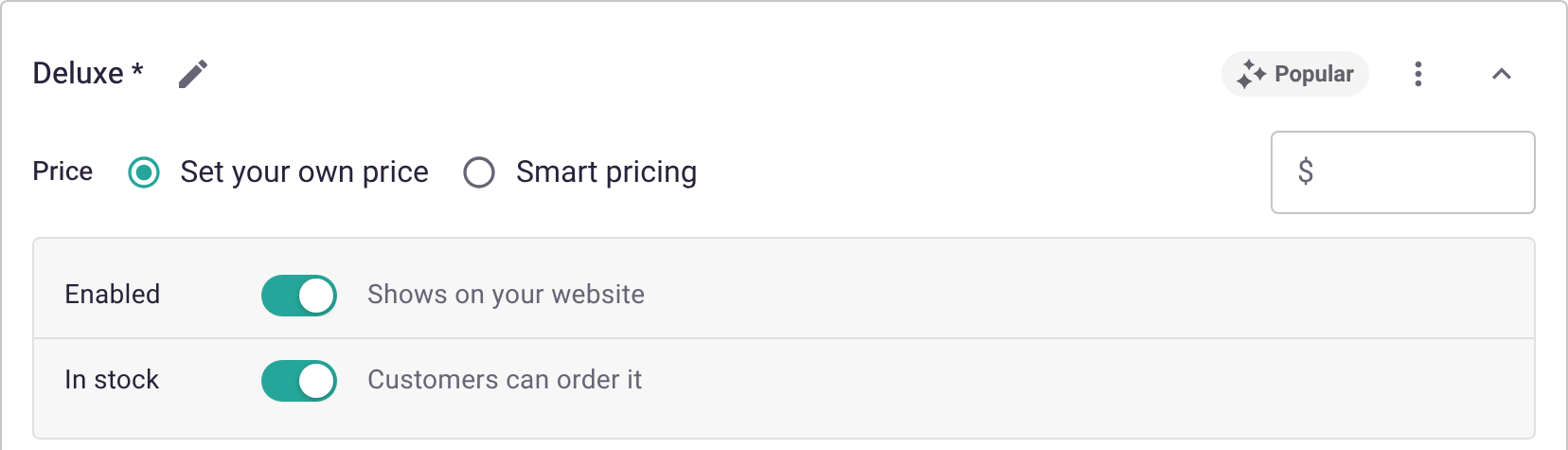
Deluxe and Premium are upgraded versions of the product. They have the same fields as Standard, plus:
- Price: choose Set your own price or Smart pricing. Smart pricing raises the price above Standard for you.
- Enabled: turn this off if you don't want to offer this size. It won't show on your website.
Photos and videos
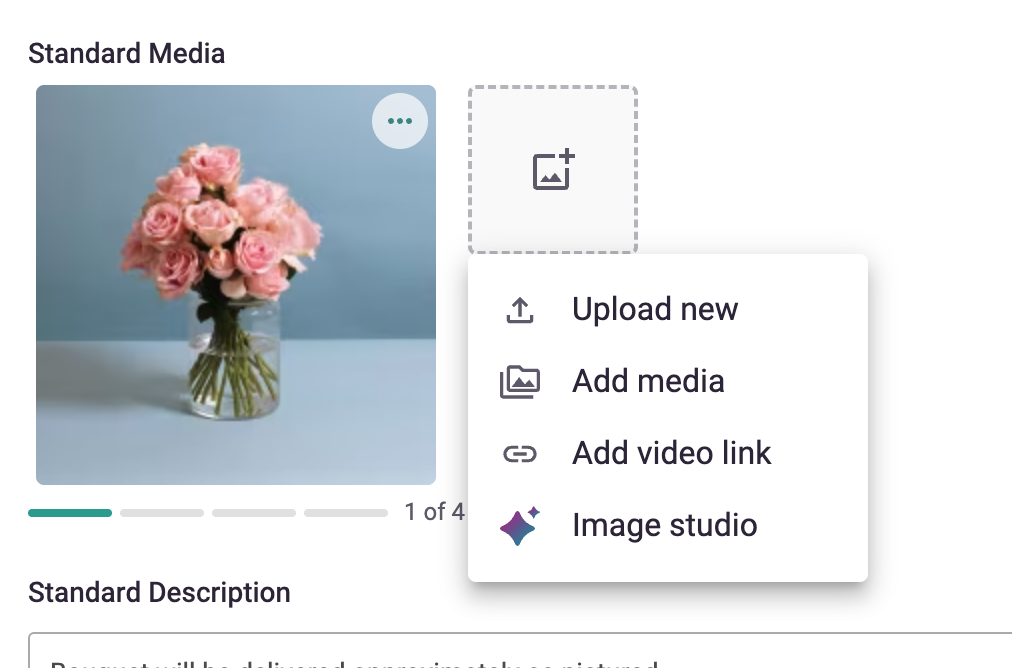
Each size has its own media, so customers can see what they get with an upgrade. We suggest up to 4 photos per size. The first photo is the main one customers see.
To add your first photo, click Add New Photo, Add from Existing, or Image Studio on the card. After that, click the gray box next to your photos to add more:
- Upload new: upload a photo from your computer.
- Add media: pick a photo or video from your asset manager.
- Add video link: paste a link to a YouTube video or Short, a Vimeo video, an Instagram reel, or a TikTok video.
- Image studio: edit a photo or create a new image, like a Designer's Choice image.
To edit, replace, or delete a photo, click the three-dot menu on it. Learn how to edit product images >>
Default and Popular sizes
- Default: the size that's already selected when a customer opens the product page from your website. For example, if Deluxe is the default, customers who click through from a category page see Deluxe first.
- Popular: a badge that points customers toward one size.
To change either one, click the three-dot menu on a variant card and choose Set as the default or Set as most popular. To take the badge off, choose Remove most popular badge.
More variant options
- Click the pencil icon next to a variant's name to rename it.
- Check Exclude this product from sales tax at the top of the section if the product isn't taxed.
4. Customer choices
Let customers personalize the product when they order, like picking a flower color or vase, or adding a ribbon message. You can add up to 3 choices per product and charge extra for any option.
Learn how to add customer choices >>
5. Product Customization
Under Cross-sell display rules, choose which add-ons show with this product:
- Category match (default): shows add-ons that share this product's categories.
- Select a specific category: pulls add-ons from one category, like a cross-sell set.
- Don't show cross-sells: no add-ons for this product.
Learn about cross-sell sets >>
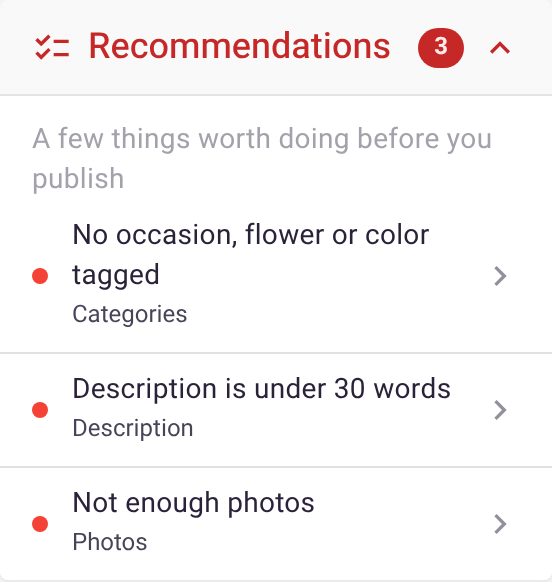
Recommendations
The Recommendations panel on the right lists a few things worth doing before you publish, like tagging occasions, writing a longer description, or adding more photos. Click any item to jump to it. These are suggestions, so you can still publish without them.
Quick Toggles
Use the toggles on the right to control where and how the product is sold.
Product Availability
- In Stock: the product is available for sale. Out-of-stock products show as sold out online but stay for sale in your POS.
- Enabled: the product is active in your catalog. Turn this off to hide it online and in your POS.
Fulfillment Options
- Delivery, In-Store Pickup, and Same-Day Orders: turn off any option you don't offer for this product.
Sales Channels
- Website: show the product on your website.
- Marketplace: show the product on the BloomNation marketplace. If this is grayed out, contact Partner Support.
- Instacart and Uber Eats: show the product on those apps. You'll only see the toggle for each app your shop is enrolled in.
Instacart and Uber Eats only list floral arrangements. Cross-sell only items, gift cards, and products with alcohol can't be listed there. Instacart eligibility >> Uber Eats eligibility >>
Sell a product only in your POS
To make a product in-store only, turn off every sales channel. You'll see the message "Your product will only be available for sale in your POS." The product won't show online, but you can still add it to orders in your POS. You'll find it under the In-Store Only tab in your catalog.
Loyalty
- Eligible for rewards: customers can earn and redeem loyalty points on this product. You'll only see this if your shop has loyalty rewards turned on.
Fulfillment Blackout
Block delivery and pickup for certain dates. Click Add New Dates, then choose a start and end date. Learn about blackout dates >>
Tips
- Start with a photo. Lili can fill in your name, descriptions, and categories, which saves typing.
- Add a different photo for each size so customers can see what they get with an upgrade.
- Set your best-selling size as the default so customers land on it first.
- Tag colors, occasions, and flower types. They help customers find your products in search and on the marketplace.
Related articles
- Adding Customer Choices to a Product
- Upload Add-On or Cross-Sell Products
- Recipes Management
- Custom Categories
- Managing your Catalog & Products
- Use Lili to create product descriptions and details
- Edit Product Images in Your BloomNation POS
Need help?
If you have questions, our Partner Support team is here to help.
Phone: (210) 405-5050
Email: support@bloomnation.com