
Creating a Subscription Product
Updated Ver en español
Creating a Subscription Product
Want to keep your customers coming back for more? Subscription products make it easy for them to enjoy fresh flowers on a regular basis—whether for personal joy, business needs, or special occasions. Plus, they streamline your operations and boost customer loyalty effortlessly!
Check out this quick video, or keep scrolling for quick step-by-step instructions.
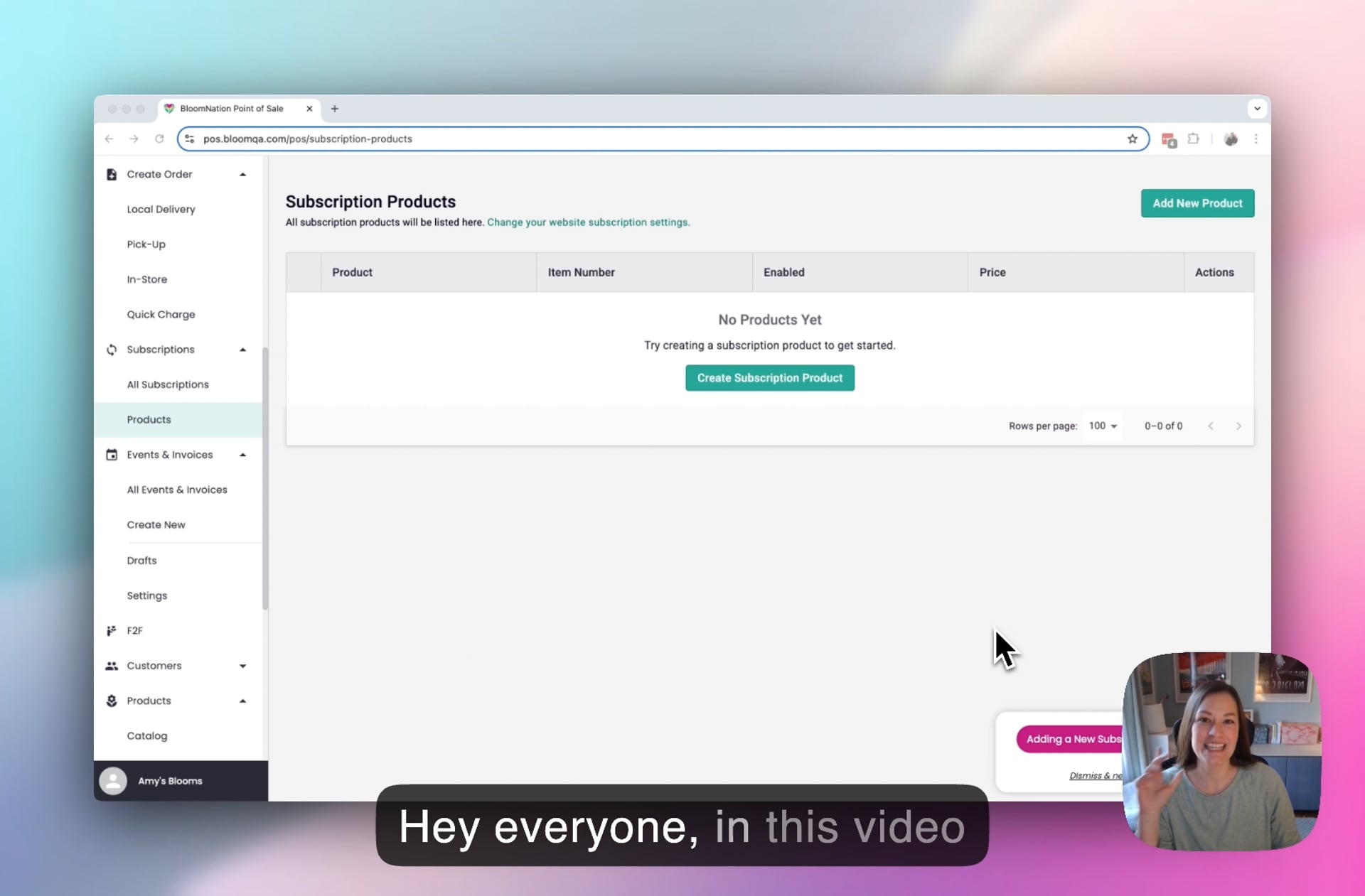 Add a New Subscription Product - BloomNation POS
Step 1: Navigate to Subscription Settings
- Go to Subscriptions > Products.
- To add a new subscription product, click Add New Product in the top-right corner.

Step 2: Enter Product Details
-
Name – Give your subscription a clear, enticing name.
-
Description – Optionally add a description to highlight key benefits.
-
Frequency Options (choose at least one):
- Weekly
- Bi-Weekly (Every 2 Weeks)
- Monthly
- Seasonal (Quarterly)
- Yearly
-
Terms & Conditions – Optional, but helpful for setting expectations.
Step 3: Set Up Product Offerings
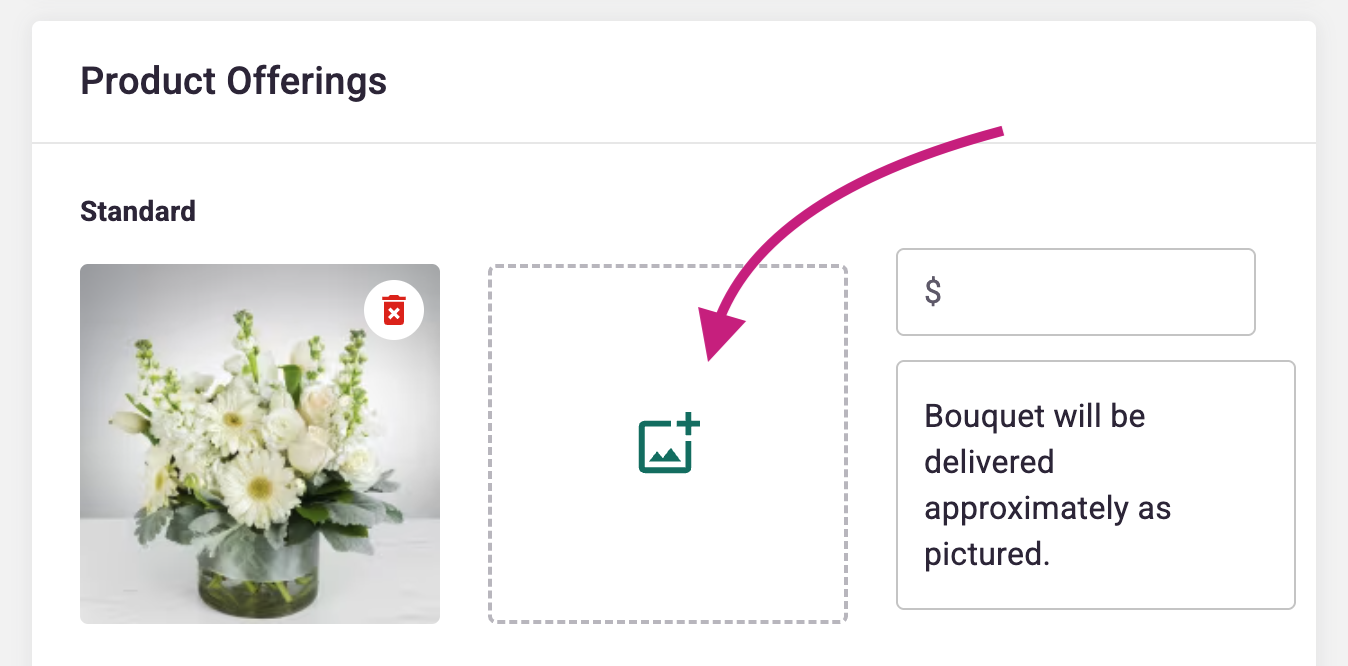
- Images – Upload product images. Once you add one image, another upload box will appear, allowing you to add multiple images for Standard, Deluxe, and/or Premium options (see below!).
- Price – Enter the product price.
- Tiers – Indicate if the product is available in Deluxe and/or Premium sizes. If so, enter the unit price and optional notes describing what makes each tier unique.
Step 4: Adjust Sales Tax Settings
- Choose whether to include or exclude sales tax for this product (included by default).
Step 5: Finalize & Publish
- Click Publish Product to save. The subscription product will now appear in your Subscription Products list.
Additional Notes
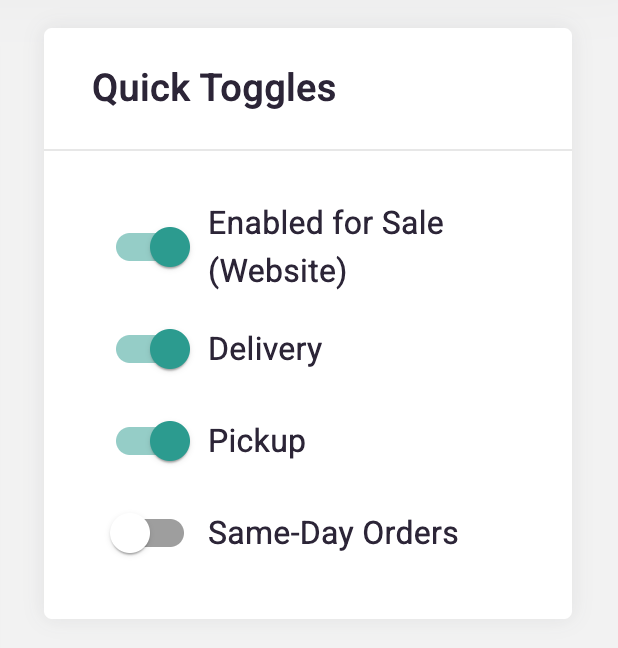
- You can enable or disable Delivery, Pickup, and Same-Day Orders in the top right.
- Enabled for Sale (Website) controls whether customers can buy the product on your website. Turn it off to hide the product from your website without deleting it. You can turn it back on at any time.
- If a subscription product is deleted, existing subscriptions remain active, but the product will no longer be available for new sign-ups.
Need help?
If you have questions, our Partner Support team is here to help.
Phone: (210) 405-5050
Email: support@bloomnation.com