
Adding New Products
Adding New Products
After setting up your profile, filling out your catalog is the most important part of establishing your BloomNation account. Your catalog comprises the products you want to sell online to your customers. Product listings include product images, descriptions, pricing, and categorization.
Uploading Products
To upload a product, log into your POS, navigate to the left-hand side menu, and click on "Products" followed by "Catalog." In your catalog, click the " "+ Add Product" button located at the top right corner of the page.

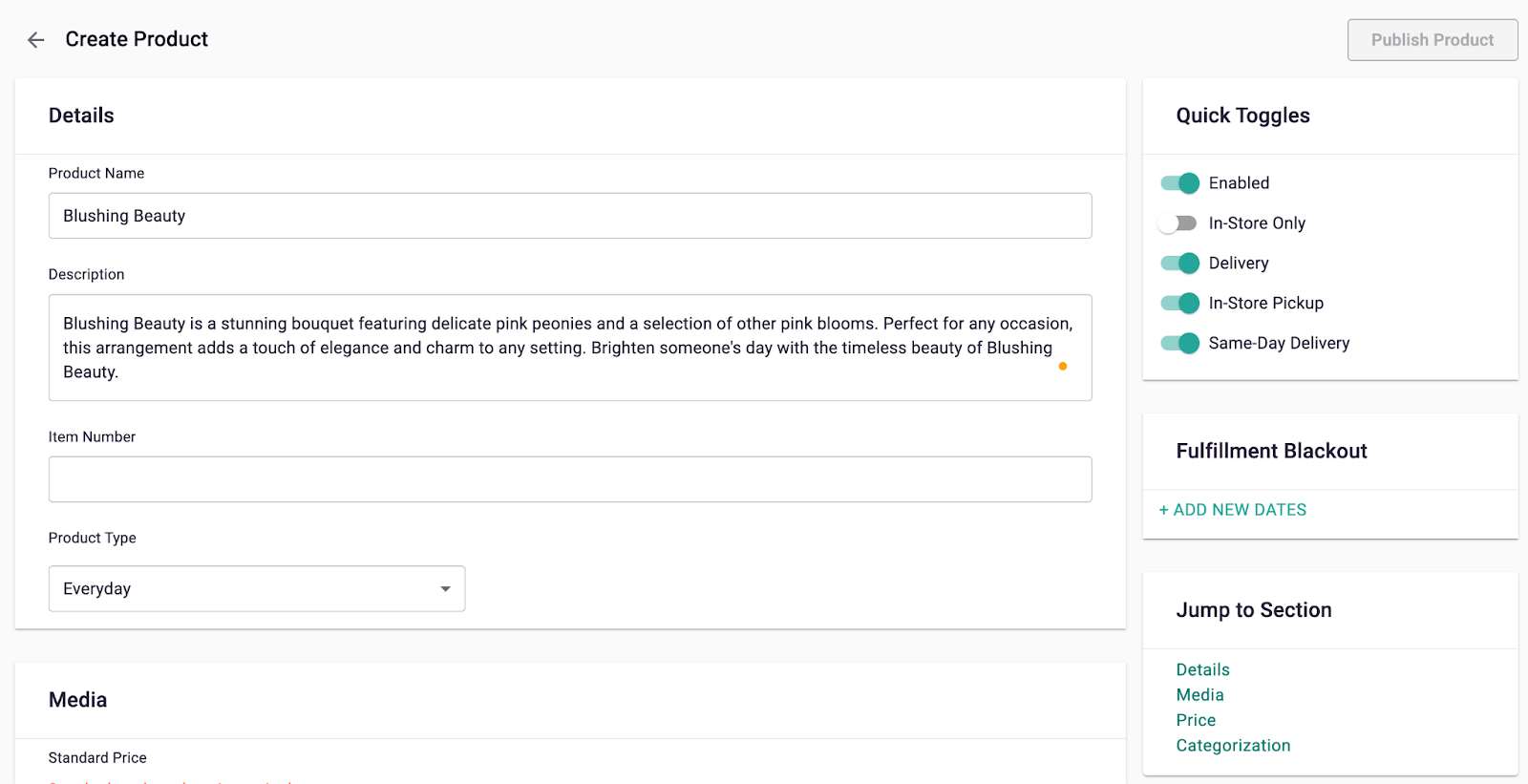
You’ll then be taken to the Add A Product page, which has multiple sections, starting with Product Details.
Quick Toggles
Through the quick toggles section, you may disable the product or disable any fulfillment settings (Pickup, Delivery, In-store Delivery/ Pickup and Same-Day Delivery) for your product.
- Enabled: Toggle this on to make the product available (if toggled off, the product will appear in the disabled section of your catalog and will be hidden from your website).
- In-store Only: Toggle this on if the product is sold only in-store and not online. This will make the product only available through your POS.
- Delivery: Toggle this on to offer delivery for this product.
- In-Store Pickup: Toggle this on to offer in-store pickup for this product.
- Same-Day Delivery: Toggle this on to offer same-day delivery for this product.
Fulfillment Blackout
If you need to make your product unavailable for pickup and delivery for certain dates, you can do that using fulfillment blackout dates. You can find that setting in the right hand side of your create product page below the quick toggles section.
-
Add Dates
- Use the input to add a start and end date
- Once you have input your dates, the dates should appear listed below
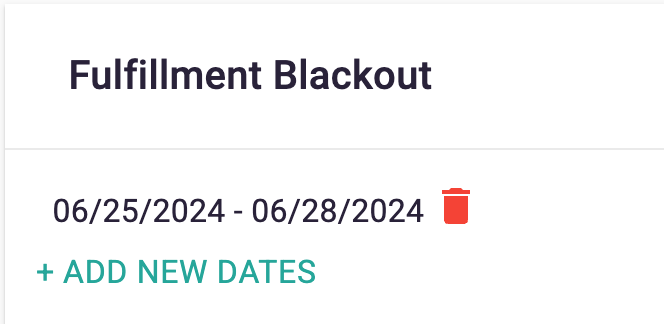
- Remember to Publish your product to save changes
-
Add Additional Dates
- Click “+ Add New Dates”
- A new input requiring you to add a start and end date should appear
- Remember to Publish your product to save changes
-
Remove Dates
- If you want to delete dates, click the “Trash” icon
- Remember to Publish your product to save changes
Use the “Jump to Section” to quickly navigate your way to the different sections within the page (details, media, price, categorization).
Product Details
-
Product Name: Create a simple but descriptive name. For example, "Roses, Tulips, and Everything Nice".
-
Description: Fill out the description with the types of flowers and the size of the vessel included in the design, or any description of your choosing.
-
Item Number: Enter an item number if applicable. This is shown on your site under the description.
- If you have an active integration with FTD Mercury POS, enter the POS Product ID for inventory tracking purposes.
-
Product Type: Select what category your product falls under. For most arrangements, you will want to select "Everyday" from the "Product Type" dropdown menu. Other options include Wedding, Cross Sell, Event, Other, and more.
- Notes:
- For non-floral arrangement products, such as candles, baked goods, candies, soap, etc. select Other for the "Product Type" and select the option from the "Other Product" dropdown list that best describes this product. This will allow the product to be purchased individually.
- If instead you'd like to add this product as an add-on / Cross Sell product you’ll want to select “Cross Sell”, please refer to this article for help on Cross Sells.
- Notes:
Product Media
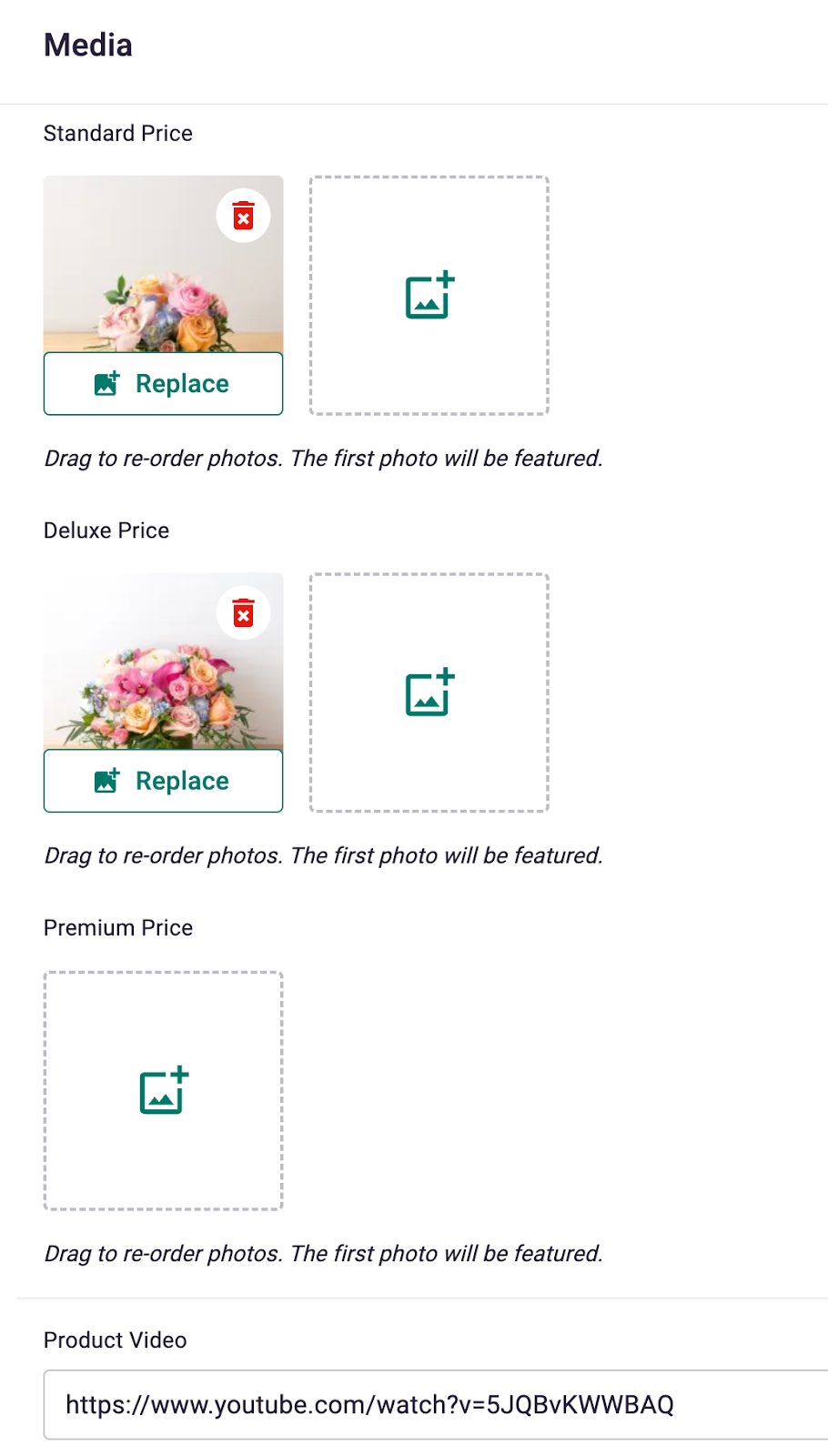
Next, in the Product Media section, click the "Add Photo" icon and select the photo file(s) you want to display for this item. If you have multiple photos, you can drag and drop to reorder them. Please note that the first photo will be featured.
-
You can add photos for different price ranges:
- Standard Price: The main product photo.
- Deluxe Price: Photo showing an enhanced version of the product.
- Premium Price: Photo showing the highest quality version of the product.
-
Product Video: Add a video URL (YouTube, Vimeo, Instagram Reel, or TikTok) to showcase your product.
Product Pricing and Upgrades
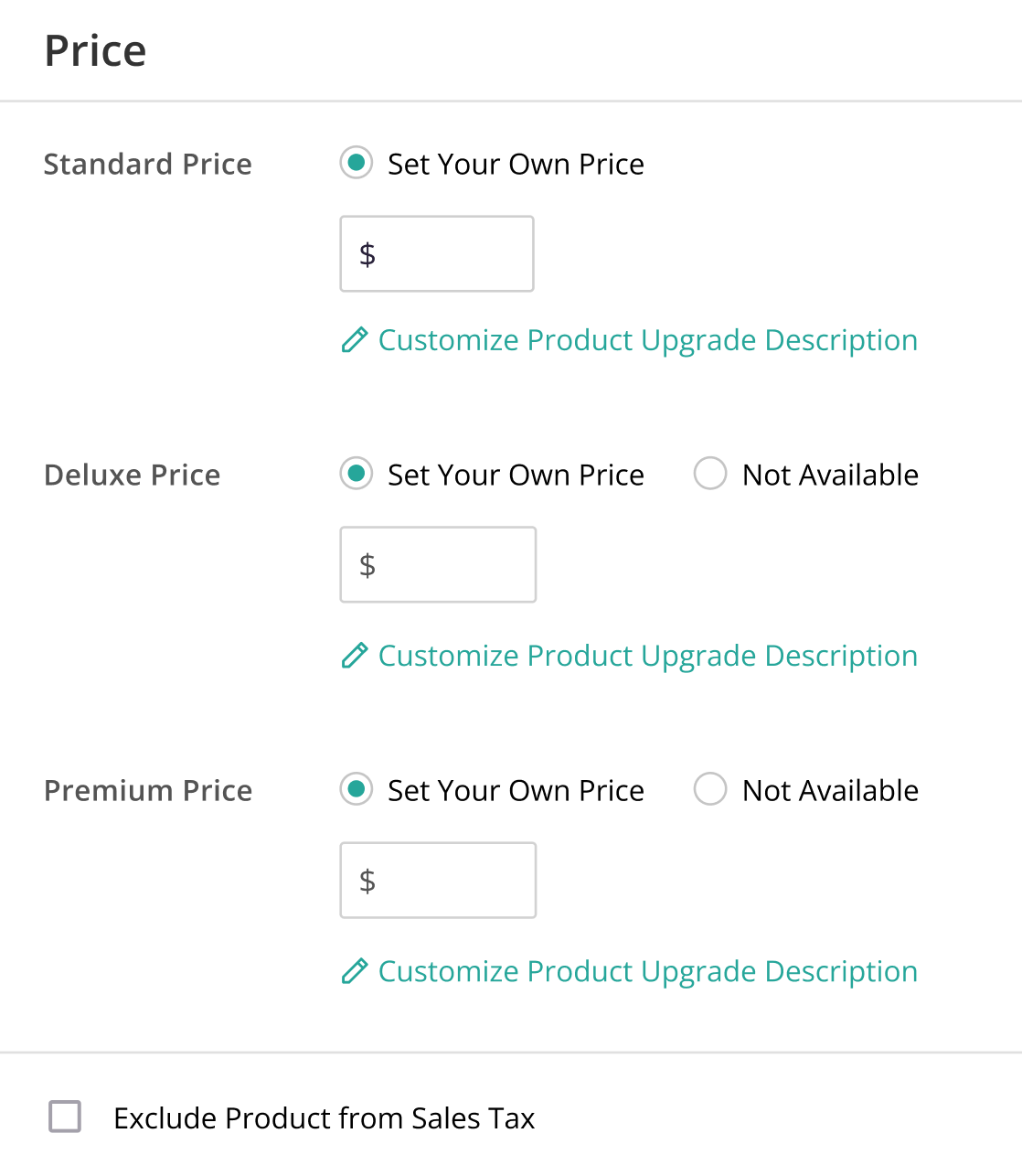
Enter the base price for the product in the "Standard Price" field and indicate if you’d like to offer upgraded options for this listing (e.g., "Deluxe" and "Premium"). If you are only selling the standard version, select "Not Available" for the Deluxe and Premium pricing options.
-
Standard Price: Base price of the product.
- Default description: "Bouquet will be delivered approximately as pictured."
-
Deluxe Price: Enhanced version of the product.
- Default description: "Additional flowers will be added to enhance the bouquet."
-
Premium Price: Highest quality version of the product.
- Default description: "We will add more blooms and select the highest quality flowers we offer in this style."
-
For both Deluxe and Premium pricing, you can choose:
- Custom Price: Set your own pricing. (Recommended)
- Smart Pricing: Let the system increase your upgrade prices using a default algorithm.
- Not Available: If you do not wish to offer this upgrade.
You can also customize the upgrade descriptions using the "Customize Description" option.
Note: Deluxe and Premium prices are not available for cross-sell products.
- Tax Exempt: If the product is exempt from sales tax, check this option.
Product Categorization
Finally, provide additional information about your product and categorize it to help your customers search and find your products on your website and in the BloomNation marketplace.
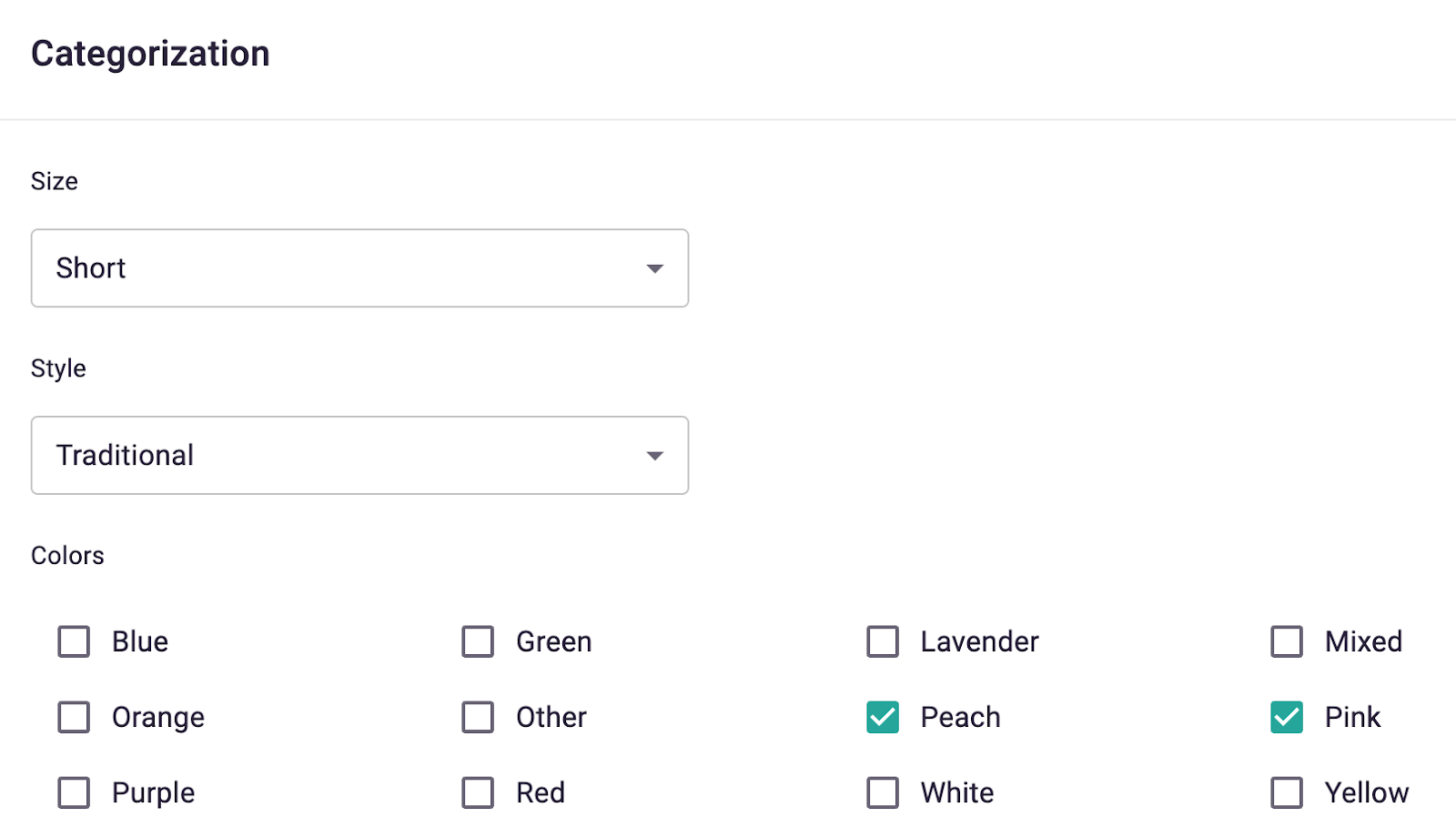
The next step is to fill out the details, including:
-
Size: Choose from Short, Medium, or Tall. Example dimensions are the following:
- Short arrangement measures approximately 11″H x 9″L.
- Medium arrangement measures approximately 12″H x 10″L.
- Tall arrangement measures approximately 13″H x 11″L.
-
Style: Choose from Traditional, Modern, or Grand.
-
Colors: Choose the main colors included in your arrangement.
-
Occasions: Choose however many occasions apply for this product.
-
Flowers: Select the type(s) of flowers included.
When you’re done, review all product information. Once you’re sure everything is ready to go, click "Publish Product". You should promptly see your product under "Products for Sale"!
Notes:
If you exit this screen at any time, your incomplete listing will appear in “Draft Products” on the left side navigation menu. Remember that “Draft Products” is meant for temporary storage. To avoid confusion later, try to keep this section as clear as possible.