Product Organizer (previously Website Customizer)
Rearranging (Merchandising) Your Products on your Website
 BloomNation PoS Feature Walkthrough: Website Customizer
Rearranging your products is one of the most important elements of merchandising your online offerings and significantly impacts your customers’ experience, as it affects the overall appearance and cohesiveness of your catalog. Products at the top typically sell more frequently than those at the bottom. Use the “Product Organizer” to organize products on the Homepage/Shop All Page and for filters (occasion, flowers, color) that customers use to browse your offerings.
-
Rearrange Products for your Home Page and Your Shop All Products Page
-
Log into your Dashboard > POS
-
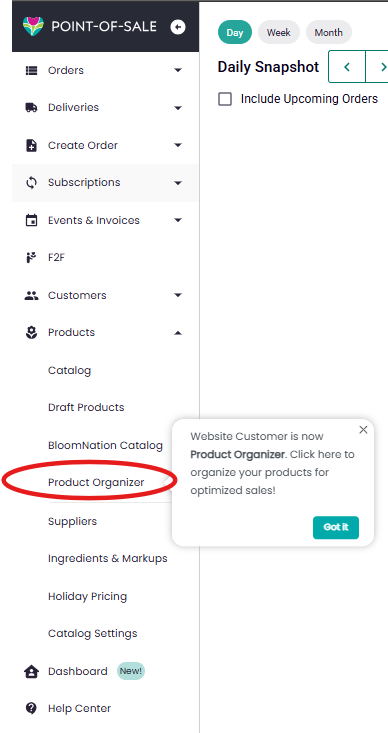
Click “Products” > “Product Organizer” from the left-hand menu
-
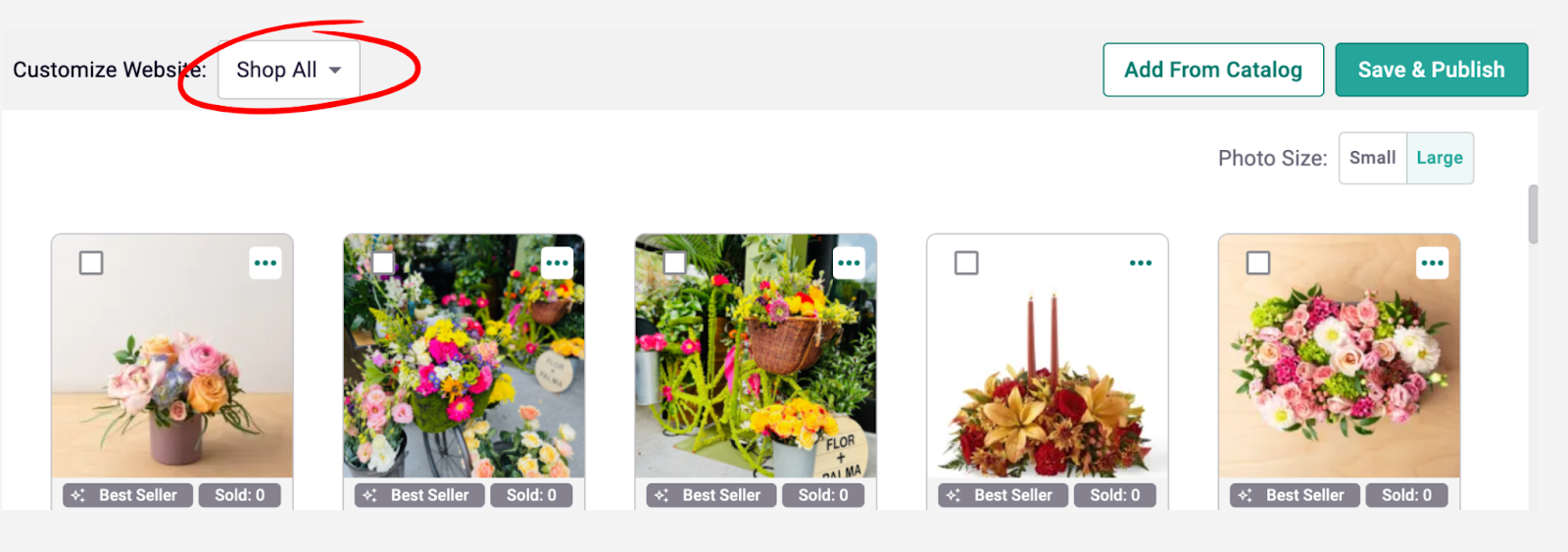
Once there, make sure the dropdown at the top is set to “Shop All”
-
From here you can drag and drop products to their desired location.
- Hover over the image, then click and hold the six-dot handle in the corner to drag and drop.
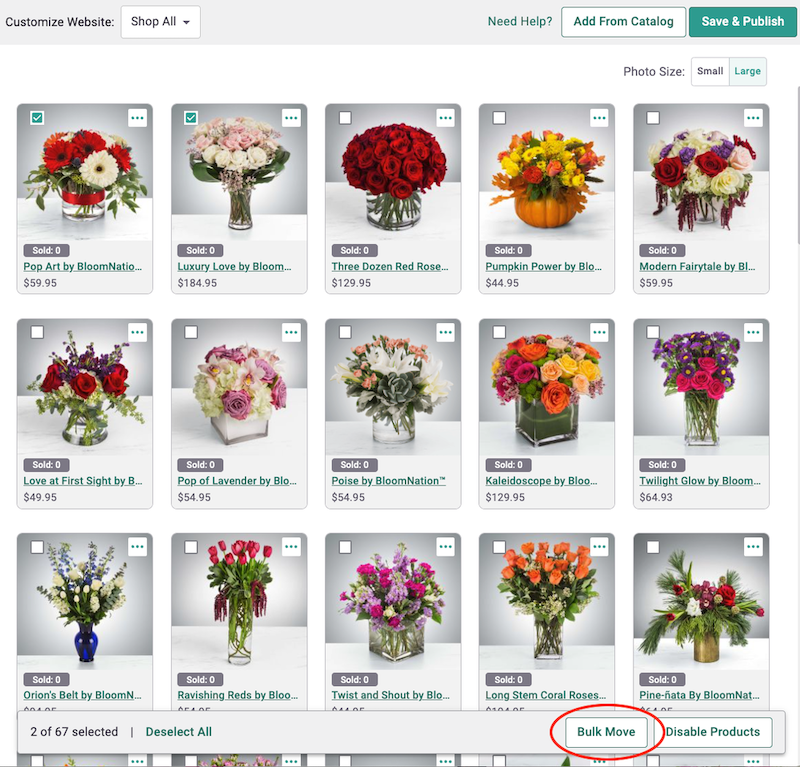
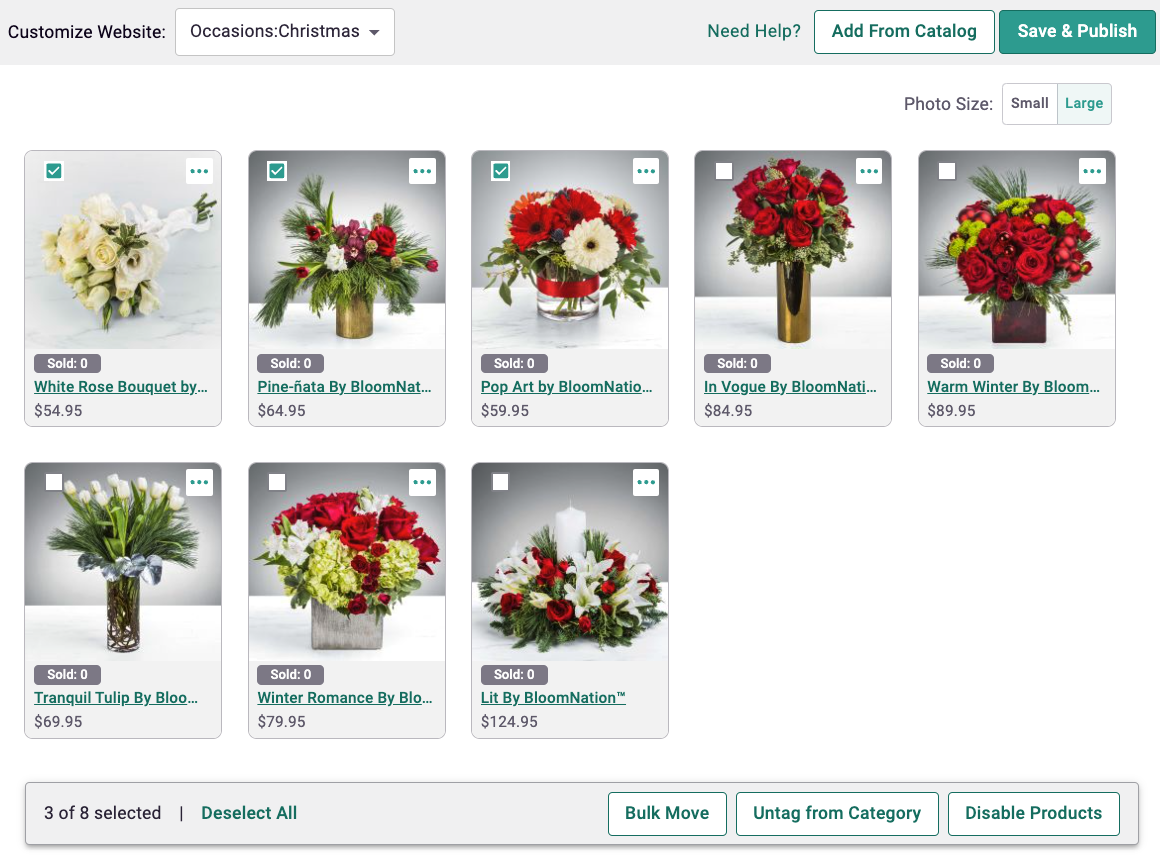
- If you want to move multiple products at once or move a single product faster use the checkboxes:
- Once you select products, the actions menu bar should appear at the bottom of the page. Click “Bulk Move.”
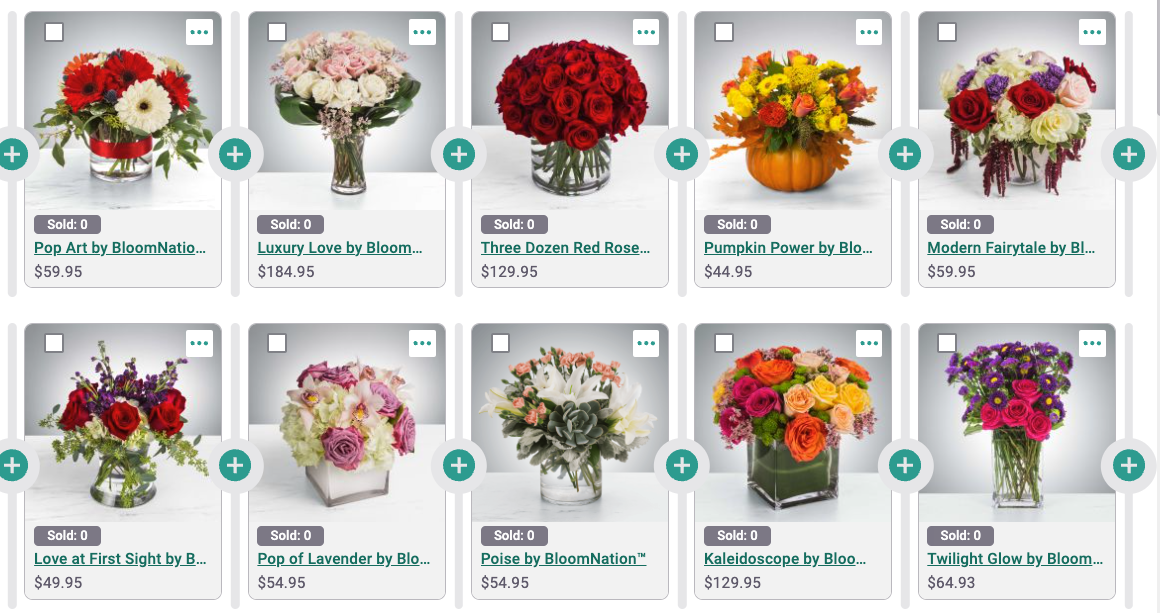
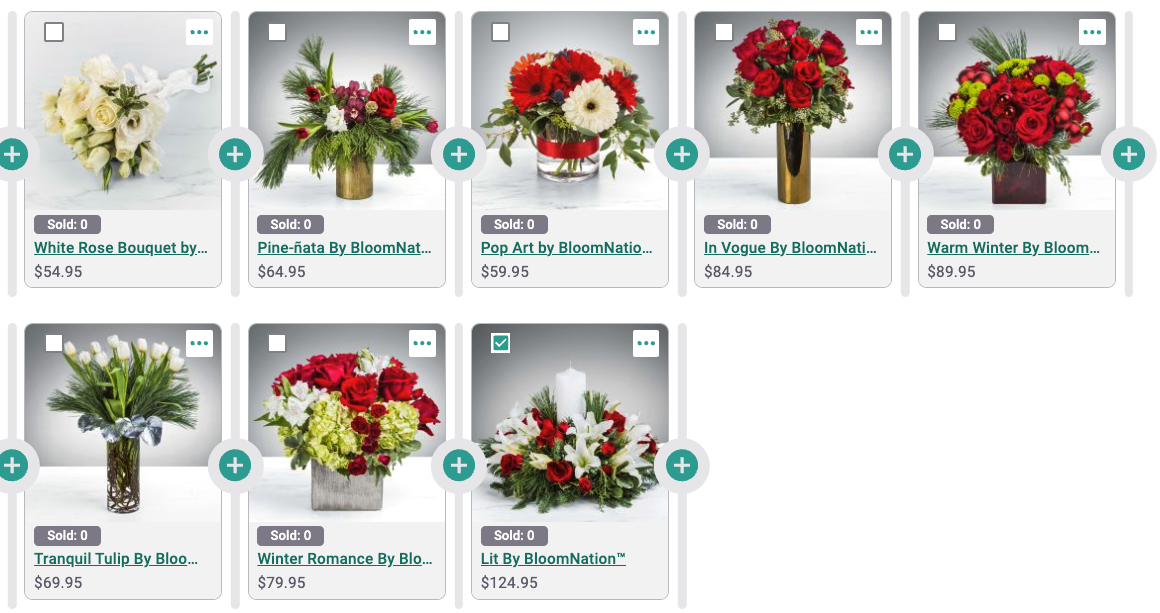
- "+" buttons will appear next to all items on the page. Click the "+" button where you want to move your selected products. Once clicked, your products will be relocated to the new spot.
- Remember to click “Save & Publish” at the top to save your changes.
- Note: At any time, if you don’t like the changes you made, you can use the discard changes button at the top right side to undo all changes that occured during your session.
-
Tip: You can change the photo size to small for a more compact view, allowing more products to fit on the page.
-
-
Rearrange Your Products for Occasions, Flowers, or Color Filters - Use the “Product Organizer” to adjust your product placement for specific occasions and tags. This helps tailor the website experience for your customers, enhancing how products are displayed based on the filters on the page.
-
Log into your Dashboard > POS
-
Click “Products” > “Product Organizer” from the left-hand menu
-
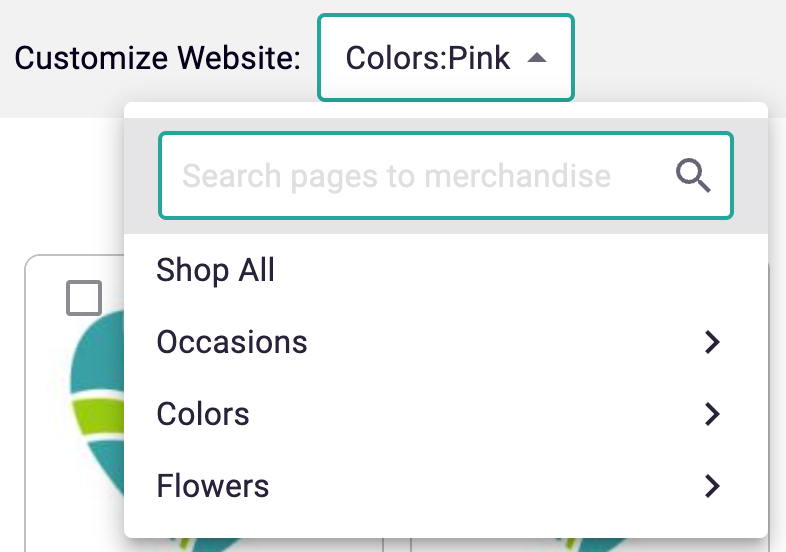
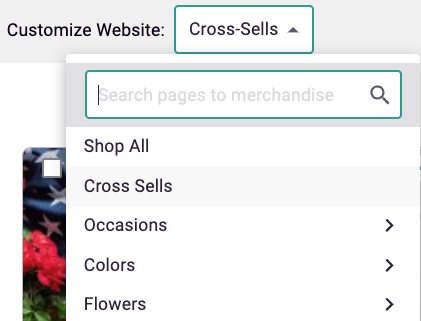
Use the dropdown menu location at the top to select what occasion, color, or flowers you would like to merchandise for.
- Note: You can use the search bar to find specific tags
- Note: You can use the search bar to find specific tags
-
From here you can drag and drop products to their desired location.
-
If you want to move multiple products at once or move a single product faster use the checkboxes:
- Once you select products, the actions menu bar should appear at the bottom of the page. Click “Bulk Move.”
- "+" buttons will appear next to all items on the page. Click the "+" button where you want to move your selected products. Once clicked, your products will be relocated to the new spot.
- Remember to click “Save & Publish” at the top to save your changes.
- Note: At any time, if you don’t like the changes you made, you can use the discard changes button at the top right side to undo all changes that occurred during your session.
- Once you select products, the actions menu bar should appear at the bottom of the page. Click “Bulk Move.”
-
-
Tips:
- You can also rearrange how cross sells are displayed on your product details page and checkout page by selecting "Cross Sells" on the dropdown.
- You can change the photo size to small for a more compact view, allowing more products to fit on the page.
-
-
Using Bulk Actions - You can use the checkboxes and select multiple products to perform actions faster on your “Product Organizer”. This saves time and helps you merchandise your website more quickly.
-
Bulk Move: This allows you to move multiple products across the page anywhere you want.
- Select all the products you want to move using the checkboxes.
- Once you select products, the actions menu bar should appear at the bottom of the page. Click “Bulk Move.”
- This will activate the “+” buttons. Click the "+" button where you want to move your selected products.
- Remember to click “Save & Publish” at the top to save your changes.
-
Disable Products: Use this function to disable products from your catalog, they will no longer show up on your website.
- Select all the products you want to disable using the checkboxes.
- Once you select products, the actions menu bar should appear at the bottom of the page. Click “Disable Products”.
- You should no longer see those products on your page.
- Remember to click “Save & Publish” at the top to save your changes.
-
Untag from Category (Not available on the “Shop All” Page): Use this function to remove products from a category. They will still show up on your website in the Shop All page or under another category.
- Select all the products you want to untag using the checkboxes.
- Click “Untag from Category” in the action bar at the bottom.
- The selected products should no longer appear under the specified category.
- Remember to click “Save & Publish” at the top to save your changes.
- Note: This action does not appear for the “Shop All” page because you can only disable products from that page.
-
Tip: You can change the photo size to small for a more compact view, allowing more products to fit on the page.
-
-
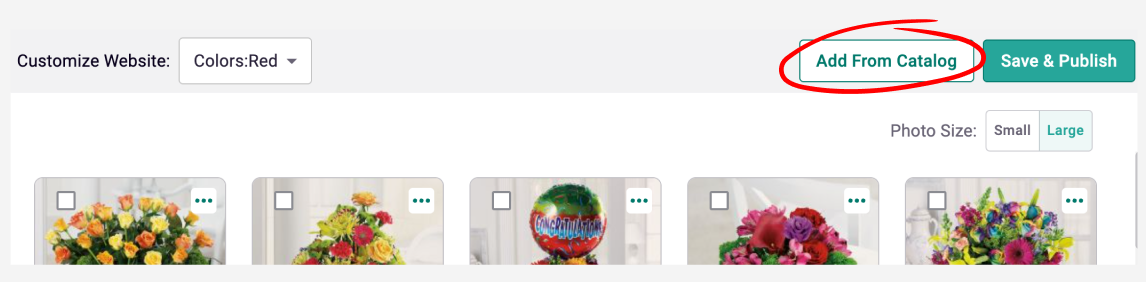
Add Disabled Products or Products that are not tagged under that Category - Use the “Add From Catalog” function to enable and add disabled products to your page. You can also retag products for an occasion, color, or flower.
- Click the button located at the top right corner of the page labeled “Add From Catalog.”
- This will open a panel that allows you to add products that were disabled or not tagged for the category.
- Use the buttons under the search bar to toggle between enabled and disabled products.
- Use the checkboxes to select which products you want to add to your page.
- If you want to find a specific product to add, use the search bar and type in the product name or item ID. The search will look for your products in both the enabled and disabled sections.
- After you’ve selected your products, Click the “Add” button at the bottom to add in your products. You should now see your newly added products at the top of the page.
- Remember to click “Save & Publish” at the top to save your changes.
- Click the button located at the top right corner of the page labeled “Add From Catalog.”
-
Tip: You can change the photo size to small for a more compact view, allowing more products to fit on the page.