
Managing your Catalog & Products
View Products
You can view all your previously created products by going to “Products” on the left hand navigation menu then clicking “Catalog”.
You can quickly filter down your products using the tab buttons at the top of the page.
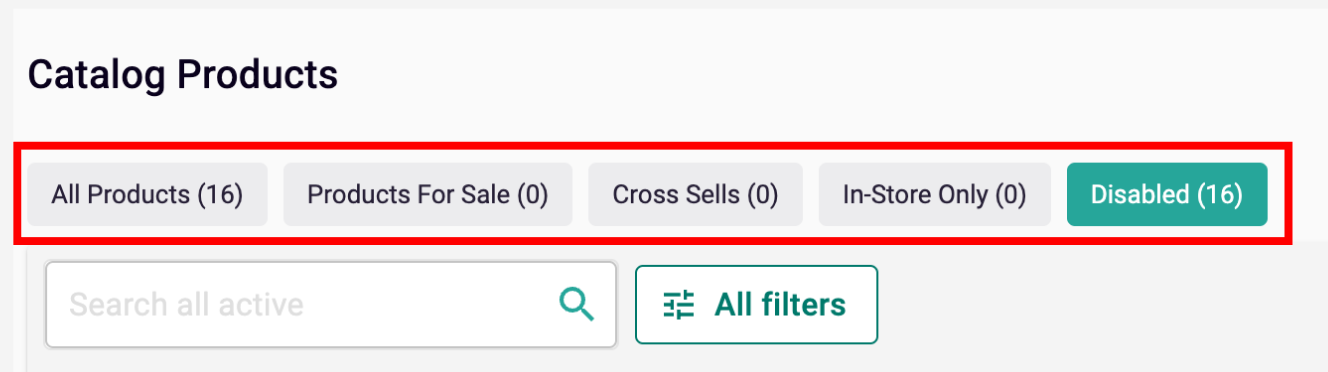
- All Products: Includes all your products except draft products.
- Products for Sale: These are products that will appear on your website as individual items for sale. They have the status “Enabled” and do not include products categorized as “Cross Sell.”
- Cross Sells: These products have the status “Enabled” and are categorized as “Cross Sell.”
- In-Store Only: These products are only available through your POS system and will not appear on your website. To enable this option, go to your product settings and turn on the “In-Store Only” toggle. Learn more about adding products in this article .
- Disabled: These products are all products with the status “Disabled”.
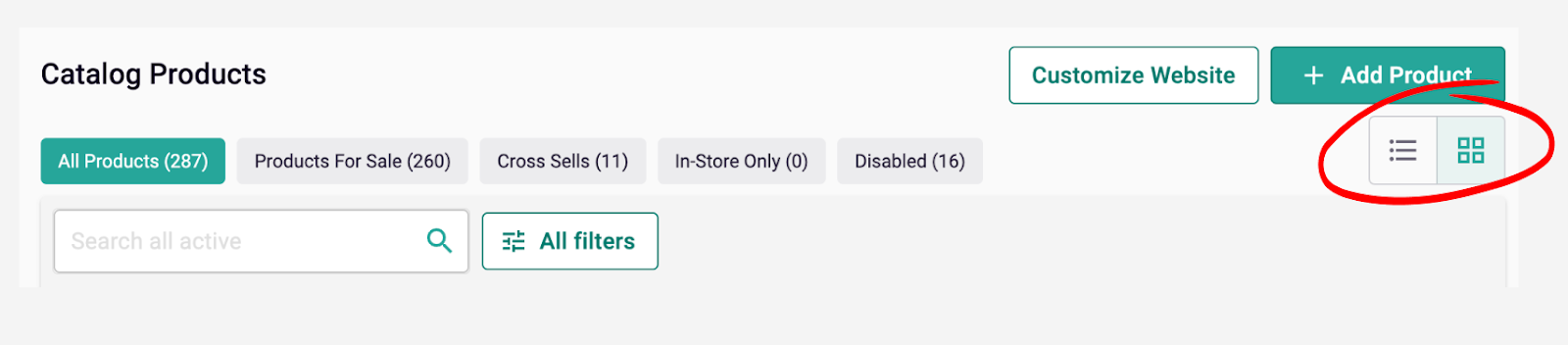
Once in your desired filtered view. You can see your list of products in either list or grid view. To switch between these options, use the icon buttons at the top right corner of the page.
-
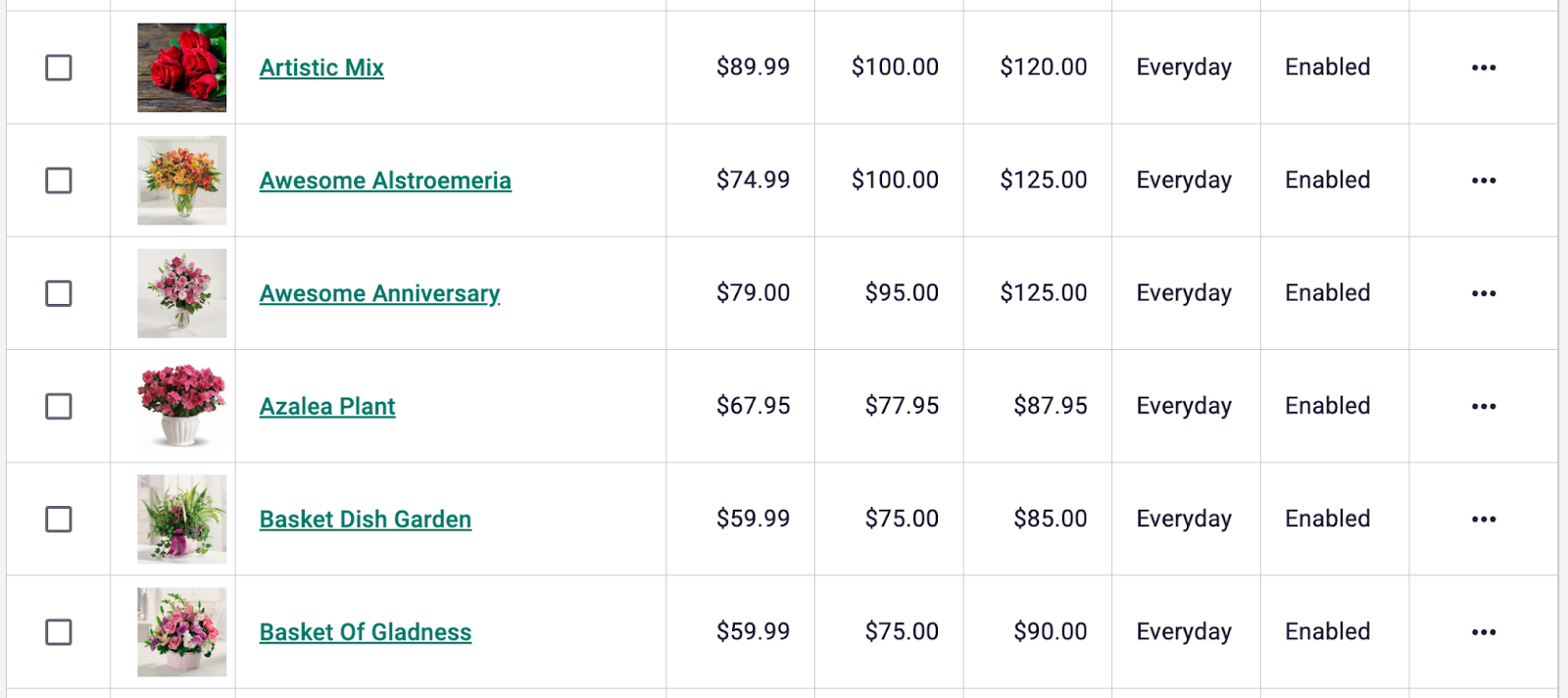
List View
- The list view displays more detailed information about your products, such as different pricing tiers and product types.
- This view also allows you to edit the product name and price inline. For more details, see the section titled ‘Edit Products ’ below.
-
Grid View
- The grid view provides a more compact view of your products. It focuses on the image and allows you to see if it is a best selling item and how many have sold.
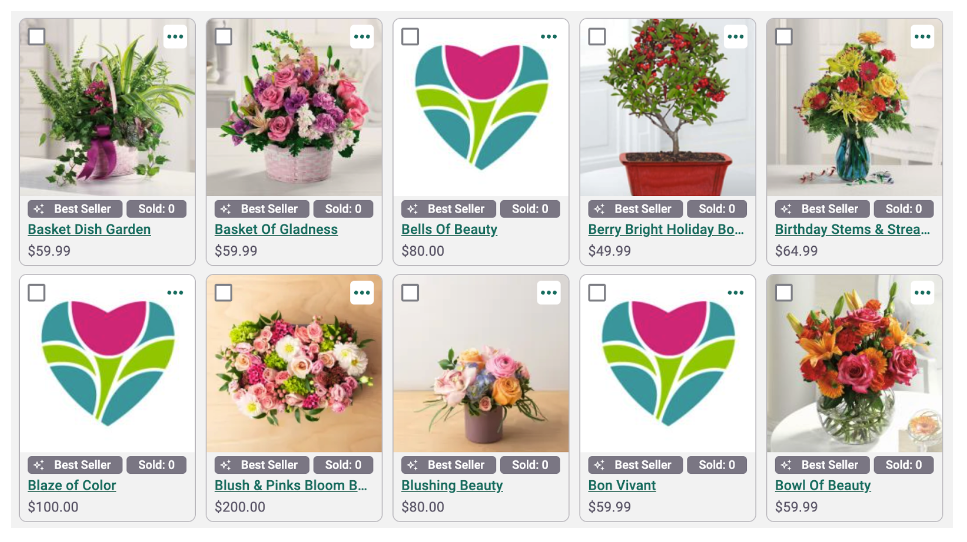
- Note: Sold count is based on the last 30 days and renews every 30 days.
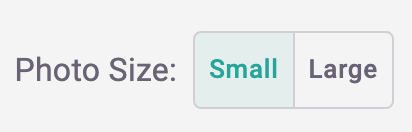
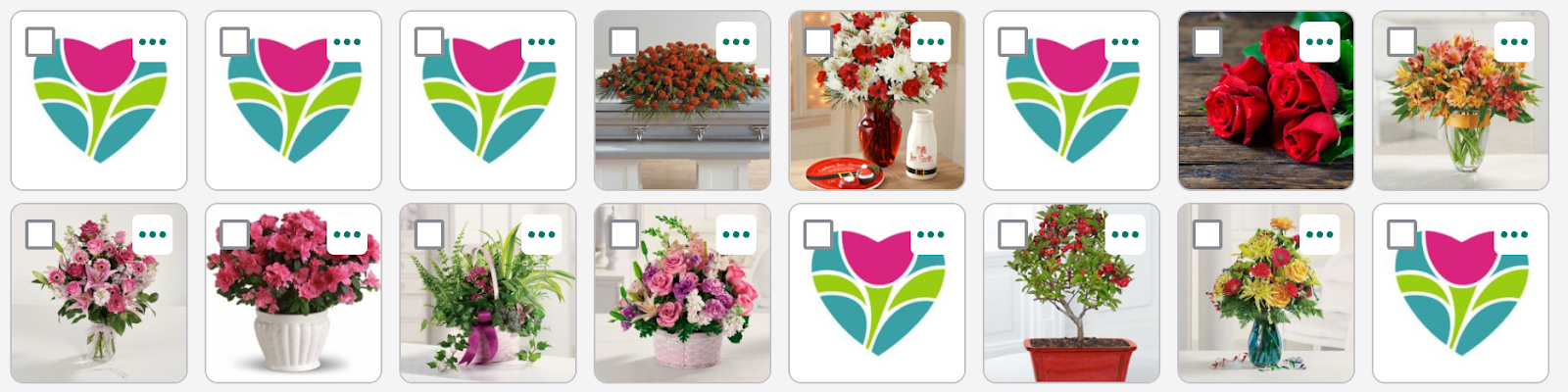
- To have an even more compact view of your products. You can change the product size to “Small” using the buttons found on the top right corner of the page
-
View Products on Your Website or BloomNation Marketplace
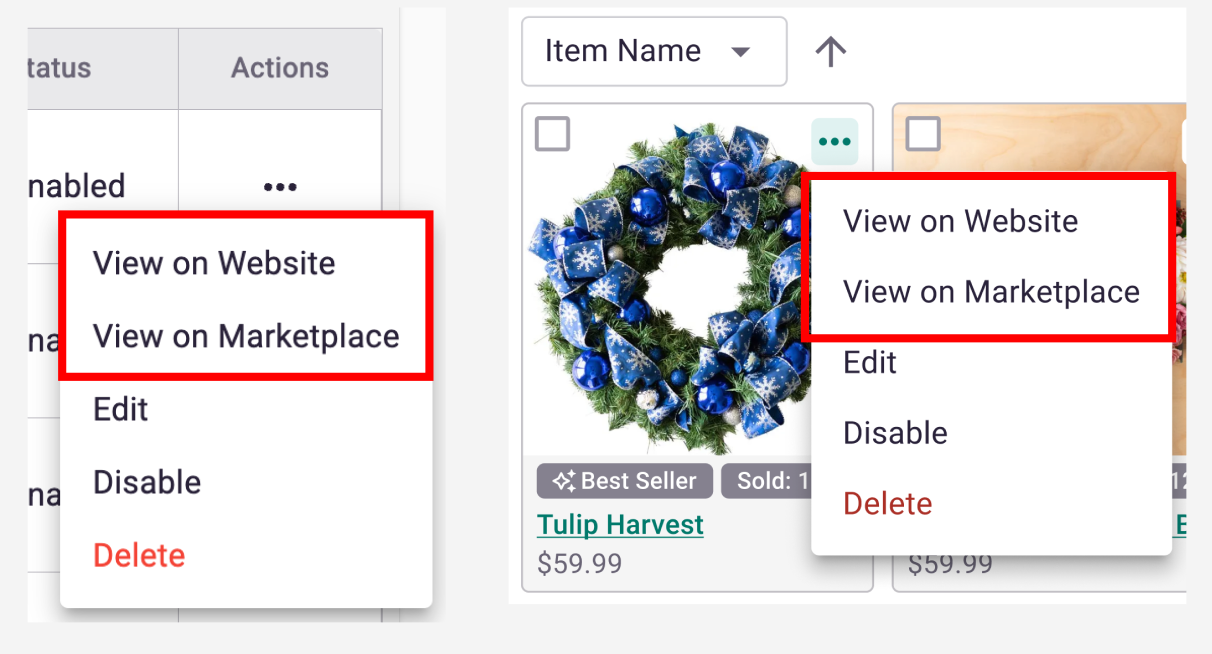
- You can see what your products look like on either your website or the BloomNation marketplace by using the more actions buttons in the list or grid view.
Sort Products
Sorting your products allows you to change the way you view your product list, helping you make informed decisions about your catalog. Additionally, sorting allows you to search through your products the way you want, making it easier to identify and manage items. Sorting your products is different from rearranging or merchandising your products for your website. You can find out how to do that through this article.
-
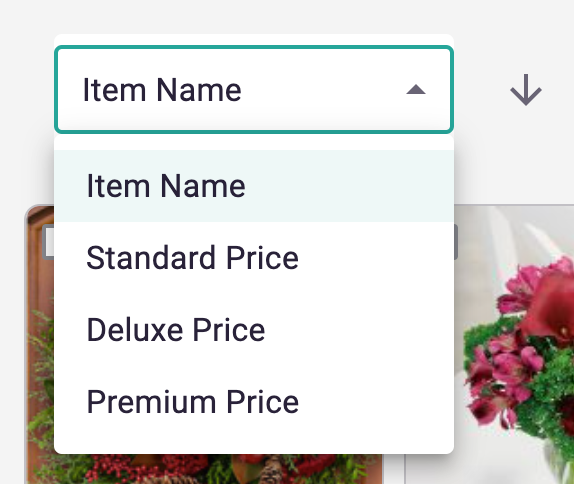
You can now sort your products by:
- Item Name (A → Z, Z → A)
- Standard Price (low → high, high → low)
- Deluxe Price (low → high, high → low)
- Premium Price (low → high, high → low)
-
To do this in the list view
- Click the header of the columns to sort your products. You can click the header again to reverse the sort.

-
To do this in grid view
- Use the dropdown at the top left corner of your product list. Use the arrows to switch between ascending and descending sorting.
Search & Filter Products
Use the upgraded search to quickly search or filter down your products to your desired view.
-
Simple Search
- To find a specific product, type the product name or item number and press enter.
-
Filtered Search
- If you're unsure of what you're looking for or want to see products for a specific occasion, color, or flower type, type the category name in the search bar. The search will return options for you to choose from.
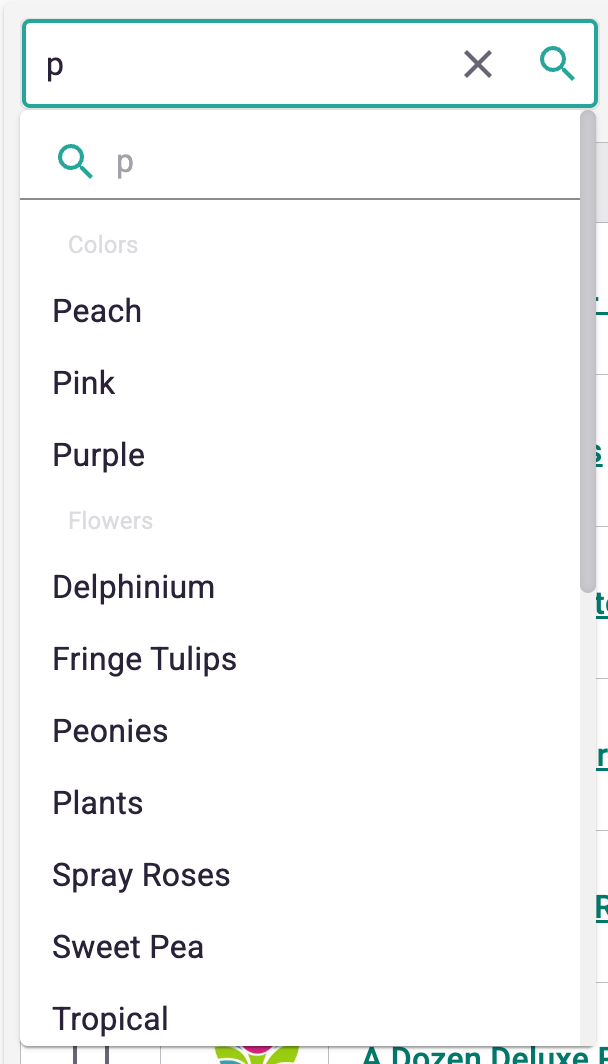
- Selecting a category will filter your product list to show items within that category. You can see which filters are applied by the chips that appear under the search bar. To return to the original product list, click the "clear all" button
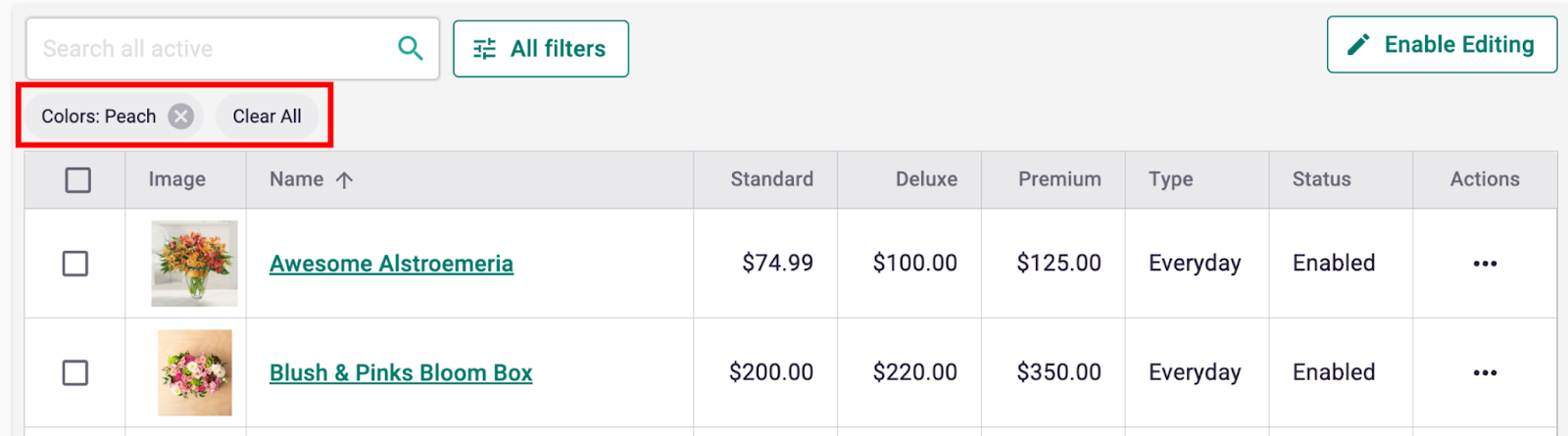
- To further narrow down your products, click on one of the category chips or the "All Filters" button next to the search bar to access all available filters.
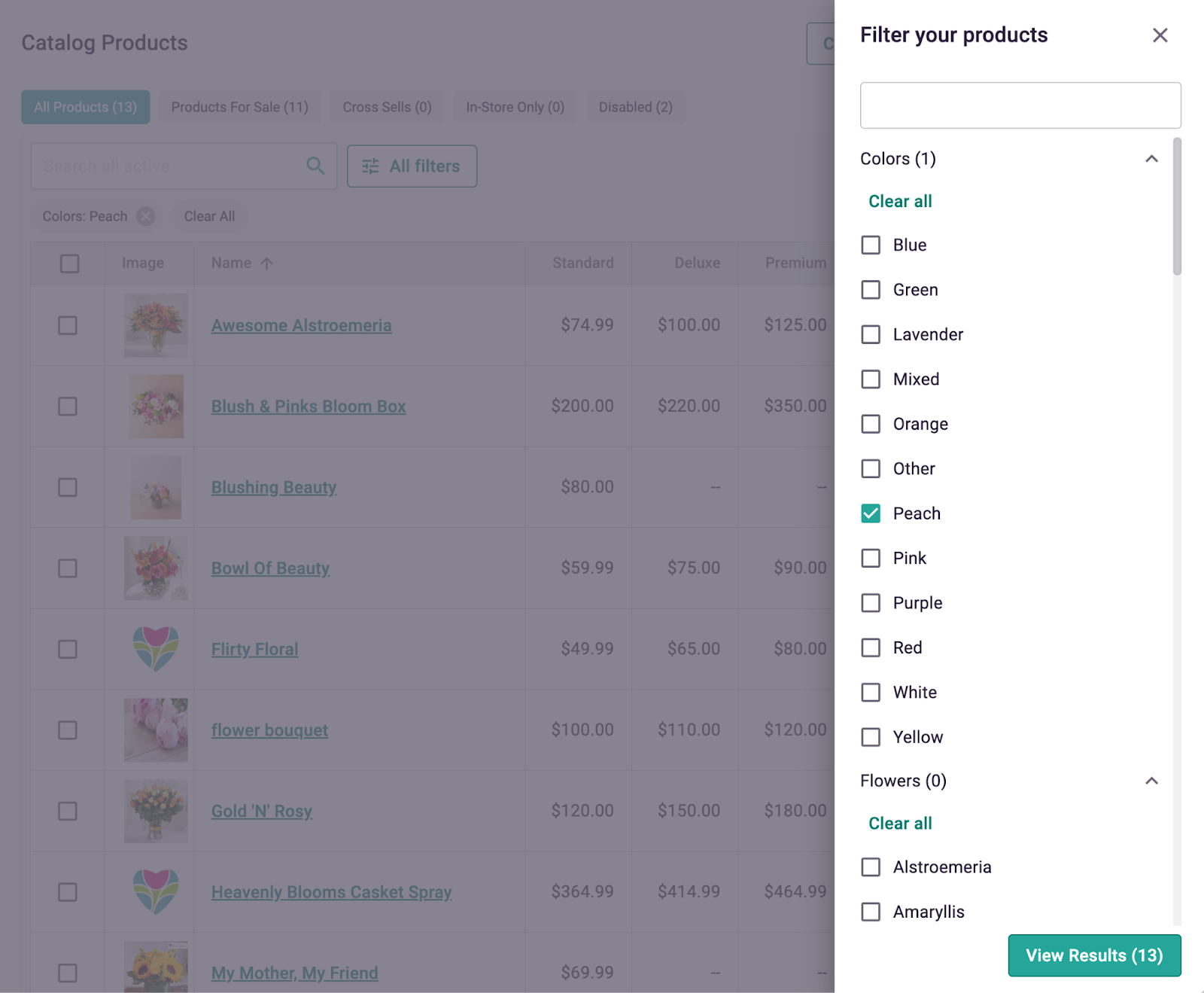
- Note: You can use the search bar within the "All Filters" section to find and apply specific filters.
Edit Products
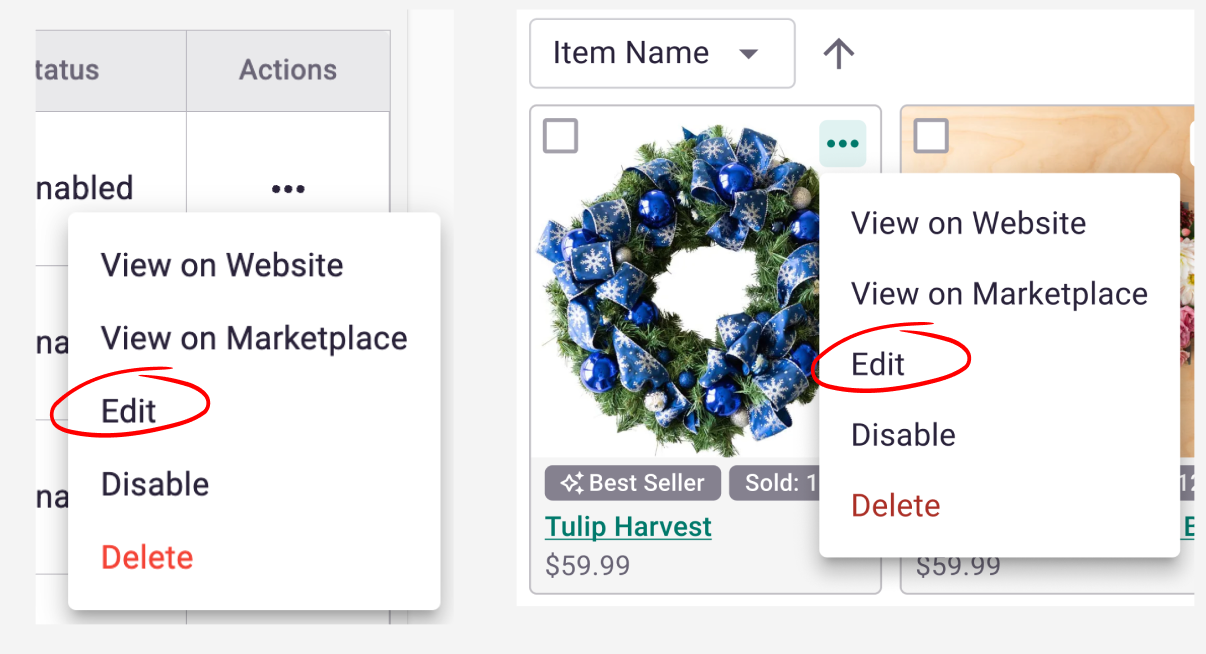
To edit your product, use the more actions button by clicking on the “...” button in both grid and list view. Click “Edit” and it will open your product editor. Make sure to save your edits by clicking "Publish Product" when you’re done!
-
In-line Editing - If you want to just change the item name or price quickly, you can do so with inline editing on the list view of your catalog.
-
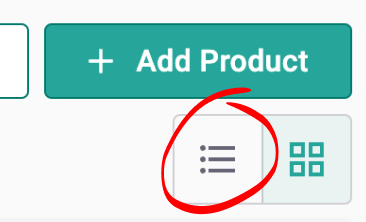
Make sure you are on the “List View” of your catalog
-
-
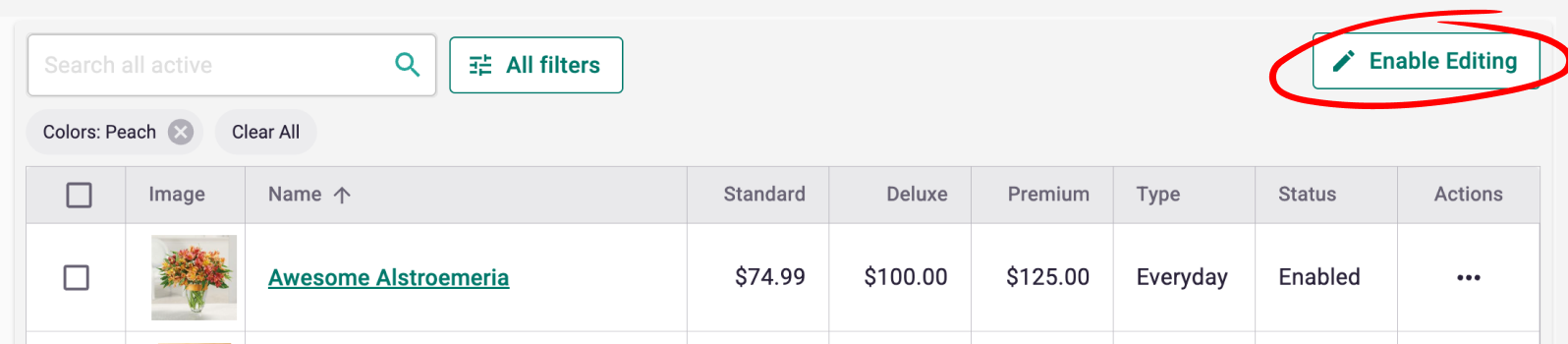
Click the “Enable Editing” button at the top right corner of your catalog
-
-
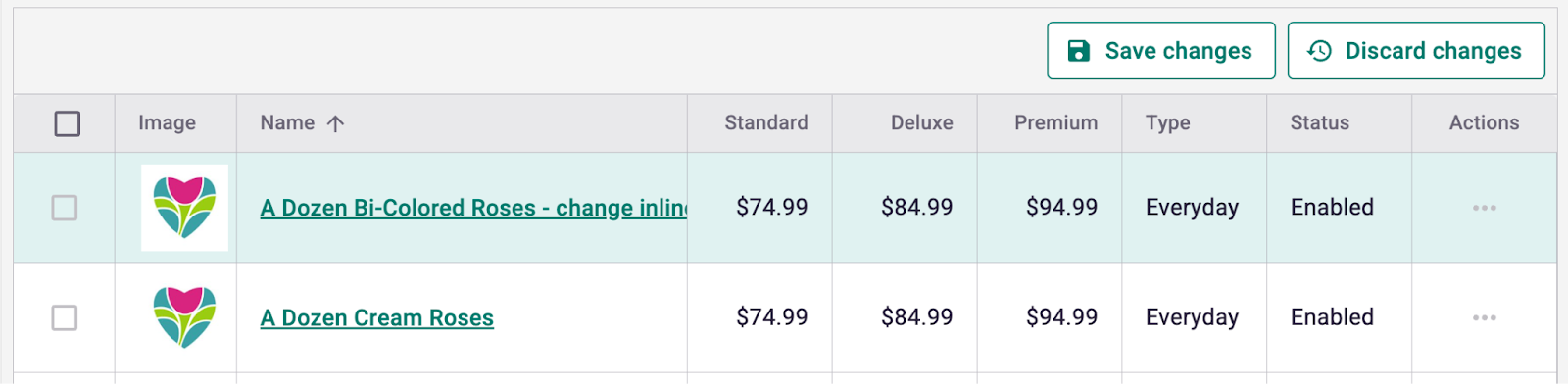
You can now double-click on any cell in the product name or price column to make changes. Once you click outside the product, the edited products background will turn green.
-
Make sure to click the save changes button at the top. You can click discard changes to undo all your edits and start over. Once you click save changes your changes will be published to your website.
-
-
-
Note:
- You can only change the “Standard” price for products with “Smart Pricing” applied. To edit all three product prices in-line, the product should be set to “Custom Price.” To learn more about adding products, see this article.
- You cannot change the deluxe and premium prices for cross-sell products because they only have one pricing tier.
-
-
Disabling Products
Disabling a product removes it from your online storefront on BloomNation.com as well as your premium website . This is especially helpful for removing and adding products back to your catalog as they come in and out of season! To do this, use the more actions button by clicking on the “...” button in both grid and list view and select “Disable”. Once you click "Disable", you can view, edit, and re-enable them from the “Disabled Products” tab.
Deleting Products
Deleting a product removes it completely from your dashboard, even your disabled products. It does not impact any historical orders, but you will not be able to access it from your Premium Site or Dashboard product options. To do this, use the more actions button by clicking on the “...” button in both grid and list view and select “Delete”. You will have to confirm that you really want to delete the product as this action cannot be undone.
Bulk Actions
You can now perform bulk actions using the checkboxes on your product list in both grid and list views. Bulk actions allow you to perform the following task on multiple products at once:
- Add Tags: Categorize your products by adding tags such as color, flowers, and occasion.
- Remove Tags: Remove your products from categories such as color, flowers, and occasion.
- Disable: Remove products from your POS and online storefront.
- Delete: Permanently delete products from your catalog. Note: This action cannot be undone.
