
Upload Add-On or Cross-Sell Products
Upload & organize add-on or cross-sell products
Add-on products (also called cross-sells) are optional items customers can include with their main purchase, such as cards, chocolates, candles, balloons, or keepsakes.
These items help increase order value and create a more personalized experience for your customers. Cross-sell products are created in your catalog like any other product, then configured to appear on product pages and during checkout.
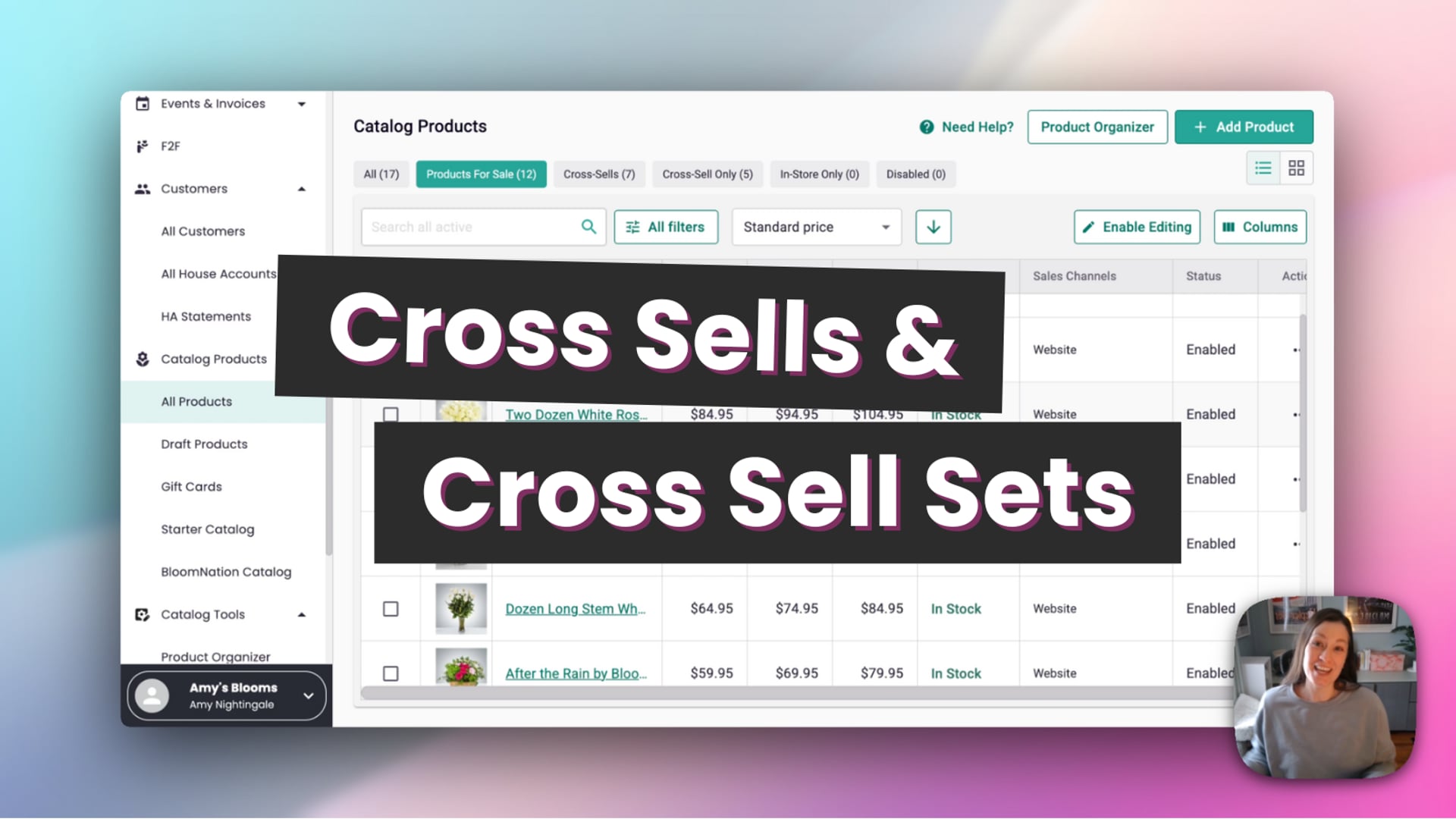 Cross Sells & Cross Sell Sets
Create a new add-on or cross-sell product
To create a new add-on or cross-sell product:
- Log in to your BloomNation POS
- Go to Catalog Products → All Products
- Click Add Product in the top-right corner
As you set up your product, Lili can help generate descriptions and suggest product details based on your images. Learn how Lili works in Products >>
Choose how the item is offered
Each product can be configured to control how it’s sold.
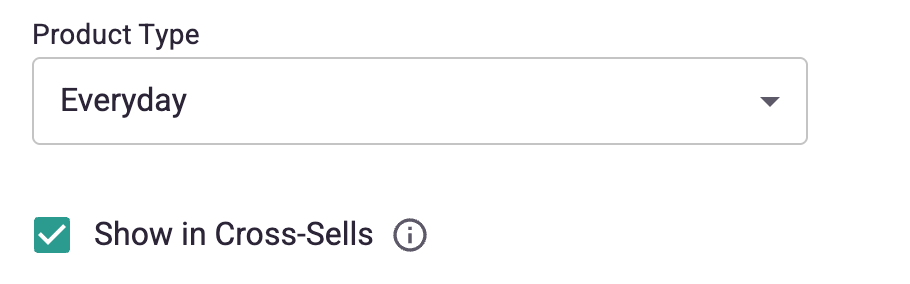
- Everyday + "Show in Cross-sells" selected
The item can be sold on its own and also offered as an add-on.
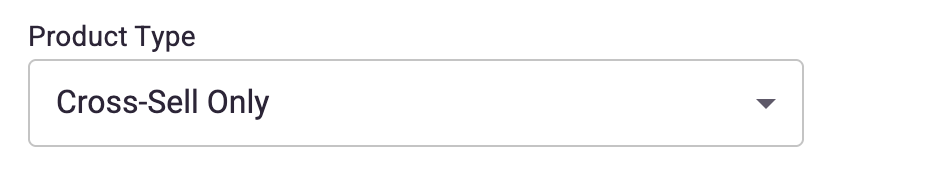
- Cross-sell only
The item is only available as an add-on and cannot be purchased on its own.
You can also change this setting later by editing your item.
Product details
- Product name
Use a clear, descriptive name (for example: “Greeting Card” or “Box of Chocolates”). - Description
Add a short description explaining what the item is and why it’s a good add-on.
Product media
- Add one or more photos that clearly show the item
- Reorder images if needed (for cross sells, only the first image in each tier is displayed)
Pricing
- Enter pricing as you would for any product
- Optional: set Deluxe and Premium pricing if applicable
Tier descriptions:
- If your add-on has pricing tiers (Standard, Deluxe, Premium), be sure to add a description for each tier. These descriptions help customers understand what they’re choosing.
Design & additional options
- Set up recipes or stem counts
- Adjust tax settings if the item should not be taxed (for example, certain food items)
Organize add-on items using categories
Categories can be used to group add-on items so they can be applied consistently across multiple products.
We recommend using main categories and Cross-Sell Sets to organize cross-sell items.
Learn more about creating and managing categories here: Manage categories in your catalog →
Availability & fulfillment settings
Use the toggles on the right side of the product page to control:
-
Enabled / disabled status
-
In-stock status
-
Sales channel visibility
-
Fulfillment options such as:
- Delivery
- In-store pickup
- Same-day orders
- Outside delivery
You can also set fulfillment blackout dates if needed.
How cross-sells appear to customers
-
Cross-sells appear on the product page above the Add to Cart button.
-
Customers select cross-sells before adding the item to their cart.
-
You can also enable cross-sells in your checkout via your Dashboard >> My Website >> Checkout Settings
-
Cross-sell only items:
- Cannot be searched for
- Cannot be purchased on their own
- Must be added to an arrangement
Cross-sell limits
- Product page – Up to 20 cross-sells can be displayed
- Checkout – 10 cross-sells shown by default; up to 20 maximum. Adjust in Checkout Settings >>
Catalog views & labels
In catalog grid view, each item displays a label indicating how it’s used:
- Product
- Cross-sell
- Both
This makes it easy to understand how items are configured at a glance.
Notes
- If you exit product creation before publishing, the item will appear in Draft Products.
- Cross-sell only items will not appear as standalone products on your website.
- Holiday pricing does not apply to cross-sell items and must be managed per product.