
Getting Started with Cross-Sell Sets
Getting Started with Cross-Sell Sets
Cross-sell sets help you control which add-ons appear with your products — making it easier to create seasonal, curated add-on experiences that increase average order value and improve the customer shopping experience.
This guide walks through how to set up a Valentine’s Day cross-sell set, but the same steps apply to any occasion or use case.
Watch: How to Set Up Cross-Sell Sets
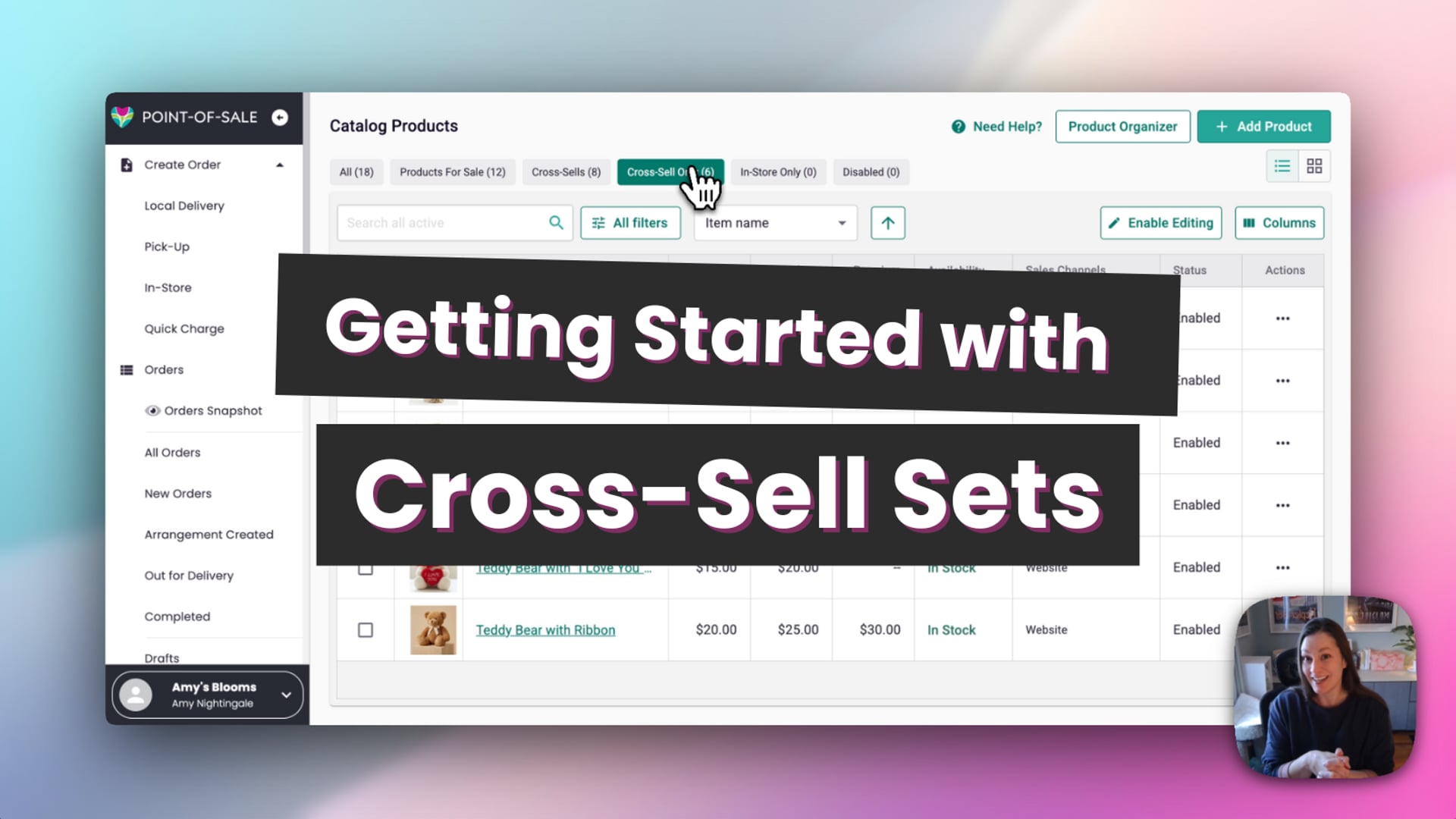 Getting Started with Cross Sell Sets
Step 1: Confirm Cross-Sells Are Enabled in Checkout
Cross-sells always appear on product pages when available, but you control whether they also appear during checkout.
- Go to your Dashboard
- Navigate to My Website → Checkout Settings
- Enable Cross-Sells
- Choose how many cross-sells to show (we recommend 3–5)
- Save your changes
Step 2: Add Cross-Sell Items to a Cross-Sell Set
Next, organize your add-ons into a cross-sell set.
- Open your POS
- Go to Catalog
- Filter to view Cross-Sell or Cross-Sell Only items
- Open a cross-sell item (for example, a Valentine’s Day teddy bear)
- Scroll to Custom Categories
- Under Cross-Sell Set, select Valentine’s Day
- Save the item
Repeat for additional Valentine’s Day add-ons — or use bulk actions to save time.
Bulk option (recommended)
- Filter by Valentine’s Day
- Select multiple cross-sell items
- Click Actions → Add Categories
- Select Cross-Sell Set → Valentine’s Day
- Apply changes
Step 3: Apply the Cross-Sell Set to Your Products
Apply to a single product
- Open a Valentine’s Day product
- Scroll to Product Customization
- Under Cross-Sell Display Rules, select Specific Category
- Choose Cross-Sell Set → Valentine’s Day
- Save
Bulk update (recommended)
- Filter products by Valentine’s Day
- Select the products you want
- Click Actions → Manage Cross-Sell Settings
- Choose Specific Category
- Select Cross-Sell Set → Valentine’s Day
- Apply changes
Step 4: (Optional) Reorder Cross-Sells
You can control the order customers see add-ons in.
- Go to POS → Product Organizer
- Filter by Cross-Sell Set
- Select Valentine’s Day
- Drag and drop items to reorder
This lets you highlight your most popular or highest-value add-ons first.
Common Use Cases
- Valentine’s Day add-ons (cards, chocolates, balloons)
- Luxury add-on sets for premium arrangements
- Sympathy-specific add-ons (banners, keepsakes)
- Seasonal or promotional add-ons
Need Help?
If you have questions or want help setting up cross-sell sets for your shop, our Support Team is happy to help.
Phone: (210) 405-5050
Email: support@bloomnation.com