
New Checkout Experience
New Checkout Experience Overview
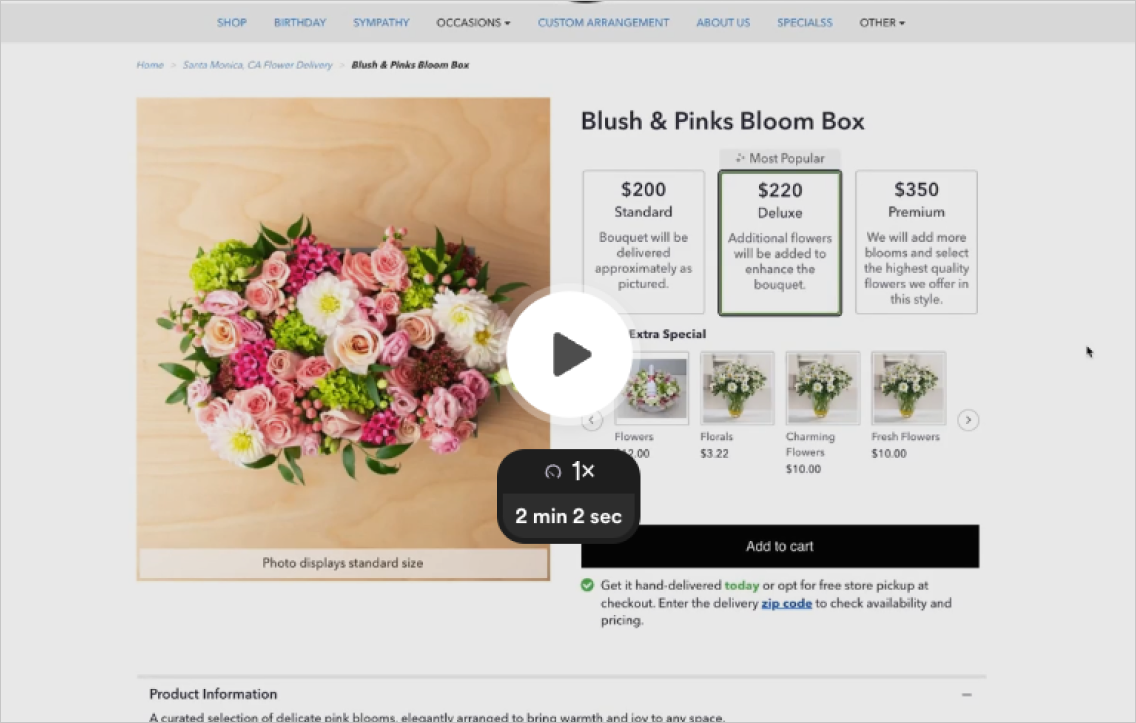
The new checkout design on your BloomNation premium site is crafted to help increase your conversion rate and order values by streamlining the purchase process for your customers. This optimized checkout flow ensures a more user-friendly experience, making it easier for customers to complete their orders. Watch the video below to see how the new design enhances the overall shopping journey.
Checkout Settings Overview
These settings allow you to fine-tune various aspects of the checkout experience, from cross-selling opportunities to optimizing payment options. Each setting is designed to offer flexibility and customization, so your checkout process can cater to your business needs and improve customer satisfaction.
Accessing Checkout Settings
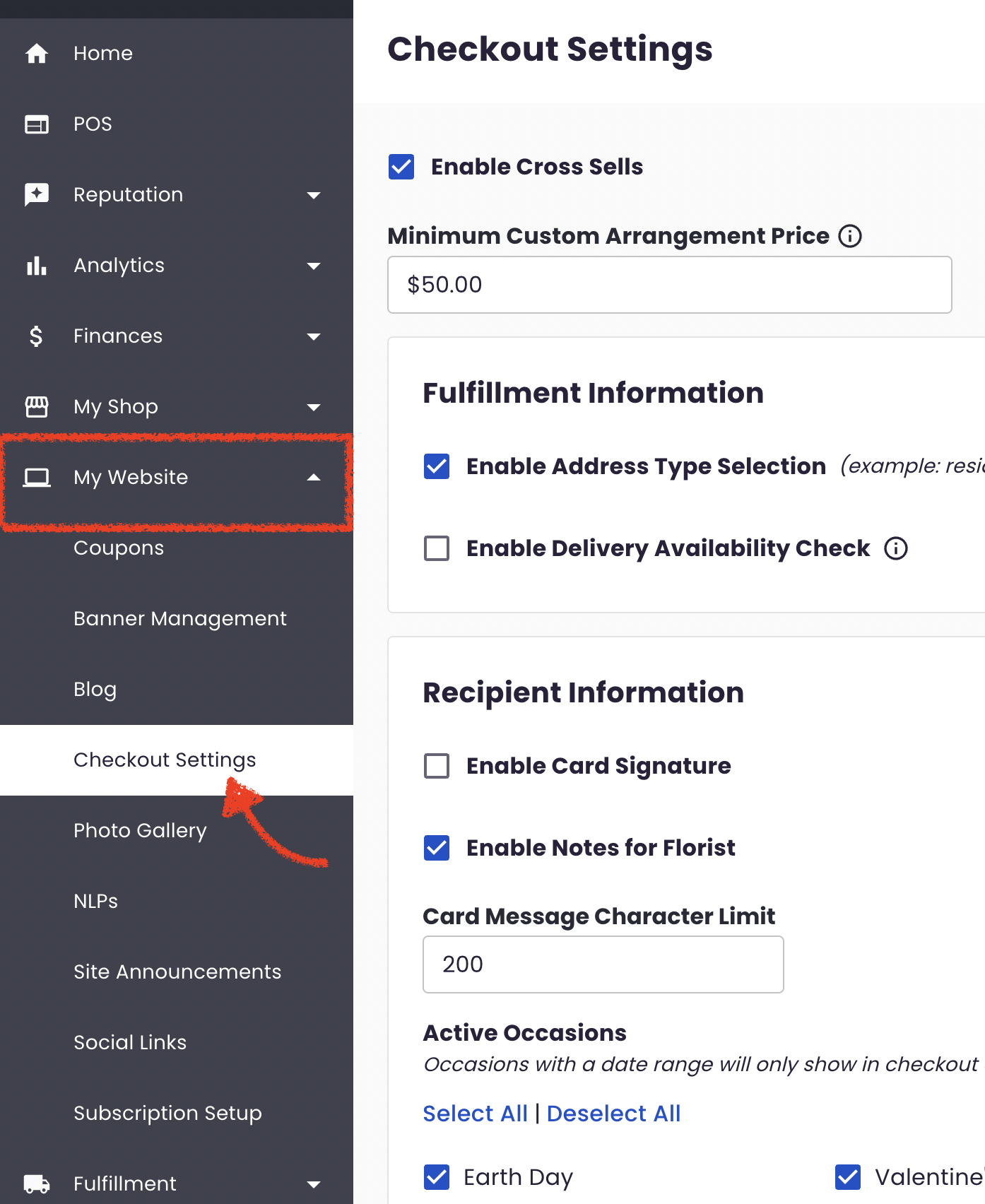
To access and configure these settings, log into your BloomNation account and navigate to:
- My Website > Checkout Settings
Cross-Sells & Custom Arrangements
- Enable Cross-Sells: Cross-sell products are non-floral items that enhance your customers' orders by adding extra value. Common examples include items like candles, chocolates, stuffed animals, and balloons.
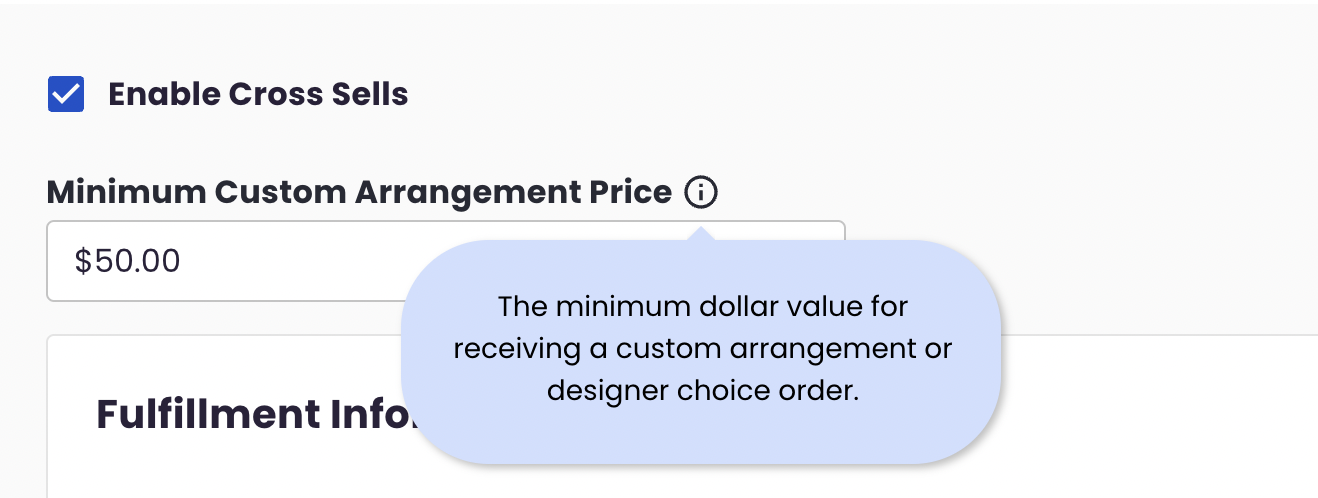
- Minimum Custom Arrangement Price: Set the minimum dollar amount required to accept a custom arrangement or designer choice order.
Fulfillment Information
- Enable Address Type Selection: Allows customers to select the type of delivery location, such as Residential, Hospital, or Business. This makes it easier for the delivery driver to successfully find your customer.
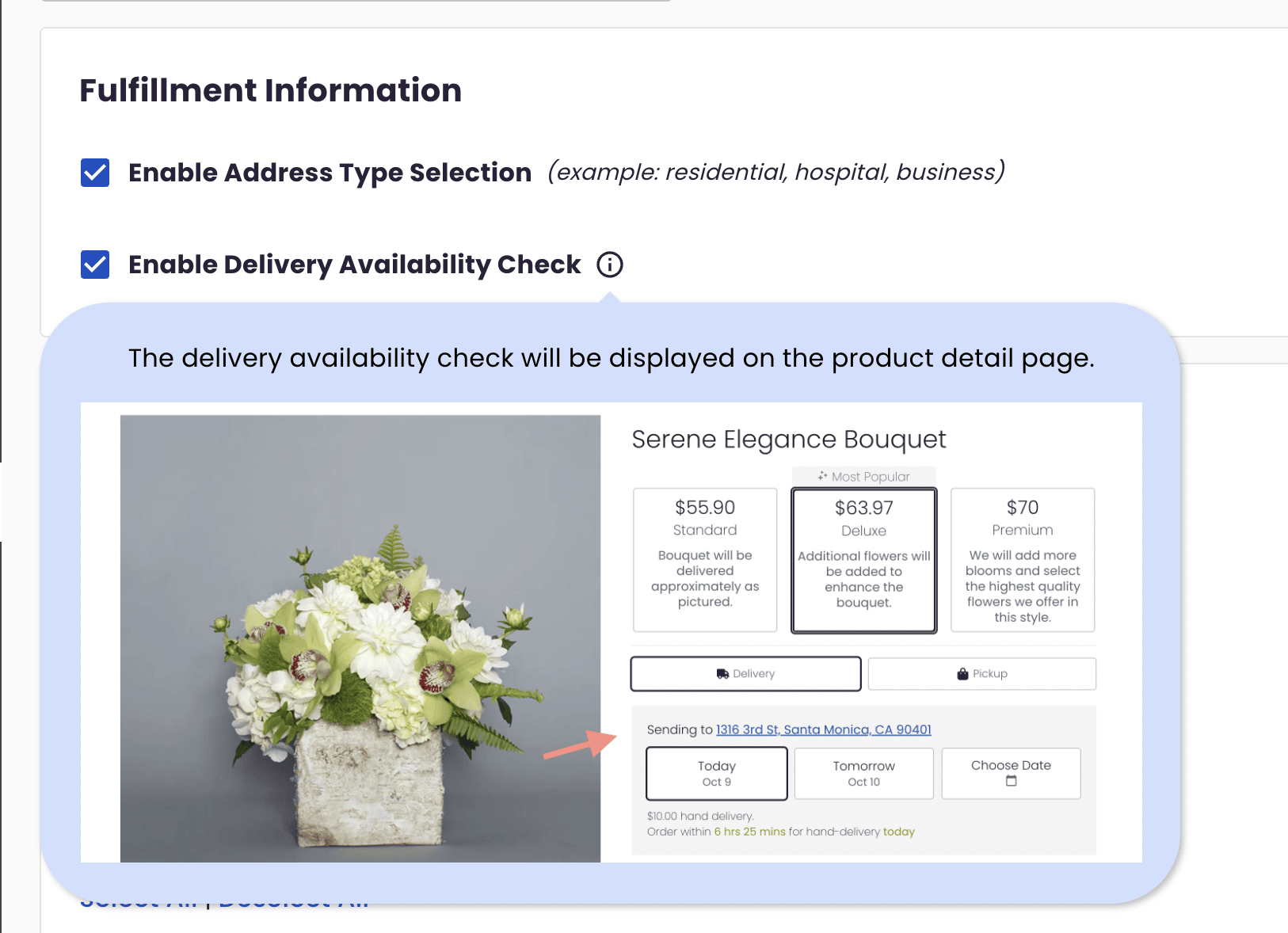
- Enable Delivery Availability Check: Displays a delivery availability check on product detail pages (PDPs), so customers can check if an address is eligible for delivery by your shop.
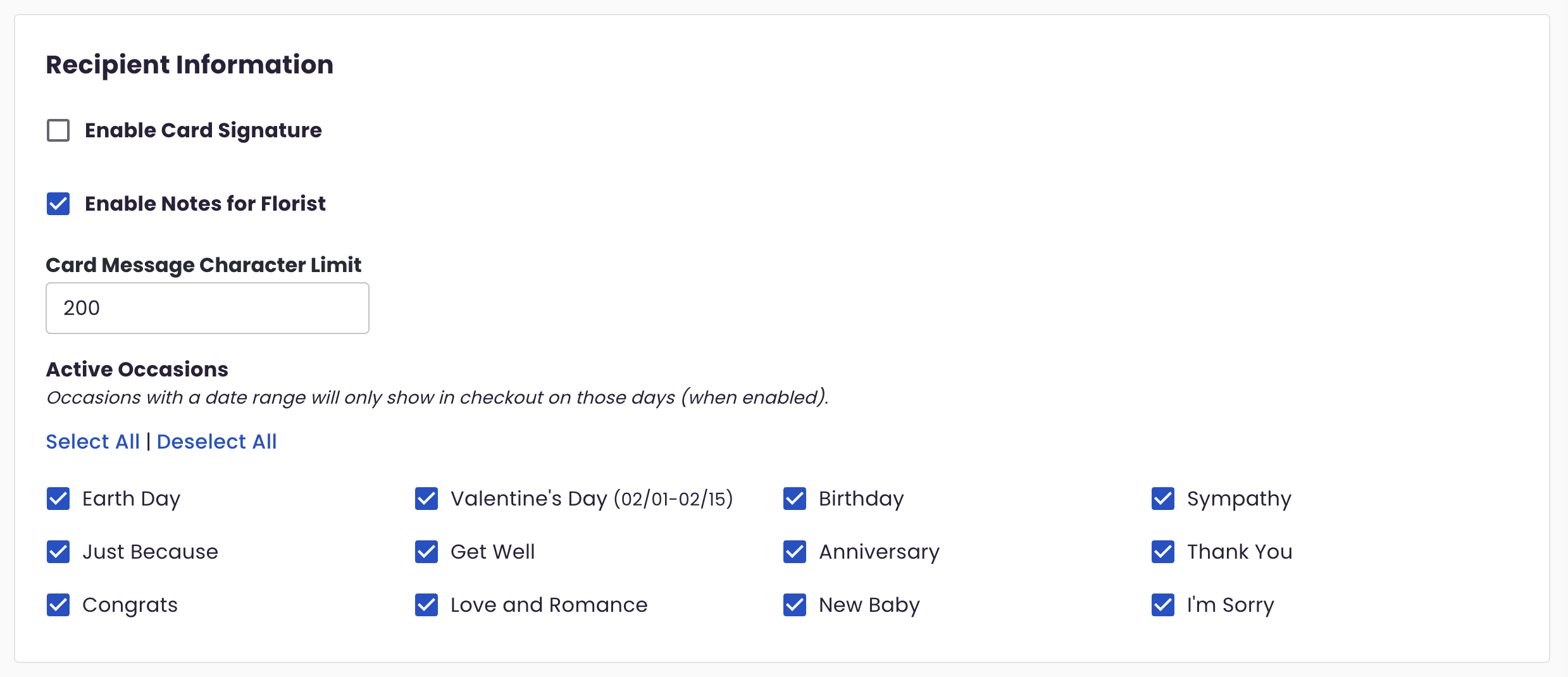
Recipient Information
- Enable Card Signature: Allows customers to add a signature to the card accompanying their floral order.
- Enable Notes for Florist: Provides a field for customers to add special instructions or notes for the florist.
- Card Message Character Limit: Set the maximum number of characters allowed for the card message.
- Active Occasions: Choose which occasions (e.g., Valentine’s Day, Anniversary, Sympathy) are available during checkout. Certain occasions with date ranges will only appear during their respective seasons.
Payment Information
-
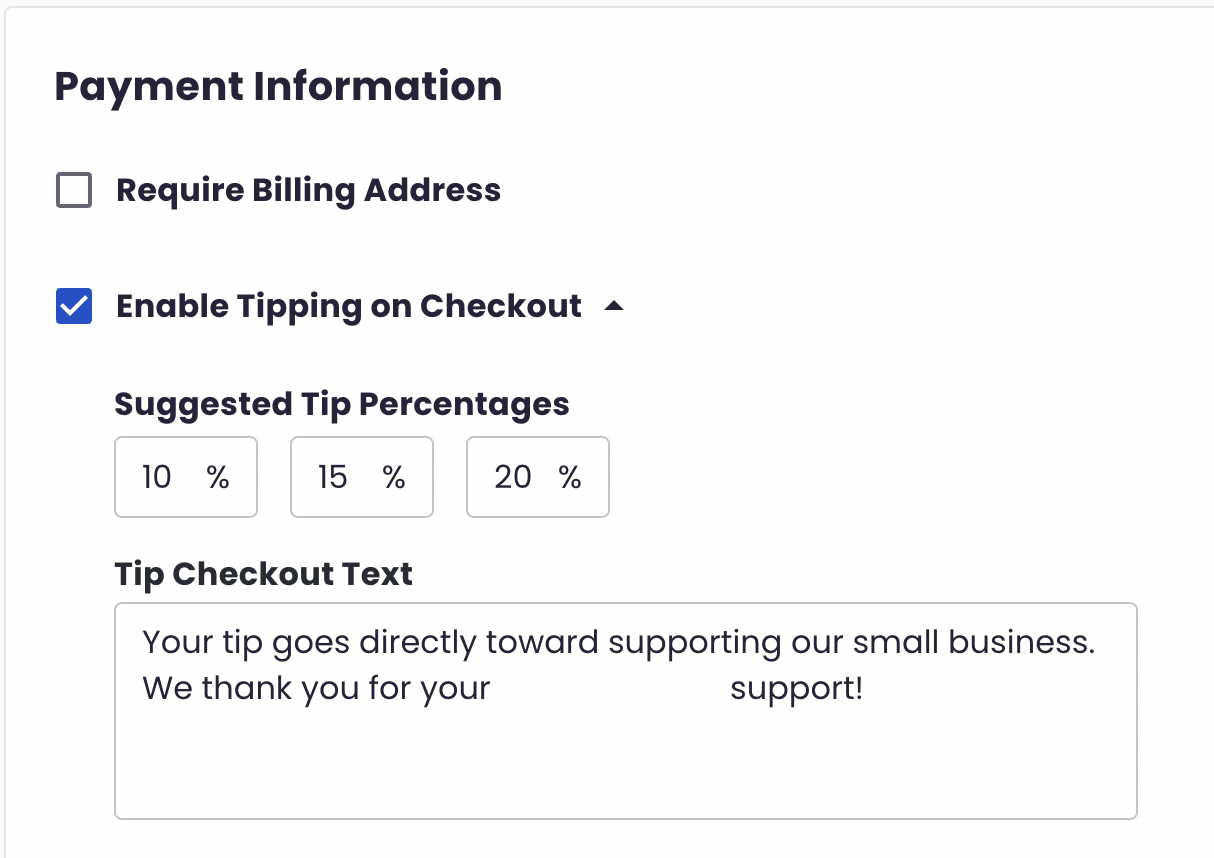
Require Billing Address: Stripe (our payment processor) handles billing information, but you can opt to require customers to provide their billing address for added verification.
-
Enable Tipping on Checkout: Allow customers to tip at checkout.
- Suggested Tip Percentages: Customize up to three suggested tipping options (defaults are 10%, 15%, and 20%).
- Tip Checkout Text: Provide custom text to encourage tipping.
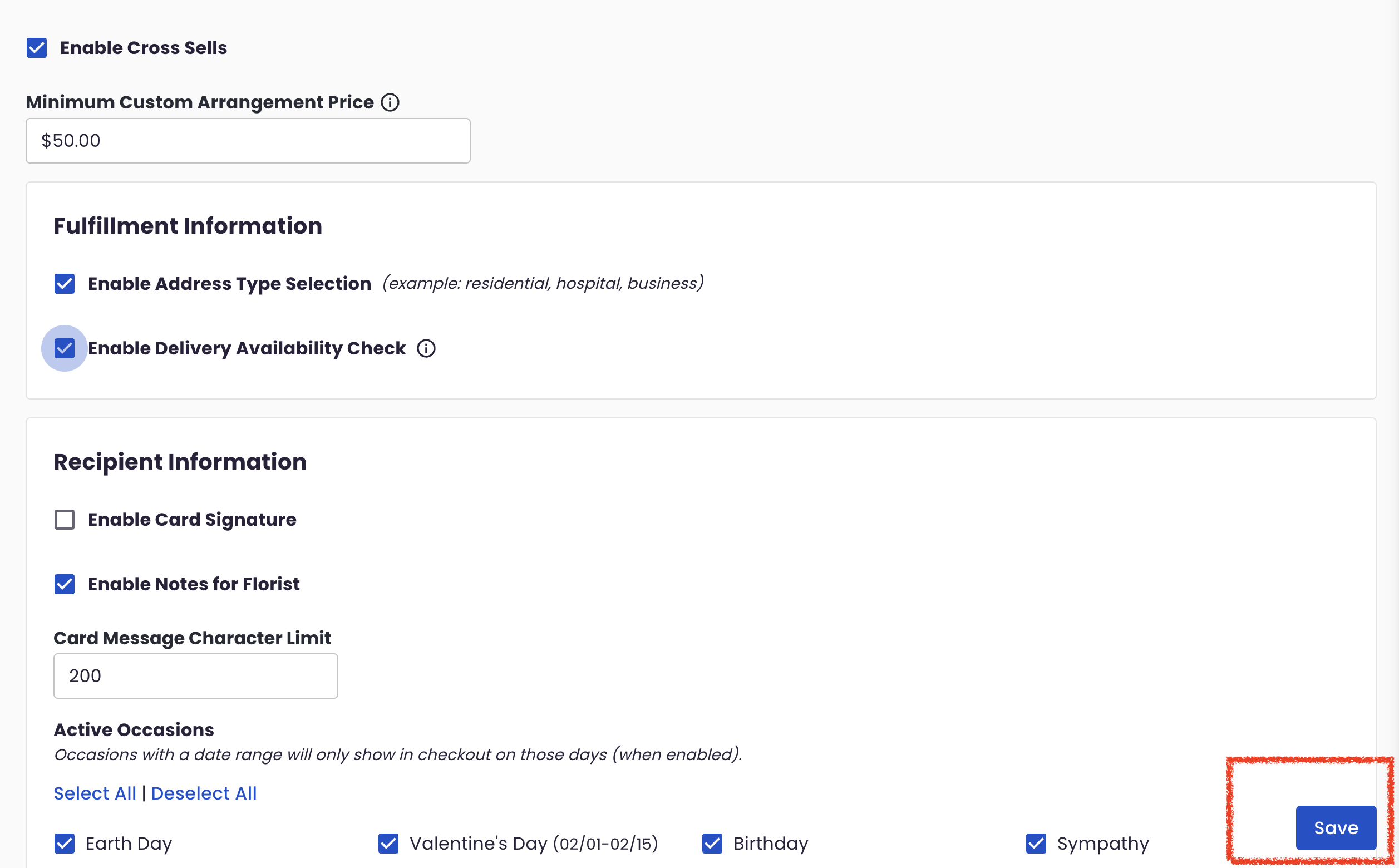
Reminder: After making any changes, click Save at the bottom right to ensure your updates are applied.
Summary
Setting up your checkout options correctly can streamline the purchasing process for your customers, enhance their experience, and increase overall sales. Be sure to review these settings periodically to ensure they reflect your current business needs.
Need Help?
If you have any questions about Checkout Settings or need further assistance, let our Bloom Experts know by submitting a ticket!