
Adding Customer Choices to a Product
Overview
Customer choices let customers personalize a product when they order it. They can pick a vase type, a flower color, or an arrangement style, or type a short message like a ribbon note. You can offer different variations on one product instead of creating a separate product for each one, and you can add an extra charge to any option.
How to add a customer choice
- Go to Catalog >> and open a product, or click Add Product.
- Scroll to the Customer choices section.
- Click + Add a customer choice.
- Pick what kind of choice it is:
- Choose from options: customers pick from a list you set up, like a vase type or rose color.
- Enter their own text: customers type something in, like a ribbon message or a name to spell out.
- Enter a Choice name. This is the question customers see, like "Vase" or "Ribbon message."
- Fill in the rest of the settings (see below).
- Check the Preview to see how the choice will look to customers on each size.
- Click Save, then Publish the product.
You can add up to 3 customer choices per product, like a flower color, a wrapping paper, and a ribbon message. Each choice can have as many options as you need. To add another choice, save or cancel the one you have open first.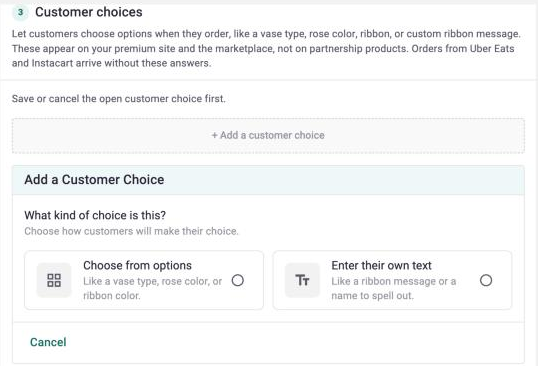
Choose from options
Display as
Pick how the options appear to customers:
- List: a simple list of option names. Good for things like vase shape.
- Swatches: a color dot next to each option. Click the + in the Color column to pick a color, or enter a hex code. Good for flower or ribbon colors.
- Photos: a photo for each option. Upload a new photo or choose one you already have. Good for arrangement styles.
Options and extra charges
For each option, enter the name customers will see. To charge more for an option, enter an amount in the Extra charge column. Leave it at $0 if there's no extra cost.
The extra charge is added to the product price when a customer picks that option.
Click + Add an option to add more. Drag options to change their order, or click the trash icon to remove one.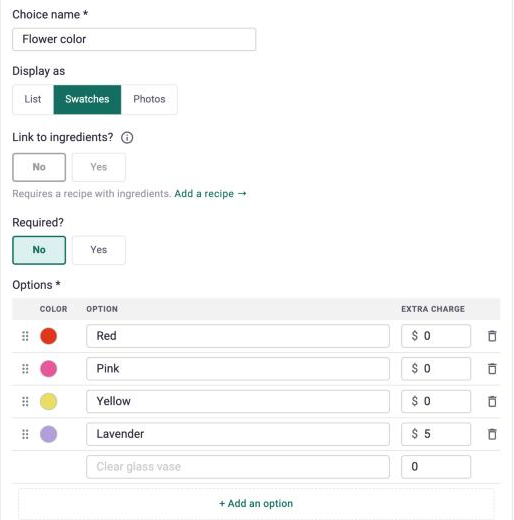
The Preview shows how the choice will look to customers, including any extra charges. Use the Standard, Deluxe, and Premium buttons to check each size. If a choice has more than six options, customers pick from a dropdown list instead.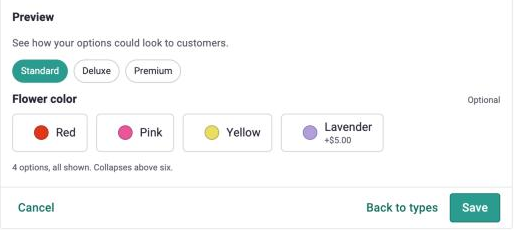
Required or optional
- Required: Yes: customers have to make a choice before they can add the product to their cart.
- Required: No: customers can skip it. If they skip it, the product is made as usual.
Link to ingredients
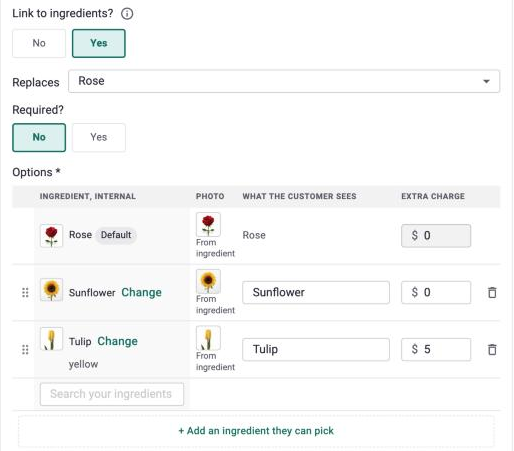
Linking to ingredients lets each option swap out an ingredient in your recipe. For example, a customer could pick sunflowers to replace the roses in the arrangement.
To use this, the product needs a recipe with ingredients first. Learn how to add a recipe >>
- Set Link to ingredients? to Yes.
- Under Replaces, pick the recipe ingredient customers can swap out. Only ingredients used in all of the product's sizes will show up.
- The original ingredient is added as the Default option. Customers can keep it at no extra charge.
- Click + Add an ingredient they can pick and search for each replacement.
- Edit What the customer sees if you want a different name, and add an extra charge if needed.
Each option uses the ingredient's photo automatically. When an order comes in, the recipe on the order and on your hyperticket will show the new ingredient in place of the original one. There's nothing extra to update.
A few things to keep in mind:
- Each choice replaces one ingredient. To let customers swap a second ingredient, add another choice.
- Extra charges aren't pulled from your ingredient costs. Enter the amount you want to charge for each option.
If you don't use recipes, you can set up the same kind of choice with Photos instead.
Enter their own text
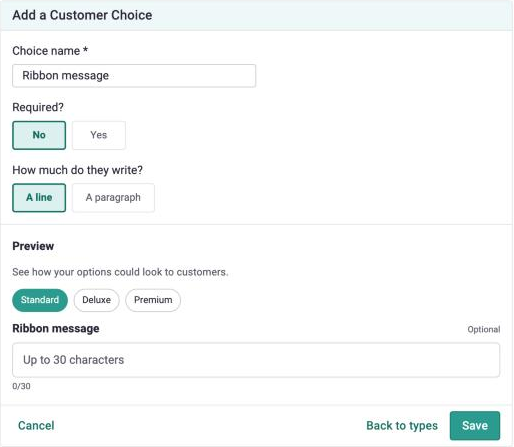
Use this for anything the customer writes that goes on the arrangement itself, like a ribbon message or a name. Card messages are still entered at checkout, so you don't need a choice for those.
Under How much do they write?, pick:
- A line: up to 30 characters
- A paragraph: up to 250 characters
Text choices can be required or optional. They can't have an extra charge.
Where customer choices show up
Customer choices appear on products on your website and on the BloomNation marketplace. They also work on add-ons. When a customer adds an add-on that has choices, they pick their options before adding it.
Once an order is placed, the customer's answers show on:
- The cart, checkout, and order confirmation
- Order emails
- Order details in your POS, including any extra charges
- The customer's order history in their account
- Hypertickets (see below)
You can also select choices for a customer when you build an order in Create Order, an Invoice, or an Event. Required choices have to be filled in before you can finish the order. In Events, add the product first, then open the item details to pick the choices.
Print customer choices on hypertickets
Customer choices print on hypertickets with the customer options field.
- If your shop uses a custom hyperticket, the field needs to be added. Contact Partner Support and we'll add it for you.
Learn more about hypertickets >>
Things to know
- Customer choices aren't available on partnership products, like Uber Eats and Instacart.
- Customers can pick one option per choice. Picking more than one option isn't supported yet.
- Choices don't add search value to your website. If a variation is a popular search, like "a dozen red roses," it can make sense to keep it as its own product too.
Tips
- For color variations, like a dozen roses in red, pink, or yellow, a Swatches choice is the quickest setup.
- If you use recipes, you can link the color choice to ingredients instead (for example, red roses replaced with pink roses). Your recipes and hypertickets will stay accurate for every order.
- Keep option names short and clear. They're what customers see on your website.
Frequently asked questions
Can I add an extra charge to a text choice?
No. Extra charges are only available for Choose from options.
What happens if a customer skips an optional choice?
The product is made as usual, with the original recipe.
Will customer choices change my product's price on my website?
The product shows its regular price. When a customer picks an option with an extra charge, the amount is added to their total.
Can customers make their choices on an invoice or proposal I send them?
Not right now. Pick the choices for your customer when you build the invoice, event, or order.
Related articles
- Adding New Products
- Recipes Management
- Upload Add-On or Cross-Sell Products
- Hyperticketing
- Create Order
Need help?
If you have questions, our Partner Support team is here to help.
Phone: (210) 405-5050
Email: support@bloomnation.com