
Recipes Management
The Recipes Management feature makes creating and pricing arrangements easy by standardizing recipes, so you can keep costs and profits accurate while managing inventory more smoothly.
- Create or Edit Recipes
- Add an Ingredient
- Add a Category
- Markups
- Add Suppliers
- Estimated Profit display
- Employee Permissions
- Recipes from Starter Catalog
Feature Walkthrough: Recipes & Stem Counter
Watch this video walkthrough to learn how to create and manage recipes for your arrangements using the Recipes & Stem Counter feature in your Point-of-Sale. This step-by-step guide covers adding ingredients, calculating costs, applying markups, and more.
 Recipes & Stem Counter | BloomNation Point of Sale Tutorial
How to Create or Edit Recipes per product
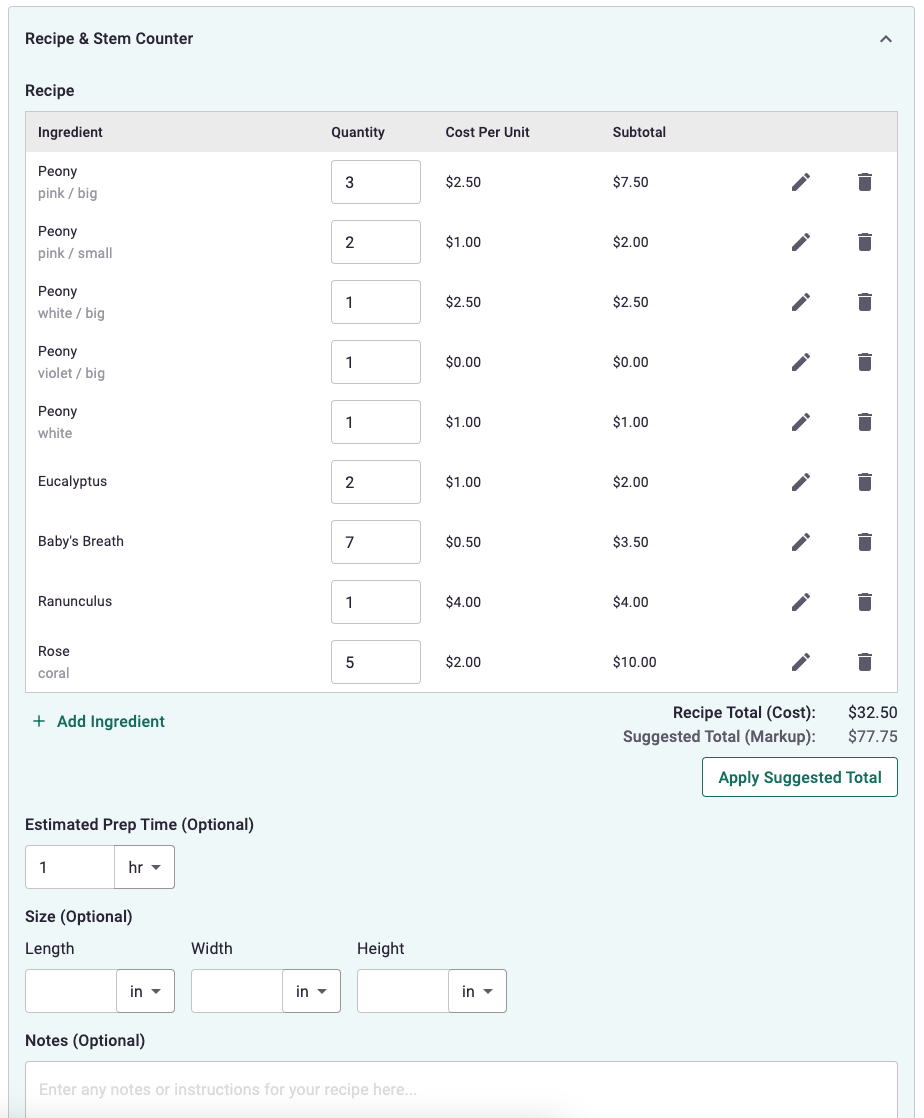
- Only users with permission to manage recipes will be able to make changes. (See Employee Permissions)
- From your PoS, go to Products > Catalog > Add Product or select the specific product you want to add or edit the recipe of.
- Once you get to the Price area is where you can see the "Recipe & Stem Counter" section per tier. Click on it to expand view.
- Ingredient field: You can choose from existing ingredients that show up on the dropdown, or you can add a new ingredient. (See Adding a New Ingredient)
- Quantity field: Once you select/add ingredients, you can put in the Quantity of each that goes to the arrangement.
- Cost per unit
- This is how much it costs you to supply a unit of the specific ingredient.
- Will automatically reflect whatever price you put in each ingredient.
- Subtotal: Will automatically calculate the quantity multiplied by the cost per unit.
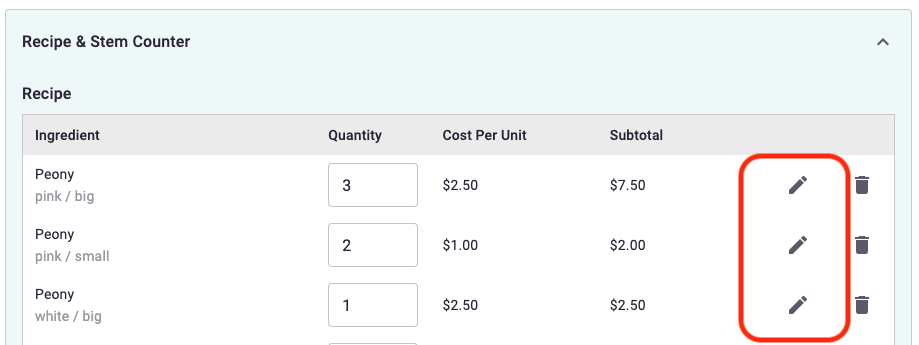
- Edit icon: Click on this to edit the ingredient.
- Note: editing and saving the ingredient will affect all recipes that is using the same ingredient.
- Trash icon: Click on this to remove the specific ingredient on the row from this recipe.
- Add Ingredient: Click on this to add a new row and field to select an ingredient.
- Recipe Total (Cost): Will automatically calculate the total of all ingredients' subtotals.
- Suggested Total (Markup): Automatically calculated with any existing mark ups for ingredient categories or labor markups. (See Markups)
- Apply Suggested Total button: When you click this button, it will copy over the Suggested Total to the Product Price of the specific tier.
- Estimated Prep Time (optional): Input the time it takes for your designer to create the arrangement. It will be used to calculate the labor cost. (See Labor Cost) You can choose between entering number of minutes or hour/s.
- Size (optional): You can pick to input the dimensions in inches or centimeters.
- Notes (optional): Can be used to add instructions or tips on how to create the arrangement.
- Copy & Add [Tier] Recipe: Clicking this button copies the previous recipe for the tier you're currently editing.
View & Print Recipes
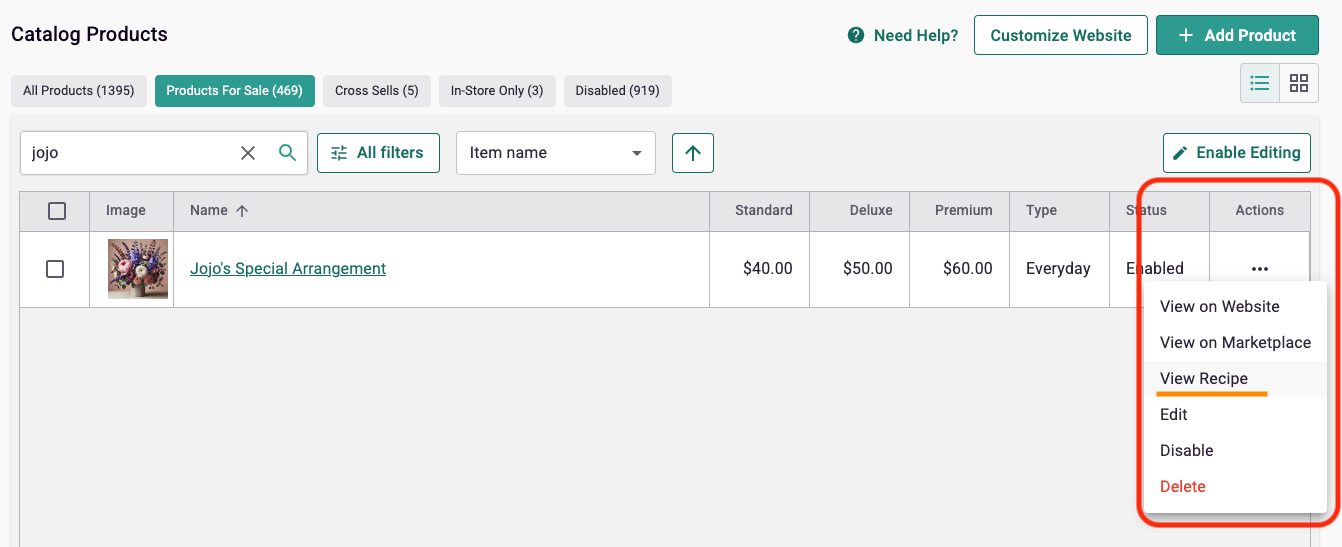
- All users are able to view and print recipes.
- There are a number of ways you can view a product's recipe once saved.
- Go to Catalog > Product > Action column / Ellipsis button > View Recipe
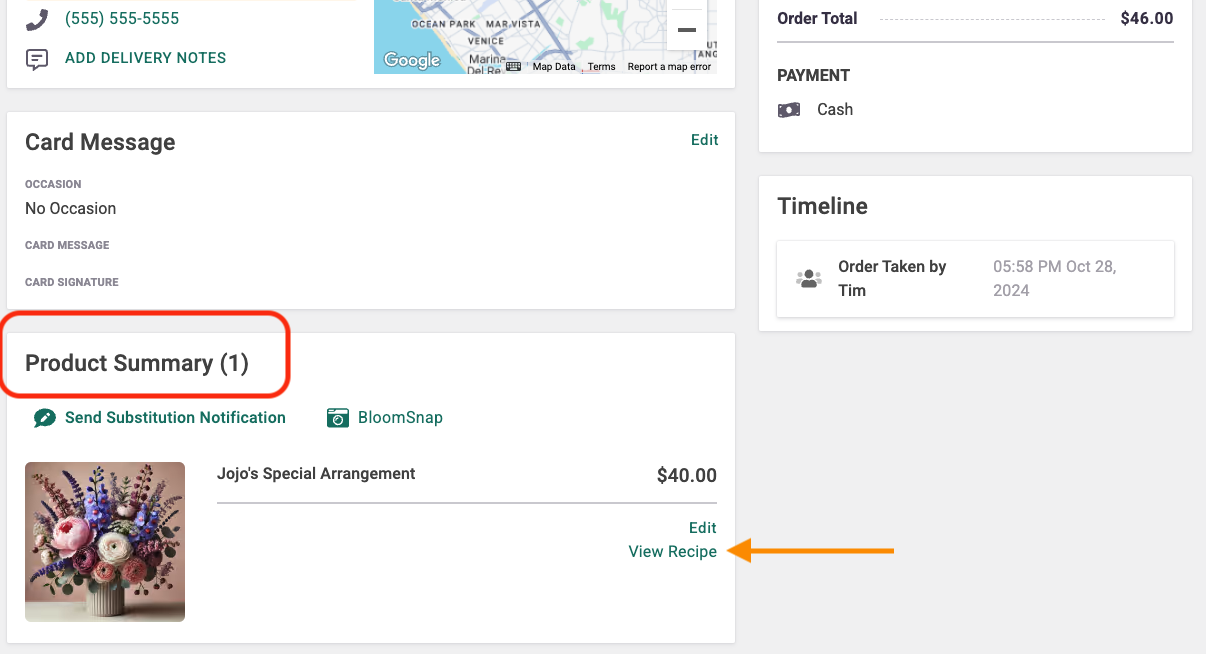
- If the product is in an order, go to All Orders > Order Details page > Product Summary > View Recipe.
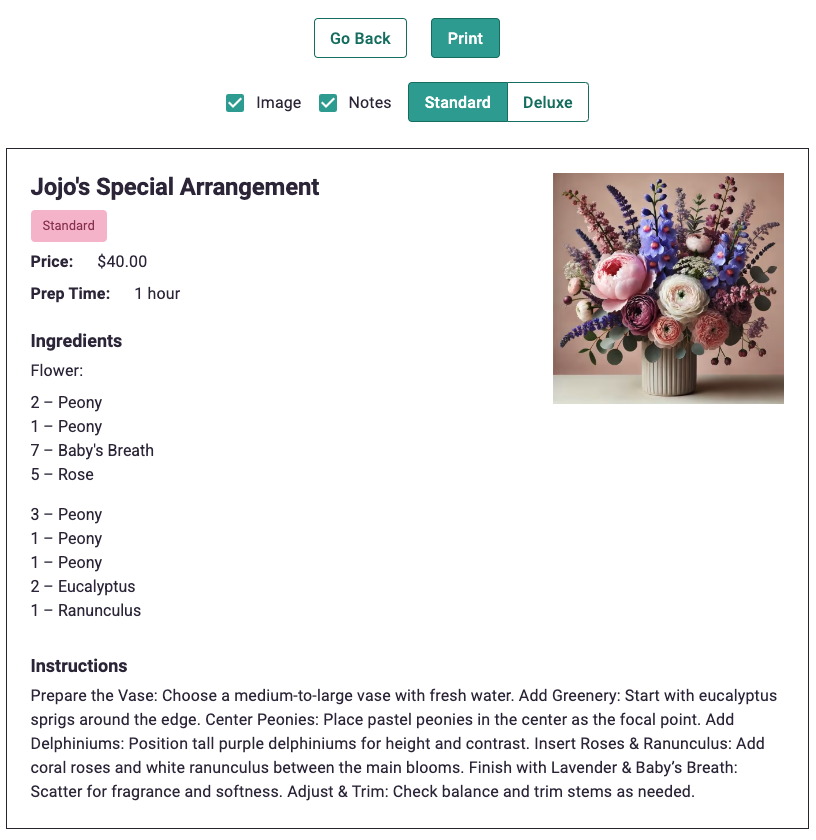
- From here, you can send the recipe to print.
- Select if you want the Image and Notes to be included.
- Click the Print button.
- What's included in your recipe print out:
- Product Tier
- Price Point
- Prep Time
- List of Ingredients
- Instructions/Notes (optional to be included)
- Product Image (optional to be included)
- Note: If you would like to add the recipe to your hyperticket, please send your request to our Florist Support.
Recipes Filter on Catalog
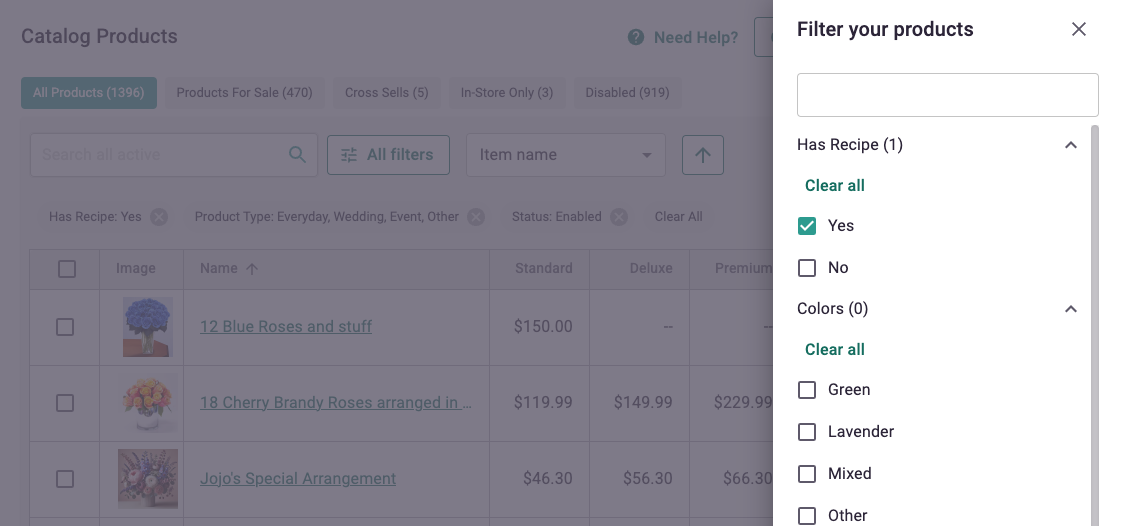
- When you are viewing your products in your catalog, you can filter down to only see products with recipes or products without recipes.
- Click on All Filters button > under "Has Recipe" > Yes or No checkbox
Feature Walkthrough: Managing Recipe Elements
Discover how to efficiently manage recipe elements, including ingredients, categories, labor costs, and suppliers, all through your Point-of-Sale system.
 Managing your Recipe Elements | BloomNation Point of Sale Tutorial
Adding a New Ingredient
- Only users with permission to manage recipes will be able to make changes. (See Employee Permissions)
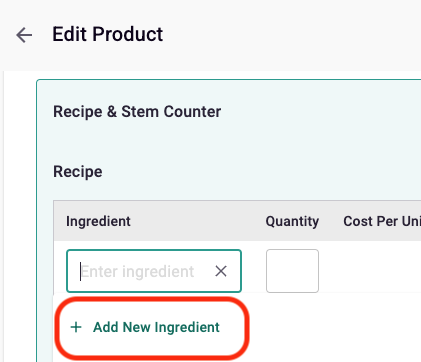
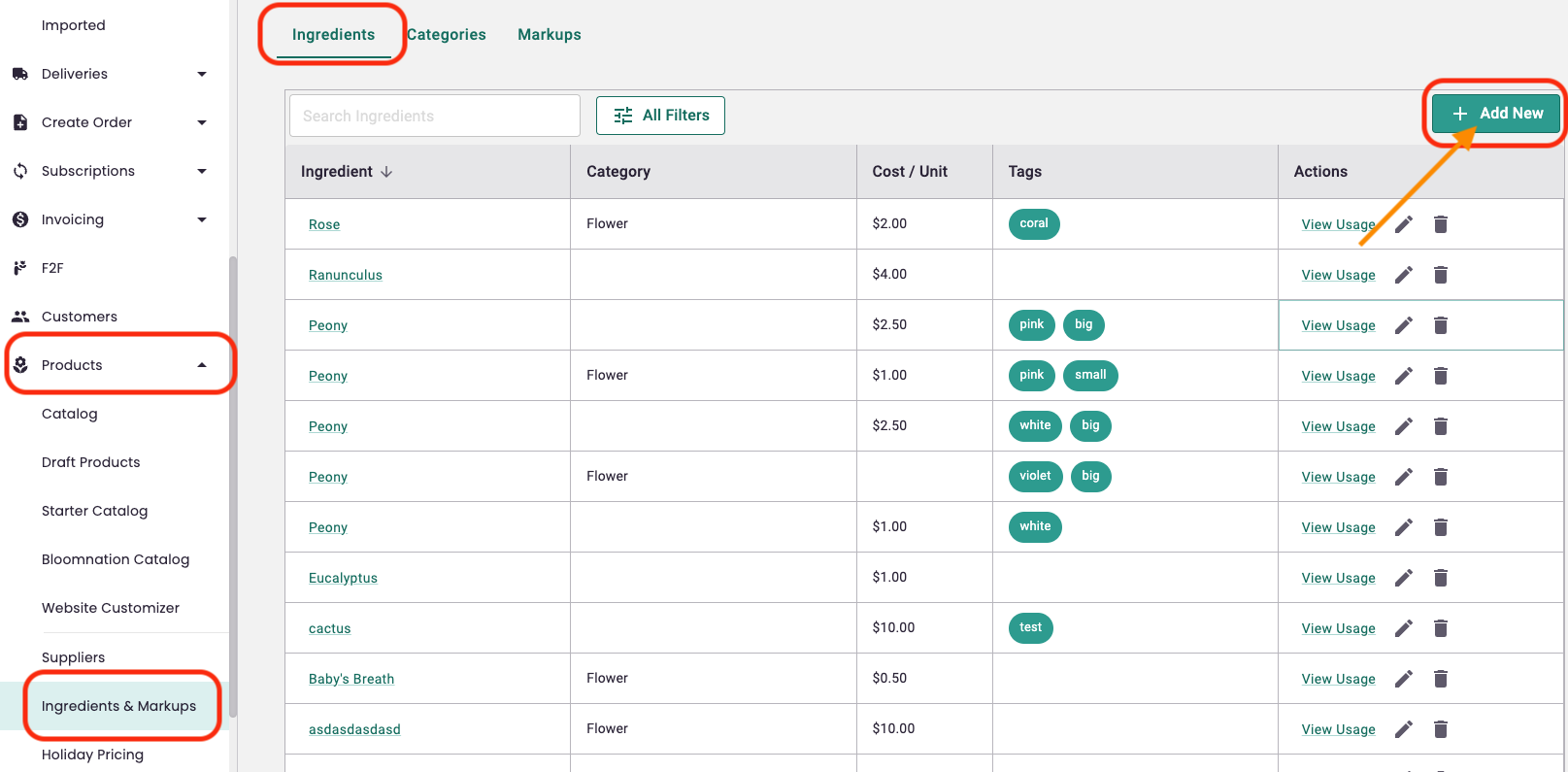
- You can add a new ingredient while working on a product's recipe > Ingredient field > Add A New Ingredient, or by going to Catalog > Ingredients & Markups > Add New.
or
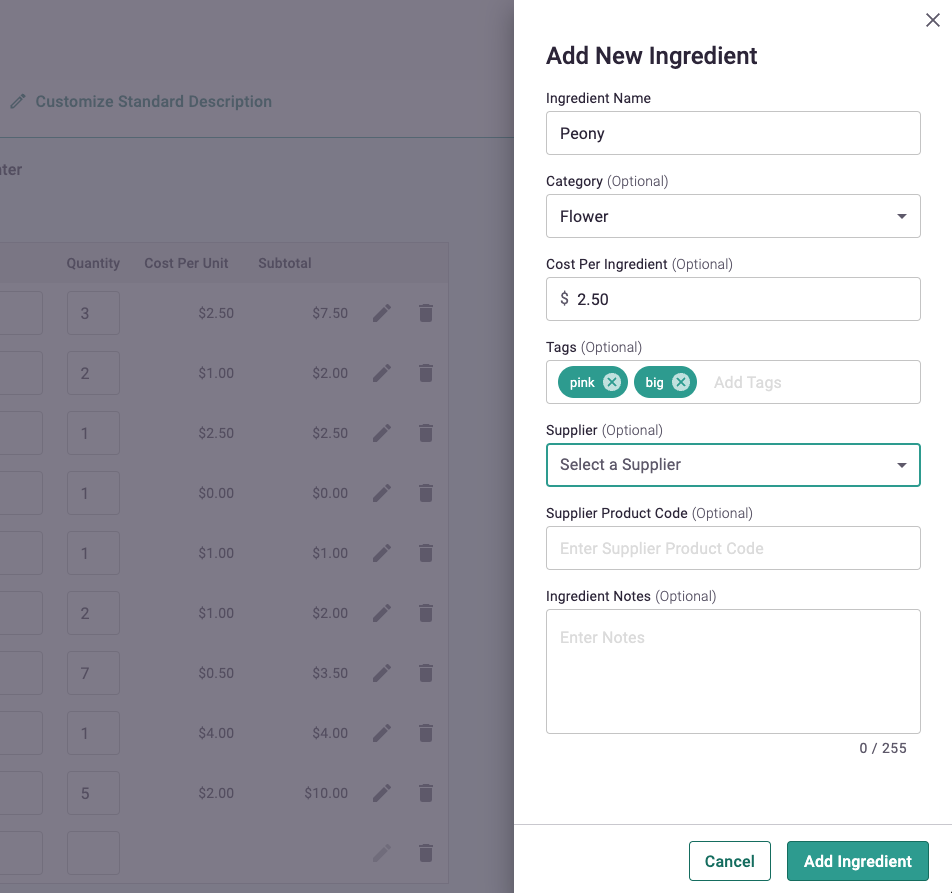
- A sidebar will slide in from the right side. Fill out the fields based on your preference:
- Ingredient Name
- For example: Peony, Rose
- Category (optional) – select an existing category or add a new one.
- For example: Flower
- (See Adding a Category)
- Recipe Unit (optional) – choose the unit you use in recipes (for example, Stem or Each).
- Estimated Cost (How you buy it) – set how this ingredient is purchased so costs and purchase quantities calculate correctly.
- Qty – how many recipe units are included in what you buy (for example, 25 stems).
- Purchase Unit – the unit you buy this ingredient in (for example, Bunch, Dozen, Case).
- Cost / Purchase Unit – what you pay per purchase unit (for example, $25 per bunch).
- Inventory – optionally mark the ingredient as In Stock.
- Tags (optional) – descriptive keywords to make ingredients easier to search and filter.
- For example: pink, long-stemmed, bunch
- Supplier (optional) – select an existing supplier (or add a new supplier if needed).
- (See Suppliers)
- Supplier Product Code (optional) – the code your supplier uses for this item.
- Ingredient Notes (optional) – internal notes for your team.
- Barcode (optional) – add a barcode if applicable.
For a full breakdown of ingredient management (including purchase units for Shopping Lists and Purchase Orders), visit: Managing Ingredients in BloomNation POS
Editing/Deleting An Ingredient
- Only users with permission to manage recipes will be able to make changes. (See Employee Permissions)
- You can edit an ingredient:
- while working on a product's recipe > Ingredient row > Edit icon
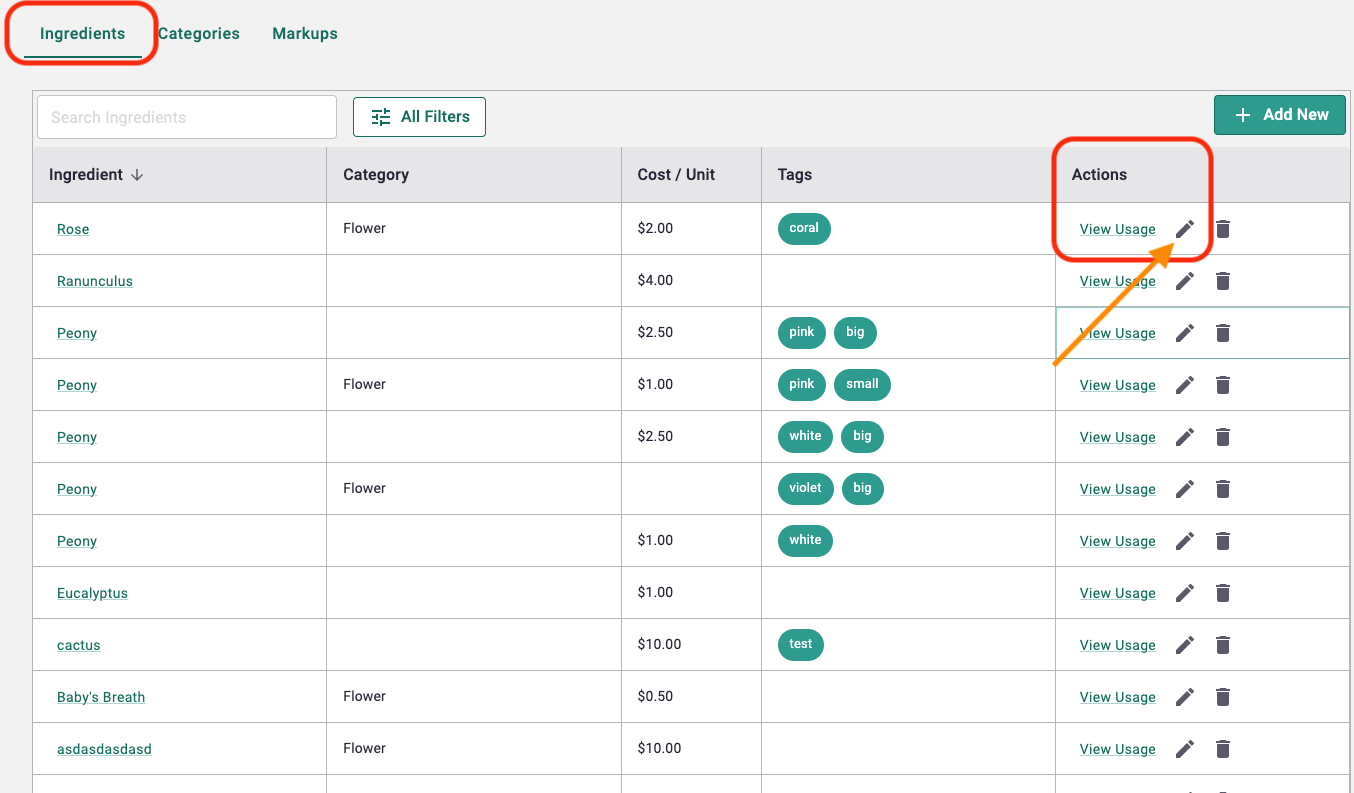
- or by going to Products > Ingredients & Markups > Actions column > Edit icon.
- Notes
- Any changes you make to an ingredient will reflect on all the recipes that use the same ingredient.
- When editing an ingredient in the product's recipe section, any changes saved in the ingredient sidebar will be applied immediately, even if you do not save changes on the product page afterward.
or
- Ingredient used in X products: This stat will show at the bottom when you are editing an ingredient. X = the number of products the specific ingredient is being used.
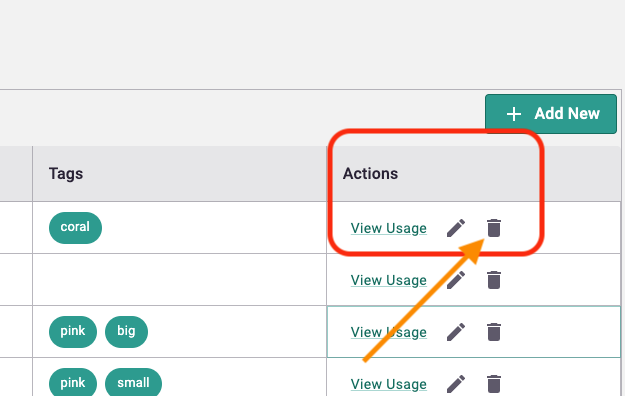
- If you want to delete an ingredient from all recipes, go to Products > Ingredients & Markups > Actions column > Trash icon.
- Note: If you remove an ingredient from a recipe within a specific product, it will only remove the ingredient from the recipe and not from the database of ingredients you have.
View Usage
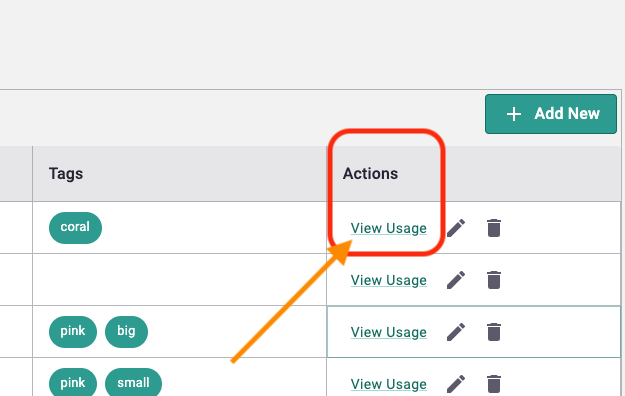
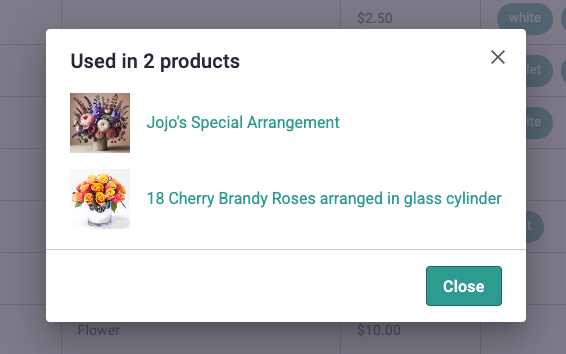
- You can view all products that use a specific ingredient on a grid by going to Products > Ingredients & Markups > Actions column > View Usage.
Bulk edit actions for managing ingredients
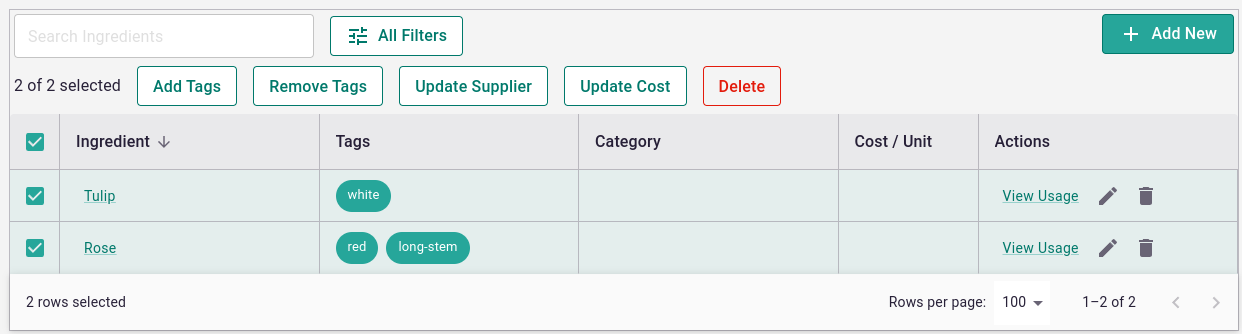
- Use the checkboxes to select multiple ingredients.
- Once an ingredient is selected, bulk action buttons will display:
- Add Tags: Add multiple tags to all selected ingredients.
- Remove Tags: Add multiple tags from all selected ingredients.
- Update Supplier: Assign a supplier to all selected ingredients.
- Update Cost: Change the cost per unit for all selected ingredients.
Search or filter through your Ingredients
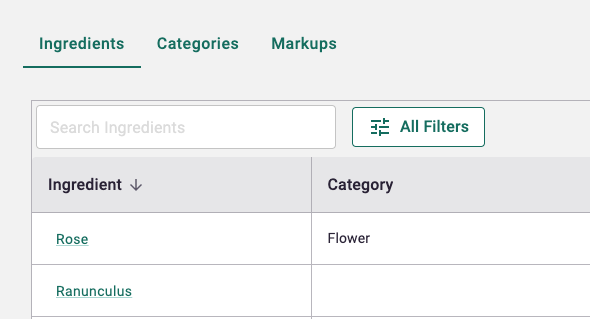
- Search field: You can enter keywords to search through your list of ingredients.
- Filter button: You can select any of your existing Tags or Categories to filter down your list of ingredients.
Adding a New Category
- Only users with permission to manage recipes will be able to make changes. (See Employee Permissions)
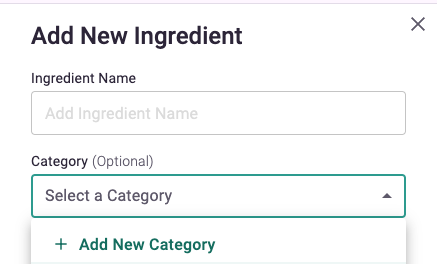
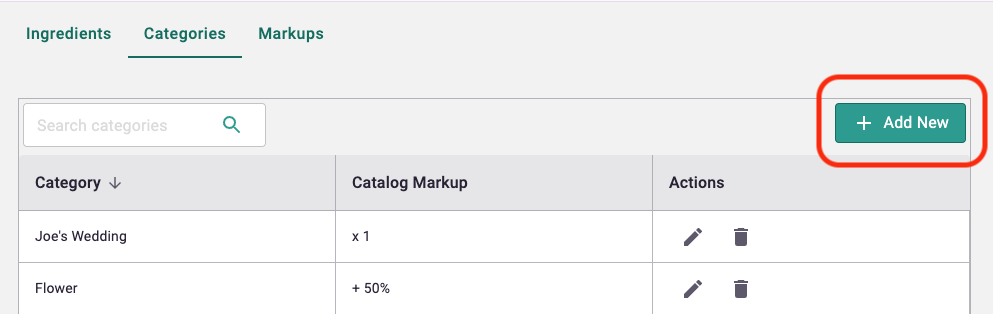
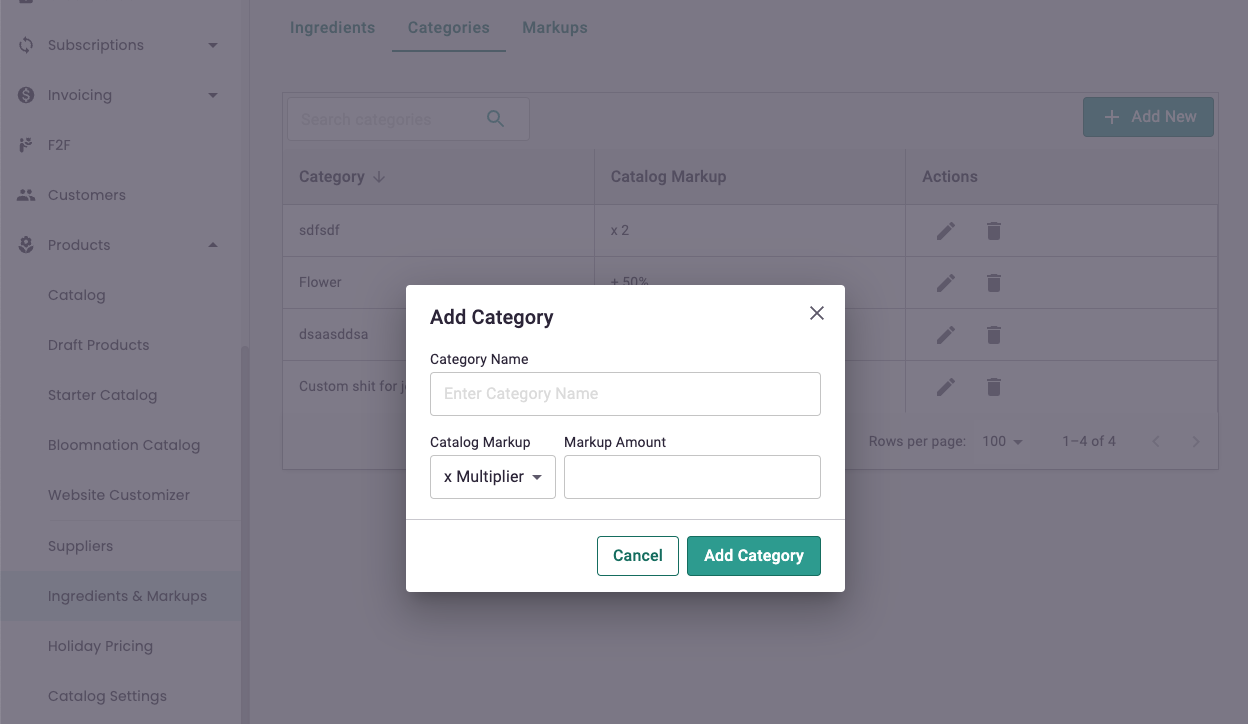
- You can add a new category while adding a new category > Add a New Category, or by going to Products > Ingredients & Markups > Category tab > Add New.
or
- Category Name: set a name for a category of ingredients
- Markup: See Category Markups
Editing/Deleting A Category
- Only users with permission to manage recipes will be able to make changes. (See Employee Permissions)
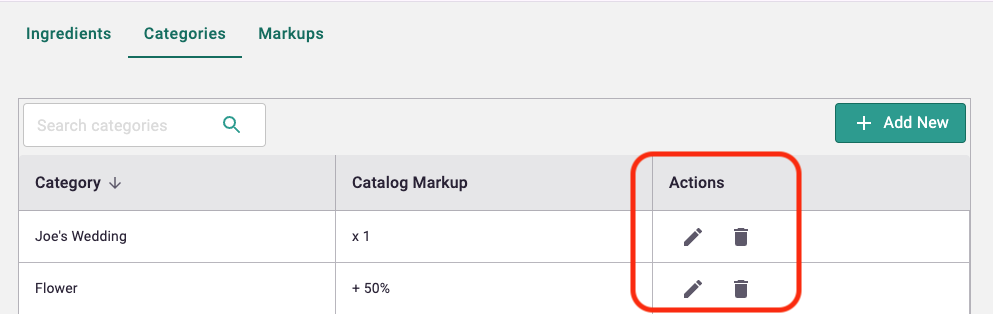
- You can edit a category by going to Catalog > Ingredients & Markups > Category tab > Actions column > Edit icon.
- If you want to delete a category, go to Catalog > Ingredients & Markups > Category tab > Actions column > Trash icon.
- Note: When you delete a category, the ingredients within it will not be deleted. The category will just be automatically deselected from those ingredients.
Markups
- Only users with permission to manage recipes will be able to make changes. (See Employee Permissions)
- From your PoS, go to Products > Ingredients & Markups.
Category Markups
This is how you add a markup for a specific category, where you want a markup to apply to all the ingredients within that specific category.
- Go to the Categories tab.
- When you Add a new Category or edit an existing one, there's an option for "Catalog Markup."
- Catalog Markup: Choose the type of markup within the dropdown.
- None: If you don't want any markups.
- x Multiplier: Enter a number you want the ingredient cost to multiply by.
- For ex. 2
- So if a Peony (which is in this category) is set to $2.50, it will be multiplied by 2, so 1 piece of Peony will then cost $5 with the 2x markup.
- % Percentage: Enter a percentage you want the ingredient cost to increase by.
- For ex. 100%
- The $2.50 Peony will then cost $5.00 with a 100% markup.
- Fixed Cost: Choose an amount to be added on top of the original cost.
- For ex. $2.00
- The $2.50 Peony will then cost $4.50 with the $2.00 markup.
Labor Markups
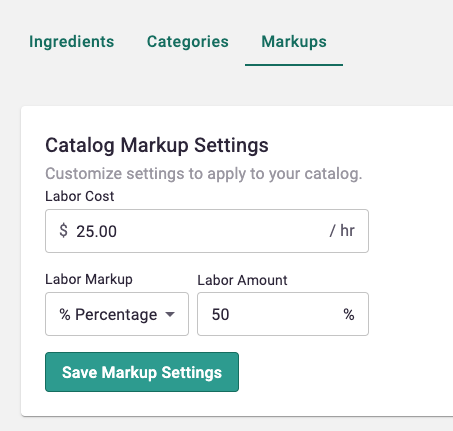
- Go to the Markups tab.
- This is where you can set the per hour rate to determine labor costs.
- The labor cost will take the Estimated Prep Time from a product's recipe and mutiply it by the per hour rate you set on this page.
- Labor Cost: Enter the amount of $ per hour.
- For ex. $25 per hour
- Labor Markup: This is where you add a markup on top of the labor cost.
- None: If you wish to not add any markup to the labor cost.
- x Multiplier: Enter a number you want the labor cost to multiply by.
- For ex. 2
- The $25.00 per hour labor cost will then become $50.00 with the 2x markup.
- % Percentage: Enter a percentage you want the labor cost to increase by.
- For ex. 150%
- The $25.00 per hour labor cost will then become $75.00 with the 150% markup.
- Fixed Cost: Choose an amount to be added on top of the original cost.
- For ex. $5.00
- The $25.00 per hour labor cost will then become $30 with the $5.00 markup.
Suppliers
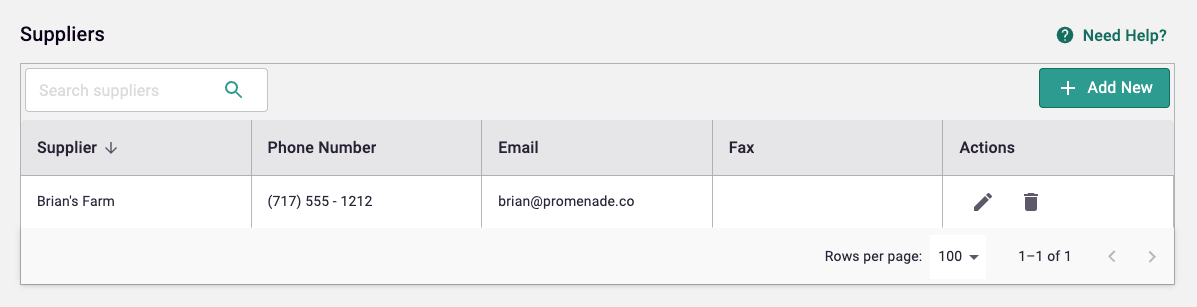
- Only users with permission to manage recipes will be able to make changes. (See Employee Permissions)
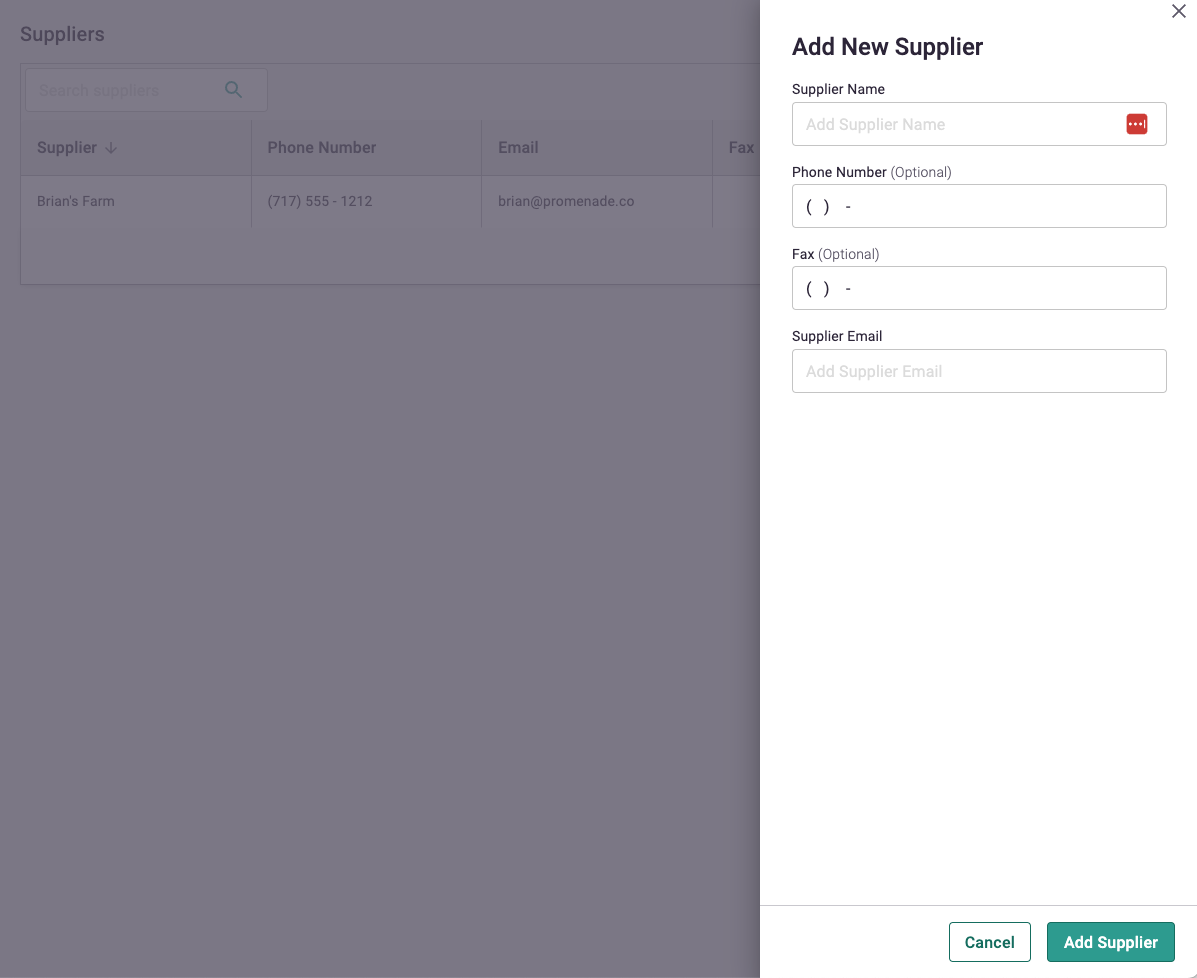
- You can add a new supplier while working on a product's recipe > Add a New Ingredient > Add a New Supplier, or by going to Catalog > Suppliers > Add New.
- Supplier Name: Enter the name of your supplier.
- Phone Number (optional): Enter the phone number of your supplier.
- Fax (optional): Enter the fax number of your supplier.
- Supplier Email (optional): Enter the email of your supplier.
Editing/Deleting A Supplier
- Only users with permission to manage recipes will be able to make changes. (See Employee Permissions)
- You can edit supplier's information by going to Catalog > Suppliers > Actions column > Edit icon.
- If you want to delete a supplier, go to Catalog > Suppliers > Actions column > Trash icon.
- Note: When you delete a supplier, the ingredients that have that supplier selected will not be deleted. The supplier will just be automatically deselected from those ingredients.
Estimated Profits display
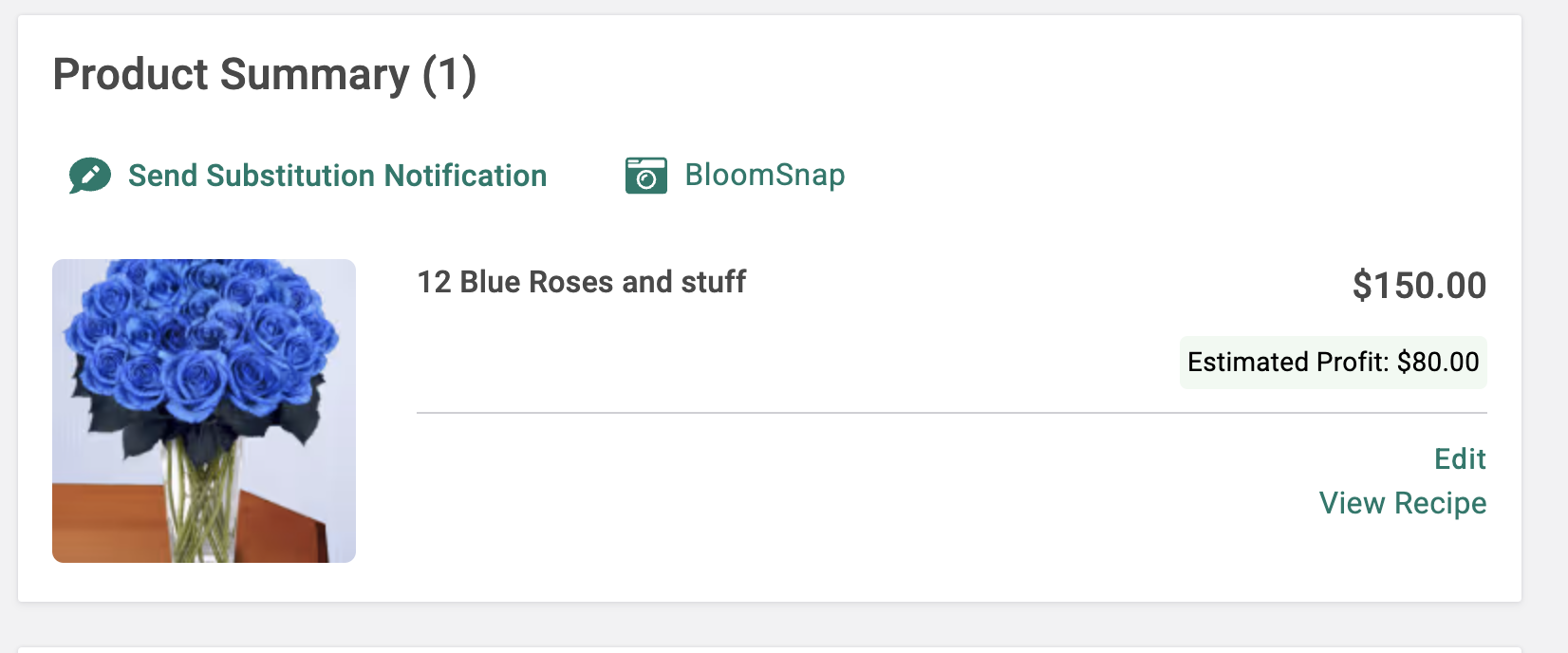
- Estimated Profit: This number is calculated by deducting ingredients costs and labor costs from the sales price of the product.
- Only users with permission will be able to see the estimated profit display. (See Employee Permissions)
Employee Permissions for Recipes and Estimated Profits
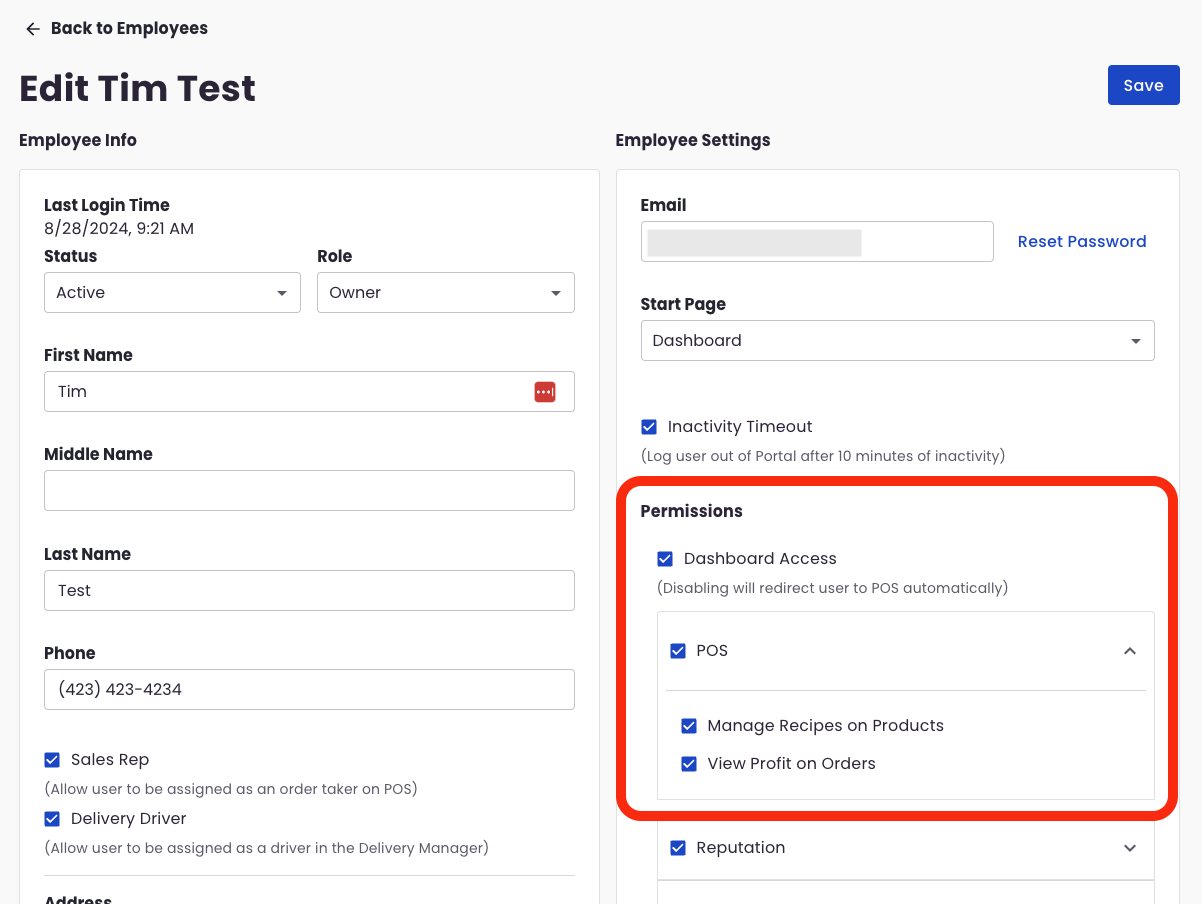
- To give access to manage recipes and components to other user accounts:
- Go to Dashboard > Employees.
- Select the employee account you want to have access recipe management or click "+ New Employee" button for a new account.
- Under Employee Settings > Permissions > POS:
- Check "Manage Recipes on Products" if you want to grant this employee account permissions to add, edit and delete recipes, ingredients, categories, markups and suppliers.
- Check "View Profit on Orders" if you want this employee account to see profit information on orders details page.
- Note: If adding a new employee account, make sure to check "User Login" to give the employee their own username / password and to surface the Employee Settings section.
Recipes from Starter Catalog products
- We've loaded all the existing ingredients from our BloomNation Starter Catalog to your system as a jumpstart. Feel free to modify the existing ingredients, add more information like cost per unit, or create new ingredients.
- When a product from BloomNation Starter Catalog is enabled, all the recipe components of the said product will be imported to your database if for some reason they didn't exist in your system yet.
- The system will be able to detect when you already have the same existing components.
- The system will use the information you have set and selected, such as costs, categories, markups, suppliers, etc.