
How to Create and Manage Shopping Lists
What is a Shopping List?
A Shopping List helps you organize all the flowers and supplies you need to purchase for upcoming orders and events.
Shopping Lists can automatically calculate ingredient totals when your products have recipes, or you can build them manually from scratch.
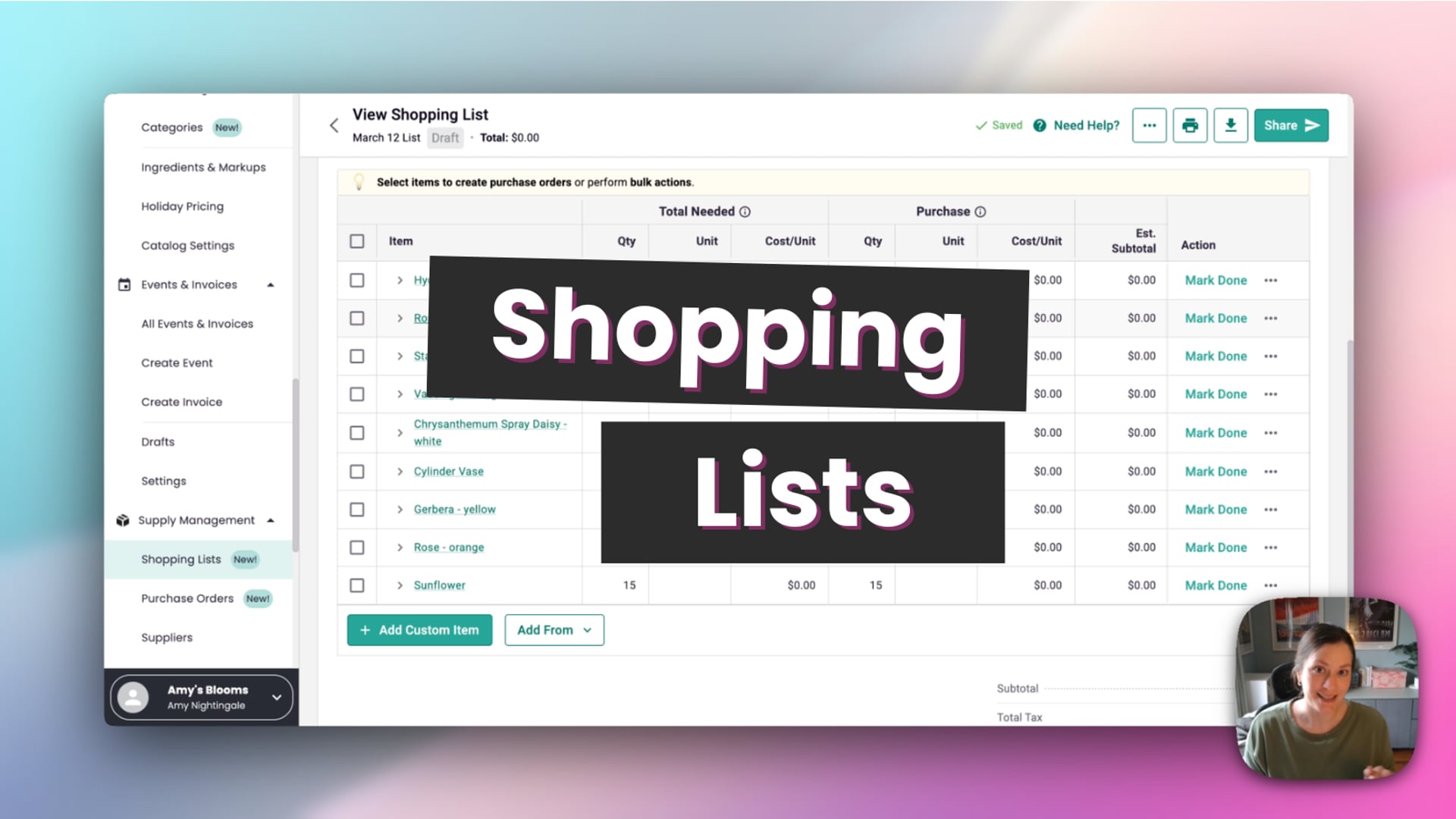
Feature Walkthrough: Shopping Lists
Watch this video walkthrough to learn how to create and manage Shopping Lists, automatically calculate ingredients from orders, and organize what you need to purchase.
 Shopping Lists
Ways to Create a Shopping List
Create from Supply Management
- Go to Supply Management in the left navigation.
- Select Shopping Lists.
- Click Create New List.
- Enter a name for your list.
- Choose how you want to start your list.
You can start a new Shopping List in three ways:
- From Orders – Pull ingredients from new or processing orders.
- From Events or Invoices – Pull ingredients from open events.
- From Scratch – Build a list manually.
When creating a list, you can also add:
- Shopping date (optional) – Enter the date you plan to shop or the event you are preparing for.
- Notes (optional) – Add notes about the list, such as the event name or special purchasing instructions.
Once a Shopping List has been created, you can also add from Ingredients or Catalog Items.
Create from Orders
- Go to Orders.
- Select one or more orders.
- Click Create Shopping List.
Only orders that are still active (such as New or Processing) will appear.
Create from Events or Invoices
- Go to Events & Invoices.
- Select one or more open events.
- Click Create Shopping List.
Shopping List settings
At the top of the Shopping List, you can update details to help your team stay organized:
- Status: Draft, In Progress, Completed, or Canceled
- List name: Edit the name at any time
- Created by: Assign the list to an employee at your shop (this defaults to the employee who created the list)
How Ingredients Are Added
If a product has a recipe, BloomNation automatically adds each ingredient and calculates the total quantity needed.
If a product does not have a recipe, the product name will be added instead.
When multiple orders include the same ingredient, quantities are consolidated into one total.
If you add products from your Catalog and those products have recipes, BloomNation will automatically break them down into ingredient quantities so you can see exactly how many stems or supplies are required.
Managing Your Shopping List
Add More Items
You can add items to your Shopping List at any time:
- Click Add From to import from Orders, Events & Invoices, Catalog, or Ingredients.
- Click Add Custom Item to manually enter an item that isn’t in your ingredients or recipes (for example, floral food or supplies).
Add Additional Quantities
Each item includes an Additional field where you can add extra quantity beyond what your orders require.
For example, if you want to purchase extra stems to account for damaged flowers or future orders, enter the additional amount and it will automatically update the total quantity on your list.
This does not change the original order. It only affects your Shopping List totals.
Mark Items as Done
If you already purchased an item or no longer need it, click Mark Done.
You can undo this at any time by clicking the three dots next to "Done" and selecting Unmark Done.
Edit or delete an item
Each item includes an actions menu (three dots) where you can:
- Edit an item (when editable)
- Delete an item to remove it completely
If an item was added from an order, you may not be able to delete it individually. In that case, you can mark it as done, or remove the order from the list.
Enable editing
Click Enable Editing to quickly edit any fields that can be updated directly from the list.
When editing a row:
- Click the green check mark to save changes
- Click the red X to cancel changes
View the source of an item
Click the arrow next to any item to expand it and view where it came from. This may include the specific order, event, invoice, or product that added the item to your shopping list.
Expand all or collapse all
Click Expand All to open every item and view additional details (such as related orders).
When expanded, click Collapse All to close all rows again.
Show or hide columns
Click Columns to show or hide optional fields. You can choose to display the Note column, which lets you add notes to individual items.
Remove Orders from a Shopping List
- Open the Shopping List.
- Click Associated Events and Orders.
- Select the order you want to remove.
- Click Remove.
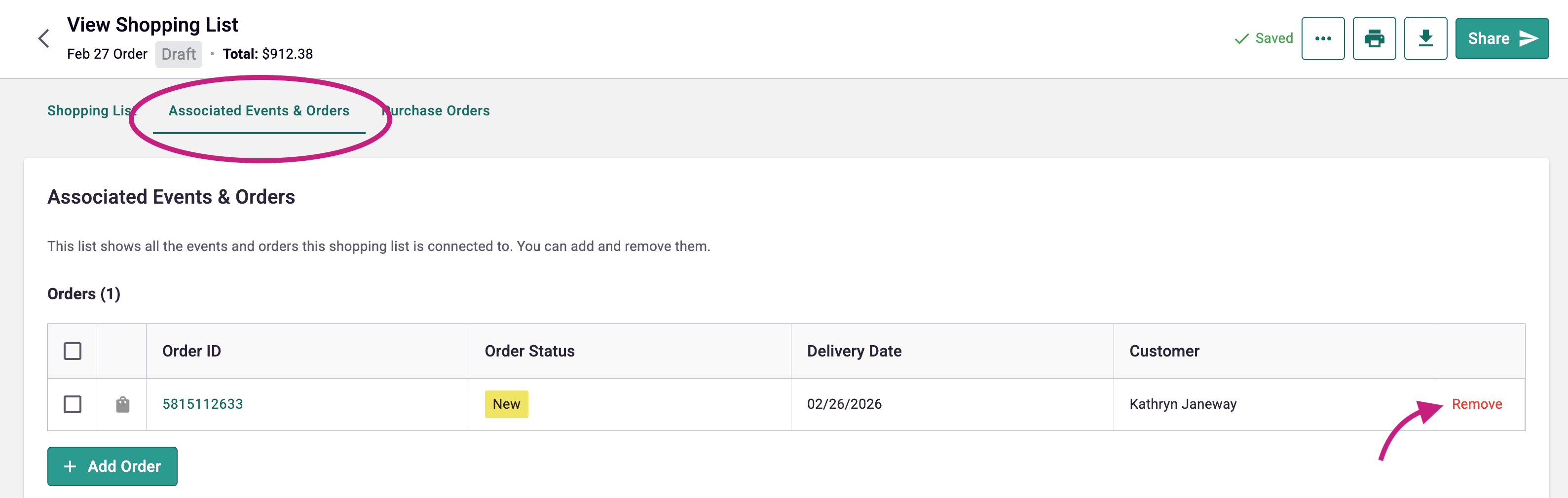
When you remove an order, all associated ingredients are removed from the list.
Items tied to an active order cannot be deleted individually. You must remove the entire order first.
Group Items by Supplier or Category
You can group your Shopping List to make it easier to review what you need:
- Group by supplier to organize items by wholesaler (helpful when creating Purchase Orders)
- Group by category to organize items by ingredient category (for example, flowers, fillers, vases)

Duplicate or Delete a Shopping List
You can duplicate a Shopping List if you want to reuse a previous list. Duplicated lists are not connected to the original orders.
You can also delete a list if it is no longer needed.
Print, Download, or Share
From the Shopping List screen, you can:
- Print the list
- Download as PDF or CSV
- Share via email
- Send via text message (SMS sends a link to view the list)
Tips for Best Results
- Set up recipes for accurate ingredient calculations.
- Assign suppliers to ingredients to simplify Purchase Orders.
- Review quantities before converting to a Purchase Order.