
Create Order
Creating an Order in Your BloomNation POS
Creating orders is a core function of your Point of Sale (POS) system. Whether orders are placed in-store or over the phone, this feature streamlines the process, making it efficient and straightforward.
Payment Processing Fees
BloomNation’s POS gives you some of the lowest in-person processing rates in the floral industry, helping you keep more of every sale.
- Card-present transactions processed through a connected card reader are 2.6% + 10¢ per transaction.
- Card-not-present transactions (such as keyed-in or over-the-phone orders) are 2.9% + 30¢ per transaction.
There are NO additional per-order or hidden fees on POS orders.
💡 Tip: Using your POS card reader for in-person transactions ensures you receive the lowest possible processing rate. Learn more and request POS Hardware >>
Order Fulfillment Options
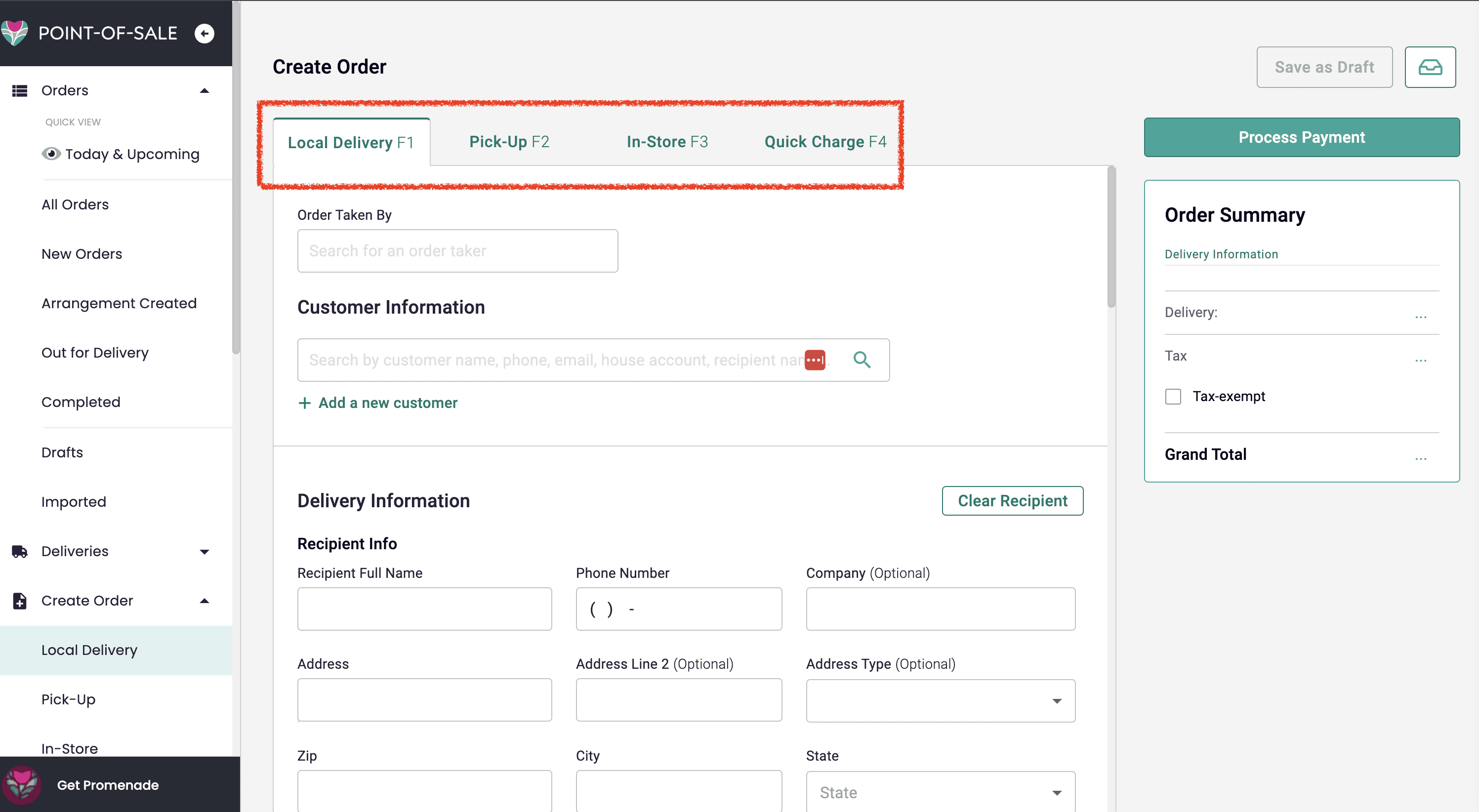
When creating an order, you’ll see four fulfillment options to match your customer's delivery preferences:
- Local Delivery
- Pick-Up
- In-Store
- Quick Charge
These tabs allow you to quickly switch between fulfillment types, ensuring flexibility based on your customer's needs.
Order Details
Order Taken By
This optional field helps track which team member is responsible for the order.
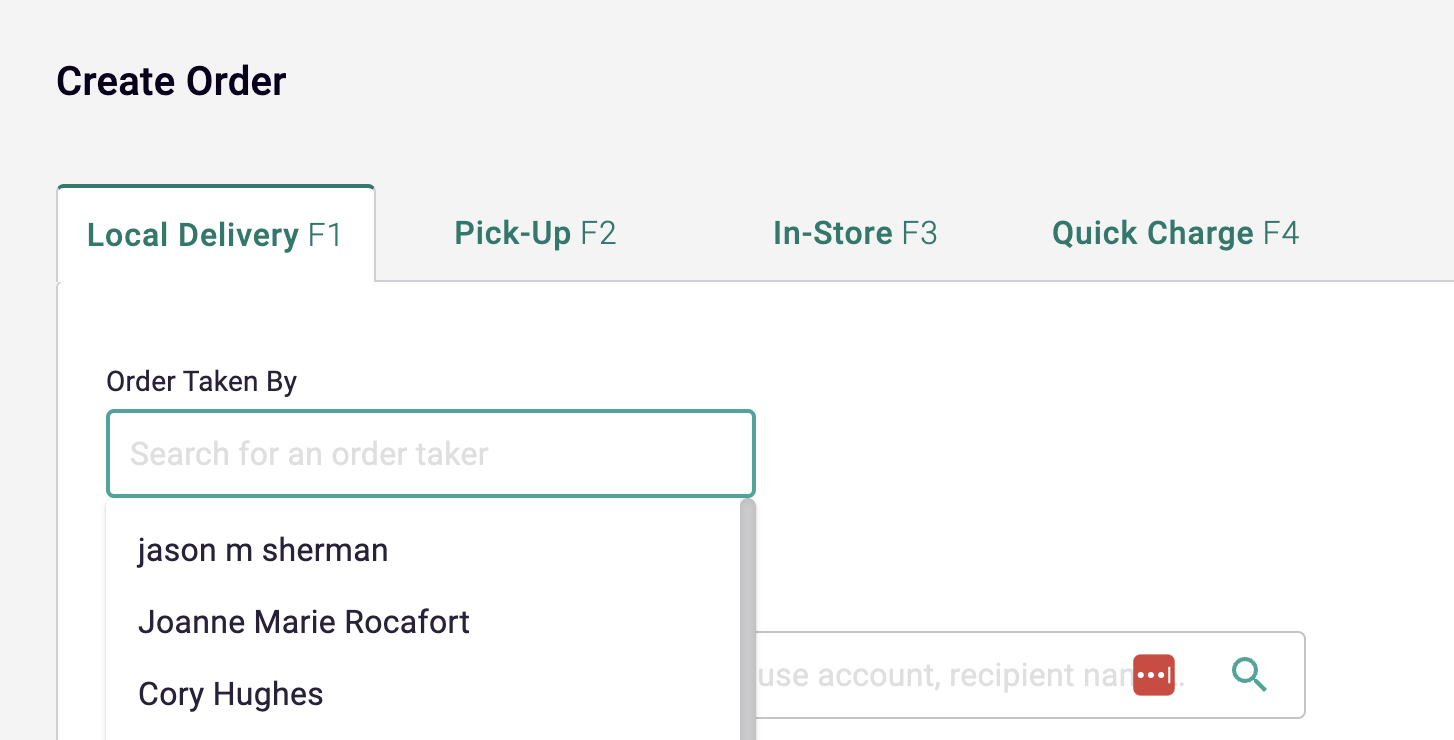
Assign team members as sales reps or order takers via New Dashboard > Employees.
Customer Information
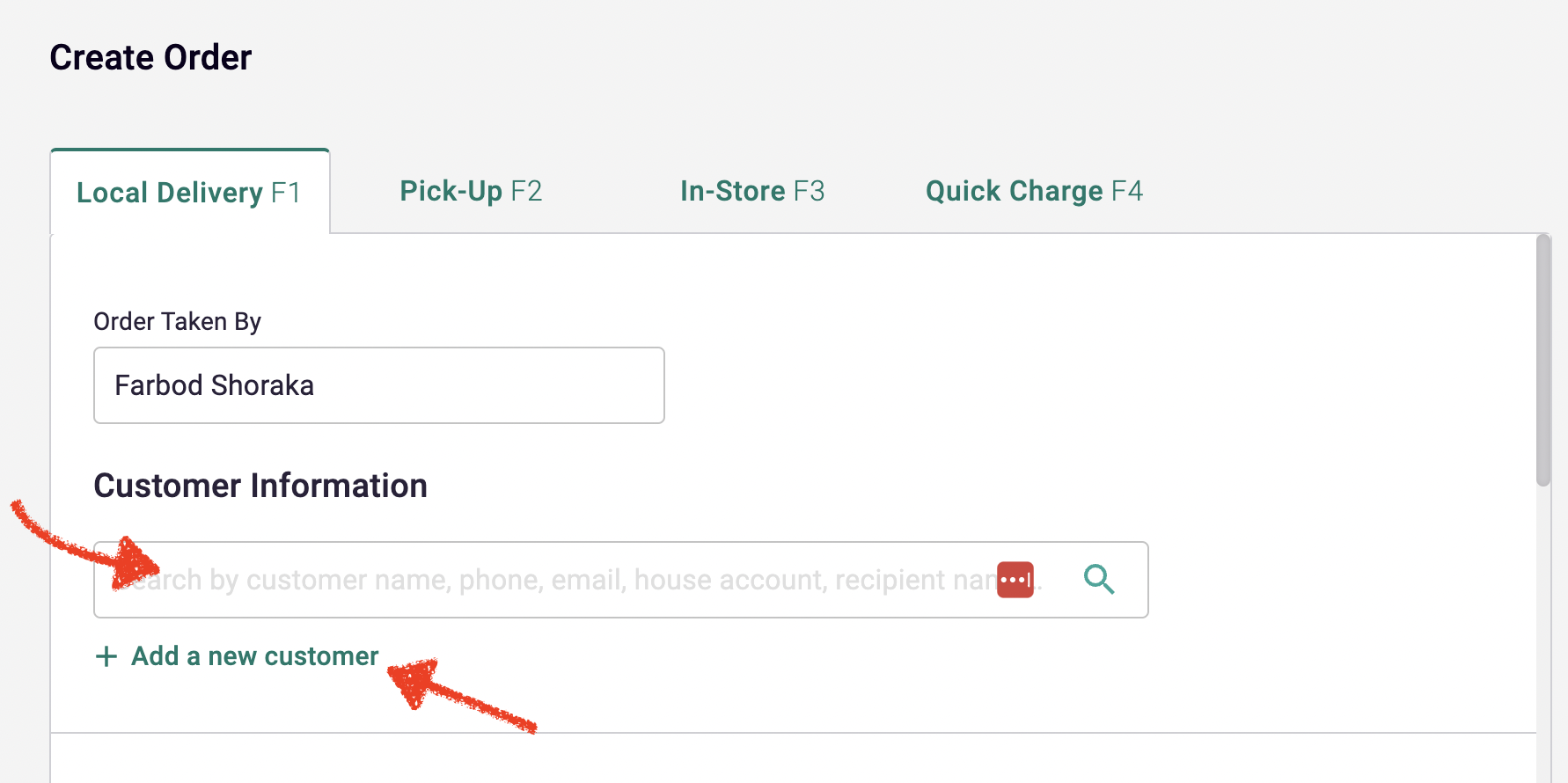
You can add customer information as follows:
-
Existing Customers:
- Search by name, phone number, or email.
- You can also search for any associated recipient, House Account, or Additional Contact.
- Select the correct customer from the dropdown.
-
New Customers:
- Select Add a new customer and fill in their details.
- The new profile will be saved in the system for future orders.
Fulfillment Details
For Local Delivery
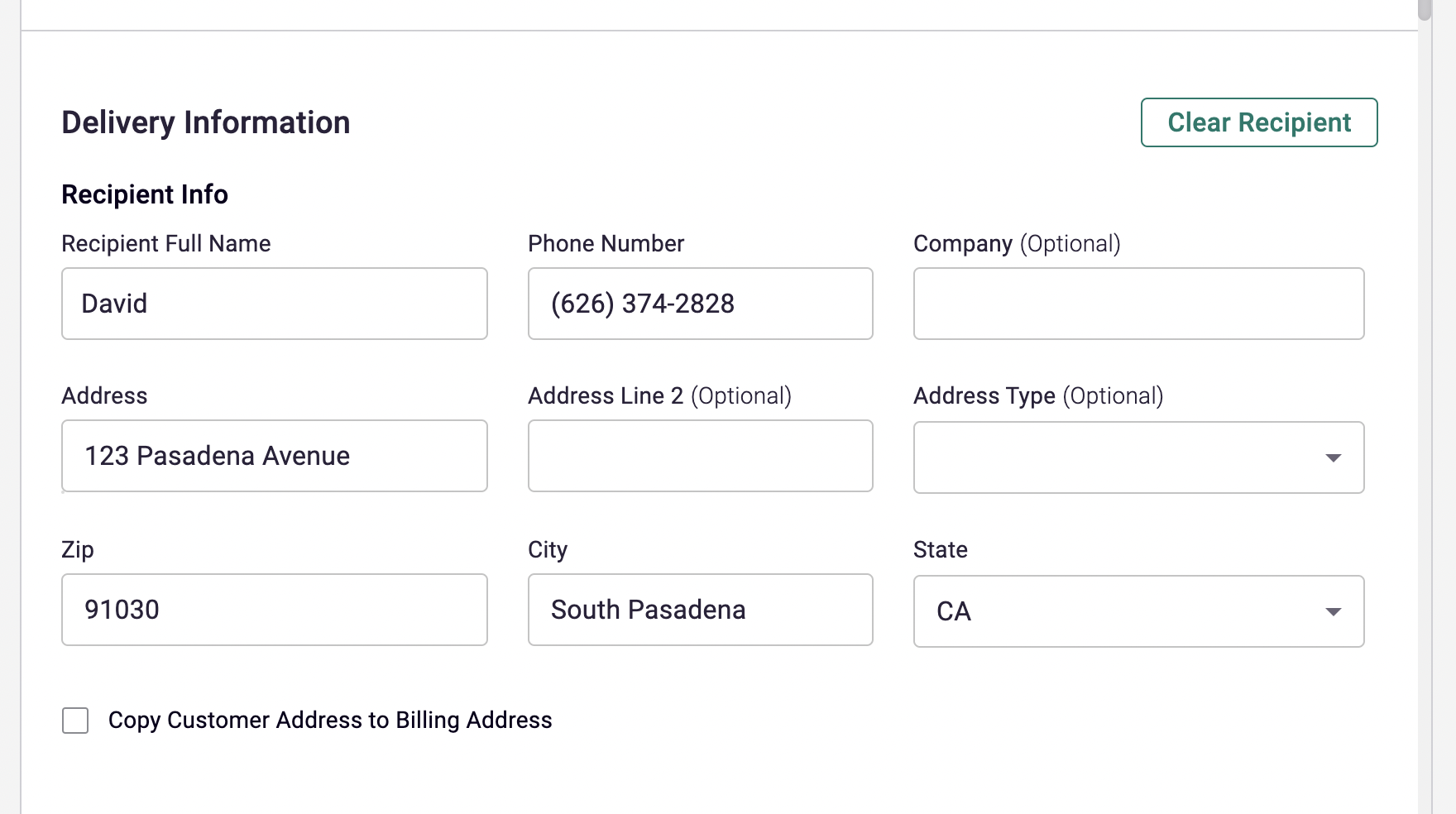
Recipient Info
- Existing Customers: Saved recipients will auto-fill as you type.
- New Customers: Manually enter the recipient’s details, which will be saved for future orders.
- Address Autofill: Start typing an address to see suggestions, saving time and reducing errors.
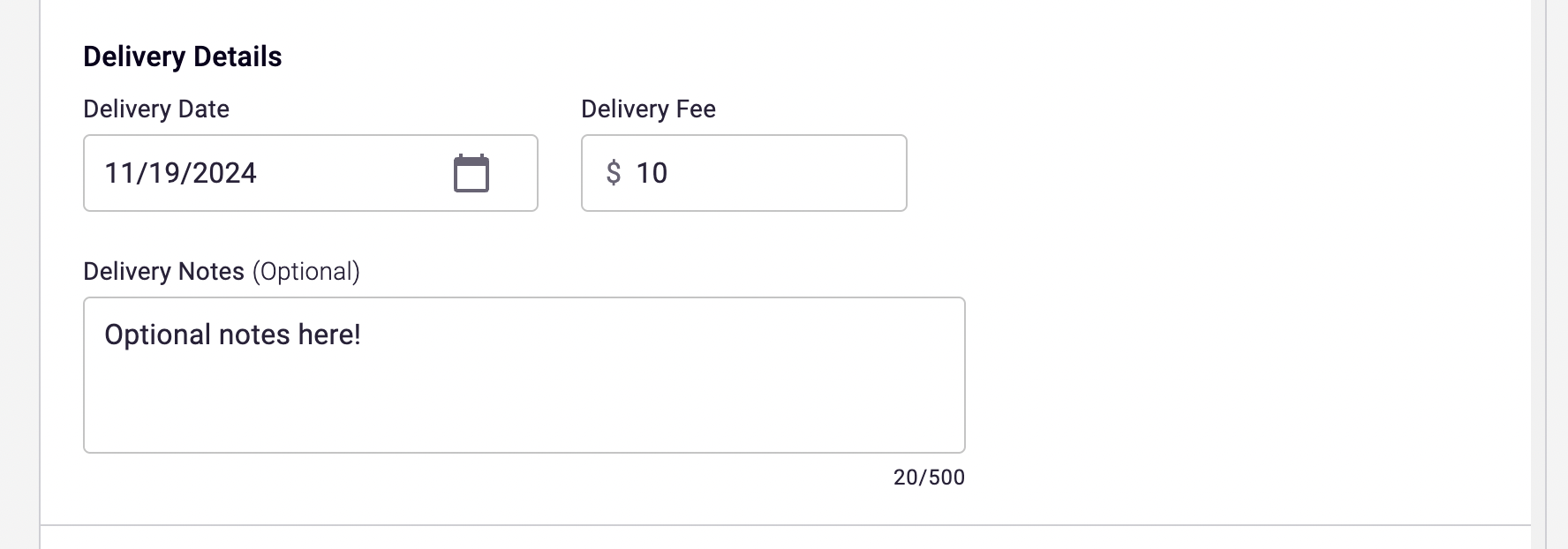
Delivery Details
- Delivery Date: Use the date picker or choose Today/Tomorrow for quick scheduling.
- Delivery Fee: Automatically populated based on your delivery zone settings but can be manually adjusted.
- Delivery Note: Add instructions for the driver. This note will appear in the Delivery Router.
For Pick-Up
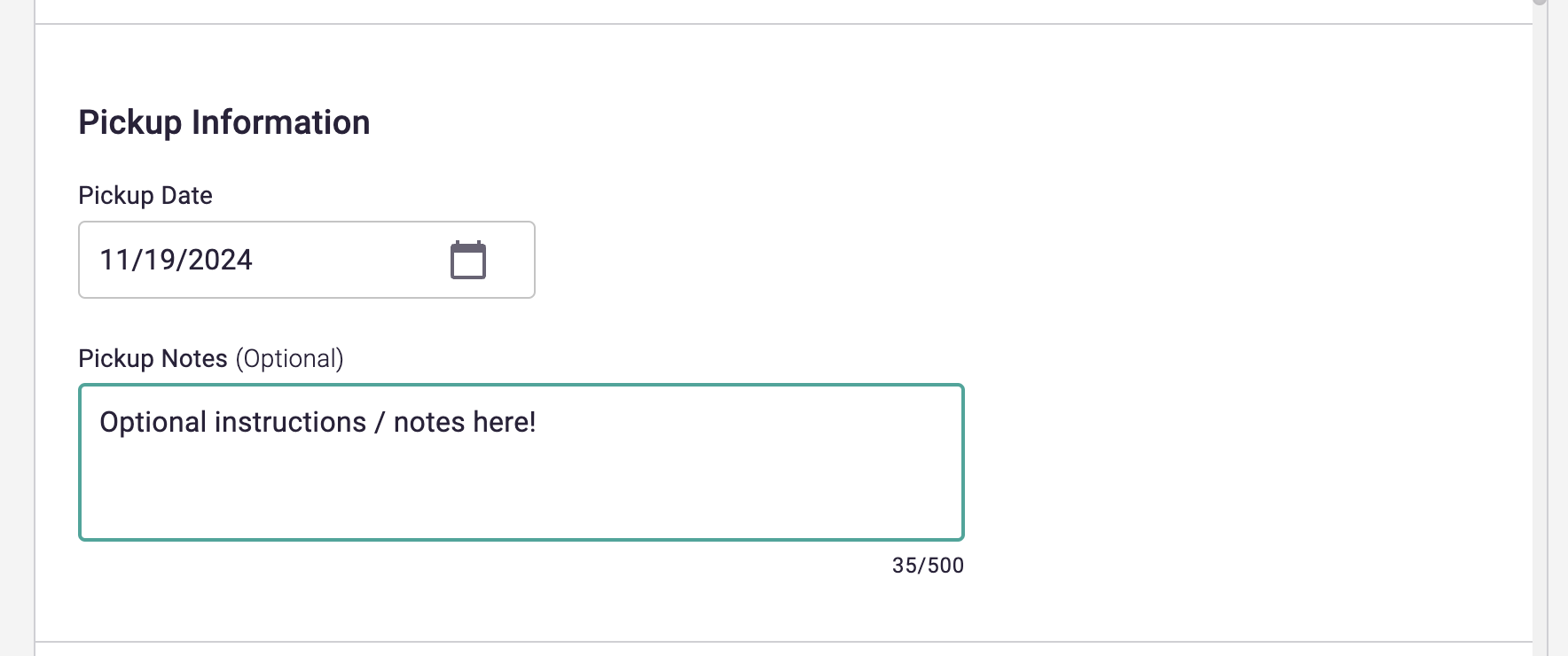
Pick-Up Information
- Pick-Up Date: Select the date via the calendar icon or choose Today/Tomorrow.
- Pick-Up Notes: Add relevant notes for your team.
Adding Items to the Order
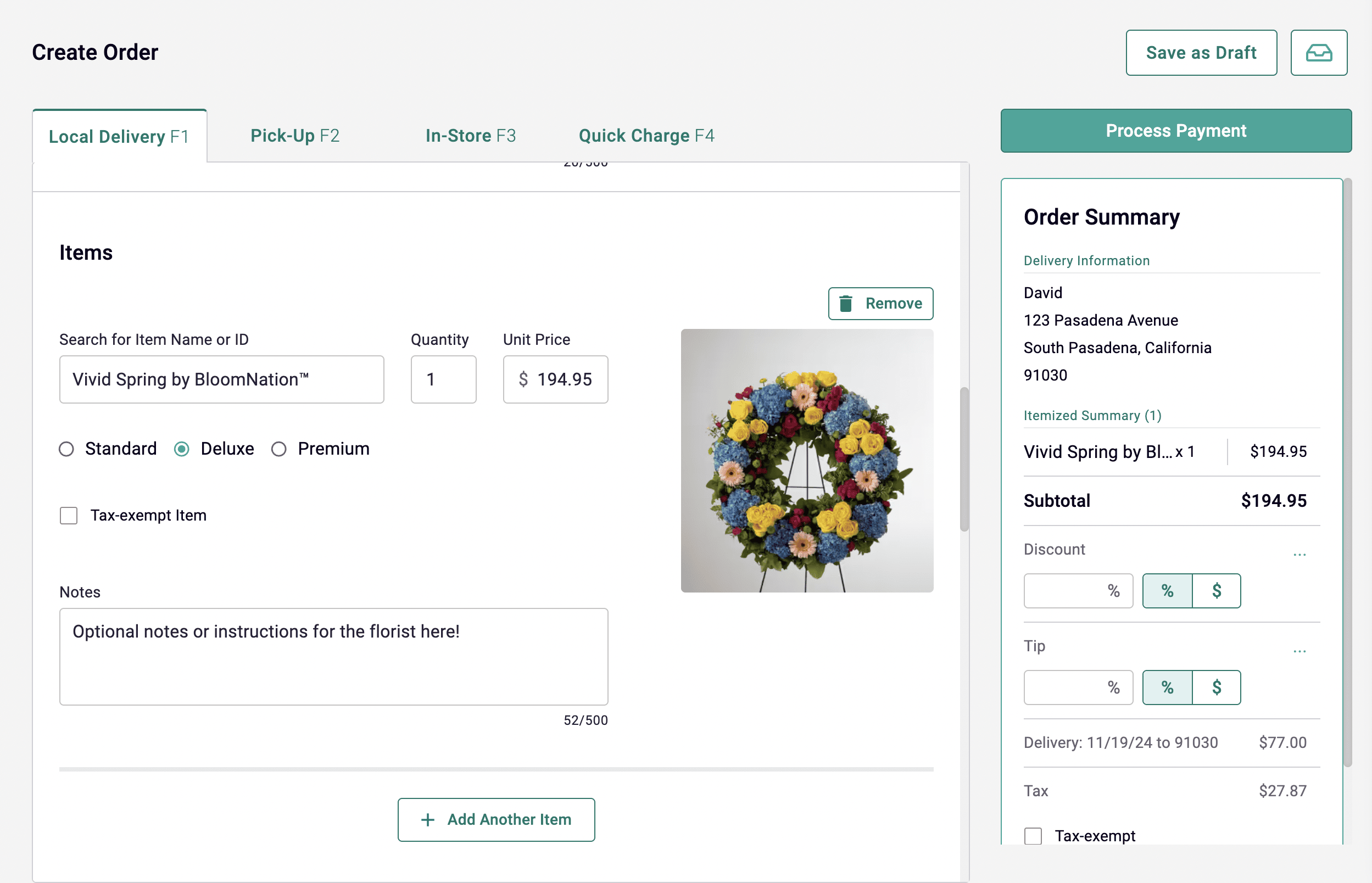
- Search Items: Type the product name to add it to the order. Items must exist in your catalog.
- Quantity: Defaults to 1 but can be adjusted.
- Unit Price: Automatically populated based on your catalog; manually adjustable if necessary.
- Upgrade Type: Choose between Standard, Deluxe, or Premium options. The price updates accordingly.
- Tax-Exempt Item: Check this box if applicable.
- Notes: Add special instructions for floral designers. These appear on the printed order details.
Card Message
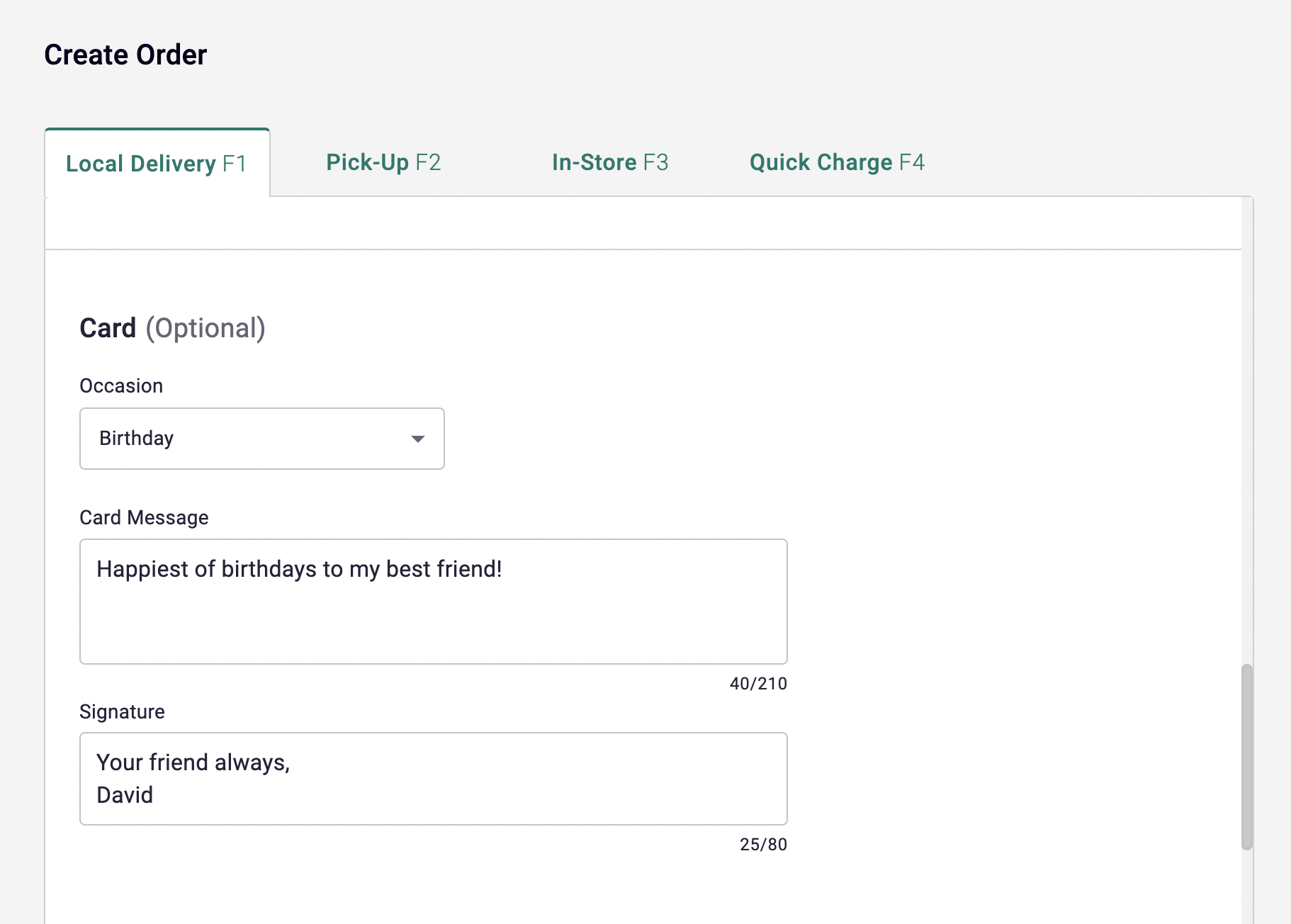
For customers adding a card, you can include:
- The Occasion.
- The Card Message.
- A Signature.
Payment Information
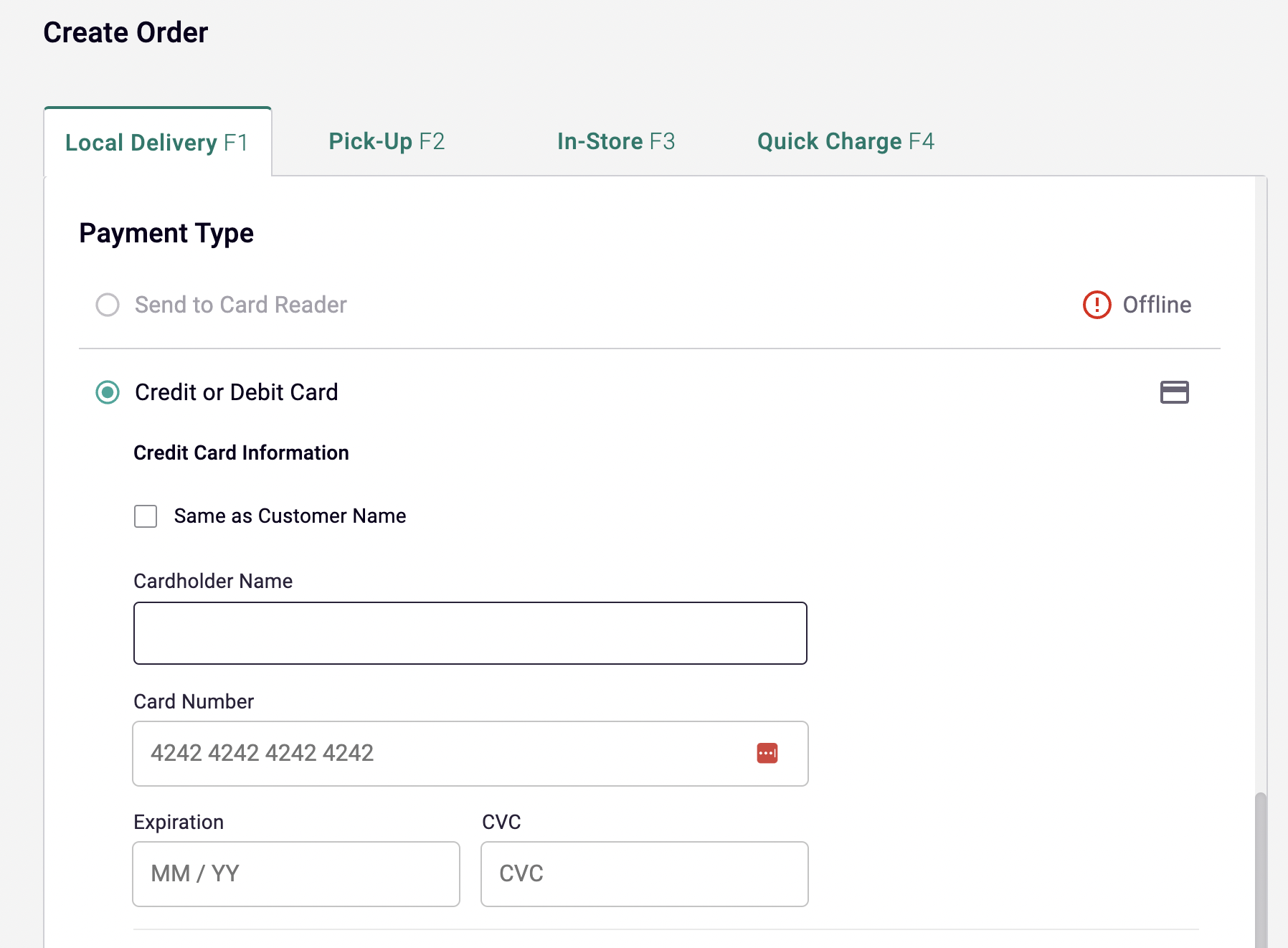
Payment Options
- Card Reader: Send the payment request to the connected reader. If not connected, it will display “Offline.”
- Credit/Debit Card: Autofill details by checking Same as Customer Name.
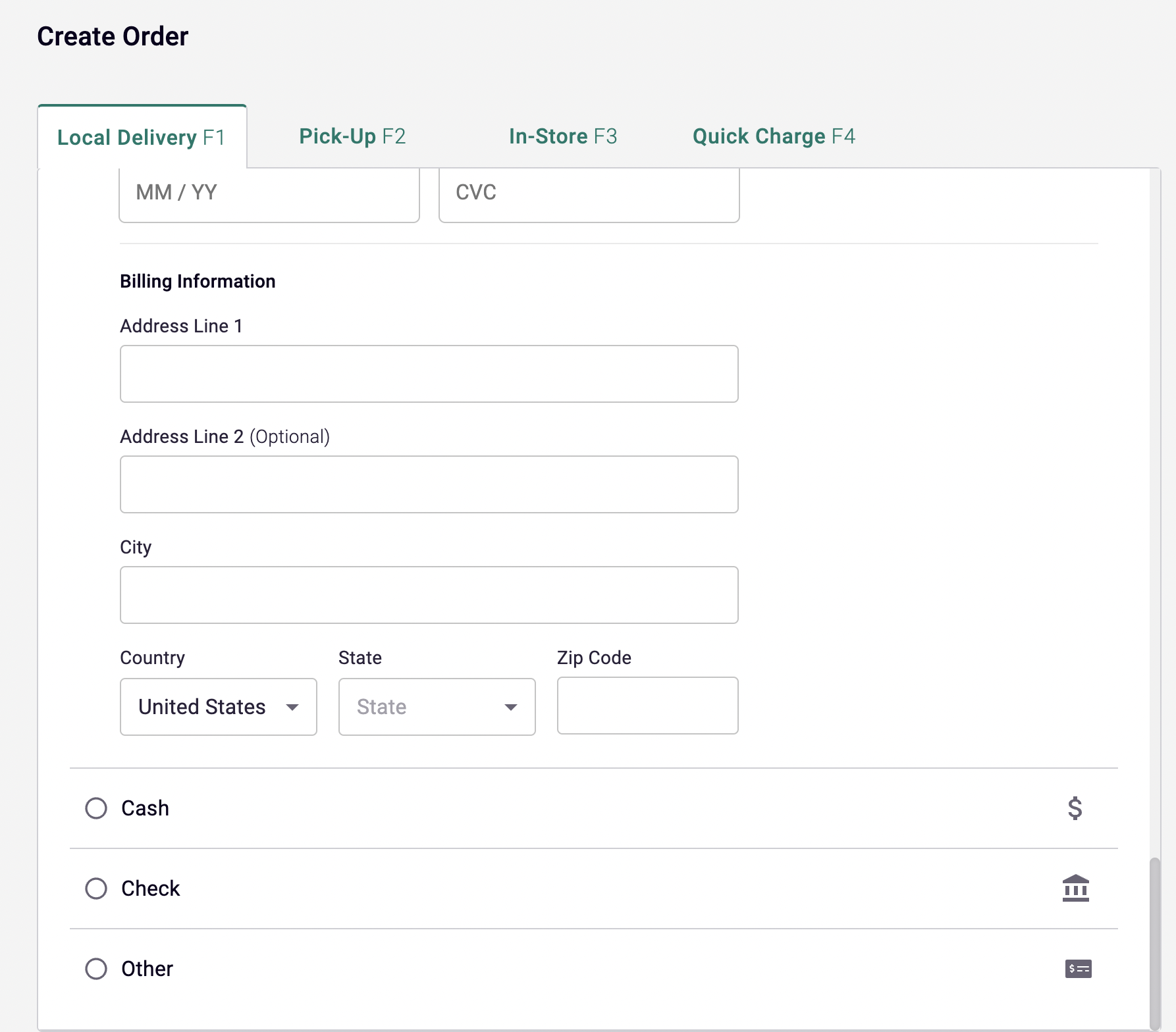
- Other Payment Methods: Options include Cash, Check, House Account, Gift Card, Pay Later or Other.
Order Summary
Before finalizing, review the following details:
- Customer Information
- Fulfillment Information
- Itemized Summary: Displays product name, quantity, price, and subtotal.
- Discounts: Apply a percentage or dollar-value discount.
- Tip: Add a tip as a percentage or dollar amount.
- Delivery Fee
- Tax: Mark as tax-exempt if applicable.
- Grand Total
Finalizing the Order
- Process Payment: Completes the order and processes payment.
- Save as Draft: Saves the order for future completion.
Managing Draft Orders
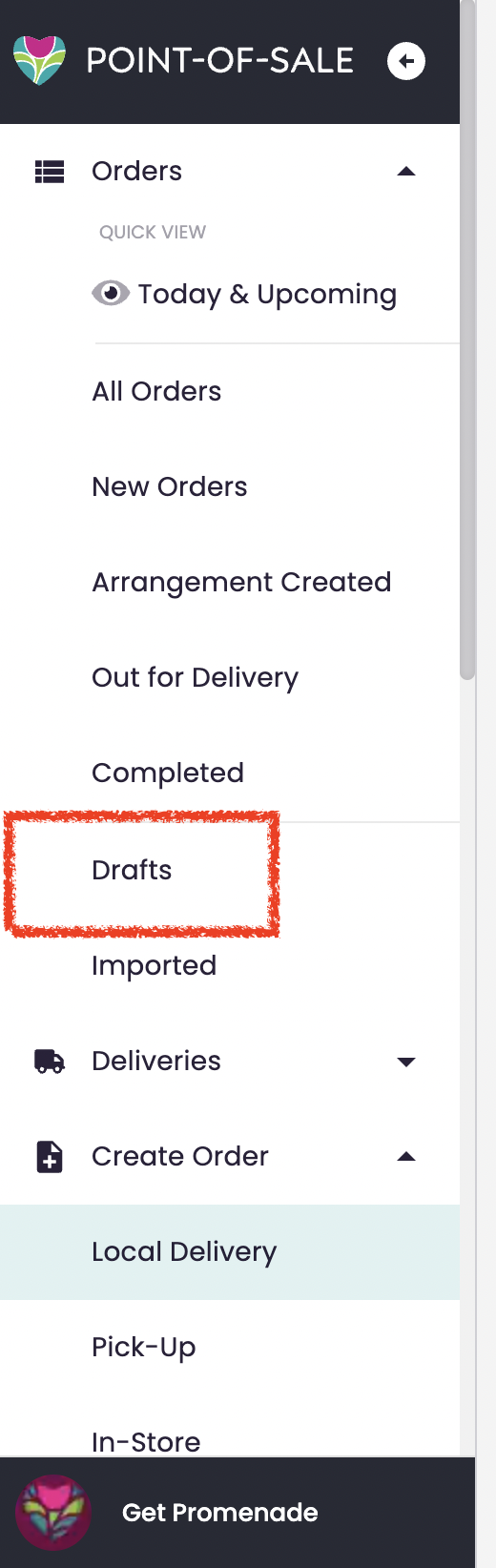
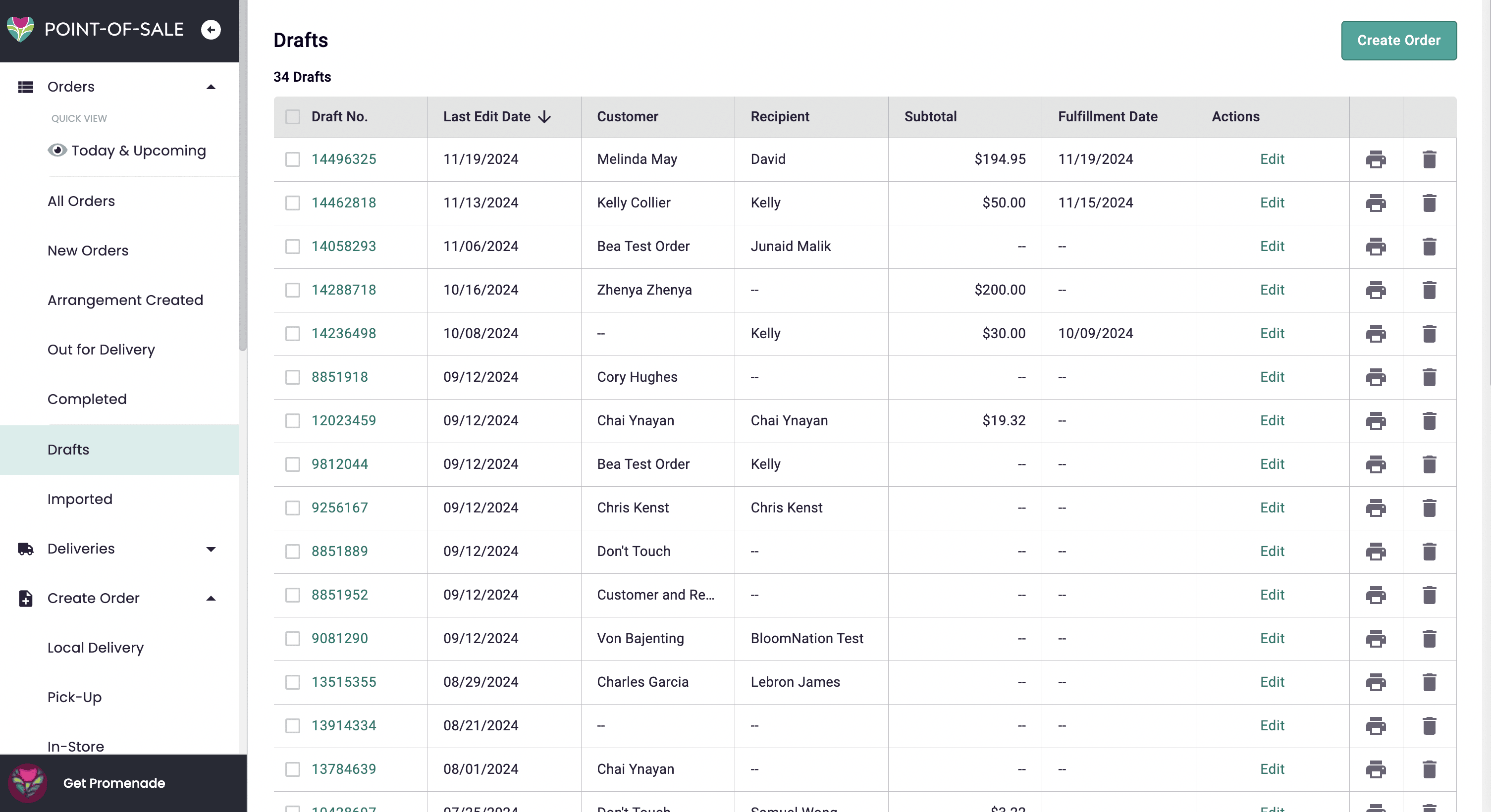
Draft orders are accessible via the Drafts icon and can be managed on the Drafts Page:
- Edit the draft.
- Print the draft.
- Delete it if no longer needed.
Quick Charge
The Quick Charge tab is ideal for expedited orders or charges with minimal steps.
Need Help?
If you need assistance with creating or managing orders in your PoS, please contact our Support team here.