
Quick Charge
Quick Charge
Quick Charge is a tab within Create Order that allows you to quickly process an order that is not associated with a specific product in the catalog. Simply enter the payment information, and your customer is good to go—no need to fill out as much information as usual.
Accessing Quick Charge
To access Quick Charge:
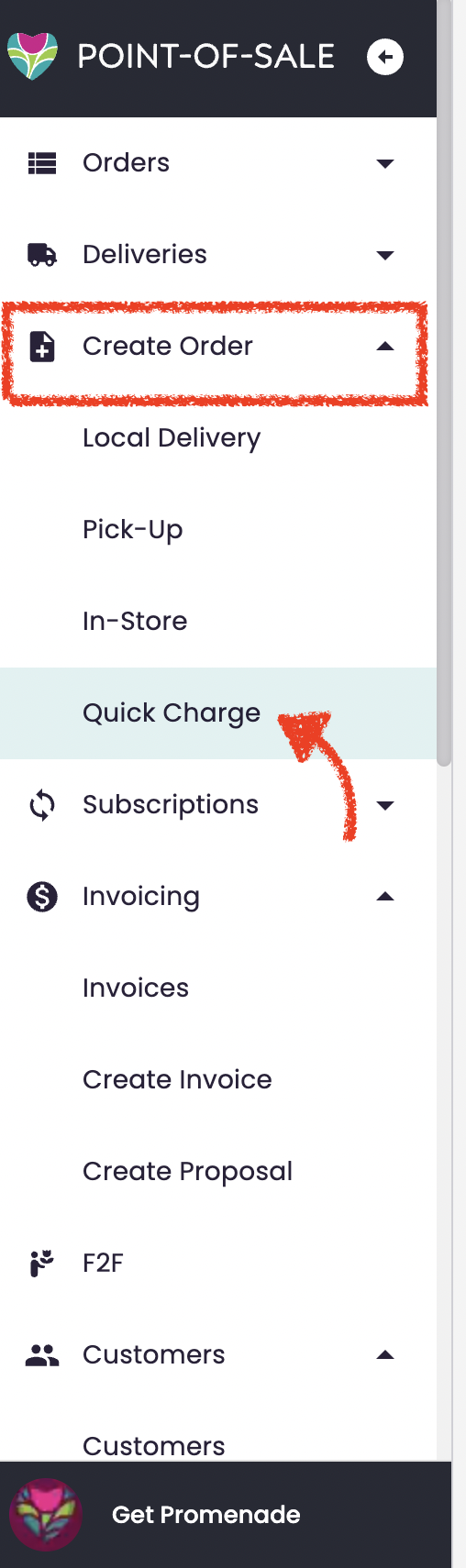
- Log into your Point of Sale account.
- Navigate to the Create Order tab.
- Select the Quick Charge sub-tab.
Payment Details
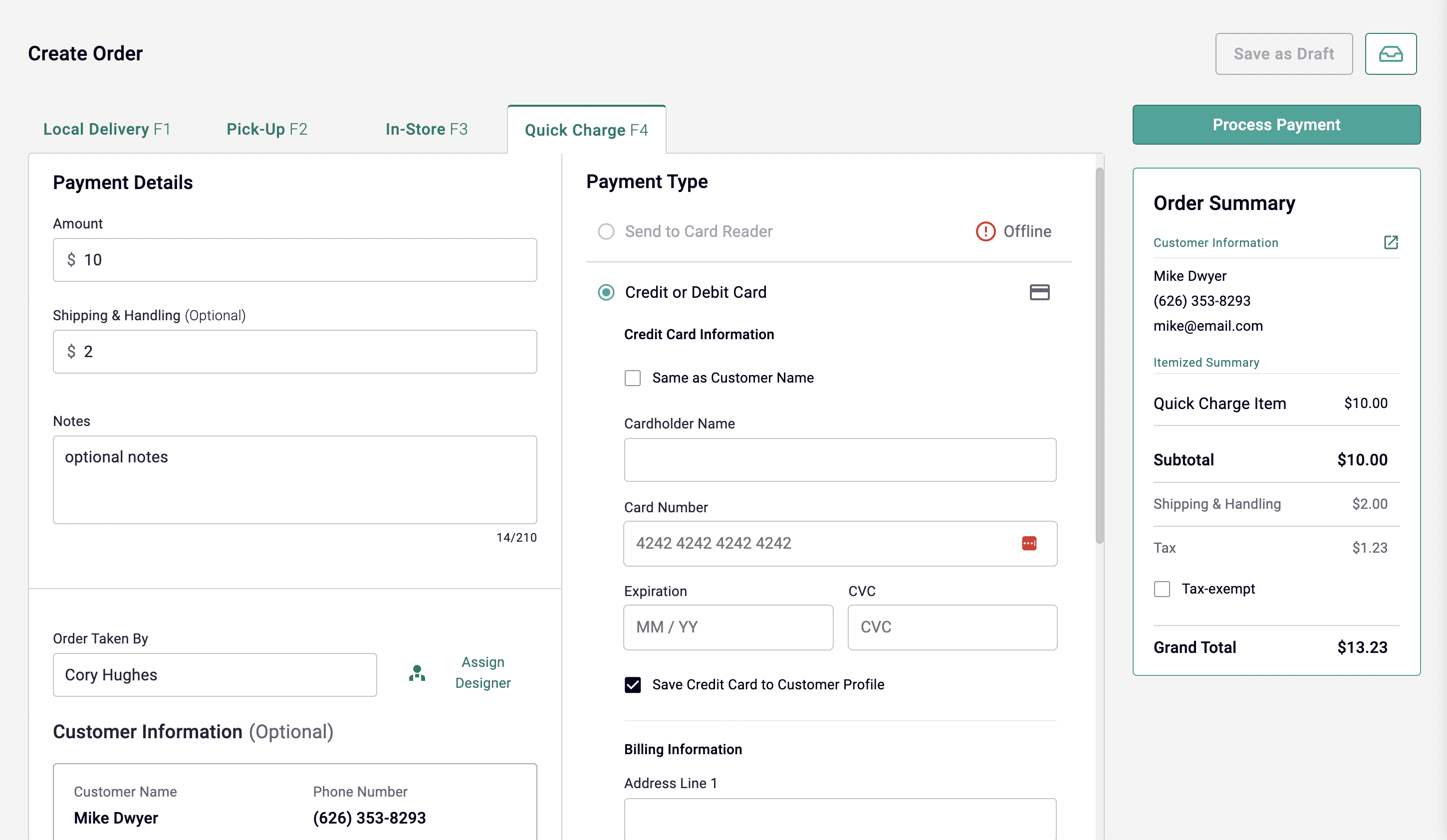
- Amount: Enter the dollar amount of the order you wish to charge the customer.
- Shipping & Handling: (Optional) If your customer needs to pay a separate shipping fee, you can add it here.
- Notes: This section allows you to add any additional notes regarding the Quick Charge. You can use this to document important details related to the order.
Fulfillment Info
- Order Taken By: This is an optional field where you can track which employee is taking the order. You can add employees as sales reps/order takers through your Dashboard > Employees.
- Assign Designer: To assign a designer to this order, click the Assign Designer button located to the right of the "Order Taken By" field. This will prompt you to search for and select a designer. Once selected, click Assign Designer. You can manage designers via Dashboard > Employees.
Customer Information (Optional)
You can add customer details in the Customer Information section:
- Leave Blank: This field is optional. You don't need to enter customer details if it's not necessary for the order.
- For Existing Customers: Start typing the customer’s name or email, and matching customers will appear in the dropdown. Select the correct customer from the list.
- For New Customers: Click “Add a new customer” and enter their information. Once the order is processed, their customer profile will be saved. You can search for them in future orders.
Payment Type
If there is a payment method attached to your selected customer profile, it will automatically display here.
-
Send to Card Reader: The status will show as “Offline” if the card reader is not connected or is turned off.
-
Credit or Debit Card: You can check the "Same as Customer Name" checkbox if the cardholder’s name matches the customer’s name, allowing you to skip entering the name again.
- Card Information: Enter the necessary credit or debit card details.
- Billing Information: Fill in the billing details as required.
-
Cash: Select this option if the customer is paying with cash.
-
Check: Select this option if the customer is paying with a check.
-
House Account: If the customer has a House Account set up, this option will appear.
-
Other: Choose this option for any other payment method.
Order Summary
The Order Summary section includes:
- Customer Information: The details of the customer, if applicable.
- Itemized Summary: This will display the subtotal for the item in the order (the Quick Charge Item).
- Shipping & Handling: If there’s a fee for shipping & handling, it will be listed here.
- Tax: The applicable tax amount will be shown.
- Tax Exempt: If this order is tax-exempt, check the box. If not, leave it unchecked.
- Grand Total: The total amount for the order after all applicable fees, taxes, and discounts.
Process Payment
Once all the details are entered, click the Process Payment button to complete the payment and finalize the order. The order will now appear in your Order Management.
Need Assistance?
If you need any help or have questions about using Quick Charge or any other feature, please submit a support request here.