
Pay Later (COD) in BloomNation POS
How to Use the Pay Later Feature in Your POS
Overview
The Pay Later feature lets you submit POS orders without collecting payment upfront. Customers can choose to pay when they pick up or receive the delivery, or pay later through a secure email or text link.
This is ideal for:
- Customers paying at the door or in-store
- Local, loyal customers who prefer delayed payment
Note: This feature is available only in the BloomNation Point-of-Sale (POS) system. It is not available on your website checkout.
Video Demo
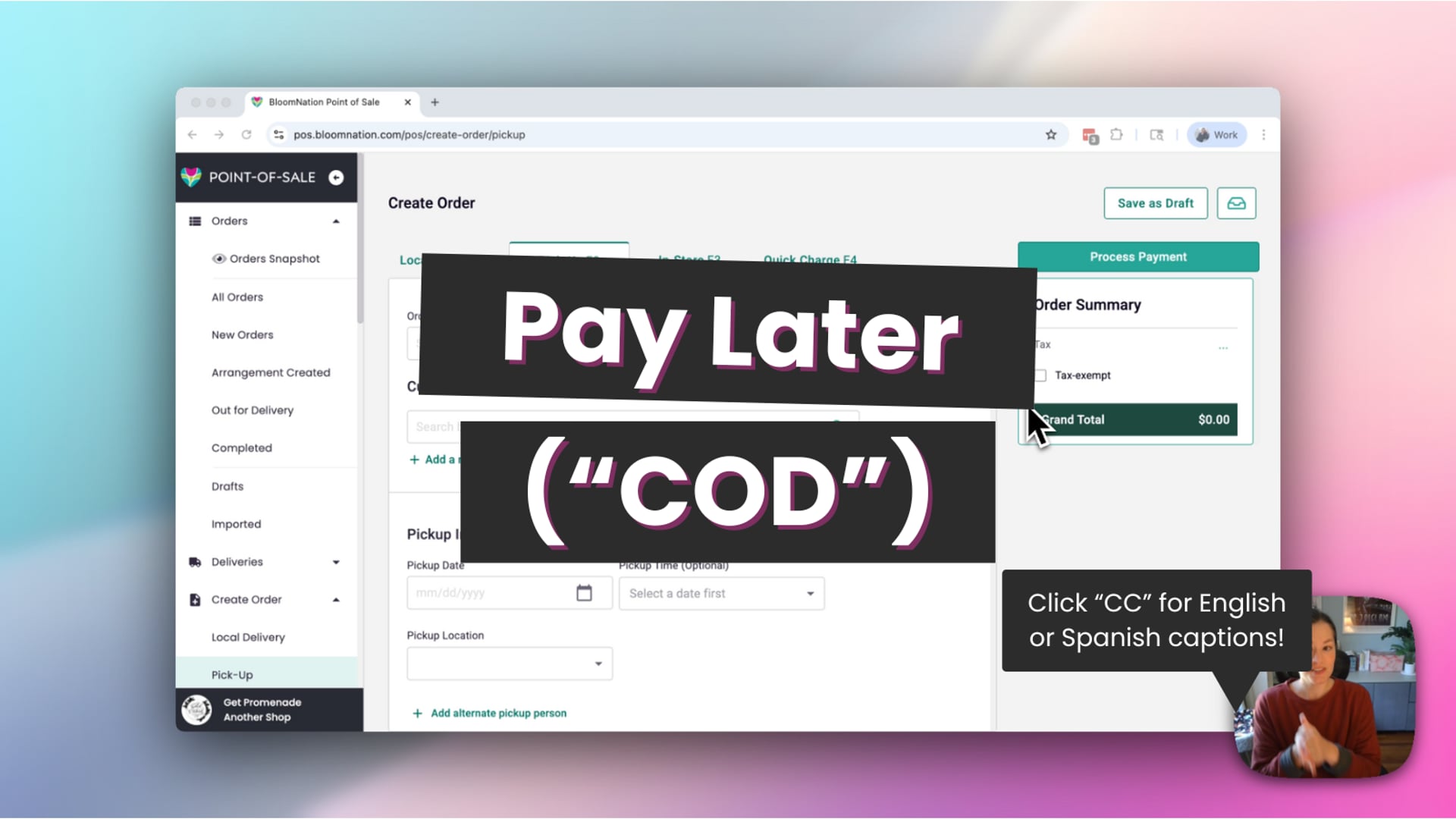 Pay Later (COD) in BloomNation POS
How It Works
1. Start a New Order
Create an order in your POS as usual — for pickup, delivery, in-store, or quick charge.
2. Choose Pay Later as the Payment Method
At checkout, select Pay Later from the list of payment options.
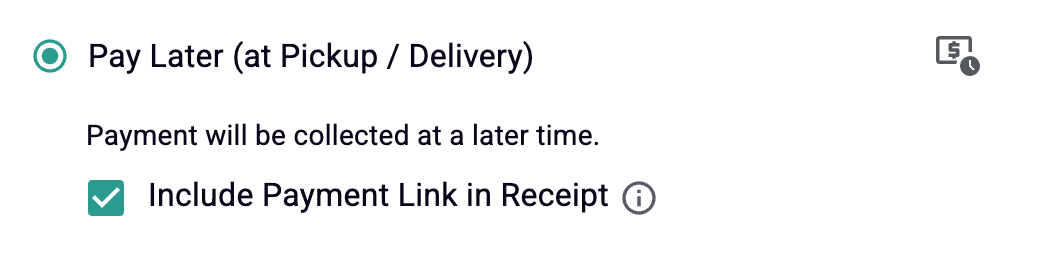
3. (Optional) Send a Payment Link
Check the box labeled: “Include payment link in receipt”
- If checked, the customer will receive a text and email with a link to pay online later.
If unchecked, they’ll receive a standard receipt only — payment will need to be collected in person.
- The checkbox is selected by default, but you can uncheck it if you prefer not to send a link.
Important! To send a payment link, make sure the customer’s contact information (email and/or phone number) is entered before submitting the order.
4. Click Process Payment
This submits the order as Pay Later and marks it as unpaid in your system.
Collecting Payment
When it’s time to collect payment:
- Open the order in your POS.
- Click Collect Payment and choose any accepted payment method.
- Click Process Payment.
The order will update to show the payment status and method used.
Tracking Payment Status
You’ll see the payment status in:
- The Order Details Page
- The Orders Grid
- The Daily/Weekly Snapshots
Statuses include:
- Unpaid
- Partially Paid
- Paid
Once fully paid, the “Pay Later” label is removed, and the order shows the actual payment method (e.g., Cash, Credit Card).
Resending a Payment Link
If you didn’t send a payment link initially, you can resend the receipt and include the link:
- Open the order.
- Click Resend Receipt.
- Select the option to include payment link in receipt.
If the order is already paid, the link will not be included.
Notes and Best Practices
- This feature is POS-only and is not connected to Klarna, Afterpay, or website checkout tools.
- You’ll need to enter customer contact info (email and/or mobile number) to send a payment link.
- Payment link messages are clear, mobile-friendly, and secure.
Need Help?
If you have questions about using Pay Later in your POS, contact us anytime:
📞 (210) 405-5050