
Adding an employee and customizing their access to your system
IMPORTANT! Once you upgraded to the new dashboard, you and your employees MUST login through the New Dashboard login page . When you start making accounts for your employees, those account credentials and permissions will only work through the New Dashboard login page .
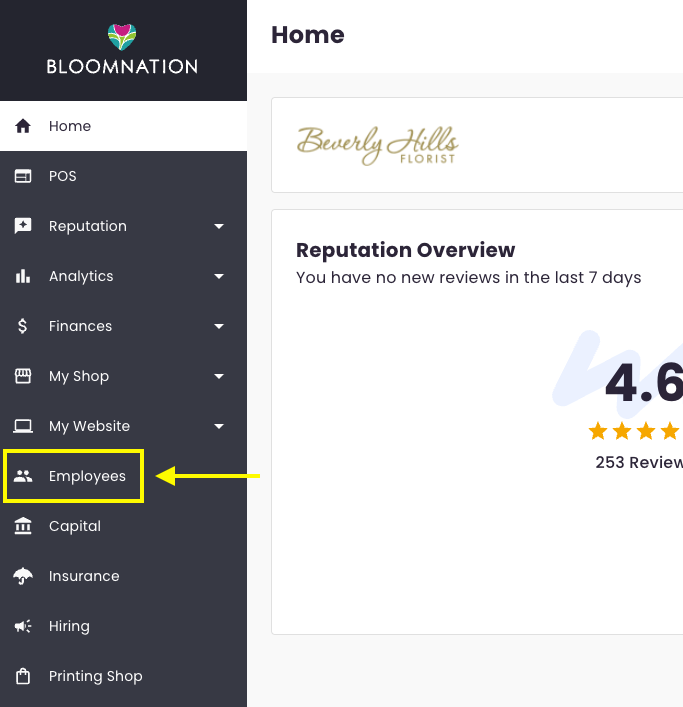
- Go to your new dashboard and select “Employees” on the left navigation sidebar.
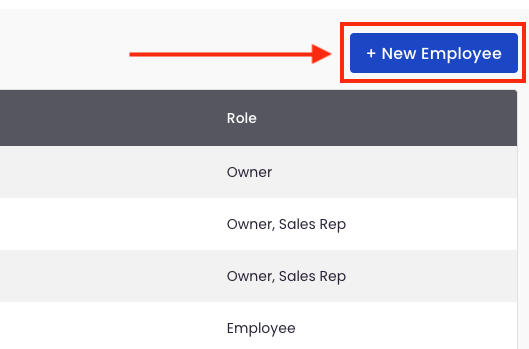
- Select the blue “+ New Employee” button on the top right corner.
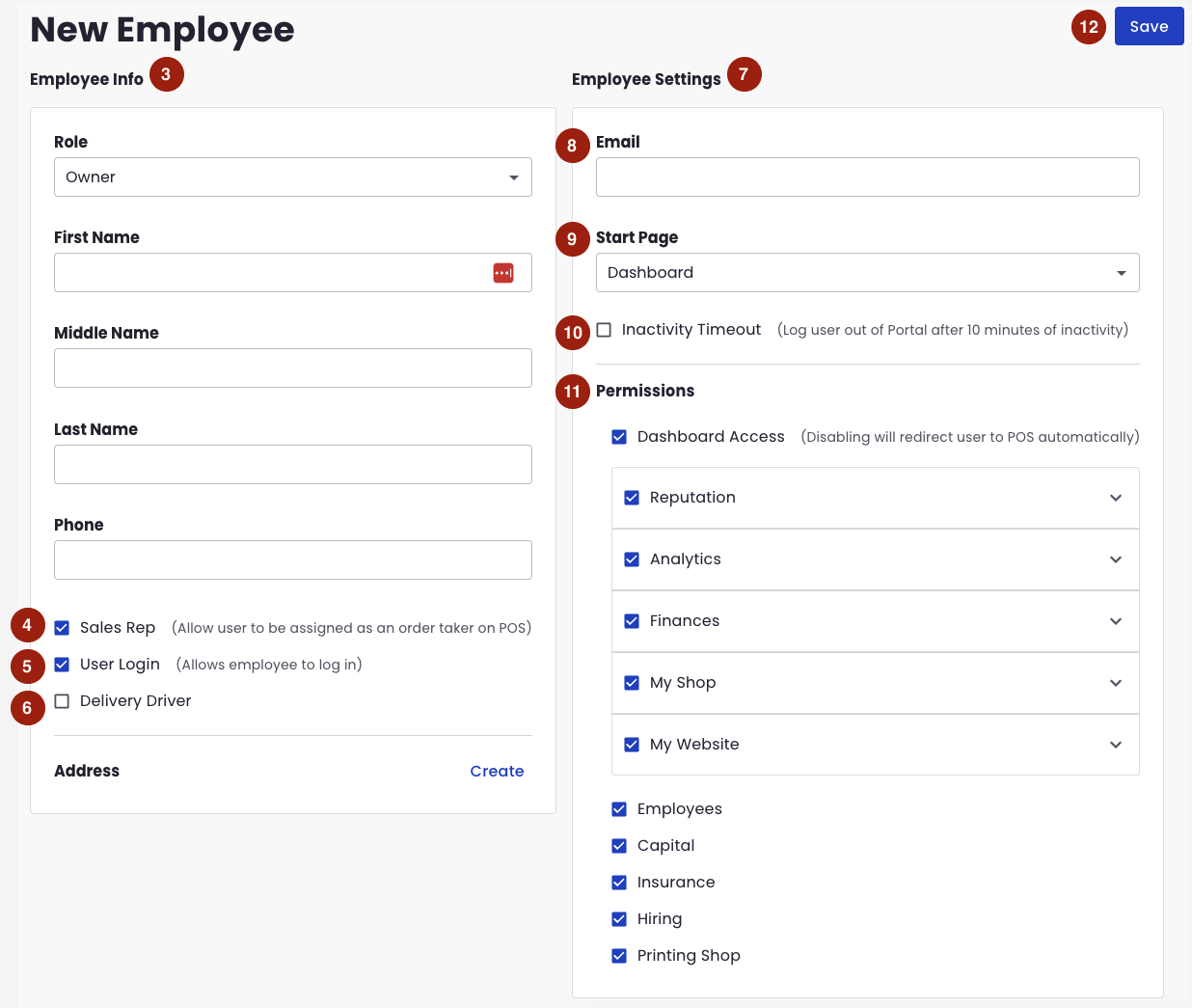
- Fill out the employee information.
-
Sales Rep checkbox
- If you want this specific employee to appear as one of the Sales Rep dropdown options in the POS Create Order, check the “Sales Rep” box.
- If this employee will not be taking orders through the POS, please uncheck the “Sales Rep” box.
-
User Login checkbox
- If you want this specific employee to have their own login to the system, check the “User Login” box.
- If you don’t want to make this specific employee their own login to the system, leave the “User Login” box unchecked.
-
If this specific employee is a Delivery Driver, please check the “Delivery Driver” box.
-
If you have the User Login box checked in Number 4, a 2nd column on the right will appear. These are your employee’s user login configurations. This is where you can customize their access to your system.
-
If User Login checkbox is checked (#4) - you will be required to provide an email address which the employee/s will use to be able to login to your system. Once the employee has been saved (#12), this email will receive an activation email that has the link for the employee to create a password for their account.
-
Start Access - select if you want this employee to be redirected to the New Dashboard or straight to the BloomNation POS upon login.
-
Inactivity Timeout - if you would like their account to be logged out after 10 minutes of inactivity, please check this box.
-
Permissions - This is where you can check all the buckets and/or specific pages you want this specific employee to have access to.
- If you click on the arrow of each bucket, you can expand and see the list of pages within that specific bucket. If you check / uncheck the bucket header, this will also do the same for the individual pages within it.
-
Once you are done entering the employee’s information and customizing their permissions, you can now hit the “Save” button.
-
If you granted them a user login, they will receive a welcome email and a link to activate their account on the email that you entered for them.
NOTE: If you assigned the employee as a Sales Rep, please note that it can take up to 30 minutes for their name to appear within the Sales Rep dropdown under the POS Create Order.