
Employee PIN
Overview
Employee PIN Login lets you quickly switch between employees in the BloomNation POS without logging out and back in each time. It’s designed for shops that share POS terminals and want orders and actions accurately attributed to the right team member, even if not every employee has their own login.
Using PINs is completely optional. If you don’t want to use Employee PINs, no setup is required.
How Employee PIN Login Works
Employee PIN Login does not replace your regular email and password login.
Here’s the flow:
- A user logs into the BloomNation platform using their email and password.
- Once logged in, employees can switch users using a 4-digit PIN.
- The POS updates to reflect the selected employee.
PINs are used for switching and identifying employees within an active POS session, not for initial account authentication.
Set Up an Employee PIN
Employee PINs are set up per employee in the Dashboard.
Step-by-step
- Log into your Dashboard.
- Go to Employees.
- Select the employee you want to edit.
- Find the Employee PIN (POS Only) section.
- Toggle Enable Employee PIN on.
- Enter a 4-digit PIN, or click Generate PIN to create one automatically.
- Save the employee.
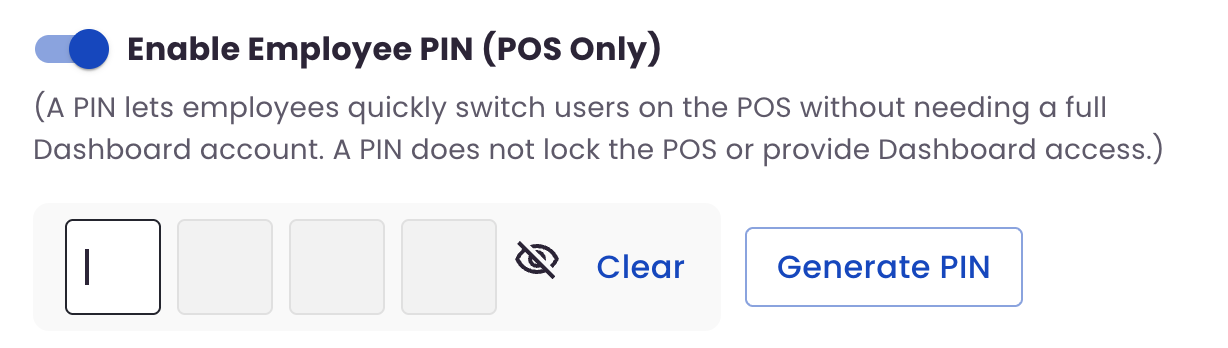
Notes:
- PINs are optional and off by default.
- Each employee must have a unique PIN.
- For multi-location businesses, PINs must be unique across all locations.
Switching Users in POS
Once at least one employee has a PIN set up, a Switch User option appears in the POS menu.
To switch users:
- Click the menu in the POS.
- Select Switch User.
- Enter the employee’s 4-digit PIN.
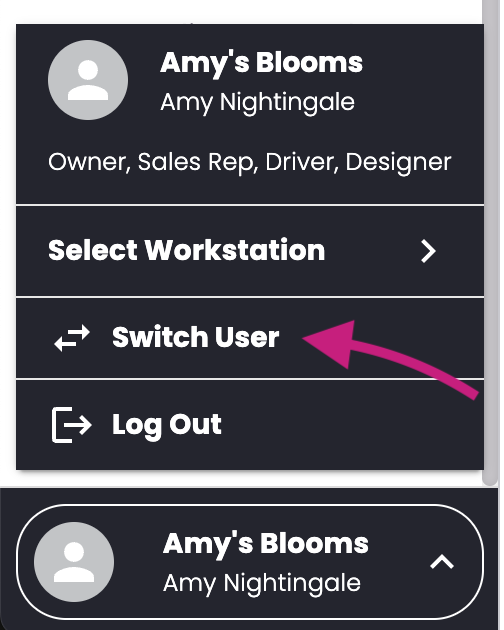
The POS will update to reflect the selected employee without logging out.
Require a PIN After Inactivity (Optional)
You can optionally require employees to re-enter a PIN after the POS has been inactive.
How to enable
- Go to Dashboard → My Shop → POS Settings.
- Find Require PIN After Inactivity.
- Choose a timeout duration (5 minutes, 10 minutes, 15 minutes, 30 minutes, 1 hour).
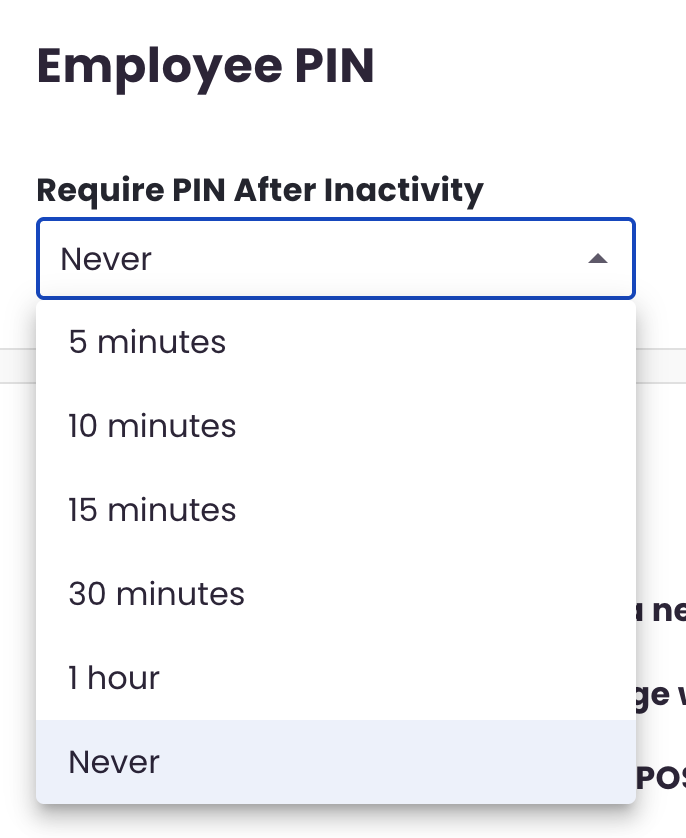
Notes:
- The default setting is Never.
- This setting is intended for shops actively using Employee PINs.
- If the POS times out, employees can enter a PIN or choose to log in with email and password.
Incorrect PIN Attempts
- Employees have 5 attempts to enter the correct PIN.
- After 5 incorrect attempts, PIN login is temporarily disabled.
- The user will be prompted to log in with their email and password.
- Once logged in successfully, PIN functionality is restored.
If You Don’t Want to Use Employee PINs
No action is required.
If you leave Employee PINs turned off:
- Your POS will continue to work exactly as it does today.
- Employees will log in and work as usual.
Frequently Asked Questions
Do all employees need their own login?
No. Employee PINs allow you to identify who is using the POS even if not every employee has an individual login.
What if an employee forgets their PIN?
Anyone with permission to manage employees can update or reset the PIN from the Dashboard.
What happens if the wrong PIN is entered too many times?
After five incorrect attempts, the employee must log in with an email and password. PIN access is restored after successful login.
Is Employee PIN Login required?
No. Employee PIN Login is completely optional and can be used only if it fits your workflow.
Need Help?
If you have questions or need help setting up Employee PIN Login, our Support team is here for you.
Phone: (210) 405-5050
Email: support@bloomnation.com