
Sending Florist to Florist Orders
Collecting Payment
Collect payment (including applicable taxes) from your customer through your Point of Sale .
Finding Florists in the Area
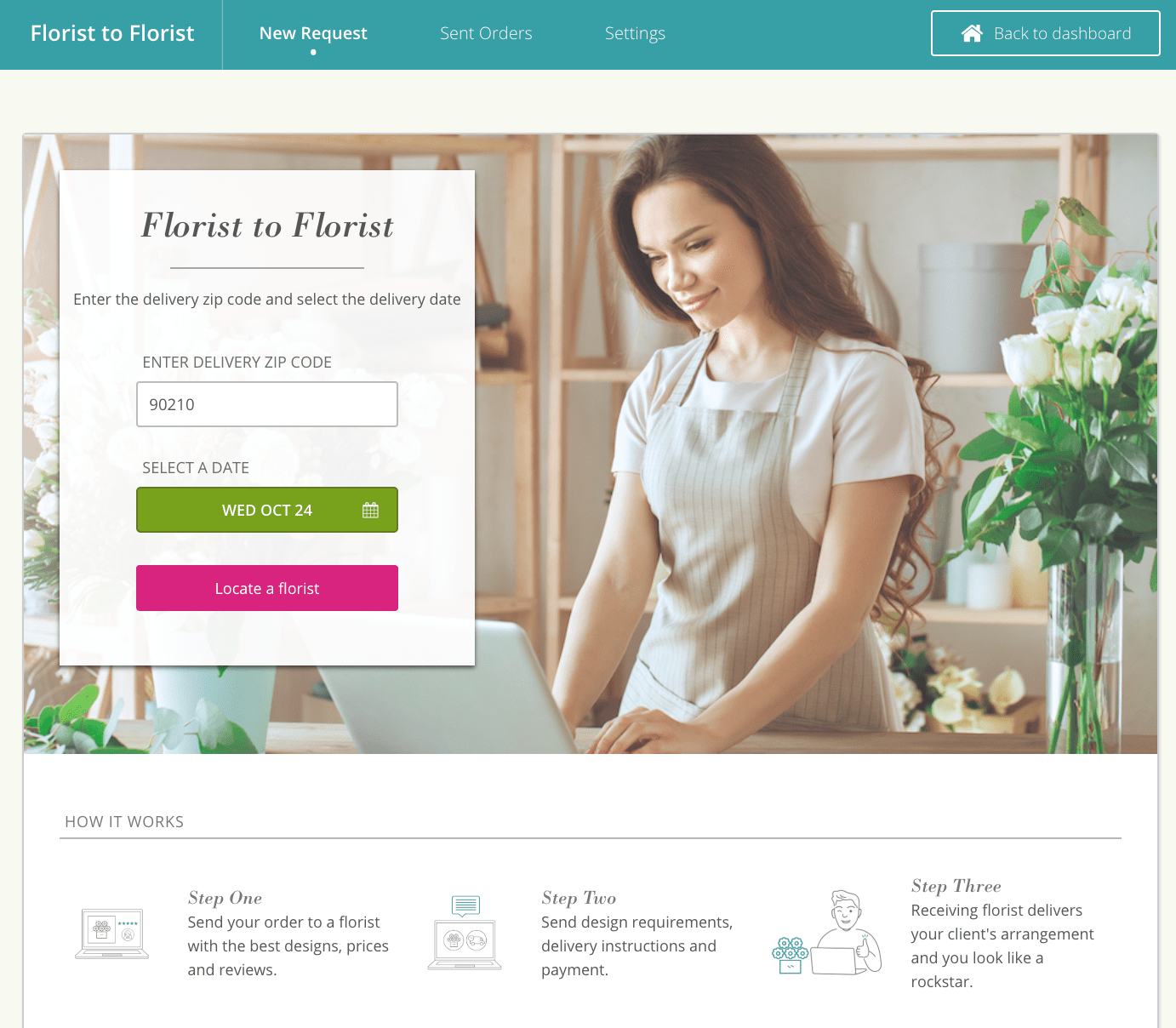
- Enter the zip code for the recipient’s delivery area
- Select your customer’s requested delivery date
- Click “Locate a Florist”
Choosing a Florist
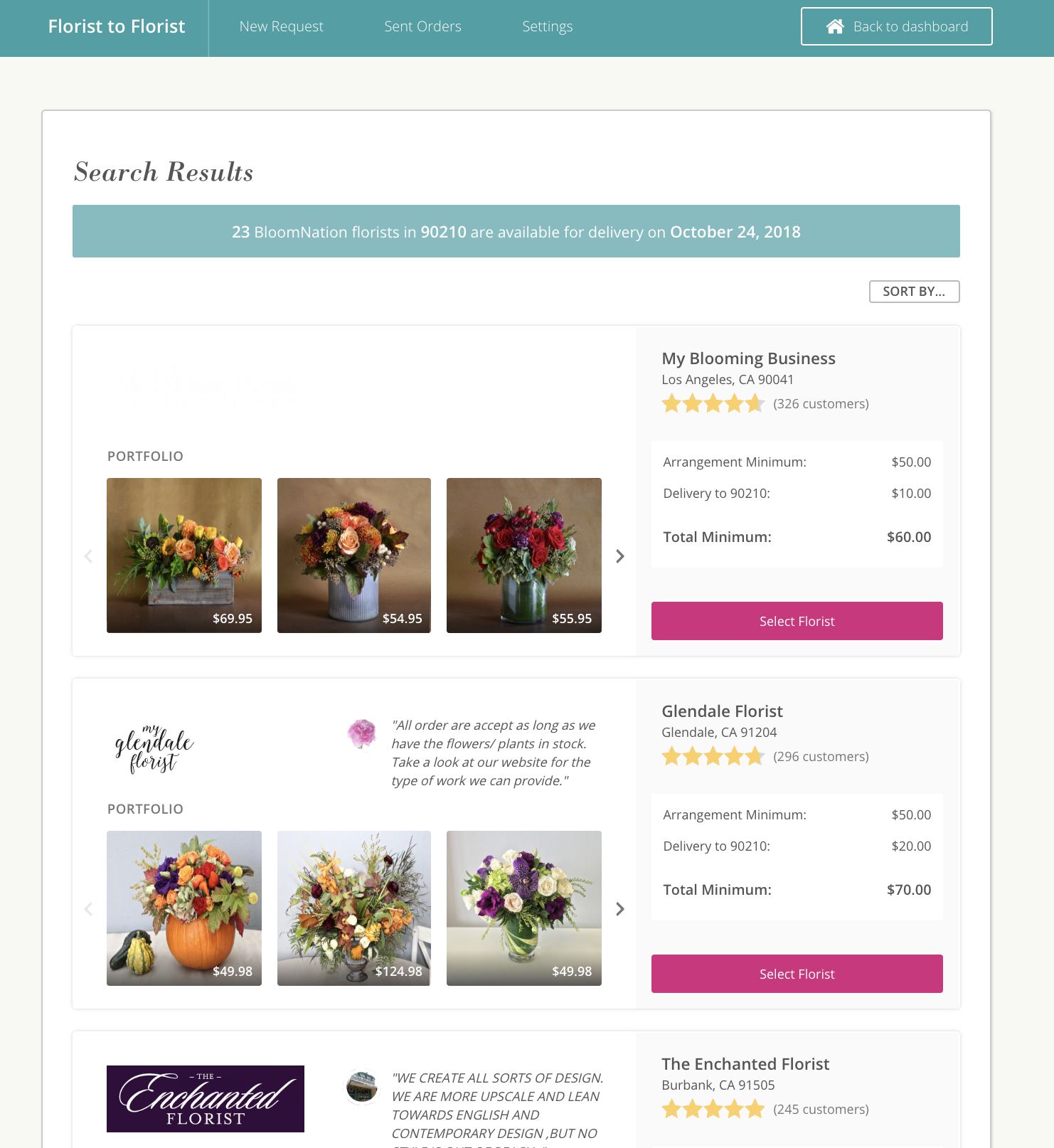
Select the florist with the best design work, arrangement and delivery pricing and/or best reviews:
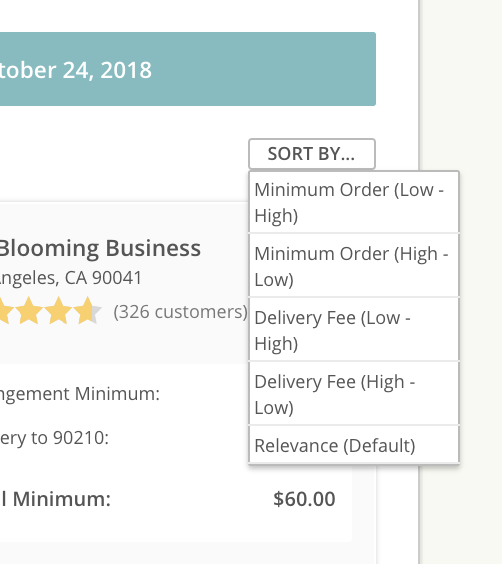
BloomNation will automatically sort the results using a default algorithm. If you prefer to choose your own sort order, click "Sort By" and select the option that best matches your desired priority:
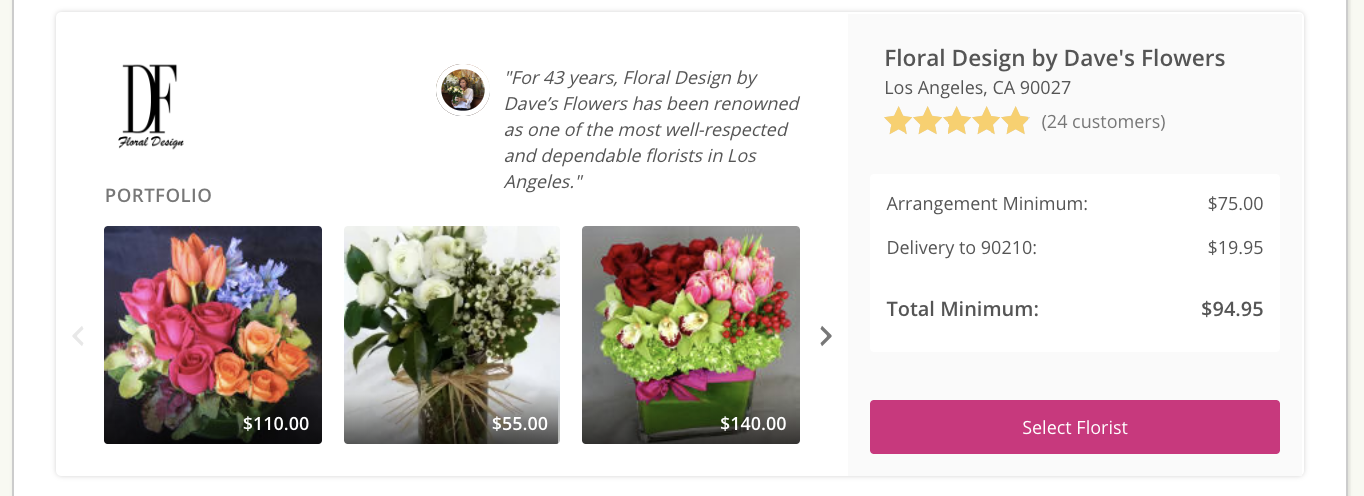
Once you've selected your florist, click “Select Florist” to move on to the next step!
Entering Delivery Details
Fill out the delivery information:
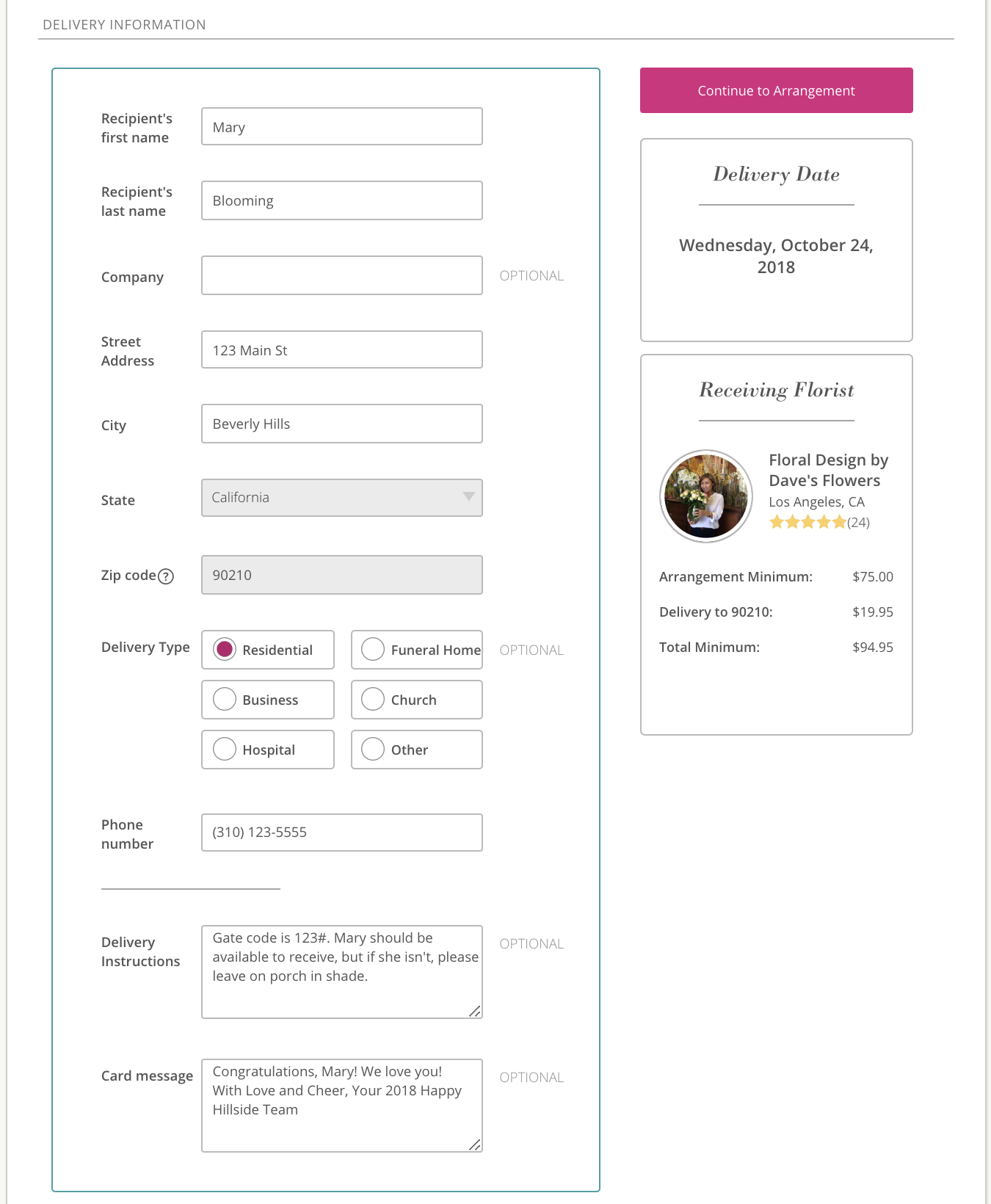
- Recipient’s Name
- Delivery Address
- City and State are already filled out using information entered on the previous screen
- Delivery Address Type
- Recipient’s Phone Number
- Delivery Instructions
- What information does the delivery person need to successfully complete delivery?
- Card Message
- Click “Continue to Arrangement”
Entering Arrangement Details
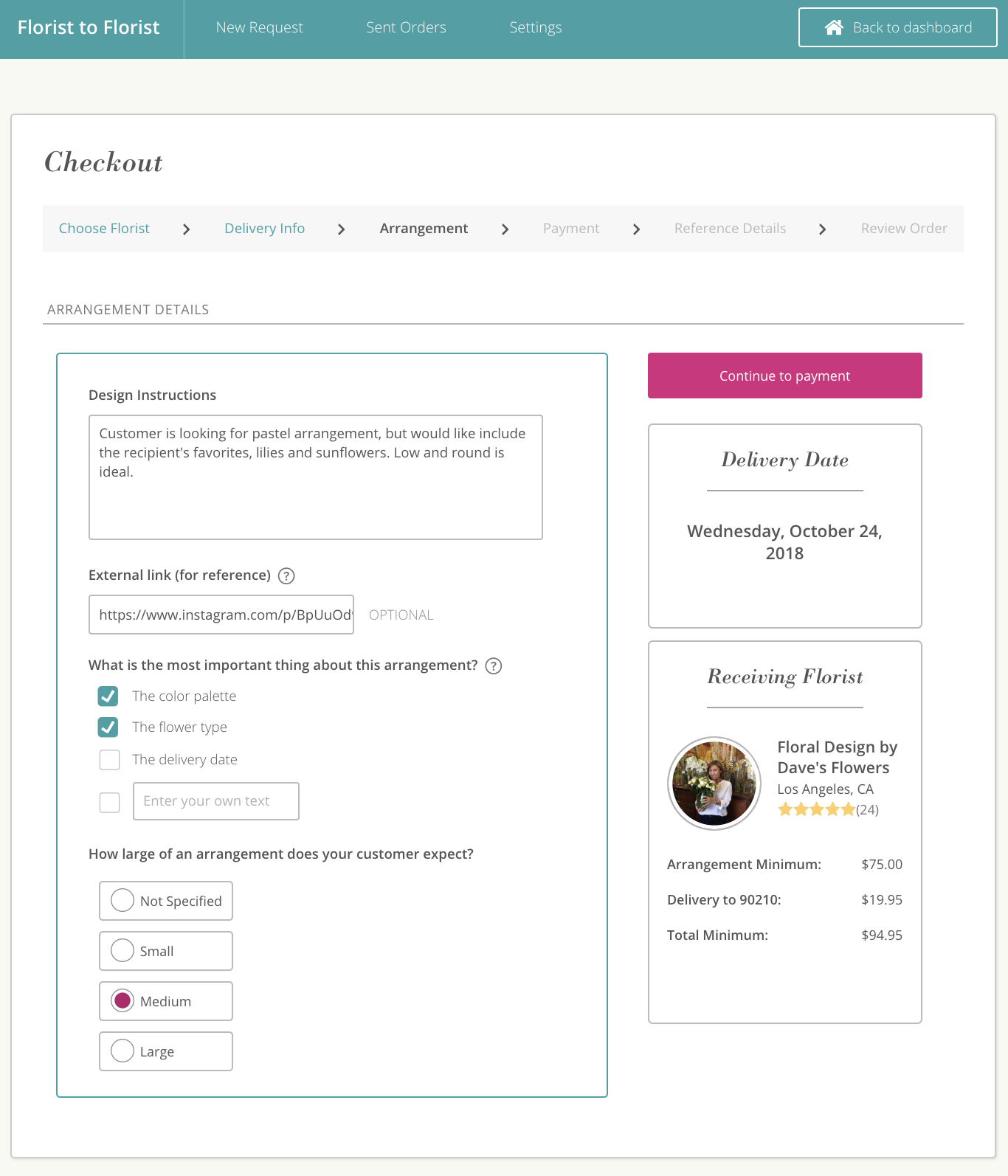
Fill out Arrangement Details:
-
Design Instructions
-
External Reference link
-
Select the most important things about the arrangement
- The color palette
- The flower type
- The delivery date
-
The expected size of the delivered arrangement
- Not Specified (not clickable)
- Small
- Medium
- Large
Click “Continue to payment”
Entering Payment Information
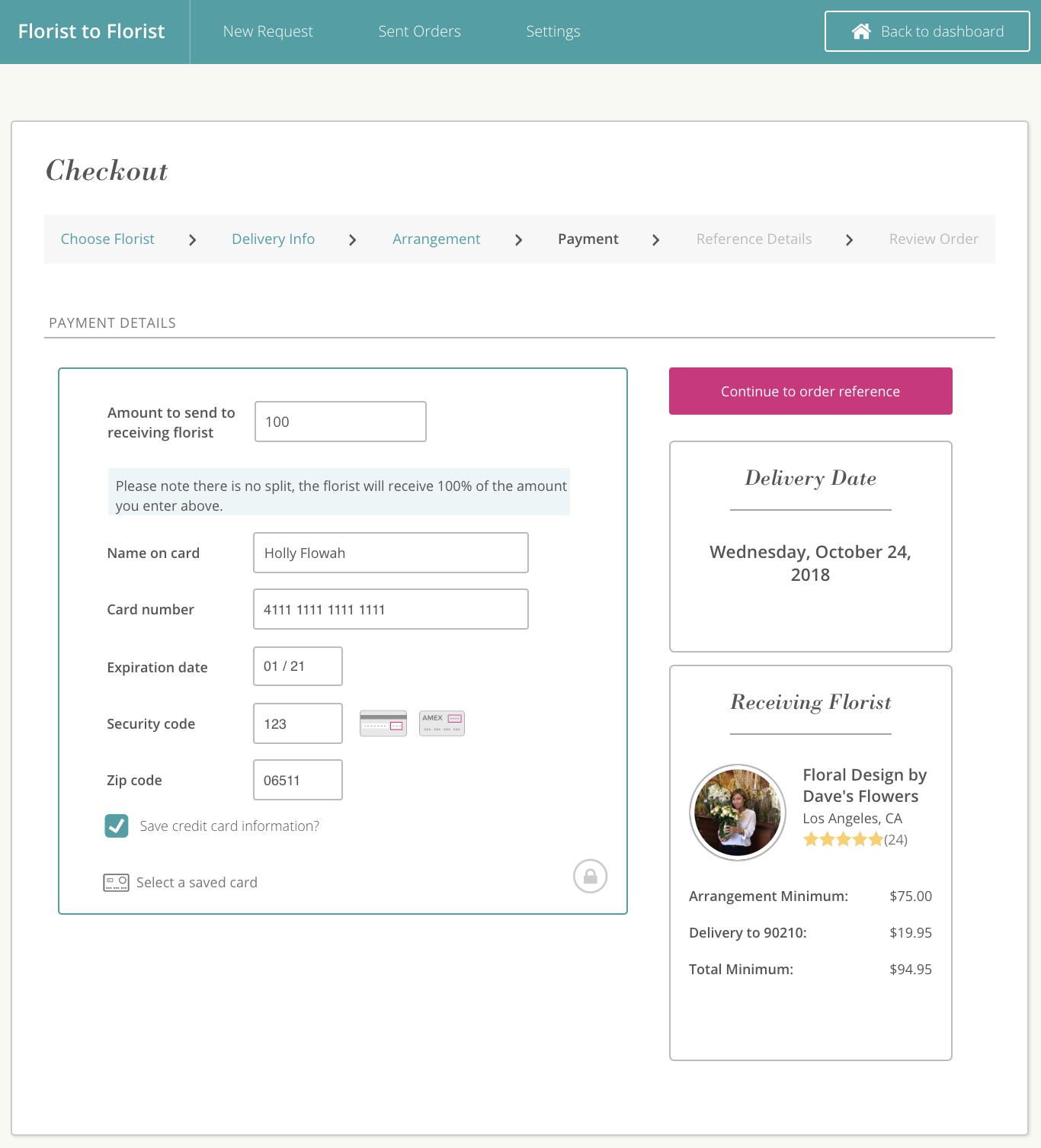
Fill out Payment Details*
-
The amount to send the fulfilling florist
- There are no predetermined splits, so this is the full amount they will be working with (including delivery)
- Tax is the sending florists's responsibility on Florist to Florist orders. Please exclude taxes when sending your payment via Florist to Florist.
-
Name on card
-
Card number
-
Expiration Date
-
Security Code
-
Billing Zip Code
-
Check box to save credit card information for future purchases
-
Click “Continue to order reference”
Notes:
- If you are using a saved card, click “Select a saved card” under "Save credit card information" and choose one of your saved options!
- This section is for your payment information. You should have already collected your customer’s payment through your Point-of-Sale.