
Contacts & Customers (CRM)
Contacts (CRM) Overview
The Contacts section in your BloomNation Point of Sale (POS) helps you manage your customer base and other important relationships in one place. Contacts can include customers, businesses, vendors, and venues.
Whether someone places an order through your Premium Site, the BloomNation Marketplace, or the POS, their profile is automatically added to your database. You can also manually add contacts, edit their details, manage additional contacts, and keep track of orders, payment methods, invoices, and other essential data.
This guide walks through the features available in the Contacts section, including finding, adding, and managing contact profiles and their associated information.
- How to Find a Contact
- Adding a Contact
- Editing Contact Info
- Contact Types
- Additional Contacts
- House Account
- Orders
- Events & Invoices
- Subscriptions
- Recipients & Addresses
- Payment Methods
- Helpful Data
- Additional Support
How to Find a Contact
In the POS under the Contacts section, you can search for a contact by entering their name, phone number, or email address. You can also search by any associated order recipient, House Account, or Additional Contact.
Search results now include all contact types, with visual indicators to help you identify whether the contact is a customer, business, vendor, or venue.
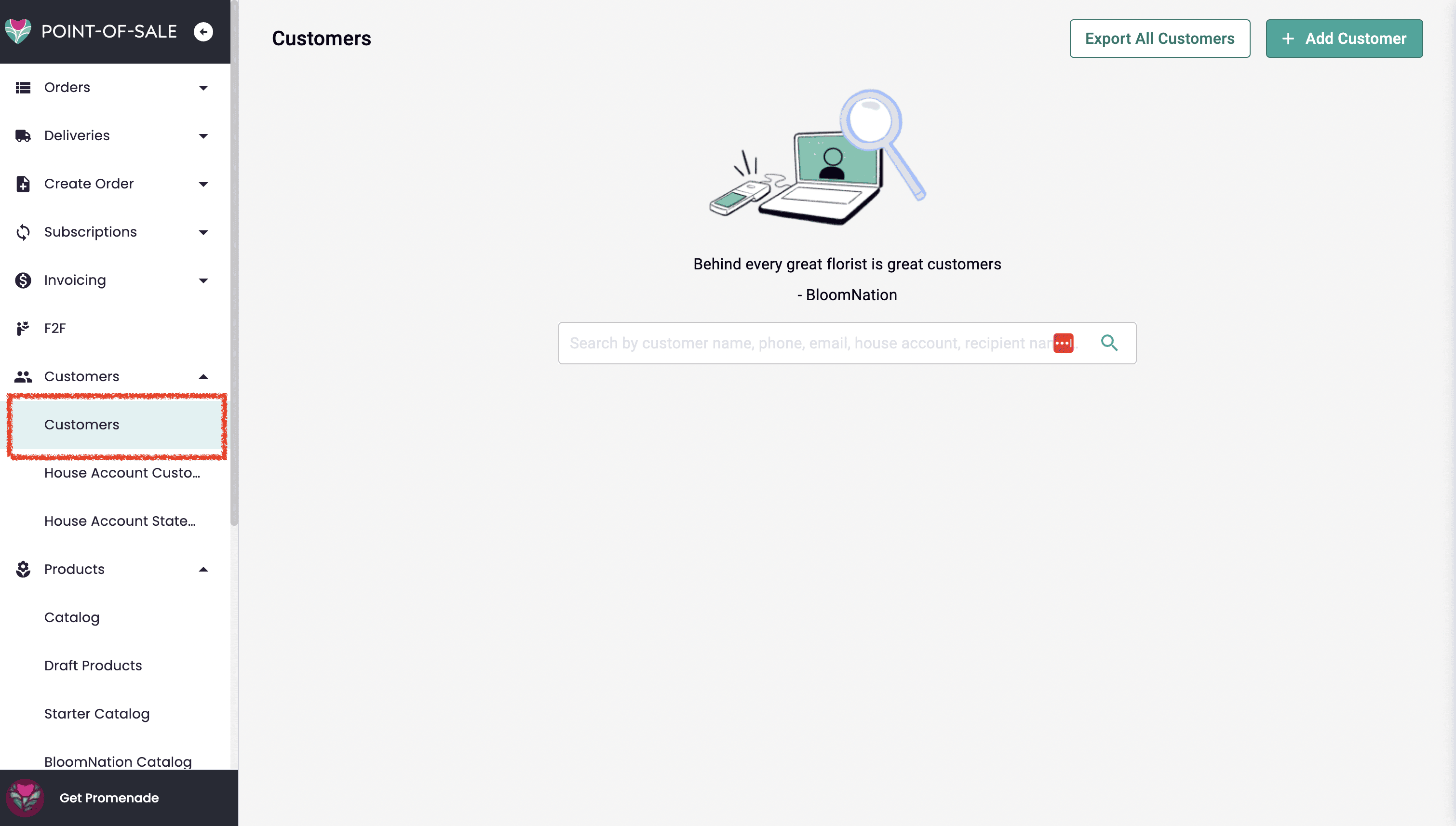
- Export All Contacts: Click the Export All Contacts button to download a CSV file with your contact profiles.
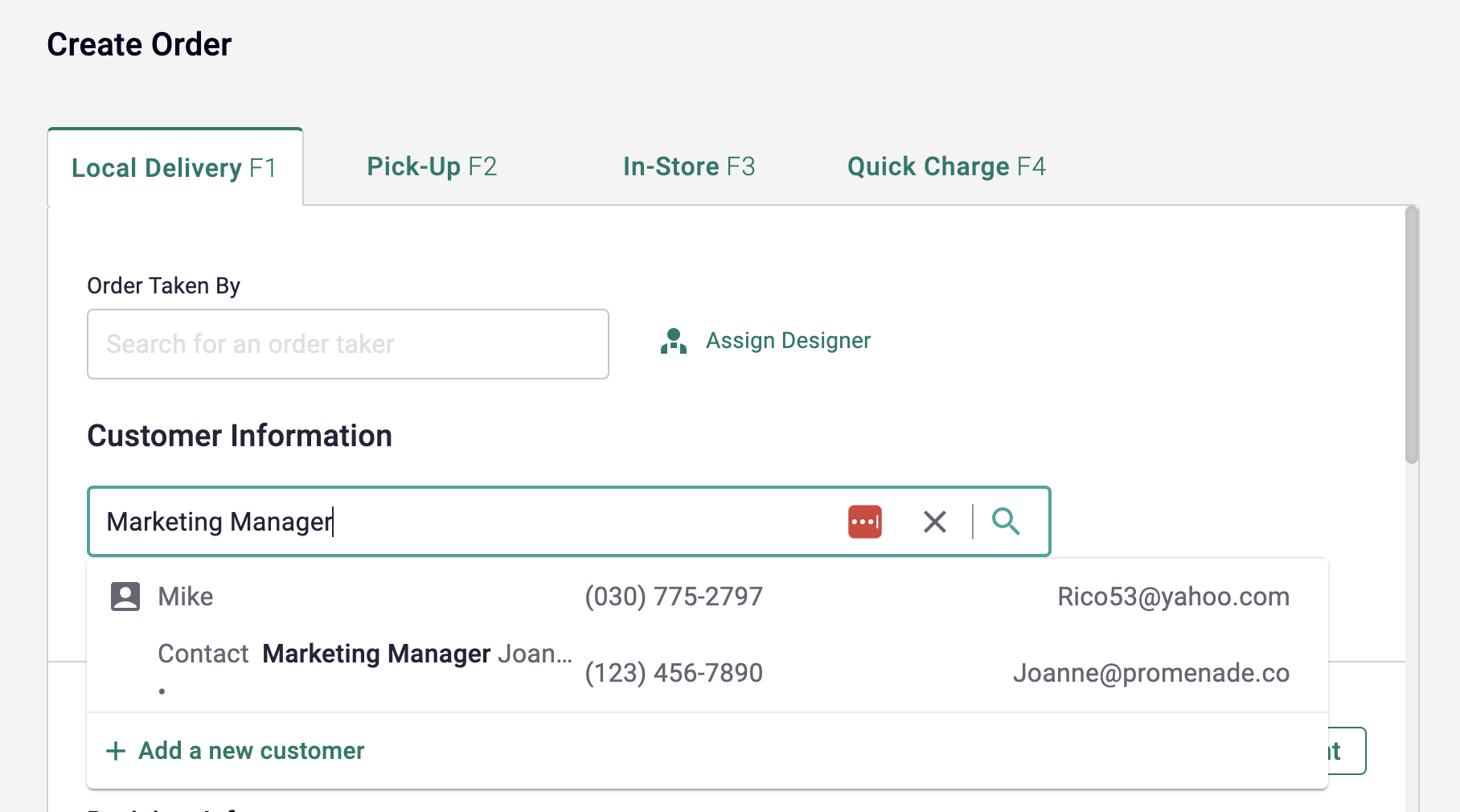
- Finding Contacts via Additional Contacts: When creating an order in the Create Order tab, you can find a primary contact by searching for an additional contact.
In the screenshot below, the customer Mike is found by searching for his additional contact, Marketing Manager.
Adding a Contact
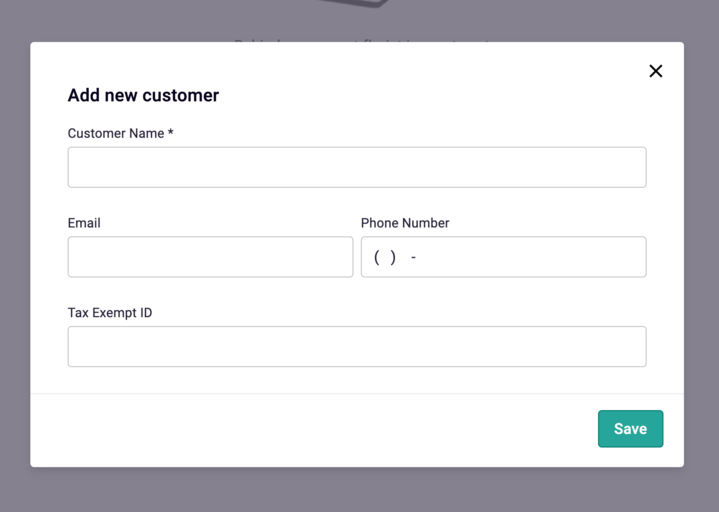
To create a new contact profile:
- Click the Add Contact button on the Contacts page.
- Enter the required contact name.
- Select the appropriate Contact Type, such as customer, business, vendor, or venue.
- Optionally, add details such as email, phone number, address, or Tax Exempt ID when applicable.
Editing Contact Info
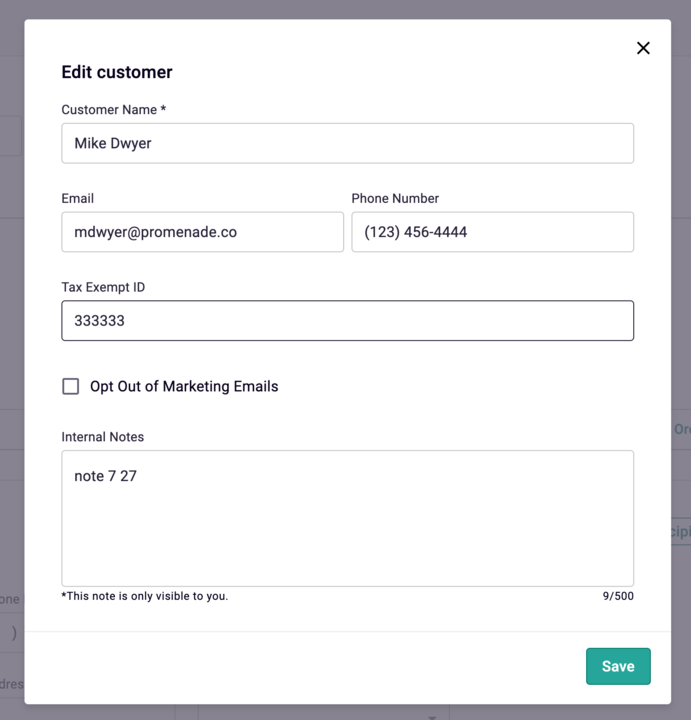
To edit a contact’s name, phone number, email address, or contact type:
- Navigate to the contact’s profile.
- Click Edit in the overview section.
Contact Types
Contacts can now be categorized into different types:
- Customer: Individual buyers and recipients
- Business: Corporate clients or organizations
- Vendor: Suppliers or partners
- Venue: Event locations or partner venues
This makes it easier to organize relationships beyond one-time customers and is especially helpful for weddings, events, and business accounts.
You can update the contact type at any time by editing the contact profile.
Additional Contacts
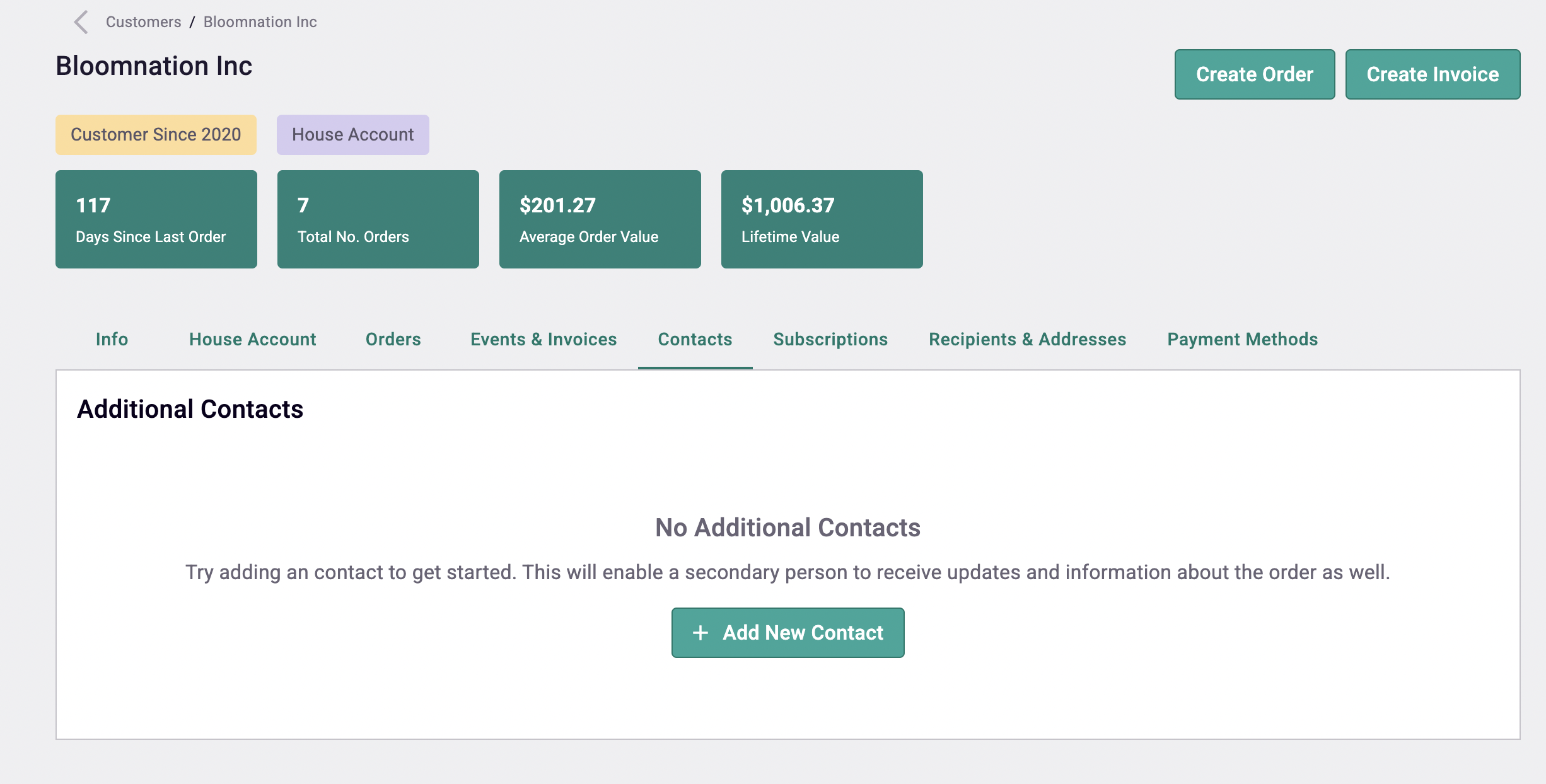
BloomNation allows you to add multiple contacts to a primary contact profile. This is helpful when a business has multiple points of contact, an event includes planners or coordinators, or another person should receive order updates.
Adding an Additional Contact
- Go to the contact profile > Contacts sub-tab.
- Click + Add New Contact.
- Fill out the form, including the additional contact’s email and phone number when available.
Adding an Additional Contact to an Order
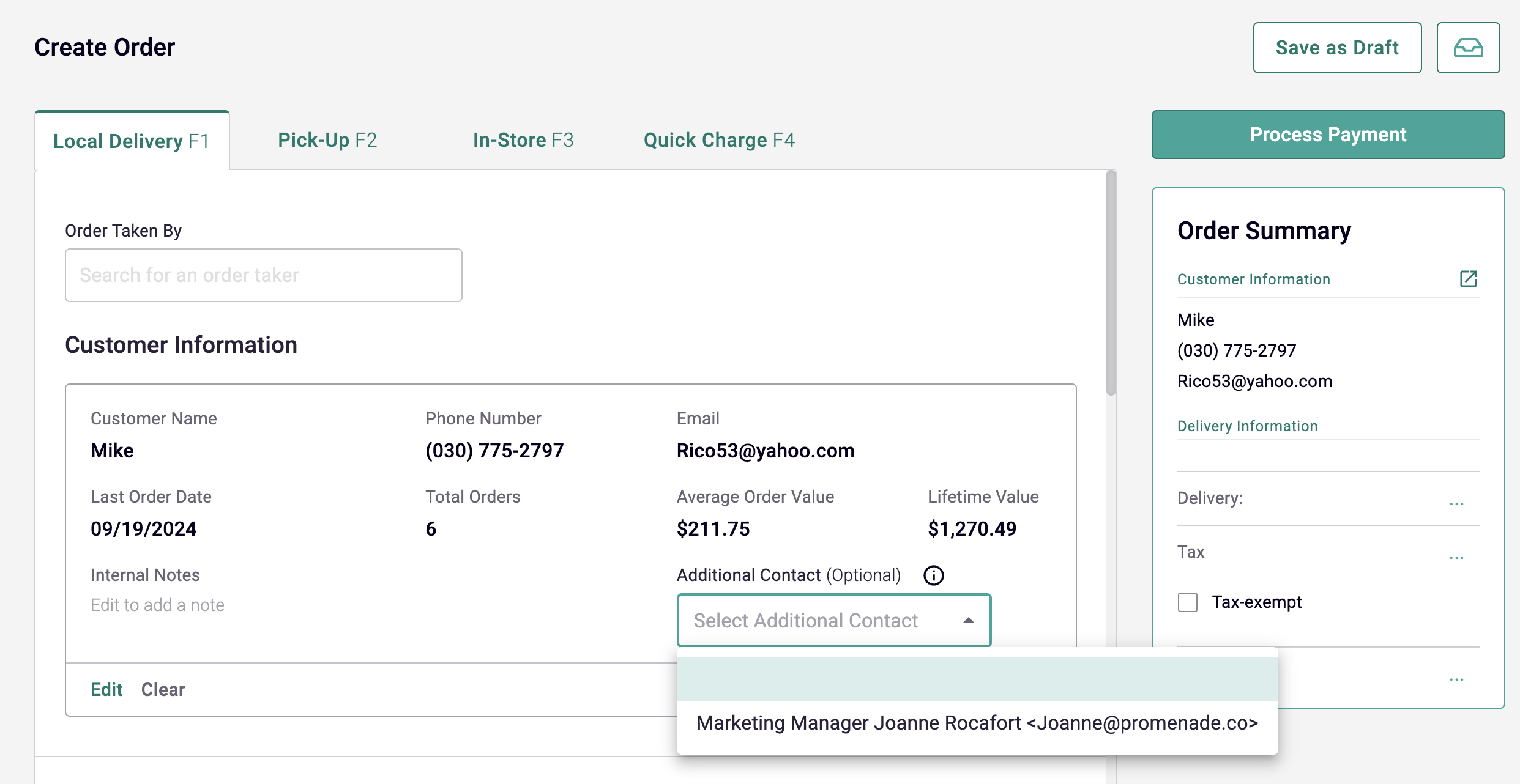
- Navigate to the Create Order page.
- Add the primary contact.
- A dropdown labeled Additional Contact will appear.
- Select the additional contact from the dropdown.
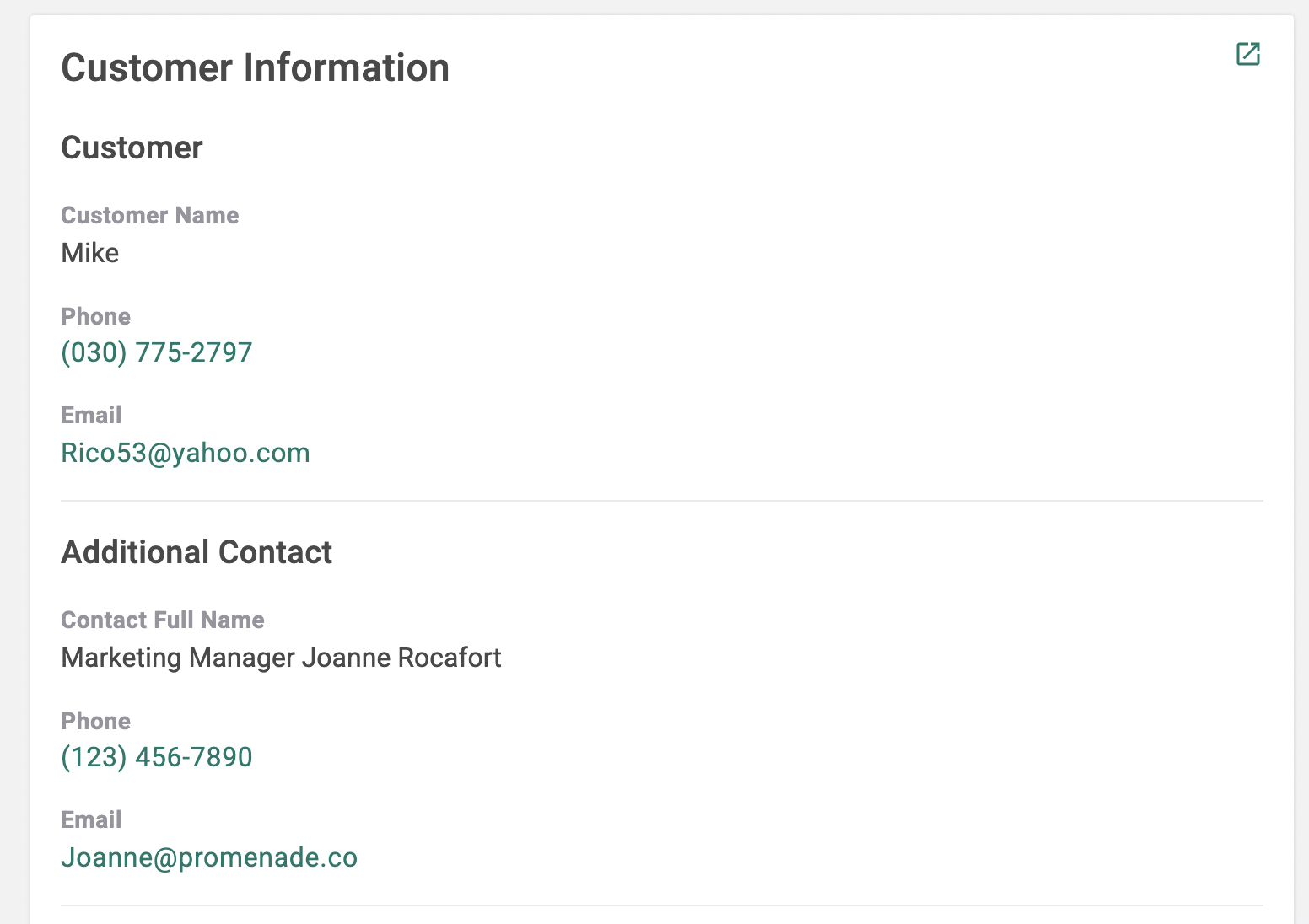
For orders with an additional contact, their information will be displayed in the Order Details under Customer Information.
House Account
The House Account tab in a contact profile allows you to manage account details, billing information, and statements. Once a House Account is active, you can use this tab to review account details, make adjustments, and track payment history.
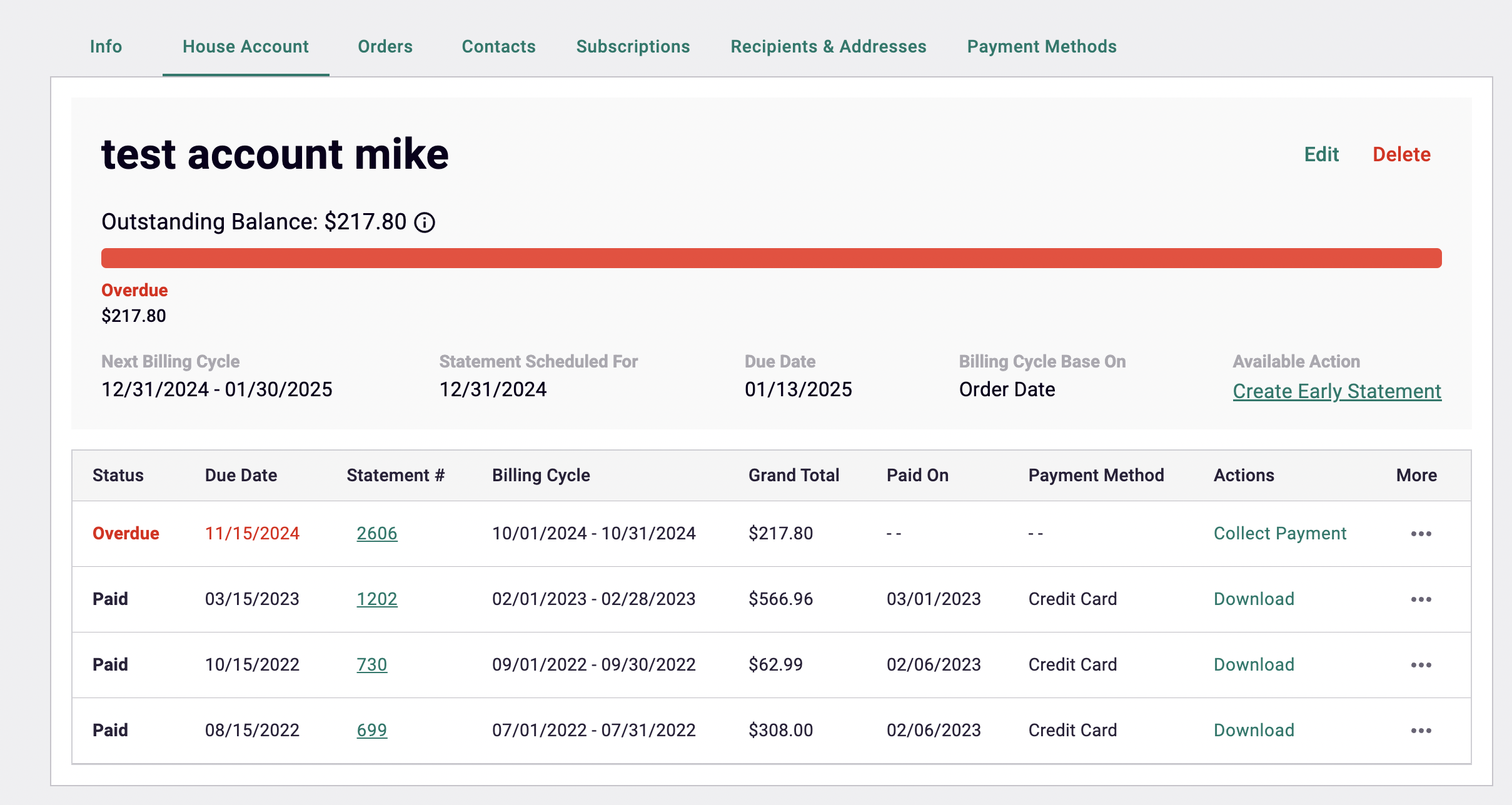
Key Features
- Edit or Delete Account: Adjust account settings or delete the account entirely.
- Account Information Display: Includes details such as the current balance, next billing cycle, statement schedule, due date, and billing cycle basis.
- Available Actions: Generate an early statement for unpaid orders with the Create Early Statement option.
- House Account Statements Table: View all statements, including status, due date, billing cycle, total amount, and payment history.
For detailed instructions, please refer to our House Accounts article.
Orders
This tab includes all orders associated with the contact via the Premium Site, Marketplace, and POS.
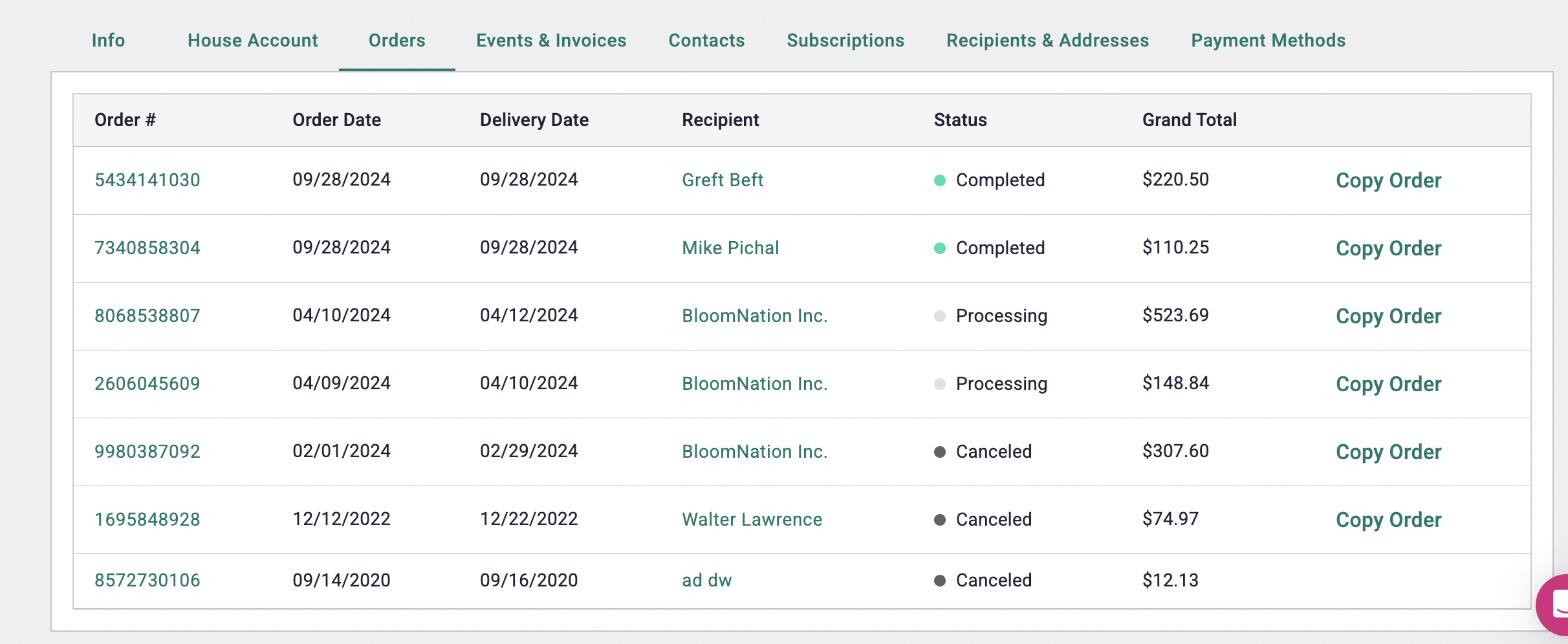
Pro-Tip: Click the Order # to open the Order Details page for more information.
Events & Invoices
The Events & Invoices tab within a contact profile provides an overview of all events and invoices associated with that contact.
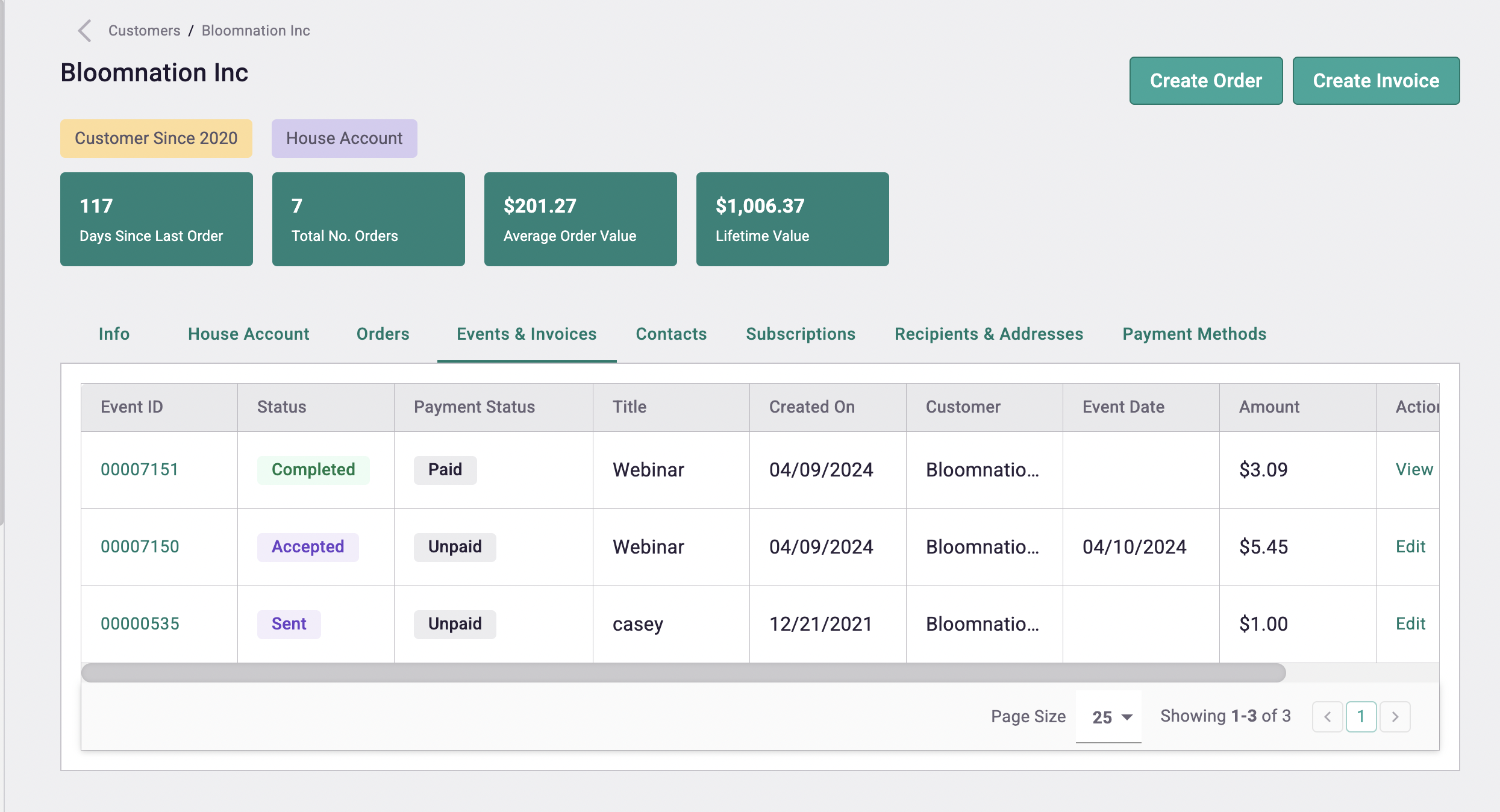
This is especially useful for wedding and event clients, where you may need to track multiple invoices, dates, or payments.
For more comprehensive instructions, please refer to our detailed Events & Invoices article.
Subscriptions
This tab lists all subscriptions associated with the contact.
Recipients & Addresses
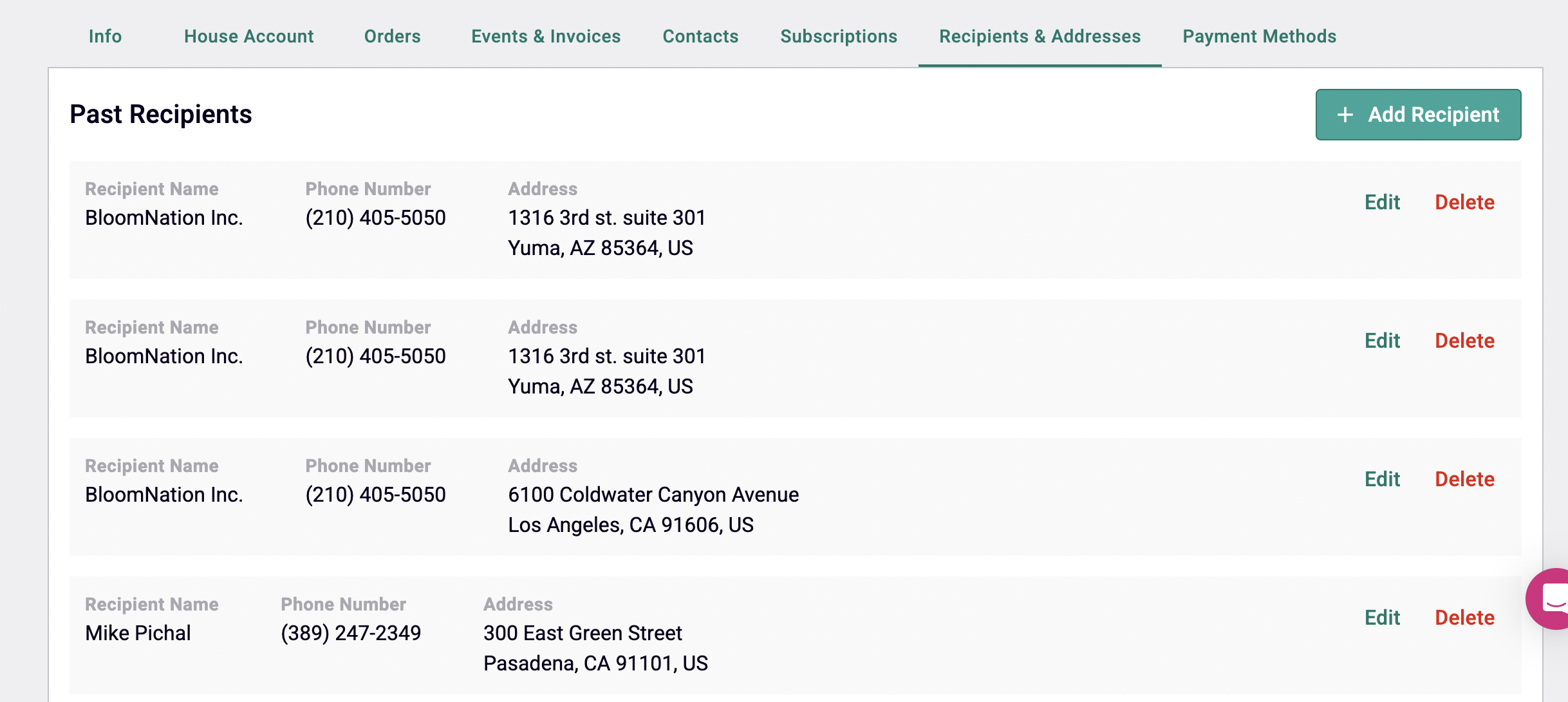
The Recipients & Addresses tab displays recipients of past orders, including phone numbers and addresses.
- You can Edit or Delete a recipient by clicking the corresponding button.
- Add new recipients as needed.
Payment Methods
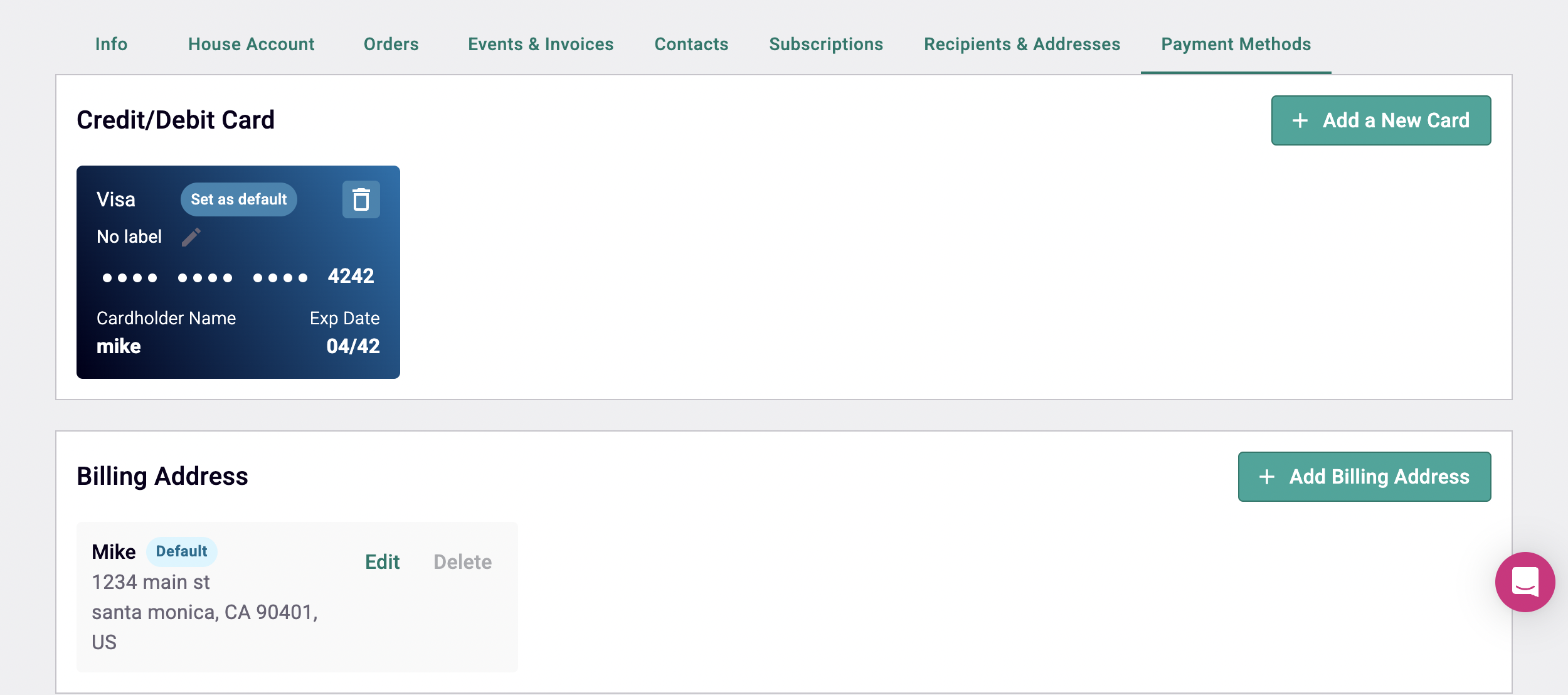
This section stores credit and debit cards associated with a contact, collected via Premium Site, Marketplace, or POS orders.
- While you cannot edit existing credit cards, you can delete them and add new ones by clicking Add a New Card.
- Billing addresses are located below the cards and can be edited, deleted, or added using the Add Billing Address button.
Helpful Data
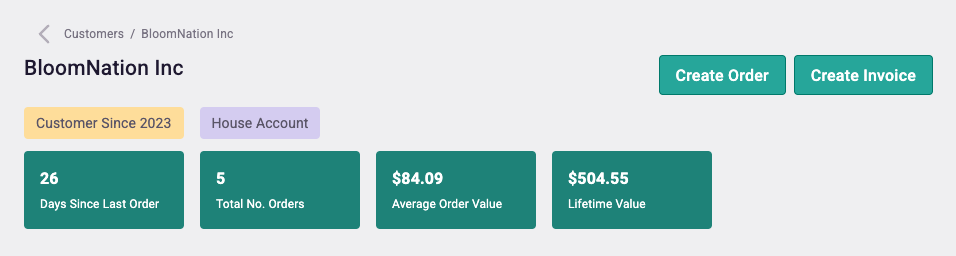
Each contact record includes helpful data such as associated orders, payment history, and other relevant details to help you manage customer relationships effectively.
Need Help?
If you have any questions about managing contacts in the BloomNation POS, our support team is here to help.
Phone: (210) 405-5050
Email: support@bloomnation.com