
My Shop: Shop Info
My Shop: Shop Info
This section is where you input your business’s basic details, such as your shop name, address, and contact information. Properly filling out these fields ensures that your customers can easily find and contact your shop, improving both online visibility and customer interaction.
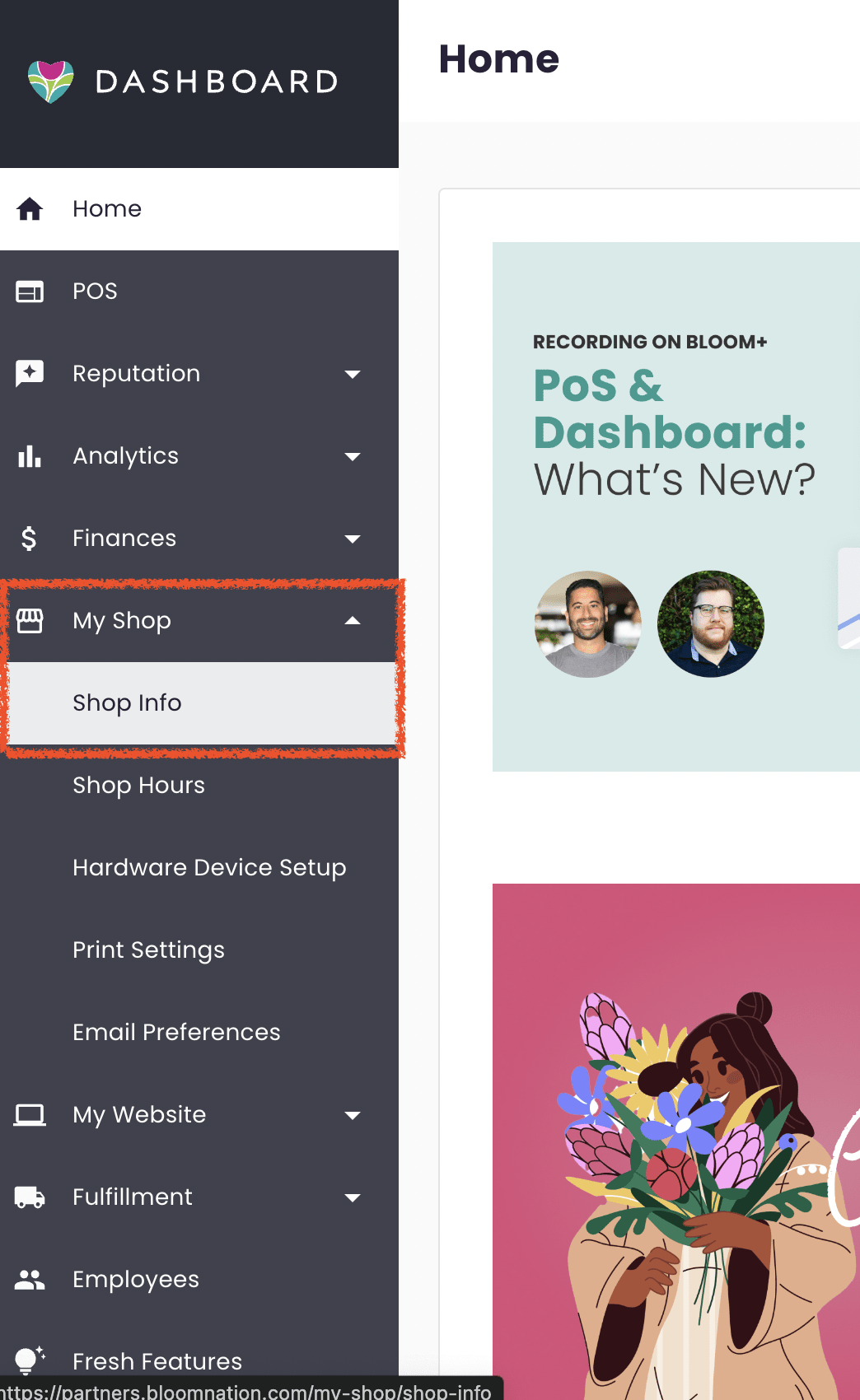
To access Shop Info, log into your account, navigate to the My Shop tab on the left-side menu, and select Shop Info.
Please note: Some fields are locked for security purposes. If you need to update any of these locked fields, submit a support request here.
General Settings
This section allows you to enter and update basic information about your shop’s contact details and preferences.
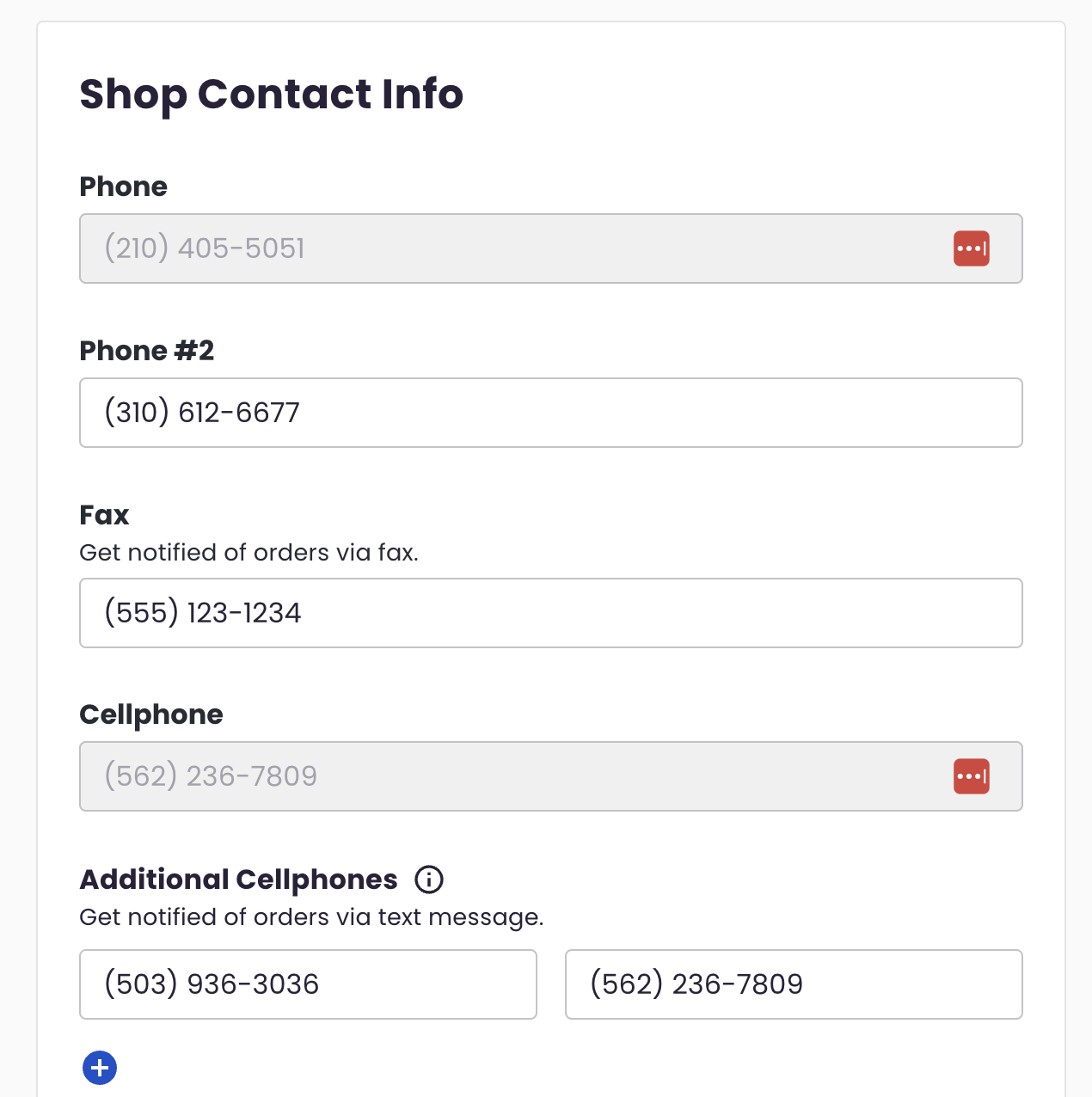
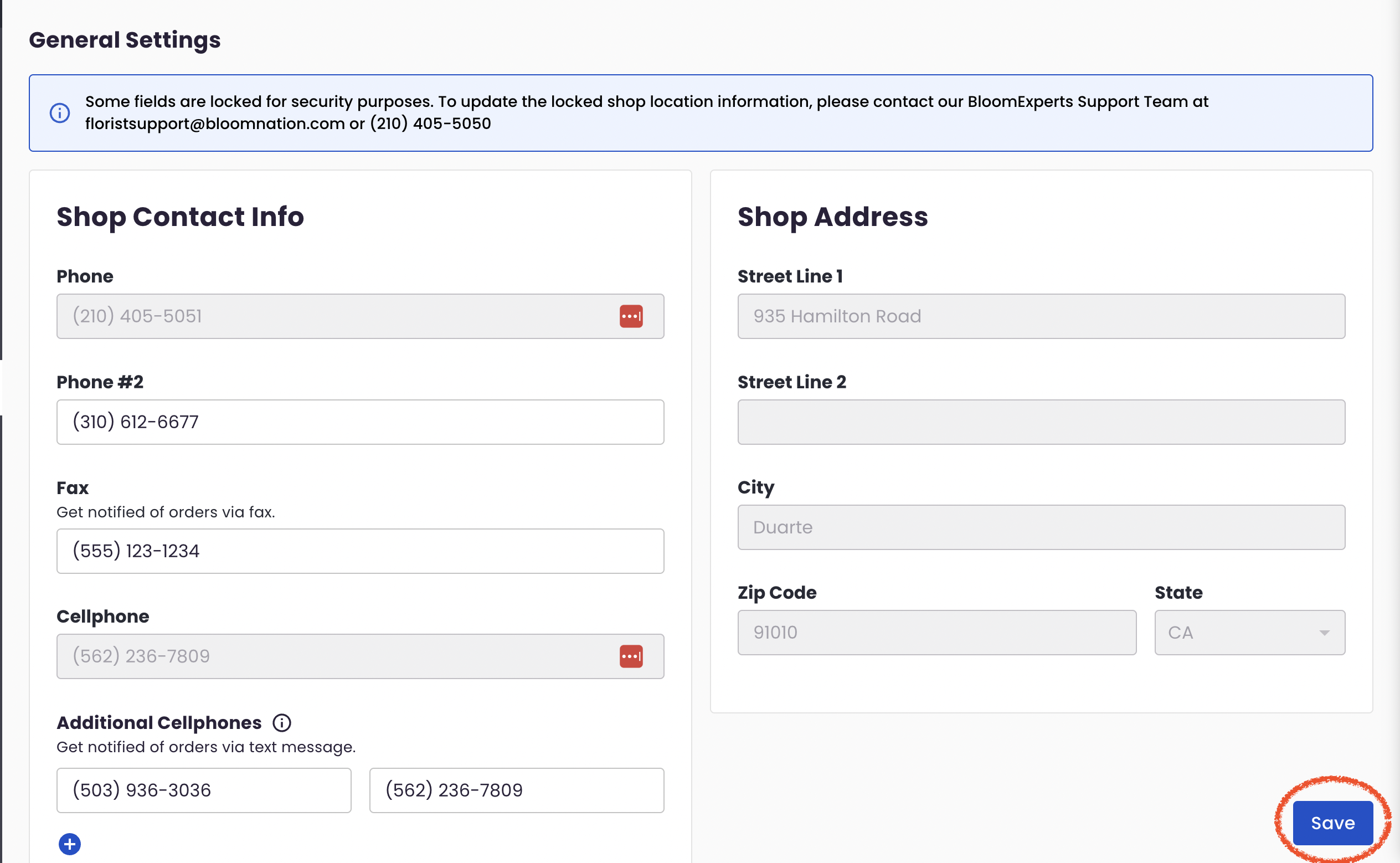
Shop Contact Info
- Phone: Your primary shop phone number, entered during onboarding, cannot be changed here.
- Phone #2: A secondary contact number for your shop.
- Fax: If you use fax to receive orders, input the fax number here.
- Cellphone: The number used for SMS alerts about orders. This cannot be updated here.
- Additional Cellphones: Add other numbers for receiving SMS alerts. You can enter multiple numbers and remove them by clicking the red minus sign.
- Important Note: After adding a cellphone number, you will receive a message with your first order asking for approval. Reply “yes” to start receiving text alerts for new orders. To stop, simply remove the number. Standard text rates may apply; check with your carrier.
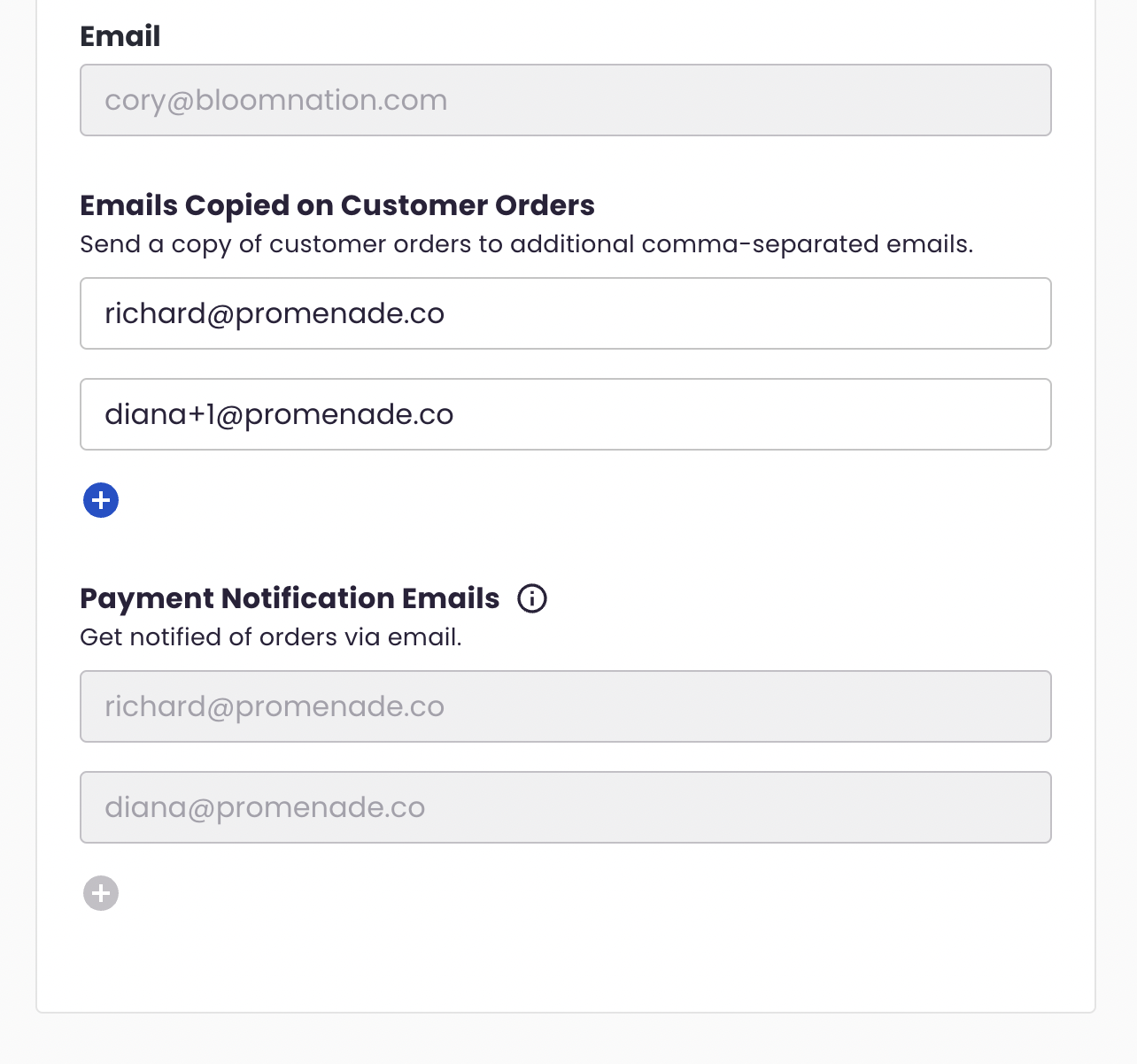
- Primary Email: This is your main account email, used both for logging into your account and receiving important notifications like billing errors or account edits. It is also displayed on your website and cannot be changed here.
- Emails Copied on Customer Orders: Add emails here to receive copies of customer orders, in addition to the primary email. You can remove emails by clicking the red minus sign.
- Payment Notification Emails: Enter the email addresses for payment notifications or BloomNation direct deposit updates. If no email is entered, these notifications will be sent to your primary email.
- Once you enter an email in this field, payment notifications will no longer be sent to your primary email. If you want multiple addresses to receive these notifications, such as your primary email, re-enter your primary email here.
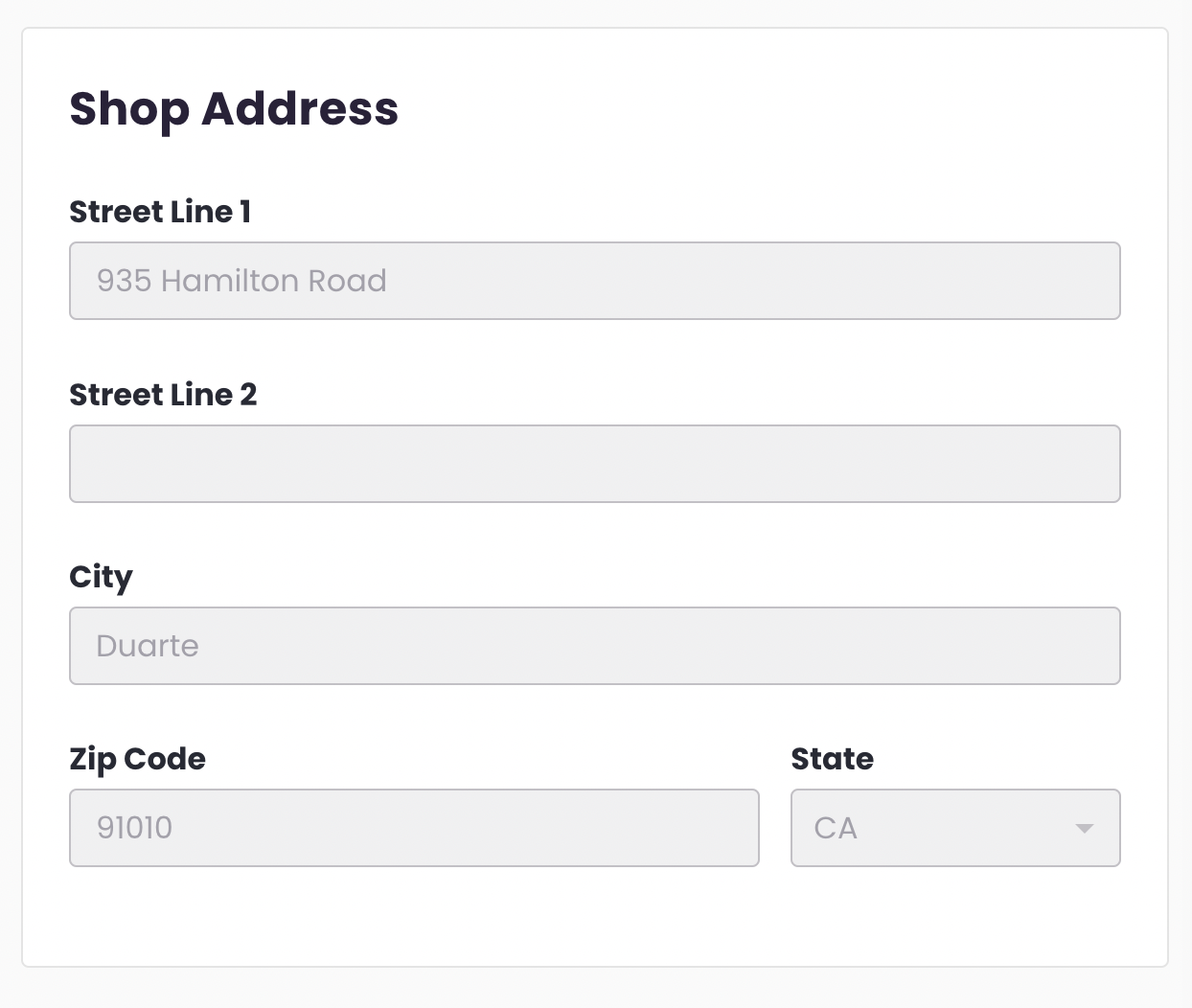
Shop Address
This section contains your shop’s address information, including street, city, zip code, and state. These fields are not editable. To change the shop address or add multiple locations, submit a support request here.
Service Area Settings
These settings allow you to customize the geographic area where your shop offers service.
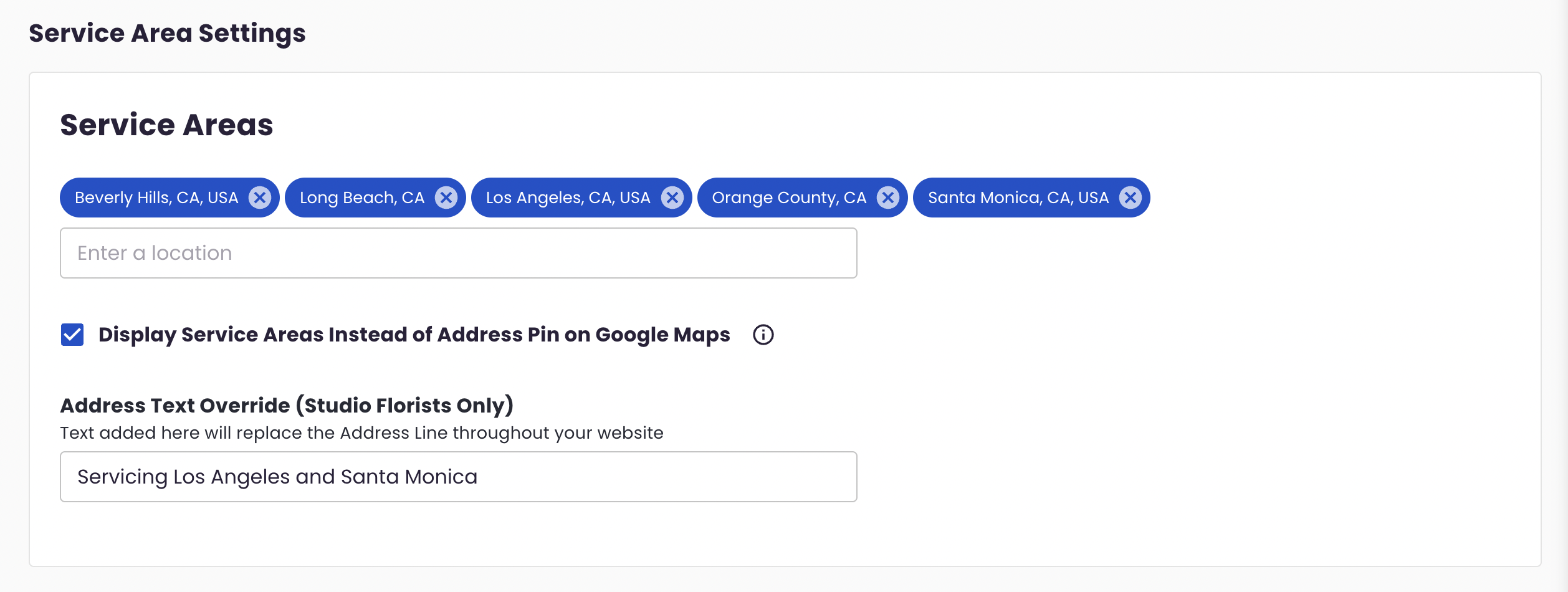
Service Areas
- Service Areas: Use the search bar to find and save cities or zip codes you serve. These will be displayed on your Premium Site.
- Display Service Areas Instead of Address Pin on Google Maps: If enabled, this setting replaces your address with service areas on the map, preventing your physical location from being displayed.
- Requires Google Listing Sync.
- Address Text Override (Studio Florists Only): If you do not wish to display your address, enter text here that will replace your address on your website. For example: “Servicing Los Angeles and Santa Monica.”
Shop Profile
This section allows you to showcase your shop with a brief description and visual elements.
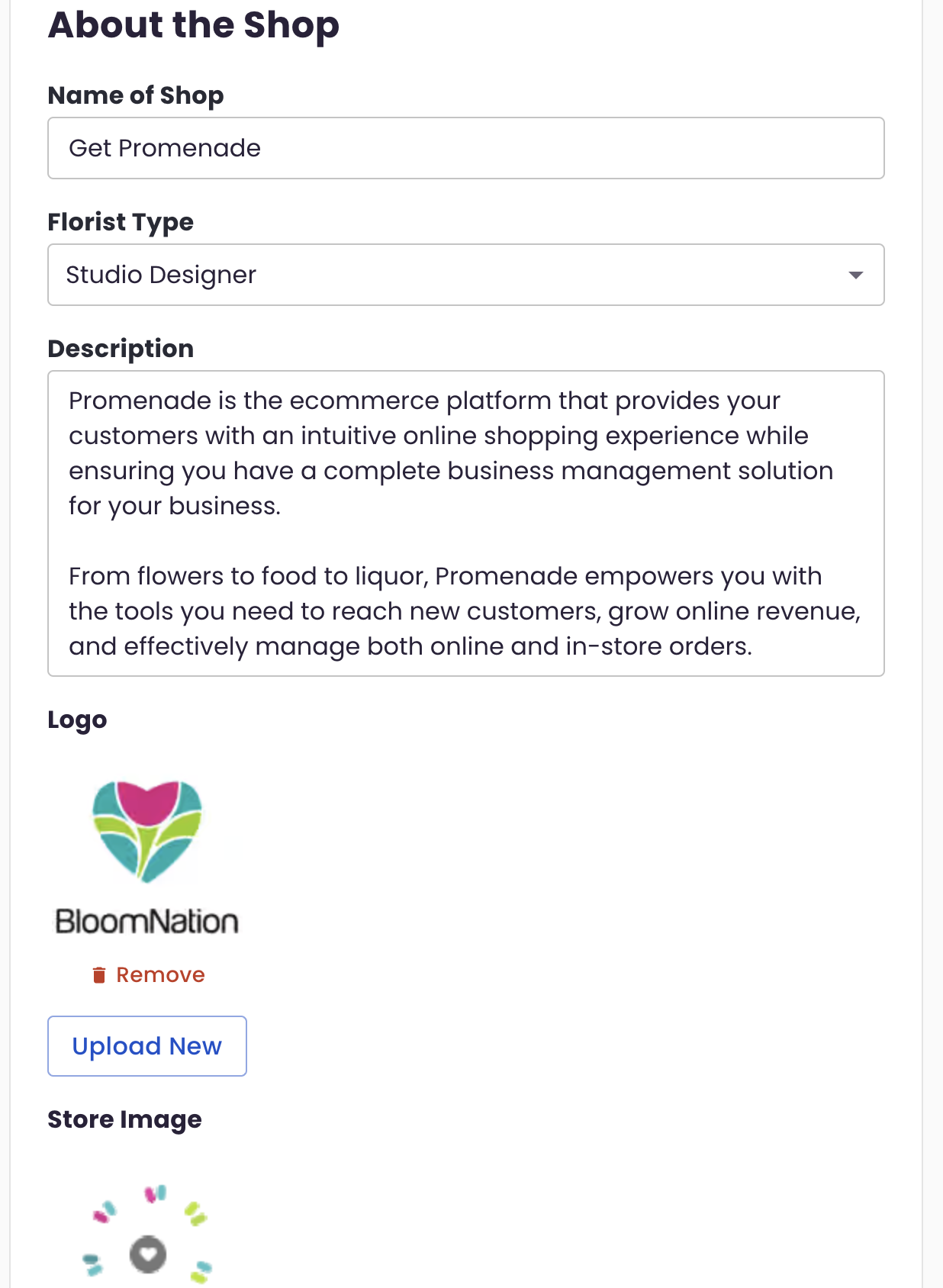
About the Shop
- Name of Shop: Your shop's official name.
- Florist Type: Select your type of business (e.g., Retail Flower Shop, Studio Designer, Event Florist).
- Description: This is your opportunity to introduce your shop to potential customers, including information on what makes you unique!
- Logo: Upload your shop’s logo here. This image represents your brand on your website. You can remove or update the logo by using the ‘Remove’ button.
- Store Image: This field allows you to upload an image that represents your shop visually.
About the Owner
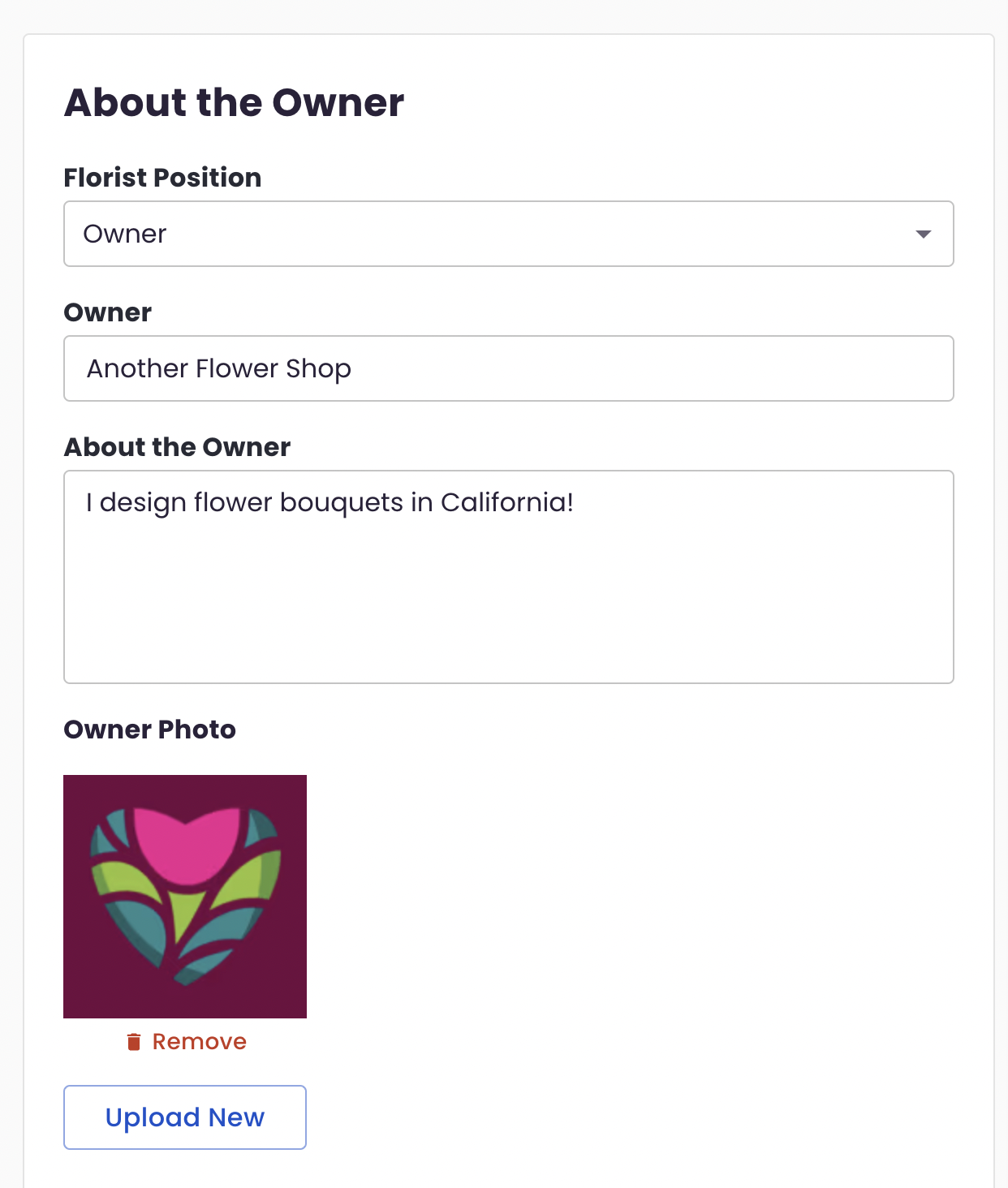
This section provides details about the shop owner.
- Florist Position: Choose either Head Designer or Owner.
- Owner Name: The name of the shop owner.
- Owner Photo: Upload a photo of the shop owner to personalize the website.
Final Steps
Once you've filled out your information, ensure you hit the Save button at the bottom right to apply any changes.
Need Help?
If you have any questions about filling out the Shop Info section or require assistance, please submit a support request here.