
House Accounts
Using House Accounts in BloomNation POS
House Accounts let you extend billing privileges to trusted customers — like local businesses, schools, or churches — so they can place orders and pay later. In September 2025, BloomNation released major updates to House Accounts, giving you more flexibility and control than ever before.
What’s New
Here’s a quick look at the biggest improvements to House Accounts. These updates make it easier for you to manage repeat customers, collect payments on time, and stay on top of balances.
- Rolling Balances: Track a continuous running balance, without needing to generate a statement first.
- Autopay: Assign a card on file to automatically pay balances on the due date.
- Multiple Customers on One Account: Link several customers to a single House Account, with one primary billing contact.
- Partial Payments: Customers can now pay part of a statement or balance.
- Improved Statements: New details like order IDs, recipient info, and payment history. All statements now include the word “Invoice” for clarity.
- Account Activity Logs: Easily see who made changes, placed orders, or updated payments.
Creating a New House Account
To start using House Accounts, you’ll first need to create one. Setting up an account is quick and gives you control over billing preferences, payment options, and account settings.
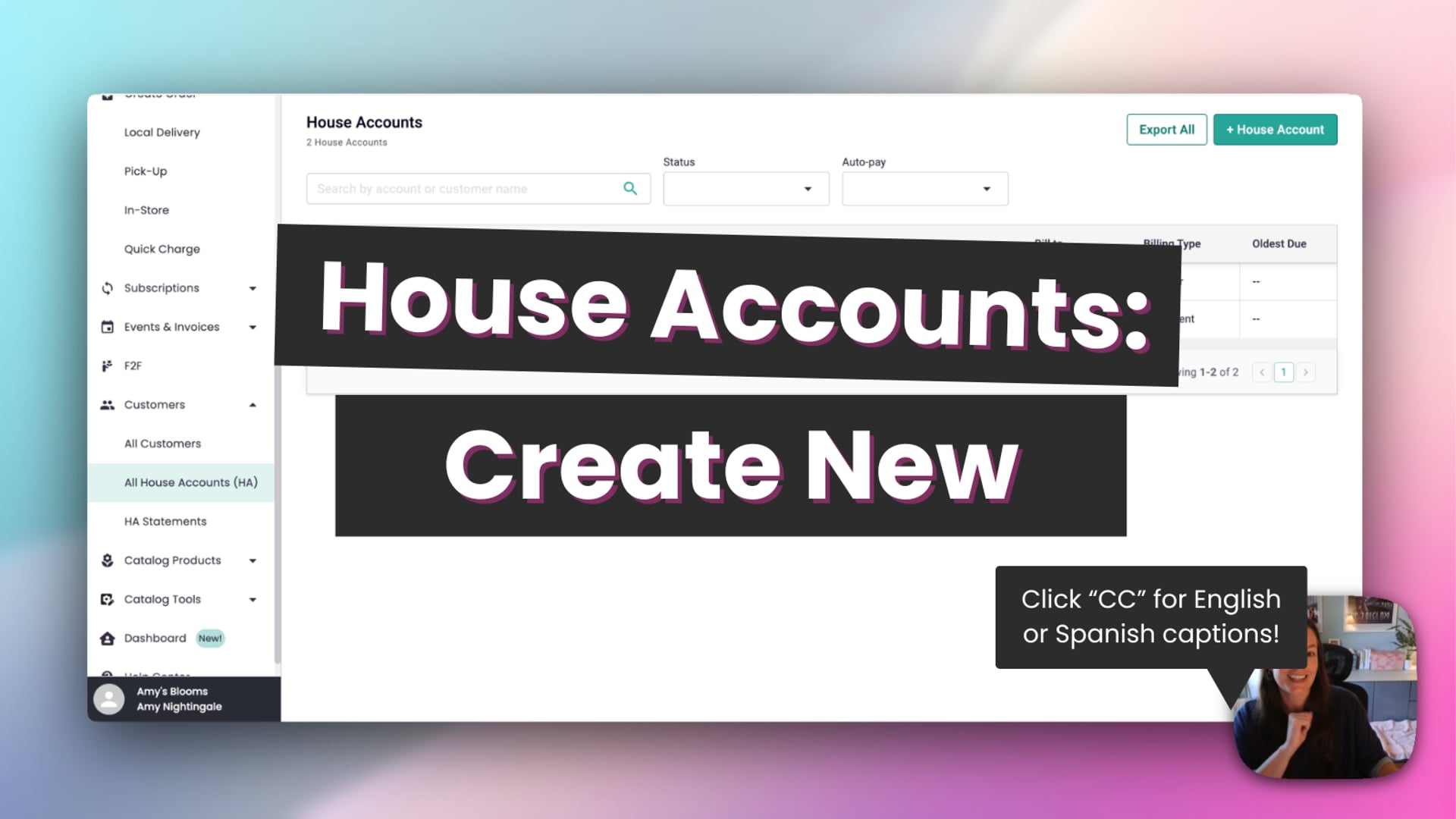 House Account: Create New
How to create a House Account:
- Go to the Customers section of your dashboard.
- Select All House Accounts → Add New House Account.
- Fill out the required fields
- Account Name.
- Customer (required — a House Account cannot be created without attaching a customer).
- Choose your billing preferences:
- Billing Type: Rolling balance or statement-based.
- Statement Delivery: Manual or automatic.
- Configure additional options (as needed):
- Credit Limit.
- Free Delivery.
- Tax Exempt (with tax ID field).
- Email Notifications (toggle off if you prefer to print and mail statements).
- Notes.
- (Optional) Enable Autopay.
- Autopay requires the primary customer to have a saved credit card on file.
- Click Create Account.
Managing House Accounts
Once an account is created, you can manage everything from one place — view balances, update settings, and keep track of account activity.
From All House Accounts, click into an account to see:
- Outstanding Balance.
- Account Settings.
- Account Aging Report (30/60/90+ balances).
- Statement History.
- Account Activity Log (orders, refunds, user changes, etc.).
Here, you can:
- Edit the account (update settings, change primary customer, add/remove customers).
- Make a Payment (rolling accounts only).
- Create a Statement (rolling or statement-based accounts).
Billing Types
There are two ways to manage House Account payments: rolling accounts and statement-based accounts. Rolling accounts work like a credit card: Customers have one running balance they can pay down anytime. Statement-based accounts are more traditional: Customers are billed by statement cycles, and payments are made against those statements.
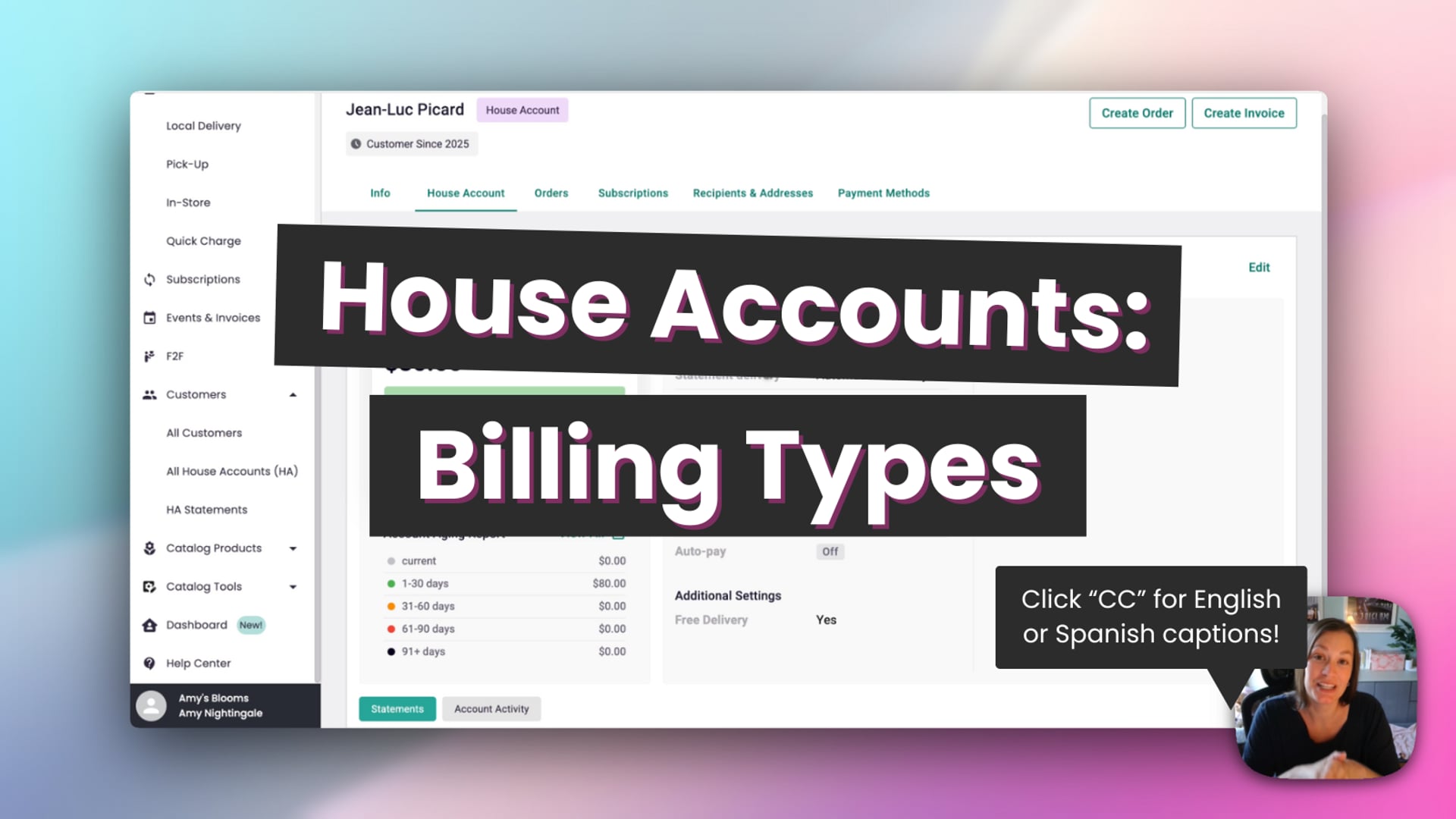 House Accounts
Collecting Payments via POS
Whether you’re working with a rolling account or a statement-based account, you can easily collect payments right from the POS. The steps are slightly different depending on the account type.
Rolling Accounts
- Click Make Payment.
- Select a payment method (credit, debit, ACH, cash, check, or other).
- Enter the amount (partial or full).
- Confirm the payment.
Statement-Based Accounts
- If not already done, first create a statement.
- Once the statement exists, click Collect Payment.
- Enter the amount (partial or full).
- Confirm the payment.
Creating & Sending Statements
Statements help you organize and share billing details with your customers. You can create them automatically on a schedule, or manually whenever you need.
 House Accounts: Create and Send Statements
Creating Statements
- Rolling Accounts: You can create optional early statements by selecting unpaid orders.
- Statement-Based Accounts: Statements are created on a schedule or manually.
Automatic Statement Settings
When you choose Automatic Statement Delivery, you’ll configure:
- Statement Frequency:
- Monthly: Choose to generate statements on the 1st, 10th, or 20th of the month.
- Weekly: Choose to generate statements every Monday, Tuesday, Wednesday, Thursday, Friday, Saturday, or Sunday.
- Starting On: The specific day you select from the above options.
- Statement Frequency Based On: Choose whether the cycle is based on the Order Date or the Fulfillment Date.
- Due In: Set how many days (1–29) the customer has to pay after the statement is issued.
These settings apply to both Rolling and Statement-Based accounts.
Statement Features
Every statement now includes helpful details to make billing clearer for both you and your customers.
- Show previous balance and payments applied.
- Include order-level details (order ID, recipient, date).
- Add notes when creating.
- Suppress email if desired.
- Preview the statement before sending.
- Option to email the statement directly from the dashboard.
Autopay
Autopay saves time by automatically charging a saved card on the due date — no need to chase down payments.
- Go to the House Account settings.
- Toggle Autopay on.
- Select a saved card on file for the primary customer (required).
- Autopay will automatically charge the full balance on the due date.
Statuses:
- Active: Autopay is enabled and working.
- Off: Autopay disabled.
- Action Required: Payment method failed (e.g., expired card).
If autopay fails, both you and your customer will receive alerts.
Reporting & Activity
BloomNation provides built-in reports and activity logs so you can quickly see account status, overdue balances, and recent changes.
- Account Aging Report: See overdue balances at 30, 60, and 90+ days.
- Account Activity Log: Tracks orders, payments, refunds, and account changes.
FAQs
Q: Can I link one customer to multiple House Accounts?
No, each customer can only be attached to one House Account.
Q: Can secondary customers make payments?
No, only the default billing customer can make payments or manage autopay.
Q: Can I allow overpayments or store credit?
Not at this time. Payments can only be applied up to the current balance.
House Account Reports
For a deeper look at trends and balances, you can also use dedicated reports built for House Accounts.
- House Account Sales Report: Track sales trends and transactions associated with your House Accounts over a selected date range.
- House Account Statement Aging Report: Monitor outstanding balances on House Accounts, grouped by days overdue, to easily identify overdue payments and total amounts owed.
For more details, refer to the dedicated articles for each report.
Additional Information
Still have questions? Reach out to our Bloom Experts by submitting a ticket here.