
Weddings & Events - Proposals, Invoices 2.0
Wedding & Events (Proposals & Invoices 2.0)
This is the comprehensive guide on BloomNation’s newest version of Events & Invoices feature.
With the Events & Invoice feature, you can create detailed proposals that include inspiration board, item lists, payment schedules, and more. Save drafts as you go and send your clients a beautiful, personalized proposal page. They can easily review all the details, sign, and pay—no login needed! Simplify the process and impress your customers from start to finish.
Watch the Live Training Webinar for an overview of everything you need to get started!
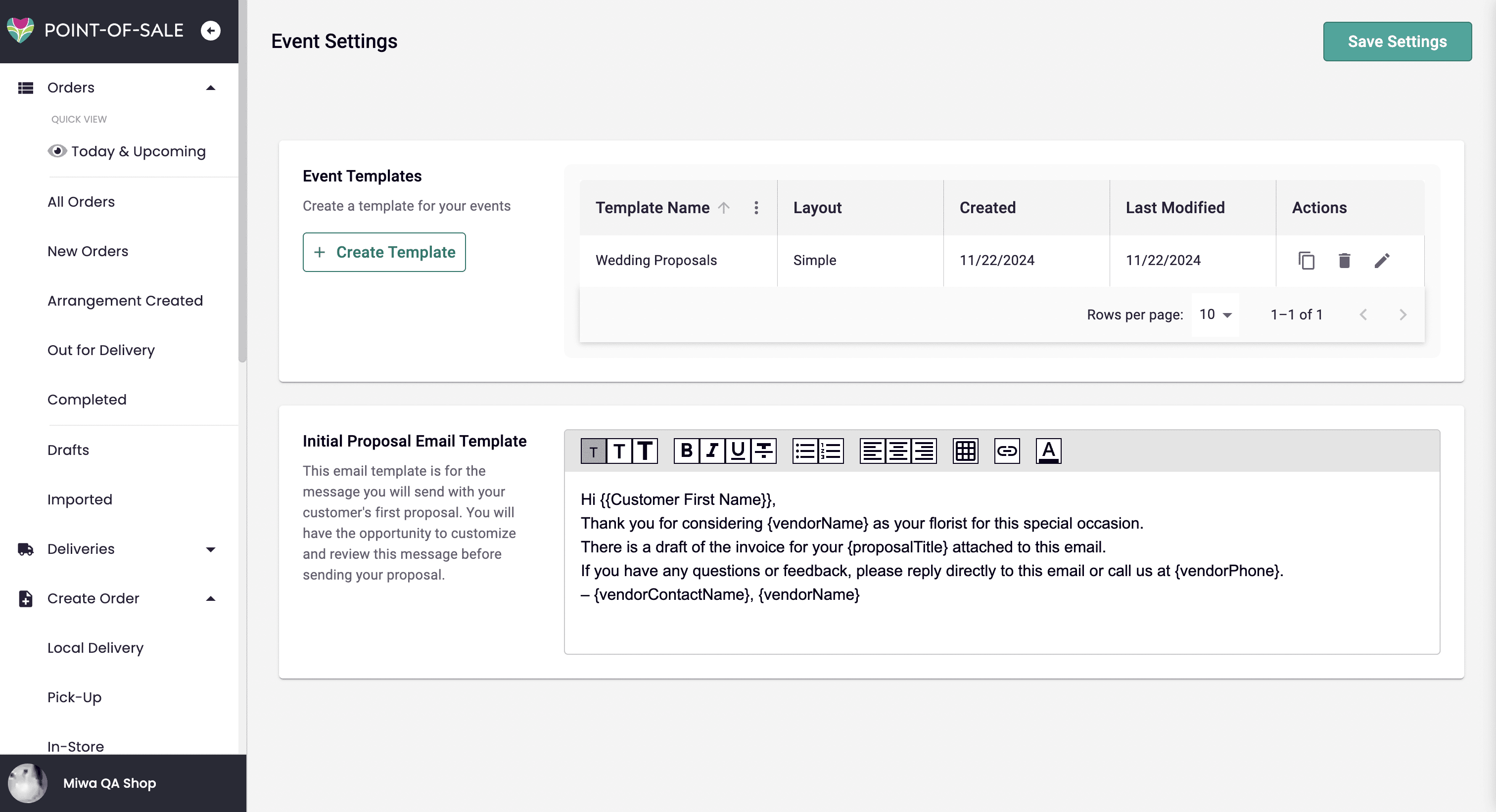
Settings Page
Creating Events Template
Setting up your event templates first will help you streamline your events creation process later. This is especially useful if you have elements that you would like to always apply to a certain type of event: for example, for Birthdays or for Weddings. Here is how you start:
-
From your PoS, go to Events & Invoices in your navigation sidebar > Settings.
-
Under the Event Templates section, click the “Create Template” button.
-
Note: Everything defined in a template can be changed once it is applied to an event being created.
-
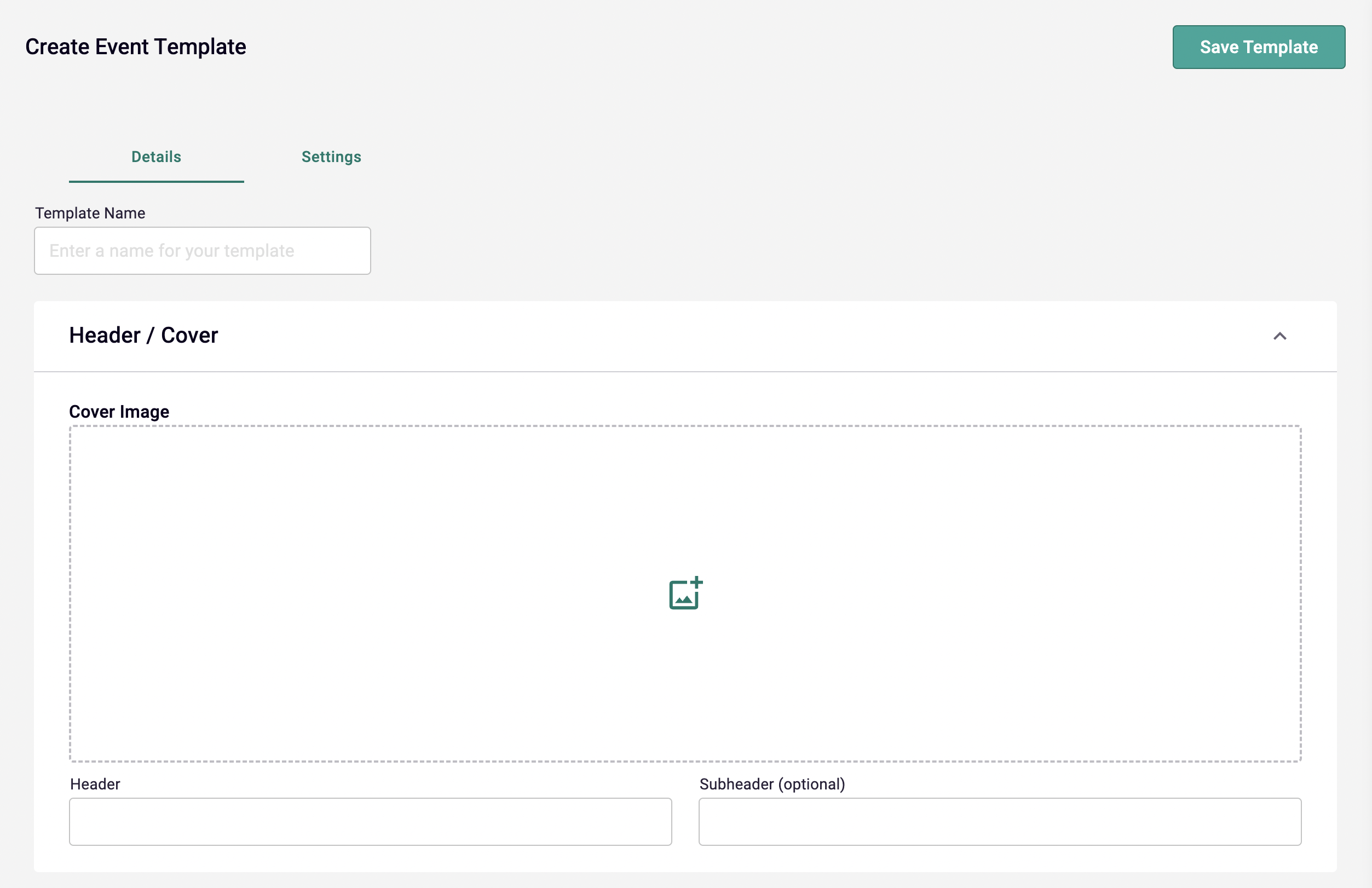
Details tab
-
Template Name: Enter a name for your template.
- For example, “Wedding”
-
Header / Cover section
-
Cover Image: Upload a cover photo that you want to use for all the events you are going to create with this template.
-
Header: Enter a header title of your choice.
- For example, “Flowers for your Wedding”
-
Subheader: (Optional) Enter a subheading for the template. You may leave this blank if you’d like to customize this on a per event basis.
-
-
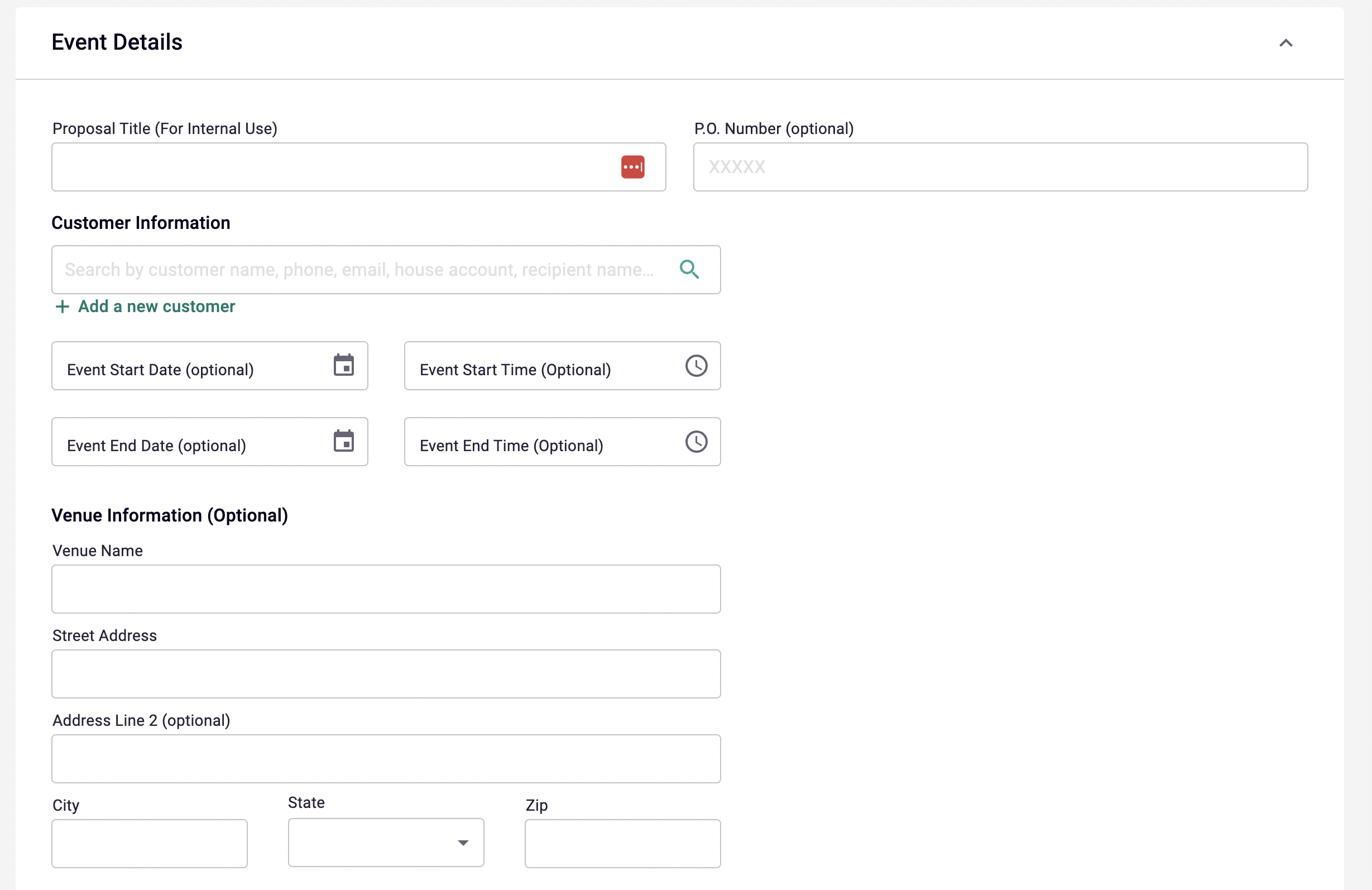
Event Details section - everything in here can be left blank if you would like to customize these details on a per event basis.
-
Proposal Title
-
P.O. Number
-
Customer Information: Entering a Customer’s information is useful if you are making a template specifically for a customer that you always work with.
-
Event Start Date & Time
-
Event End Date & Time
-
Venue Information: (Optional) Entering the venue’s information is useful if you are making a template specifically for a venue that you always work or partner with.
-
Note to Customer: (Optional) Enter a generic note that you want to apply to all of your events using this template.
-
-
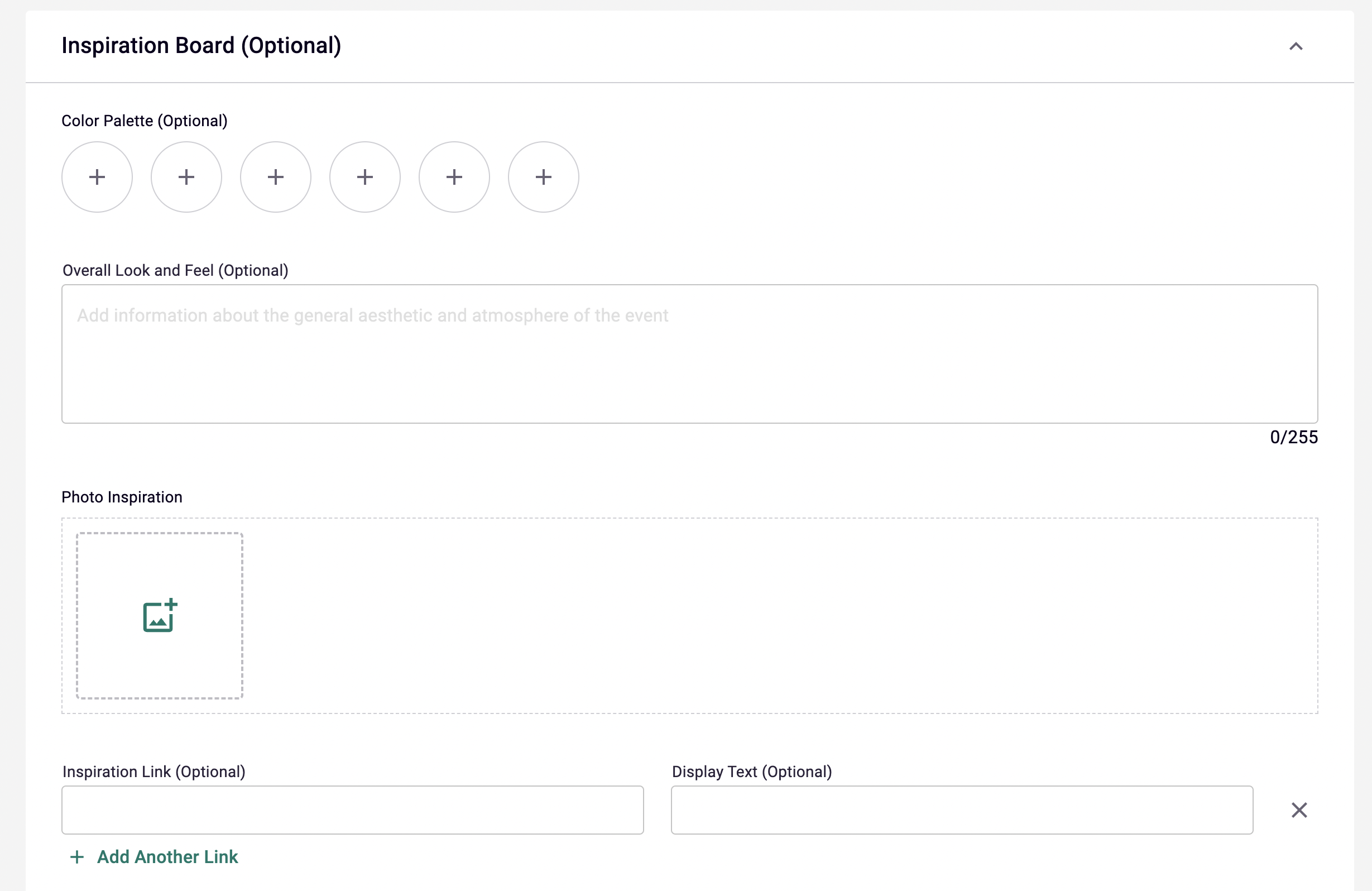
Inspiration Board - everything in here can be left blank if you would like to customize these details on a per event basis.
-
Color Palette: Click on each circle with a plus icon to select colors for this template.
-
Overall Look and Feel: Enter any information helpful to describe the concept for this template.
-
Photo Inspiration: Upload photos that represent the inspiration for the concept.
-
Inspiration Link: Add external links to reference inspiration. You can add multiple links and assign Display Text for each link.
-
-
Proposal section - everything in here can be left blank if you would like to decide on the items and sections on a per event basis.
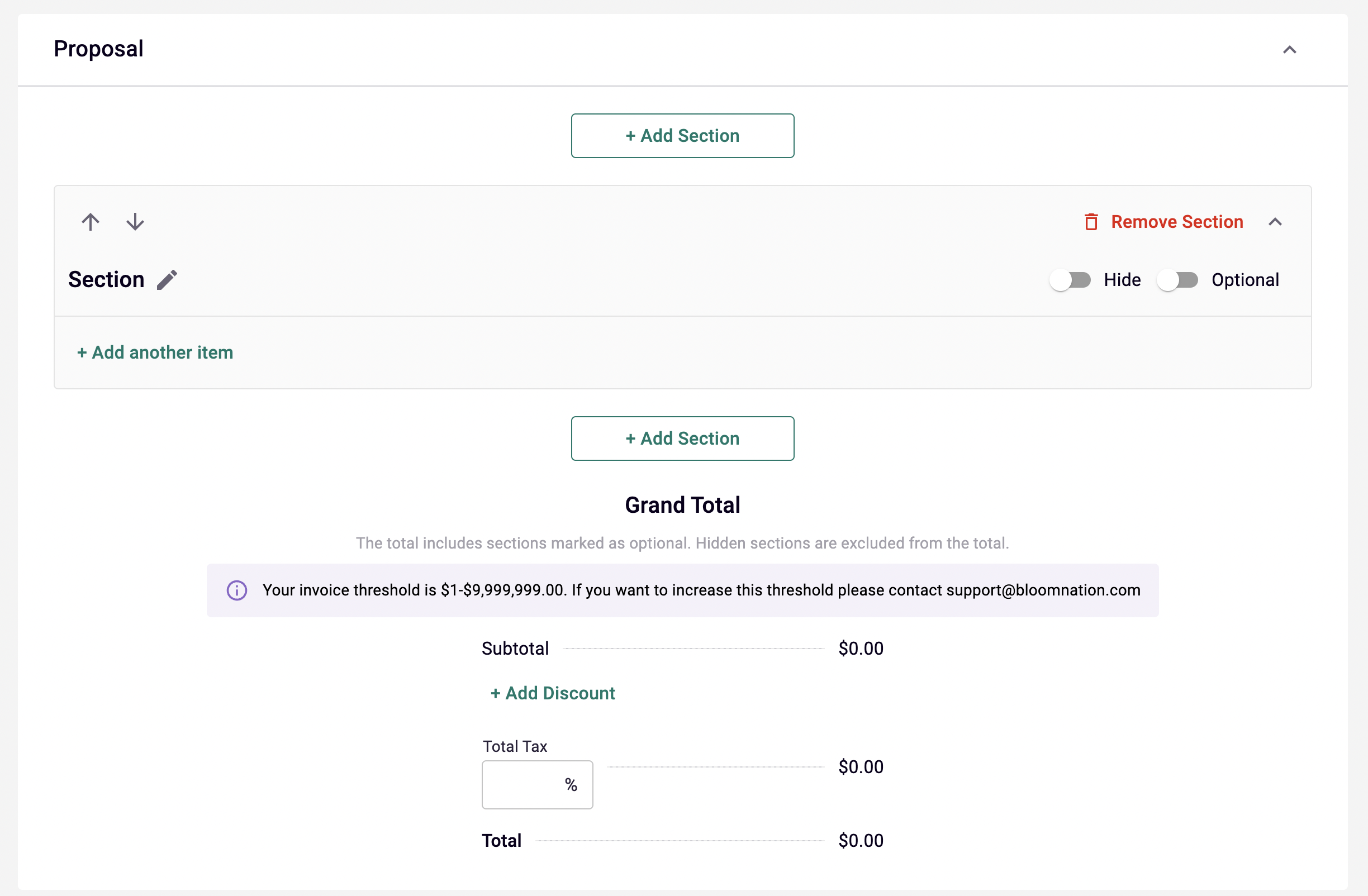
-
Add Section button (top): Click this button to add a new section on top of the current first section.
-
Section
-
Arrow Up and Down: Click on the arrows to move the section up or down.
-
Edit Section Name: Click on the pencil icon to edit the section name.
-
Add another item: Click on this button to add an item.
-
Item
-
Search for Item Name or ID
-
You can start searching for an existing item from your catalog.
-
Adding a custom one-time item: You can type your own custom item name and click on “Add Custom One-Time Item”.
-
-
Quantity
- Enter the quantity for the specific item.
-
Unit Price
-
If item exists in your catalog: Will automatically be filled with the original price from your catalog. You can always edit and change the price.
-
If custom one-time item: Enter your desired price per piece.
-
-
Remove button: If you want to remove the item from this section.
-
Photo
-
If item exists in your catalog: Photo will automatically populate.
-
If custom one-time item: You can upload your own photo.
-
-
-
Hide toggle: Turn this on if you want this specific section to not be visible on the customer’s proposal page. You will only see this section from your account. The amount of the items in a hidden section will not reflect on the proposal’s grand total.
-
Optional: Turn this on if this specific section is optional for your customers. The customer can choose to opt in or out in their proposal page.
- NOTE: This section will only show on the customer’s proposal page if the Hide toggle is off.
-
-
Add Section button (bottom): Click this button to add a new section at the bottom of all the sections.
-
Grand Total
-
Add Discount: Click this button to add a discount to this template.
-
Discount Name: (Optional) Enter a name to note or describe the source of the discount.
-
Amount: Enter an amount for the discount in percentage or dollar.
-
-
Total Tax: Enter the amount in percentage
-
Entering the Discount and Total Tax will automatically update the Total.
-
-
-
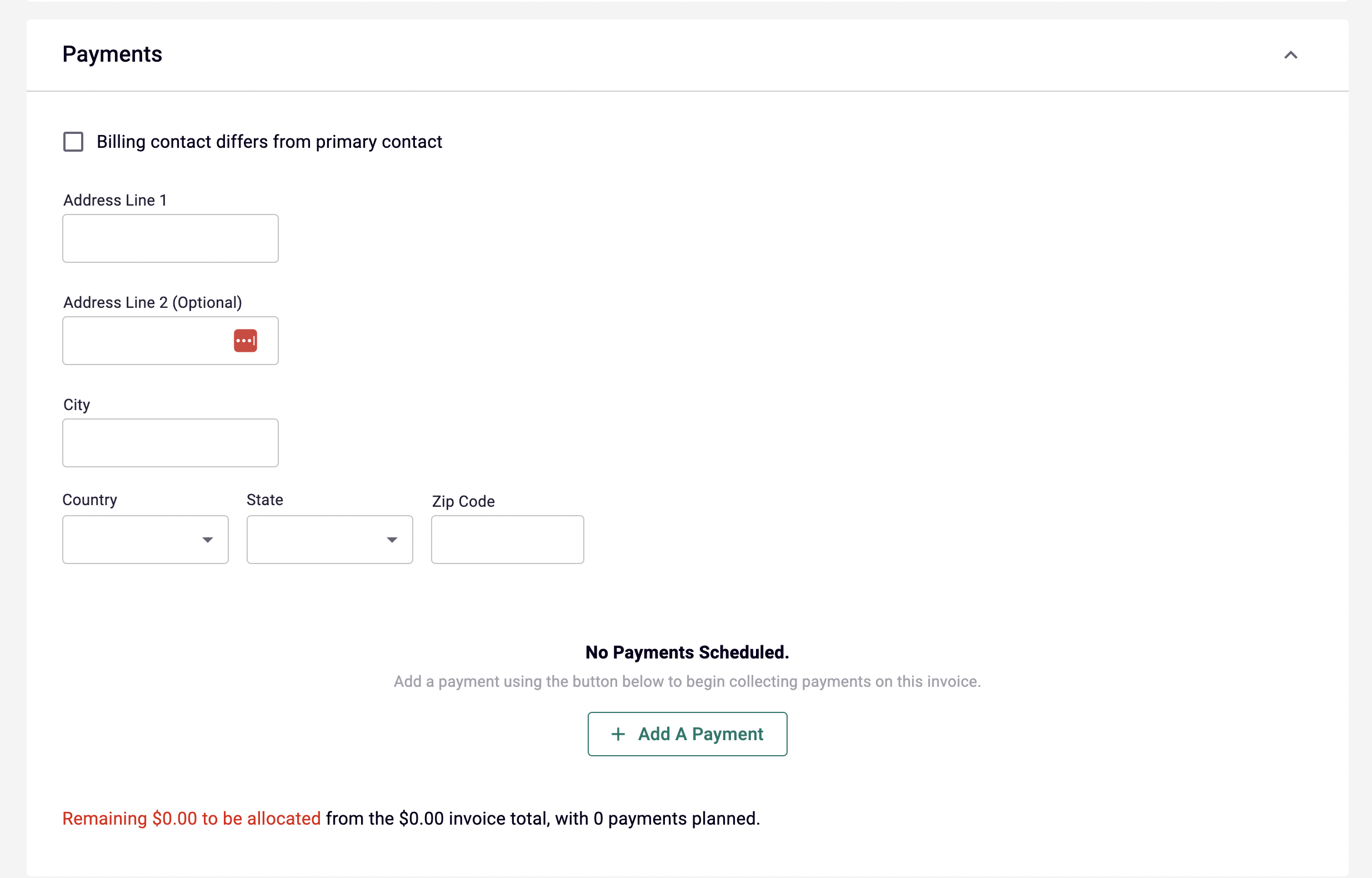
Payments Section - everything in here can be left blank if you would like to customize these details on a per event basis.
-
Billing contact differ from primary contact checkbox
-
Billing address
-
Payment Schedule (See more info on Payment Schedule)
-
-
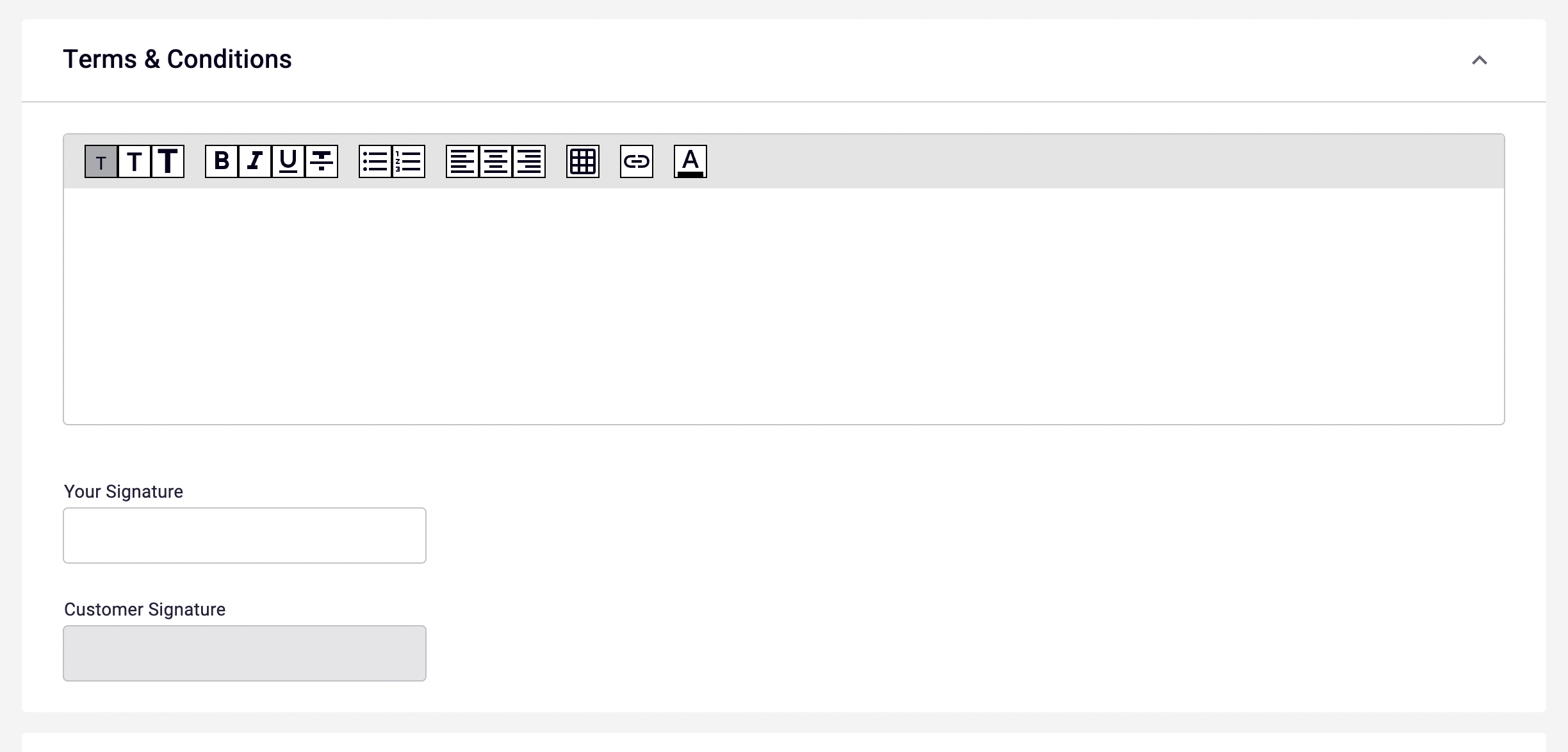
Terms & Conditions Section
-
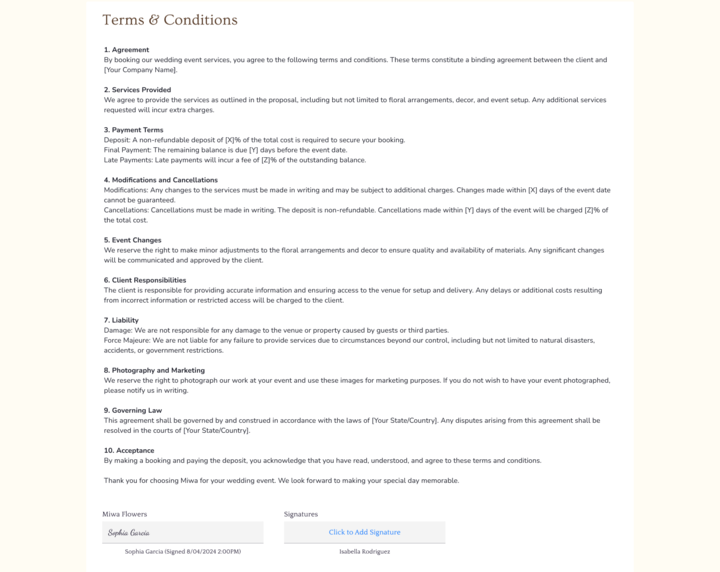
Don’t require signature check box: Check if you do not want to require signatures from your or the customer when using this template.
-
Terms & Conditions: Enter your Terms and Conditions that you want to use for this template.
-
Your signature
-
- Documents: (Optional) Upload any documents you want to be included in this template by default.

-
-
Settings tab
-
Event Status: select a status you want the event to automatically be in once saved, when using this template.
-
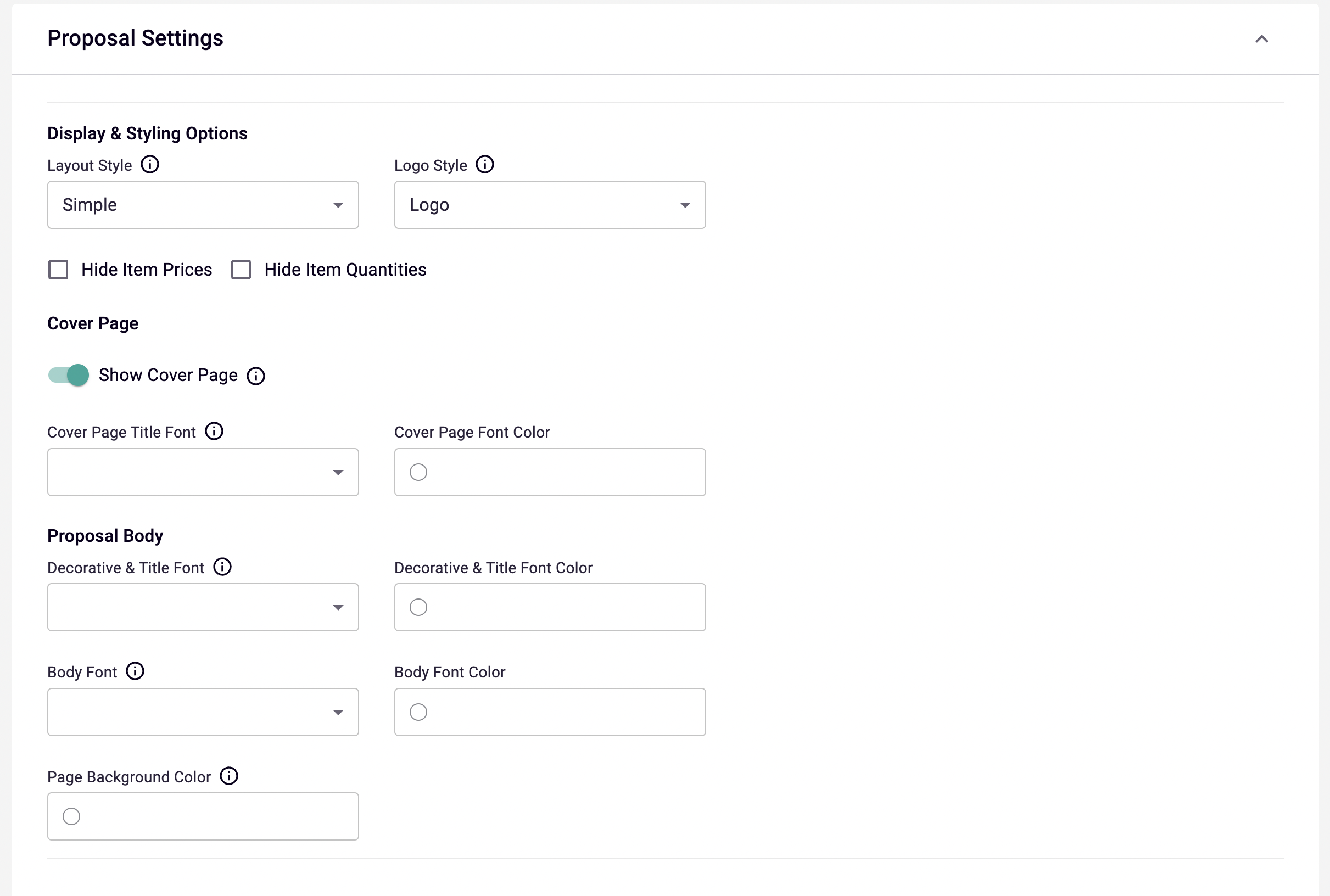
Display & Styling Options
-
Layout Styles: Select the layout style you prefer for your customer’s proposal page when using this template. (See Layout Styles for actual screenshots)
-
Logo Style: Choose how you want your shop’s name to be displayed
-
Text or
-
Logo
-
-
HIde Item Prices toggle - When this is on, the section and all the items within it will be hidden in the customer’s proposal page.
-
Hide Item Quantities toggle
-
-
Cover Page
-
Show Cover Page toggle
-
Cover Page Title Font - Choose the font you would like for the cover page of the customer’s proposal pages that will use this template.
-
Cover Page Font Color
- Note: Ensure the color contrasts well for readability.
-
-
Proposal Body
-
Fonts: Choose the font/s you would like for the customer’s proposal pages that will use this template.
- Note: Choose a font that is highly legible.
-
Font Colors: Choose the color/s you would for the customer’s proposal pages that will use this template.
- Note: Ensure the color contrasts well for readability.
-
Page Background Color
-
-
Internal Notes
-
Existing Templates
-
Default Template - You can use this template if you are working on a very straightforward proposal that does not require the fancy sections that are usually preferred for big events like Weddings and Birthdays.
-
When you create a new event, click on Open Template > select Default Template.
-
Most information and sections will now be optional and hidden by default.
-
Optional sections:
-
Header image
-
Venue Information
-
Inspiration Board
-
Terms & Conditions
-
Documents
-
-
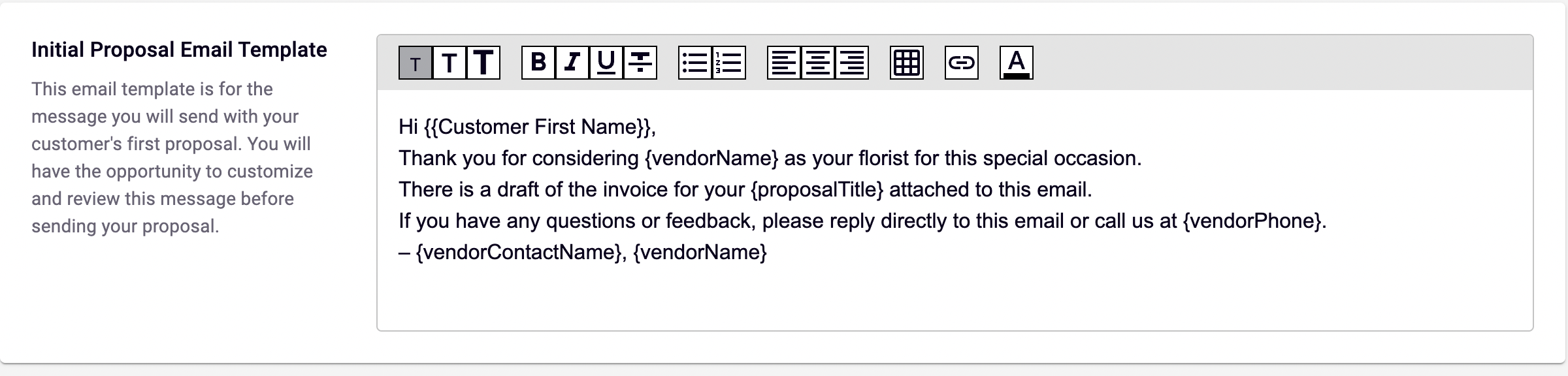
Initial Proposal Email Template
Set up the generic message you will send with your customer's first proposal. You will have the opportunity to customize and review this message before sending your proposal. Don’t forget to click Save Settings.
Tip Settings
Set up the tip defaults for when your customers are paying their invoices for the events you are working on.
-
Enable Tips toggle: Turn this on to enable collecting tips.
-
Suggested Tip Percentages: Pick 3 percentages that your customers can choose from while paying for their invoice.
-
Tip Message: Enter a message your customers will see in regards to the tips.
Creating a New Event
-
From Your PoS navigation sidebar, go to Events & Invoices > Create New.
-
Details tab
-
Open Template button: If you have already set up a template that you would like to use, click this button to load the template.
-
Note: If you had started filling out the details before you open a template, please note that all the details you filled out will disappear once you open a template.
-
If you want to make a straightforward business proposal without having to fill out all event-related information, load “Default Template”. For more information, see Default Template section.
-
If you have not made a template yet and would like to create one, please see Creating Events Template section.
-
-
Save As Template: Once you finish working on this event and would like to save it as a template to be reused in the future, click this button.
-
Header / Cover section
-
Cover Image: Upload a cover photo that you want to use for this event.
-
Header: Enter a header title of your choice.
- For example, “Flowers for your Wedding”
-
Subheader: (Optional) Enter a subheading for the template.
-
-
Event Details section
-
Proposal Title: (For Internal Use) Enter a title for this proposal that you want to use as an internal reference.
-
P.O. Number
-
Customer Information: Add the customer that you are working with for this event.
-
Event Start Date & Time: Define the date and time the event starts.
-
Event End Date & Time: Define the date and time the event ends.
-
Venue Information: (Optional) Enter all the venue information.
-
Note to Customer: (Optional) Enter a note to your customer.
-
-
Inspiration Board
-
Color Palette: Click on each circle with a plus icon to select colors for this event.
-
Overall Look and Feel: Enter any information helpful to describe the concept.
-
Photo Inspiration: Upload photos that represent the inspiration for the concept.
-
Inspiration Link: Add external links to reference inspiration. You can add multiple links and assign Display Text for each link.
-
-
Proposal section
-
Add Section button (top): Click this button to add a new section on top of the current first section.
-
Section
-
Arrow Up and Down: Click on the arrows to move the section up or down.
-
Edit Section Name: Click on the pencil icon to edit the section name.
-
Add another item: Click on this button to add an item.
-
Item
-
Search for Item Name or ID
-
You can start searching for an existing item from your catalog.
-
Adding a custom one-time item: You can type your own custom item name and click on “Add Custom One-Time Item”.
-
-
Quantity
- Enter the quantity for the specific item.
-
Unit Price
-
If item exists in your catalog: Will automatically be filled with the original price from your catalog. You can always edit and change the price.
-
If custom one-time item: Enter your desired price per piece.
-
-
Remove button: If you want to remove the item from this section.
-
Photo
-
If item exists in your catalog: Photo will automatically populate.
-
If custom one-time item: You can upload your own photo.
-
-
Recipe: It is important to include accurate recipes with your items so that you can take advantage of our Shopping List feature.
- If the item exists in your catalog and has an existing recipe, it will carry over into the proposal. You can still customize the recipe specifically for this proposal once you add the item.
- If you added a custom one-time item, you can add its recipe specifically for this proposal.
- Note: Make sure the ingredients are tied with a specific supplier, and that your registered suppliers have a valid email address in your system if you’d like to take advantage of sending the shopping list directly to the supplier through our system.
-
-
Hide toggle: Turn this on if you want this specific section to not be visible on the customer’s proposal page. You will only see this section from your account. The amount of the items in a hidden section will not reflect on the proposal’s grand total.
-
Optional: Turn this on if this specific section is optional for your customers. The customer can choose to opt in or out in their proposal page.
-
-
Add Section button (bottom): Click this button to add a new section at the bottom of all the sections.
-
Grand Total
-
Subtotal: Includes optional sections and excludes hidden sections.
-
Invoice Threshold: If your event hits the threshold limit and would like an increase, please contact our customer support team.
-
Add Discount: Click this button to add a discount to this proposal.
-
Discount Name: (Optional) Enter a name to note or describe the source of the discount.
-
Amount: Enter an amount for the discount in percentage or dollar.
-
-
Total Tax: Enter the amount in percentage
-
Entering the Discount and Total Tax will automatically update the Total.
-
-
-
Payments Section
-
Billing contact differ from primary contact checkbox
-
Billing address
-
Payment Schedule (See more info on Payment Schedule)
-
If you Publish and Send without building a payment schedule, the system will automatically make 1 payment schedule that covers the total of the proposal.
-
-
Terms & Conditions section
-
Don’t require signature check box: Check if you do not want to require signatures from your or the customer.
-
Terms & Conditions: Enter your Terms and Conditions that you want to use for this event.
-
Your signature
-
-
Documents: (Optional) Upload any documents you want to be included in this proposal.
-
-
Settings tab
-
If you have loaded a template that pre-defines all of the following information and you do not wish to make any changes, then you are good to go to Save as Draft or Publish & Send!
-
Event Status: select a status you want this event to automatically be in once saved.
-
Display & Styling Options
-
Layout Styles: Select the layout style you prefer for your customer’s proposal page. (See Layout Styles for actual screenshots)
-
Logo Style: Choose how you want your shop’s name to be displayed
-
Text or
-
Logo
-
-
HIde Item Prices toggle
-
Hide Item Quantities toggle
-
-
Cover Page
-
Show Cover Page toggle
-
Cover Page Title Font - Choose the font you would like for the cover page of the customer’s proposal page.
- Note: Choose a font that is highly legible.
-
Cover Page Font Color
- Note: Ensure the color contrasts well for readability.
-
-
Proposal Body
-
Fonts: Choose the font/s you would like for the customer’s proposal page.
- Note: Choose a font that is highly legible.
-
Font Colors: Choose the color/s you would for the customer’s proposal page.
- Note: Ensure the color contrasts well for readability.
-
Page Background Color
-
-
Internal Notes
-
-
Save as Draft button: At any time during your event creation process, you can click this button to save your progress as draft.
-
Publish & Send button: Once you have finalized all the information in this event/proposal, click this button to send an email notification to your customer. They will be able to access their proposal page. (See Customer’s Proposal Page section)
Payment Schedule
With this section in the event creation process, you can define a payment schedule for your customers, as granular or as simple as you want it to be. This way, your customers are also able to use their chosen payment methods per payment in the schedule.
-
If you Publish and Send without building a payment schedule, the system will automatically make 1 payment schedule that covers the total of the proposal.
-
Add A Payment button: Click this button to add a payment in the schedule.
- Note: You need to add at least one, and can add as many as you want to cover for the grand total of the invoice.
-
Amount: Double click on the cell to customize the amount you want to include in this specific payment in the schedule.You can enter any amount up to the grand total of the invoice.
- For example: $500
-
Name: Double click on the cell to assign a name to this specific payment.
- For example: Deposit
-
Due Date: Select a due date for this specific payment.
-
Payment Date: This cell will record when this payment was made once the customer has paid it.
-
Allow Tips check box: You can customize which payments you want to enable the tipping for.
-
Status: This cell will display the status of the payment based on the Due Date and if a payment was made.
-
Actions
- Trash icon: Click on this icon to remove a payment within the schedule
-
Request $ of $$$ invoice balance in X payment. : This is displayed to summarize your payment schedule.
-
$ = total amount you included in the payment schedule.
-
$$$ = grand total of the invoice
- Note: $ should be = $$$ after you have entered all the payments in the schedule to confirm accuracy.
-
X = the number of payment/s you have added to the schedule.
-
Managing Events
-
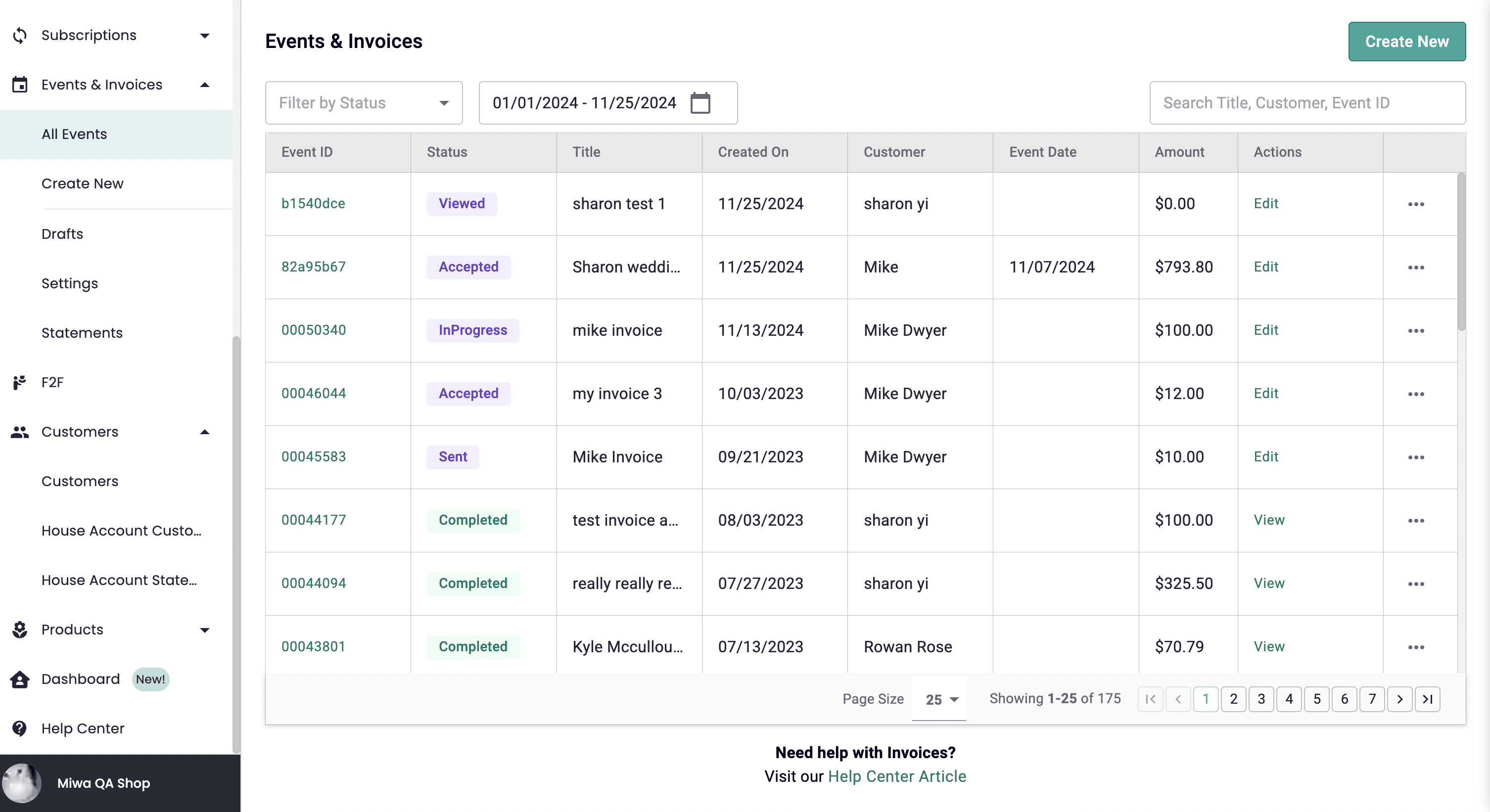
To view draft events, go to Events & Invoices > Drafts.
-
To view events in any other status, go to Events & Invoices > All Events.
-
Events Actions:
-
Edit
-
View
-
Share
-
Duplicate
-
Print
-
Download
-
Delete
-
-
Choose a specific event that you would like to manage > click on the Event ID to view.
-
-
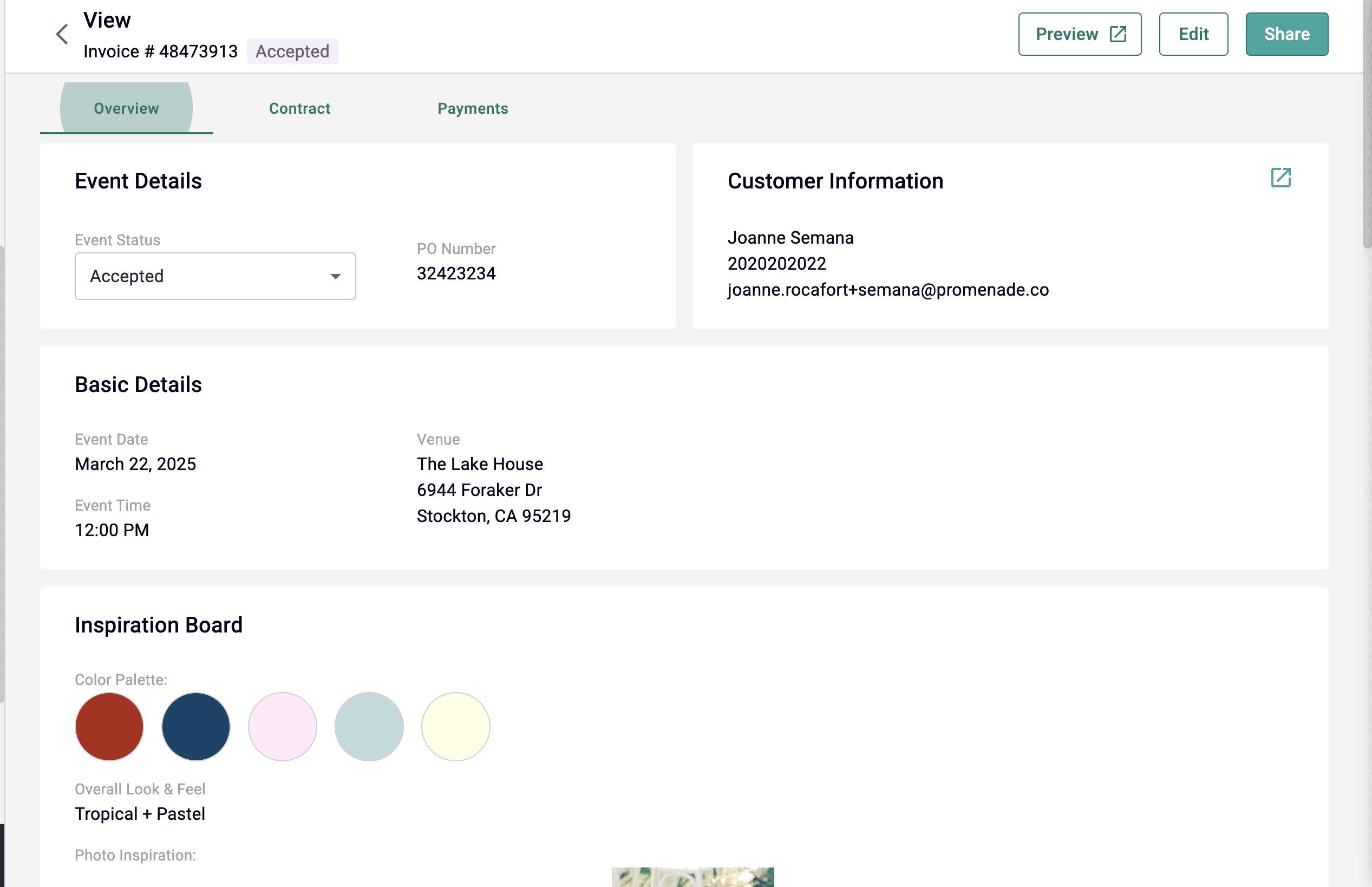
Header
-
Invoice number
-
Status badge: shows the status of the event/invoice
-
-
Overview tab
-
Event Details
-
Event Status dropdown: Use this to change the event’s status.
-
Draft
-
Sent - once the event/proposal has been finalized and was sent to the customer to review.
-
Viewed - once the customer has viewed the proposal page.
-
Accepted - once all parties have signed the contract.
-
In Progress
-
Completed - once all the items have been fulfilled.
-
Archived
-
Canceled
-
-
PO Number
-
-
Customer Information
-
External link icon: Click to view customer profile
-
Customer information is displayed on this section.
-
-
Basic Details: Displays the date, time and venue of the event.
-
Inspiration Board: Reflects the inspiration information filled when creating the vent - color palette, overall look & feel, photo inspiration and inspiration links.
-
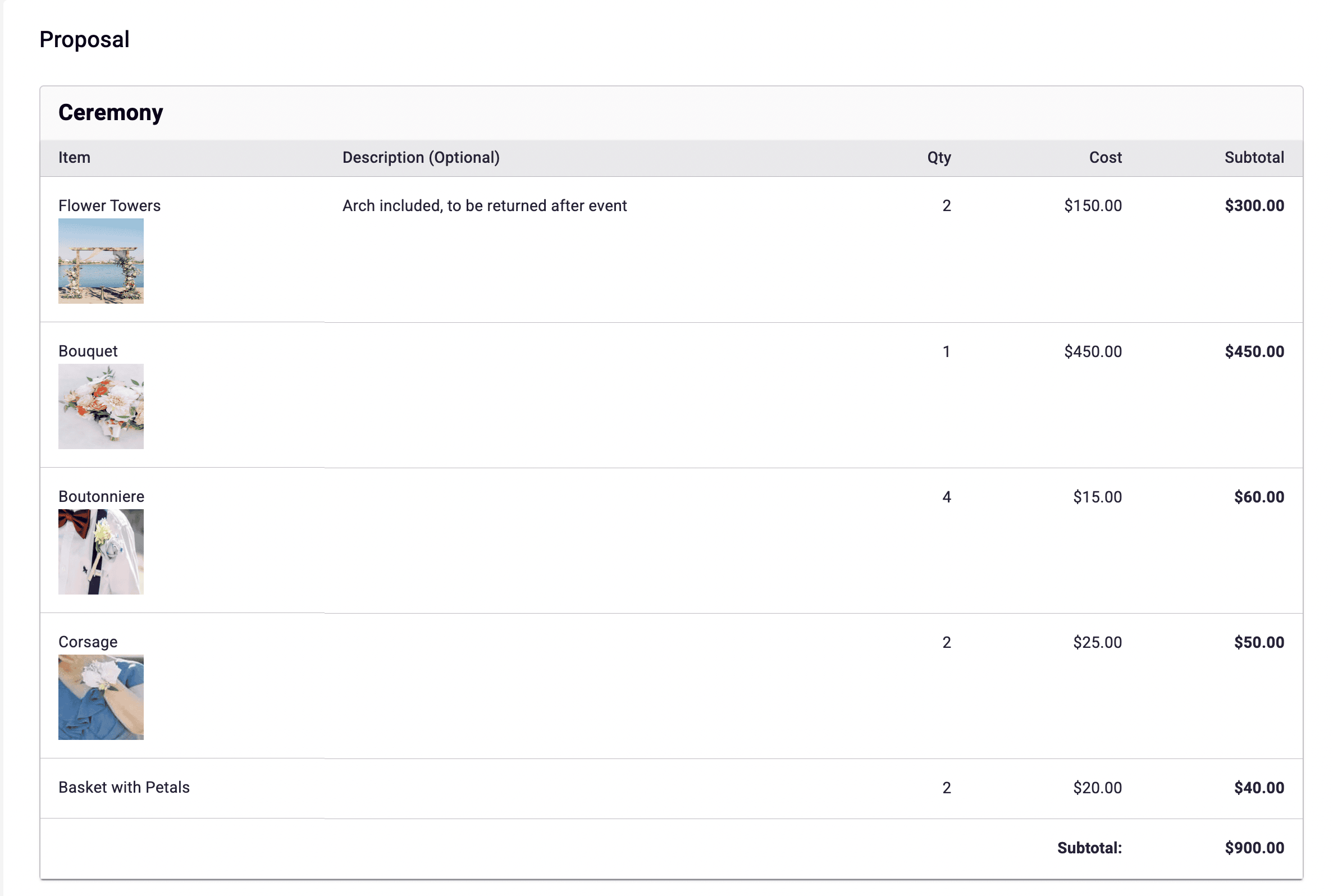
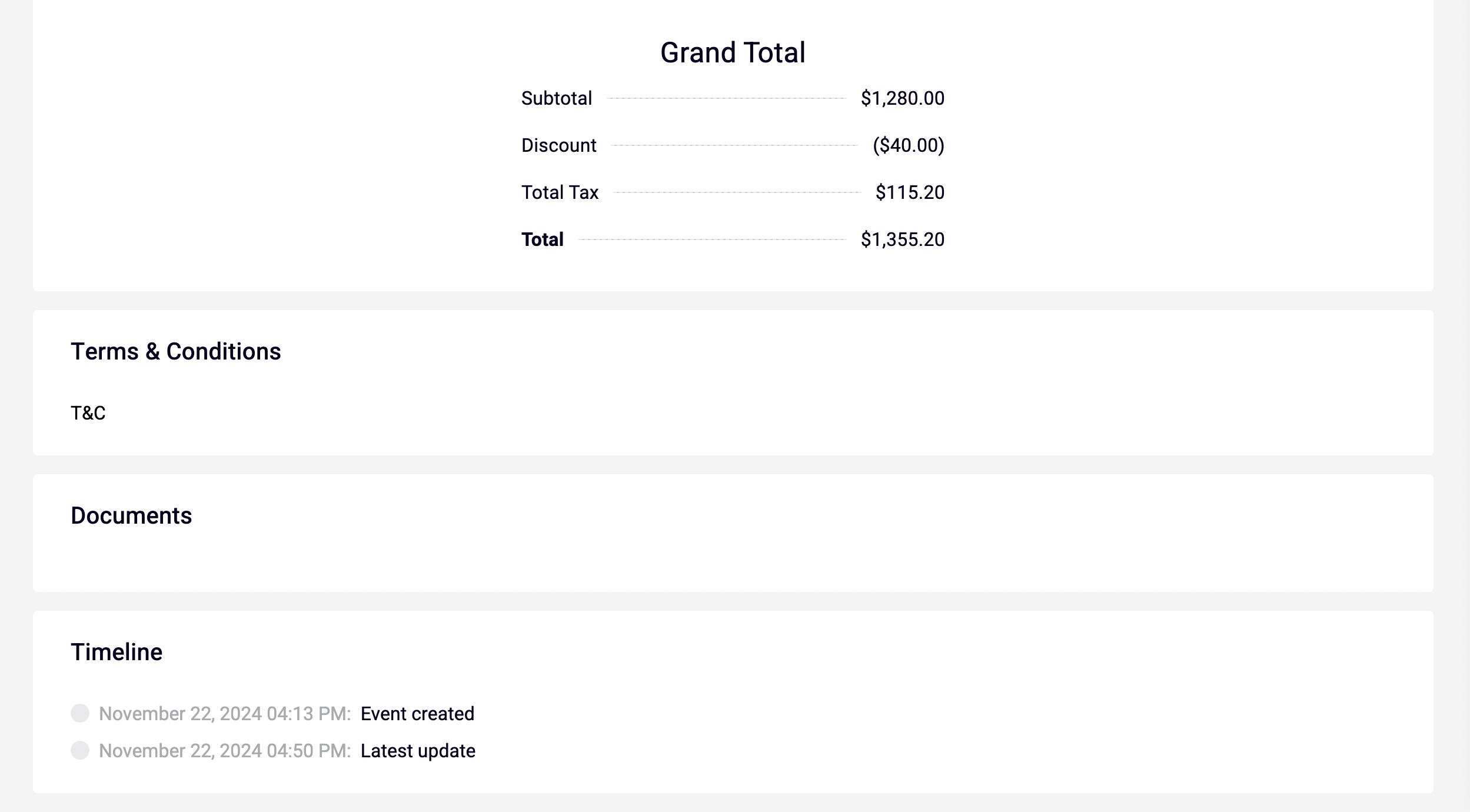
Proposal: Displays all the different sections and items that you are working on for the event. It has the photo, item name, description, quantity, cost and subtotals. It also has the Grand Total breakdown.
-
Terms & Conditions
-
Documents
-
Timeline: Shows the activities within the event, such as creation and updates.
-
Preview button: Go to the proposal link that gets sent to the clients to see real time view of the proposal.
-
Shopping List button: Access to shopping list based on the recipes in the proposal and ability to send shopping list to registered suppliers. See Shopping List
-
Worksheet button: Generates a list of all the items in your proposal, and all the ingredients within the recipes for easy scanning when working on the items.
- Click the Print button to print the sheet.
-
Edit button: Use to make edits to the event/proposal.
-
Share: Use to re-send the proposal to the customer or a different email address.
-
-
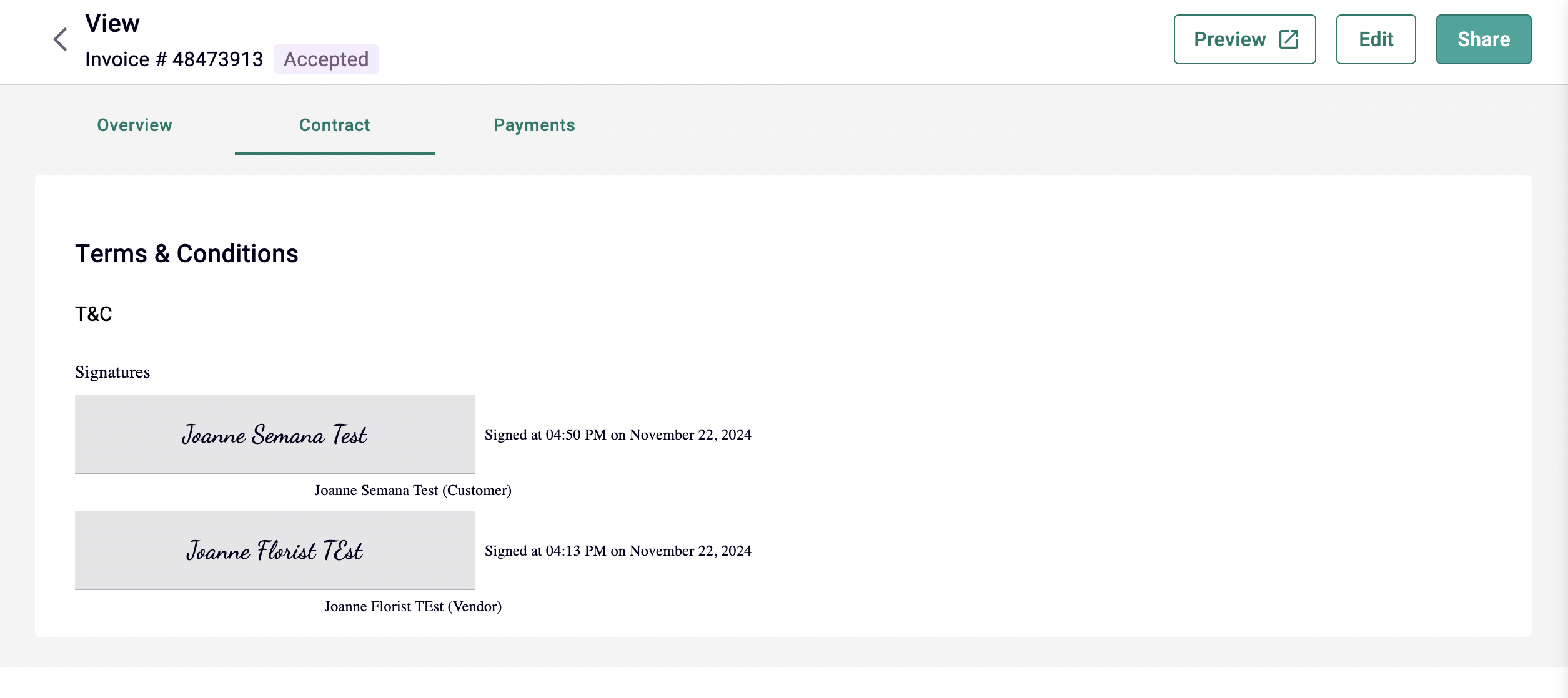
Contract tab: Shows the Terms and Conditions and all the signatures on the contract if applicable.
-
Payments tab
-
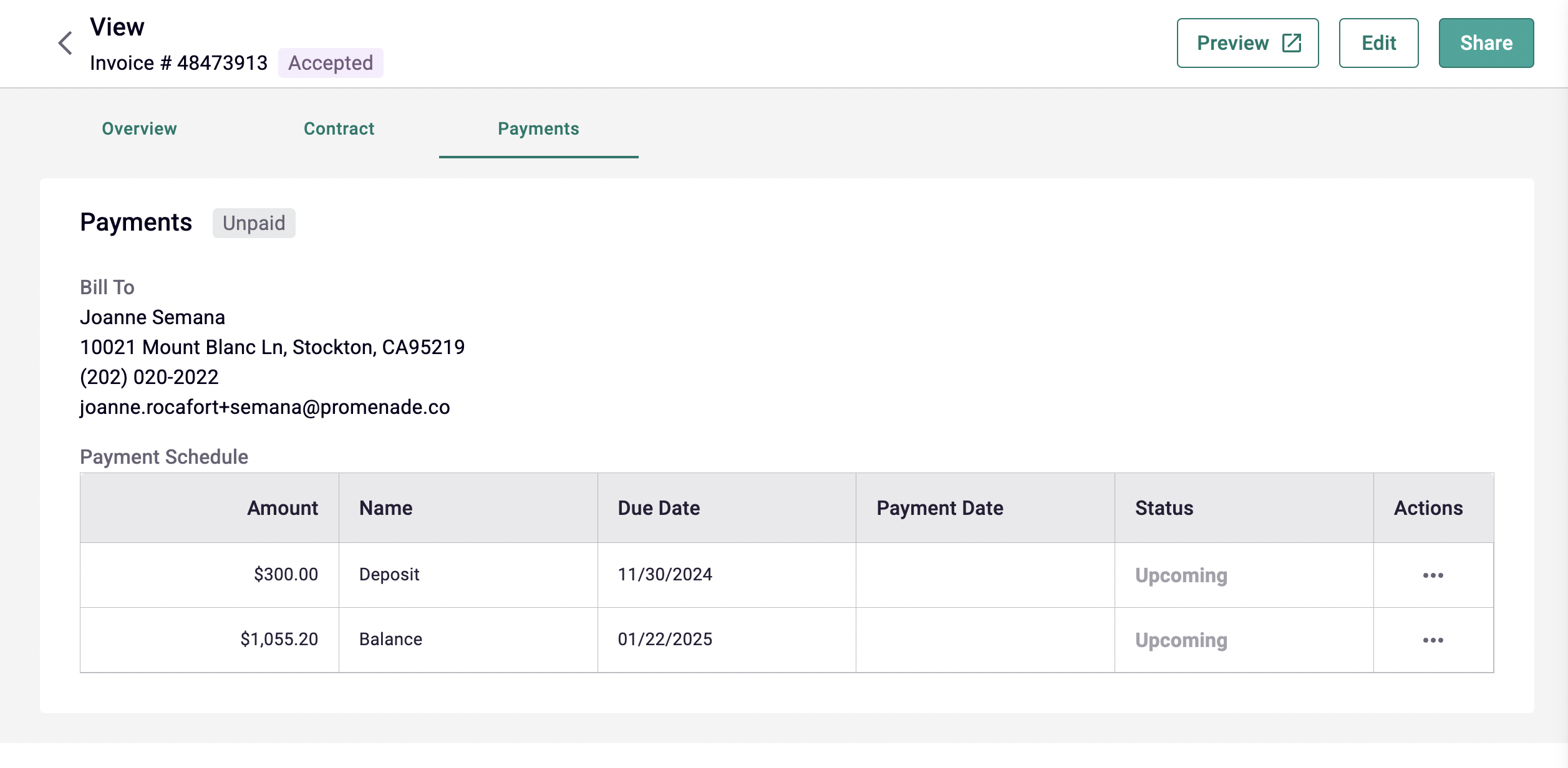
Status badge: shows the overall status of the payment schedule.
-
Unpaid: None of the payments have been made yet but due dates have not passed.
-
Partially Paid: When some but not all payments have been made, and due dates have not passed.
-
Paid: When all payments in the schedule have been made.
-
Overdue: One or more of the payments in the schedule is overdue.
-
-
Bill To: Displays the name and address of the paying customer.
-
Payment Schedule: Reflects the payment schedule as defined in the event / proposal.
-
Payment Date: Will automatically update once the payment has been made.
- If not yet paid, cell will be empty.
-
Status: Current status of the specific payment in the schedule. Will automatically update.
-
Upcoming - Due date has not passed, payment has not been made.
-
Paid - Once payment has been made.
-
Overdue - Payment has not been made and the due date has passed.
-
Due Today - Payment has not been made and today is the due date.
-
Refunded - When payment was refunded.
-
-
-
-
Shopping List
-
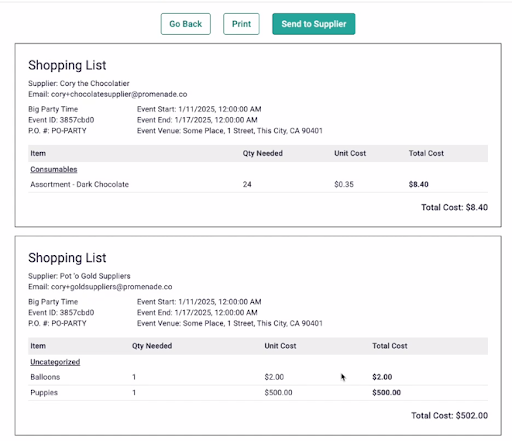
Access the shopping list by going to Events > Manage Events / Events Details > Shopping List button on the top right corner
-
The shopping lists would be divided into each supplier that your recipes use.
-
Print button: Hit Print to print the shopping lists.
-
Send to Supplier: When you click this button, a modal will pop up where you can select which shopping list’s supplier you want to send the list to, as well as a textbox for you to add any message to the supplier.
-
Note: If you’d like to use this feature, please make sure that:
-
Your registered suppliers have their official email address in your system.
-
All of your ingredients have a supplier selected.
-
-
All ingredients that are not tied to any suppliers in your recipes will be displayed in another group within the shopping list, but you are unable to send this list to a supplier.
-
Statuses
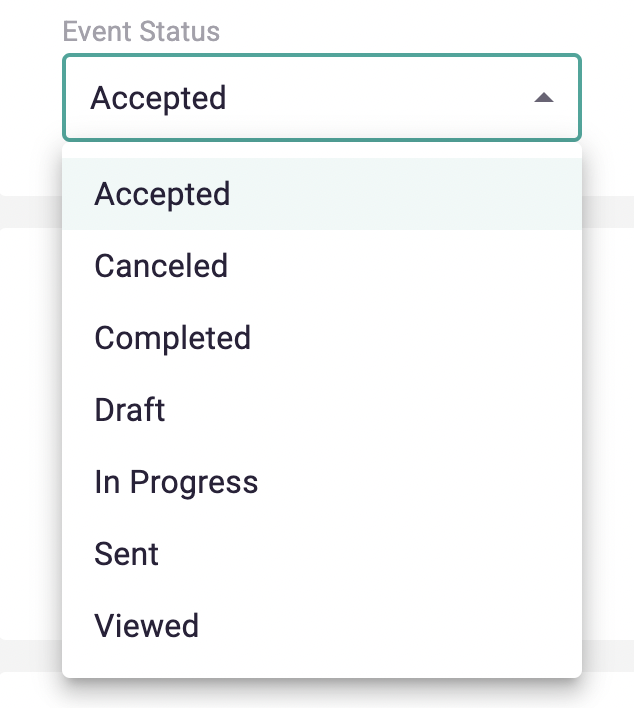
Event Statuses
-
Draft
-
Sent - once the event/proposal has been finalized and was sent to the customer to review.
-
Viewed - once the customer has viewed the proposal page.
-
Accepted - once all parties have signed the contract.
-
In Progress
-
Completed - once all the items have been fulfilled.
-
Archived
-
Canceled
Payment Schedule Statuses
-
Unpaid: None of the payments have been made yet but due dates have not passed.
-
Partially Paid: When some but not all payments have been made, and due dates have not passed.
-
Paid: When all payments in the schedule have been made.
-
Overdue: One or more of the payments in the schedule is overdue.
Individual Payments Statuses
-
Upcoming - Due date has not passed, payment has not been made.
-
Paid - Once payment has been made.
-
Overdue - Payment has not been made and the due date has passed.
-
Due Today - Payment has not been made and today is the due date.
-
Refunded - When payment was refunded.
Customer’s Proposal Page
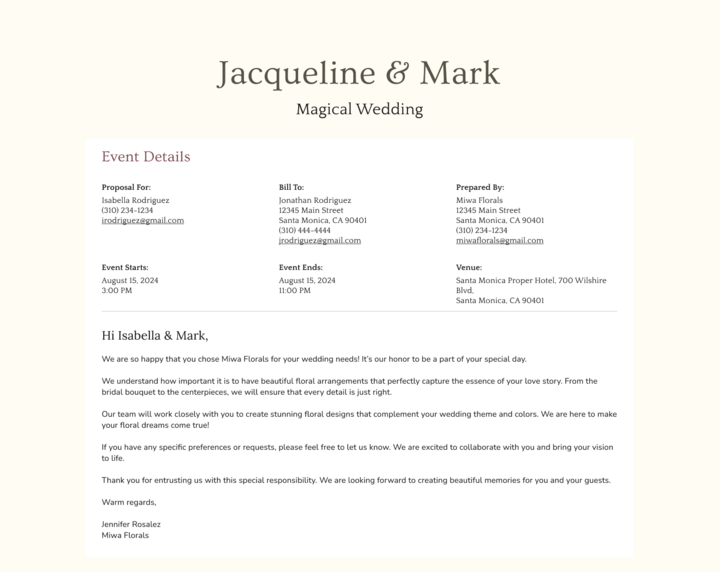
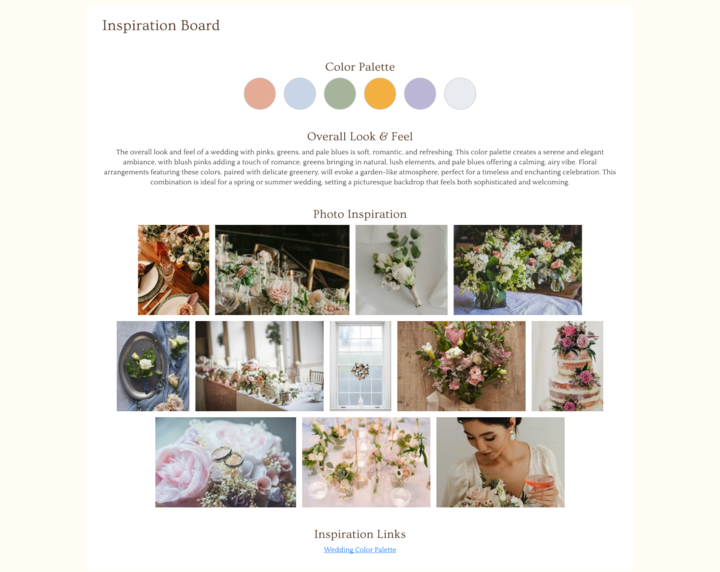
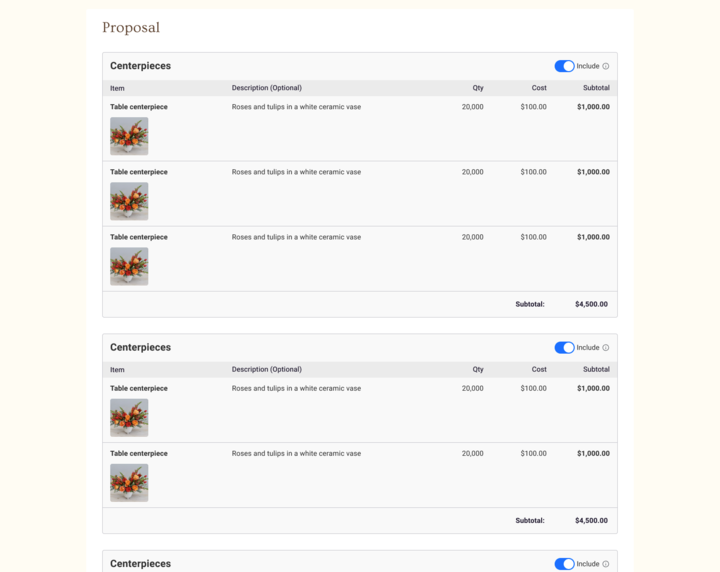
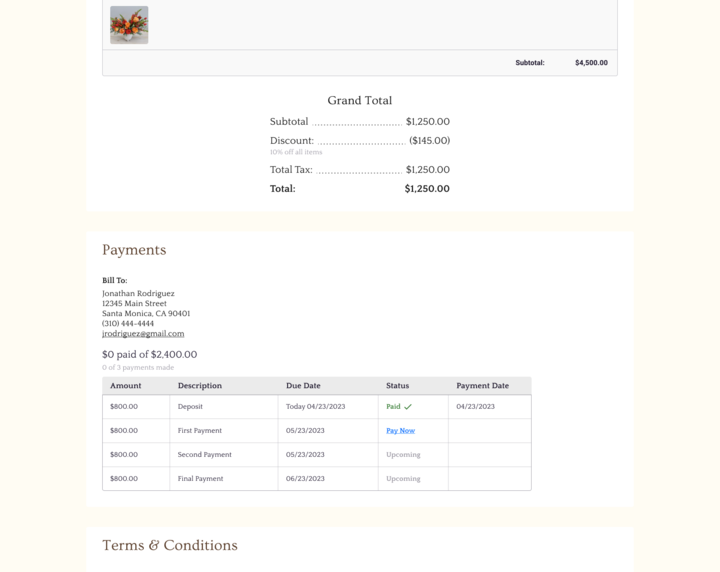
This is the customer-facing page that you send out to your customer once you publish your event. It will show all the customer-facing information that you filled during the events creation process such as:
-
Events details
-
Inspiration board
-
Items with photos, quantities, costs and subtotals
-
Grand total and breakdown of discount and tax
-
Payment schedule
-
T&C
-
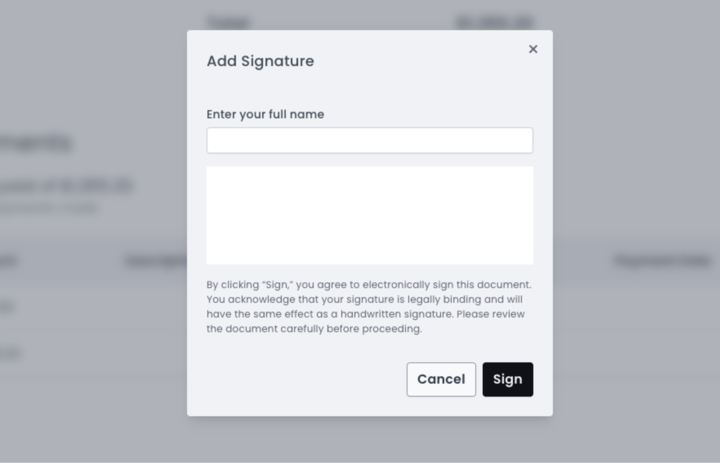
Signature: Once your customer has reviewed all the information in the proposal and would like to proceed, they can add their signature on this page.
-
Once they sign:
-
The page will record the time and date the signature was added.
-
The system will automatically update the event status to Accepted.
-
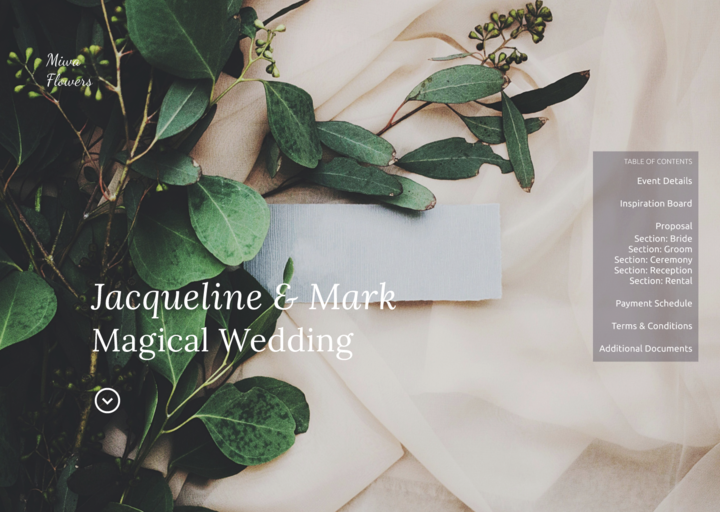
Layout Styles
Clean
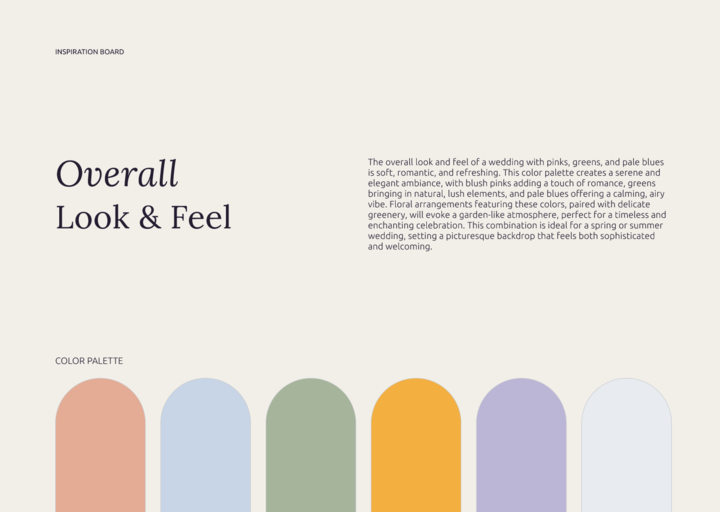
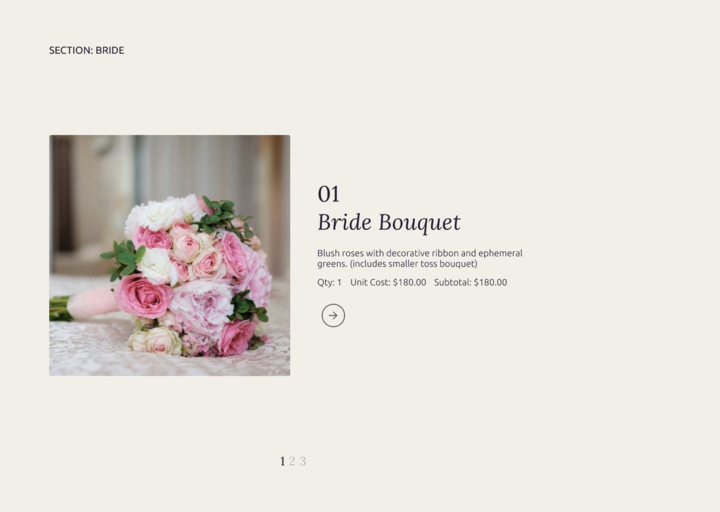
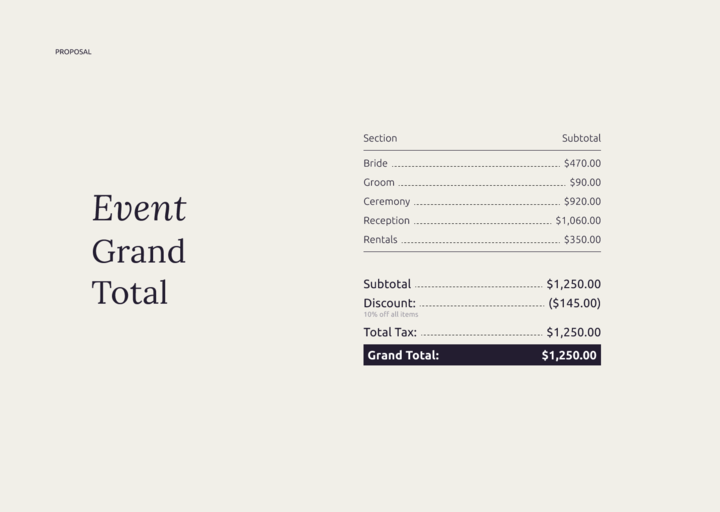
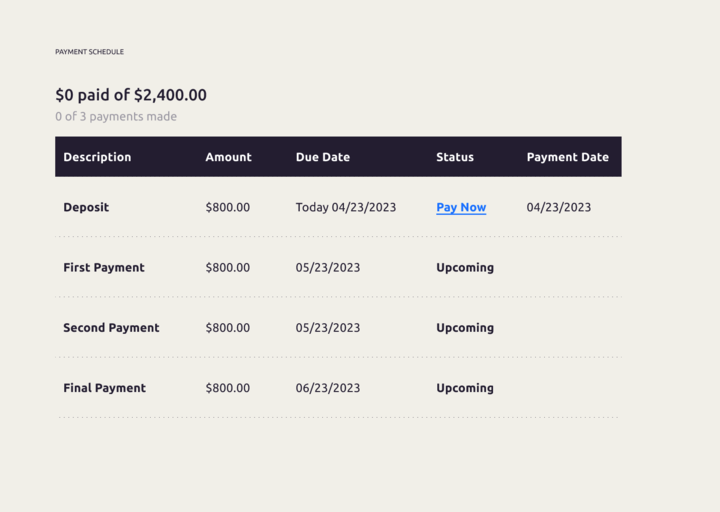
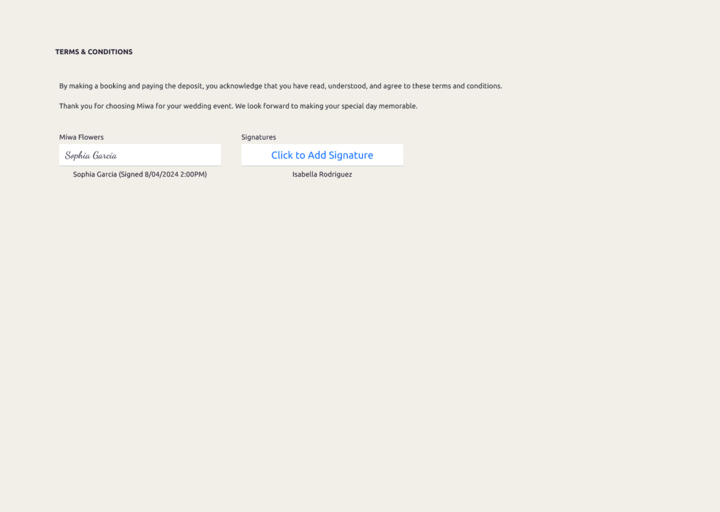
Simple
Live Training Webinar
 New Events & Invoices - Live Training