
Events: Getting Started
Overview
Events is a redesigned experience for managing event proposals, orders, contracts, payments, and timelines — all in one place.
Access to Events depends on your BloomNation package. To learn more, contact our team at getmore@bloomnation.com or call (210) 405-5050.
Video walkthrough
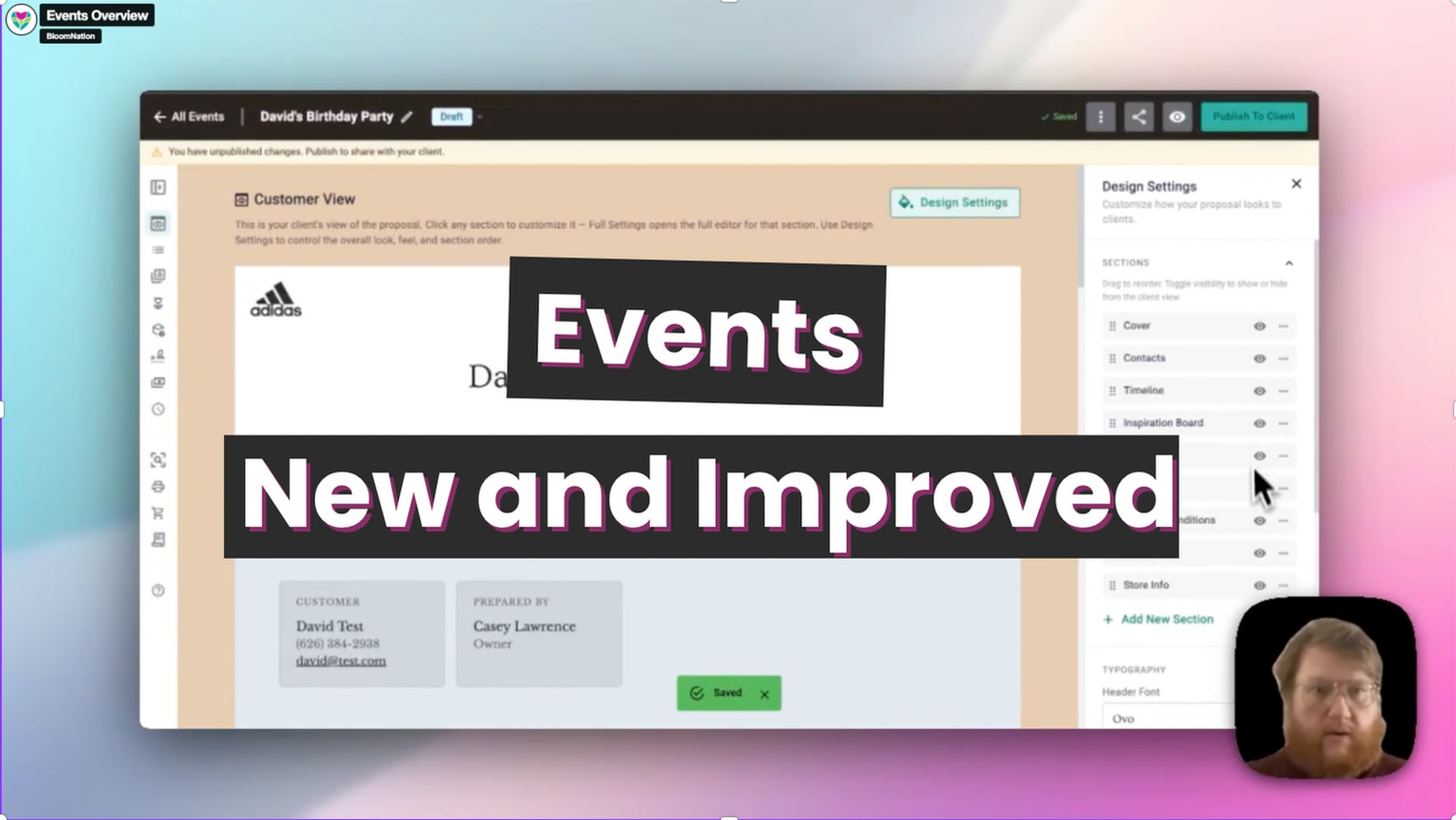 Events Overview
How to access Events
From the Events section, you can access:
- All Events — view and manage all your events
- Create Event — start a new event
- Event Calendar — view your events and tasks in a calendar view
- Templates — create and manage event templates
The All Events list
Click All Events to see every event you have created. Each row shows the event name, type, status, payment status, customer name, total, and start date.
At the top of the list, you will see a row of status shortcuts — Draft, Sent, Viewed, Accepted, In Progress, and Needs Review. Click any of these to filter the list to that status only.
You can also search by event name, customer name, or event ID using the search bar. Additional filters let you narrow by event status, event type, assigned employee, or date range.
To customize which columns appear in the list, click Columns in the upper right and select or deselect as needed. You can also export your event list as a CSV using the Export button.
The event overview panel
Each event row has a small icon on the right side. Clicking it opens a side panel with a quick summary of that event, including payment status, key dates, contacts, upcoming tasks, and shortcuts to jump directly into any section of the event.
Events created in the new experience will have this icon. Events created in the previous version will not.
Creating a new event
Click Create Event in the left-side navigation to start a new event. A panel will open where you can enter:
- Event name
- Customer (search for an existing contact or add a new one)
- Event type (Wedding, Corporate, Memorial, Funeral, Private Event, or Other)
- Template (select a template to pre-populate the event)
- Event owner (the employee responsible for this event)
- Start and end date
- Start and end time
- Internal notes (visible to your team only)
Click Create Event to open the event.
Classic event creation
If your shop previously used events, you may see the option to create an event using the classic format when you click Create Event. The classic format is the previous version of events and will be retired in the future. We recommend using the new experience.
Related articles
- Events: Event Calendar
- Events: Creating and Customizing Your Proposal
- Events: Order, Recipes & Ingredients
- Events: Timeline & Tasks
- Events: Contracts
- Events: Payments
- Events: Templates
- Events: Event Tools
Need help?
If you have questions, our Partner Support team is here to help.
Phone: (210) 405-5050
Email: support@bloomnation.com