
Lili Assistant: Product Descriptions and Details

Overview
Lili can help you create product content faster inside your BloomNation POS.
When you add or edit a product, Lili can assist with important setup tasks like generating product descriptions and suggesting product details based on your images. This can help you save time while creating polished product listings for your website.
Lili’s descriptions are written to be search-friendly (SEO) and designed to help customers understand the arrangement and feel confident placing an order.
You stay in control of the final result. You can review, regenerate, and apply Lili’s suggestions before saving your product.
Video walkthrough
Watch this quick walkthrough to see how Lili helps with product setup.
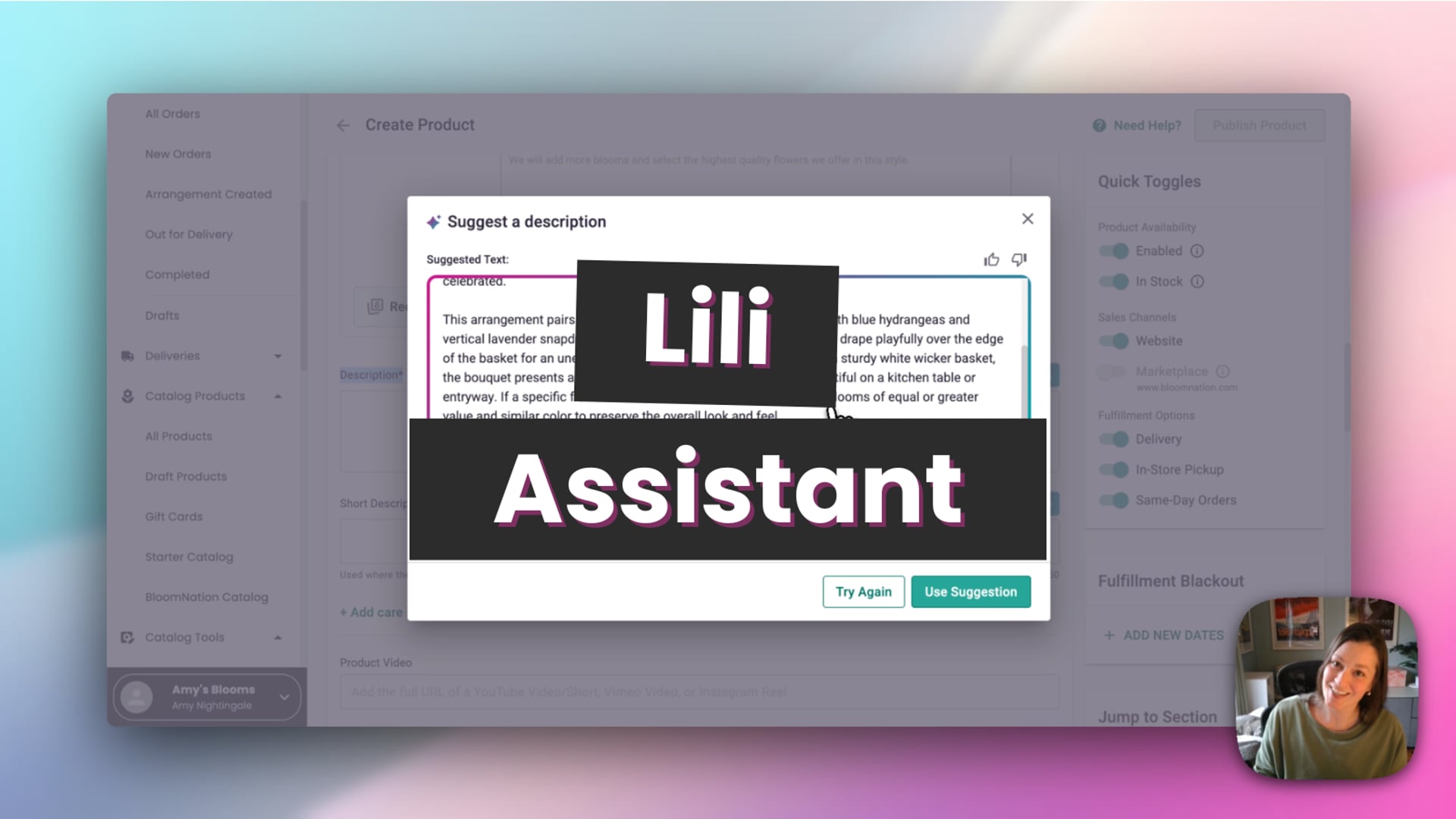 Lili Assistant
What Lili can help with in Products
When working in the product catalog, Lili can help you:
- Generate tier descriptions
- Generate a full product description
- Generate a short description
- Suggest colors, occasions, flowers, and other product details
Lili uses your product information and uploaded images to generate these suggestions.
How to use Lili in Products
- Go to POS.
- Select Catalog, then All Products.
- Create a new product or open an existing product.
- Enter your product name and type.
- Upload at least a Standard product image.
Once your image has been uploaded and processed, Lili suggestions will begin appearing throughout the product setup page.
Why product images matter
Your product images help power Lili’s suggestions.
After you upload an image, Lili analyzes it and uses that information to help generate descriptions and recommend product details like colors, occasions, and flower types.
To get started, you’ll need to upload at least a Standard image. You can also upload Deluxe and Premium images to generate more tailored tier descriptions for those versions.
For the best results, upload clear product photos that show the arrangement well.
Generate tier descriptions
Lili can help create descriptions for your product tiers, such as Standard, Deluxe, and Premium.
These descriptions are shorter and help explain the differences between each version of the arrangement.
- Scroll to the product tier section.
- Click the Lili suggestion option for that tier.
- Review the suggested text in the pop-up window.
- Click Try Again to generate another version, or Use Suggestion to apply it.
Once you click Use Suggestion, the text will be added to the product form, where you can make edits if needed.
Generate a full product description
Lili can generate a longer product description for your website that helps customers clearly understand the arrangement and what makes it special.
These descriptions are written to be both search-friendly (SEO) and designed to help convert shoppers into customers.
- Scroll to the main product description field.
- Click the Lili suggestion option.
- Review the generated description in the pop-up window.
- Click Try Again to regenerate it, or Use Suggestion to apply it.
After you click Use Suggestion, the description will appear in the product text box, where you can make edits before saving.
Generate a short description
Lili can also help create a shorter description used in places where less text is needed.
This can be useful when you want a concise summary of the product.
Adjust settings for a specific product
Inside the suggestion pop-up, you can also click Adjust Settings.
This lets you make changes for that specific product, including:
- Adjusting the tone
- Adding special instructions
These settings apply to the suggestion you are generating, so you can customize the result without changing your overall Lili Settings.
Apply suggested product details
As Lili analyzes your image, it may also suggest product details that help organize your catalog.
Depending on the product, Lili may recommend:
- Colors
- Occasions
- Flowers
- Other relevant product attributes
You can apply these suggestions, remove any that do not fit, or add your own selections.
FAQs
- If Lili does not recognize your image, try uploading the image again.
- If you are editing an existing product, you may need to re-upload the image to get Lili suggestions.
- You cannot edit the text directly inside the suggestion pop-up. To make changes, click Use Suggestion first, then edit the text in the product form.
Tips for best results
- Upload a clear, high-quality image of your arrangement
- Review all generated content before publishing
- Use Try Again if you want different wording
- Use your Lili Settings to guide how product content is written
Related articles
- Introducing Lili: BloomNation’s AI-Powered Assistant
- Replying to Reviews with Lili
- Suggesting Card Messages with Lili in POS
Need help?
If you have questions about using Lili in Products, our Partner Support team is here to help.
Phone: (210) 405-5050
Email: support@bloomnation.com