
Lili Assistant: Card Messages in POS

Overview
Lili can help you quickly generate card message suggestions when creating an order in your BloomNation POS.
If a customer isn’t sure what to write, Lili can suggest a thoughtful card message based on the occasion. This makes it easier to help customers complete their order while saving time during checkout.
You remain in control of the final message. You can regenerate suggestions, apply them, and edit the text before saving the order.
Video walkthrough
Watch this quick walkthrough to see how Lili can help generate card messages during order creation.
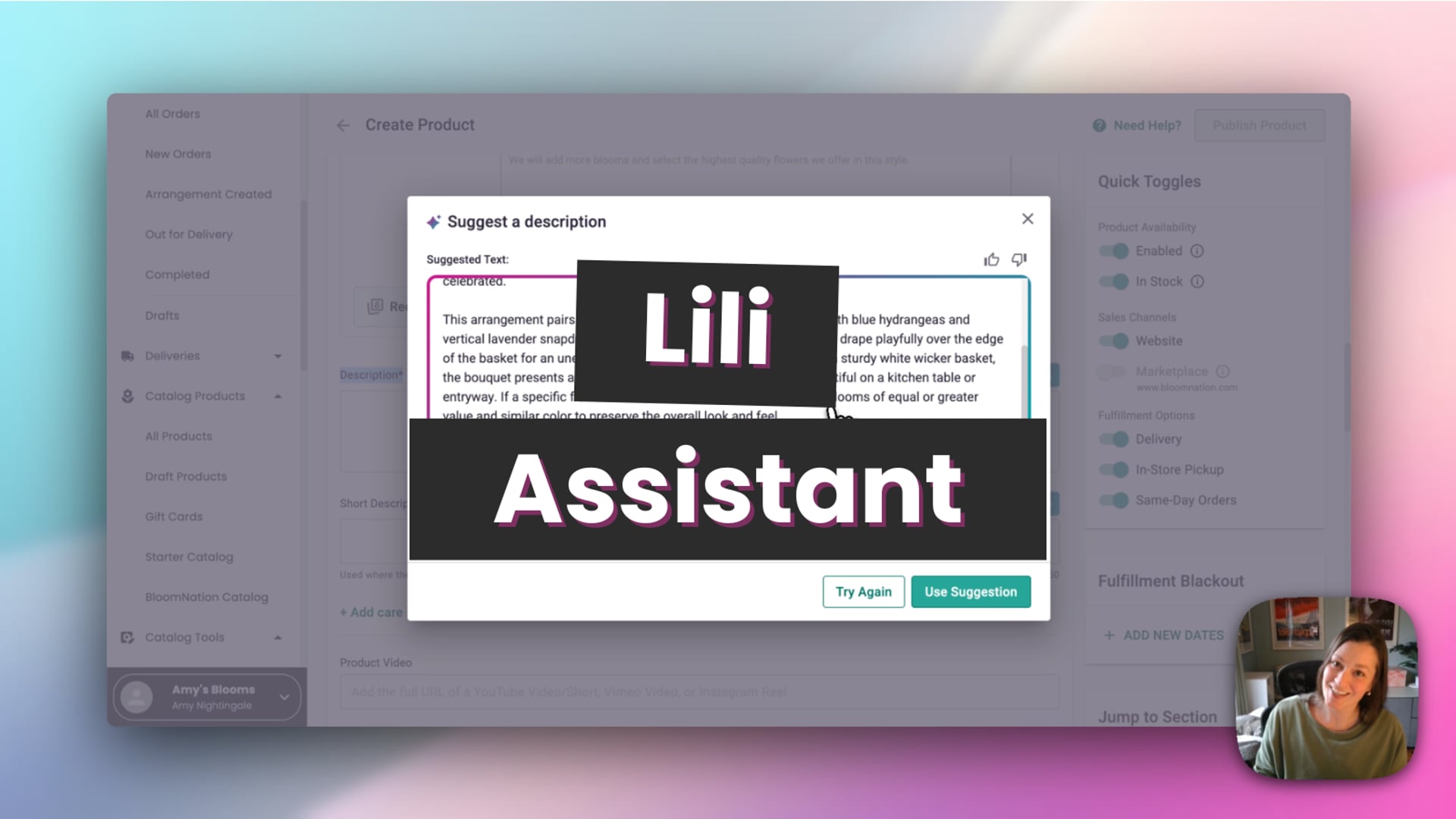 Lili Assistant
How to generate a card message
- Go to POS.
- Select the order type you want to create.
- Add the products to the order.
- Scroll to the Card Message section.
- Click Suggest a message.
Lili will generate a suggested message for the card.
Use an occasion for better suggestions
You can generate a card message with no context, but selecting an occasion will help Lili create a more tailored message.
For example, choosing occasions like Birthday, Sympathy, or Anniversary helps Lili generate a message that fits the situation.
Review and apply a suggestion
When the suggestion appears, you will see several options:
- Try Again – Generate another version of the message
- Use Suggestion – Apply the message to the card message field
- Thumbs Up / Thumbs Down – Provide feedback on the suggestion
If you click Use Suggestion, the message will be added to the card message field where you can edit it if needed.
Adjust settings for a specific message
Inside the suggestion window, you can also click Adjust Settings.
This allows you to customize the suggestion by:
- Adjusting the tone
- Adding special instructions
These adjustments apply only to the suggestion you are generating.
Edit the final message
After applying the suggestion, you can edit the message directly in the card message field.
This allows you to personalize the message or make small changes before completing the order.
Tips for using card message suggestions
- Select an occasion to generate more relevant messages
- Use Try Again if you want a different message
- Edit the message after applying it if the customer wants to make changes
Related articles
- Introducing Lili: BloomNation’s AI Assistant
- Use Lili to Create Product Descriptions and Details
- Reply to Customer Reviews with Lili
Need help?
If you have questions about using Lili for card messages, our Partner Support team is here to help.
Phone: (210) 405-5050
Email: support@bloomnation.com