
Custom Categories
Categories help you organize products, create collections, support internal workflows, and power features like cross-sells. You can manage categories directly in your BloomNation POS and choose whether they are customer-facing or internal-only.
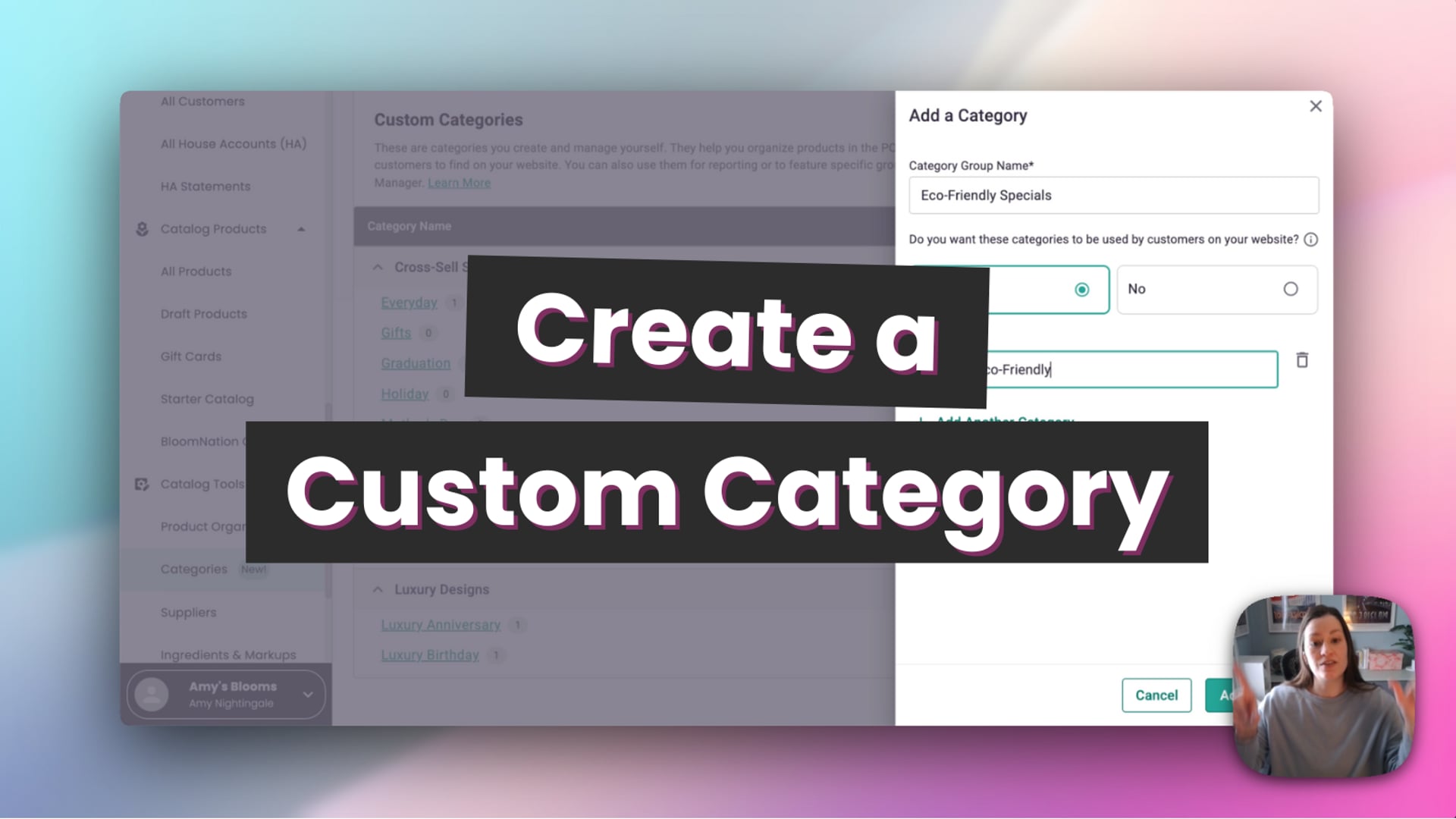 Create a Custom Category
What custom categories are used for
Categories can help you:
- Organize products in your catalog
- Create collections or filters on your website (if enabled)
- Power cross-sells and add-ons
- Prepare products for reporting in Advanced Reports
Custom categories can be customer-facing or internal-only, depending on how you set them up.
Types of categories you’ll see
System categories
System categories are created and managed by BloomNation. They are shared across all shops and cannot be edited or removed.
Common examples:
- Occasions (Birthday, Sympathy, Anniversary)
- Flower Type (Roses, Daisies, Orchids)
If you believe a system category is missing, you can submit a request for review.
Custom categories
Custom categories are created and managed by your shop. They give you full flexibility to organize your catalog based on how you run your business.
- You control the name and structure
- You choose whether they are customer-facing or internal-only
- They can be used for products, cross-sells, workflows, and reporting
Custom categories live in their own groups and are separate from system categories.
Where to manage categories
Categories section (Catalog Tools)
Go to Catalog Tools → Categories to manage all categories in one place.
Here you can:
- View all system categories
- Create and manage custom category groups
- Add, edit, or remove custom categories
- Control category visibility
Edit categories from a product
You can also manage Custom Categories directly while editing a product.
- Open a product in your catalog
- Click "Edit" next to the custom category group name
- A sidebar opens so you can make updates without leaving the product
Both methods update the same categories — choose whichever fits your workflow best.
Create a custom category group
-
Go to Catalog Tools → Categories in your dashboard.
-
At the top of the page, you’ll see System Categories. Scroll down to the Custom Categories section.
-
Click Add category.
-
In the panel that opens:
-
Enter a Category group name
(for example: Shop Specials, All Designers' Choice, Specialty Vases) -
Choose whether these categories should be used by customers on your website:
- Yes – customer-facing
- No – internal-only
-
Add one or more categories within the group.
You can add multiple categories at once.
-
-
Click Save to finish.
Tip: Category groups control where and how categories are used. Choose internal-only for organization, workflows, reporting, or cross-sells. Choose customer-facing for categories you want shoppers to browse on your website.
By default, each shop can create up to five custom category groups. If you need additional category groups, contact BloomNation Partner Support and we can help.
Add and manage categories
Once a category group exists, you can add categories to it and apply them to products.
- Add new categories within a group
- Edit category names at any time
- Remove categories you no longer need
- Apply one or more categories to products
Control category visibility
Internal-only categories
- Never shown to customers
- Used for internal organization, workflows, reporting, and cross-sells
- Ideal for POS and back-office use
Customer-facing categories
- Can appear in website navigation or filters
- Used to create collections or browsing experiences
- Only visible to customers if enabled on your website
Changing a category’s visibility affects where it can appear, but does not remove it from any products.
Real florist use cases
Internal organization for staff
Goal: Make order taking and product selection easier in POS.
Create an internal-only category group called Design attributes, with categories like:
- High-touch designs
- Quick-to-make
- Fragile containers
Use these categories to help staff choose appropriate designs during busy periods or to guide newer team members.
Website collections
Goal: Merchandise your website.
Create a customer-facing category group called Shop by style, with categories like:
- Modern
- Lush & garden-style
- Minimal
Use these categories to build collections or filters and highlight products in different ways.
Reporting prep for Advanced Reports
Goal: Make reporting easier later.
Create an internal-only category group called Sales channels, with categories like:
- Corporate
- School events
- Church / sympathy programs
Tag products now so you can run cleaner, more meaningful reports in the future.
Organizing cross-sell items
Goal: Control which add-ons appear during checkout.
Use internal-only categories to group add-on items and apply them strategically to products.