
How to Use Basic Inventory Control
BloomNation’s Basic Inventory Control feature allows you to easily mark products or ingredients as out of stock—without removing them from your website. This helps maintain your SEO value and gives customers a full picture of your capabilities, even when certain items are temporarily unavailable.
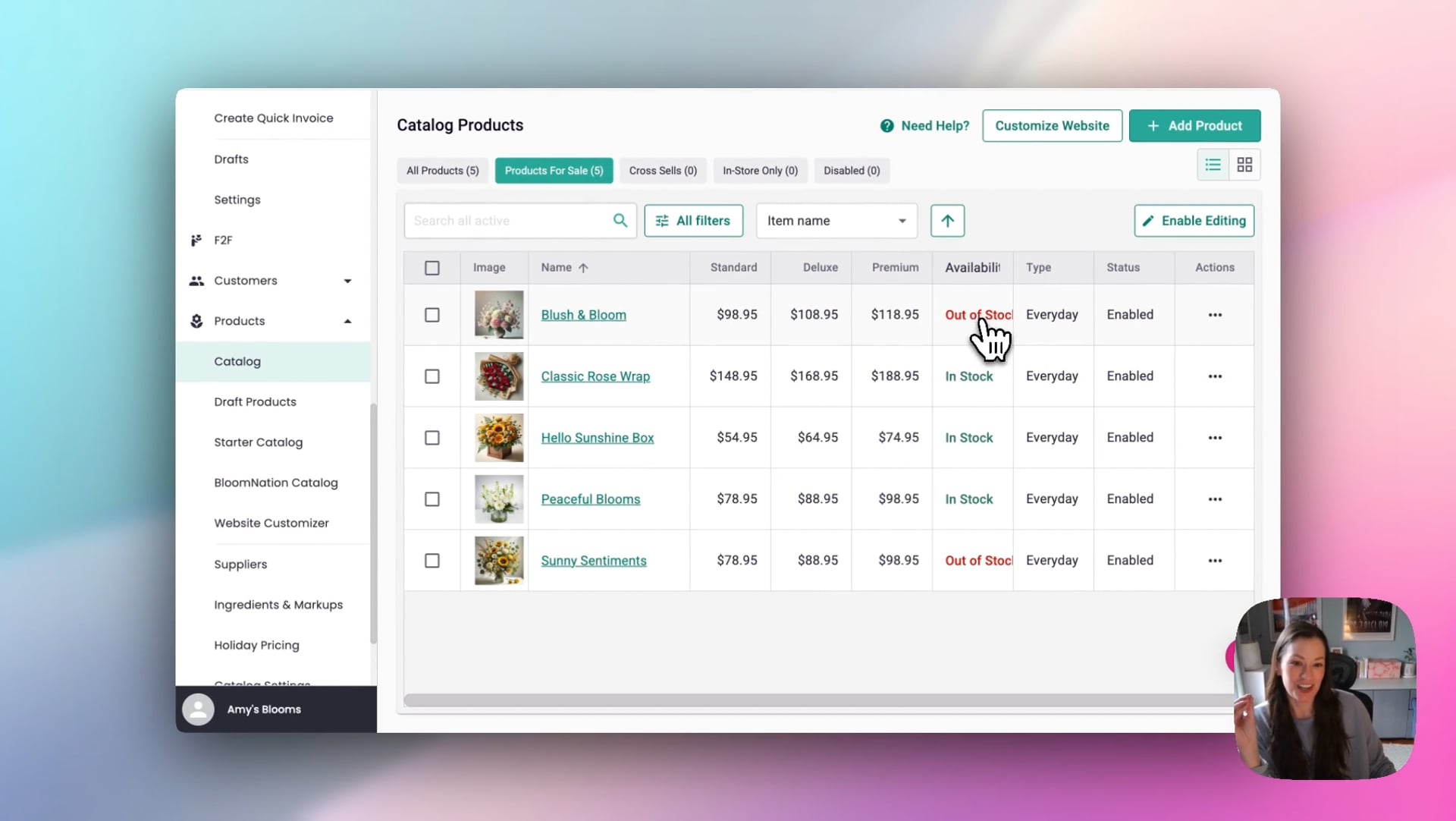 Basic Inventory Control
Why Choose “Out of Stock” Instead of Disabling a Product?
When a product is temporarily unavailable, marking it Out of Stock is your best move—and here’s why:
- Keep Your SEO Working for You
The product page stays live and indexed by Google, which helps maintain your website’s search engine ranking over time. - Showcase Your Style
Even if something isn’t currently available, customers can still view the design. This gives them a sense of your aesthetic and capabilities—which might inspire them to call and ask about alternatives. - Invite Engagement
Instead of a dead-end, the product page displays your shop’s contact info. This creates an opportunity for a phone call, a custom order, or a future sale.
When Should You Disable a Product? Use the Disable option when a product is:
- No longer part of your offerings
- Seasonal and not returning
- Retired for good
Disabling removes the product from your site entirely—it won’t be visible to customers or indexed by Google.
How to Mark a Product as Out of Stock
- Log into your POS and go to the Catalog section.
- Browse your products in List or Tile View (List View shows stock status at a glance).
- Click into a product, toggle the “In Stock” switch off, and hit Save Changes.
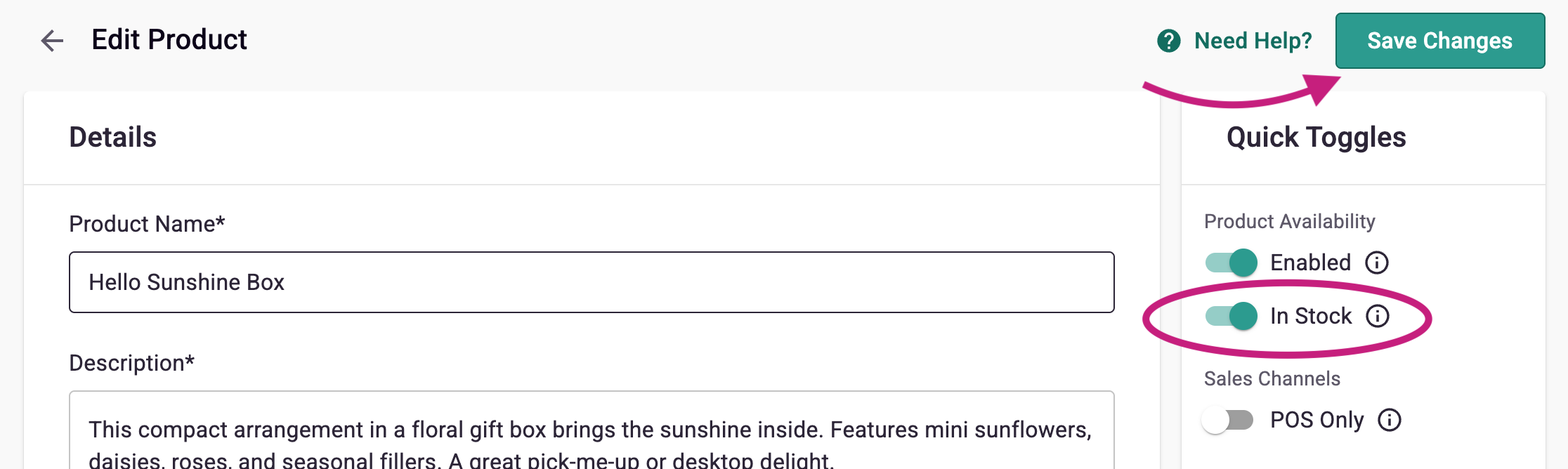
Your website will now show that the product is temporarily unavailable. The “Add to Cart” button will be removed, but your phone number will display so customers can reach out directly.
Note: You can still add Out of Stock products to your POS orders!
Bulk Actions: Update Multiple Products at Once
Need to mark several items as out of stock—like ahead of Mother’s Day or another busy holiday?
- From the List View, select multiple products using the checkboxes.
- Click the bulk action menu at the top.
- Choose the Availability option and set the selected products to Out of Stock.
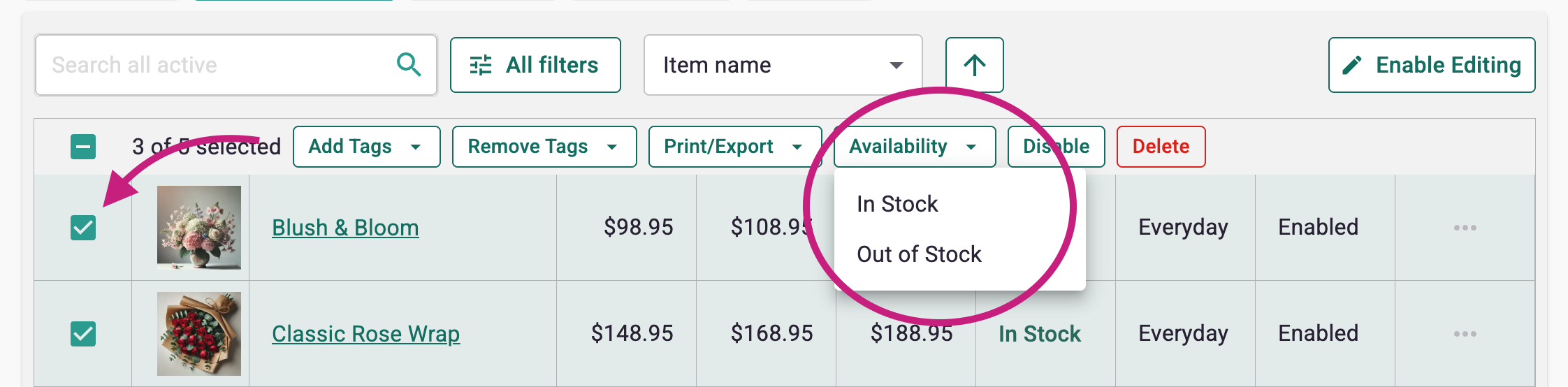
This is a great time-saver when adjusting large parts of your catalog.
Ingredient-Level Inventory
You can also manage inventory at the ingredient level:
- Go to the Ingredients section in your POS.
- Select the ingredient that’s unavailable (e.g., willow, hydrangea).
- Toggle the In Stock setting to Off.
Note: Any product using that ingredient will automatically be marked as out of stock.
You can still override this at the product level if needed.
Best Practices & Tips
- Use filters in your product list to view only in stock or out of stock items.
- Keeping sold-out products visible on your site reinforces your design range and builds trust.
- Always double-check your website after updating a product to confirm how it displays to customers