
Creating Subscription Order for a Customer
Creating a Subscription Order
Subscriptions make life easier for both you and your customers! They provide a convenient way for customers to receive fresh flowers on a regular schedule while helping your business maintain steady revenue. Plus, they save you time on manual order processing and ensure repeat sales.
Creating a Subscription
1. Navigate to the Subscriptions Tab
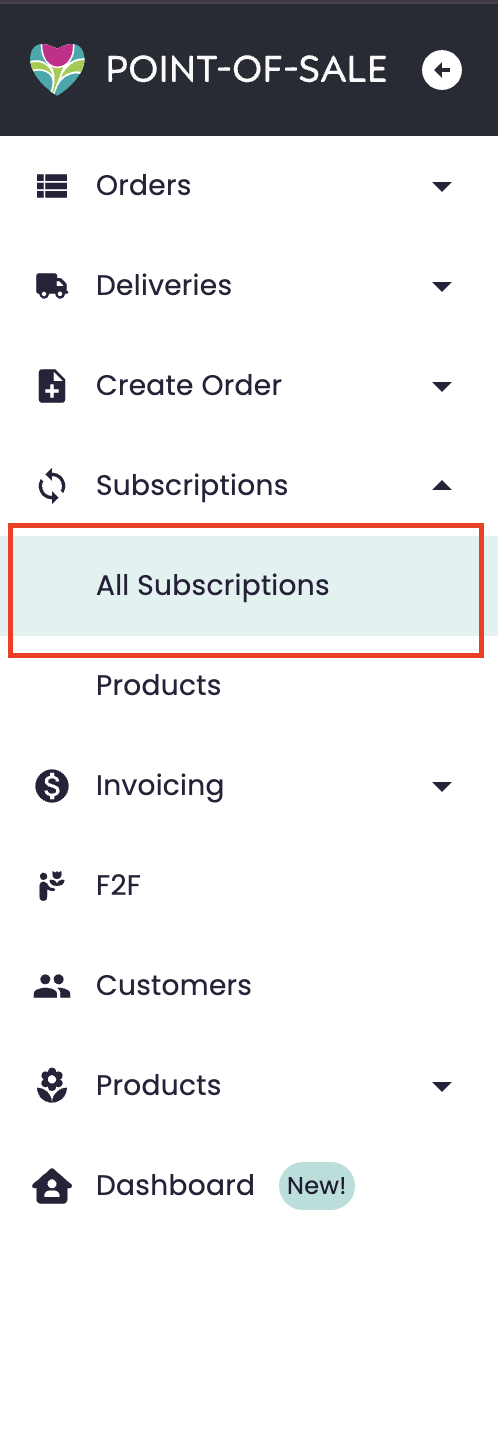
- Go to the Subscriptions section in your POS.
- Click on All Subscriptions.
2. Start a New Subscription
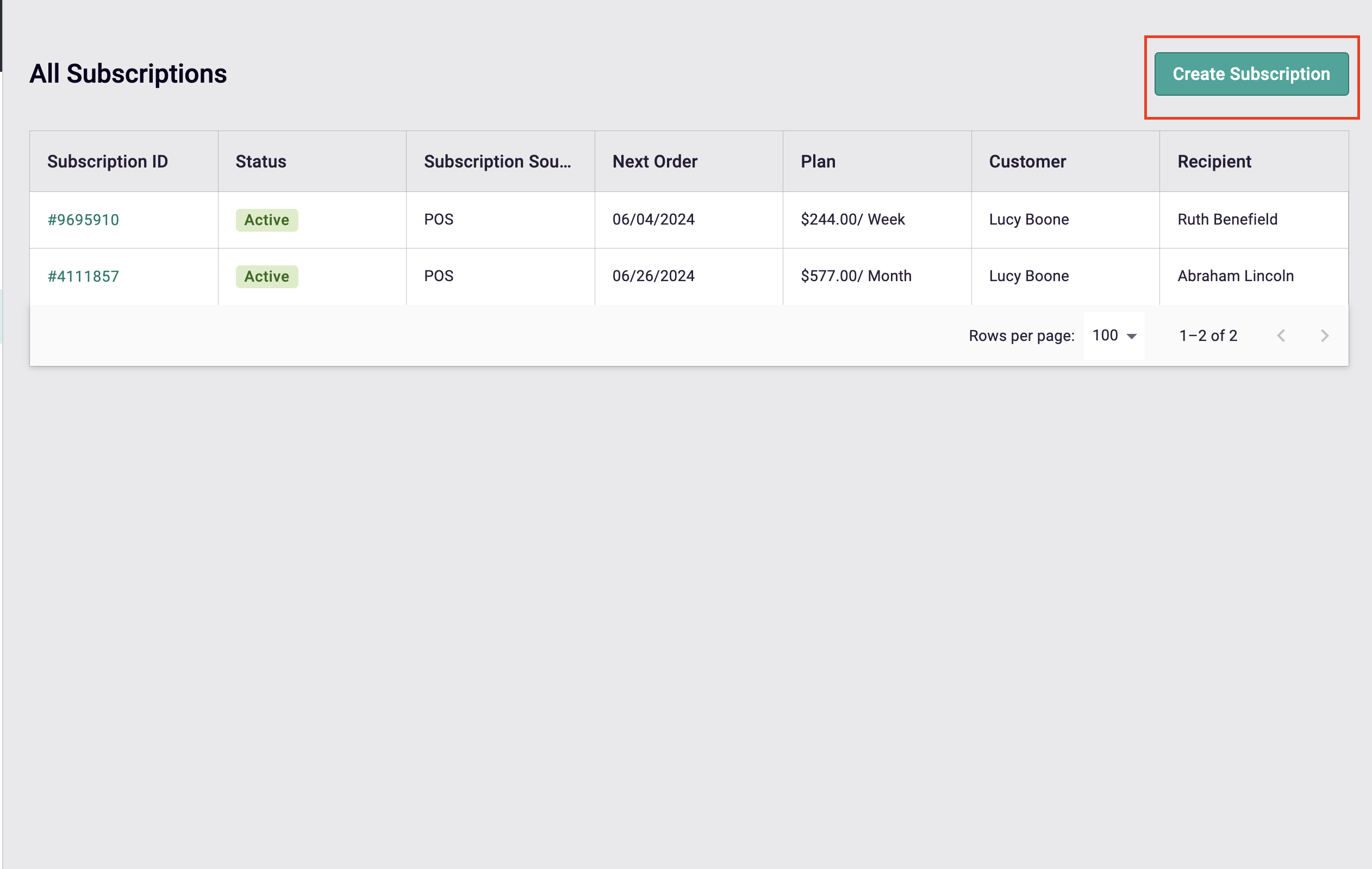
- Click the Create Subscription button (top right corner).
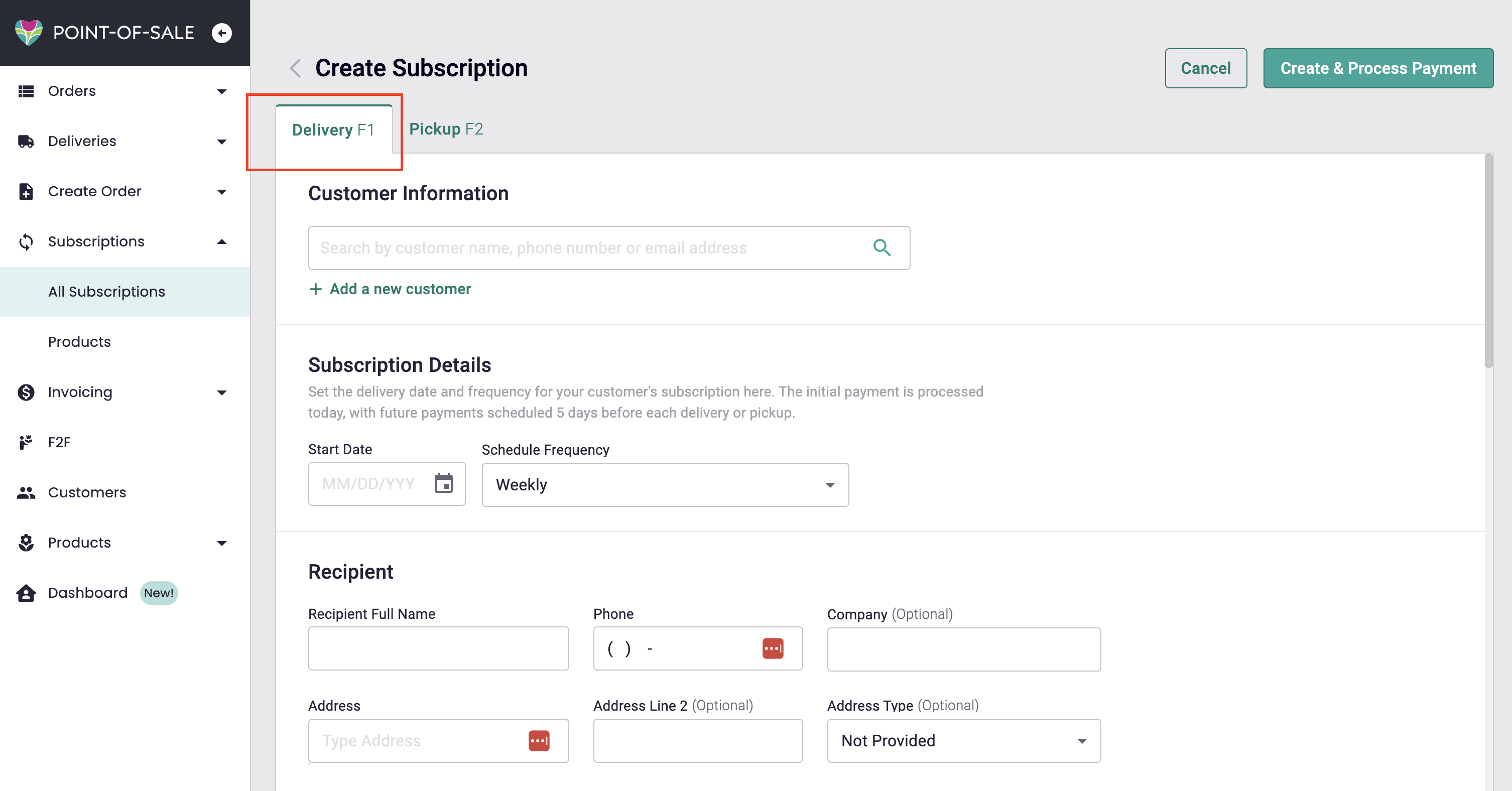
- Select Delivery or Pickup.
3. Add Customer Information
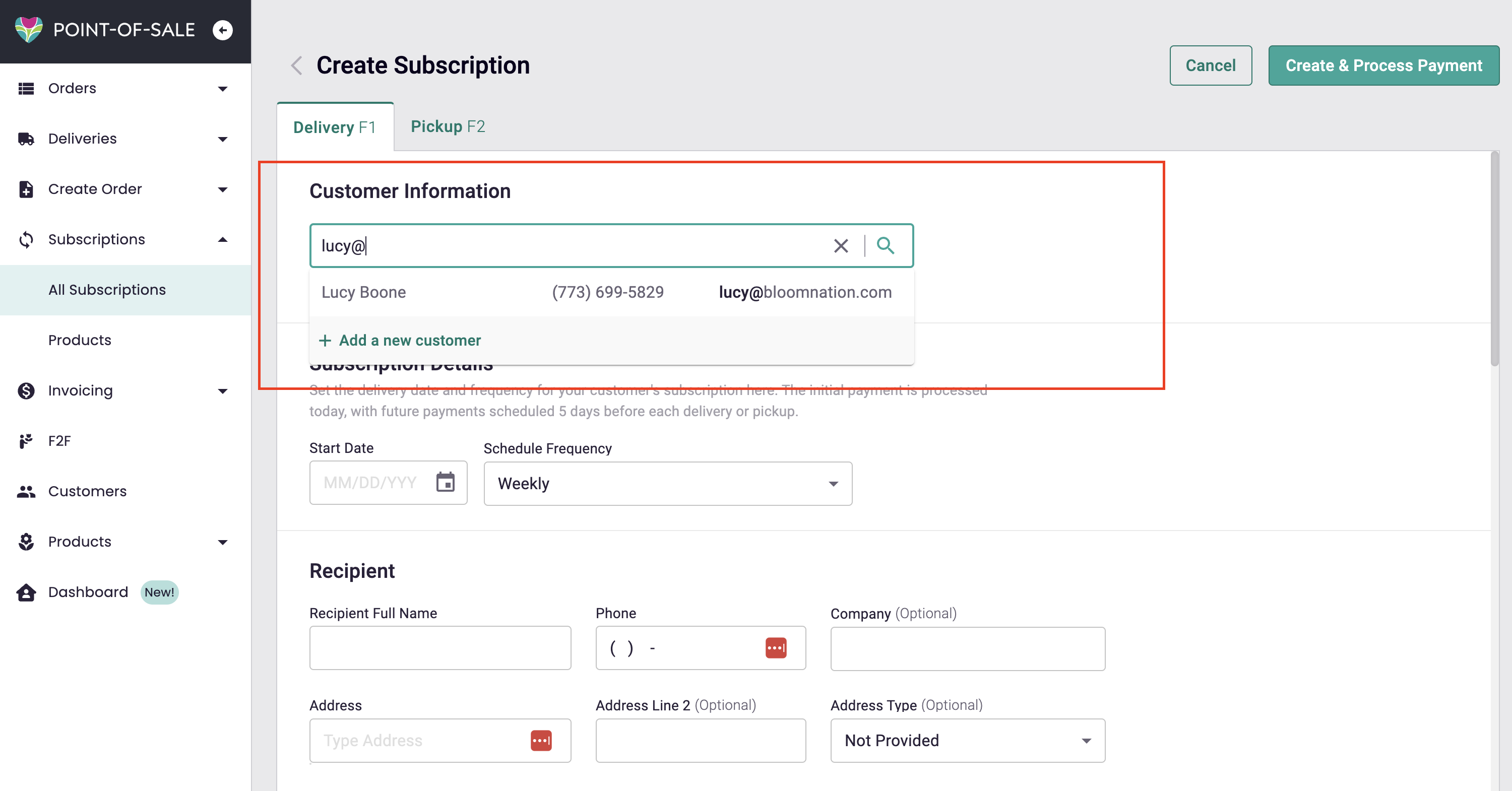
- Search for an existing customer by name, phone number, or email—or create a new customer profile.
- Add any internal notes related to the customer or order (optional).
4. Set Subscription Details
-
Start Date: Choose when the subscription should begin (default is Today).
-
Schedule Frequency: Select how often the customer will receive their order:
- Weekly
- Bi-Weekly
- Monthly
- Seasonal (Quarterly)
- Yearly
-
Recipient Information: Enter the recipient’s name, phone number, and address. The company name is optional.
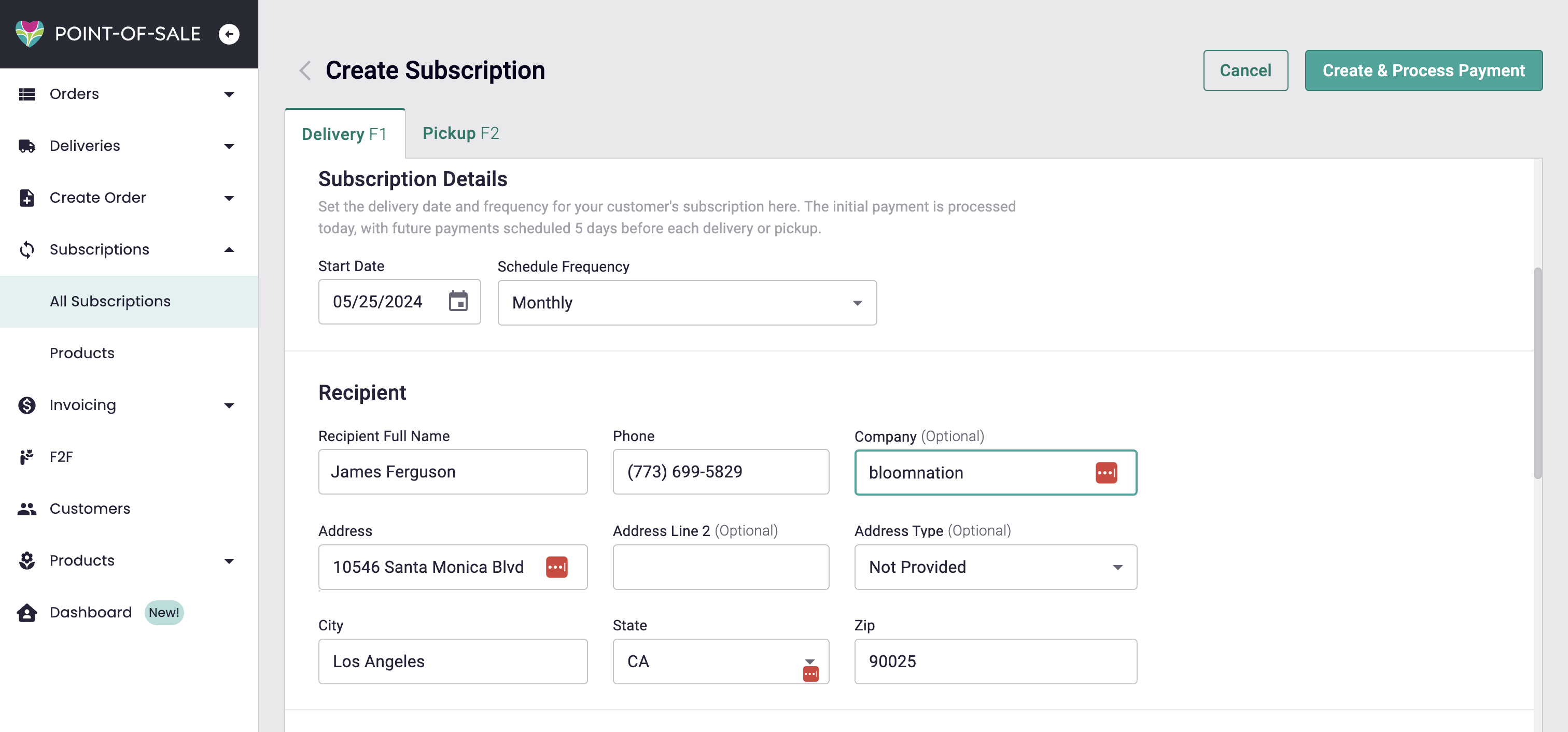
Creating a Custom Yearly Subscription
If you select Yearly as the Schedule Frequency, you can build a custom schedule of specific dates and holidays instead of a single recurring date.
- Under Add a Date or Holiday, click Select Date or Holiday.
- Choose Specific Date to pick an exact date from the calendar, or choose Holiday to search and select from common holidays like Valentine’s Day, Mother’s Day, and Christmas.
- Optionally, enter an Occasion Name to label the date (for example, “Mom’s Birthday”).
- Click Apply to add the date to the subscription.
- Click + Add Another Date to repeat these steps and add more dates or holidays to the same subscription. You can mix and match—for example, add the recipient’s birthday as a specific date, then add Mother’s Day or another holiday from the list.
Each date you add appears in its own row, with icons to edit or remove it.
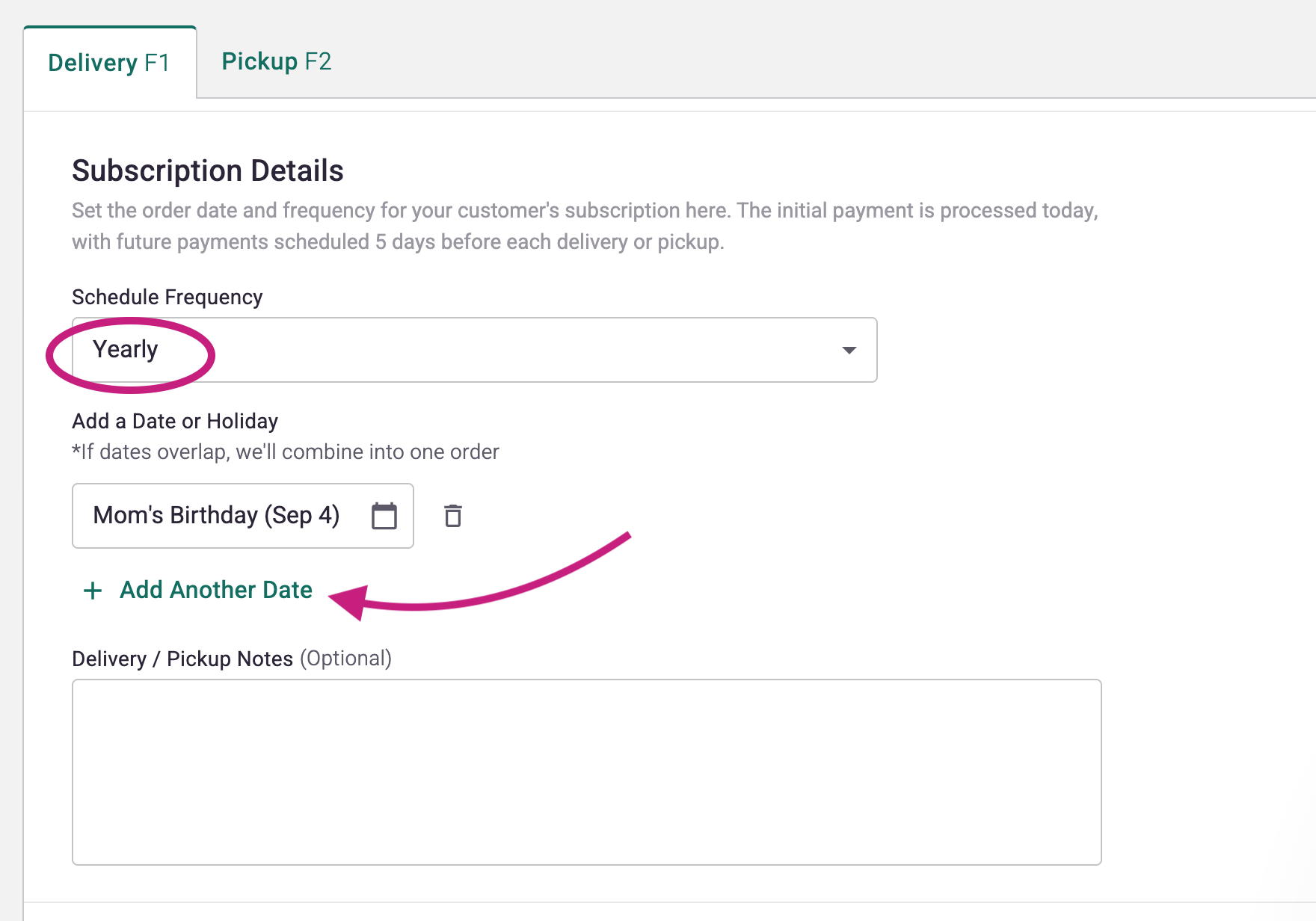
5. Select Subscription Items
- Choose a product from the available subscription items.
- If the product has Standard, Deluxe, and Premium options, each version will be listed separately.
- To add multiple products, click Add New Product and select additional items.
6. Review and Confirm Order Details
- Double-check the subtotal, delivery fee, discounts, and tax exemptions.
- The delivery fee will default to the rate set in your Settings.
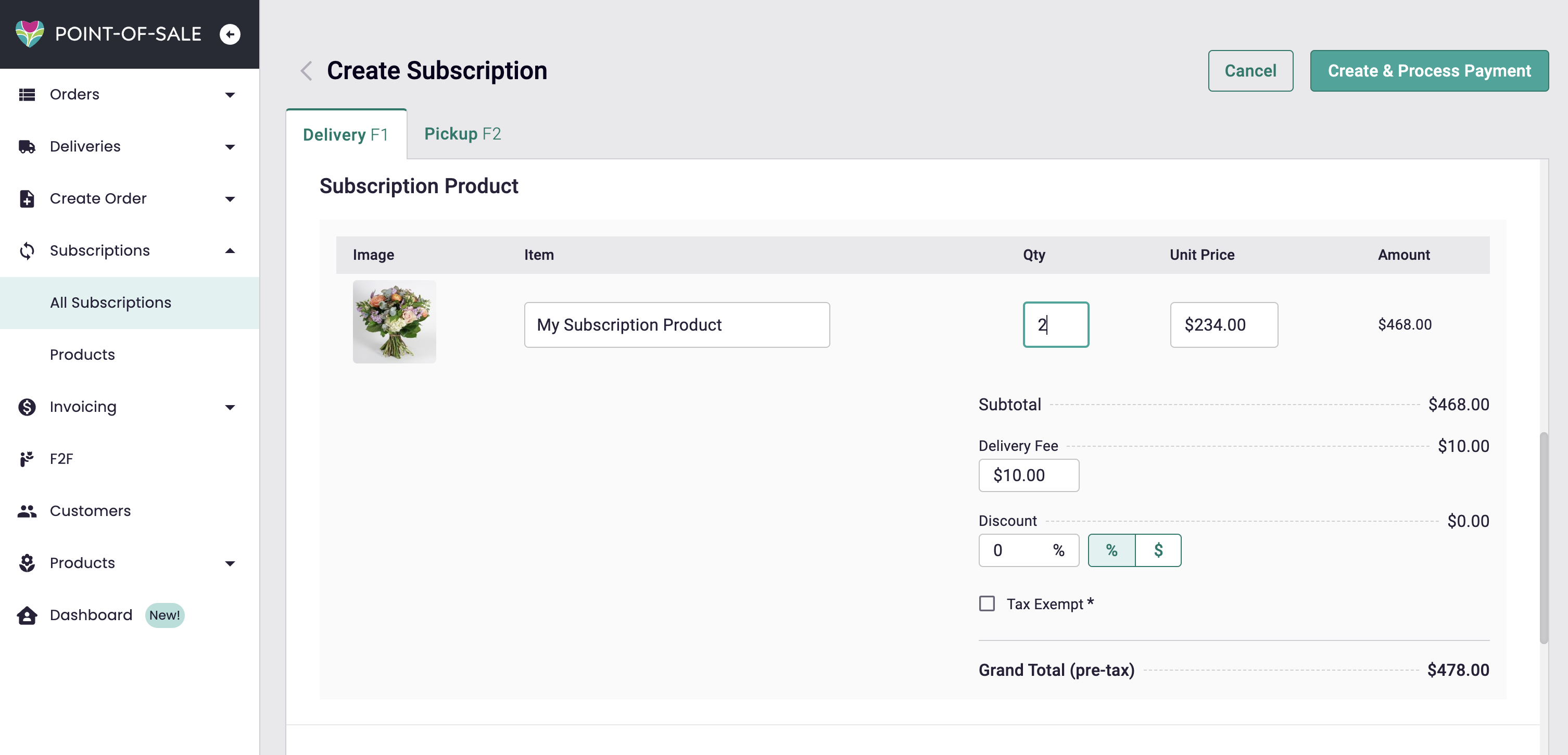
7. Choose a Payment Method
-
Available payment options:
- Card reader
- Credit/debit card (new or saved)
- Cash
- Check
- Other
- House Account, if applicable to that customer
8. Finalize the Subscription
- Click Create & Process Payment (top right corner) to complete the subscription.
- If there are any issues, the system will notify you.
- Once successful, you’ll be redirected to the order details page, and the subscription will automatically appear in your Orders queue.
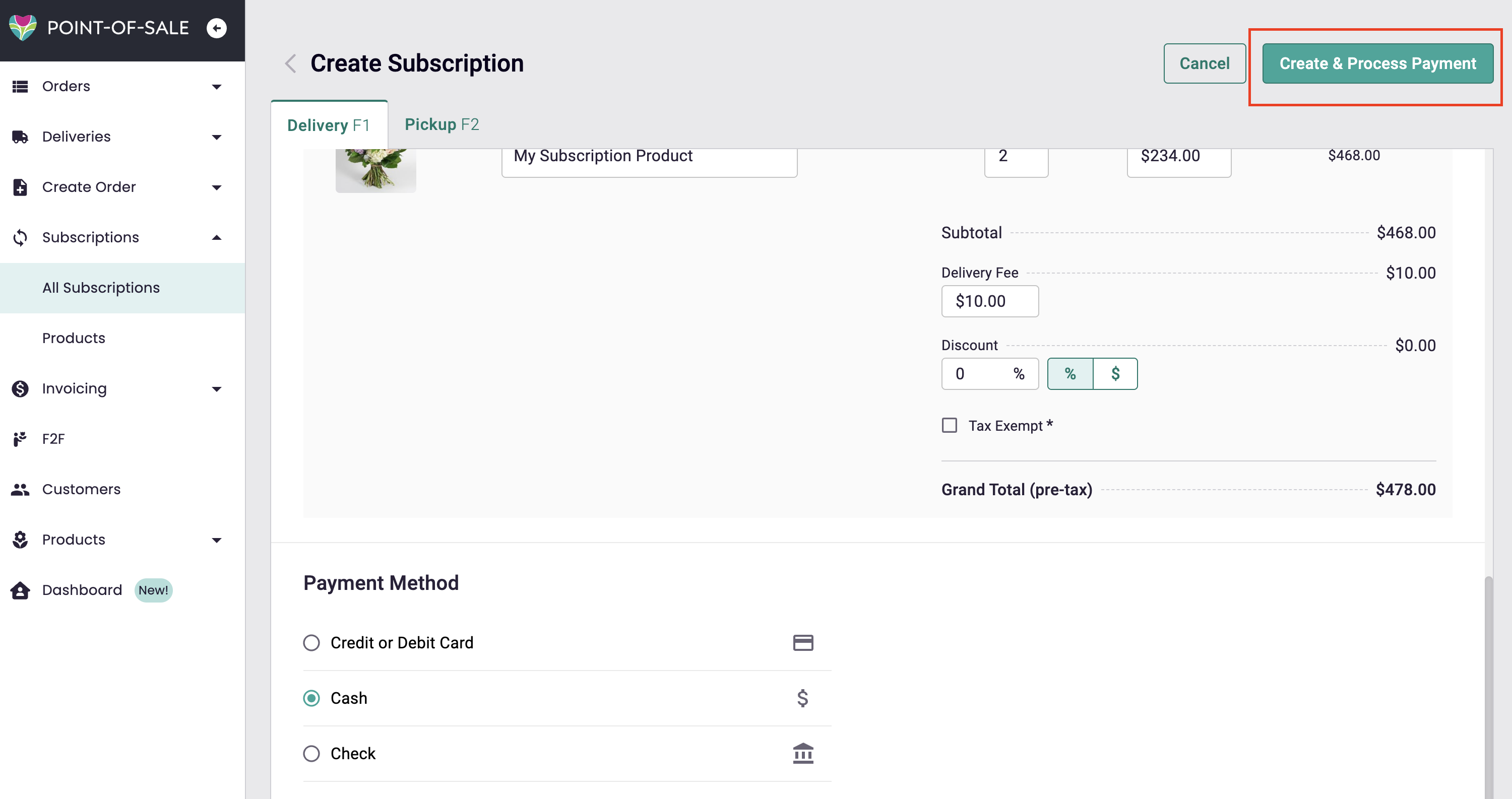
That’s it! You’ve successfully set up a customer subscription. Providing this service not only enhances the customer experience but also helps build long-term relationships with your shop. Happy selling!