
Subscriptions
Subscriptions
 BloomNation PoS Feature Walkthrough: Subscriptions
Subscription products in the BloomNation POS let your customers buy flowers on a recurring schedule, like weekly or monthly deliveries. Each order in the subscription is created for you automatically, so you get steady repeat business without re-entering orders.
Why Use Subscriptions?
- Efficiency: Saves time by eliminating the need to manually copy and create recurring orders.
- Customer Retention: Increases customer lifetime value through regular, scheduled purchases.
Navigation and Overview
Subscriptions Section
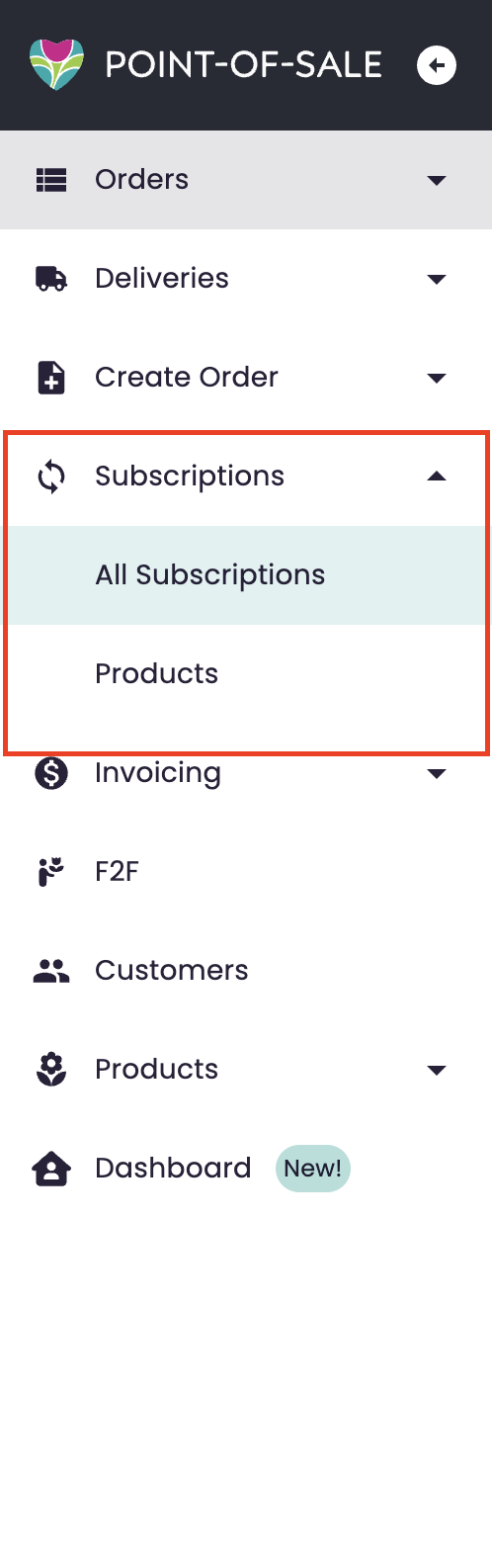
The Subscriptions section in your POS navigation has two sub-tabs: All Subscriptions and Products.
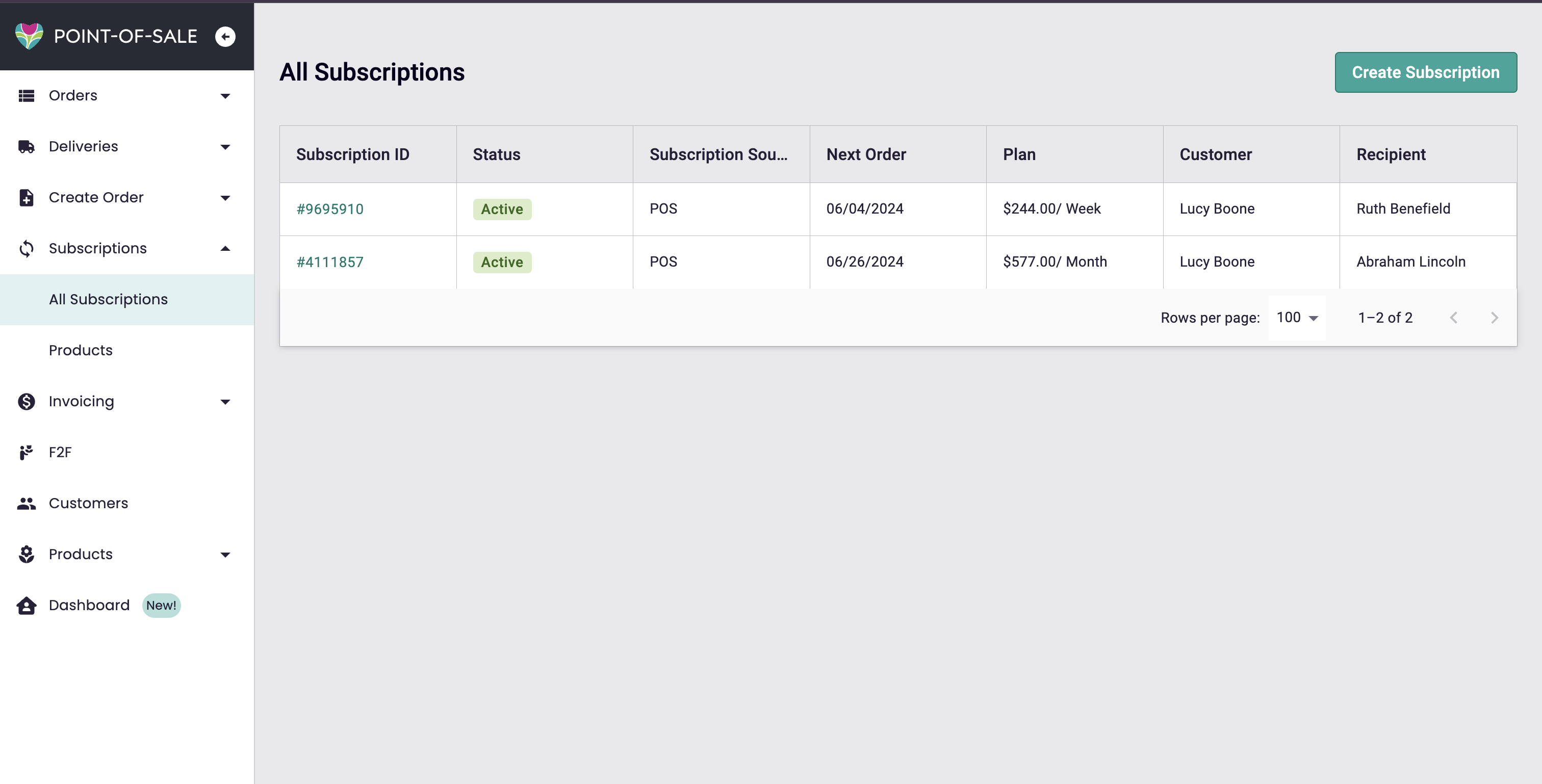
All Subscriptions Tab
- View all active subscriptions.
- Access detailed information for each subscription, such as Status, Customer, Recipient, Next Order date, etc.
- Perform actions such as clicking into the Subscription Details and Creating a new Subscription.
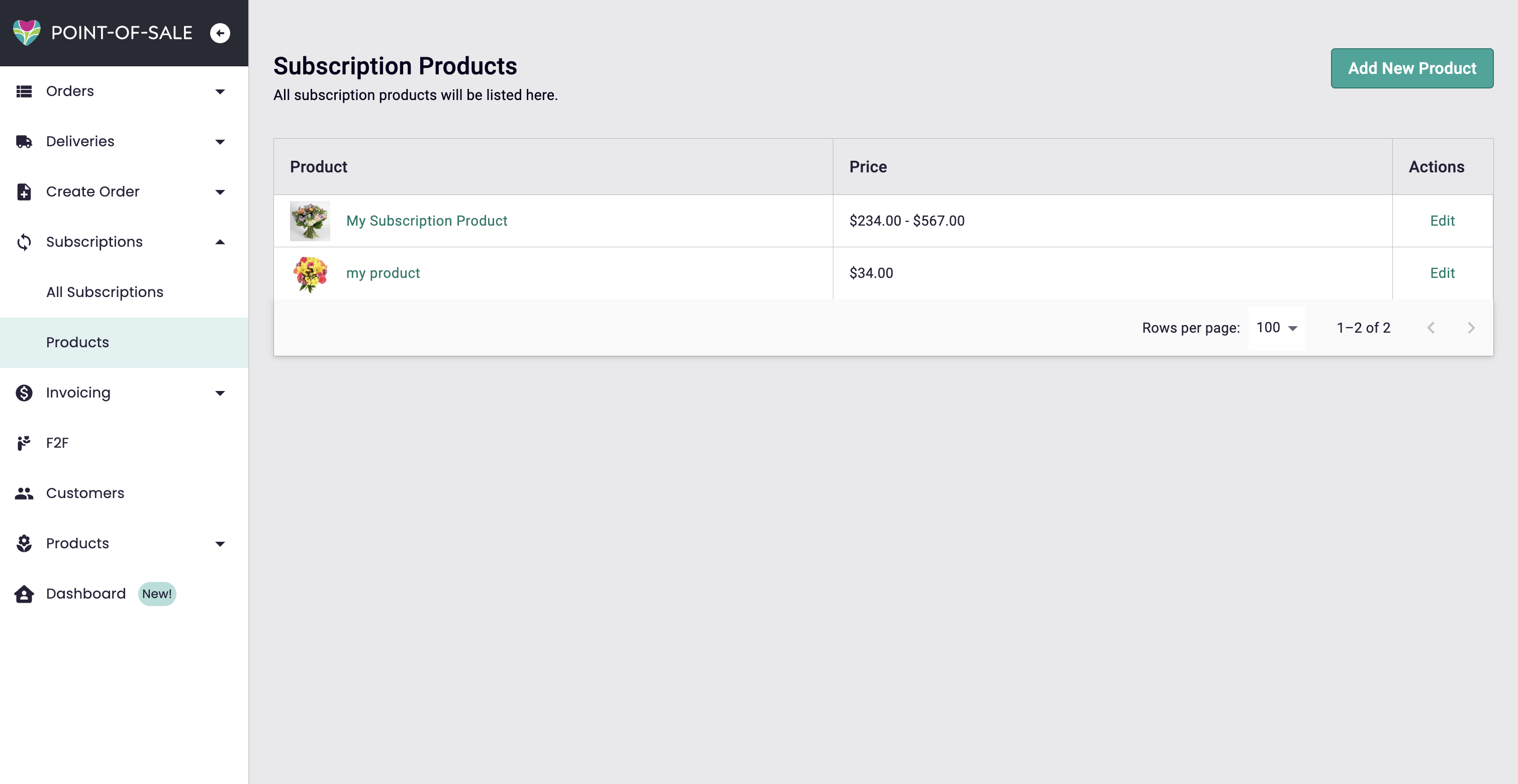
Products Tab
- Displays your subscription products in a table format.
- View product details and pricing.
- Edit existing products or add new ones.
How To's
To receive a detailed overview on performing certain Subscription functions, please refer to the following articles:
- Creating a Subscription Product
- Setting up Subscriptions to display on your Premium Site
- Creating Subscription for a Customer
- Managing Your Subscriptions
Additional Information
-
Initial Payment: Processed the day the subscription is created, with future payments scheduled 5 days before each delivery or pickup.
-
Single Product Per Subscription: Only one product can be added per subscription.
-
Subscription Orders: Automatically appear in the orders queue when placed, and are indicated as part of a subscription.
-
Failed Payment Methods: If a customer’s payment method fails when attempting to process a subscription order, you will be alerted in a variety of ways.
- First and foremost, in the subscriptions table in the All Subscriptions sub-tab, there will be an ‘Action Needed’ status in red
- Hovering over it will inform you of the type of action needed, in this case, updating the payment method
- On all pages, there will be a yellow action bar letting you know that you have a subscription with an expired payment method. Clicking ‘Go To Subscriptions’ in this action bar will take you to the Subscriptions page
- Once in the Subscription Details page for this subscription, you will be prompted to update this customer’s payment method.
- First and foremost, in the subscriptions table in the All Subscriptions sub-tab, there will be an ‘Action Needed’ status in red
-
Access Subscriptions via Customer Profile:
- A Subscriptions tab shows all active subscriptions for a customer.
-
Order Details for Subscription Orders:
- Subscription-related information is displayed in its own section, with a link to manage the subscription.
Need help?
If you have questions, our Partner Support team is here to help.
Phone: (210) 405-5050
Email: support@bloomnation.com