
Managing Subscriptions
Updated Ver en español
Managing Subscriptions
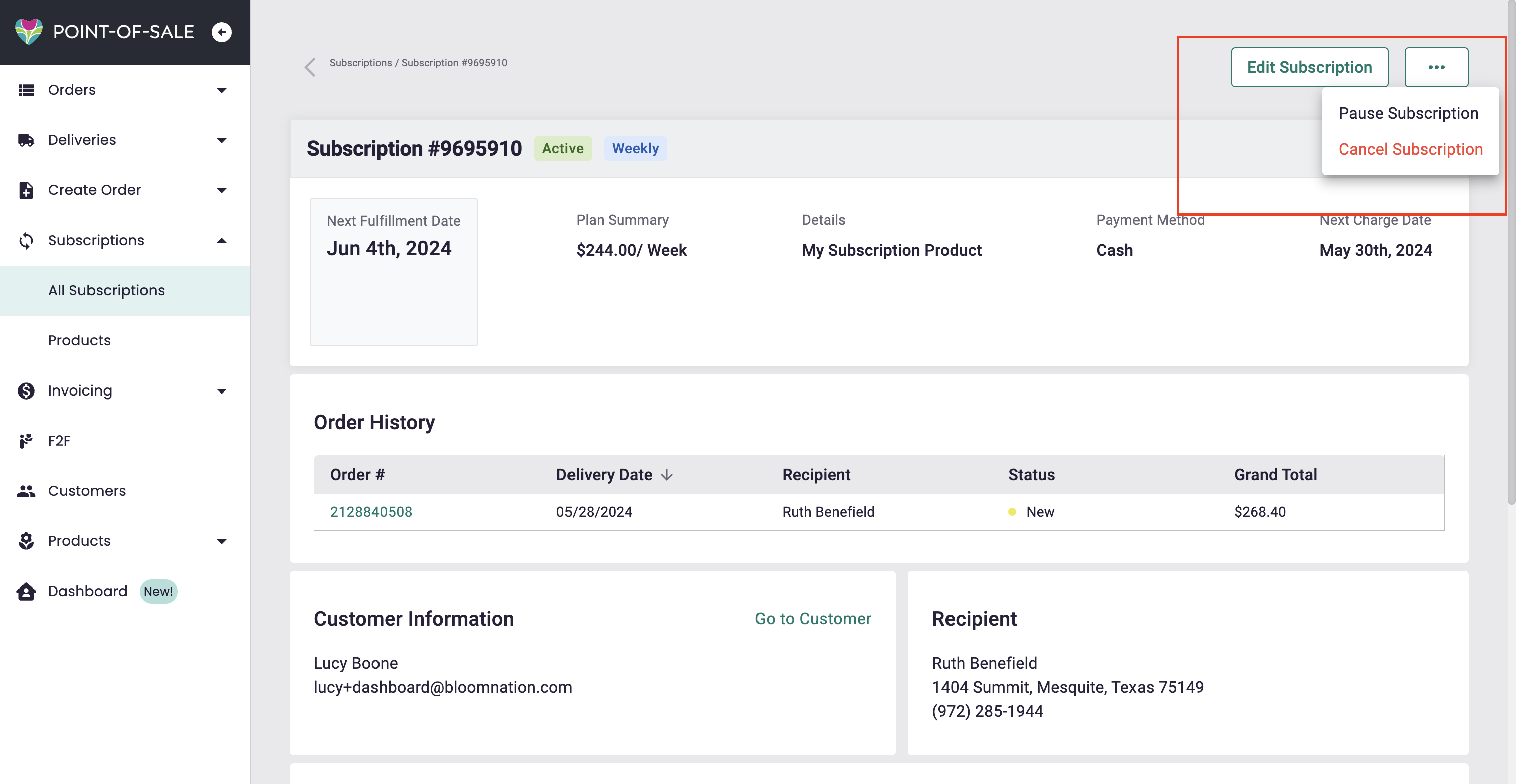
Subscription Details Page:
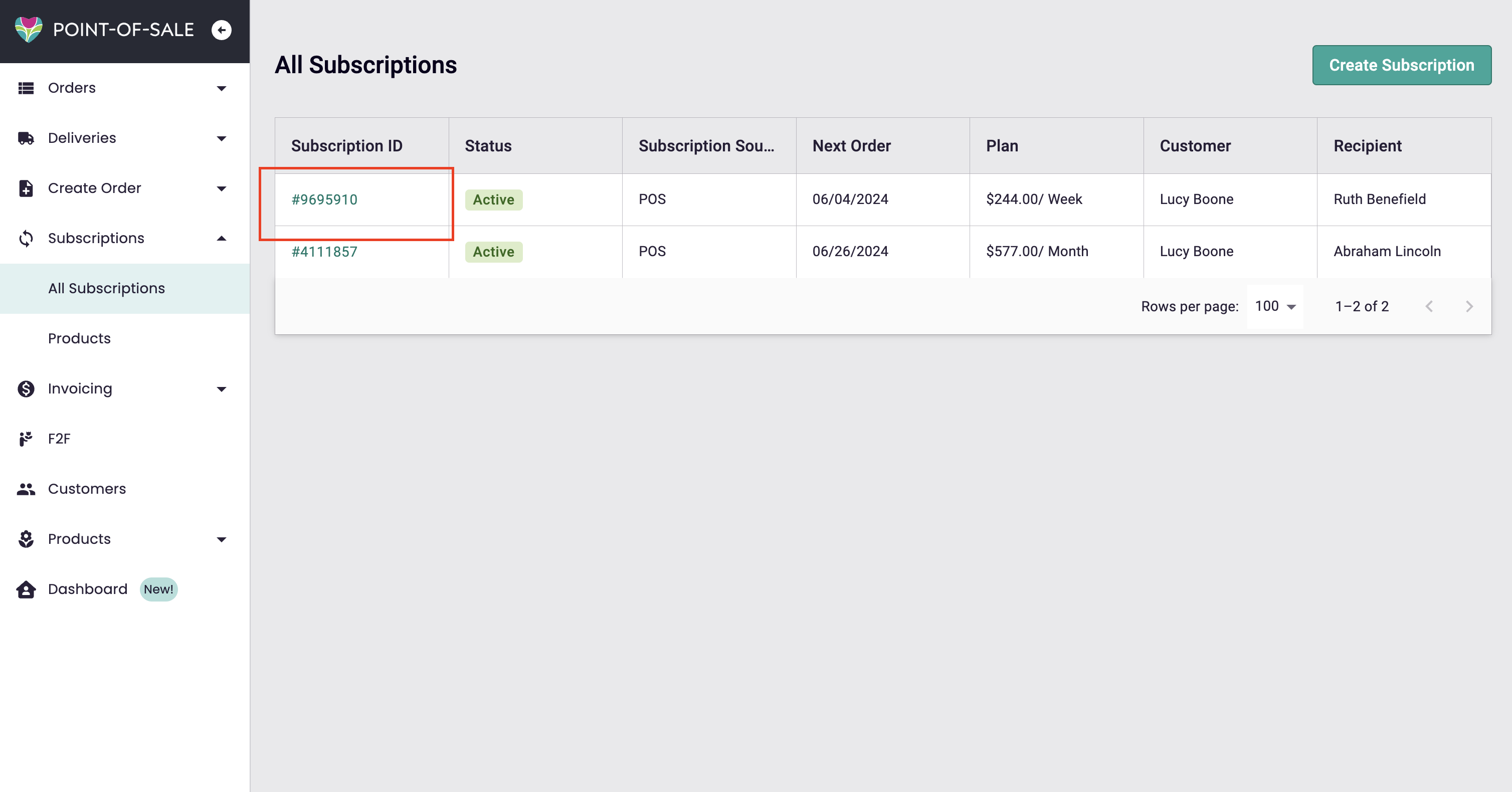
You can access a subscription's Details page by navigating to All Subscriptions and clicking on that subscription's ID.
Once there, you can:
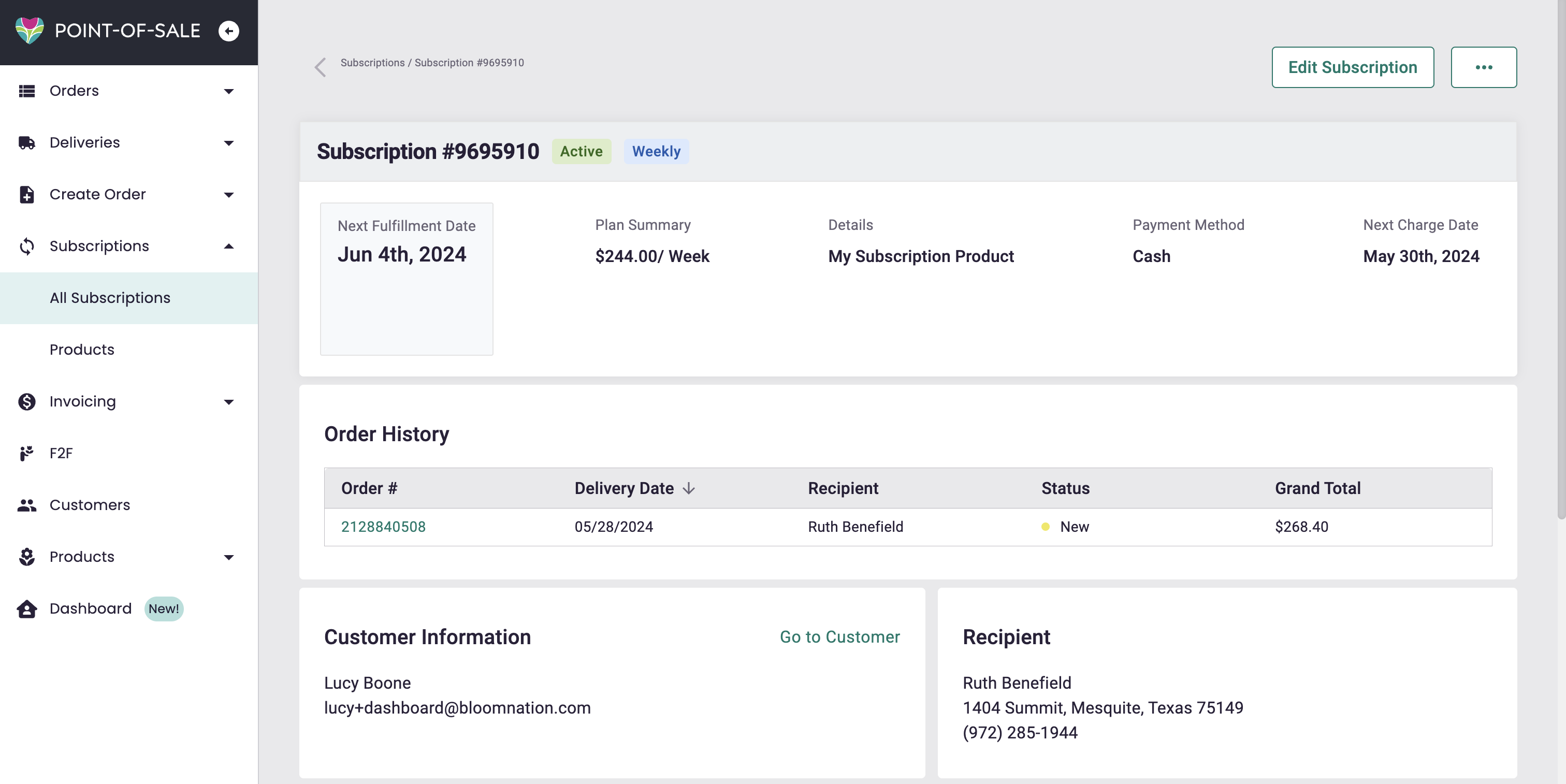
- View status, frequency, next fulfillment date, payment method, next charge date, and order history.
- Perform actions such as editing, pausing, or canceling the subscription (outlined below).
- Access detailed customer and recipient information.
Editing a Subscription:
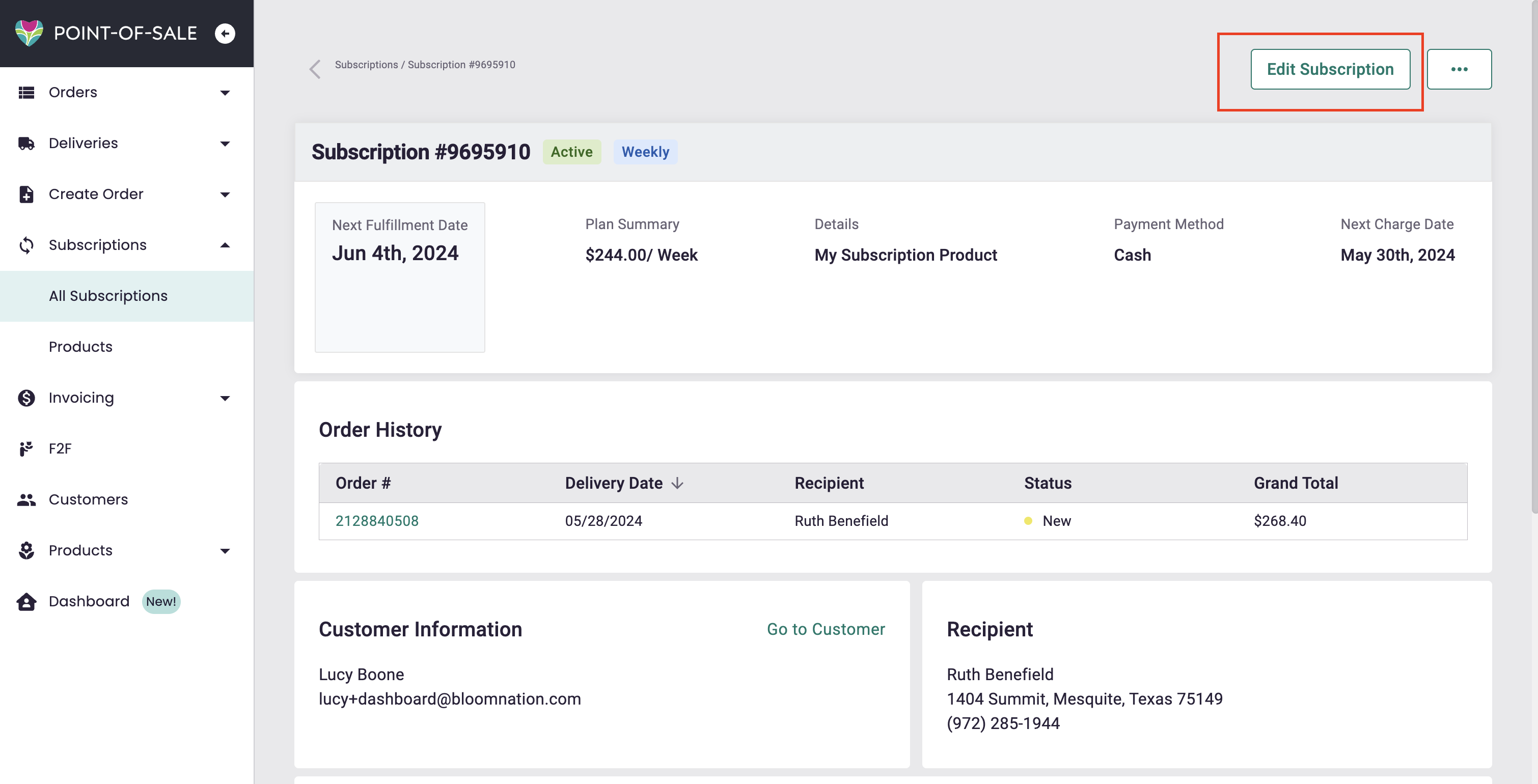
- Edit Subscription Button: Click to edit the subscription.
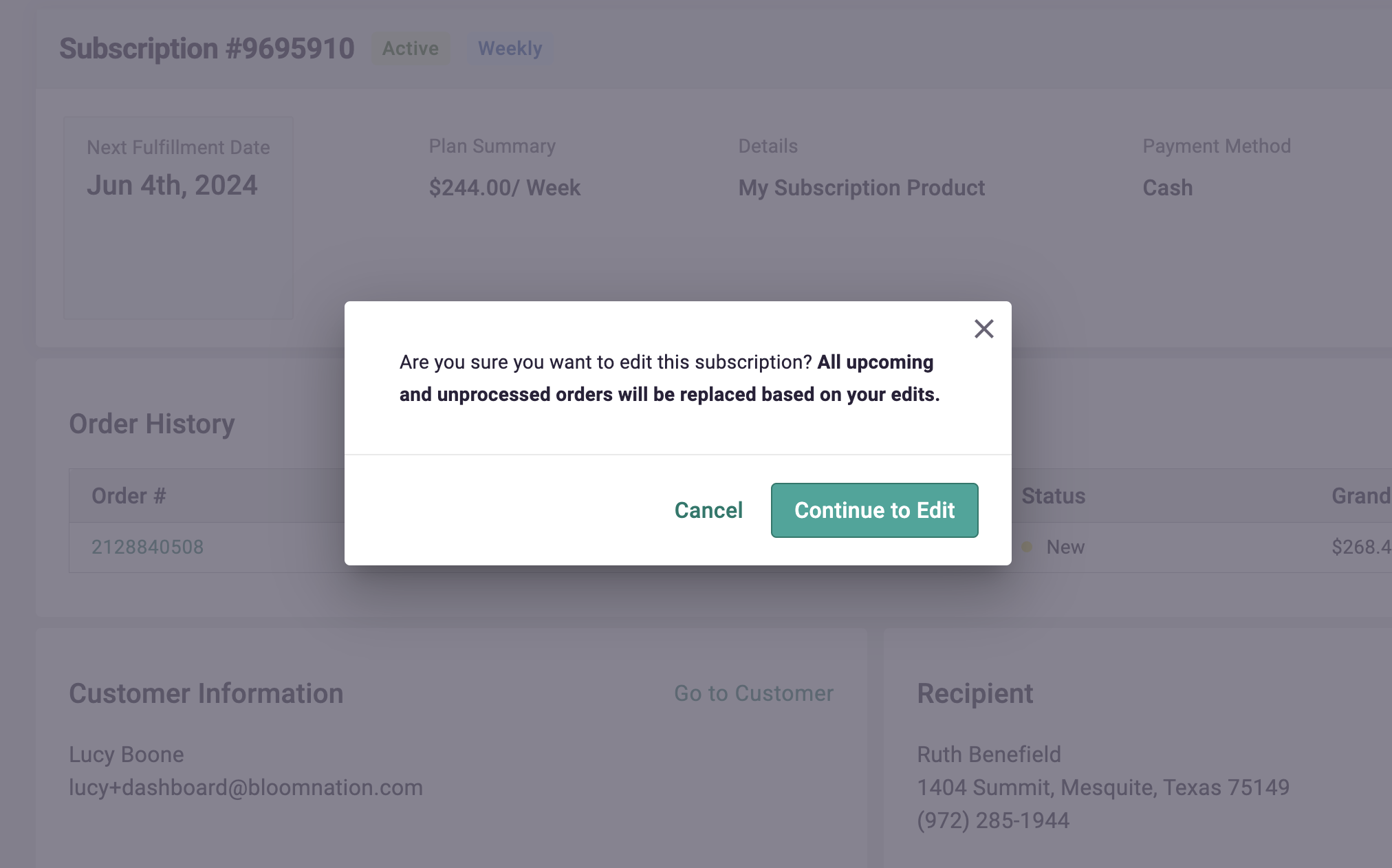
- Alert: Confirm that you want to edit.
- Edit Screen: Similar to the Create Subscription screen. Fill out the relevant info / make changes. Please note that if you edit this subscription, ALL upcoming and unprocessed orders will be updated based on these edits.
- Save Subscription: Click to save changes.
Canceling a Subscription:
- Cancel Subscription Button: Click the elipse ('...') button on the top right of the page, then click 'Cancel Subscription'.
- Alert: Confirm the cancellation and note the final order date.
- Canceled Status: The subscription cannot be resumed, but it can be viewed.
Pausing a Subscription:
- Pause Subscription Button: Click the elipse ('...') button on the top right of the page, then click 'Pause Subscription'.
- Alert: Confirm the action, noting that outstanding orders must be canceled if pausing.
- Resume Subscription: Can be resumed at any time.