
Subscriptions: Premium Site Setup
Updated Ver en español
Use the Subscription Setup page to add a Subscriptions page to your website and choose where its link appears in your navigation.
- Once you have existing subscription products (see existing help center article), go to Dashboard > My Website > Subscription Setup.
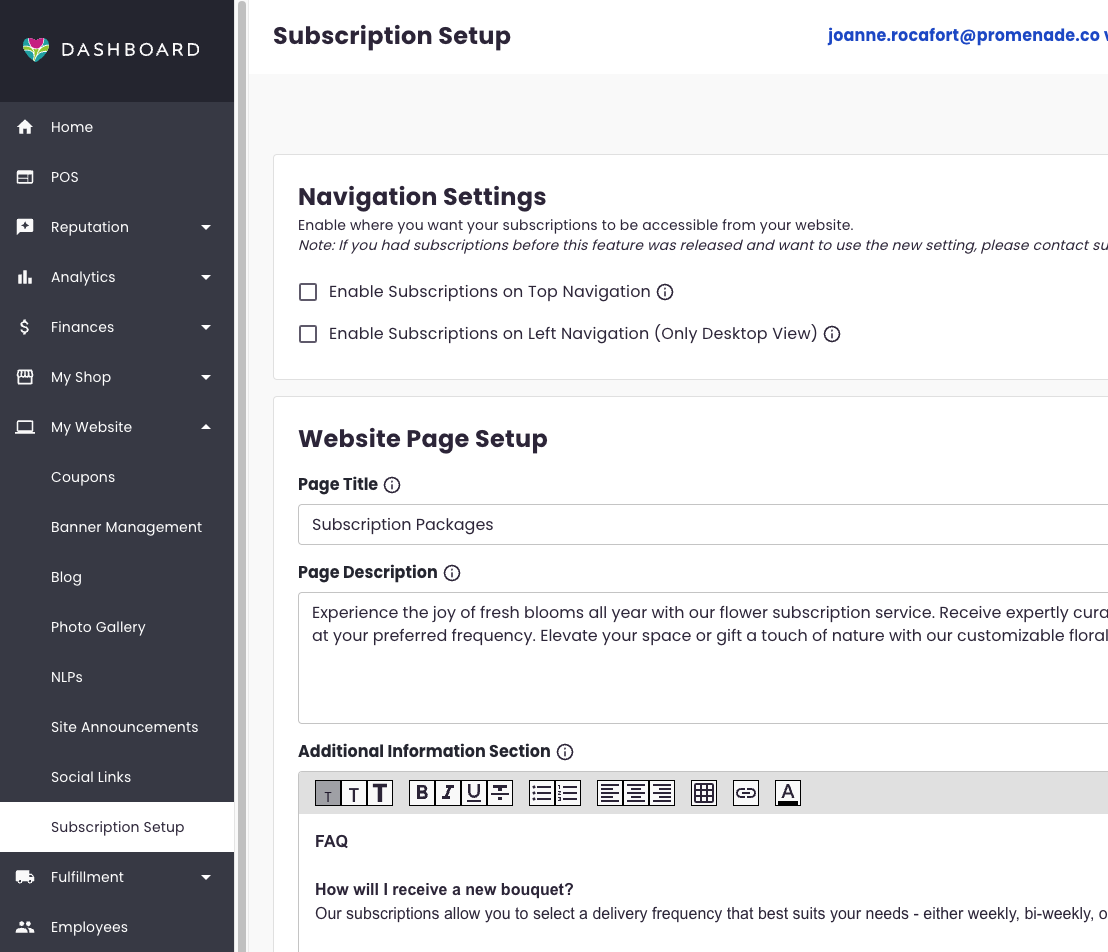
- Note: If you cannot see this page, make sure it is enabled in your user account under Employee Management .
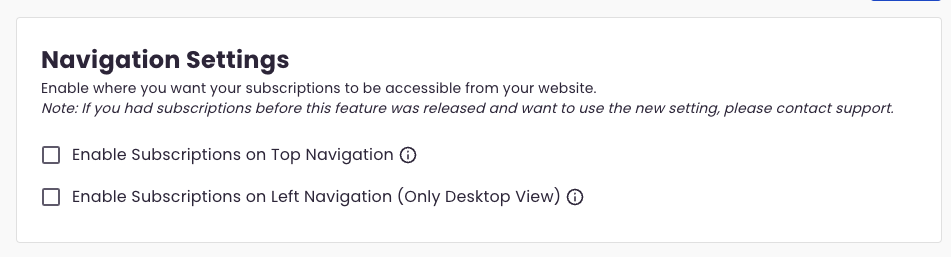
- Navigation Settings: Select where you want the Subscriptions link to show up on your site. You can check one or both. This is what will trigger the Subscriptions link to display on your site.
- Enable Subscriptions on top navigation
- Enable Subscriptions on left navigation (Desktop Only)
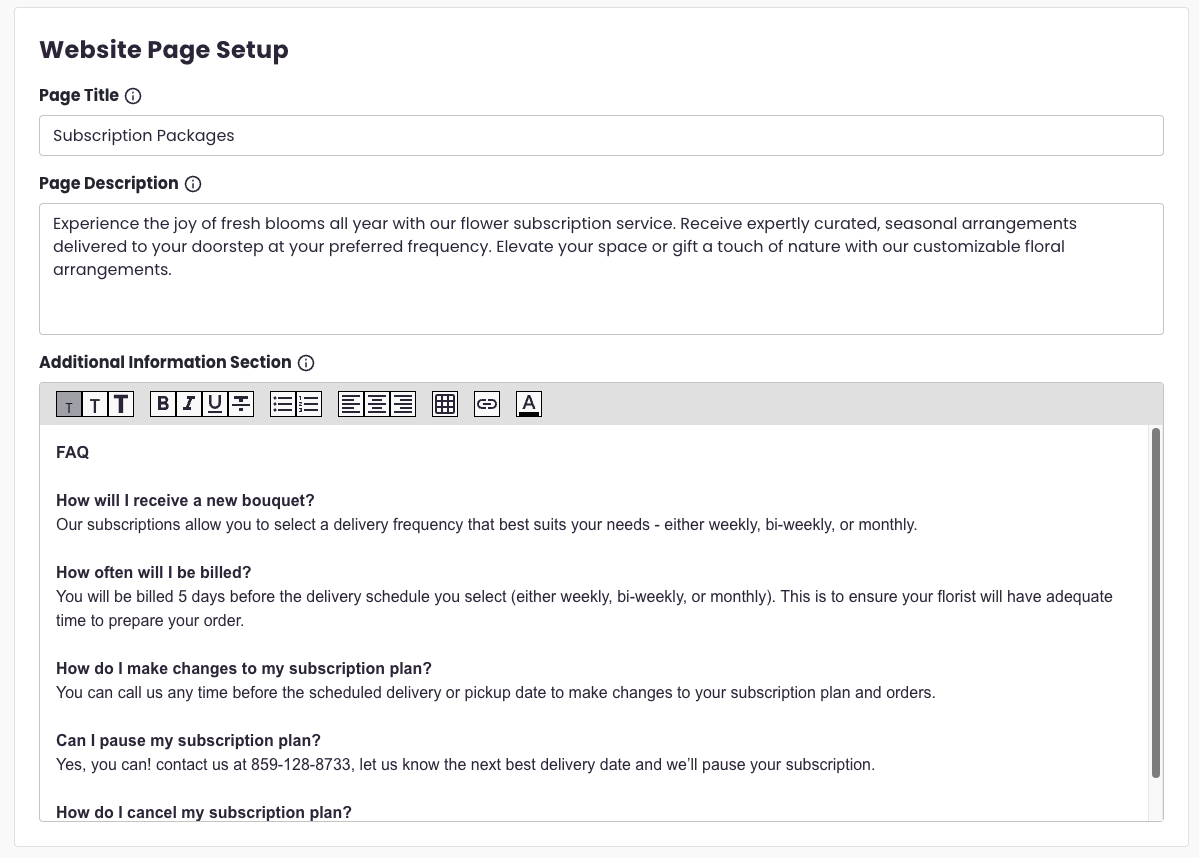
- Website Page Setup: Write up your page title, description and Additional Information section that will be displayed on your Subscriptions page.
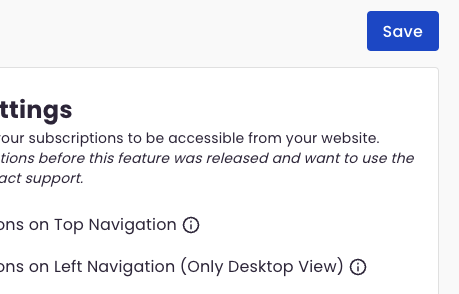
- Once you're done, hit the Save button on the top right side of the page.
You should now see a Subscriptions page on your premium site. From here, the user can select a product, tier, start date and frequency, before proceeding to checkout as they would with any other order.
Note: If you already had a custom Subscriptions page before this feature was released, contact our Partner Support team and we'll help remove your old page and move you to the new one.
Need help?
If you have questions, our Partner Support team is here to help.
Phone: (210) 405-5050
Email: support@bloomnation.com