
Edit Product Images in Your BloomNation POS
Updated
Edit Product Images in Your BloomNation POS
Overview
You can now edit your product images directly inside your BloomNation POS — no third-party tools needed!
The new Image Editor lets you crop, resize, fine-tune, or watermark your photos right from your product page, so your catalog looks clean, consistent, and professional.
This update also simplifies how you manage images:
- The trash can icon has been replaced with a three-dot menu (⋮).
- The old Replace Image button under your image has been removed.
- You can now Edit, Replace, or Delete all from one convenient menu.
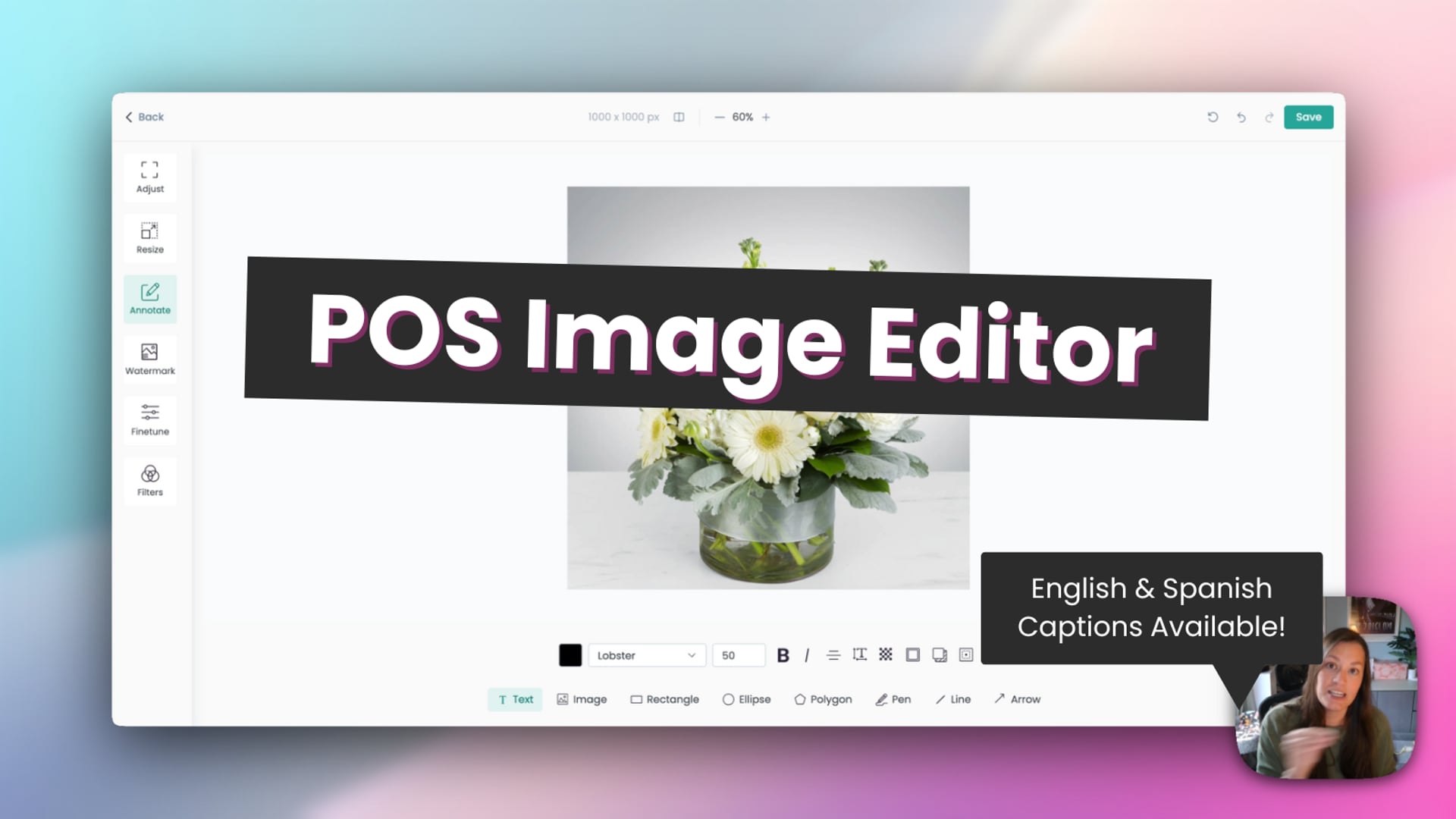 Edit Product Images in Your BloomNation POS
How to Access the Image Editor
- Log in to your BloomNation POS.
- Go to All Products and select the item you want to edit.
- Hover over the product image.
- Click the three-dot menu (⋮) in the upper-right corner of the image.
- Select Edit Image to open the Image Editor.
From this same menu, you can also:
- Replace Image – upload a new photo
- Delete Image – remove the current photo
Note: The “Replace Image” button that used to appear below the image has been removed. All image options are now in the three-dot menu.
What You Can Do with the Image Editor
| Tool | What It Does | Example Uses |
|---|---|---|
| Adjust | Crop, rotate, or flip your image. | Crop to BloomNation’s display ratio or rotate a sideways photo. |
| Resize | Change image dimensions (width and height). | Resize large photos to help your website load faster. |
| Annotate | Add text, shapes, drawings, or overlay another image. | Add a “Designer’s Choice” label or overlay a small logo. |
| Watermark | Add your shop logo or a text watermark. | All an image or text to protect your product images from being reused elsewhere. |
| Fine-tune | Adjust brightness, contrast, color, or blur. | Fix dark or washed-out photos directly in POS. |
| Filters | Apply preset color filters. | Add creative filters similar to Instagram for a polished look. |
Saving Your Edits
- After editing, click Save inside the Image Editor.
- Wait for the loading spinner to finish processing your changes.
- Back on your product page, click Save Product to finalize the update.
Note: If you refresh or leave the page before saving the product, your edits will not be saved.
Tips for Great Product Images
- Use bright, natural lighting whenever possible.
- Center your product and crop closely so the arrangement fills the frame.
- Keep background colors simple to help your flowers stand out.
- Add your shop watermark for extra brand recognition.
- Aim for consistent image sizes across your catalog.
Frequently Asked Questions
| Question | Answer |
|---|---|
| Where did the Replace button go? | The Replace button has moved inside the new three-dot menu (⋮) at the top right of the image. |
| What happened to the trash can icon? | It’s been replaced by the three-dot menu. You’ll now find Edit, Replace, and Delete options there. |
| Can I edit multiple images at once? | Not yet. Edits are made one image at a time. |
| Can I remove the background from my photo? | Not at this time. The editor supports cropping, resizing, filters, and watermarking only. |
| Why didn’t my changes save? | Make sure you saved both in the Image Editor and again on the product page. |
| Can I watermark all my products automatically? | No, watermarks must be added individually. |
| Does this work on mobile? | Yes! The editor is mobile-friendly, but for the best experience, use a desktop. |
| Is this feature available to everyone? | Yes, the Image Editor is available to all BloomNation POS partners at no additional cost. |
Need Help?
If you run into any issues while editing images, our Partner Support team is here to help.
Phone: (210) 405-5050
Email: support@bloomnation.com