
Product Blackout
What is Product Blackout?
Product Blackout (also called Fulfillment Blackout) allows you to prevent specific products from being purchased during certain dates ranges. This is useful when you have supply shortages, seasonal unavailability, or custom scheduling needs. This setting works at the individual product level but can be applied in bulk to multiple products at once.
Key difference: This blocks all purchasing for specific products - pickup and delivery. To disable delivery for ALL products storewide (but keep pickup available), see Storewide Delivery Blackout.
When to use Product Blackout?
Use Product level blackout (Fulfillment blackout) features when you need to:
- Temporarily remove specific products from availability during certain dates
- Block purchasing for seasonal items that are unavailable (e.g., peonies in winter)
- Prevent orders for products you don't have inventory to fulfill during busy periods
- Schedule blackout dates for products that require advance preparation
Customer experience
When customers select a product with a blackout date, the first available delivery date will be the day after the end of the blackout. If they open the calendar, the blackout dates will appear grayed out and cannot be selected for delivery or pickup.
Configure Product Fulfillment Blackout (Single Product)
Use this method when you need to set blackout dates for one specific product.
Steps:
- Go to POS > Catalog > All Products.
- Click on the product name you want to set blackout dates for.
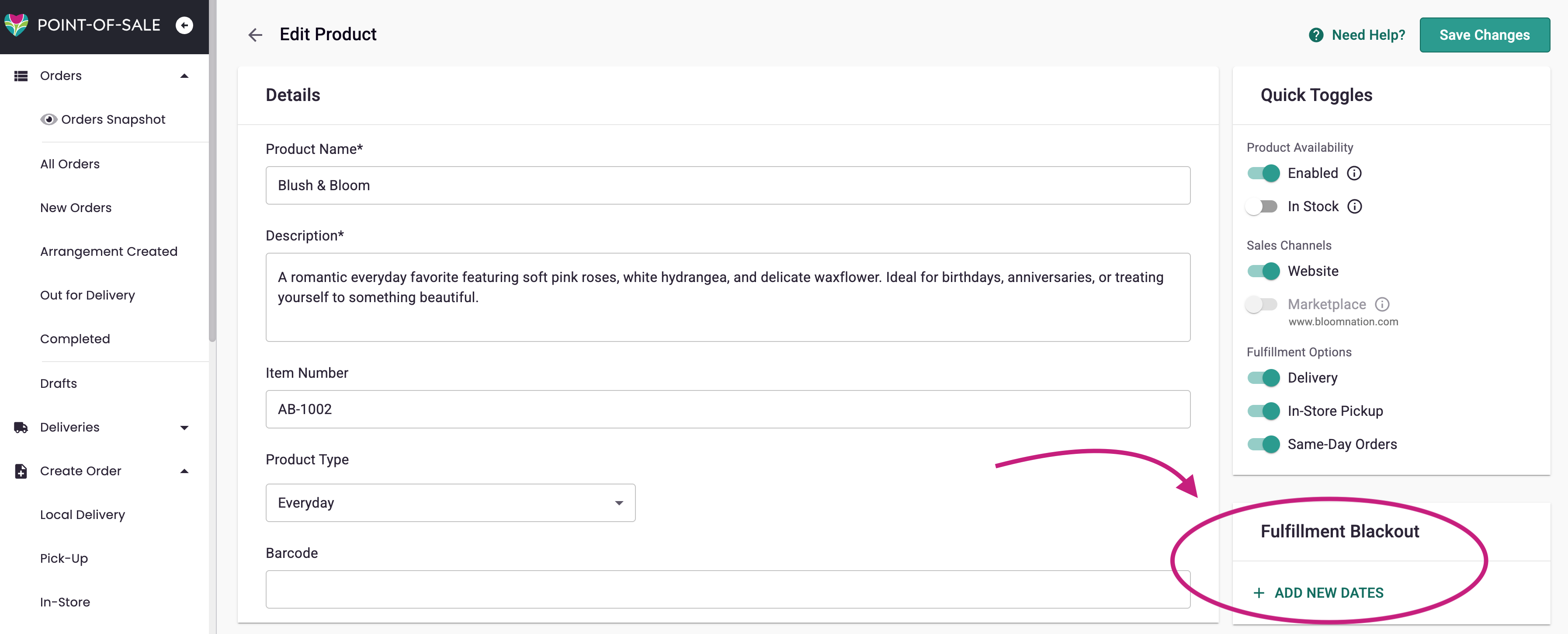
- Scroll to the Fulfillment Blackout section.
- Click "Add New Dates."
- Select your Start Date and End Date from the calendar.
- Click to confirm the date range.
- Save Changes.
Notes:
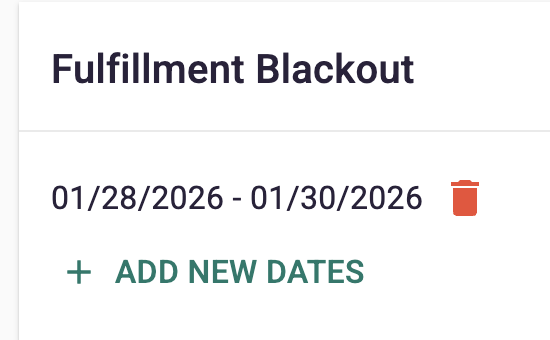
- You can add multiple blackout date ranges for the same product.
- To remove a blackout range, click the trash can icon next to it.
- Changes take effect immediately on your website after saving.
Configure Product Fulfillment Blackout (Bulk Update)
Use this method when you need to apply the same blackout dates to multiple products at once.
Why this matters
Bulk updating is ideal for scheduling blackout dates across an entire category (e.g., "Summer Wedding Collection") or all your premium arrangements during a known staffing shortage.
Steps:
-
Navigate to POS > Catalog > All Products.
-
Use checkboxes to select the products you want to update:
- Check the box at the top of the list to select all products, OR
- Use the search/filter bar to find products by category, then select relevant items.
-
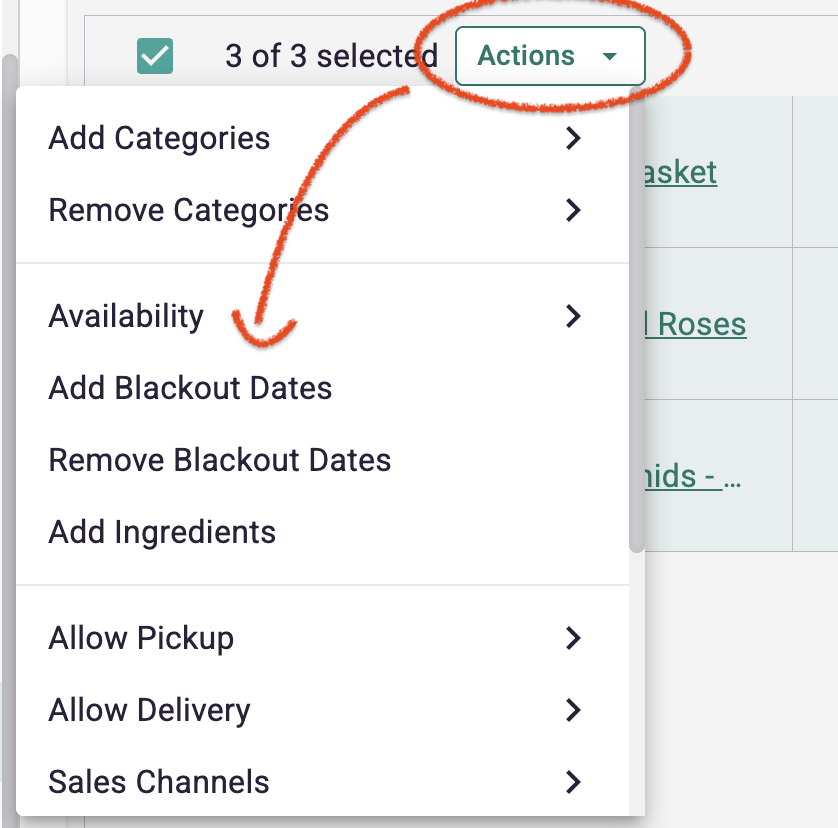
Under the Actions dropdown, select "Add Blackout Dates"
-
Click "Add New Dates" to open the calendar.
-
Choose your Start Date and End Date.
-
Click "Add Dates."
-
Wait for confirmation that your products have been updated (this may take a moment for large selections).
Notes:
- After bulk updating, you can click into individual products to verify or adjust blackout dates.
- Bulk updates append new blackout ranges—they don't replace existing ones.
How it works
Customer experience
- When customers select a product with a blackout date, the first available delivery date will be the day after the end of the blackout.
- Customers cannot select blocked dates for delivery or pickup.
- The product remains visible in your catalog; only specific dates are unavailable.
Video Tutorial
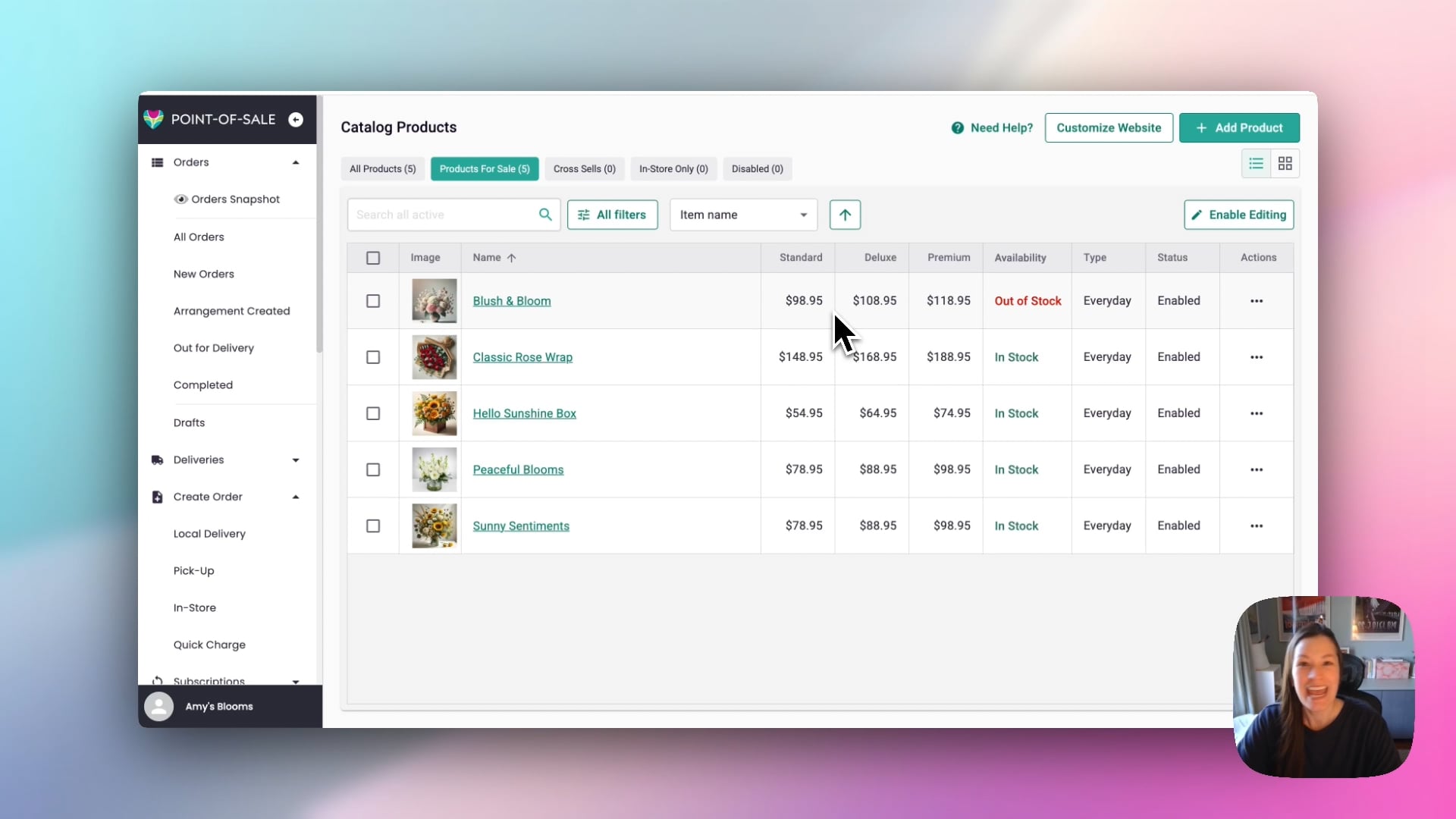 Fulfillment Blackout Dates
Note: The bulk editing navigation process has changed. However this is still a good overview.
FAQs
What's the difference between Product Blackout and Storewide Delivery Blackout?
- Product-Level Fulfillment Blackout (this article): Blocks purchasing for specific products during certain dates. The product cannot be ordered at all during those dates.
- Storewide Delivery Blackout: Disables delivery for ALL products during certain dates, but keeps pickup available. Products remain purchasable for pickup.
Does this affect existing orders already placed?
No. Blackout dates only prevent new orders from being placed for those dates. Existing orders are not affected.
Can customers still see the product on my website during blackout dates?
Yes. The product remains visible in your catalog. Only the specific blackout dates are unavailable when customers try to select a delivery/pickup date.
Can I set different blackout dates for delivery vs. pickup?
No. Product blackout dates apply to both delivery and pickup. The product cannot be purchased for those dates regardless of fulfillment method.
Troubleshooting & tips
- Remember to click Save Changes after adding blackout dates.
- Use bulk update for efficiency when applying the same dates to multiple products.
- Check your existing blackout dates periodically and remove past ranges to keep your settings clean.
- If you want to disable purchasing for ALL products, use Storewide Delivery Blackout instead.
Need more help?
If you're having trouble setting blackout dates or customers are seeing unexpected availability, contact BloomNation Support with the product name and date range details.