
Storewide Delivery Blackout
What is Storewide Delivery Blackout?
Storewide Delivery Blackout allows you to disable delivery for ALL products during certain date ranges while keeping pickup available. This is useful when you have products in stock but lack drivers or delivery capacity to fulfill delivery orders.
Key difference: This disables delivery storewide but keeps products available for pickup. To block purchasing for specific products entirely, see Product Blackout.
When to use Storewide Delivery Blackout
Use this feature when you need to:
- Temporarily disable delivery due to driver shortages
- Handle unexpected delivery capacity issues
- Focus exclusively on pickup orders during busy periods
- Prevent delivery during severe weather or other logistics challenges
Customer experience
During storewide delivery blackout dates, customers can still browse and purchase all products on your website, but delivery will not be offered as a fulfillment option for the dates you provide. Only pickup will be available at checkout.
Note: You must have pickup enabled in your Pickup Settings for customers to complete orders during delivery blackout periods.
Configuring Storewide Delivery Blackout
Steps:
-
Go to Dashboard > Fulfillment > Delivery Settings.
-
Find the "Delivery Disabled Dates" section at the top of the page.
-
Click "Add" to create a new disabled date range.
-
Enter the Start Date and End Date:
- Type dates manually, OR
- Click the calendar icon and select dates.
-
Click "Add" to confirm the date range.
-
Click "Save Changes" at the bottom of the page.
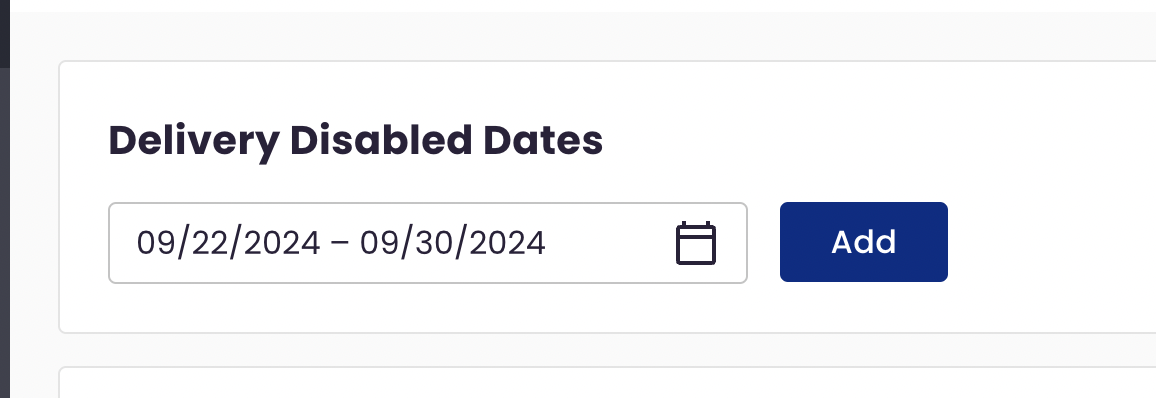
Notes:
- You can add multiple delivery disabled date ranges.
- Changes take effect immediately after saving.
- Ensure pickup is enabled before adding delivery blackout dates.
Edit or Remove Delivery Blackout Dates
To modify an existing date range:
- Navigate to Dashboard > Fulfillment > Delivery Settings.
- Find the date range in the "Delivery Disabled Dates" section.
- Click into the date fields or calendar icon to make changes.
- Save Changes.
To remove a date range:
- Find the date range you want to remove.
- Click the "Remove" button next to those dates.
- Save Changes.
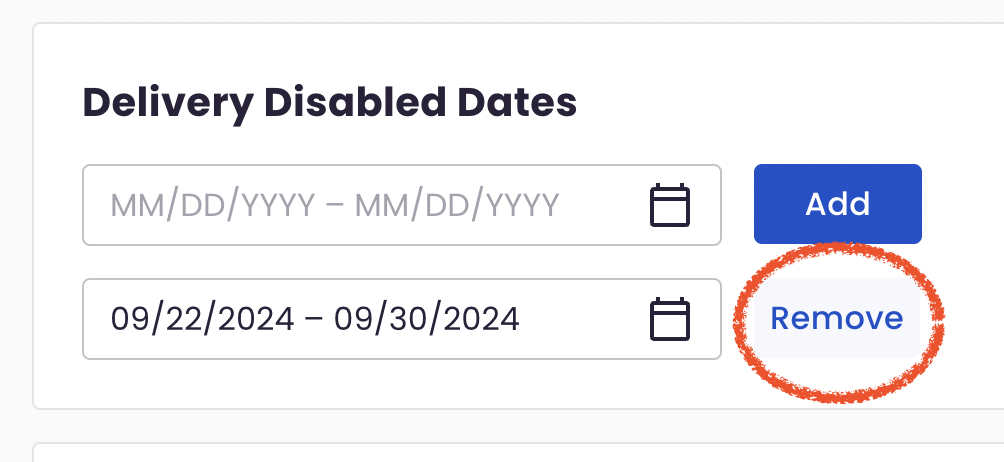
How it works
What happens during blackout dates:
- Delivery is NOT offered as a fulfillment option for any orders.
- Pickup remains available (if enabled in Pickup Settings).
- All products remain visible and purchasable on your website.
- Customers can only select pickup at checkout.
What's NOT affected:
- Existing orders already placed for delivery on those dates are NOT changed.
- Product availability—all products remain visible and orderable.
- Pickup orders—customers can still complete pickup orders normally.
FAQs
Will this affect existing orders that were placed for these delivery dates?
NO – this feature does not affect or change the status / fulfillment method of existing orders you have for delivery.
This feature ensures that any future orders placed during this date range will not have delivery offered as a fulfillment option. These orders will be for pickup only, but you must ensure that you 'Enable Pickup' for your store within your Pickup Settings.
Can I Disable Delivery For Only Some Of My Products With This Feature?
NO – Disable Delivery (Storewide) applies to ALL products available in the “Designs for Sale” section of your catalog.
What If I Want Certain Products To ALWAYS Be Pickup Only?
To set specific products to ALWAYS be pickup only, change the delivery & pickup settings within each product.
What If I Don’t Want Certain Products To Be Purchased AT ALL For Specific Days?
To set specific products as unavailable for purchase for a specific time period, disable fulfillment dates within each specific product (Fulfillment Blackout).
Need more help?
If you have any questions or need help with editing your shop hours or closures, let our Bloom Experts know by submitting a ticket!