
Pickup Only or Delivery Only Products
What is Pickup Only or Delivery Only Products?
Some products may only be suitable for pickup or delivery, but not both. For example, you might have items below your delivery minimum that should be pickup only, or delicate arrangements that require in-person handoff and should be delivery only.
By configuring product fulfillment settings, you can control whether individual products are available for pickup, delivery, or both. (Both is the default)
Configure Product Fulfillment Settings
Why this matters
Controlling fulfillment options by product ensures customers only see appropriate fulfillment methods at checkout, preventing order issues and providing a better shopping experience.
Steps:
-
Go to POS > Catalog Products > All Products and select the product you want to edit.
-
Click Edit (ellipsis) to open the product settings.
-
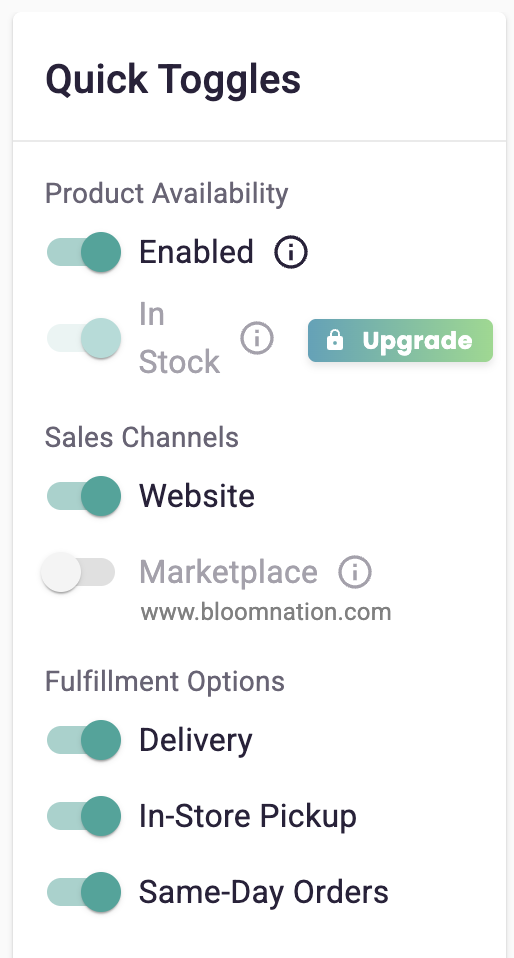
Locate the Fulfillment section under Quick Toggles.
-
Configure the fulfillment options:
- For Pickup Only: Toggle OFF "Delivery" and ensure "In-Store Pickup" is toggled ON.
- For Delivery Only: Toggle OFF "In-Store Pickup" and ensure "Delivery" is toggled ON.
- For Both: Ensure both "Delivery" and "In-Store Pickup" are toggled ON.
-
Save Changes.
How it works
Customer experience
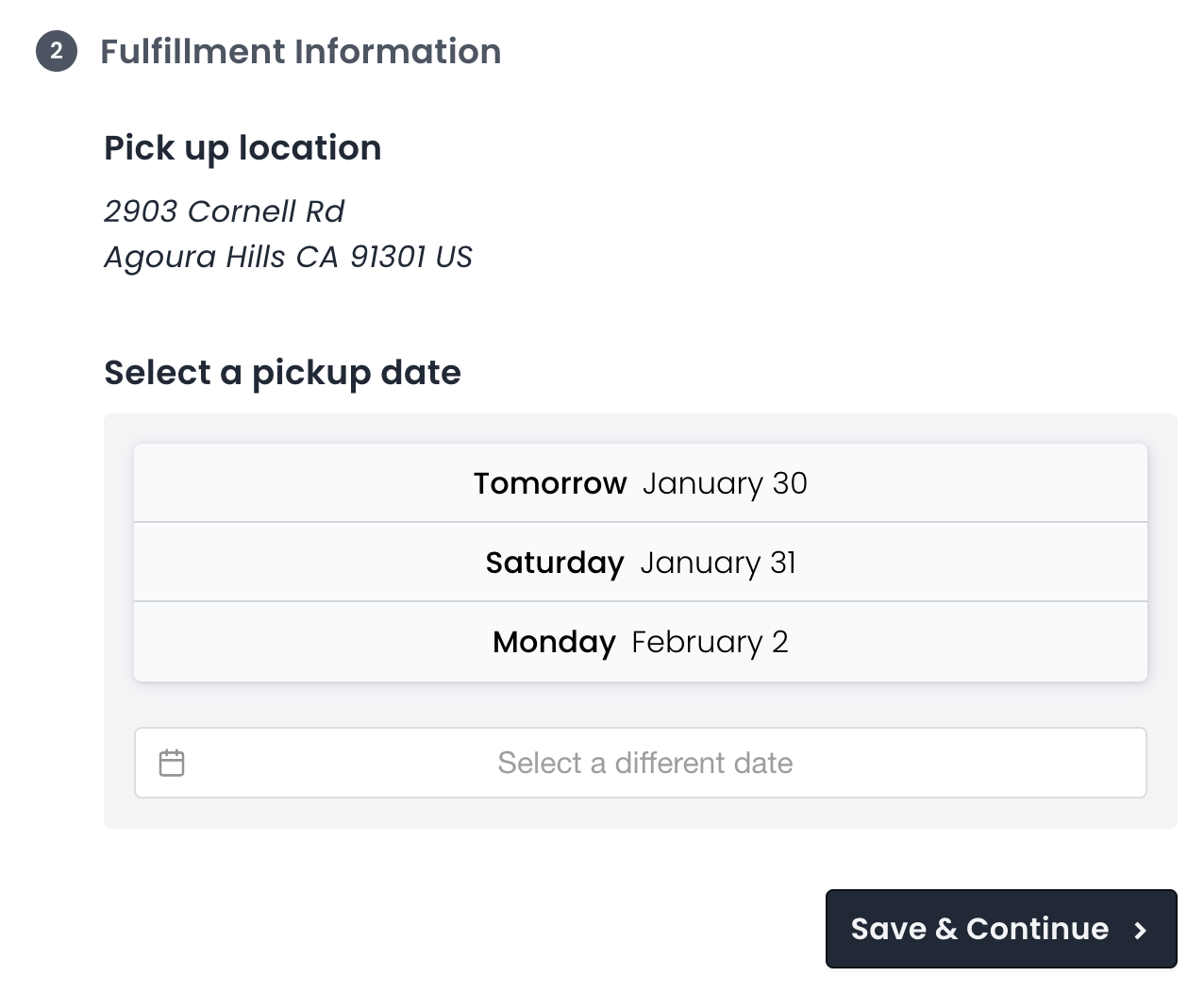
- Pickup Only Products: The product will only show pickup options at checkout. At checkout, customers proceed directly to the pickup checkout flow and provide information for the person picking up the order. They cannot add a delivery address.
- Delivery Only Products: The product will only show delivery options at checkout. Customers must provide a valid delivery address and cannot select in-store pickup.
- Both Options: Customers can choose their preferred fulfillment method at checkout.
Notes:
- These settings work independently of store-wide fulfillment availability.
- Product-level settings override general availability for that specific item.
- Marking a product as Pickup Only can impact the product's placement on the BloomNation Marketplace.
FAQs
Can I use this tool to set a product to be "Delivery Only"?
YES! To set a product to be for delivery only, select “Yes” to "Disable In-Store Pickup" & “No” to "Disable Delivery".
What if I want all my products to be "Pickup Only" for specific dates?
To set your entire catalog to be pickup only for specific dates, use the Storewide: Disable Delivery Dates instructions
What if I don't want certain products to be purchased at all for specific days?
To set specific products to unavailable for purchase for a specific time period, disable delivery dates within each specific product.
Troubleshooting & tips
- If a product shows unexpected fulfillment options, verify both toggles in the product's Quick Toggles > Fulfillment section.
- Check that your store-wide pickup and delivery settings are configured correctly (these provide the baseline capabilities).
- Remember to Save Changes after adjusting product fulfillment settings.
Need more help?
If customers cannot select the expected fulfillment option for a product, contact BloomNation Support with the product name so we can help diagnose the issue.