
Pickup Settings
What are Pickup Settings?
Pickup Settings control how customers can collect orders from your store. From one page you can enable or disable item pickup, allow for same‑day pickup, and create timed pickup windows (complete with window intervals).
Configure Product Pickup
Why this matters:
Stores allow pickup orders by default. If you want edit pickup, same-day pickup or enable Timed Pickup, this is where you'll do it.
Steps:
- Go to Dashboard > Fulfillment > Pickup Settings.
- Edit Pickup, Same-Day Pickup, or Timed Pickup.
Notes:
- When Enable Pickup is off, customers cannot select in‑store pickup at checkout.
- When on, pickup becomes an available fulfillment option for orders that allow it.
Enable Pickup
Use the ‘Enable Pickup’ toggle to turn on or off Pickup for your store

Make sure to click ‘Save Changes’ at the bottom to save all your changes.
Enable Same-Day Pickup
Use the ‘Enable Same-Day Pickup’ to turn on or off Same-Day Pickup for your store

Make sure to click ‘Save Changes’ at the bottom to save all your changes.
Timed Pickup
Use this setting to turn on or off timed pickup and determine the hours that you want timed pickup to be available at your store.
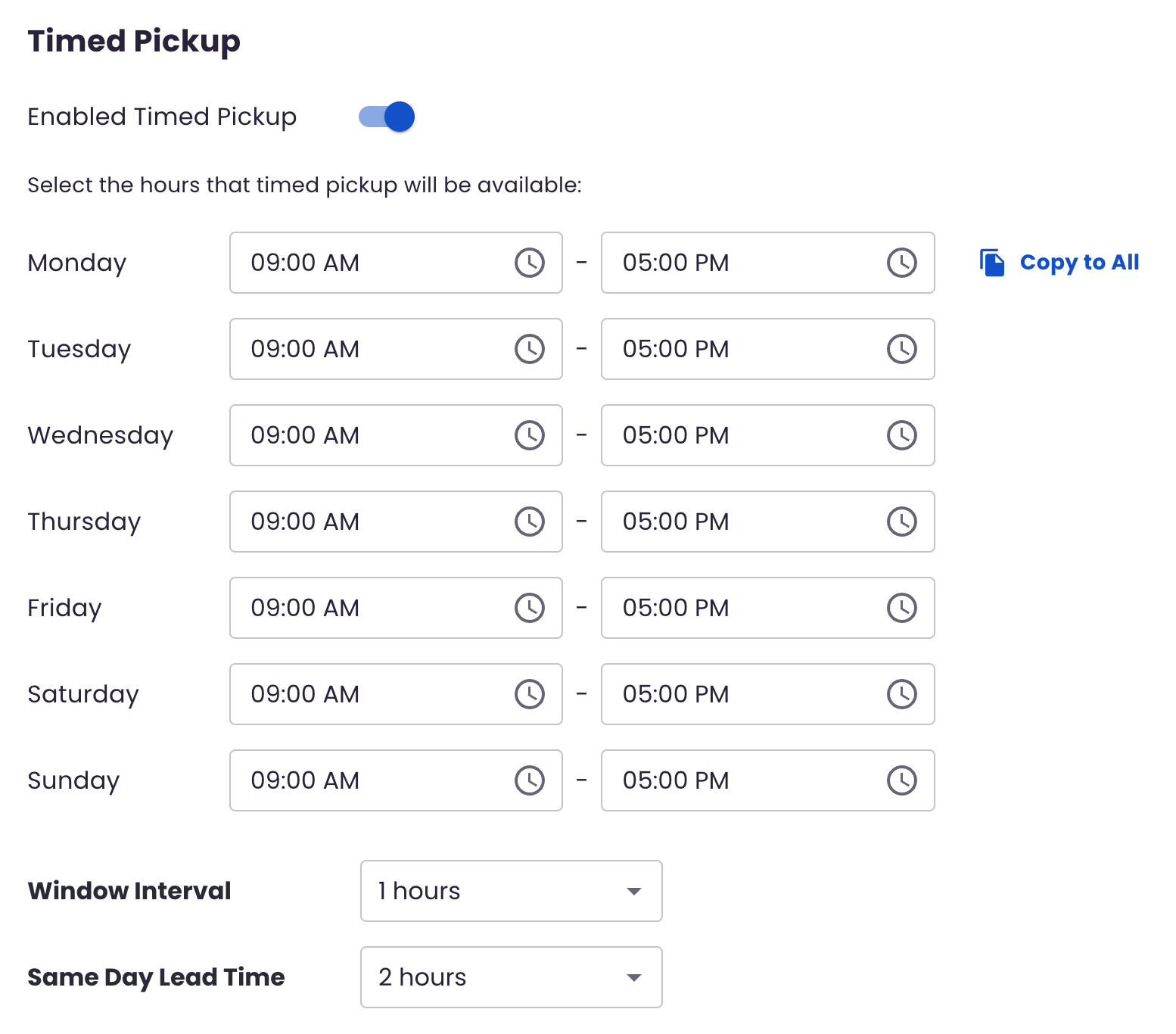
Select the Hours You Will Allow Timed Pickup
- Go through each weekday and select the start and end times you will allow timed pickup
- Click the clock icon to select your hours or type them in manually
- If you have the same hours for each day, once you enter your hours in ‘Monday’ use the ‘Copy to All’ function to quickly add the same hours to all the days
- Make sure to click ‘Save Changes’ at the bottom to save all your changes.
Determine Window Interval
- Decide what time slots will be available for scheduling same-day pickups.
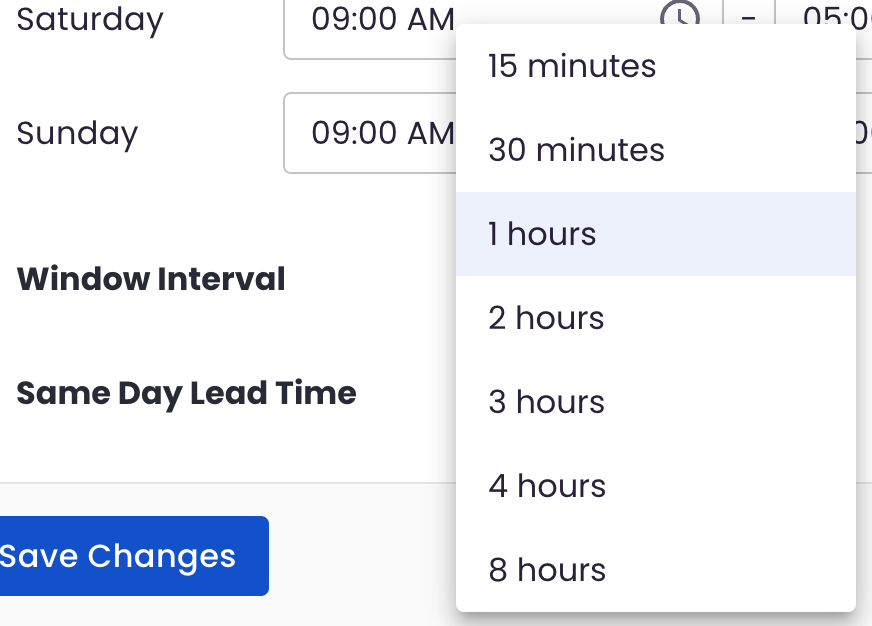
- When selecting a timed pickup window interval, your customers can choose from specific time slots throughout the day. For example, if the interval is set to one hour, your customers might see options like 9:00-10:00 AM, 10:00-11:00 AM, and so on.
- Make sure to click ‘Save Changes’ at the bottom to save all your changes.
Same Day Lead Time
- Decide the minimum amount of time required to prepare an order for pickup.
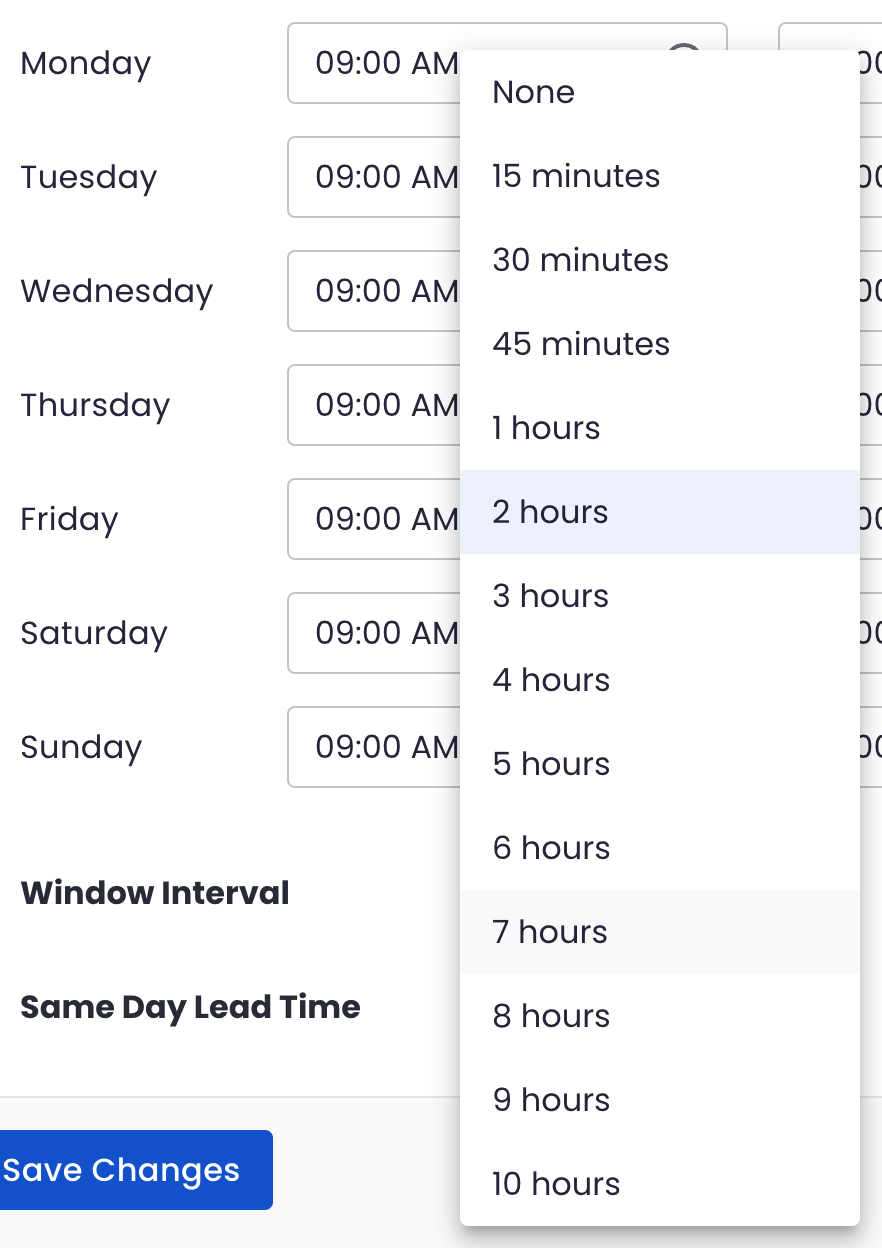
- This is the shortest amount of time you need to get your order ready for same-day service. For example, if the lead time is 2 hours and the customer is placing their order at 10:00 AM, the earliest they can schedule a same-day delivery is 12:00 PM.
- Make sure to click ‘Save Changes’ at the bottom to save all your changes.
FAQs
I turned on pickup but customers still can’t choose it at checkout. What should I check?
Verify Enable Pickup is on, confirm no storewide blackout or scheduling rules are preventing pickup, and check the product’s fulfillment toggles allow pickup.
Can pickup and delivery be offered at the same time?
Yes. Pickup settings control only the pickup option; delivery availability is managed separately. When both are enabled, customers choose their preferred fulfillment method at checkout.
How do I limit pickup capacity on busy days?
Reduce timed pickup hours, increase lead time, or lengthen window intervals to reduce the number of available slots.
Troubleshooting & tips
- Align timed pickup hours with staff schedules and store open hours.
- Use product‑level controls to prevent pickup for items that must always be delivered or vice versa.
- If a product does not show same-day pickup options, confirm: the product’s same-day and pickup toggle.
Need more help?
If pickup options still behave unexpectedly after checking the settings above, contact support and include:
- Description of the issue and expected behavior
- Screenshot of your Pickup Settings page
- Example product name(s) or SKUs affected