
Same-Day Delivery
What is Same Day Delivery?
Same-Day Delivery allows customers to take delivery of products on the "same day" they place the order. For this added flexibility, Florists can add a corresponding fee.
There are 2 ways florists can control same day deliveries: at the shop level and on individual products.
Configure Same-Day Delivery (Shop settings)
Configure by Delivery Zone
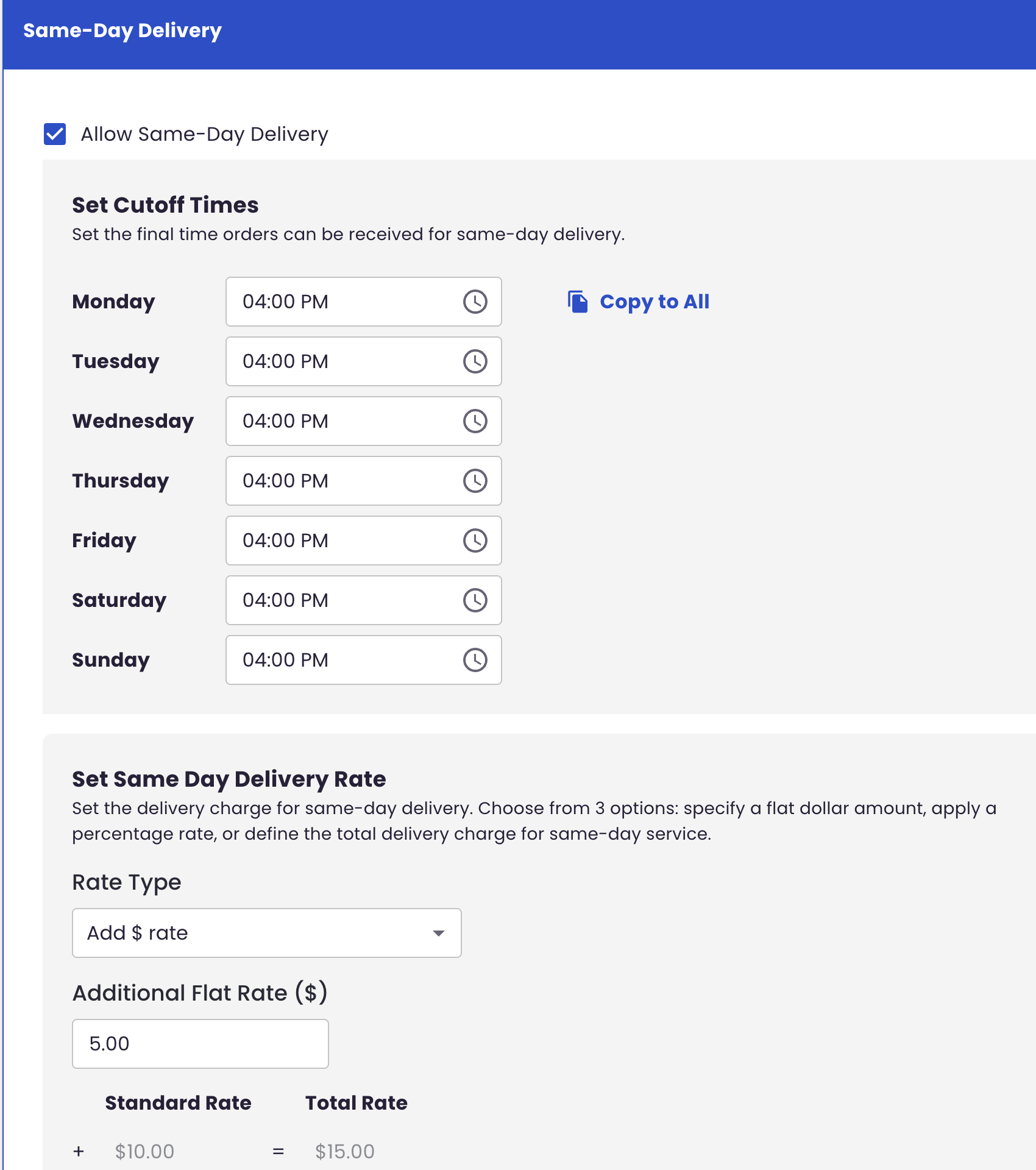
First, we will enable Same-Day Delivery by Delivery Zone. This is required.
Why this matters
Same-day eligibility can vary by delivery area. Enable same-day per zone and set cutoff times or additional same-day fees so customers see accurate options and pricing at checkout.
Steps:
- Dashboard > Fulfillment > Delivery Zones.
- Click Edit on the zone you want to modify.
- Enable the Same-Day Delivery option for that zone.
- Set the Cutoff Time for same-day orders in that zone (the latest time you will accept a same-day request).
- Configure the Same-Day Rate (Add $ amount, Add % of the standard rate, or Total Rate).
- Save Changes.
Configure Lead Time and Start Time
Second, we can change both Lead Time and Start time if we don't like the defaults. This step is optional.
Why this matters
To ensure we have enough time to prepare orders, there are two additional settings we can change.
What to configure:
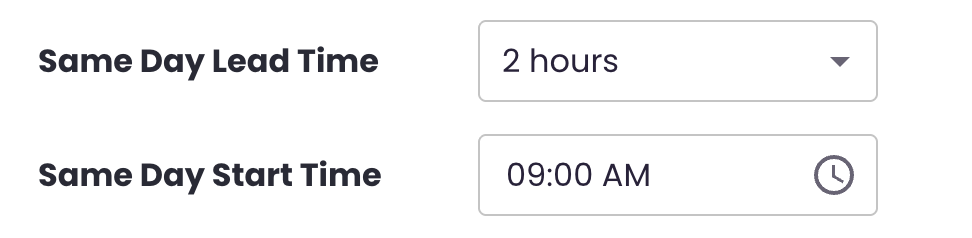
- Same-Day Lead Time: Set the minimum preparation time required before a same-day delivery can be scheduled (default is 2 hours). This ensures you have enough time to prepare orders placed the same day.
- Same-Day Start Time: Determine the earliest clock time customers can select for same-day deliveries (default is 9:00 AM). Orders cannot be scheduled before this time.
Steps:
- Go to Dashboard > Fulfillment > Delivery Settings.
- Change the Same-Day Lead Time (hours).
- Change the Same-Day Start Time.
- Click Save Changes.
Notes:
- These settings apply store-wide and provide the baseline rules for same-day availability.
Configure Same-Day Delivery (individual product)
Why this matters
Some floral arrangements might be extremely difficult to provide Same-Day Delivery. This allows you to disable (or re-enable) Same-Day delivery so you can provide a better shopping experience for your customers.
Steps:
- Go to POS > Catalog Products > All Products and select the product you want to edit.
- Click Edit (ellipsis) to open the product settings.
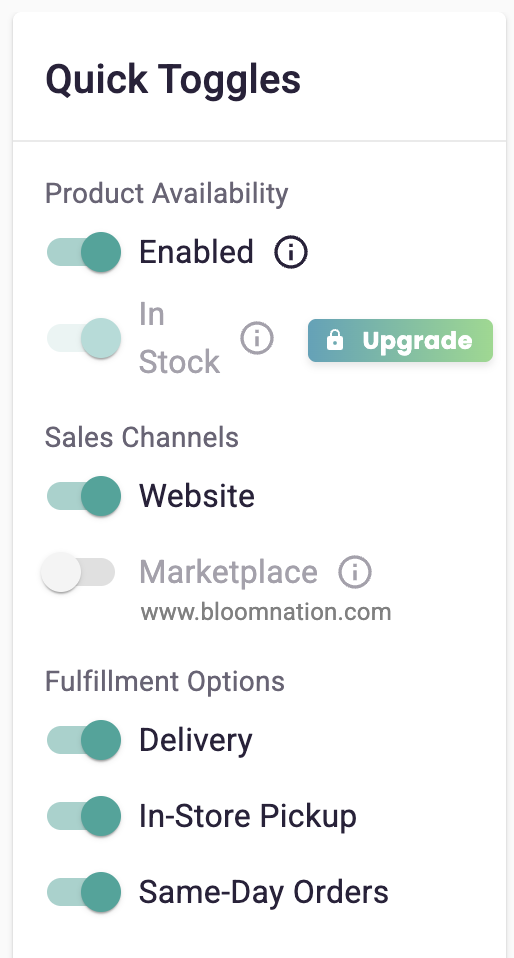
- Locate the Fulfillment section under Quick Toggles.
- Toggle Same-Day Delivery ON to allow same-day fulfillment for this product, or toggle OFF to prevent same-day fulfillment for this product.
- Save Changes.
How it works
A product will only be offered for same-day delivery if all of the following are true:
- Shop Same-Day settings (lead time and start time) allow the requested slot.
- The delivery zone for the destination allows same-day delivery.
- The product’s own Same-Day Delivery toggle is enabled.
Customer experience
When eligible, customers will see same-day delivery time windows at checkout and can select an available slot. The system enforces lead times, start times, and zone cutoffs.
FAQs
What is Same Day Lead Time?
The minimum preparation time (in hours) required between order placement and the earliest same‑day delivery slot (example: 2 hours).
Troubleshooting & tips
- If a product does not show same-day options, confirm: global lead time/start time, the destination zone’s same-day setting, and the product’s same-day toggle.
- Use Delivery Disabled Dates to block same-day deliveries for specific dates (holidays, staff shortages).
- Save Changes after updating settings at any level.
Need more help?
If your settings appear correct but customers still cannot select same-day delivery, contact BloomNation support with example order details and the delivery address so we can help diagnose zone or rule conflicts.