
Timed Delivery
What is Timed Delivery?
Timed Delivery allows customers to select a specific delivery time range at checkout. For this added flexibility, Florists can add a corresponding fee.
Configure Timed Delivery
First, we will configure timed delivery by Delivery Zone.
Why this matters
Different neighborhoods may require different routing and staffing; enabling timed delivery by zone ensures customers only see windows you can reliably service and the correct pricing.
Steps:
- Dashboard > Fulfillment > Delivery Zones.
- Click Edit on the zone you want to modify.
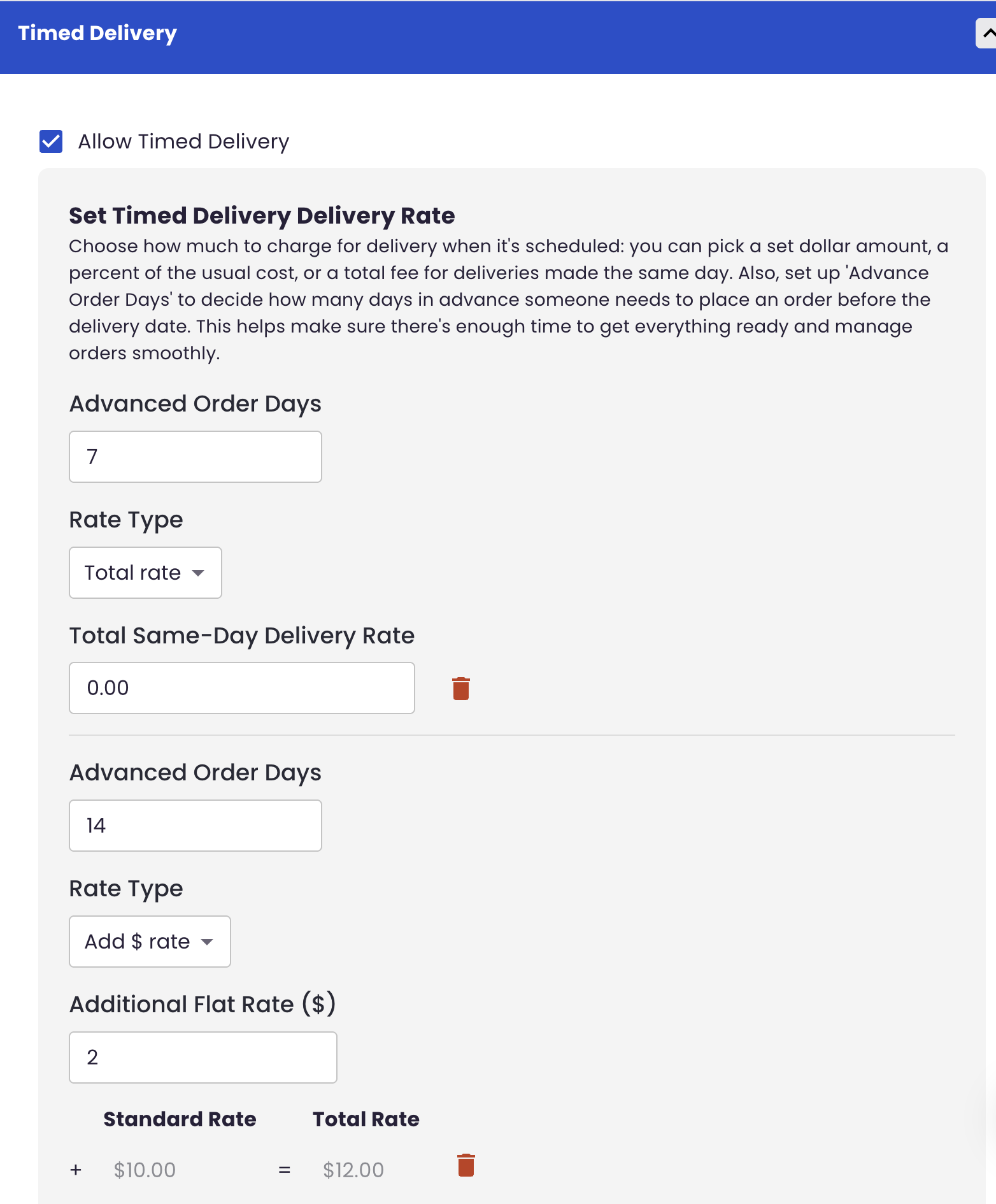
- Enable the Timed Delivery option for that zone.
- Set Advanced Order Days (how far in advance a timed delivery must be placed) if required.
- Configure Timed Delivery rates (Add $ amount, Add % of the standard rate, or set a Total Rate). You can add multiple rates for different advance-order windows ($10 up to 7 days out, $5 for up to 14 days out, etc).
- Save Changes.
Configure Time Range
Second, set the hours and window intervals that timed delivery will be available for. These settings establish the baseline availability customers will see at checkout.
What to configure
- Allowed hours: Define the hours during which timed delivery is available on each weekday.
- Window interval: Choose the time-slot length customers may select (default is 2 hours).
Steps:
- Dashboard > Fulfillment > Delivery Settings.
- Configure allowed hours for each weekday (use Copy to All to replicate a day’s hours).
- Set the window interval
- Save Changes.
Notes:
- Window interval sizes: Common options are 1-hour, 2-hour or 3-hour windows. If the final window exceeds your last allowable delivery time, the system shortens it to the remaining available hours.
- Plan windows conservatively based on staffing and routing to avoid late or missed deliveries.
- Use Delivery Disabled Dates to block timed delivery on holidays or during staffing shortages.
How it Works
Customer experience
- After choosing a product and entering a delivery address, customers will be able to select their delivery date.
- Below the Delivery Date selection, they will see a dropdown for "Add a specific delivery time for an additional"
- Available delivery window intervals will be listed
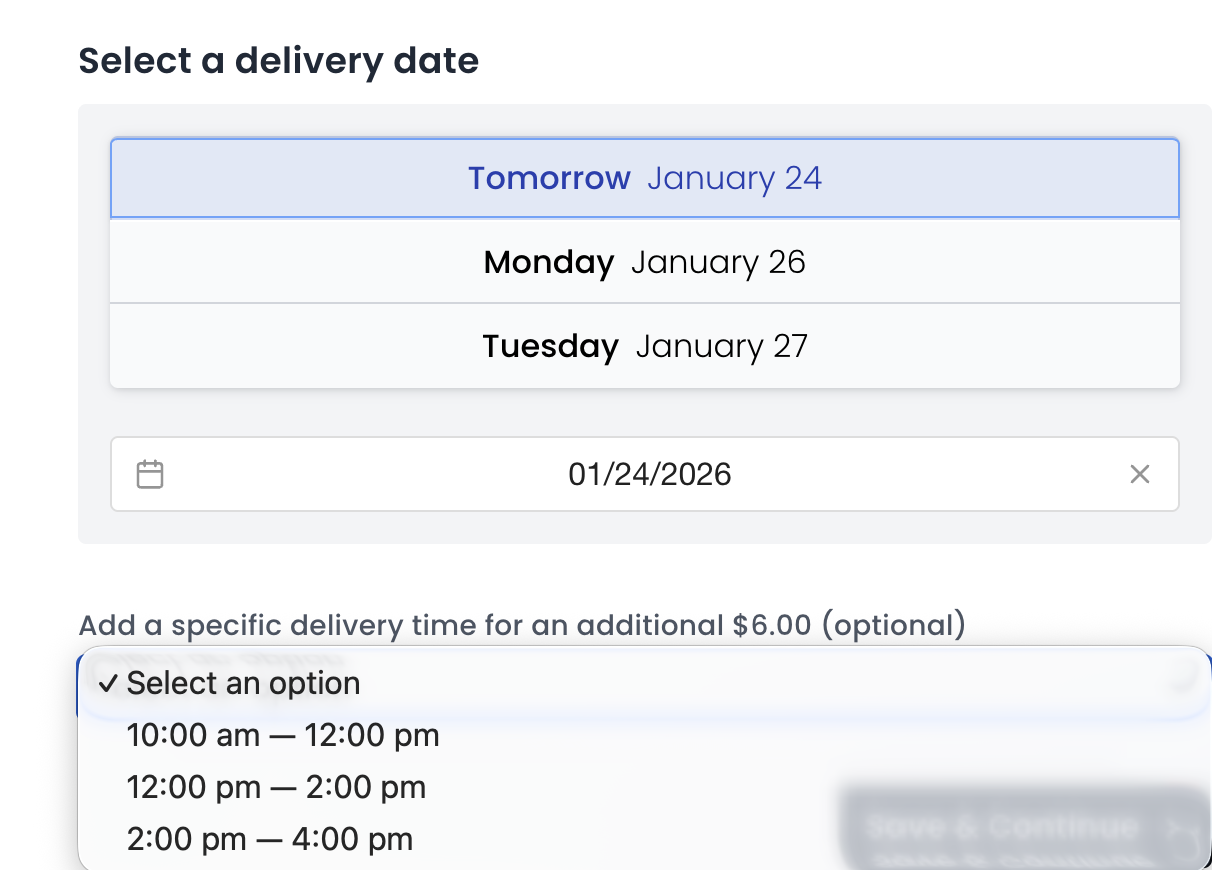
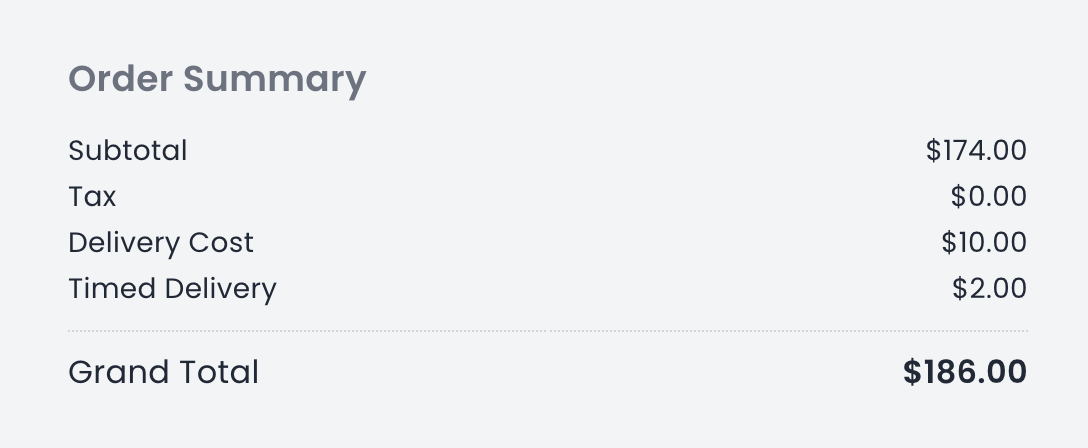
- When a customer selects a window, the configured Timed Delivery charge is added to the order automatically.
FAQs
Why might a Timed Delivery Window be unavailable at checkout?
Common reasons: the window falls outside allowed hours, the shop is closed on that date, or the destination zone does not allow timed delivery.
How are timed delivery windows created?
Based on the window interval in Delivery Settings and allowed hours per weekday. The system generates booking windows within your allowable hours and shortens the final window if needed to fit the day.
Can a florist have an early delivery window between 7 am to 9 am and with a separate fee?
Yes. Assuming the shop is open, Timed Delivery hours could be set to a narrow range for a specific Delivery Zone.
Troubleshooting & tips
If customers cannot select a timed window, verify:
- Timed Delivery is enabled for the destination zone.
- Store Delivery Settings allow the requested hours and window interval.
- Use Test Delivery Address (Delivery Zones) to simulate an address and confirm which zone and timed options apply.
- Save Changes after updating settings.
Need more help?
If your configuration appears correct but customers still don’t see expected time windows, contact BloomNation Support with a example order and delivery address so we can help diagnose zone or rule conflicts.