
Delivery Zones
What are Delivery Zones?
Delivery Zones help florists manage where and when they deliver flowers. By creating delivery zones, you can define specific geographic areas for deliveries, set pricing based on location, and establish exclusions or customizations for each zone.
Table of Contents
How to access Delivery Zones
Steps:
- Log into your Dashboard.
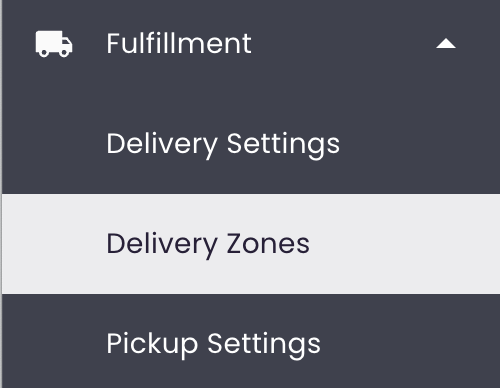
- Click Fulfillment > Delivery Zones.
From here you can create, edit, disable, delete zones, and test delivery addresses.
Create a Delivery Zone
Creating a delivery zone involves choosing the zone type, defining the area, and setting the delivery rate.
Steps:
-
Click Create Zone.
-
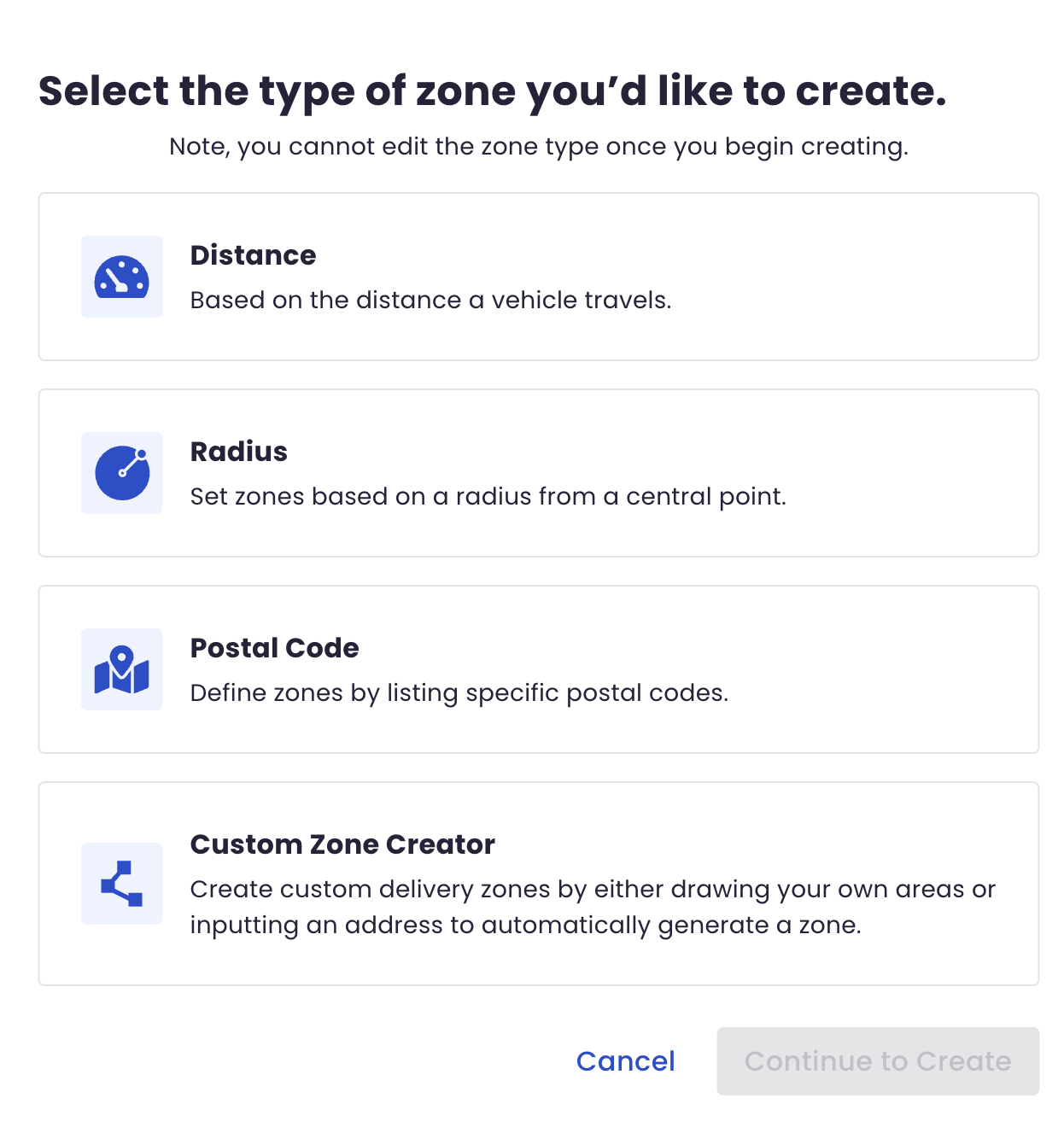
Choose your zone type (this cannot be changed later; you must delete and recreate if needed):
- Distance – Zones based on driving distance from your store.
- Radius – Zones based on a radius from a central point.
- Postal Code – Zones based on postal zip codes. (US florists only)
- Custom Zone Creator – Use shapes or addresses to draw your own zone.
-
The zone is automatically enabled when created.
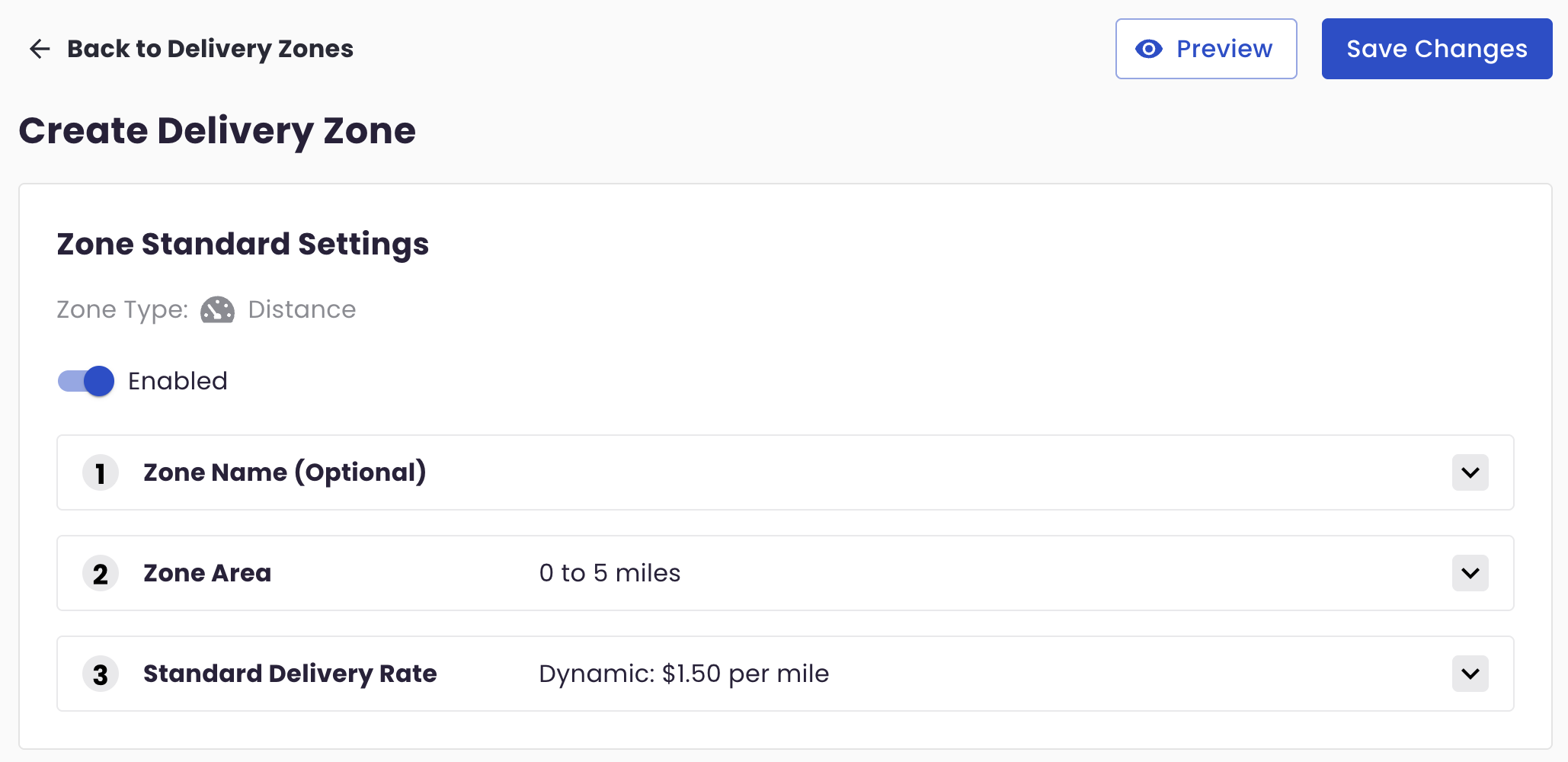
Step 1: Zone Name (optional)
Create a custom name for your delivery zone, or skip this step to use a default name. Click Done to continue.
Step 2: Zone Area
Define the geographic area your zone will cover. Options vary by zone type:
- Distance-Based Zones: Set a range in miles from your store. Any address within that driving distance falls into this zone (example: all deliveries within 5 miles).
- You can choose to avoid highways, ferries, and tolls. If these are the only routes to the destination, the zone will be created using them.
- Radius-Based Zones: Define a circular area with your store at the center. All addresses within that radius (in miles) are included.
- Pro Tip: To avoid gaps, ensure the edges of adjacent zones touch. Example: 0–3 miles, 3–6 miles, 6–9 miles. If the last number of one zone and the first number of the next don't match, there will be unintended gaps in your service area.
-
Postal Code-Based Zones: List specific postal codes that fall into this zone. Any address with one of those postal codes is included. Great for targeting specific neighborhoods.
-
Custom Zones: There are 2 ways to create custom zones:
-
Option 1: Enter a specific address to target. A polygon is automatically generated around that address. Clear the address field and add another to include additional addresses.
-
Option 2: Use shapes to draw your own area:
- Polygon: Click the map to place points and draw your own shape. Connect the last point to the first to complete the shape. The shape is complete when it fills with green. Use the circle points to resize and reshape.
- Square: Click and drag across the map to create a rectangle. Use circle points to resize.
- Circle: Click and drag across the map to create a circle. Use circle points to resize.
-
Click Done to continue.
Step 3: Standard Delivery Rate
Set the delivery fee for this zone. Depending on zone type, you can apply static or dynamic pricing.
-
Static Pricing Method: A fixed delivery fee for the zone. The delivery fee remains the same regardless of distance within the zone.
-
Dynamic Pricing Method: Adjusts the delivery fee based on specific criteria:
- Minimum Charge: Base fee for delivery, regardless of distance (the lowest amount you'll charge).
- Per Mile Charge: Additional fee per mile or kilometer beyond the minimum.
- Delivery Charge Rounding Increment: Determines how the final delivery fee is rounded (example: with $0.50 rounding, $4.75 rounds to $5.00).
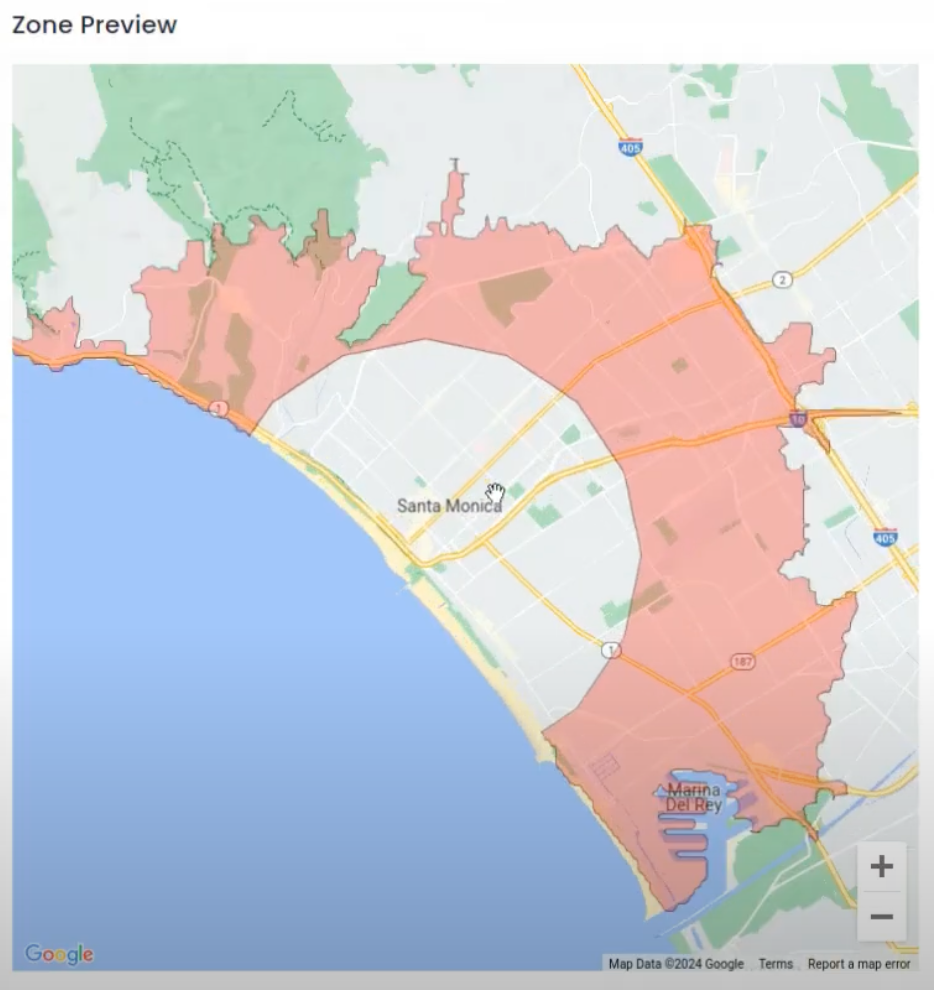
After completing Step 3, you can save your zone or proceed to additional settings. Click Preview to see what your zone looks like on the map.
Save Changes at the top to save all your changes.
Add Additional Settings to Your Delivery Zone
After creating a zone, you can enable Same-Day Delivery, Timed Delivery, and Exclusion Areas.
Same-Day Delivery
Enable same-day delivery for your zone and set cutoff times and rates. For more details, see the article on Same-Day Delivery.
Timed Delivery
Enable timed delivery for your zone and configure advance-order requirements and rates. For more details, see the article on Timed Delivery.
Exclusion Areas
Use exclusion areas to remove specific locations from your delivery zone.
Steps:
-
Click Add an Exclusion.
-
Select the exclusion type:
- Distance – Exclude based on driving distance.
- Radius – Exclude a circular area from a central point.
- Postal Code (US only) – Exclude specific postal codes.
- Custom Zone Creator – Use shapes or addresses to draw exclusions.
-
Define the exclusion area (similar to creating zones):
- Distance-Based Exclusions: Set a range in miles. Addresses within that distance are excluded.
- Radius-Based Exclusions: Define a circular area. Addresses within that radius are excluded.
- Postal Code-Based Exclusions: List specific postal codes to exclude.
- Custom Exclusions: Enter addresses or use shapes (polygon, square, circle) to draw exclusion areas.
-
Remove exclusions at any time by clicking Remove.
-
Save Changes.
Click Preview to see your zone with exclusions on the map.
Edit a Delivery Zone
Steps:
- Click Edit for the desired zone.
- Make your changes.
- Save Changes.
Disable a Delivery Zone
Steps:
- Click Edit for the desired zone.
- Toggle off the Enabled button for that zone.
- Save Changes.
Delete a Delivery Zone
Steps:
- Click Edit for the desired zone.
- Click Delete at the top
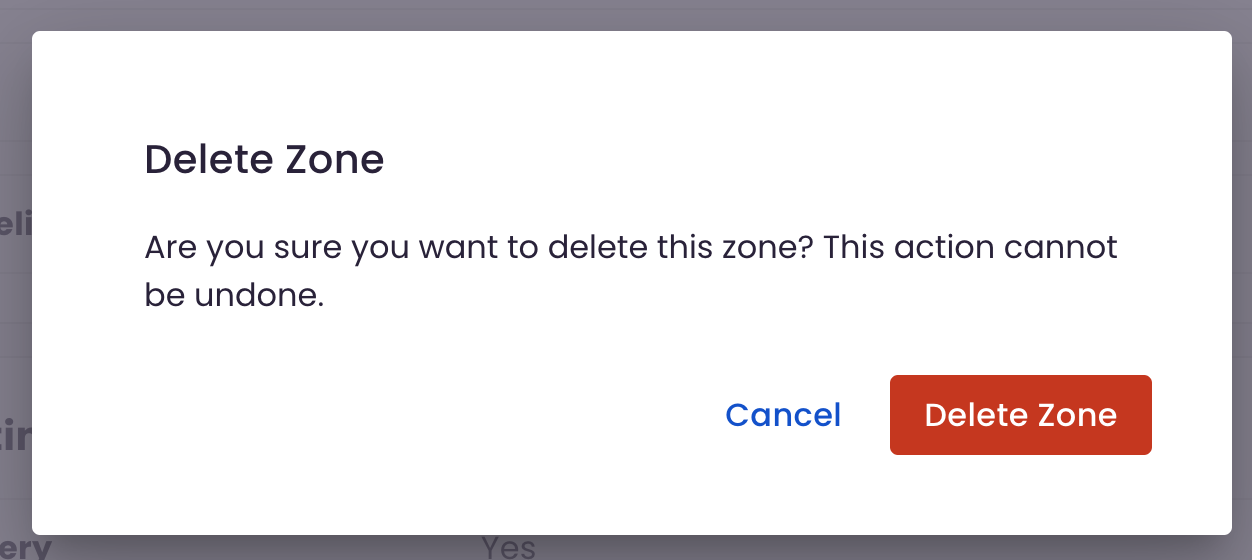
- Confirm by clicking Delete Zone.
- Save Changes.
Note: This action cannot be undone.
Test Delivery Address
Use this tool to test specific addresses and preview delivery fees for a given date. The system will calculate delivery costs for any zone marked as Selected or Invalid, even if the zone is disabled. This helps florists preview delivery fees and troubleshoot zone configurations.
For more details, see the article on Test Delivery Address.
How are Zones Selected?
For more details, see the article on Delivery Zone Selection.
Video Tutorial
 BloomNation Feature Walkthrough: Delivery Zones
Note: This video shows 3 out of the 4 available zone types. It's still a useful tutorial on how to use Delivery Zones.
FAQs
Can I change the zone type after creating it?
No. The zone type cannot be edited after creation. If you need to change the type, you must delete the zone and create a new one.
How do I avoid gaps in my service area for radius-based zones?
Ensure the edges of adjacent zones touch by matching the last number of one zone with the first number of the next (example: 0–3 miles, 3–6 miles, 6–9 miles).
What happens if an address falls into multiple zones?
The system selects the zone with the lowest fee to minimize customer cost. If zones have the same price, type ranking determines priority (Custom > Distance > Radius > Postal Code).
Can I test addresses for zones that are disabled?
Yes. Test Delivery Address will calculate fees for disabled zones and mark them as Invalid, allowing you to preview pricing before enabling.
Troubleshooting & tips
If customers cannot complete checkout due to delivery issues, verify that:
- At least one zone is enabled.
- The delivery address falls within an enabled zone.
- The zone allows same-day or timed delivery if requested.
- Use Test Delivery Address to simulate addresses and confirm which zone applies.
- For radius-based zones, ensure adjacent zones touch to avoid gaps.
- Save Changes after editing any zone settings.
Need more help?
If your zone configuration appears correct but customers still encounter delivery issues, contact BloomNation Support with an example delivery address and date so we can help diagnose zone or rule conflicts.