
Message Center: Get Started
Overview
Message Center is a shared inbox in your BloomNation POS and Dashboard. Email your customers and suppliers right from an order, event or purchase order, and their replies come back into the same conversation, so your whole team can see what was said and pick it up from there.
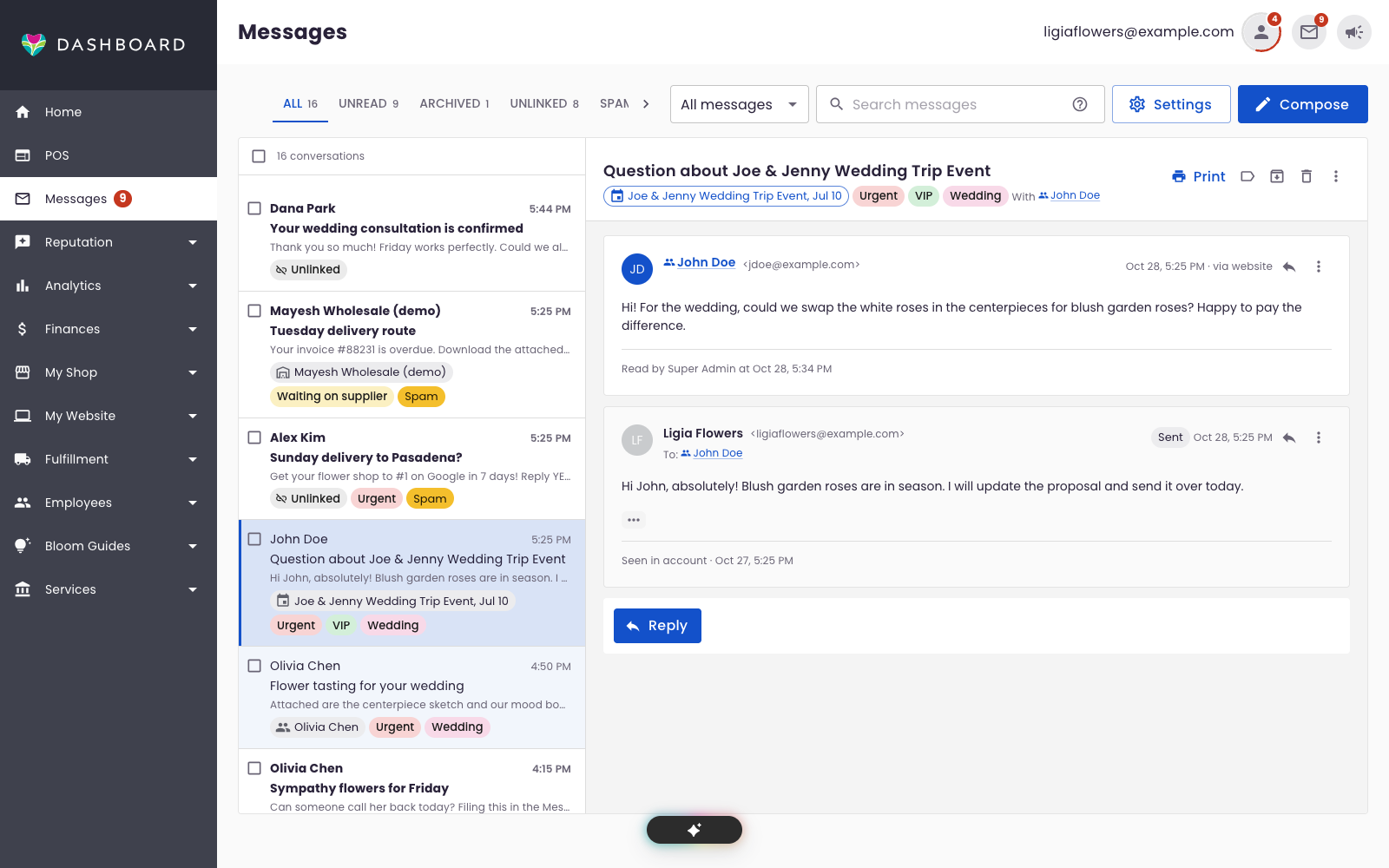
How It Works
- You send from BloomNation. Write to a customer or supplier from the Messages page, or from the record you are working on (an order, an event, a purchase order, a shopping list and more).
- They reply from their own email. Your customer or supplier gets a normal email from your shop. When they hit Reply, the answer comes back to Message Center, into the same conversation. Nobody needs to log in to anything.
- Your team shares one inbox. There's one Message Center for your whole shop, not one per employee or login. Everyone with access sees the same conversations, who wrote what and when, and which order or event each conversation belongs to.
- Customers can also write from your website. Customers who have an account on your shop's website can read and answer your messages from the Messages page in their account. See Message Center: What Customers See on Your Website.
By default, a copy of every customer and supplier reply is also sent to your shop email, so you never miss one. You can turn that off in Message Center settings.
What Message Center is for
Message Center is for one-to-one conversations about something a customer or supplier is already doing with your shop, like an order, an event or a question they asked. It isn't a marketing tool, and you can't use it to send marketing email.
| OK to send | Don't send |
|---|---|
| Order or event updates | Sales, discounts or promotions |
| Replies to customer questions | Newsletters or product announcements |
| Supplier purchase orders | Reorder or holiday reminders |
| Bulk messages or purchased lists |
Not sure? Ask yourself: would this person expect this email because of an order, event or question they have with you right now? If yes, it's OK to send. If it's trying to get them to buy something, it's marketing.
Marketing email is covered by anti-spam laws such as the U.S. CAN-SPAM Act, which require things Message Center doesn't have, like unsubscribe management. Breaking those laws can mean fines for every email sent, and your shop is responsible for the messages it sends.
Getting Started
1. Make sure Message Center is turned on for your shop
If you don't see Messages in your POS menu, contact our support team to have Message Center turned on for your shop.
2. Agree to the Message Center terms
The first time you open Message Center, you'll see the Terms & Conditions: what Message Center is for, what not to send and what you agree to. Everyone on your team agrees for themselves, including owners, before they can send messages.
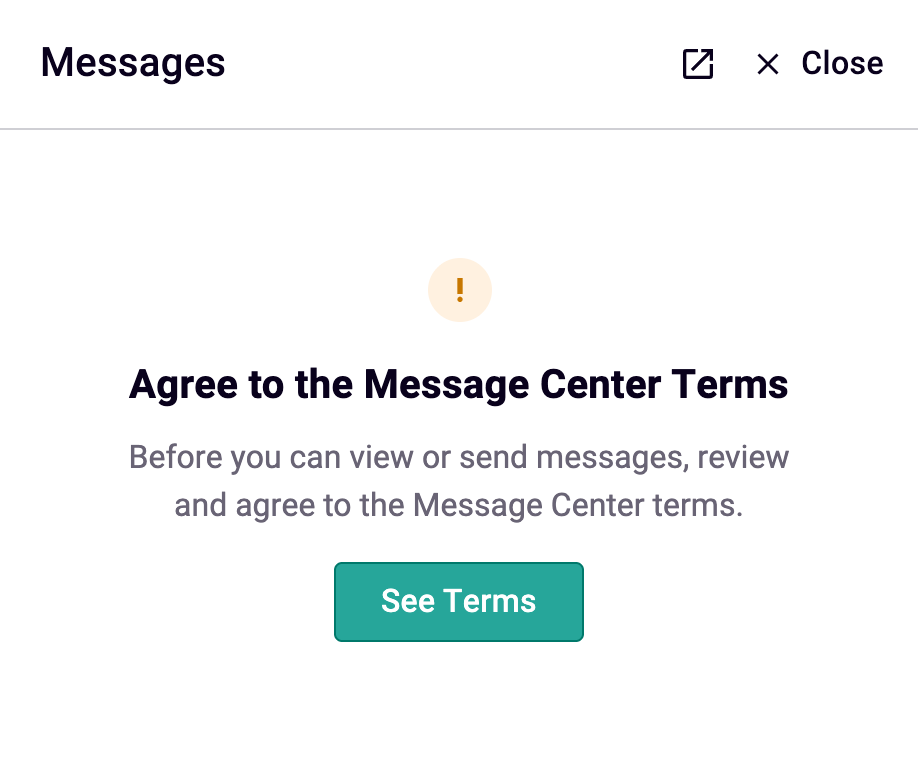
- Go to POS > Messages. If you open a conversation from an order or event first, you'll see Agree to the Message Center Terms instead. Click See Terms.
- Read the terms.
- Check I agree to use Message Center for conversations, not marketing.
- Click Agree and Continue.
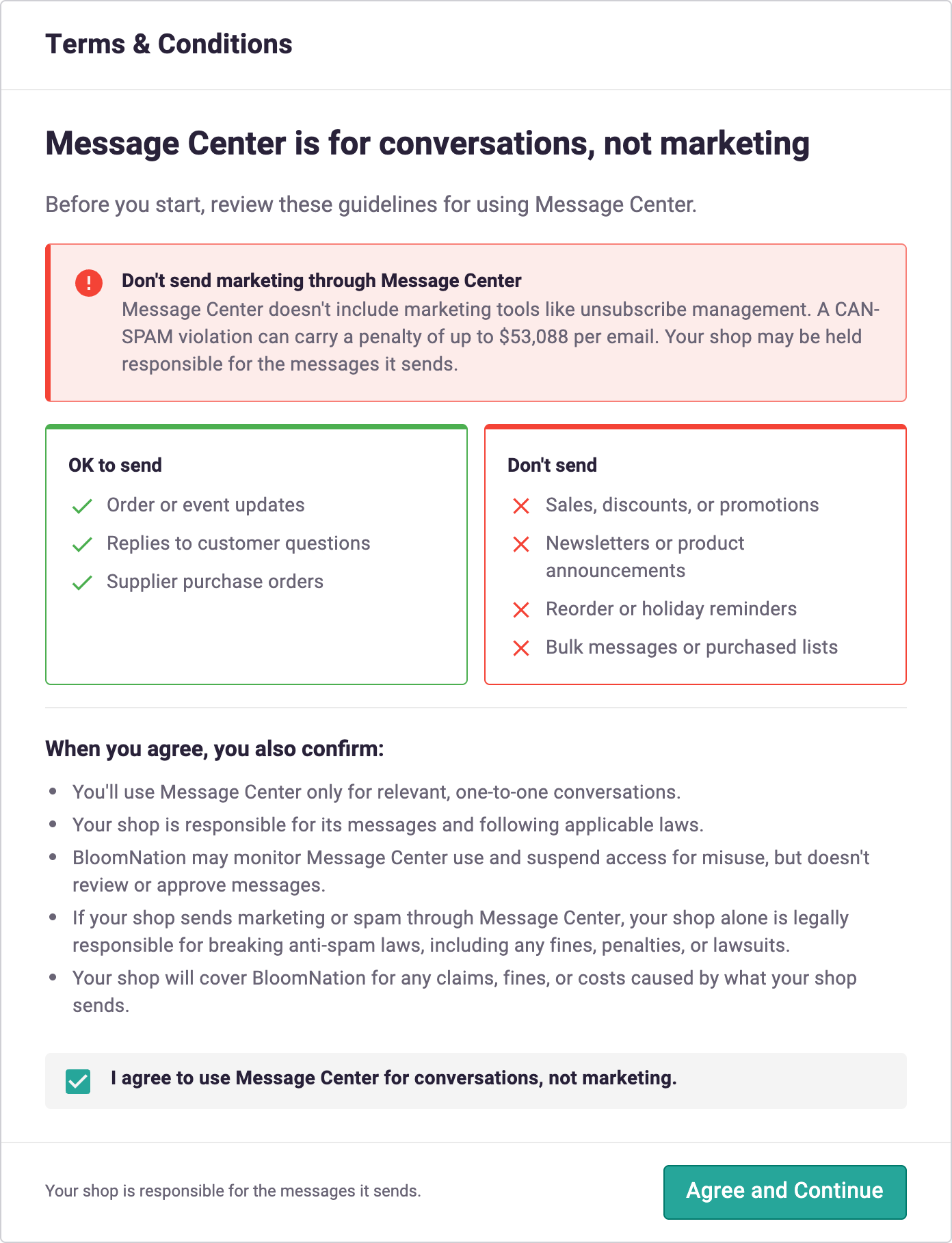
You only need to agree once. If the terms change, you'll be asked to read and agree to the new version.
3. Give your team access
Message Center has its own set of employee permissions, so you decide who can see which conversations. Owners have full access. Set them in Dashboard > Employees. See Message Center: Employee Permissions.
4. Set up your preferences
On the Messages page, click Settings. There you can:
- Create conversation tags
- Choose whether replies are also copied to your shop email (Copy replies to the shop email)
- Choose whether out-of-office replies and bounced-email notices go to Trash (Move automatic replies and bounced-email notices to Trash, on by default). See Automatic replies and delivery failures
- See your Sending address: who emails to your customers come from
- Manage blocked senders. See Message Center: Spam and Blocking Senders
- Turn the pop-up for new messages on or off (each employee chooses this for themselves)
- Manage your email templates
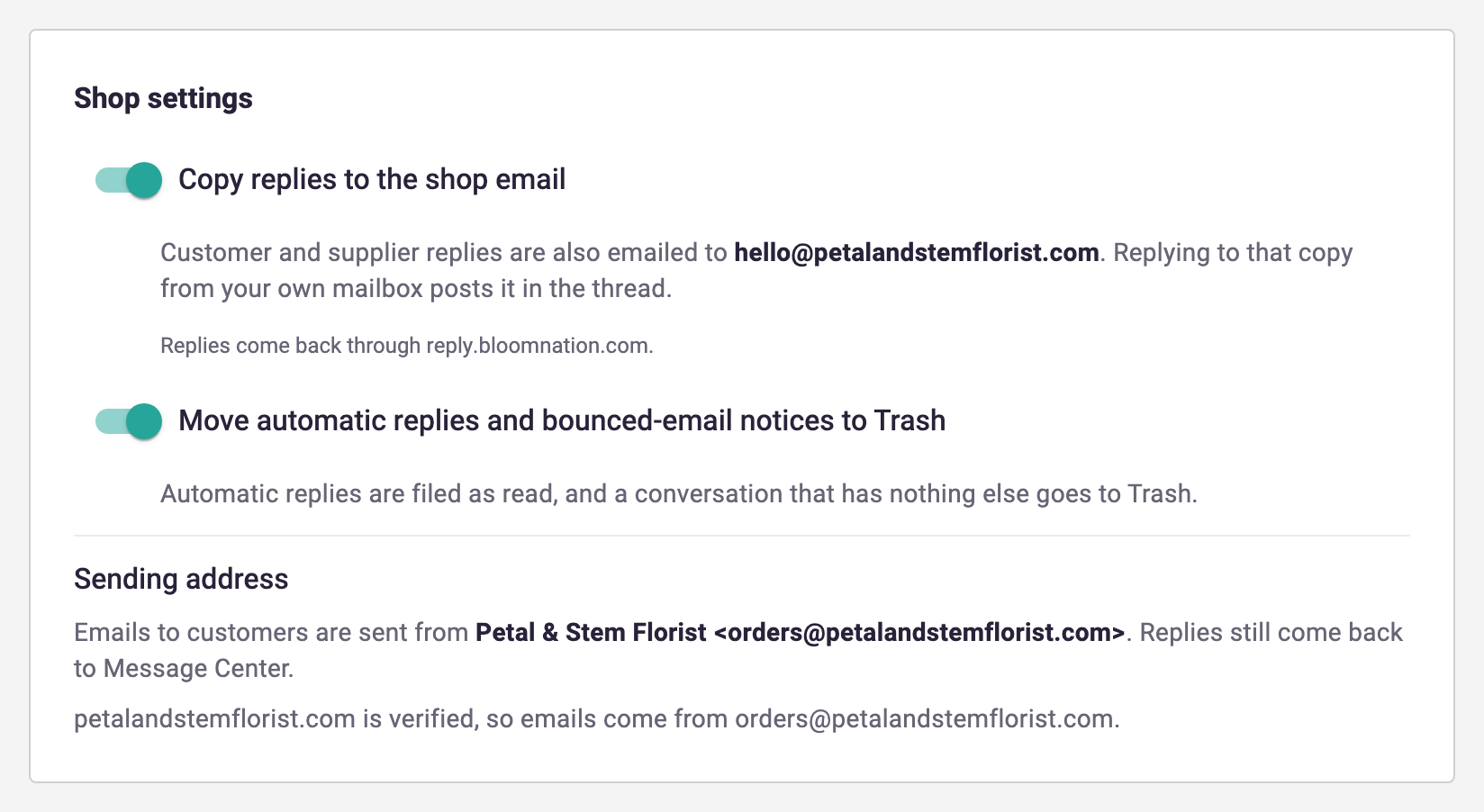
Your email signature is set up in the Dashboard (Messages > Settings > Email signature). It's off until you turn it on. See Message Center: Drafts, Templates and Signatures.
5. Send your first message
Open an order and click Messages, or go to POS > Messages and click Compose. See Message Center: Send from an Order, Event or Purchase Order.
Once you're sending, Message Center: Inbox Basics covers tabs, linking conversations, archive and Trash, and Message Center: Tags, Search and Bulk Actions helps you find conversations as your inbox grows.
Frequently Asked Questions
Does each employee get their own inbox?
No. There's one Message Center for your whole shop, and everyone shares the same inbox and conversations, whether they sign in to the POS or the Dashboard. A few things are just for you: your unsent drafts, your new-message pop-up setting and agreeing to the terms. To limit which conversations an employee can see, see Message Center: Employee Permissions.
Can I use Message Center to send marketing emails?
No. Message Center is only for one-to-one conversations about orders, events, questions and supplier purchases. Don't use it for sales, promotions, newsletters, holiday or reorder reminders, or messages to many customers at once. To reach your customers with marketing, see Email Marketing.
Why do I see "Agree to the Message Center Terms"?
You haven't agreed to the Message Center terms yet, or they've changed since you last agreed. Click See Terms, check the box and click Agree and Continue. Each employee agrees for themselves, so a coworker agreeing doesn't cover you.
Do my customers need an account to reply?
No. They reply to the email like any other email. An account on your website only adds a place to read the conversation online.
Which email address do my messages come from?
Your messages always show your shop name as the sender. The address depends on your shop email:
- Your shop email is on your own website's domain, and BloomNation manages that domain: BloomNation verifies the domain for you, and your emails come from your own address. You can choose a different address on that domain in My Shop: Shop Info.
- Any other shop email (for example, a Gmail address): your emails come from questions@bloomnation.com under your shop name. Contact support to learn how to have emails sent from your own domain.
Either way, replies come back to Message Center. Each conversation has its own reply address, which is how replies find their way back to the right conversation. Please don't hand-type that address or give it out for other conversations.
To see who your emails come from, go to Messages > Settings and look under Sending address.
Can I still reply from my own email program?
If Copy replies to the shop email is on, you receive a copy of each reply at your shop email. Replying to that copy from your shop email still reaches your customer and is saved in the conversation.