
Message Center: Tags, Search and Bulk Actions
As your inbox grows, tags and search help you find the right conversation fast, and bulk actions let you tidy up many conversations at once.
Tags
Tags are colored labels on a conversation, like Wedding or Urgent.
Area tags (automatic)
Every linked conversation automatically carries a tag for what it's linked to, such as Orders, Events or Purchase orders. You can't remove these; they change when the conversation is linked to something else. See Linking a Conversation to an Order, Event or Other Record.
Your own tags
- Open a conversation and click the tag icon at the top.
- Check the tags you want, or choose Create tag… to make a new one and pick its color.
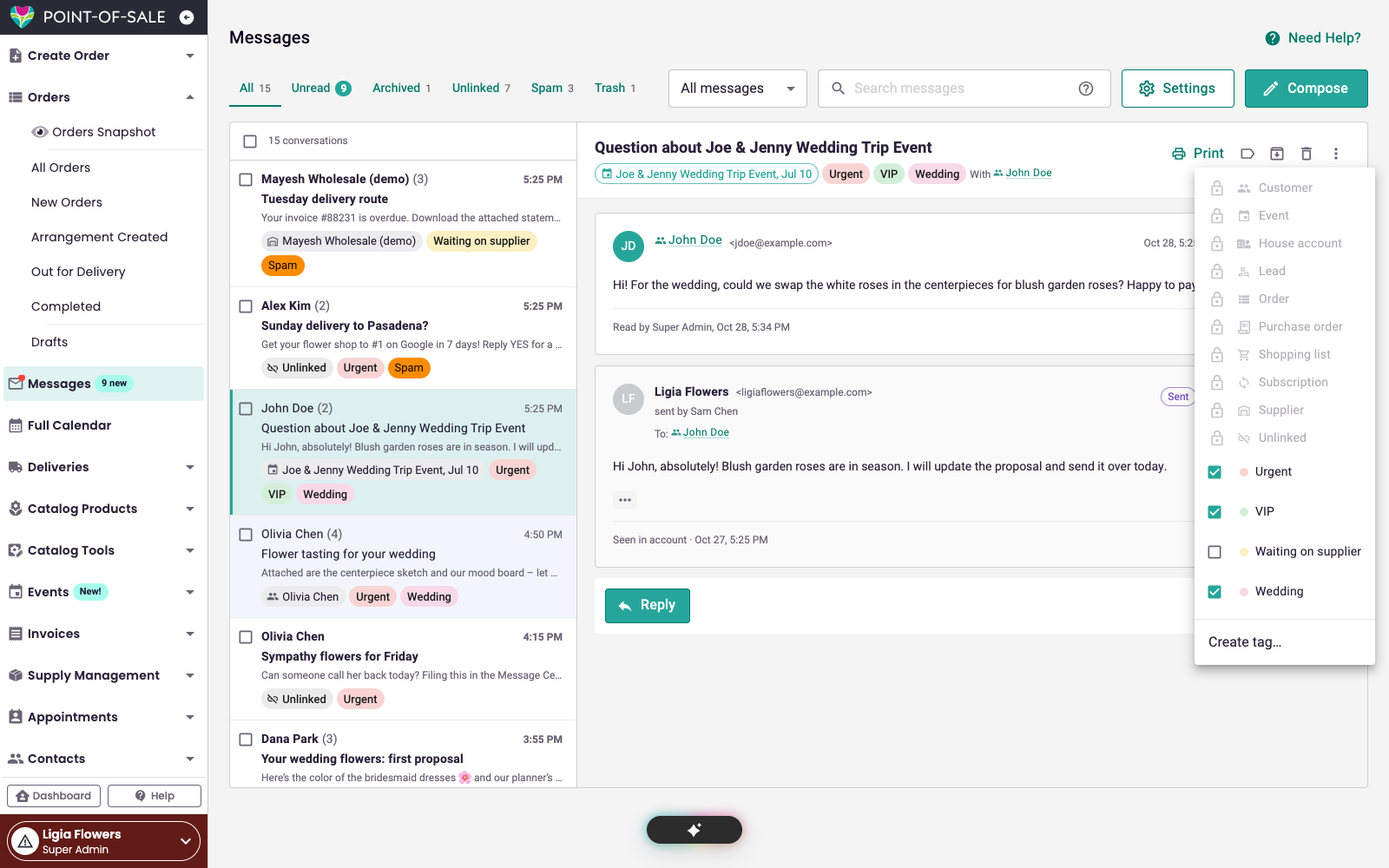
To rename, recolor or delete tags, go to Messages > Settings > Conversation tags and click Manage conversation tags. Creating and changing tags needs the Message Center settings permission; anyone with Message Center access can add or remove existing tags on a conversation. See Message Center: Employee Permissions.
Filtering by tag or area
Open the All messages menu next to the tabs and pick a tag or an area (like Orders or Events) to see only those conversations.
Search
Type in Search messages at the top of the inbox. Search looks through subjects, messages, names, email addresses and attachment names.
Click the ? in the search box for search tips. You can type these shortcuts:
| Type this | To find |
|---|---|
from:anna@example.com | Messages from that person |
to:anna@example.com | Messages sent to that person |
tag:"Wedding" | Conversations with that tag |
has:attachment | Conversations with attachments |
is:unread | Unread conversations |
in:archived | Archived conversations |
after:2026-11-01 or before:2026-11-30 | Conversations from a date range |
"garden roses" | That exact phrase |
You can combine them, for example tag:"Wedding" has:attachment.
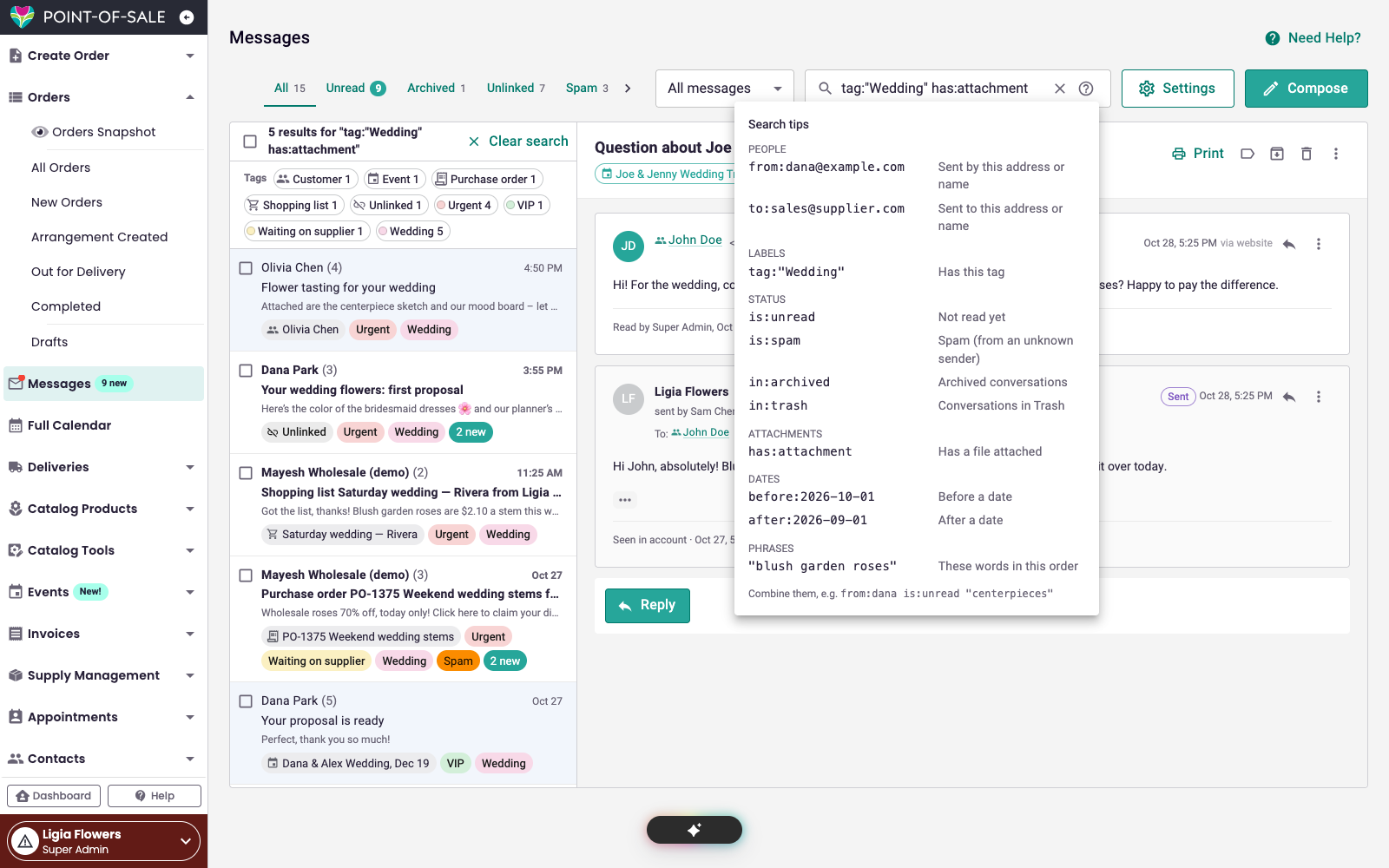
Click Clear search to go back to your inbox.
Bulk Actions
- Check the box next to each conversation you want, or the box at the top of the list to select them all.
- Use the bar that appears above the list:
- Mark read or Mark unread
- Archive
- Add or remove Tags
- Delete (moves to Trash)
Hover over an icon to see what it does.