
Message Center: Inbox Basics
The Messages page is your shop's shared inbox. Every email with your customers and suppliers lands here, grouped into conversations.
Go to POS > Messages. The same inbox is also in your Dashboard under Messages.
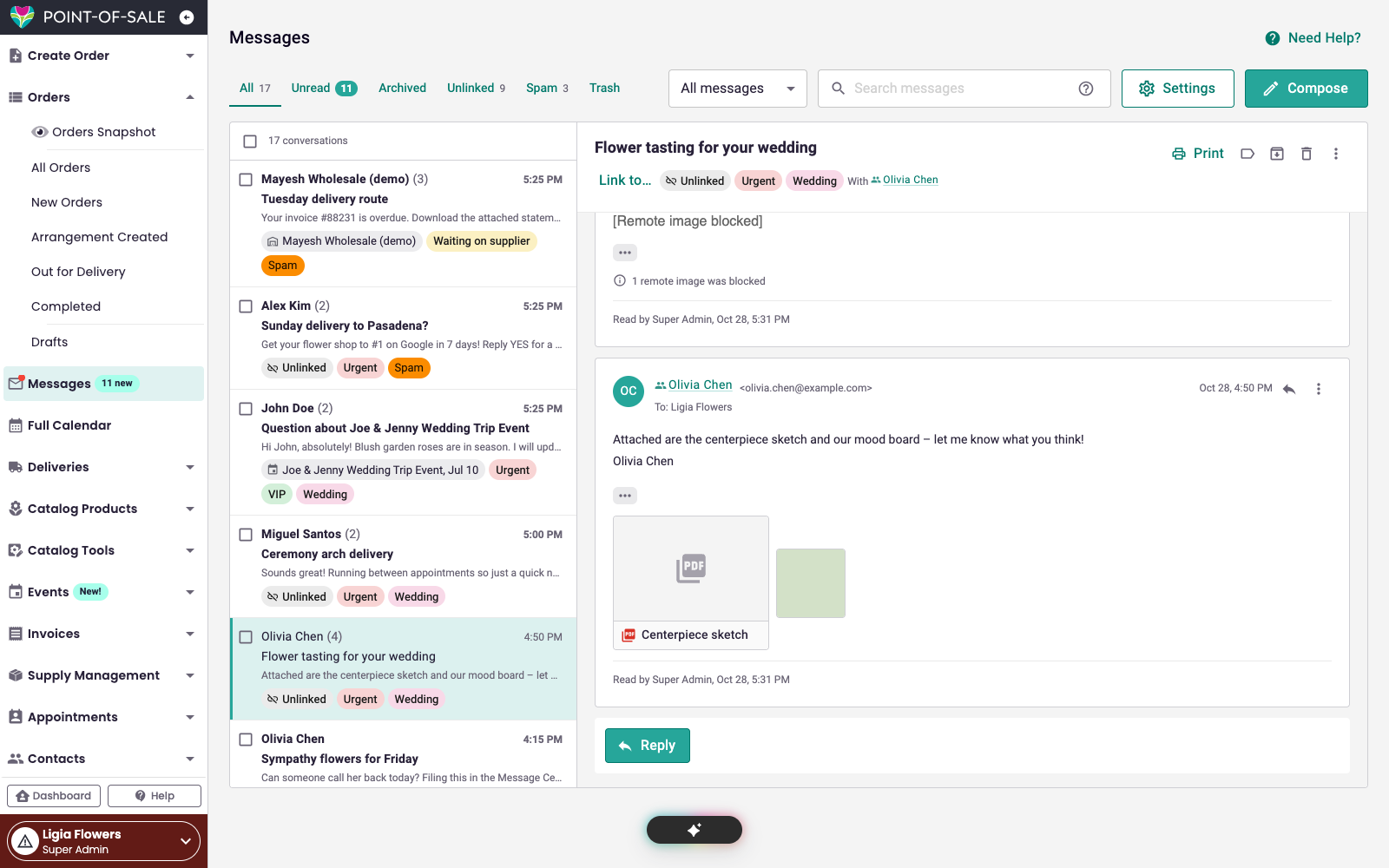
The Inbox at a Glance
- The conversation list shows the newest conversations first. Unread conversations are in bold and show how many new messages they have.
- Click a conversation to read it. Messages are shown oldest to newest, with who sent each one and when.
- Reply at the bottom of the conversation. Your reply goes to everyone in the conversation.
- Compose starts a new conversation.
- The menu count next to Messages shows how many new messages you have.
Tabs
Use the tabs above the list to change what you see:
| Tab | What it shows |
|---|---|
| All | Every open conversation |
| Unread | Conversations with messages nobody has read yet |
| Archived | Conversations you've finished with |
| Unlinked | Conversations that are not linked to an order, event, customer or other record yet |
| Spam | Messages held as possible spam (see Message Center: Spam and Blocking Senders) |
| Trash | Conversations you deleted |
The All messages menu next to the tabs narrows the list to your Drafts, one area (like Orders or Events) or a tag. See Message Center: Tags, Search and Bulk Actions.
Moving between pages
When you have more conversations than fit on one page, use the arrows next to the count (for example, 1–25 of 80) to see the next page.
Read and Unread
Opening a conversation marks it as read for your whole team. To flag a conversation for later, open the conversation menu (⋮) and choose Mark unread.
Linking a Conversation to an Order, Event or Other Record
Linking a conversation tells your team what it is about, and it then also shows up on that record's Messages slide-out. See Message Center: Send from an Order, Event or Purchase Order.
Conversations you start from an order, event or purchase order are linked to it automatically. A new email that we can't match to anything (for example, a customer writing to you for the first time) goes to Unlinked.
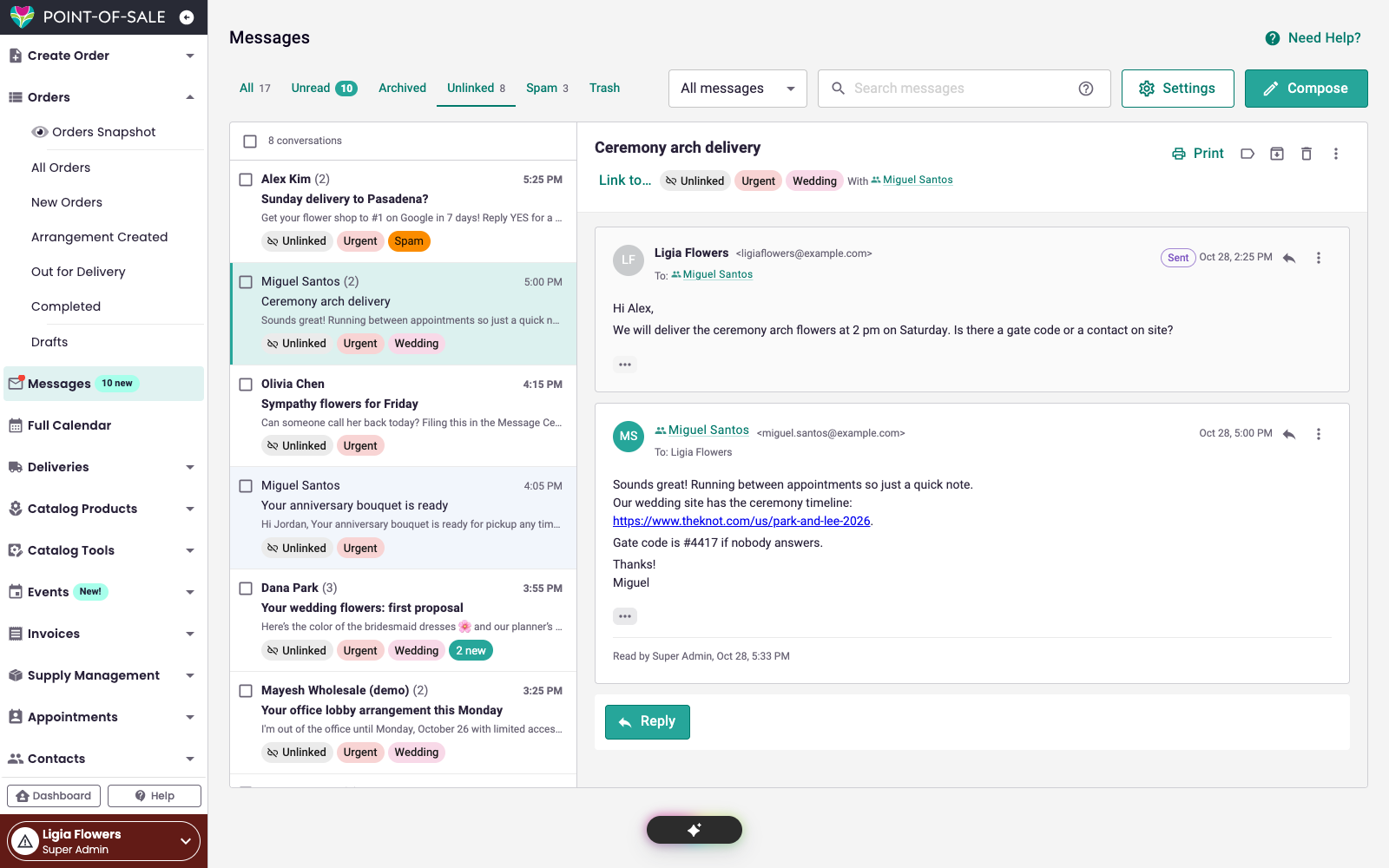
To link a conversation:
- Open the conversation.
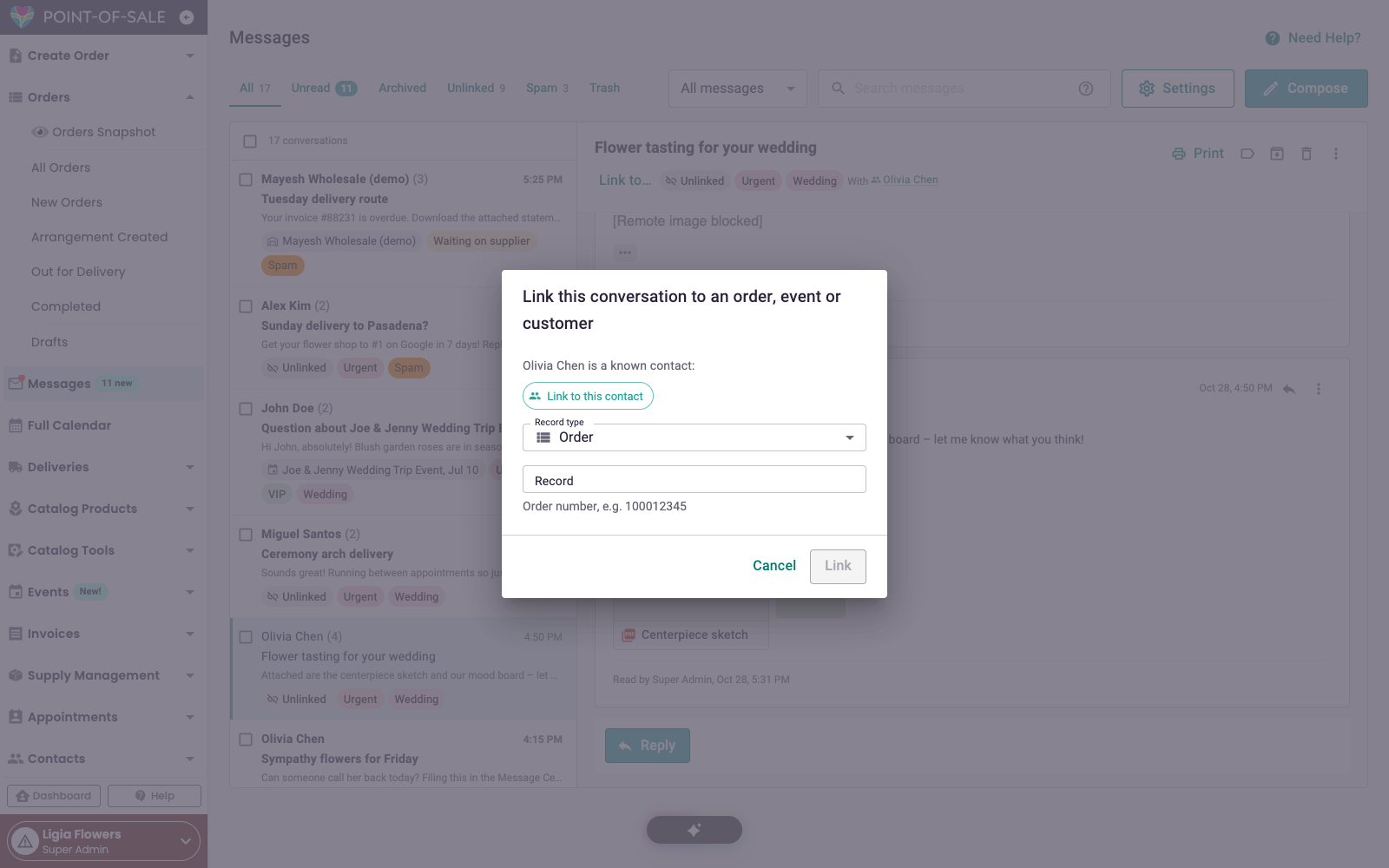
- Click Link to… under the subject.
- Choose the Record type: Order, Event, Purchase order, Shopping list, Customer, Supplier, Lead, Subscription or House account.
- Enter the order number or pick the record, then save.
If we recognize the sender, you'll also see a one-click shortcut to link the conversation to them.
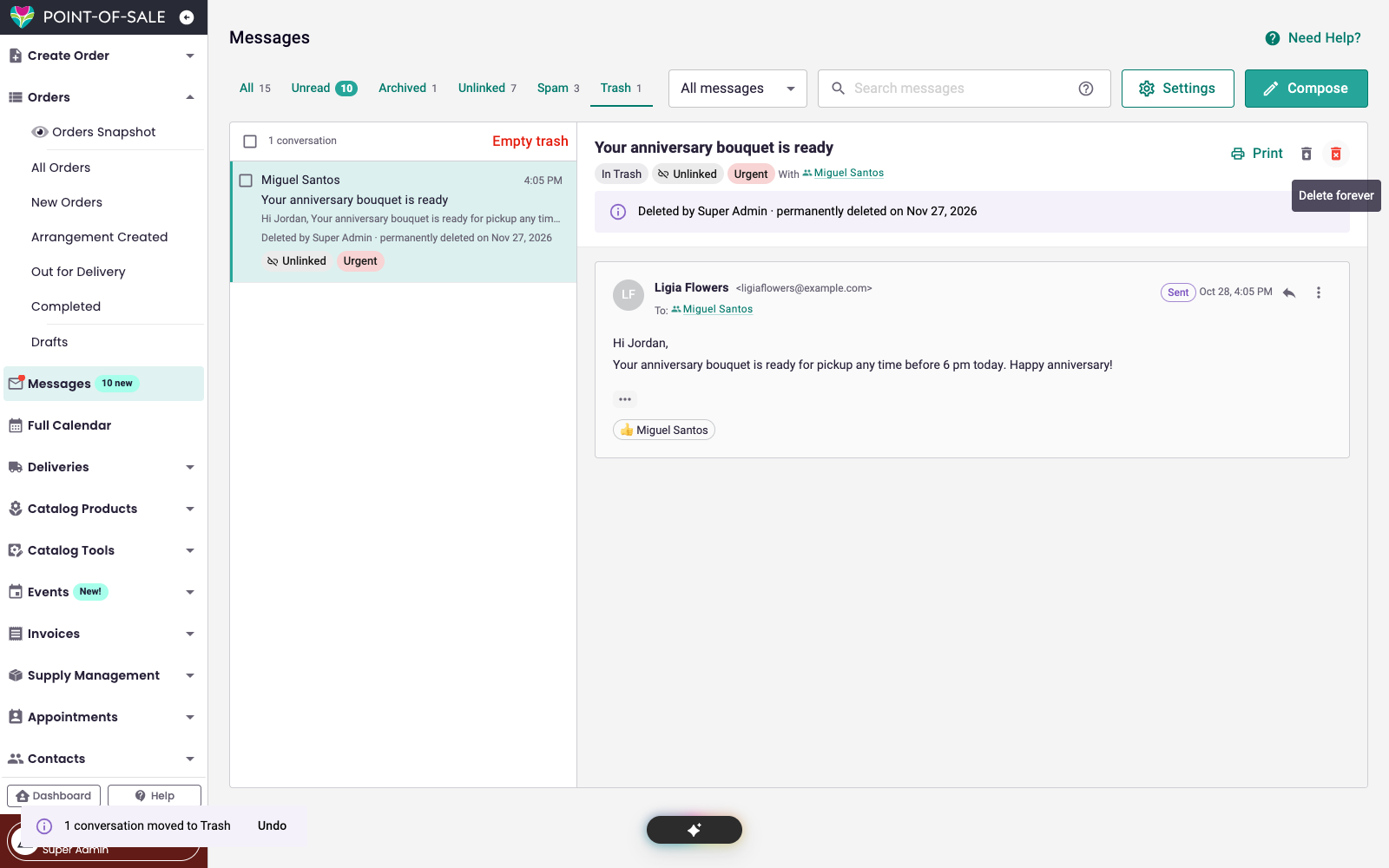
Archive, Trash and Restore
- Archive (the box icon at the top of a conversation) moves a finished conversation out of your inbox. If the customer or supplier writes again, it comes back to your inbox on its own. To bring it back yourself, open it and click Move to inbox.
- Delete (the trash can icon) moves a conversation to Trash. You'll see Undo for a few seconds in case you clicked by mistake.
- Conversations in Trash are deleted for good after 30 days. Each one shows the date it will be removed.
- Restore brings a conversation back from Trash.
- Delete forever removes a conversation from Trash right away, and Empty trash removes everything in it. This can't be undone.
Automatic replies and delivery failures
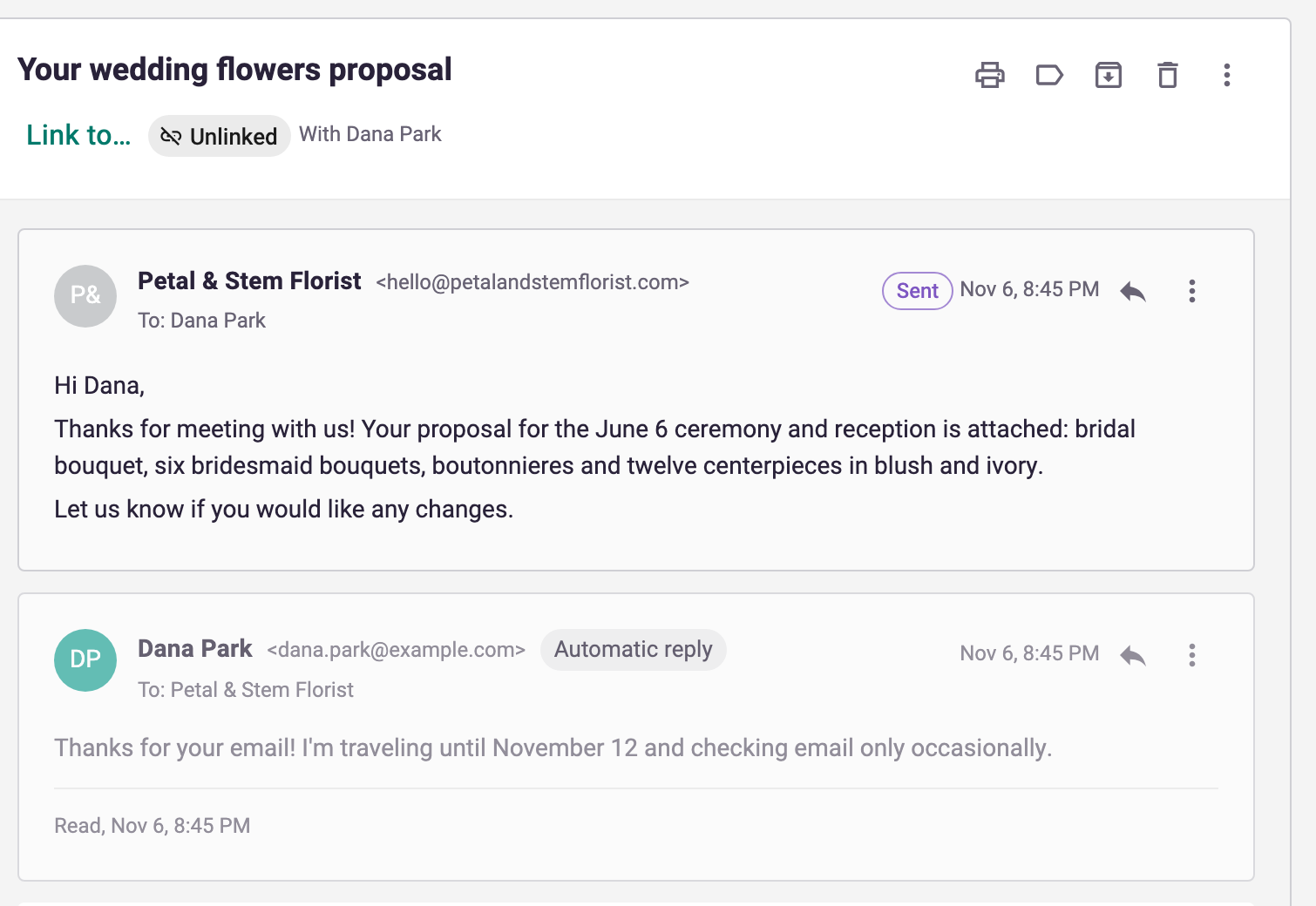
Out-of-office replies, bounced-email notices and no-reply confirmations don't need an answer, so Message Center recognizes them and keeps them out of your way.
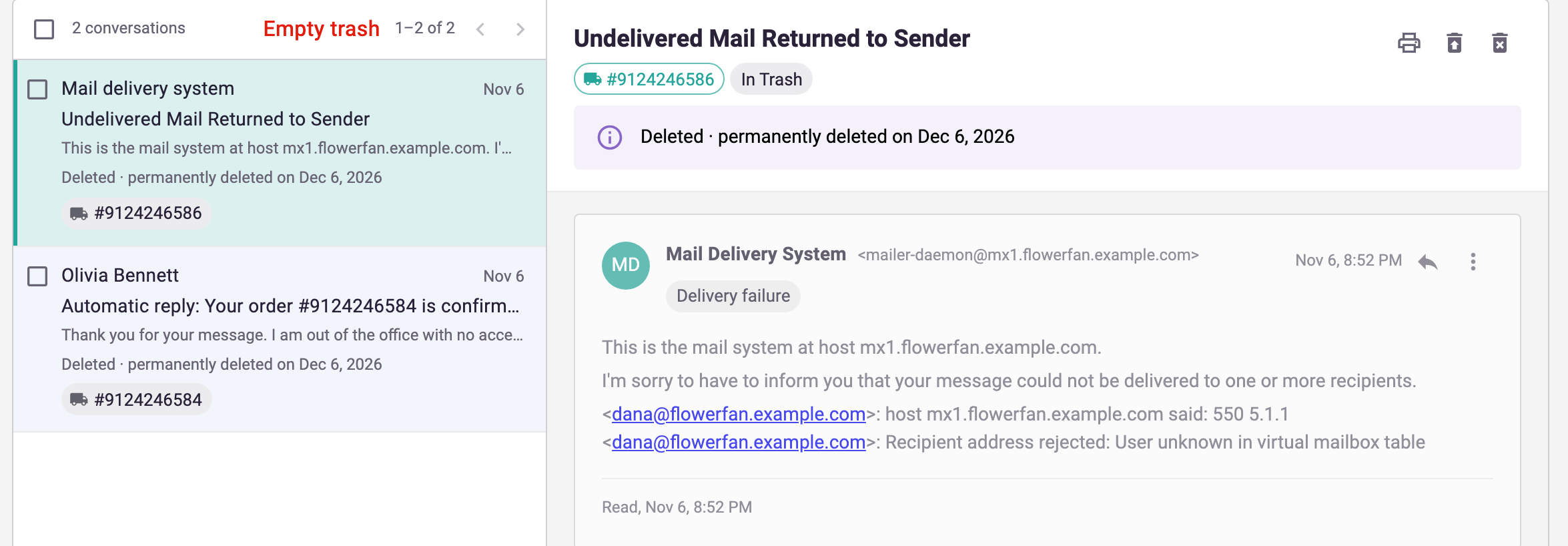
- Each one is marked Automatic reply, or Delivery failure when an email couldn't be delivered.
- They're filed as read. They never show a pop-up and are never sent on to your customer.
- A conversation that has nothing but automatic replies goes to Trash, and is deleted after 30 days like anything else there. If a real reply arrives later, the conversation comes back to your inbox.
- A conversation that only holds a bounced-email notice shows Mail delivery system as the sender. Check the email address you wrote to, then send your message again.
This is on by default. To keep automatic replies in your inbox as unread messages instead:
- On the Messages page, click Settings.
- Under Shop settings, turn off Move automatic replies and bounced-email notices to Trash.
The setting is the same in the POS and the Dashboard, and it applies to your whole shop. Changing it needs the Message Center settings permission. See Message Center: Employee Permissions.
Printing a Conversation
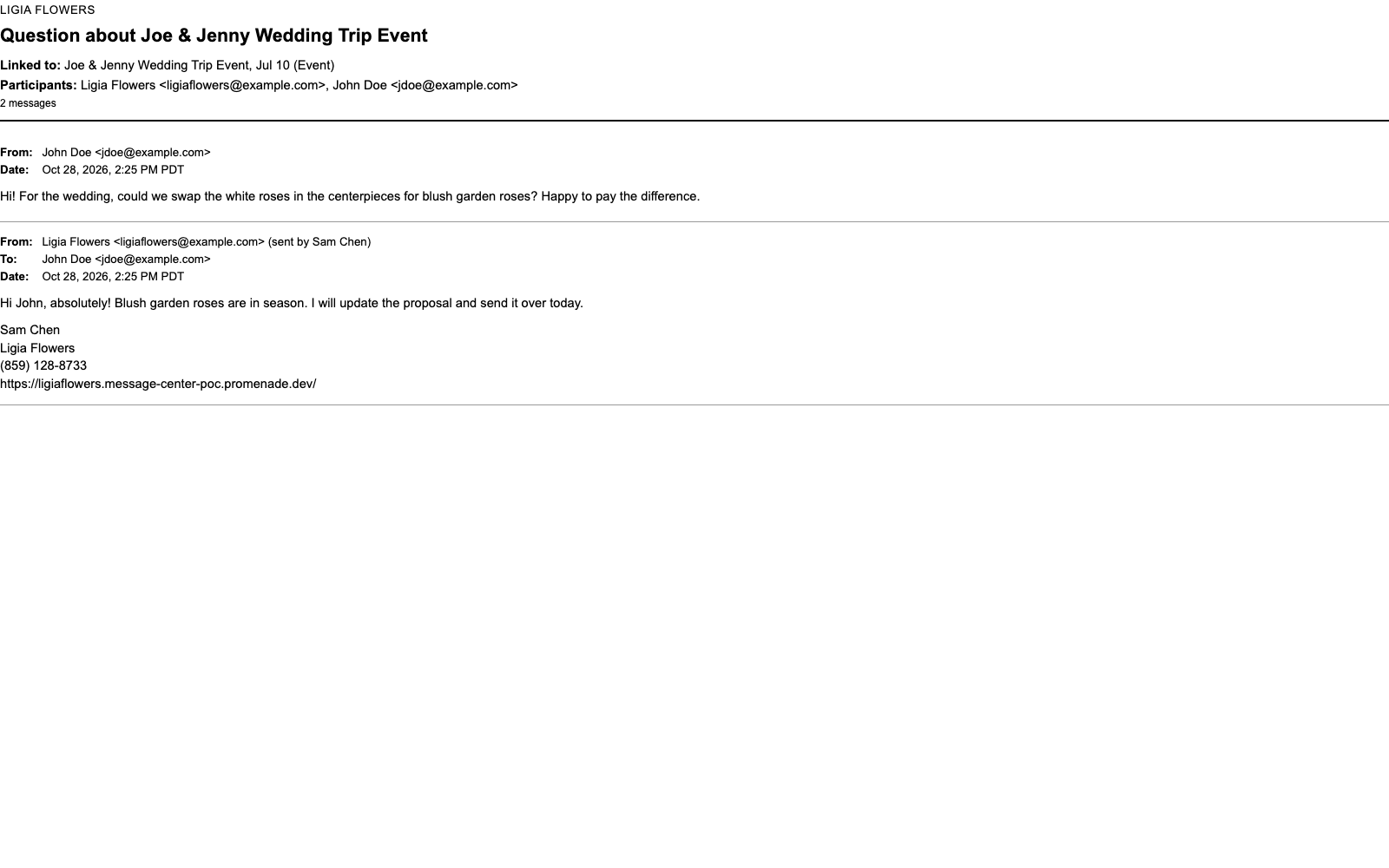
Click Print at the top of a conversation to print it, or to save it as a PDF from your browser's print window. The printout includes who took part, the record it's linked to and any attachment names.
To print several conversations at once, select them in the list and click Print in the bar that appears.
New Message Pop-ups
When a new message arrives while you're in the POS, a pop-up shows who wrote. Click View to open the conversation.
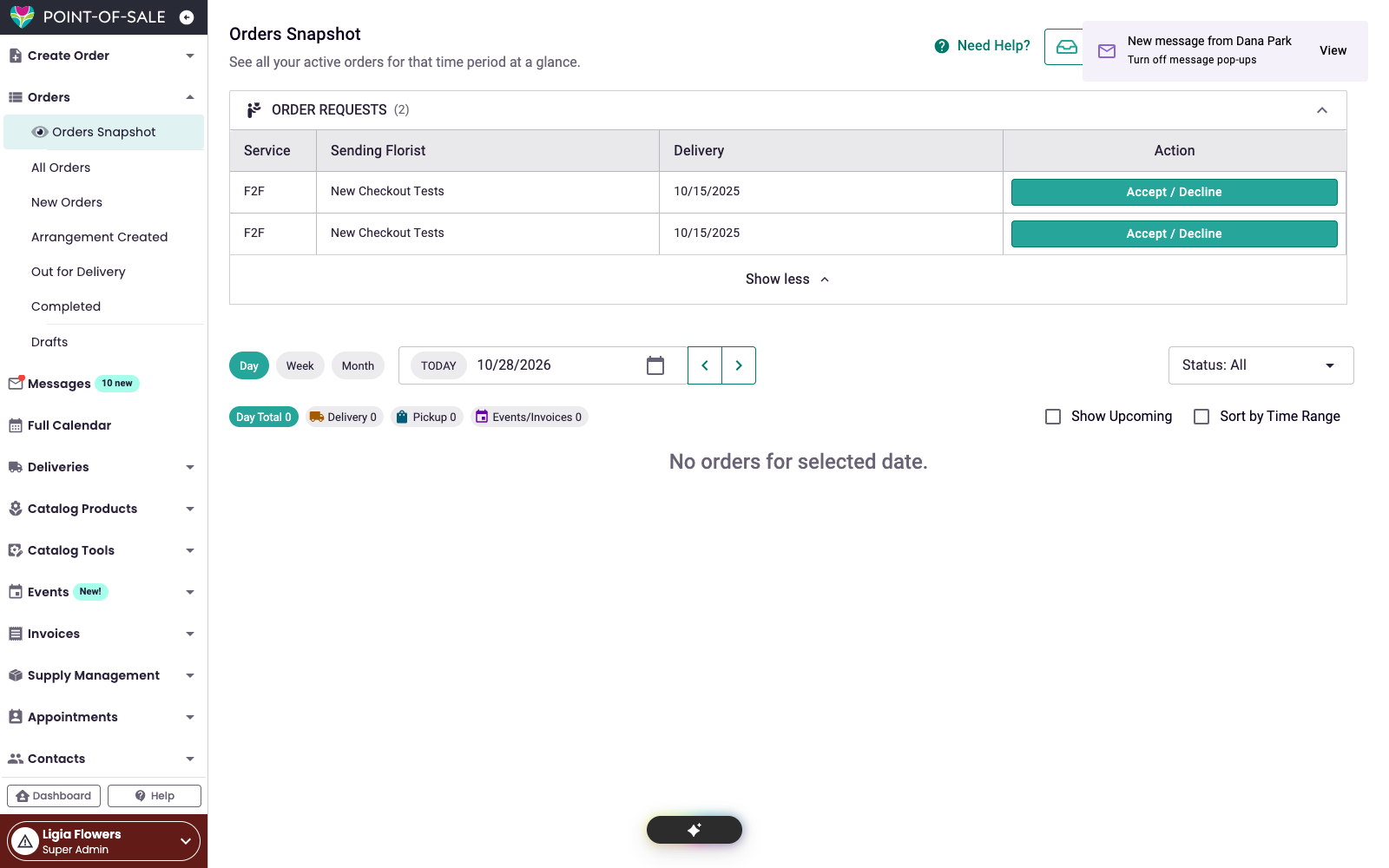
To turn pop-ups off, click Turn off message pop-ups on the pop-up, or go to Messages > Settings and, under Your preferences, switch off Show a pop-up when a new message arrives (just for me). This setting only affects you, not the rest of your team. The unread count in the menu always shows.