
Message Center: Spam and Blocking Senders
Message Center holds messages that look like spam, so they don't clutter your inbox or interrupt you with pop-ups. You can always check what was held and release anything real.
What Goes to Spam
A message is held in Spam when:
- It comes from an address that isn't part of the conversation and that we don't recognize
- We can't confirm it really came from the address it claims to be from
- It looks like junk mail
- It comes from a sender or domain you blocked
Messages in Spam don't show a pop-up and are never copied to your shop email.
Out-of-office replies and bounced-email notices aren't spam. Message Center marks them as automatic replies and moves them to Trash instead. See Automatic replies and delivery failures.
Replying from your shop email? If you reply to customers from your own shop email program, your email provider needs to "sign" your shop's emails so we can confirm they're really from you. If they aren't signed, your replies will be held in Spam until you mark them Not spam. Contact support if this keeps happening; your email provider can usually fix it in a few minutes.
Checking Spam
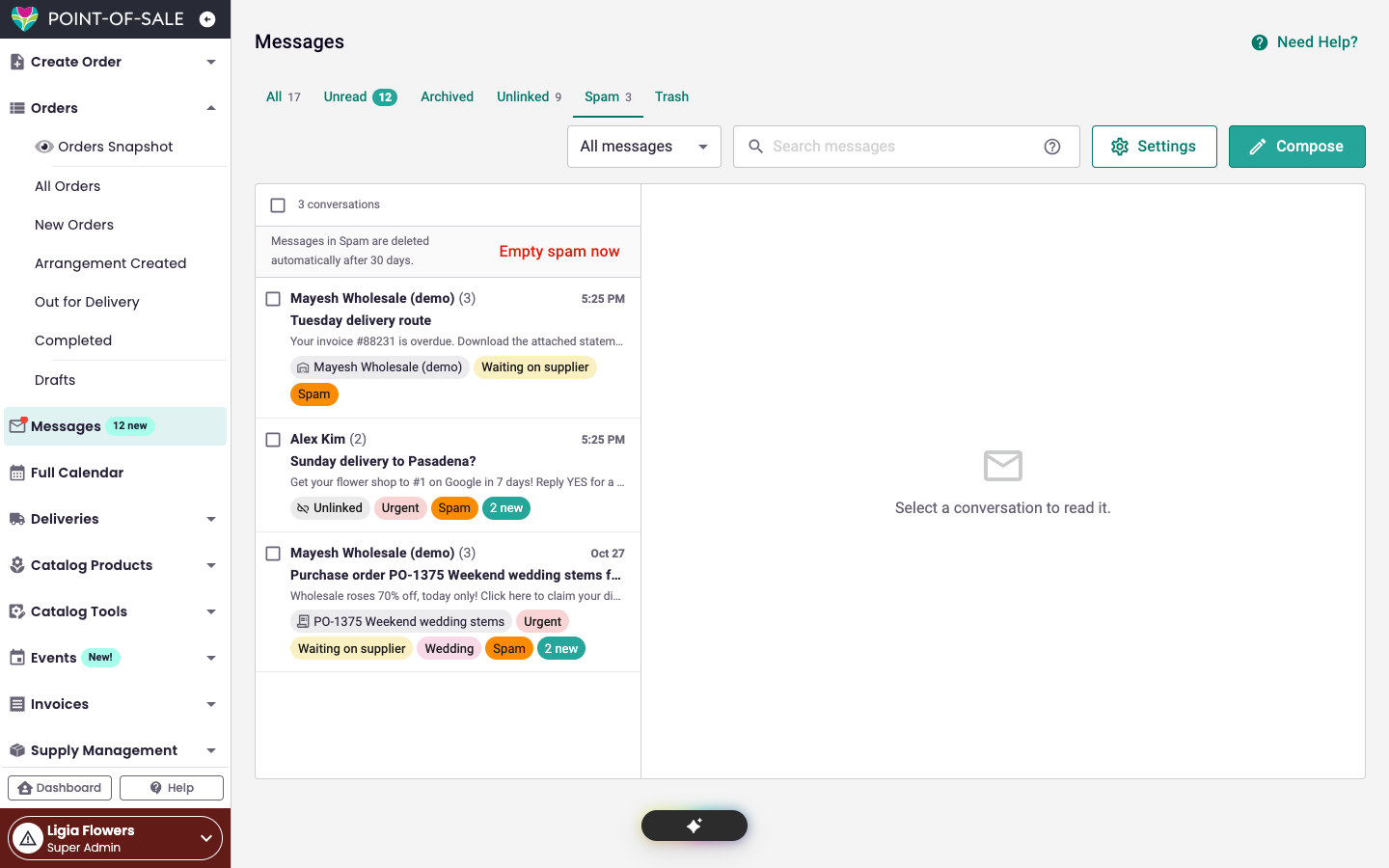
- Go to POS > Messages and click the Spam tab.
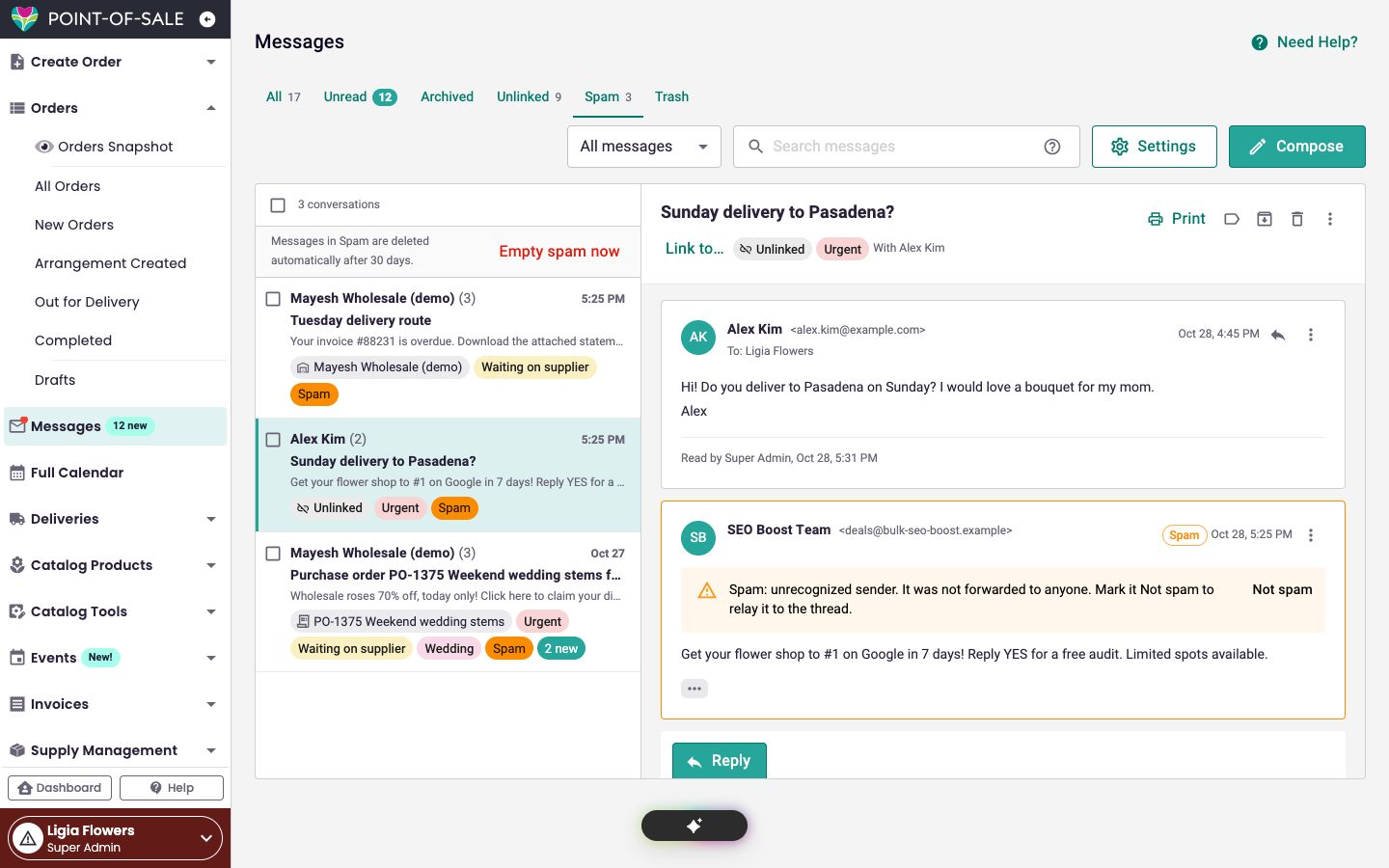
- Open a message to read it. Each held message says why it was held. Pictures in held messages are blocked so they can't track you.
Messages in Spam are deleted automatically after 30 days. To clear it sooner, click Empty spam now.
Not spam
If a real message was held, open it and click Not spam. The message moves into its conversation in your inbox as unread, and it's delivered like any other reply (including the copy to your shop email, if that's on).
Blocking a Sender
If someone keeps sending you unwanted email:
- Open their message.
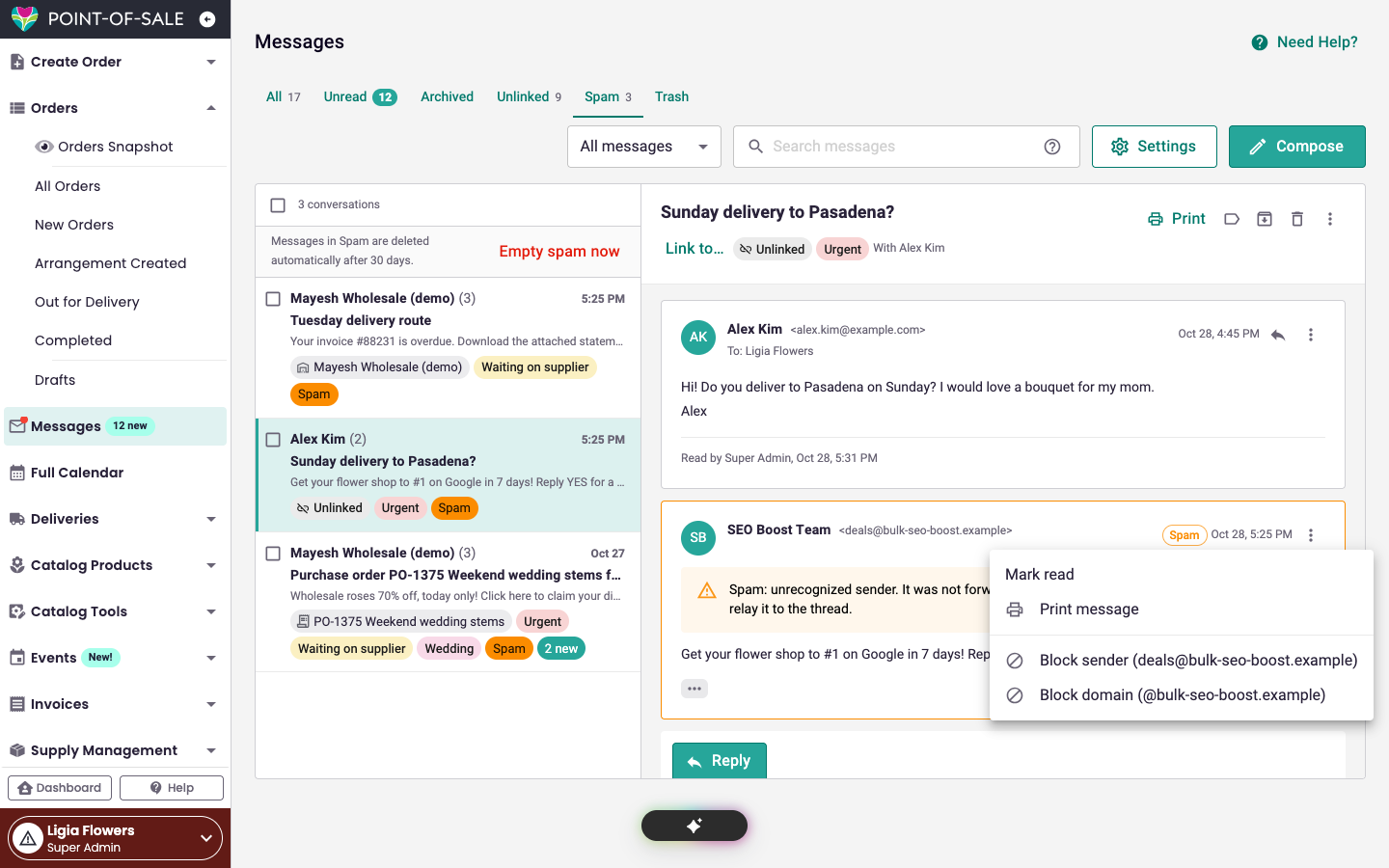
- Click the message menu (⋮) and choose:
- Block sender to block that one email address, or
- Block domain to block everyone at that domain (for example, everyone at @example.com)
- Confirm. Their messages, including any already in your inbox, go to Spam.
You can't block a whole free email domain like gmail.com or yahoo.com, because that would block many of your customers. Block the single sender instead.
Unblocking
- On the Messages page, click Settings.
- Go to Blocked senders.
- Click Unblock next to the address or domain. Their held messages move back to your inbox.
Unblocking needs the Message Center settings permission. See Message Center: Employee Permissions.