
Message Center: Send from an Order, Event or Purchase Order
You don't need to leave what you're working on to email a customer or supplier. Orders, events, purchase orders, shopping lists, customers, suppliers, leads, subscriptions, house accounts and appointments all have a Messages button that opens the conversations for that record.
The Messages Slide-out
- Open the order, event or purchase order.
- Click Messages. A panel slides out from the side of the screen. (On a purchase order, it's the Messages tab.)
- The panel lists every conversation linked to this record. Click one to read it and reply, or click Message to write a new one.
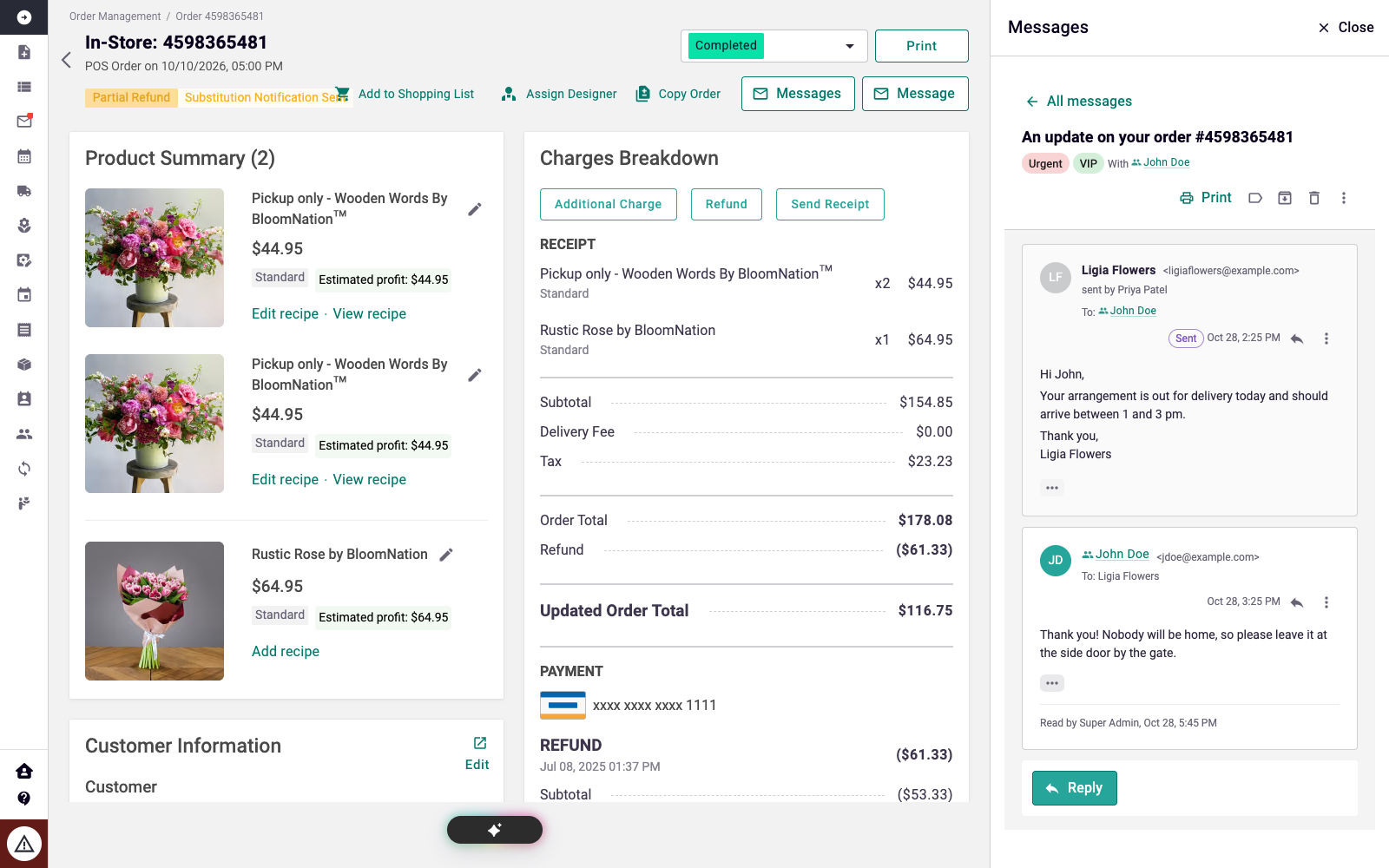
The recipient and the link to the record are filled in for you. A new message on a record continues that record's open conversation with the same person, so the whole history stays together. To start a separate conversation instead, choose Start a new conversation.
The Messages button shows a count when the record has unread messages.
Sending from Your Usual Buttons
Several things you already do in the POS now open the message composer first, so you can check and edit the email before it goes out:
| When you… | What happens |
|---|---|
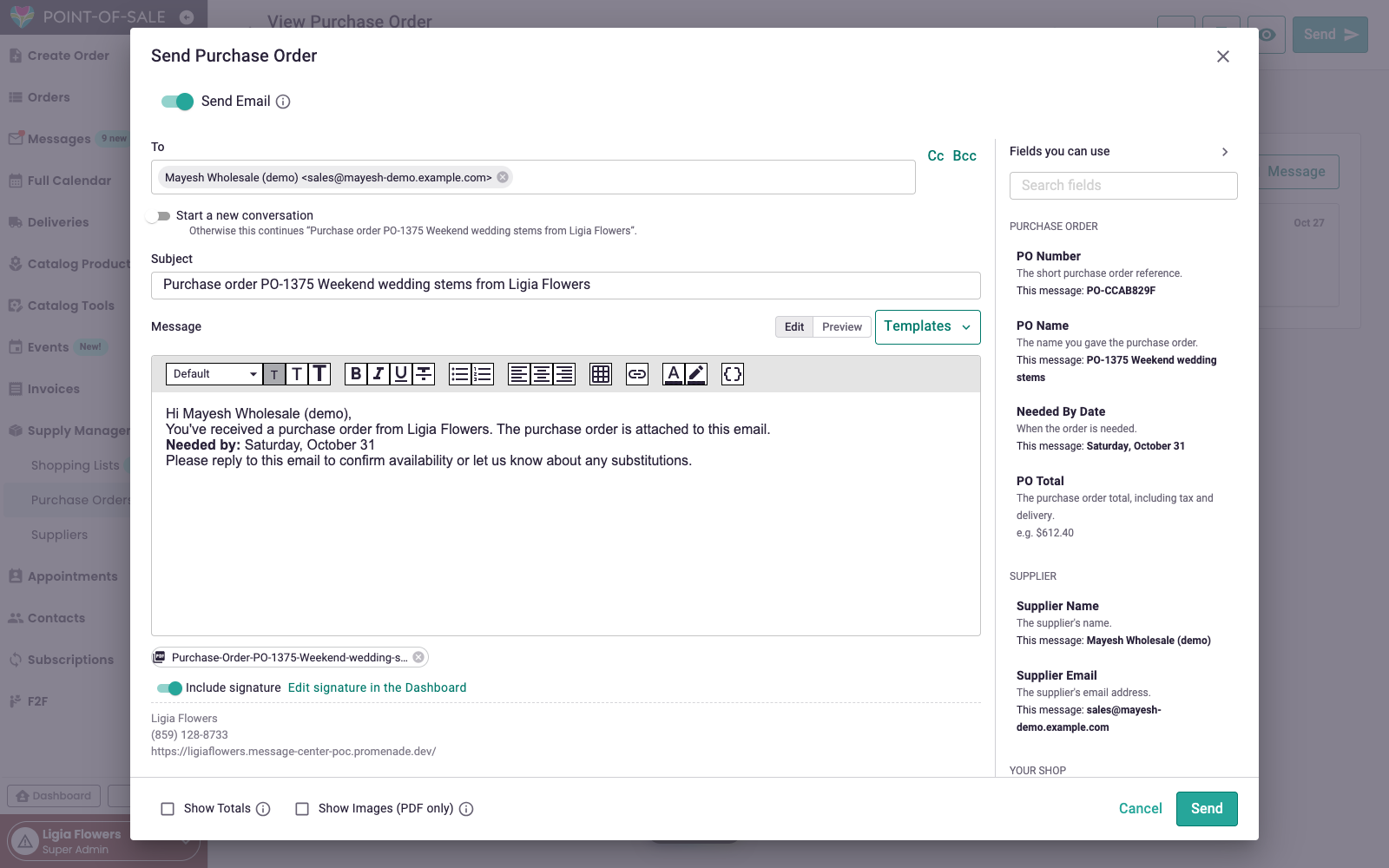
| Send a purchase order to a supplier | The composer opens addressed to the supplier with the purchase order PDF attached. When you send, the purchase order moves from Draft to Sent. |
| Send a substitution notice on an order | The composer opens addressed to the customer with the substitution details. Sending it records the notice on the order. |
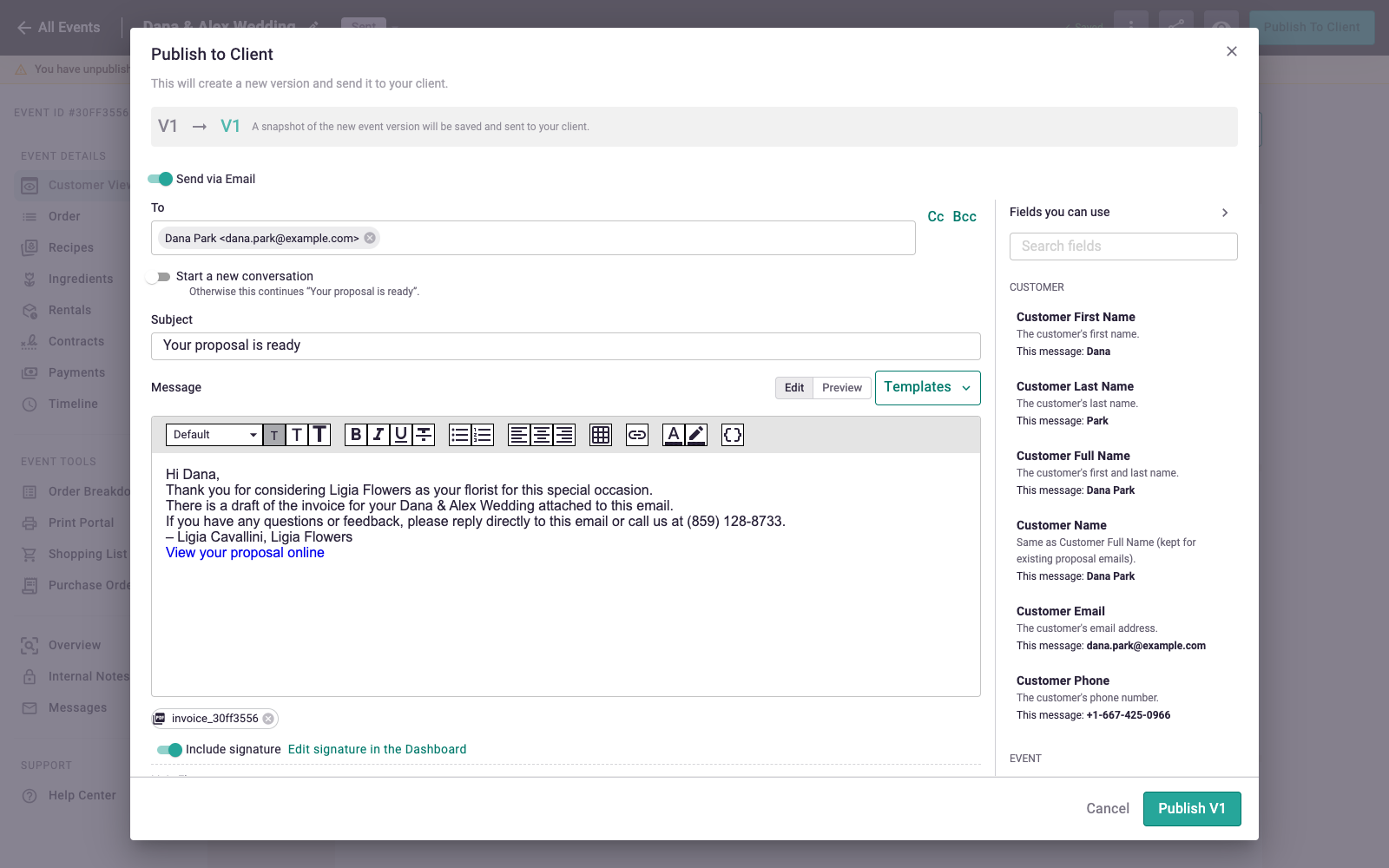
| Share an event or proposal | The composer opens addressed to your client with the link to their proposal. |
| Publish to Client on an event | The composer opens so you can add a personal note before your client is notified. |
| Share a shopping list with a supplier | The composer opens addressed to the supplier with the shopping list attached. |
Each one starts with suggested wording you can change, and the email is saved in the record's conversation. To learn more about the composer, see Message Center: Drafts, Templates and Signatures.
Undo Send
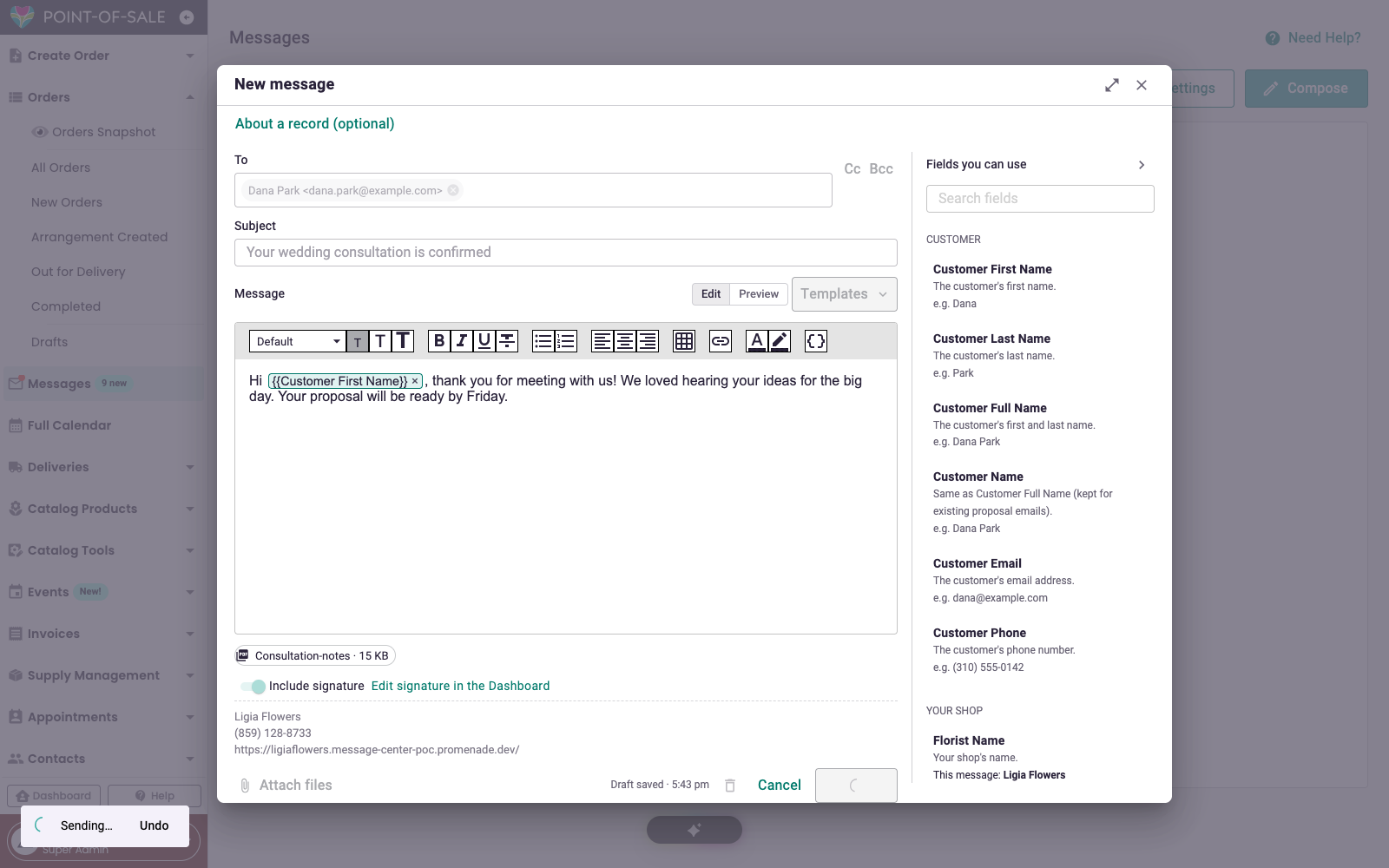
After you click Send, you'll see Sending… Undo at the bottom of the screen for 5 seconds. Click Undo to stop the message and go back to editing. After 5 seconds the message is sent.
Following a Message
Each message you send shows its status:
- Sending: on its way
- Sent: handed off for delivery
- Delivered or Opened: when we can tell, you'll see it here
- Bounced or Failed: the email could not be delivered. Check the email address on the record and try again.
Frequently Asked Questions
My customer says they replied, but I don't see it.
First check the Spam tab in Messages. See Message Center: Spam and Blocking Senders. If you still can't find it, ask your customer to reply to your most recent email instead of starting a new one, then contact support with the customer's email address.
Can I add more people to a conversation?
Yes. Add them in the To or Cc field when you reply. Everyone in the conversation gets the reply.