
Message Center: Employee Permissions
You decide which employees can use Message Center and which conversations each of them can see. For example, a designer might only need event conversations, while your buyer handles purchase orders and suppliers.
Setting an Employee's Message Center Access
- Go to Dashboard > Employees.
- Select the employee (or click + New Employee). The employee needs User Login checked to have permissions. See Add an Employee and Set Their Access.
- Under Permissions, find Message Center and click the arrow to expand it.
- Check the areas this employee can see (see below).
- Click Save.
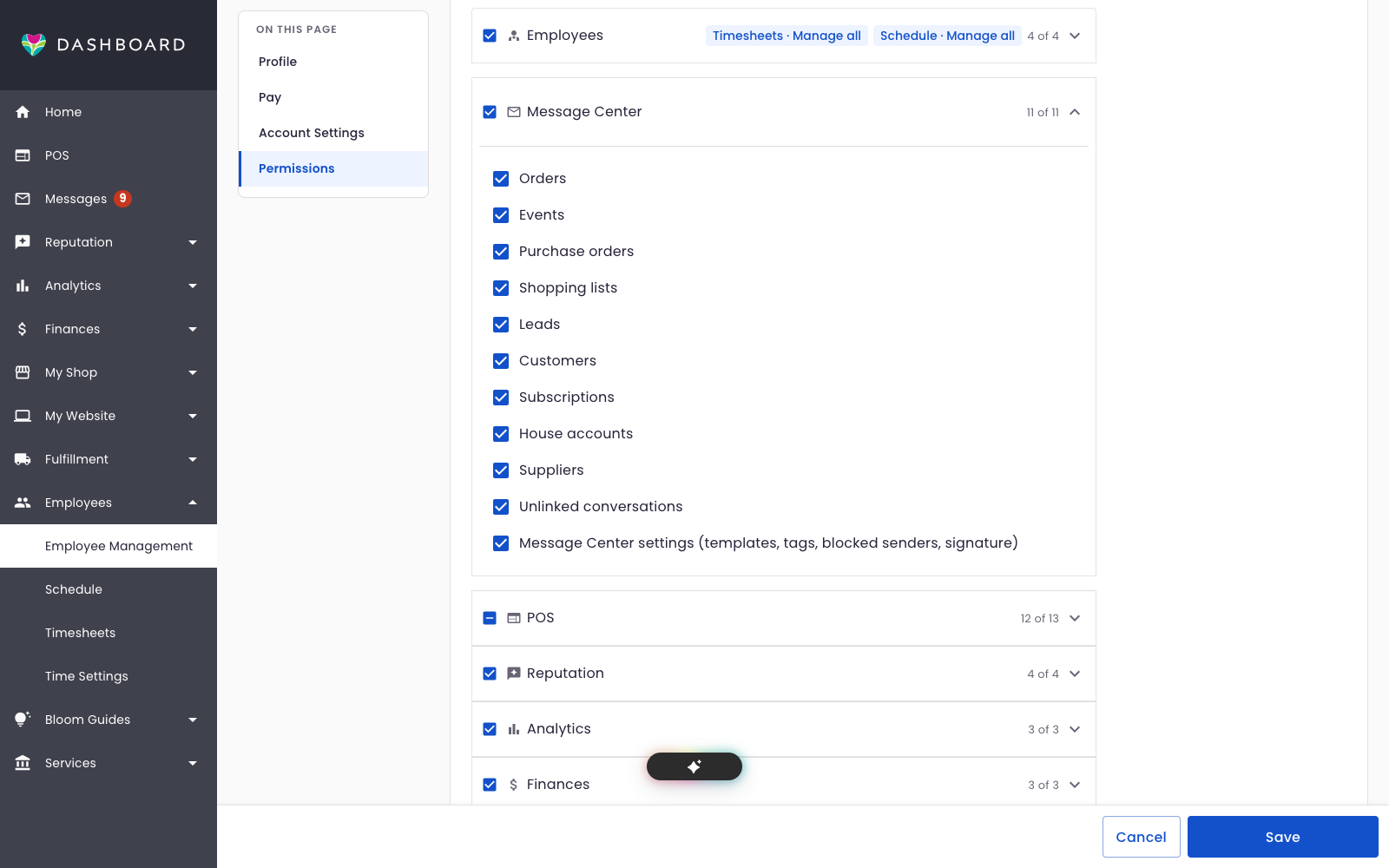
Checking Message Center itself turns on every area and the settings at once. Unchecking it turns them all off. If only some areas are checked, the box shows a dash.
You can only give permissions you have yourself.
Before an employee can send messages, they also agree to the Message Center terms themselves the first time they open Message Center. See Agree to the Message Center terms.
What Each Permission Allows
Areas
Each area lets the employee see and send messages for one kind of record:
| Permission | Conversations linked to |
|---|---|
| Orders | Orders |
| Events | Events and proposals |
| Purchase orders | Purchase orders |
| Shopping lists | Shopping lists |
| Leads | Leads |
| Customers | Customers |
| Subscriptions | Subscriptions |
| House accounts | House accounts |
| Suppliers | Suppliers |
| Unlinked conversations | Conversations not linked to any record yet, such as a new customer writing in for the first time |
An employee only sees conversations in their areas, in the inbox, in search and on records. When they start typing a recipient, suggestions only come from their areas too.
To link a conversation to a record, the employee needs access to the conversation and to the area of the record they're linking it to. For example, linking an unlinked conversation to an order needs both Unlinked conversations and Orders. See Linking a Conversation to an Order, Event or Other Record.
Message Center settings
Message Center settings (templates, tags, blocked senders, signature) lets the employee:
- Create, edit and delete email templates (including Save as template from the composer)
- Create, rename, recolor and delete conversation tags
- See and unblock blocked senders
- Edit the shop signature and send a test
- Choose whether replies are copied to the shop email
Without it, employees can still use your saved templates, add or remove existing tags on conversations, block a sender and choose their own new-message pop-up.
Frequently Asked Questions
An employee can't see a conversation their coworker can see.
The conversation is probably linked to a record in an area they don't have. Add that area to their permissions, or ask someone with access to handle it.
An employee has access but sees "Agree to the Message Center Terms."
They haven't agreed to the Message Center terms yet, or the terms have changed. Each employee agrees for themselves: an owner can't agree for them. Have them click See Terms, check the box and click Agree and Continue.
Do owners need these permissions?
No. Owners always have full access to Message Center. Owners still agree to the Message Center terms before they send their first message.