
Holiday Tips
Updated
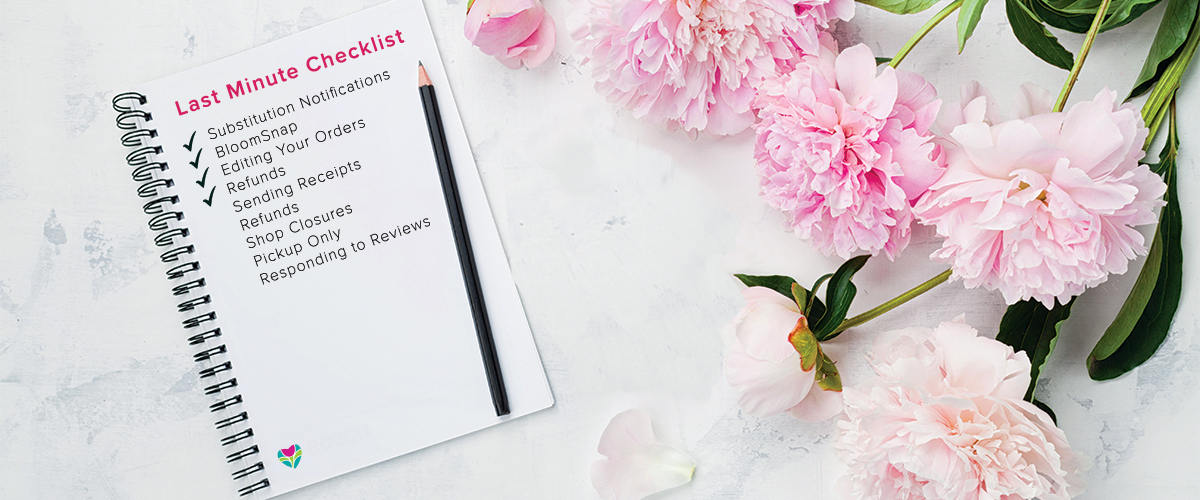
At BloomNation, we understand that the holiday season can be both exciting and overwhelming. To help ease the stress and maximize your success, we've compiled a list of our top tips, tools, and features. Use this guide to streamline your operations and make this your best holiday season yet!
Before the Holidays:
- Google Business Profile: Ensure your Google Business Profile (formerly known as Google Local Listing) is accurate, matches your BloomNation website information exactly, and links directly to your BloomNation website. This ensures customers can find your shop easily and boosts online visibility.
- Email Marketing: Opt into our automatic email campaigns to promote your business. These emails are personalized with your shop’s name, logo, and address, and any replies will go directly to you.
- Website Announcements: Add an announcement to your site to inform customers of any promotions, shop closures, or product updates (e.g., "Sold out of red roses"). The announcement will automatically disappear after the end date you set.
During the Holidays:
- BloomSnap: Sending a BloomSnap can boost customer loyalty—recipients of BloomSnaps are 30% more likely to make a repeat purchase and 40% more likely to leave a positive review!
- Order Statuses: Update order statuses to trigger automatic notifications to customers, reducing unnecessary calls during your busiest times.
- Editing Your Orders: Quickly make changes to delivery dates, recipient details, card messages, and more, right from your BloomNation POS.
- Sending a Receipt: Send receipts directly from the "Orders" tab to any customer email address or phone number they provide.
- Processing a Refund: Easily process full or partial refunds through your "Orders" tab to keep your customers satisfied.
After the Holidays or After You’ve Sold Out:
- Shop Closures: Temporarily close your shop for all website orders by setting specific dates or date ranges when you won’t be able to fulfill them.
- Disable Delivery Dates: If you’ve run out of inventory to create an arrangement or won’t be able to fulfill certain products, disable delivery for specific dates, while keeping them available for future orders.
- Pickup Only / Disable Delivery: Limit your site to pickup-only orders temporarily by disabling delivery storewide for a specified date range.
- Respond to Reviews: Engage with customer reviews by adding updates or resolutions. Your responses will appear on your website and the BloomNation marketplace.
- Website Announcements: Post updates on your site, whether it's for promotions, closures, or inventory changes (like "sold out of red roses"). You can schedule announcements to automatically remove themselves after the specified date.
Need More Help?
Still have questions? Reach out to our Bloom Experts here for personalized assistance.