Order Statuses
Updated Ver en español
Updating your order statuses
- Click on the drop-down menu next to each order under the "Status" column to see all available statuses.
- Choose the one that makes the most sense!
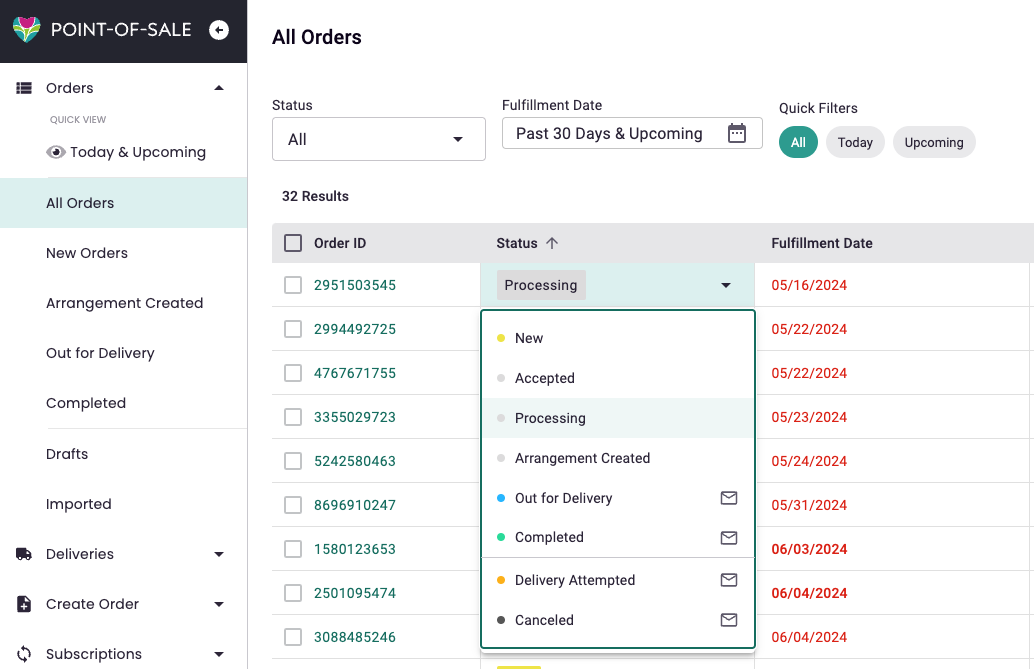
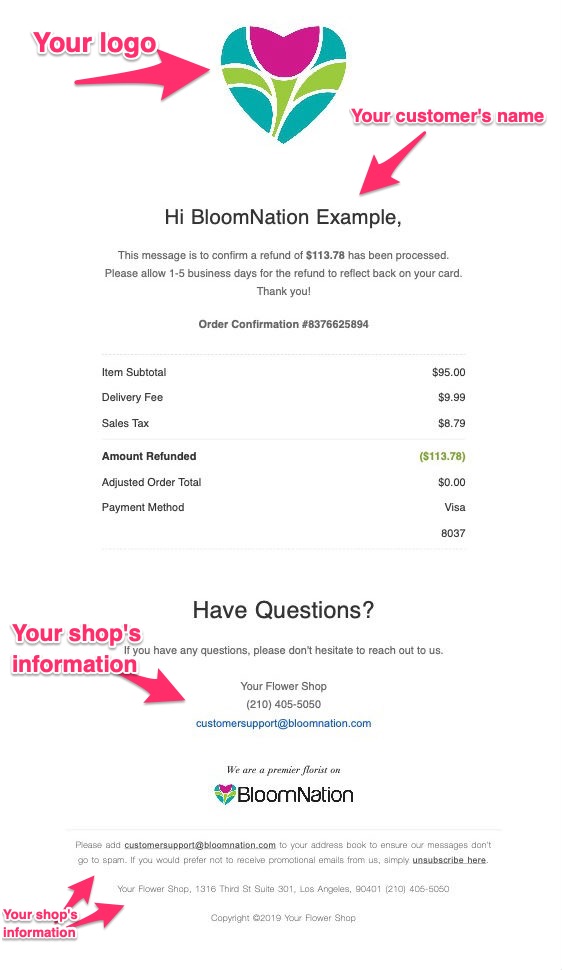
These statuses trigger customer notifications (Statuses with Envelope icon):
Examples:
New Order
This status is automatic. Once a customer's order is submitted, they will receive a copy of their receipt via the email they provided at checkout. The status of their order will automatically say "New Order" in your BloomNation dashboard.
Example of customer's "New Order" email notification 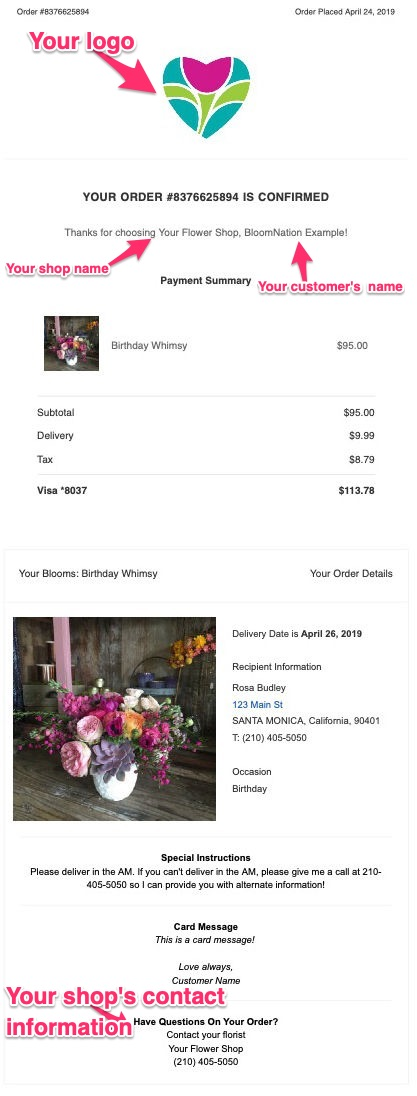
BloomSnap
Note: If you ever accidentally upload the wrong BloomSnap, click the BloomSnap button again to choose the correct image. Each upload will trigger a new notification to the customer, so remember to use it sparingly to avoid getting flagged as spam!
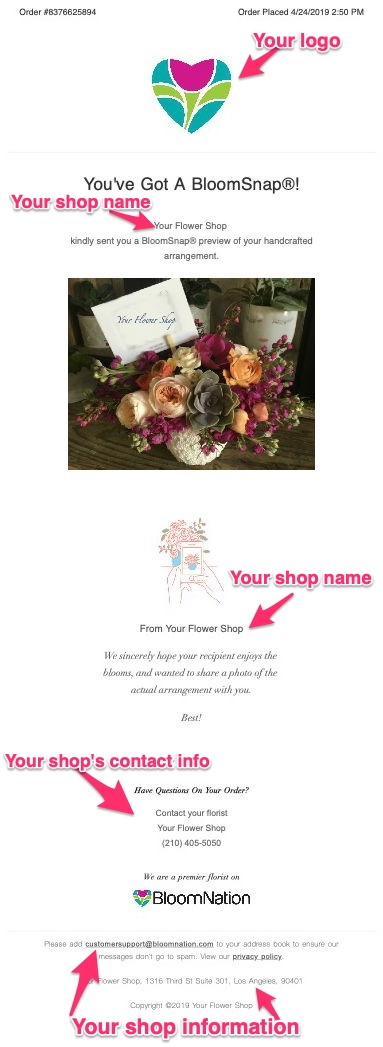
Example of customer's "BloomSnap / Arrangement Created" email notification
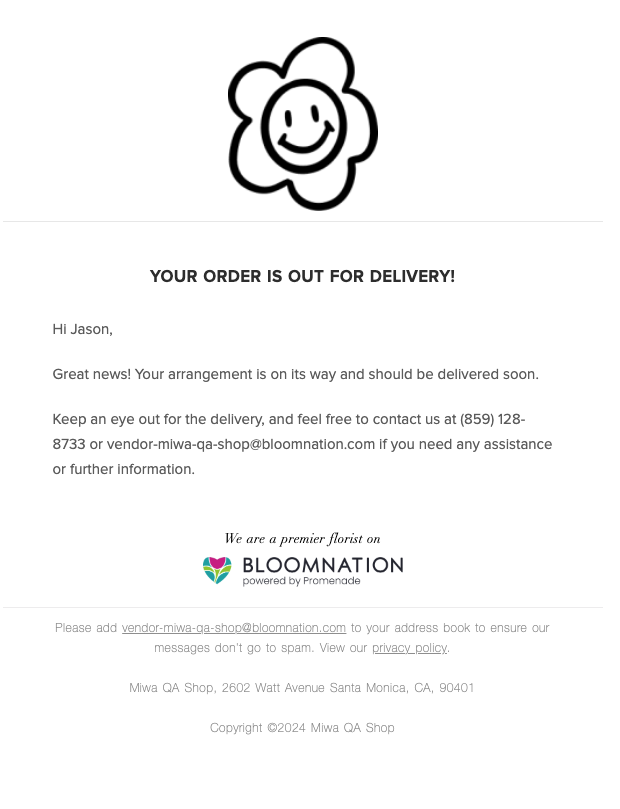
Out For Delivery
The customer will receive this email that notifies them that the arrangement is now out for delivery.
Delivery Attempted
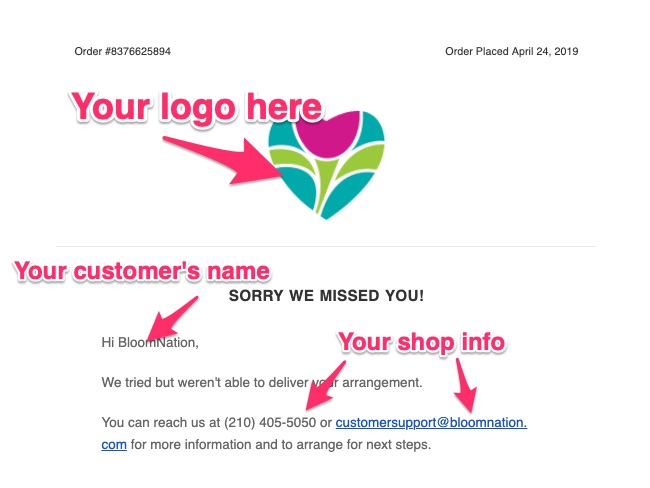
You have attempted delivery but cannot complete hand-off for any reason (gate code, recipient no longer available, etc).
-
This status will trigger an automatic email to the customer letting them know the delivery was attempted and to contact you for further instructions.
Example of customer's "Delivery Attempted" email notification
Completed
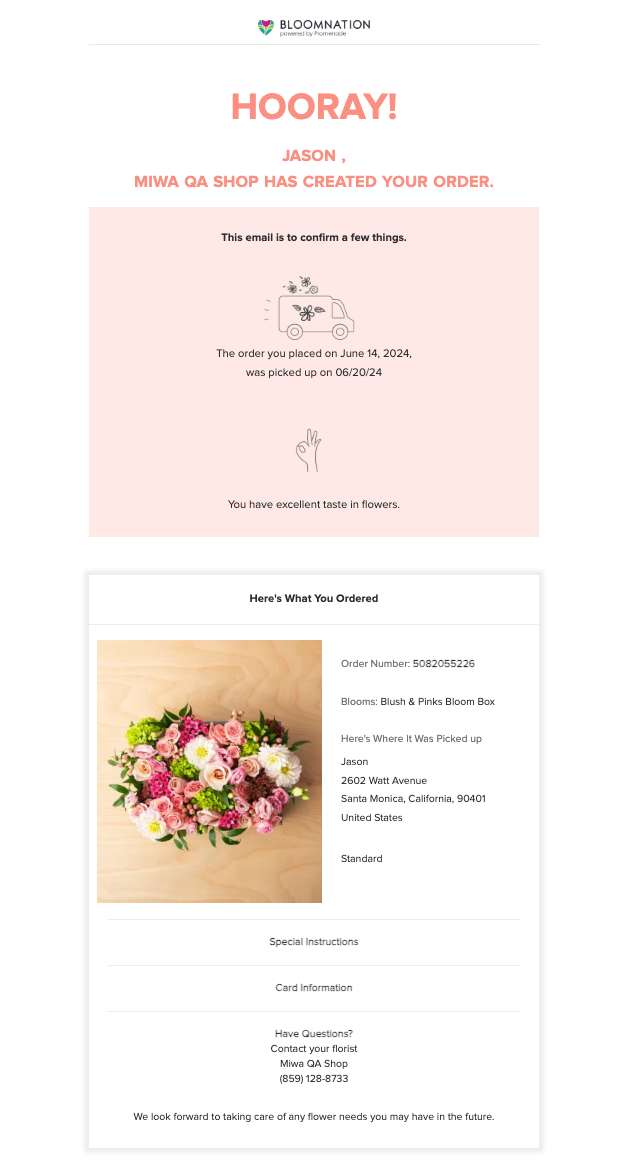
You have delivered the bouquet or your customer has picked up their order!
-
This will trigger an email to the sender saying that the arrangement was delivered or picked up!