
BloomSnap
What is a BloomSnap?
BloomSnap lets you send a photo of the actual arrangement to the sender in just a few clicks — a simple way to build trust and reassure customers before (or right after) delivery.
Note: BloomSnaps are sent to the sender’s email address from the original order.
Why send a BloomSnap?
- Shows customers exactly what was designed and delivered
- Reinforces confidence in your shop — especially during busy weeks and peak holidays
- Encourages repeat business and positive reviews
How to send a BloomSnap
There are a few ways to start a BloomSnap – just look for a camera icon. No matter where you begin, you’ll be taken to the same BloomSnap flow for that order.
From order emails
If you have order notification emails enabled, you’ll receive an email when a new order is processed. That email includes two actions: View Order and Send a BloomSnap.
Clicking Send a BloomSnap opens the BloomSnap flow for that order.
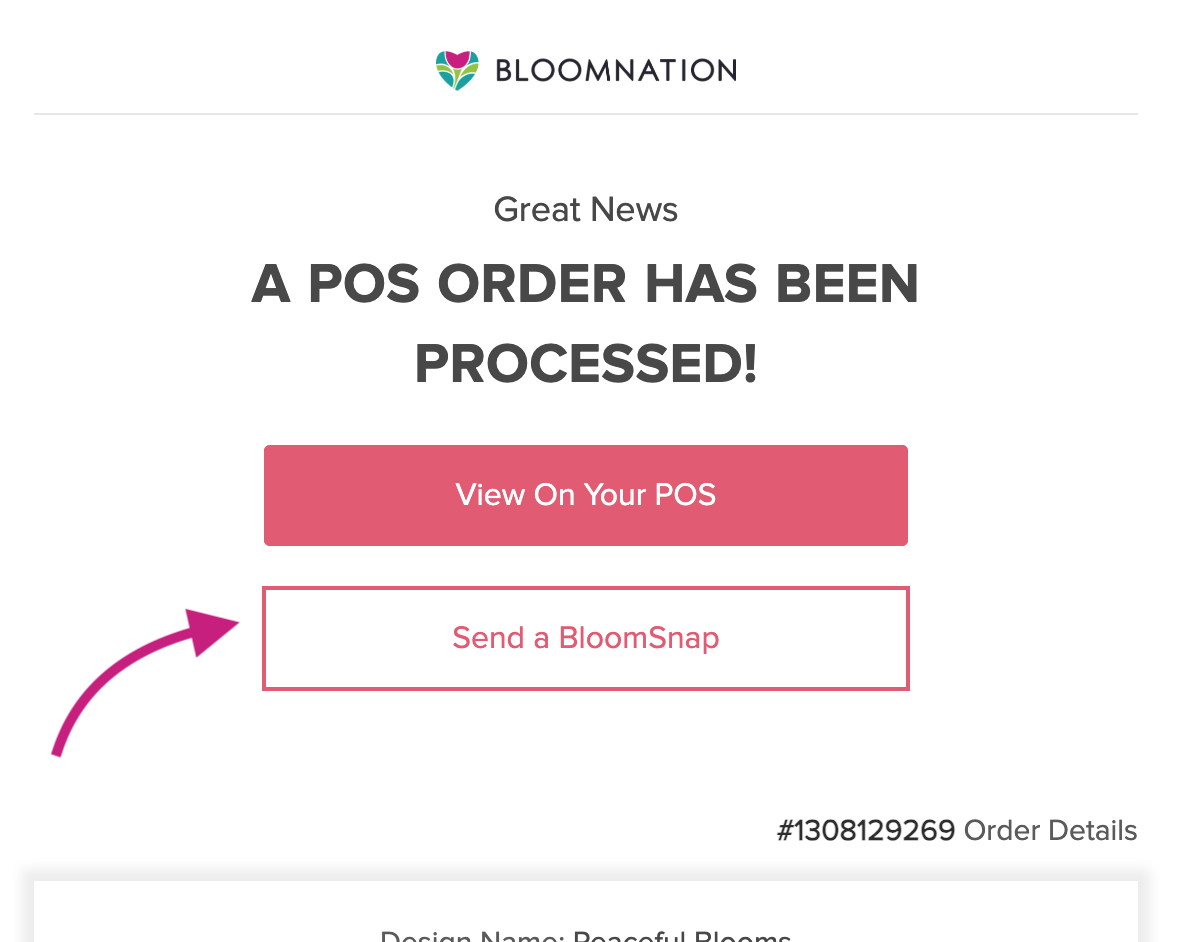
You’ll also receive a daily “Reminder: Today’s Deliveries” email listing deliveries scheduled for the day. Each order includes a Send a BloomSnap option, which opens the same BloomSnap flow.
From your BloomNation POS
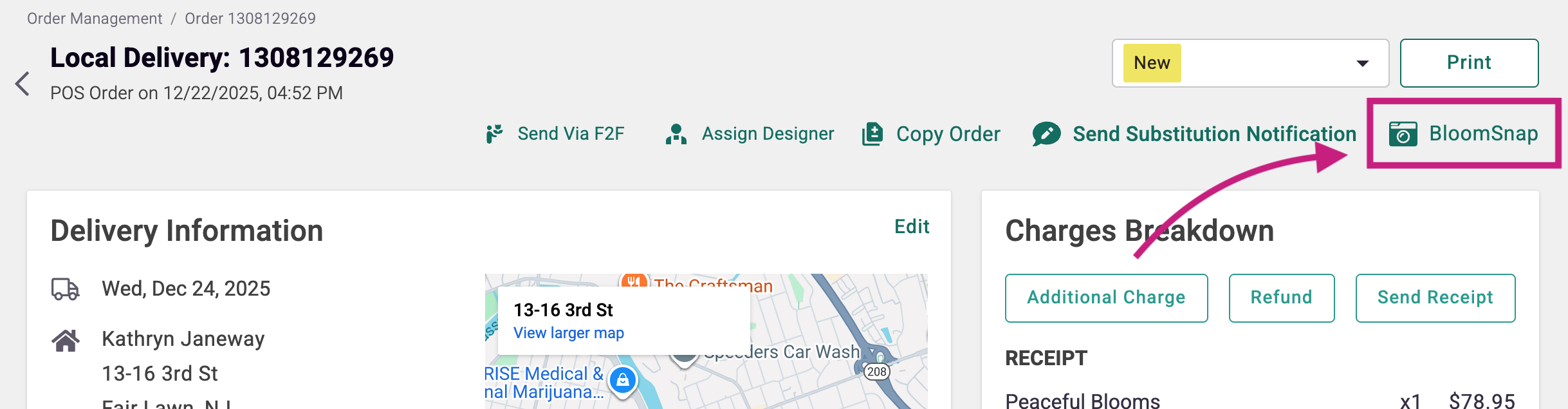
Order details page
Open an order in POS and click BloomSnap on the order details page.
All Orders list
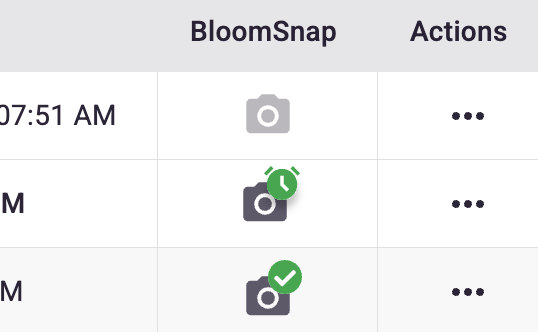
Use the BloomSnap shortcut (camera icon) next to eligible orders to start a BloomSnap. If the camera icon is light gray, that order isn’t eligible for a BloomSnap.
BloomSnap icon status
- Light gray camera: BloomSnap is not available for that order.
- Dark gray camera: BloomSnap is available — click to start the BloomSnap flow.
- Dark gray camera with a green check: A BloomSnap has already been sent.
- Camera with a green clock: A BloomSnap is scheduled to send later or on delivery.
When a BloomSnap is scheduled, hovering over the icon will show when it is scheduled to send (for example: a specific date, or scheduled for delivery).
Daily Snapshot view
Each order card includes a camera icon. Click it to start a BloomSnap for that order. The same icon statuses apply there as well — a green check means it has been sent, and a green clock means it is scheduled.
Upload your BloomSnap
Once the BloomSnap flow is open, you’ll see key order details like the order number, product, delivery date, and recipient name.
Click Upload a BloomSnap to add photos.
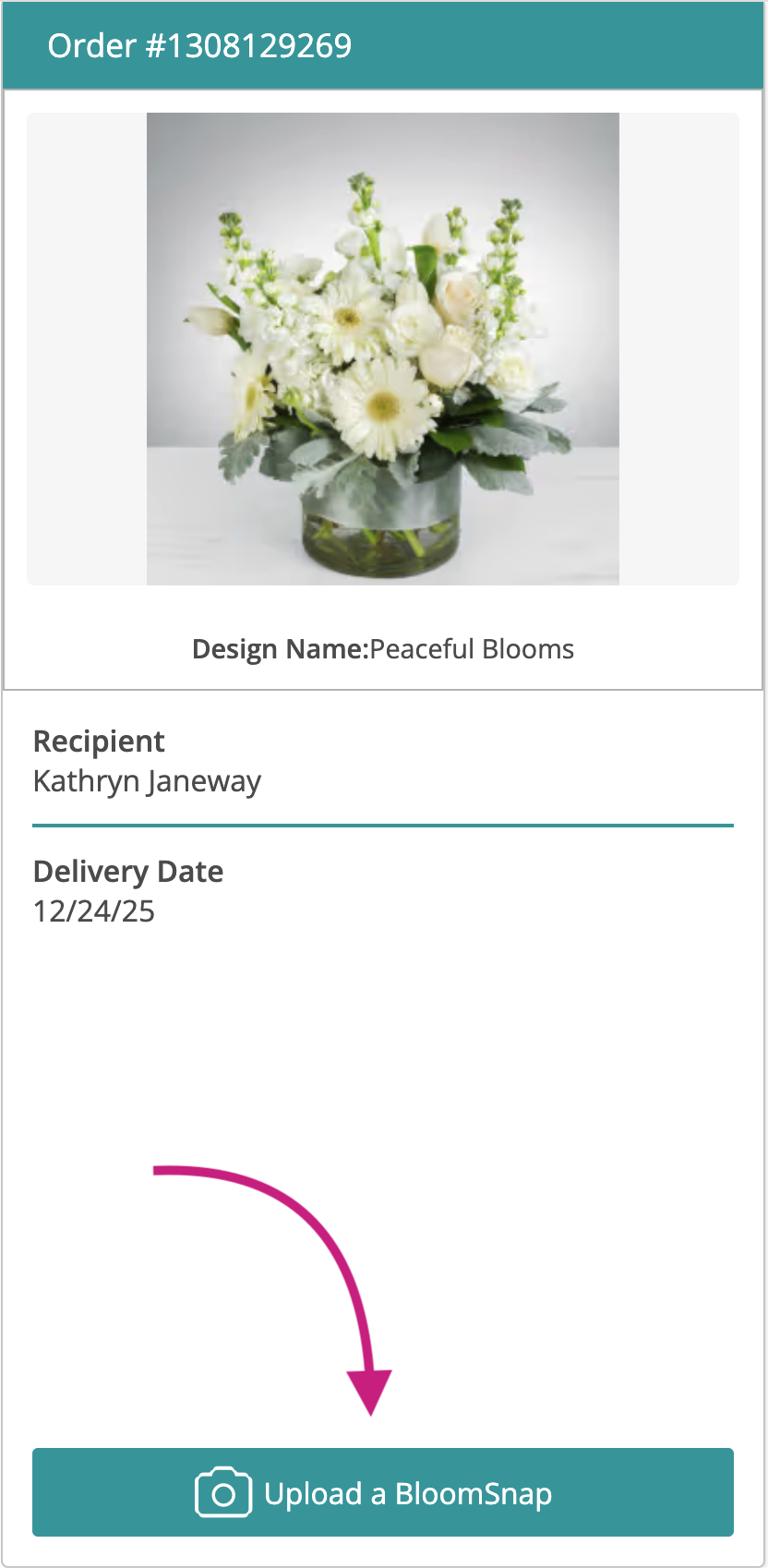
You can upload from a phone or desktop. Multiple images can be selected during this step using standard multi-select options on your device.
After selecting your photos, you’ll see a preview before sending.
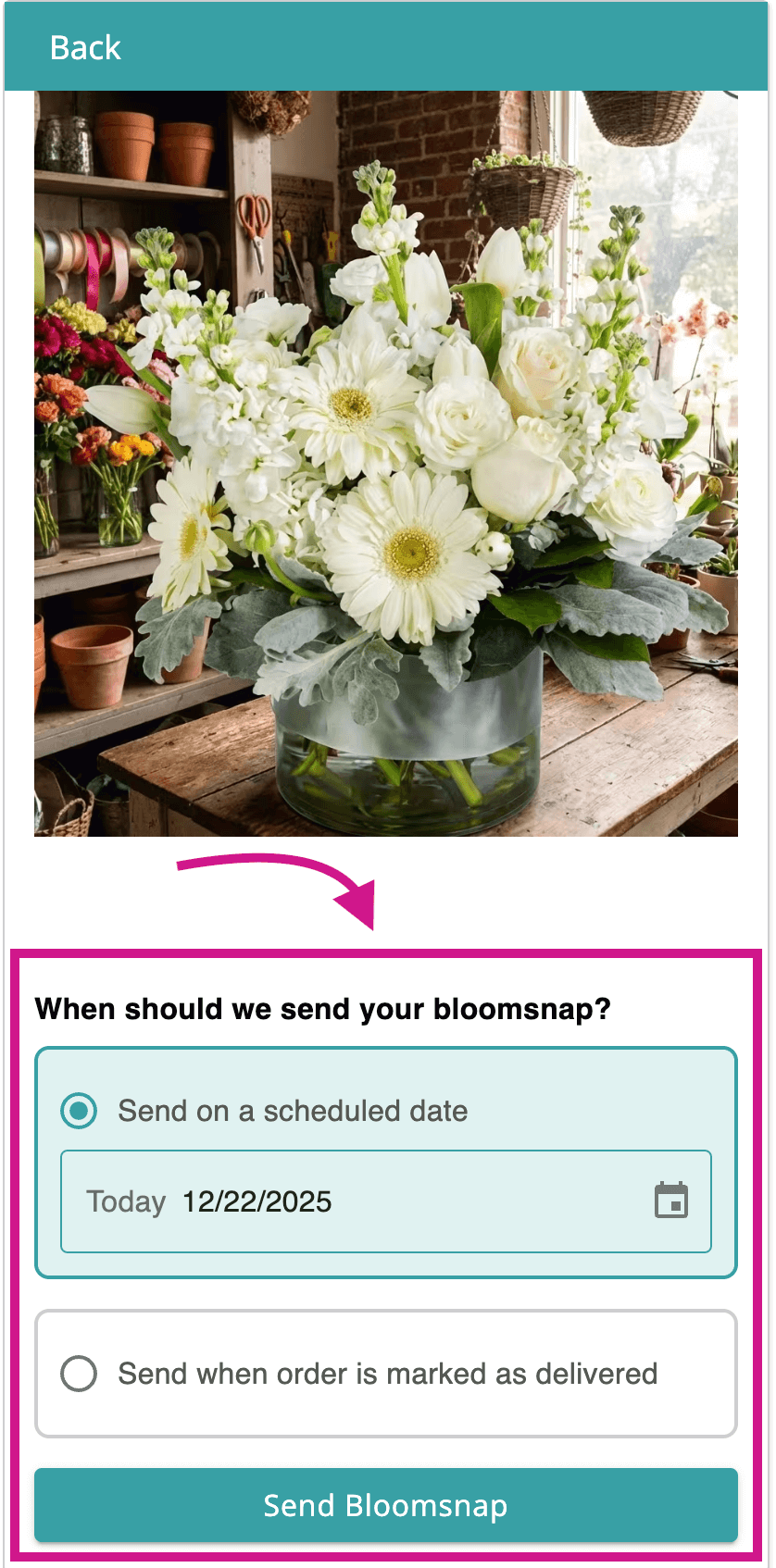
Choose when to send your BloomSnap
After uploading your photos, choose when the BloomSnap should be sent.
Send on a scheduled date
The date defaults to today.
- Selecting today sends the BloomSnap immediately.
- Selecting a future date sends the BloomSnap at 12:00 PM Pacific Time on that day.
Send when the order is marked delivered
Select this option to automatically send the BloomSnap when the order is marked as delivered in your system.
Confirmation
Once you’ve selected your send option, click Send BloomSnap.
You’ll see a confirmation message letting you know your BloomSnap was successfully sent or scheduled.
What does a BloomSnap look like to my customer?
Customers receive your BloomSnap by email. The email includes your shop’s branding and theme, a short message letting them know they’ve received a BloomSnap, and the photo (or photos) you uploaded of the arrangement.
This helps reassure customers that their order was completed as expected and gives them a preview of what will be delivered.
Tips for great BloomSnaps
- Taking photos ahead of time is great — scheduling helps you prep early without sending too soon
- Try to match the angles shown in your product listings
- Use bright, soft lighting and a clean background
What if I need to make a substitution?
If you need to make a substitution, use the Send Substitution Notification option on the order to keep customers informed. Learn more here.
I sent the wrong BloomSnap. Can I undo it?
BloomSnaps can’t be recalled, but you can upload a new image to send an updated BloomSnap email.
How many BloomSnaps can I send?
There’s no limit, but we recommend sending one BloomSnap per order unless a customer requests more.
Need help?
Email: support@bloomnation.com
Phone: (210) 405-5050