
BloomSnap Social Integrations
BloomSnap Integrations: Share Your Photos Automatically
BloomSnap does more than capture your work—it can now help you share your designs across key places customers are already looking.
With BloomSnap integrations, your photos can be shared to:
- Your Google Business Profile
- Your website’s Where We Deliver page (coming soon)
This helps you showcase your latest work without adding extra steps to your day.
Why This Matters
Your BloomSnaps are some of your best marketing—they show real designs, real orders, and the quality of your work.
- Show off your latest designs where customers are searching
- Stay visible with fresh, real photos
- Save time by using photos you're already taking
Before You Get Started
To use BloomSnap integrations, your shop must be connected to Google.
If your Google Business Profile is not connected, you’ll need to complete that step first before BloomSnaps will post to your profile.
Share BloomSnaps To Your Google Business Profile
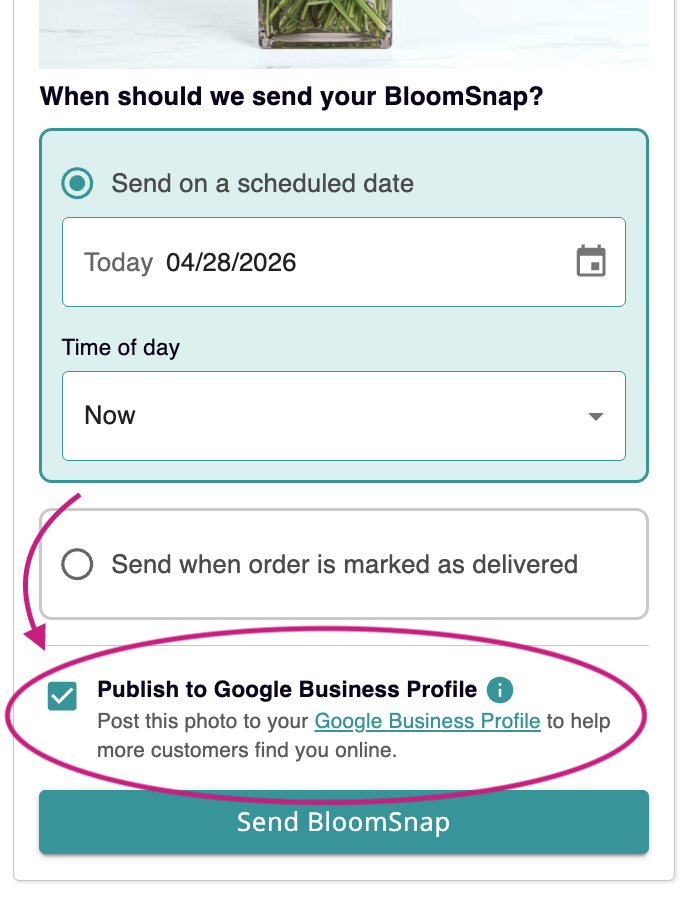
When sending a BloomSnap, you’ll see the option:
“Publish to Google Business Profile”
When selected (on by default), your BloomSnap will be shared to:
- Your Google Business Profile
- Your Where We Deliver page (coming soon)
This makes it easy to showcase your latest work in more places using the same photo.
Control How BloomSnaps Are Shared
Choose Your Default Sharing Behavior
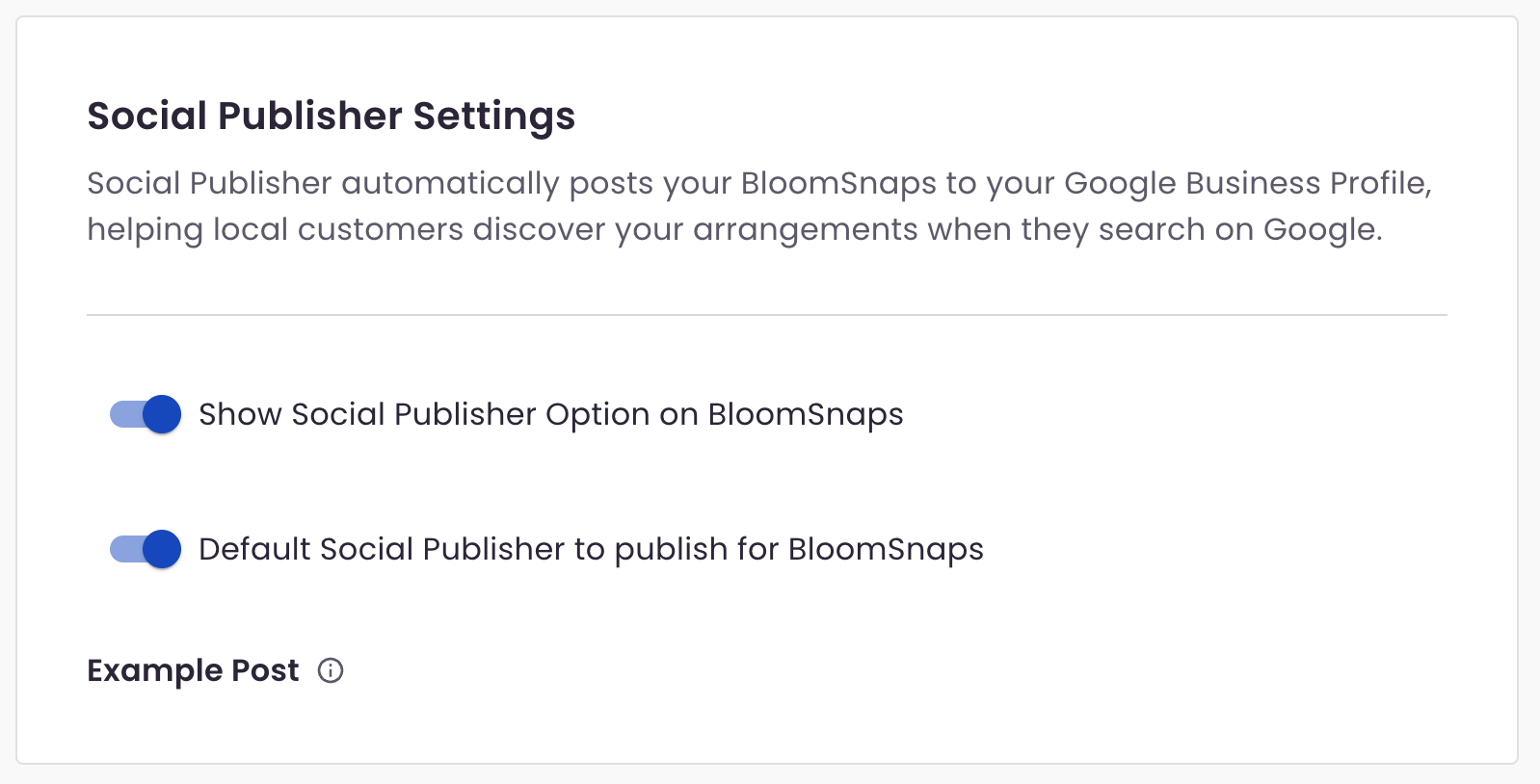
In your Social Publisher Settings, you can control whether the sharing option appears at all when sending BloomSnaps.
- On – The “Publish to Google Business Profile” option is visible
- Off – The option is hidden, and BloomSnaps cannot be shared to Google
We recommend keeping this setting turned on so you always have the option to share.
You can also control whether BloomSnaps are selected to share by default.
- On – The sharing checkbox is selected automatically
- Off – The checkbox is shown, but not selected
This gives you flexibility while still keeping sharing quick and easy.
Go to Social Publisher Settings >>
Manage Team Permissions
By default:
- Shop owners can share BloomSnaps to Google
- Employees do not have access unless it is enabled
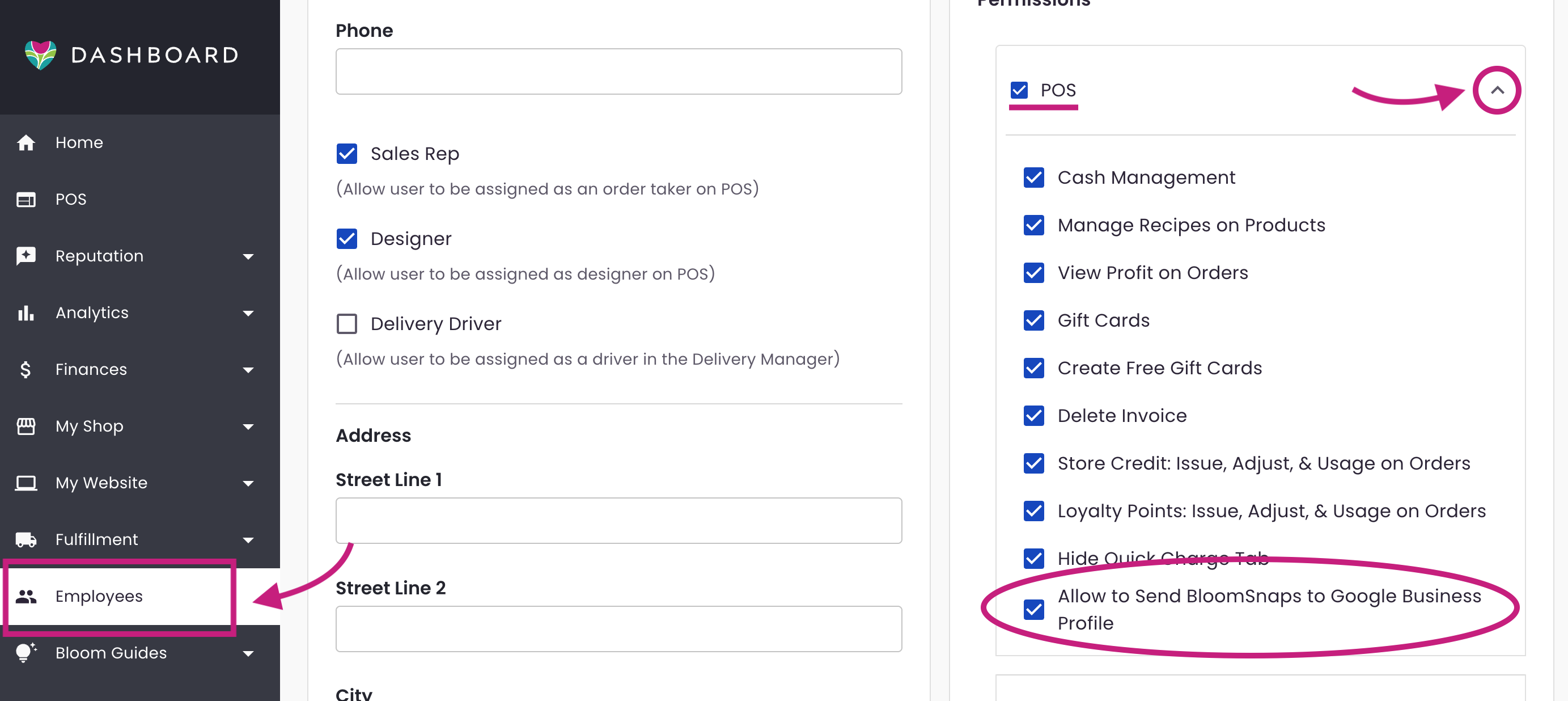
To give an employee access:
- Go to Employees
- Select the employee
- Open POS Permissions
- Enable “Allow to Send BloomSnaps to Google Business Profile”
What To Expect
- BloomSnaps are shared when the option is selected
- Photos appear on your Google Business Profile
- The same photos will also appear on your Where We Deliver page (coming soon)
Your “Where We Deliver” Page (Coming Soon)
Your Where We Deliver page highlights your delivery areas and recent work.
This page helps customers quickly understand where you deliver and see examples of your recent orders.
What’s Included On This Page
- Your delivery areas and service information
- A feed of recent deliveries
- Your latest BloomSnaps when sharing is enabled
- A map and location-based links
What You Can Do
- Review and edit the page anytime
- Customize content as needed
- Remove the page if you choose
No setup required—you can review and edit the page once it’s live.
Tips For Getting The Most Out Of BloomSnap Integrations
- Upload BloomSnaps regularly to showcase your latest work
- Capture clear, well-lit photos to highlight your designs
- Leave sharing enabled to reach more customers
Frequently Asked Questions
Why don’t I see the option to share BloomSnaps to Google?
- Check that Social Publisher is enabled in your settings
- Confirm your Google Business Profile is connected
- If you're an employee, make sure you have permission to share BloomSnaps
Why didn’t my BloomSnap post to Google?
- Make sure your Google Business Profile is connected
- Confirm the “Publish to Google Business Profile” option was selected
- Check your default sharing settings
Can I choose which photos get shared?
Yes. You can uncheck the sharing option for any BloomSnap.
Will BloomSnaps always be shared?
Only if your default setting is enabled and you leave the checkbox checked. You can change this at any time.
Where else do these photos appear?
When shared, BloomSnaps appear on your Google Business Profile. They will also appear on your Where We Deliver page (coming soon).
Learn More About BloomSnap
New to BloomSnap or want a full walkthrough?
If you have any questions or need help setting this up, our team is here for you.