
How to Start Your Social Media Marketing: Step-by-Step Guide
Overview
Social Media Marketing manages your Facebook and Instagram posts for you. Use this 3-step guide to set up the service:
- Step 1: Add "BloomNation Promenade" as an admin on your Facebook Business Page (required)
- Step 2: Connect your Instagram to your Facebook Page (optional but recommended)
- Step 3: Submit photos of your floral arrangements (optional but recommended)
This service requires an existing Facebook Page for your business. If you don't have one, contact our Partner Support team for help.
Step 1: Add BloomNation Promenade as an Admin on Your Facebook Business Page (Required)
To manage your social media posts, we need admin access to your Facebook Business Page.
Facebook handles Page access differently depending on how your business's presence is set up. Use the method below that matches what you see when you go to your Page settings.
Method 1: Standard Page Access (Most Pages)
Use this method if your Page is not connected to a Meta Business Portfolio.
- Go to your Facebook Page.
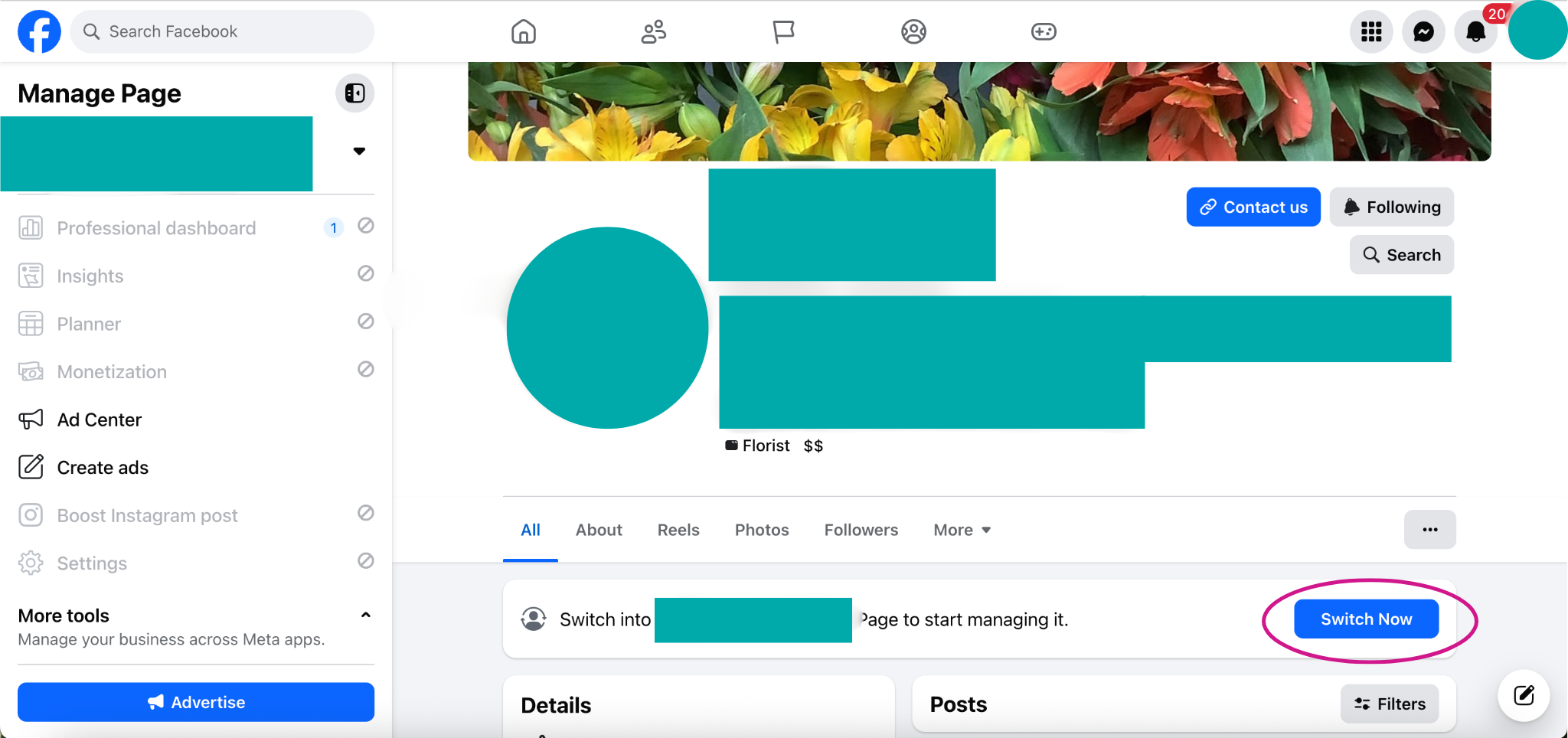
- Switch into the Page view. Click your profile photo in the top right and select the Page.
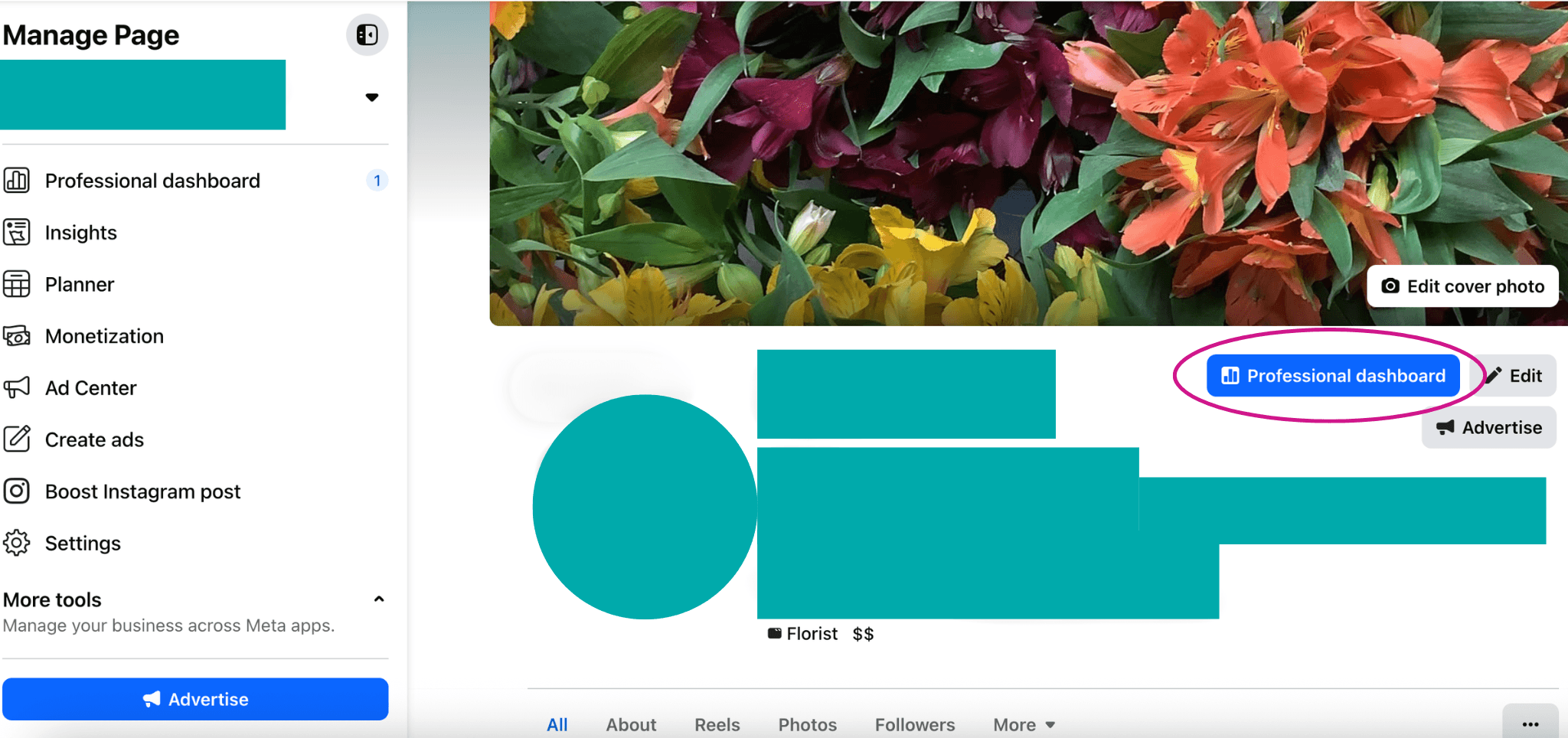
- Click Manage (or go to Professional Dashboard).
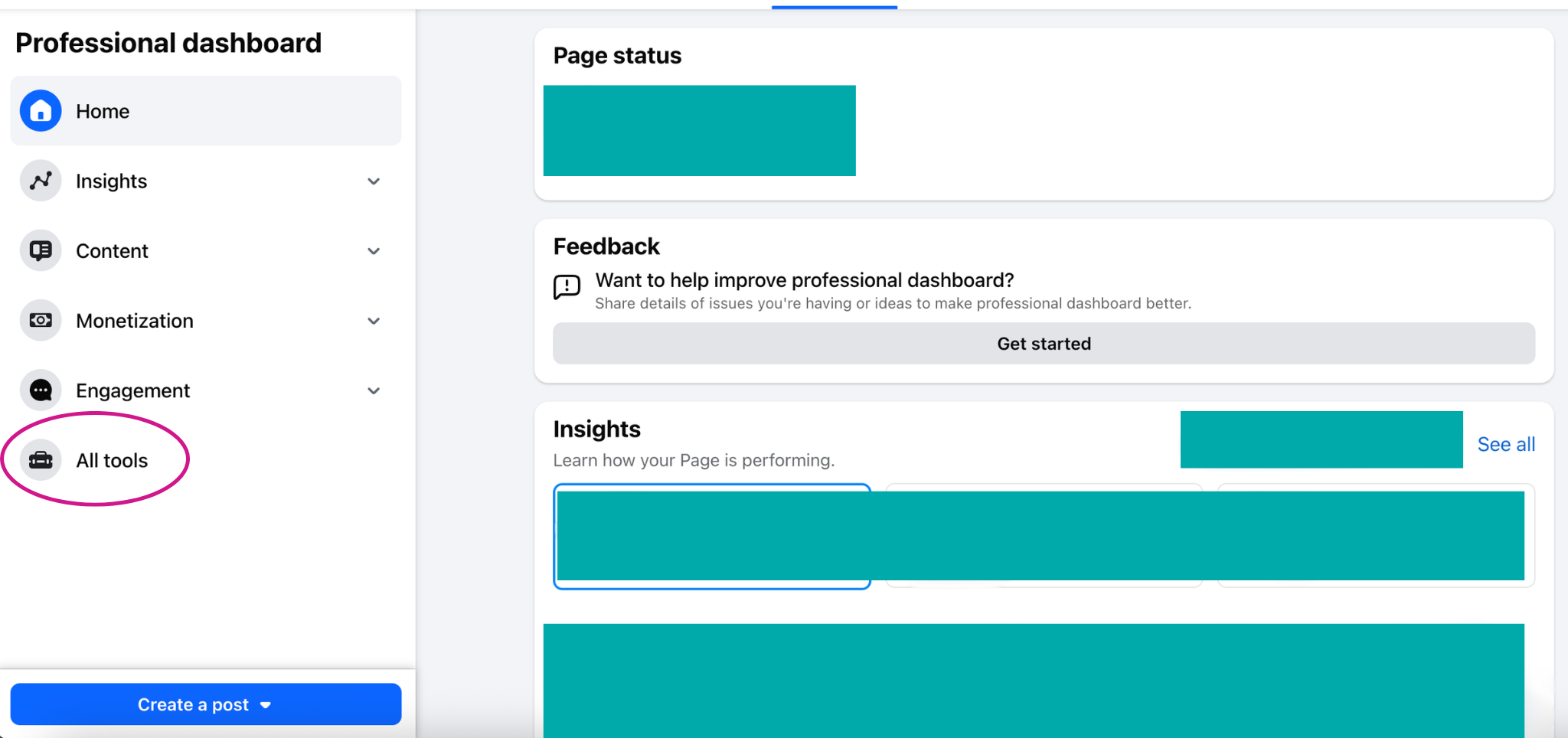
- Click All Tools in the left-hand menu.
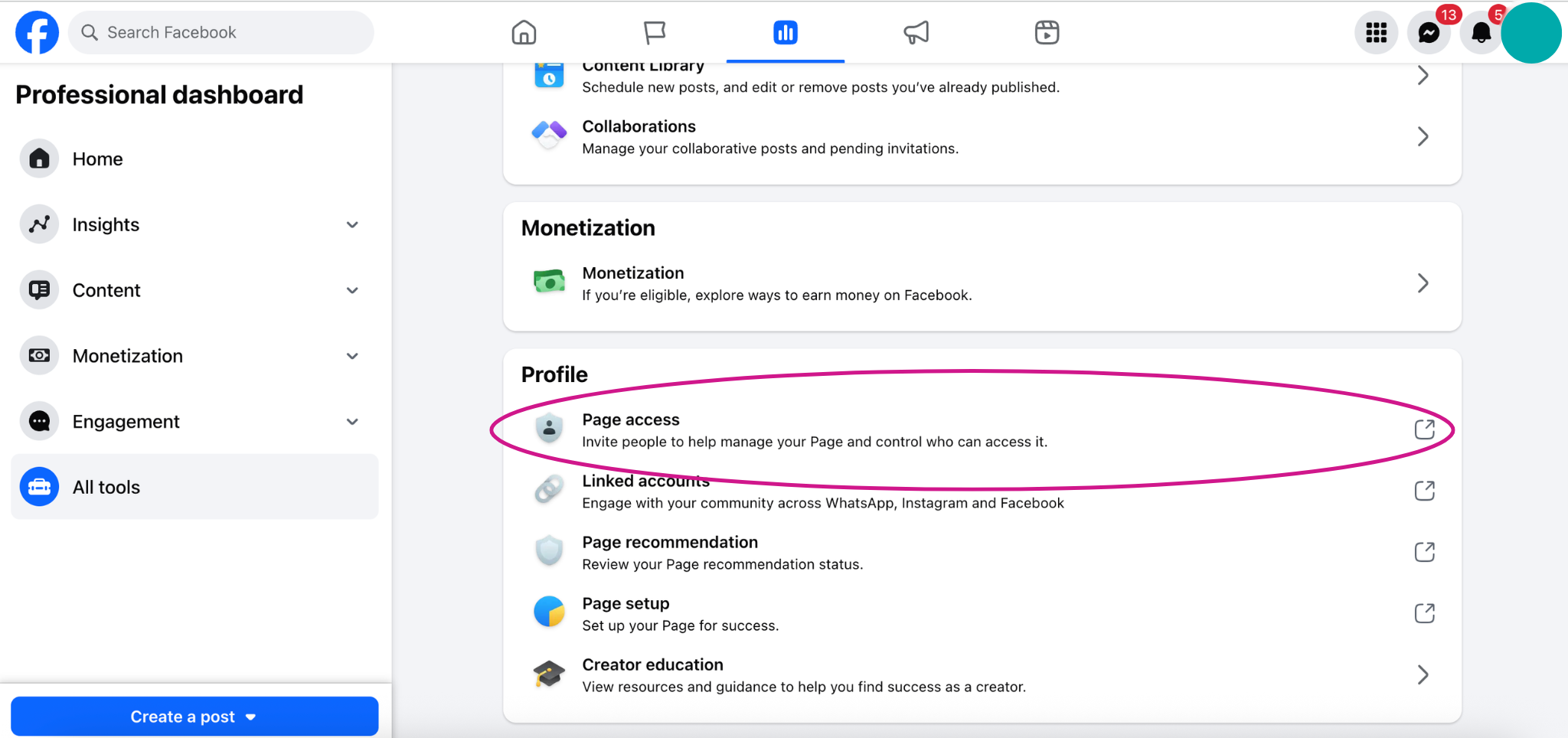
- Scroll to the Profile section and click Page Access.
- Under People with Facebook Access, click Add New.
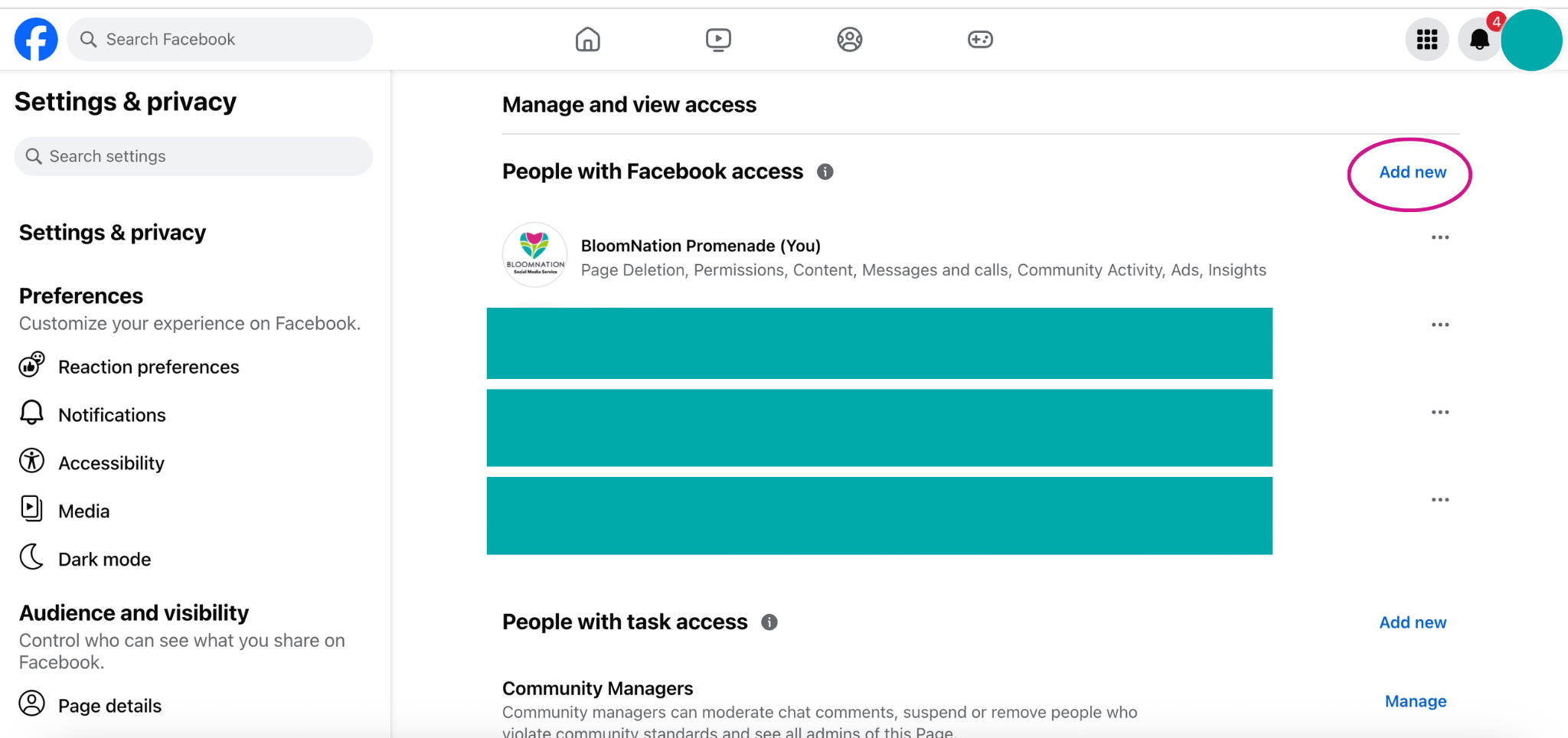
- Click Next.
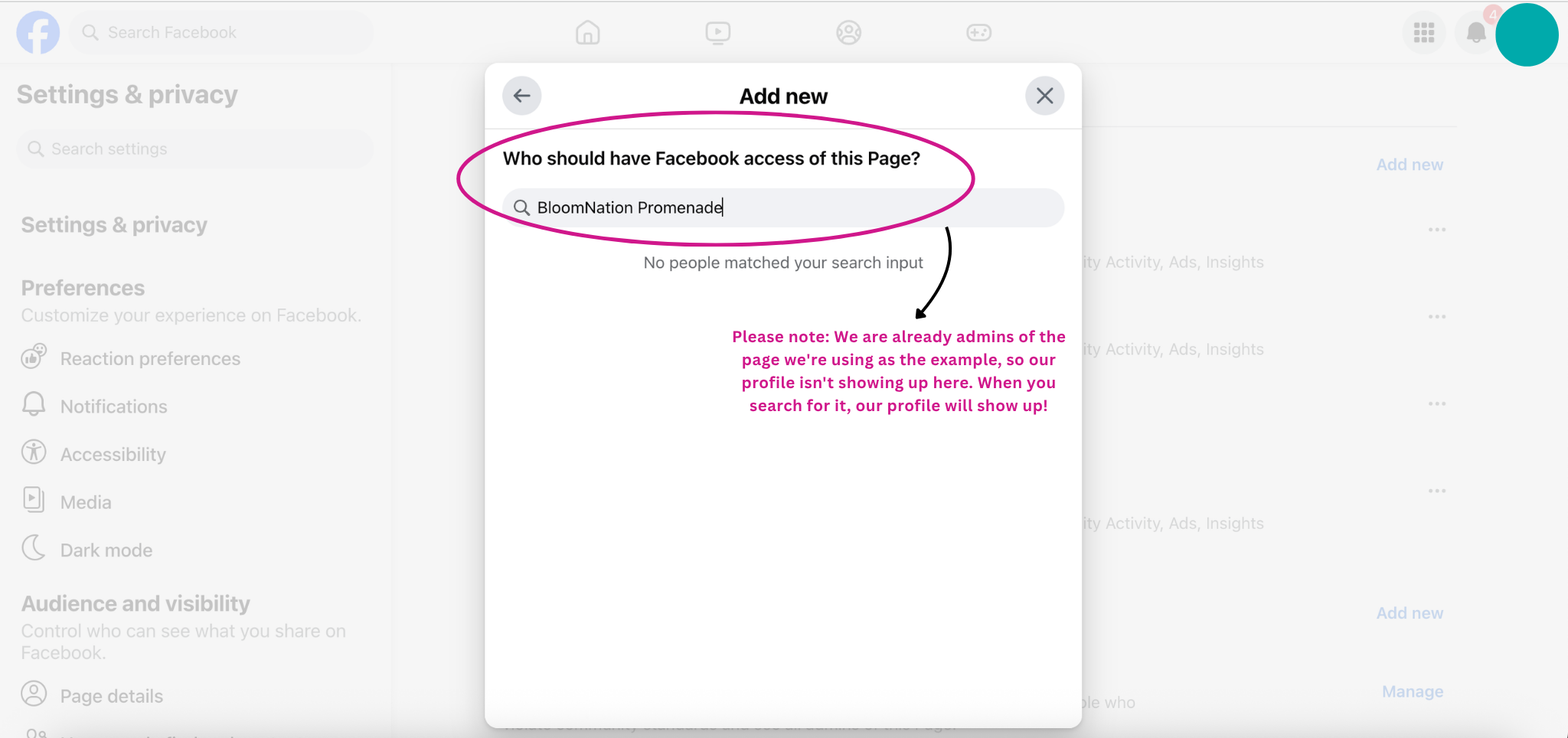
- Type BloomNation Promenade and select our profile.
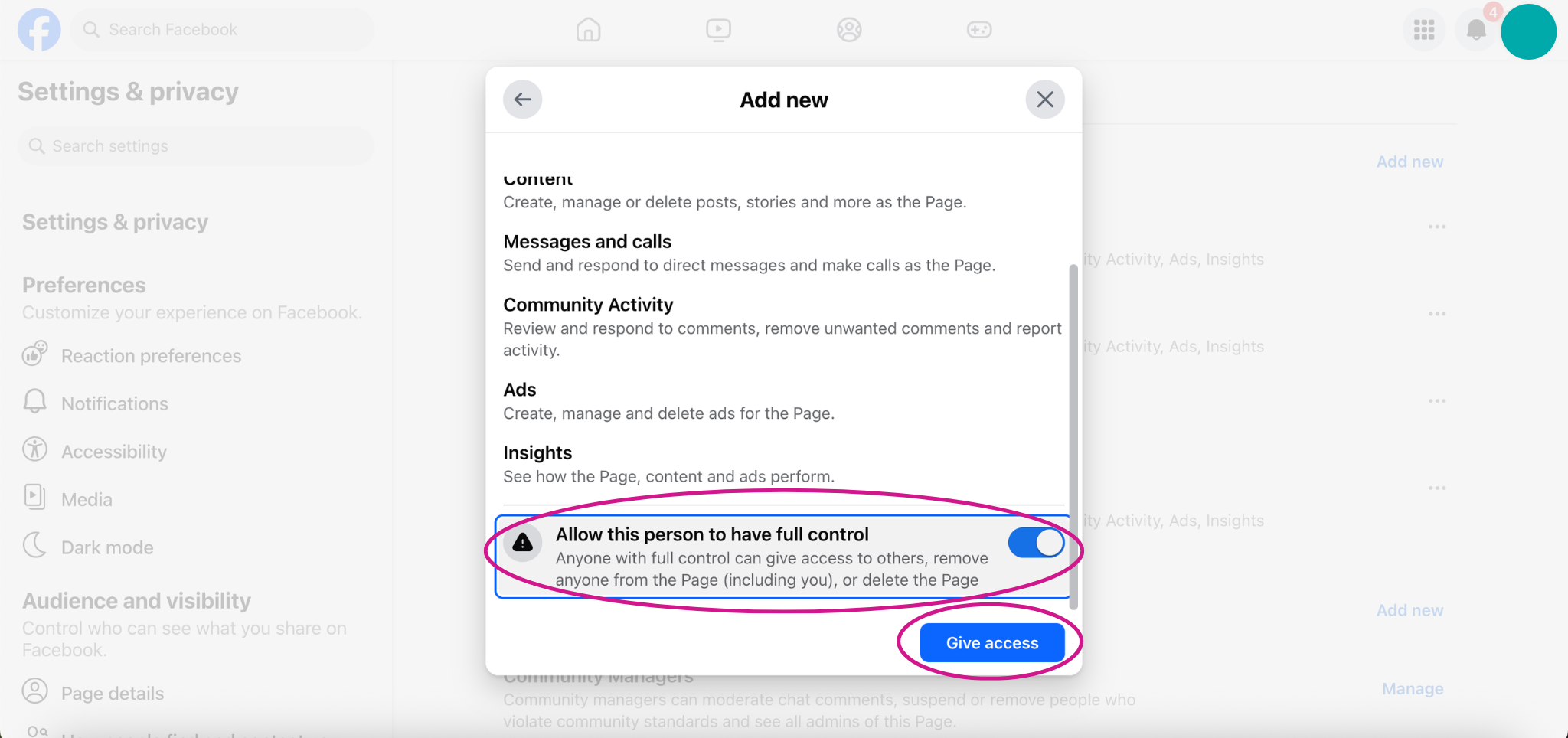
- Turn on the full access toggle to grant admin-level privileges, then click Give Access.
- Enter your password and click Confirm.
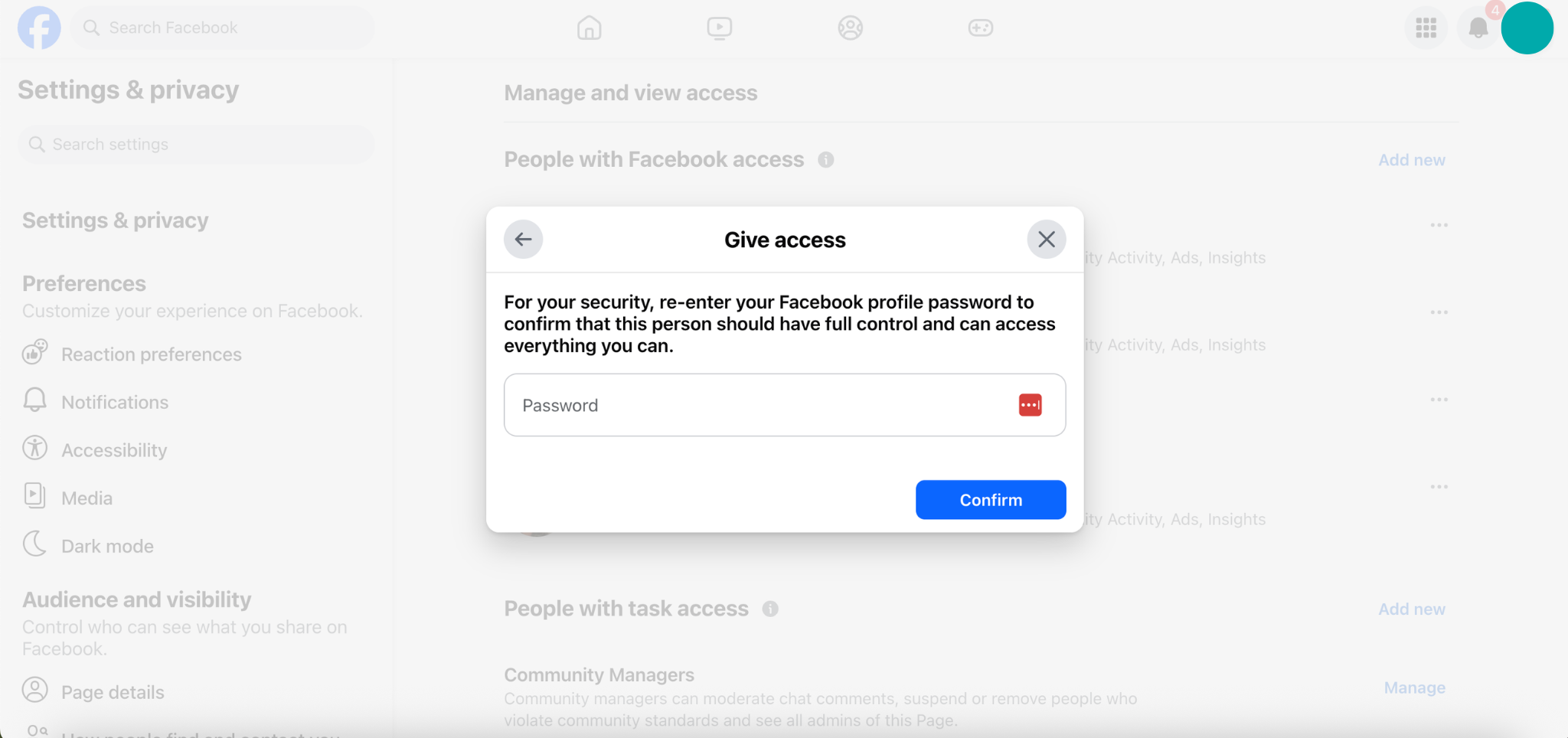
We'll receive a notification inviting us to accept admin access. Access must be accepted before it becomes active. The invite expires after 31 days.
Method 2: Meta Business Suite (Business Portfolio Pages)
Use this method if clicking into your Page settings brings you to a Business Portfolio in Meta instead of the regular Page settings. With this method, you'll add people by email address only. You won't be able to search by name.
-
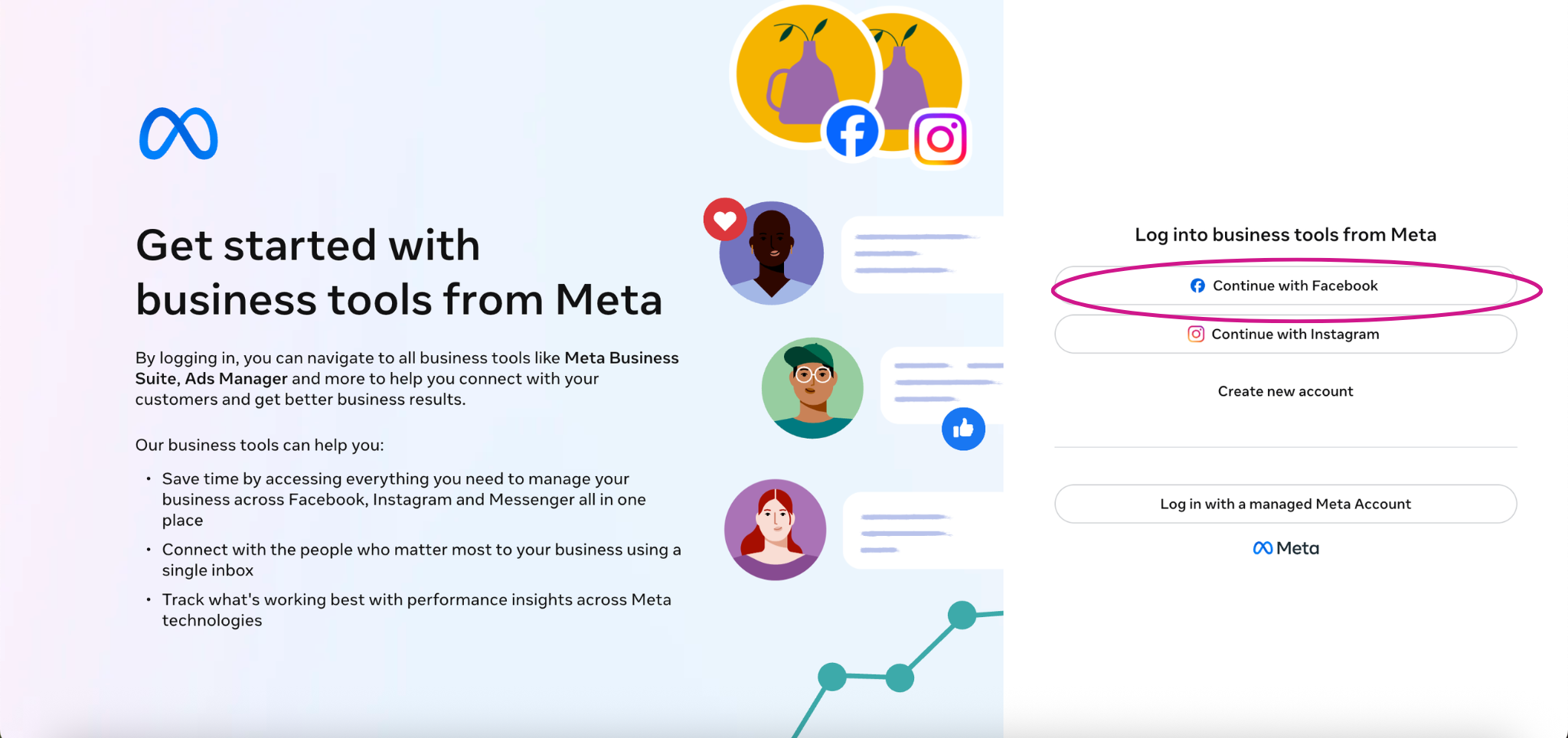
Go to Meta Business Suite and log in.
-
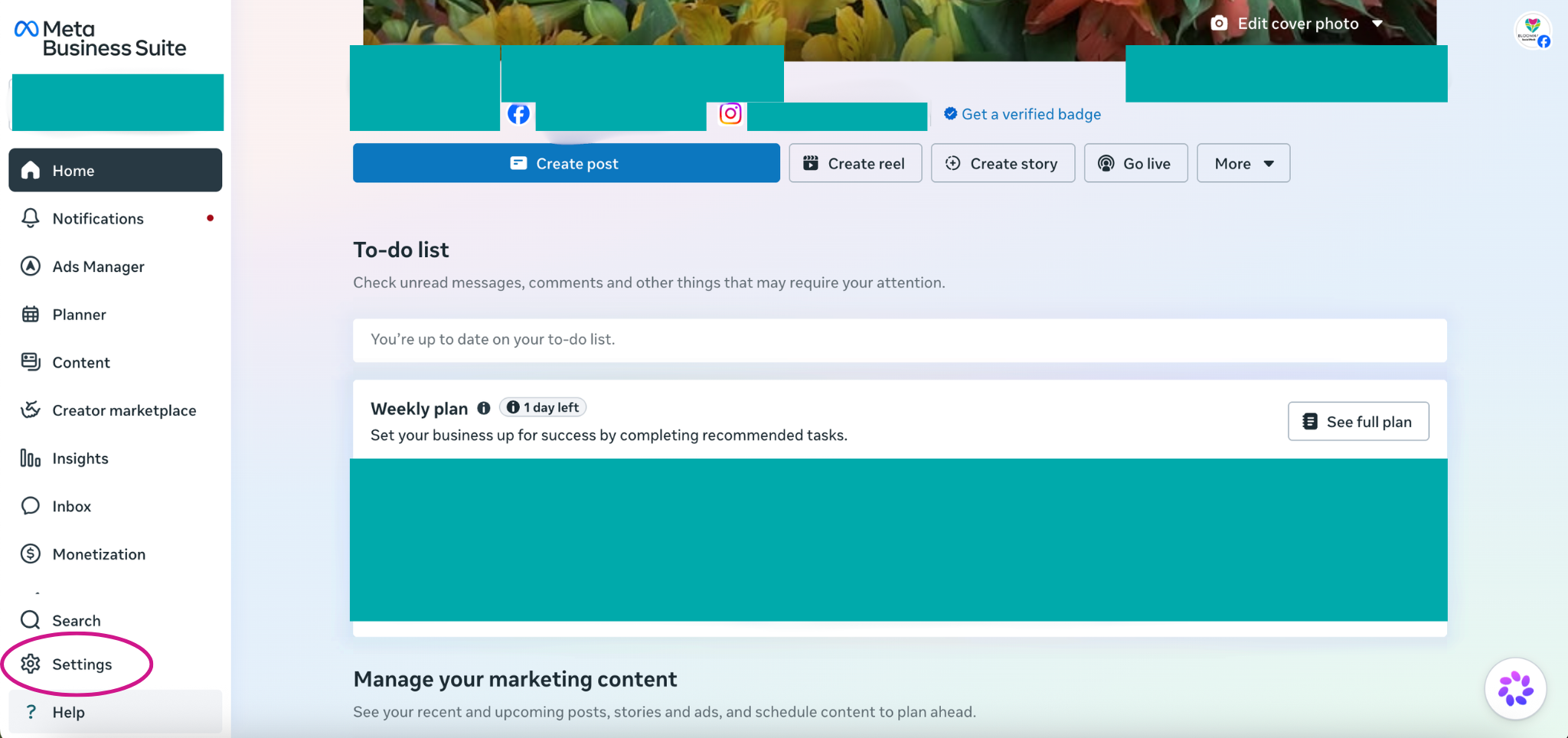
Click the Settings icon (the gear) at the bottom of the left-hand menu.
-
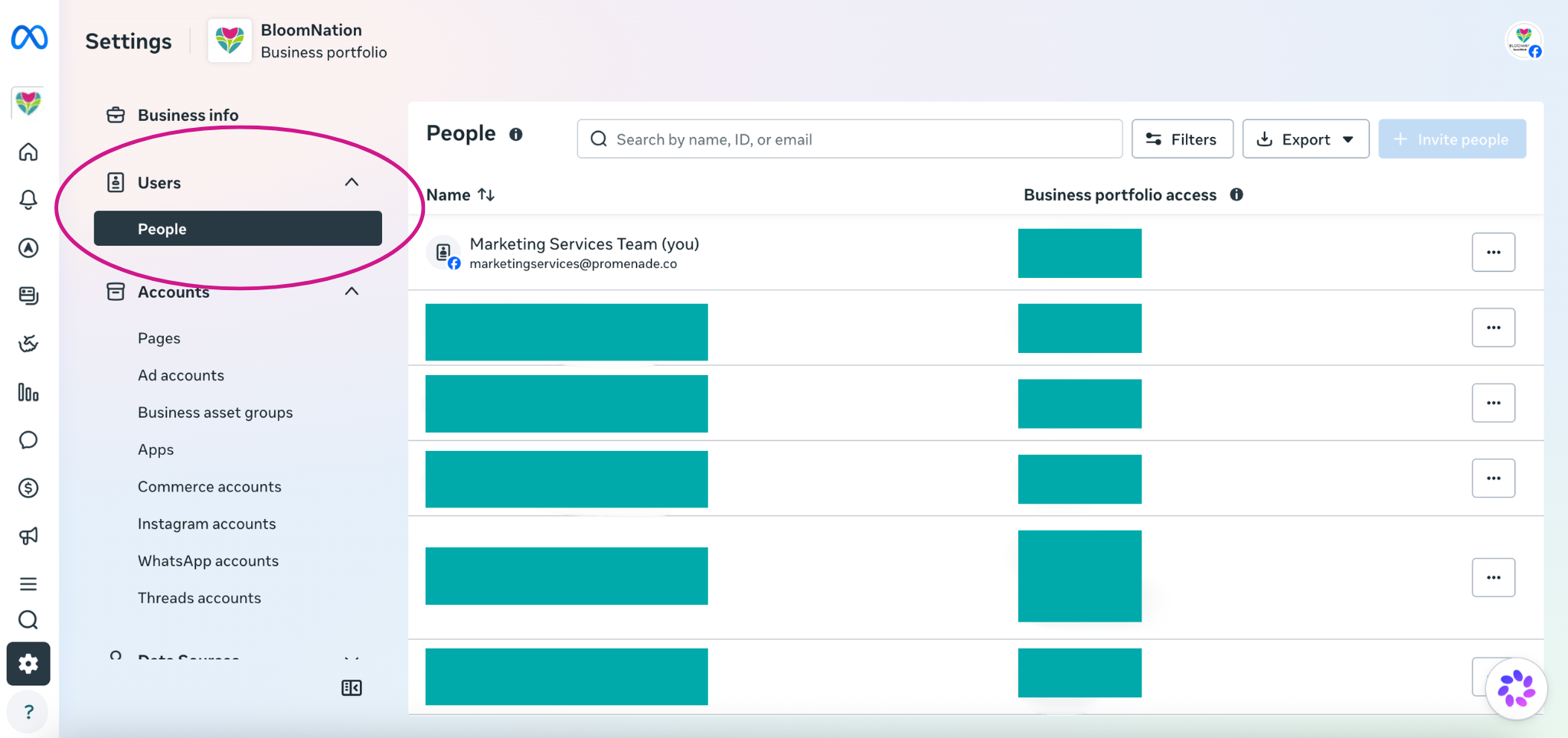
Make sure the correct Business Portfolio is selected in the top left.
-
Click People in the left-hand menu.
-
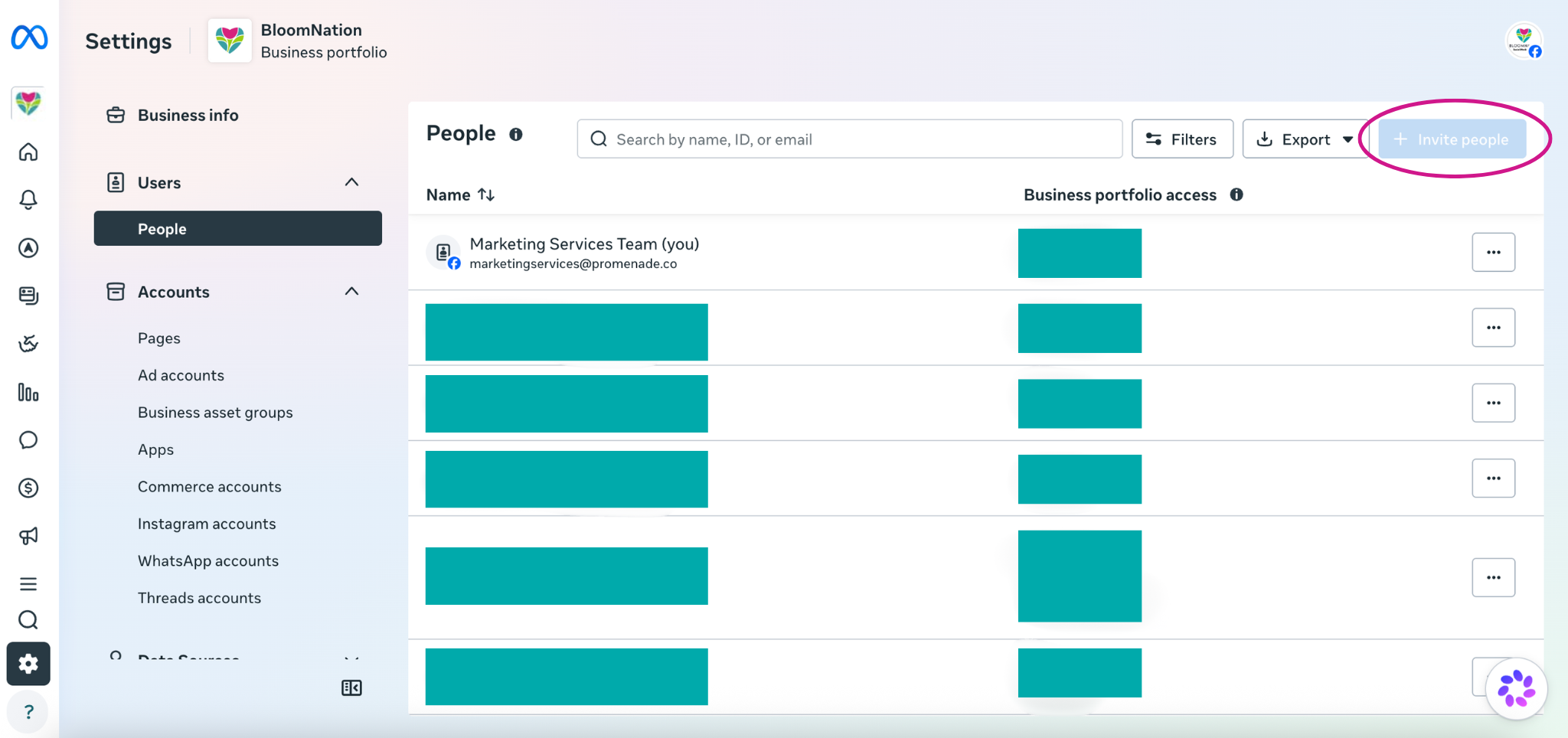
Click Invite People in the top right.
-
Enter the email address: marketingservices@promenade.co
-
Enable Full Control (Business Admin access), then click Next.
-
In the pop-up window, select the assets to share:
- In the left column, click Pages (and Instagram Accounts, if applicable).
- In the middle column, select your Facebook Page (and Instagram account, if applicable).
- In the right column, scroll to the bottom and turn on Full Control (Everything). Note: some accounts may instead display Manage Page.
-
Click Next, then Send.
This sends an invite from your Business Portfolio to the email address entered. Once it's accepted, access is active and posting can begin.
Step 2: Connect Your Instagram to Your Facebook Page (Optional but Recommended)
Connecting Instagram lets us manage posts across both platforms.
- Go to your Facebook Business Page.
- Click Settings, then Instagram.
- Click Connect Account and follow the prompts to log into your Instagram account.
A window will confirm the connection with "Connected ✅."
Step 3: Submit Photos of Your Floral Arrangements (Optional but Recommended)
Original photos of your floral arrangements personalize your posts and showcase your offerings.
Upload at least 15 photos here >>
If you prefer not to provide photos, we can use images from your website or select stock photos that align with your brand.
What Happens Next
Once we've received the necessary access and materials, your Social Media Coordinator will email you to confirm your start date.
Posts go out every Monday, Wednesday, and Friday — 12 posts per month.
Need help?
If you have questions, our Partner Support team is here to help.
Phone: (210) 405-5050
Email: support@bloomnation.com