
Sending a Receipt
Updated Ver en español
Sending a Receipt
There are multiple ways to send an order receipt once you are logged into your BloomNation POS. Sending a receipt after the initial order confirmation can be useful when a customer requests a duplicate copy, has misplaced the original, or prefers to receive it via a different communication method (email or text). This ensures a smooth experience and gives them quick access to their purchase details.
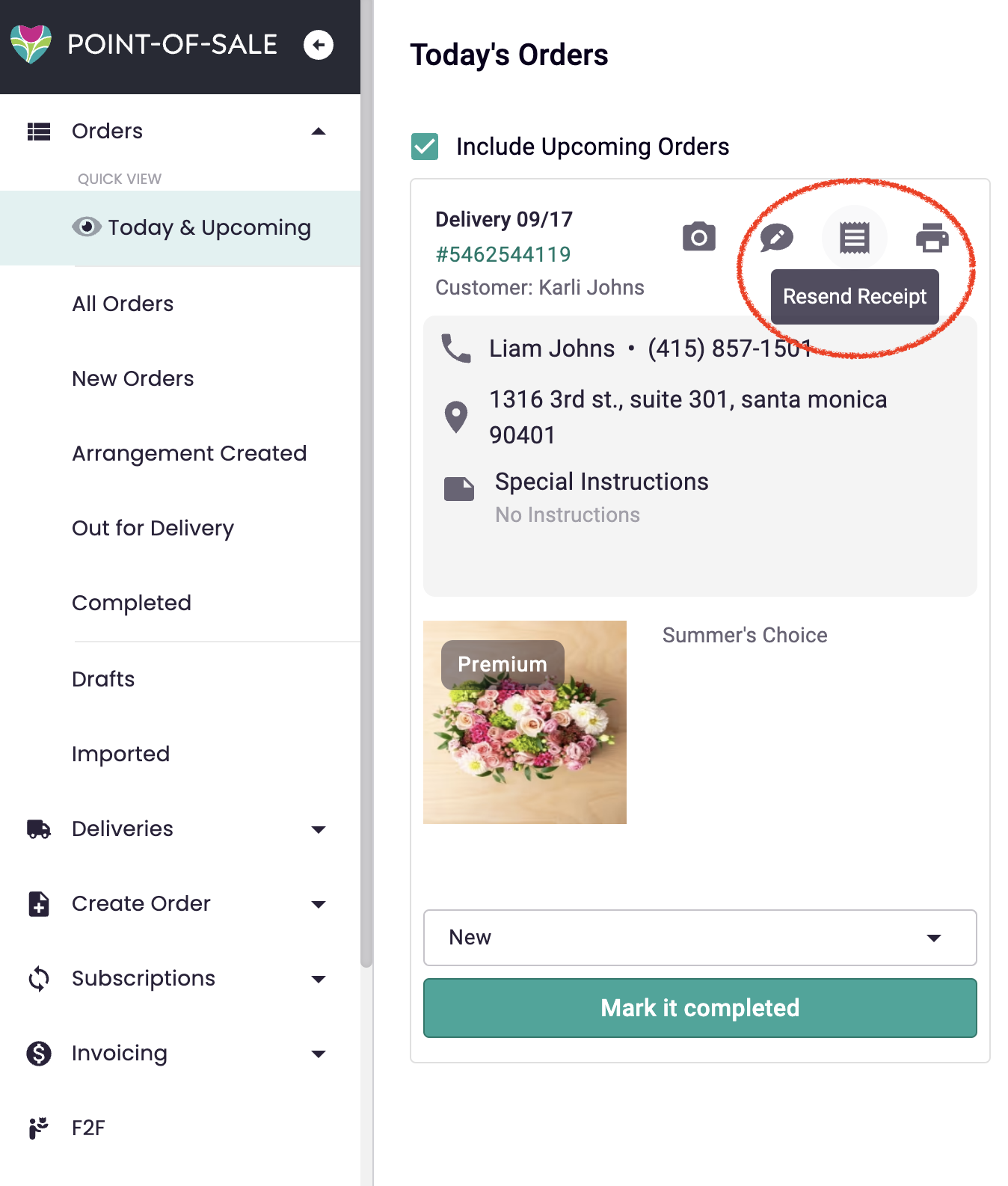
Today's and Upcoming Orders Sub-Tab:
- Click the "Resend Receipt" icon.
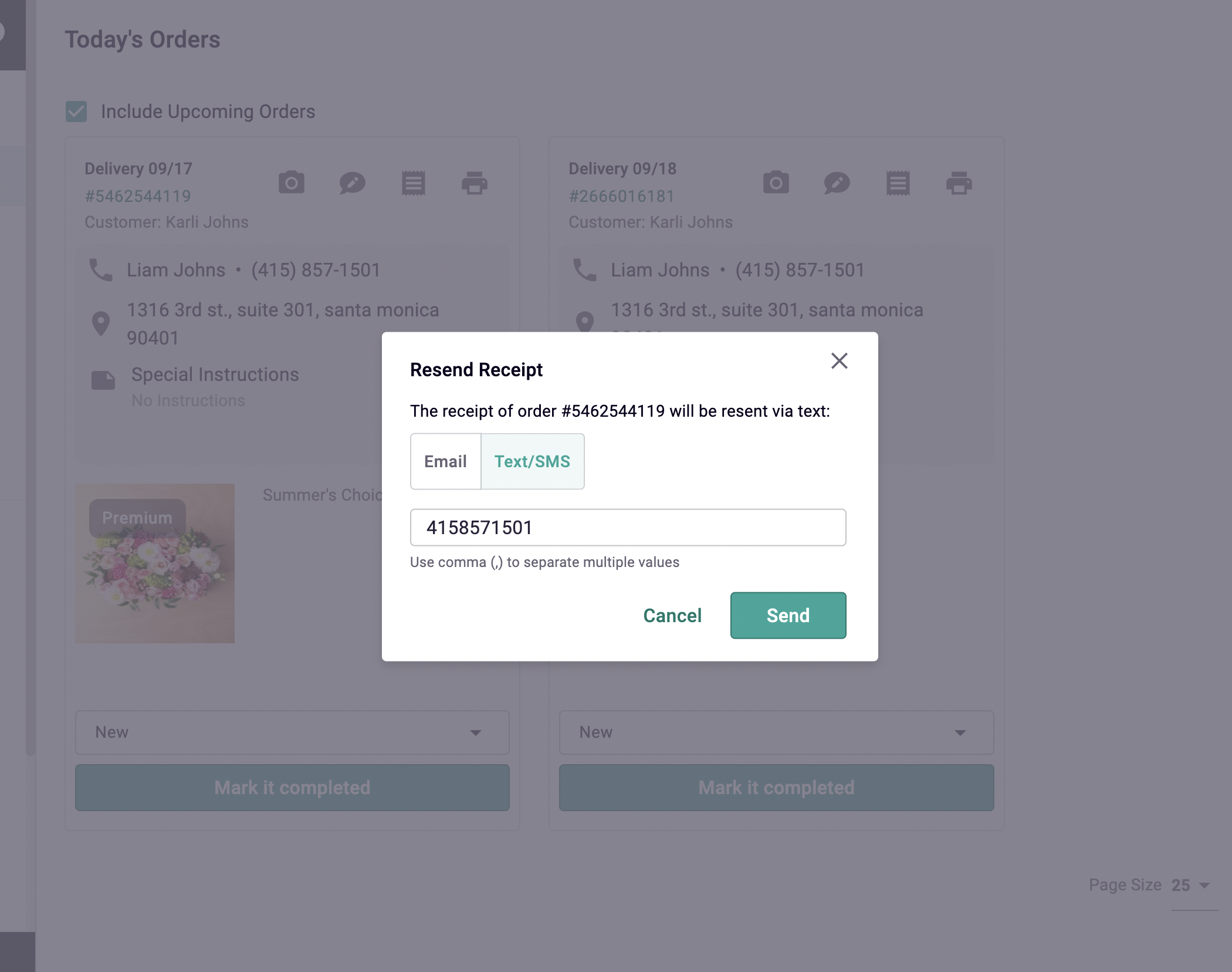
- Choose to send via email or text (SMS). Both fields will be pre-populated with the customer’s provided email or phone number. You can also enter a different one, if necessary.
- Click ‘Send’.
Order Grids:
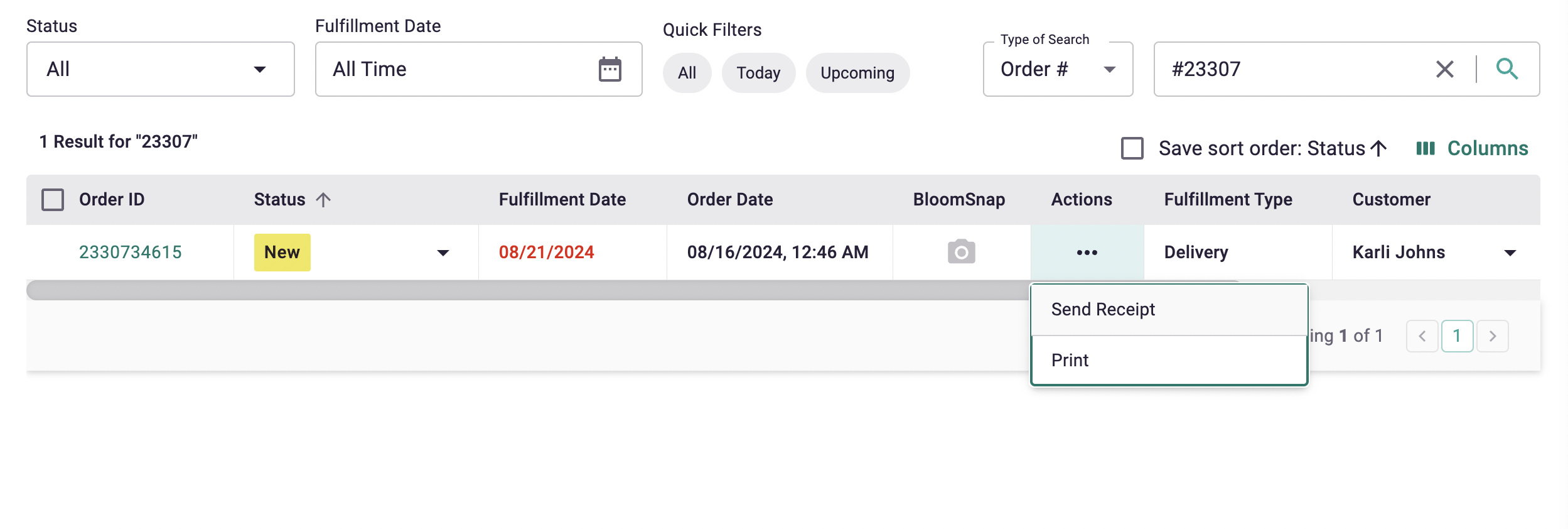
- In any of the Order grids (All Orders, New Orders, Arrangement Created, Out for Delivery, Completed), locate the order you want to send a receipt for.
- Search for the order by Order #, Customer, Customer Phone #, or Recipient.
- Once found, navigate to the 'Actions' column and click the ellipsis.
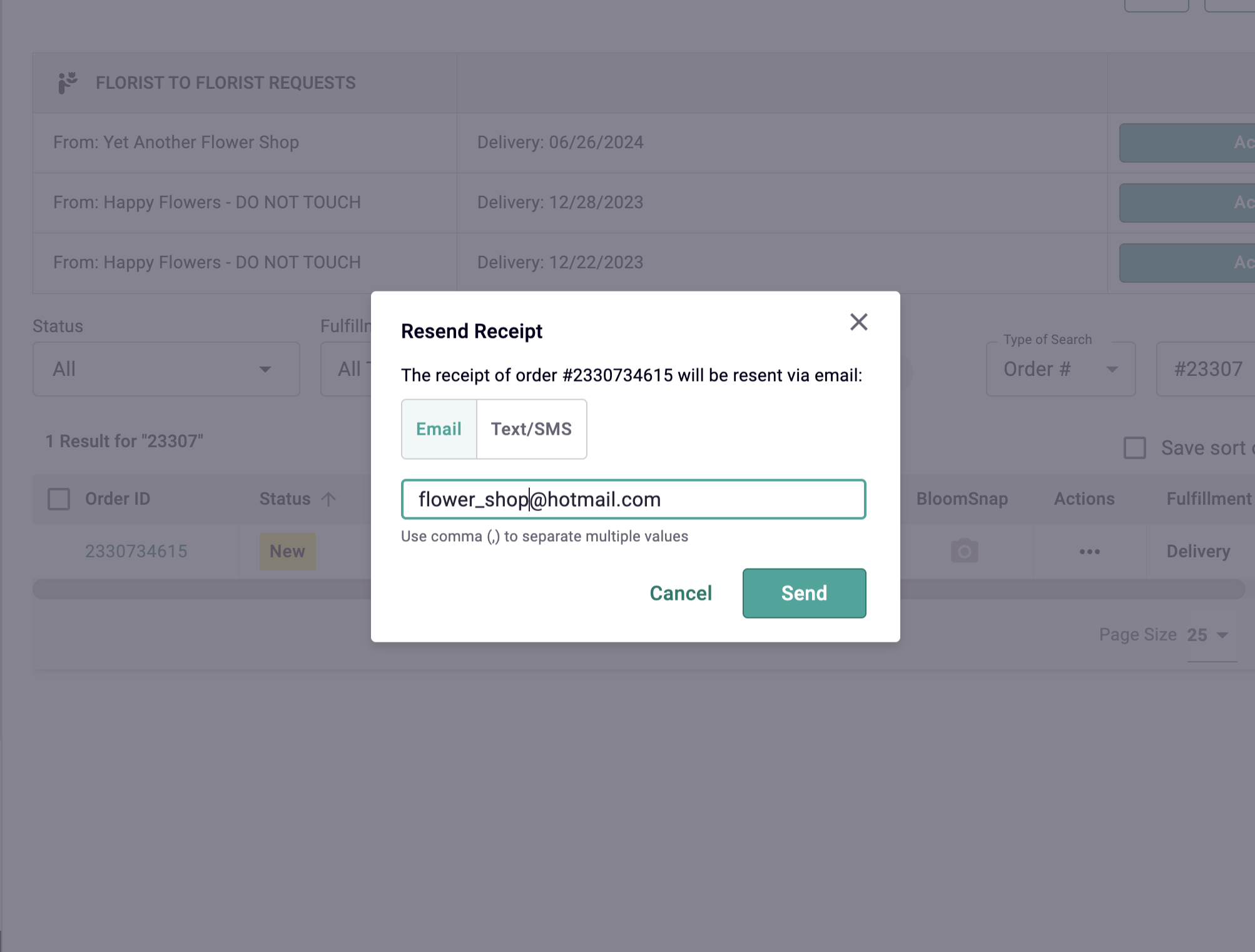
- Click ‘Send Receipt’ from the pop-up, and follow the same steps as above to enter the desired email or phone number, and send. The fields will be pre-populated with the customer’s info on file.
Order Details Page:
- Access the Order Details page for the order you want to send a receipt for (e.g., through the Customers section by finding the customer and navigating to their Past Orders).
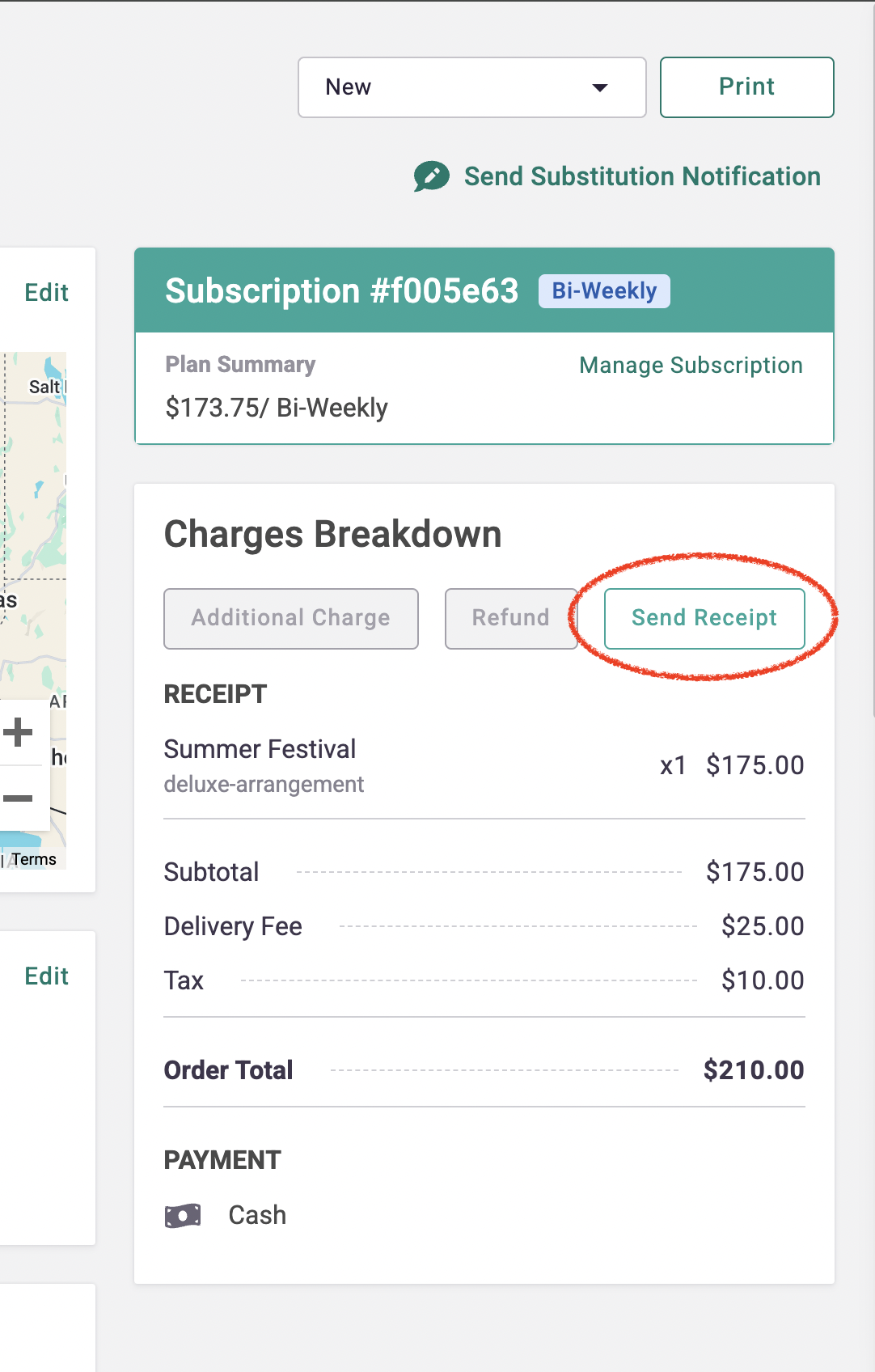
- Scroll to the 'Charges Breakdown' section and click 'Send Receipt'.
- Follow the same process to enter or confirm the recipient’s email or phone number, and send.
If you have any questions or need help with editing your orders, let our Bloom Experts know by submitting a ticket!